A Sigma agent that only knows your warehouse can't answer "what's the latest news on this account" — it needs a way to reach outside your data. This QuickStart connects a Sigma agent to Tavily, a search API built for AI agents, so it can pull in live results and cite its sources alongside the data it already reasons over.
The example
Tavily returns a synthesized written answer alongside a set of individual results, rather than a raw list of links to parse — which makes it a good fit for an agent that needs to read a source and respond in the same turn. You'll wire it up in two parts: first as a Sigma API connector, then as an action a Sigma agent can call mid-conversation.
Along the way you'll learn how to:
- Create a credential and a custom API connector in Sigma that calls Tavily's search endpoint
- Shape the connector's request and response so the agent receives a written answer and structured, citable sources
- Add the connector to a Sigma agent as a callable action, with instructions precise enough that the model knows when to reach for it
- Test that the agent uses web search only for questions that call for live information, not for questions your data can already answer
For more information on Sigma's product release strategy, see Sigma product releases
If something doesn't work as expected, here's how to contact Sigma support
Target Audience
This QuickStart is designed for:
- Sigma agent builders who want to extend an agent's knowledge beyond the warehouse
- Teams already using Sigma agents who need current, real-world context alongside their data
- Anyone evaluating how Sigma agents combine governed data with live, external information
For the fundamentals of building and configuring a Sigma agent, see Agents 01: Building Your First Sigma Agent — but this QuickStart includes everything you need to follow along on its own.
Prerequisites
- Any modern browser is acceptable.
- Access to a Sigma environment with an AI provider configured, and an existing Sigma agent (via a chat element) to attach this tool to. If you haven't built one yet, see Build agents.
- A Tavily account and API key. Tavily's free tier is sufficient for this QuickStart — sign up at tavily.com.
- Admin access in Sigma to add API connectors and credentials under
Administration. - Some familiarity with Sigma is assumed. Not all basic steps will be shown.
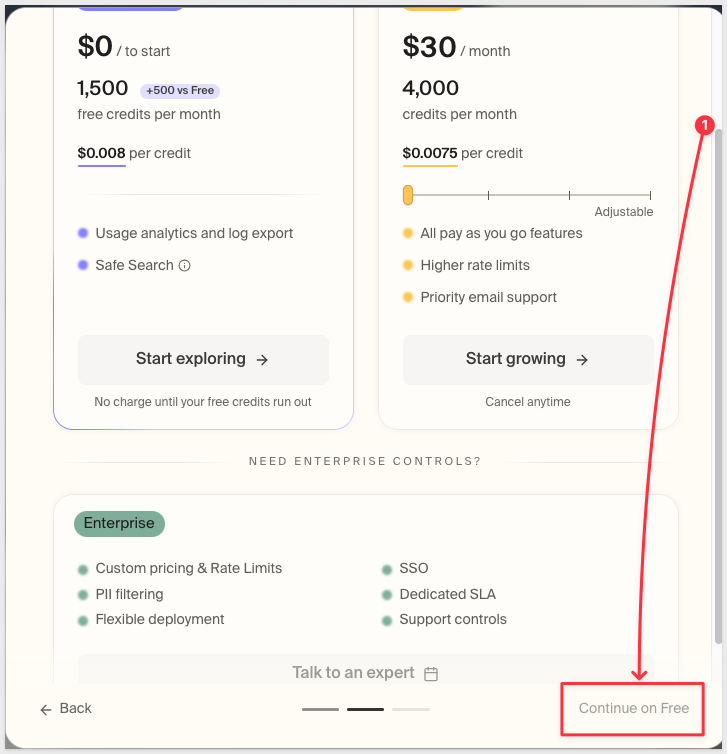
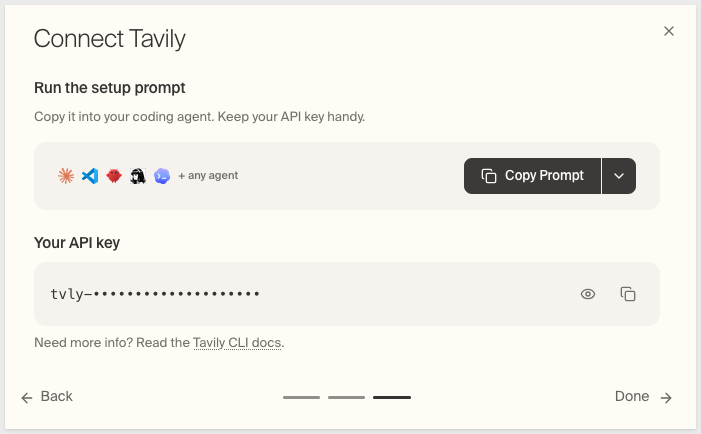
Once you're through, copy your API key from the Connect Tavily screen — you'll paste it into Sigma in the next section:

Tavily is a plain REST API, so there's no MCP server or custom code to stand up — Sigma just needs a credential and a mapping between the request it sends and the response it gets back.
The credential has to exist first, since the connector form can only select from credentials that are already there.
Create the credential in Sigma
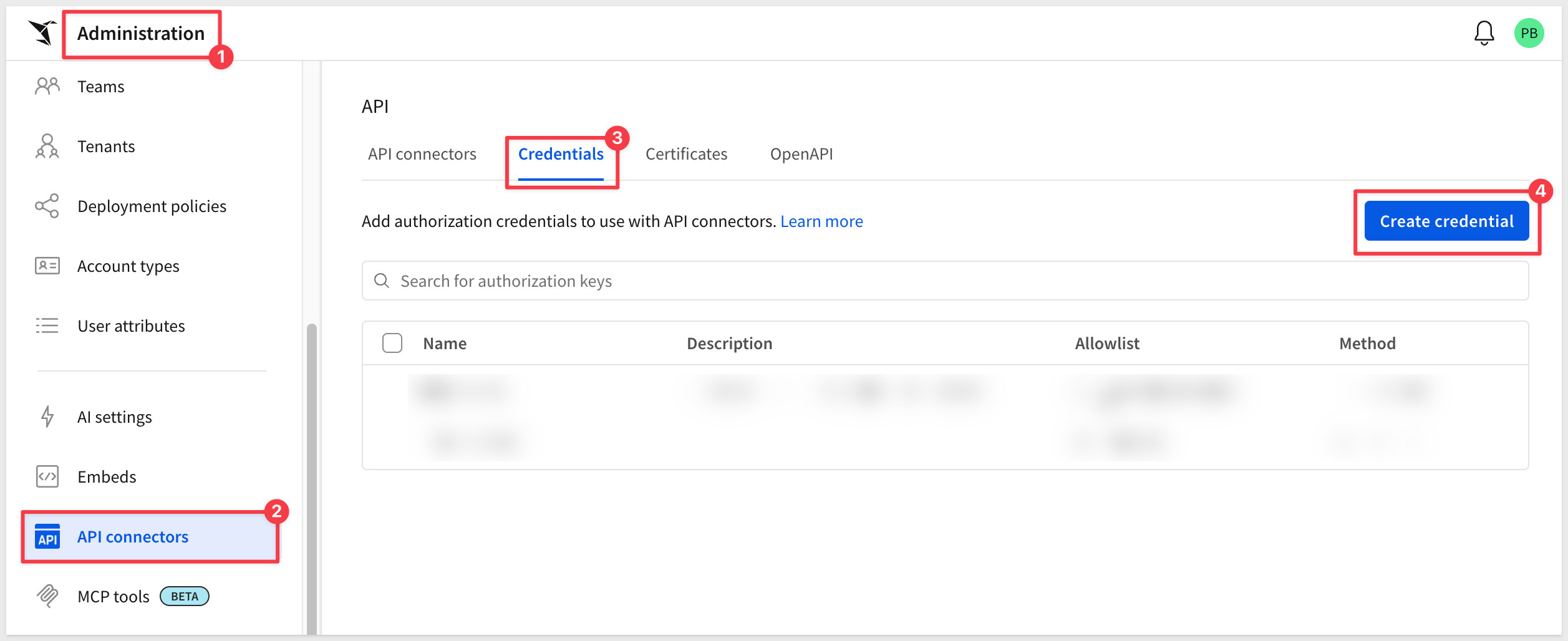
1. Go to Administration > API connectors > Credentials.
Click Create credential:
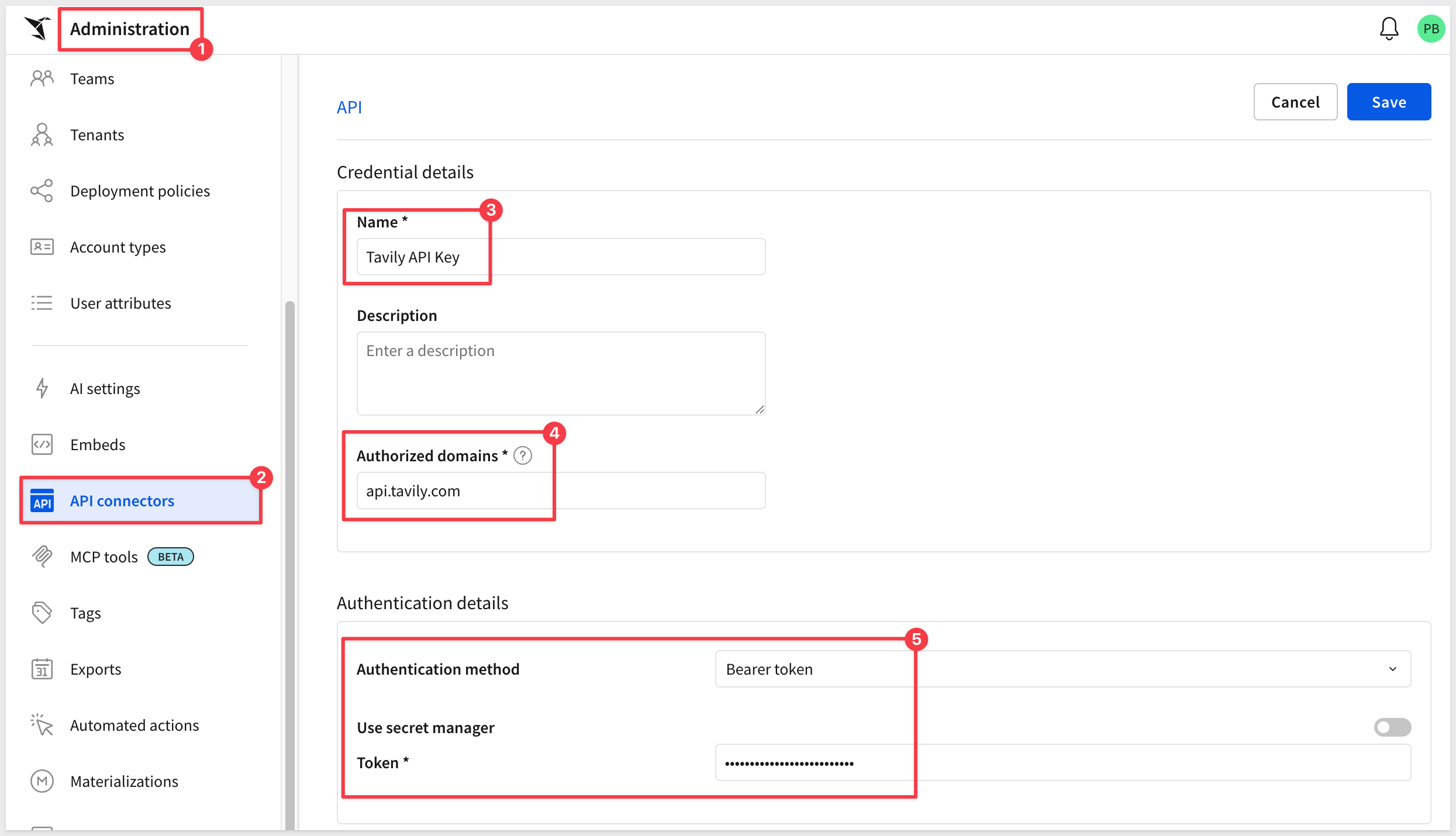
2. Under Name:
Tavily API Key
3. Under Authorized domains:
api.tavily.com
Scoping the credential to this domain keeps the key from ever being sent to any endpoint other than Tavily's.
4. Under Authentication method, select Bearer token. Tavily doesn't issue a separate bearer token — your API key doubles as one; Sigma sends it as Authorization: Bearer {your key}.
5. Under Token, paste your Tavily API key:
6. Click Save.
Create the connector
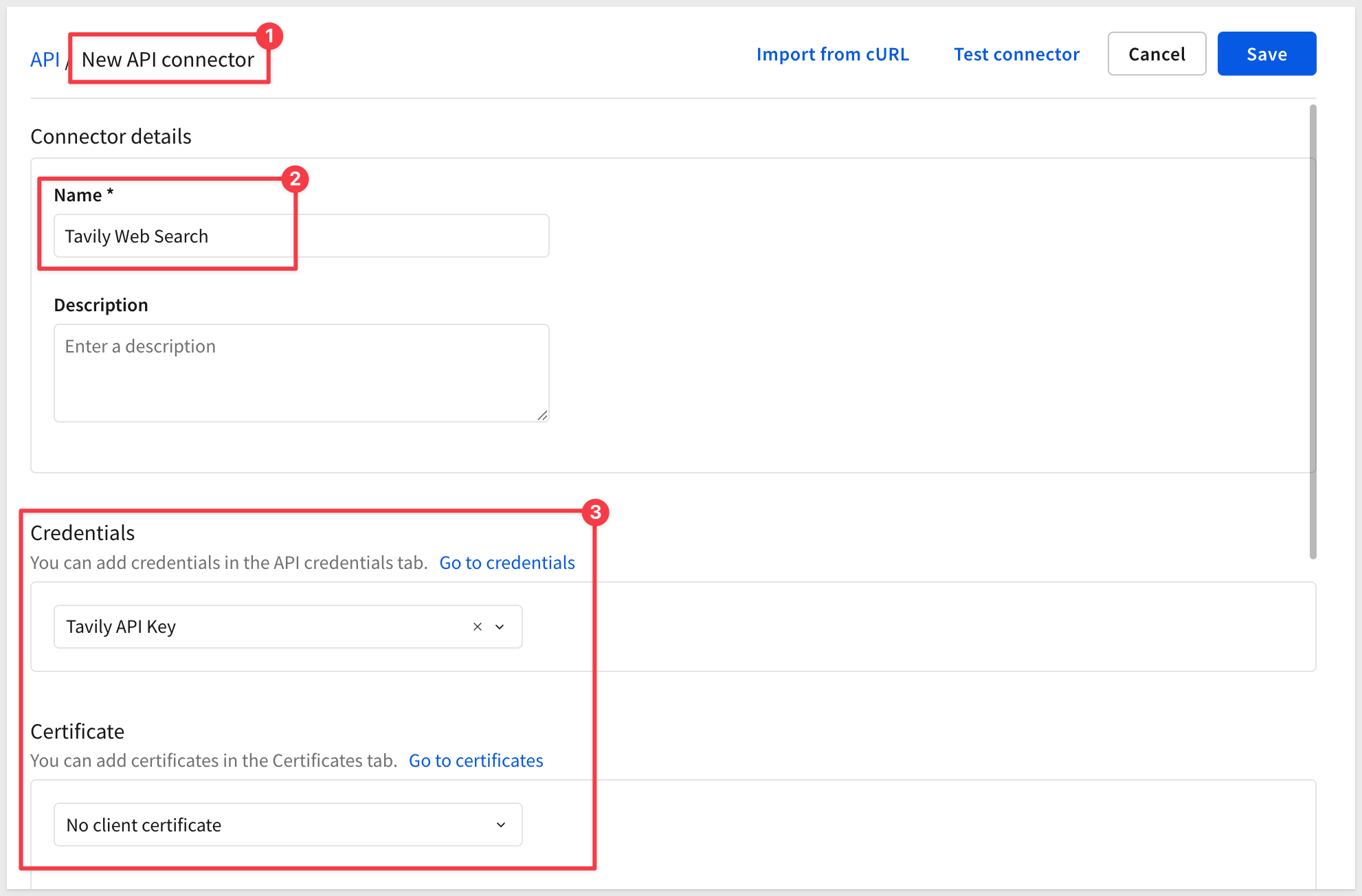
1. Switch to the API connectors tab and click Create connector.
2. Under Name:
Tavily Web Search
3. Under Credentials, select Tavily API Key.
4. Under Certificate, leave No client certificate selected — Tavily doesn't require one.
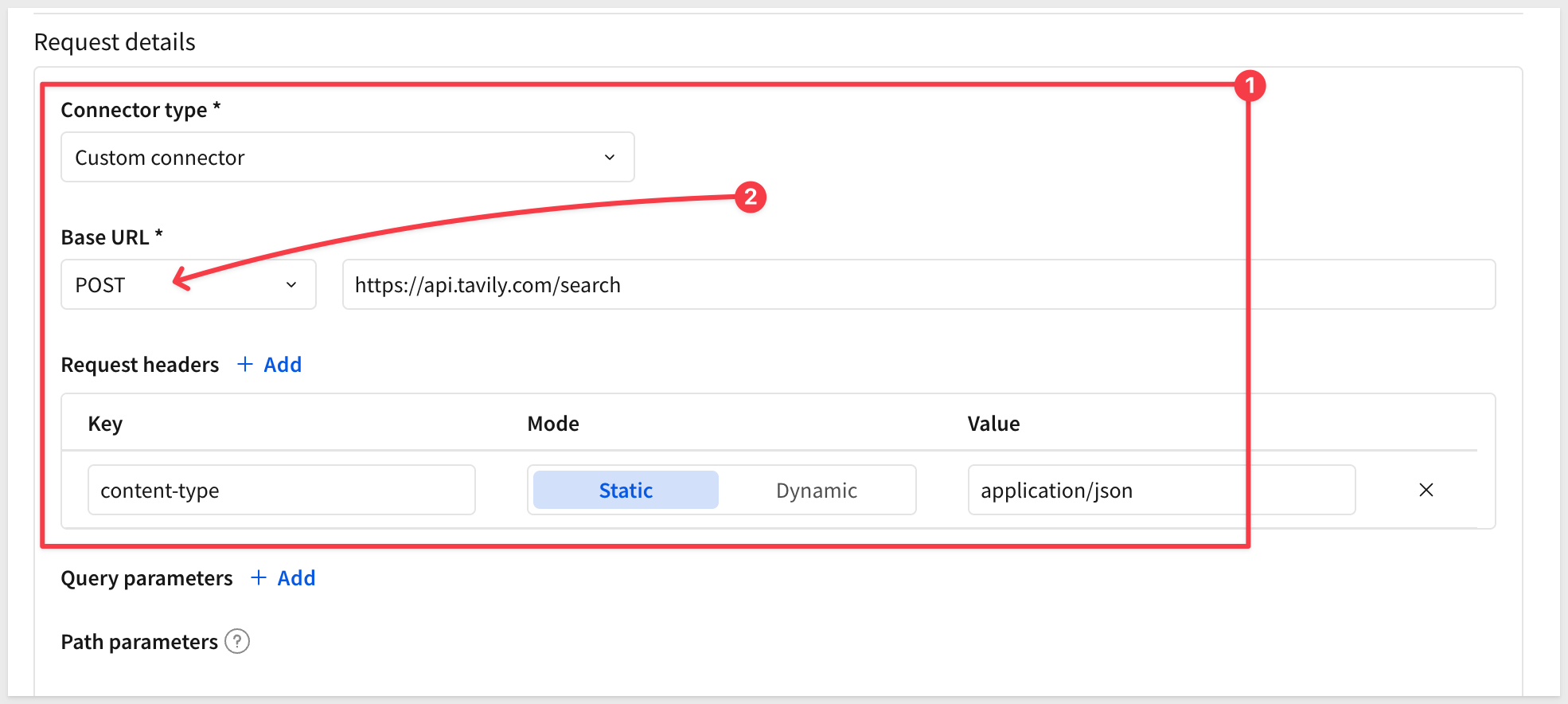
5. Scroll further down and ensure Custom connector is selected.
6. Under Base URL, set the method dropdown to POST (it defaults to GET) — the search query travels in the request body, and only POST sends one — then enter:
https://api.tavily.com/search
Request headers
7. Click + Add and add one header:
- Key:
content-type - Mode:
Static - Value:
application/json
Static is correct here because this value never changes between calls — it just tells Tavily to expect a JSON body.
Request body
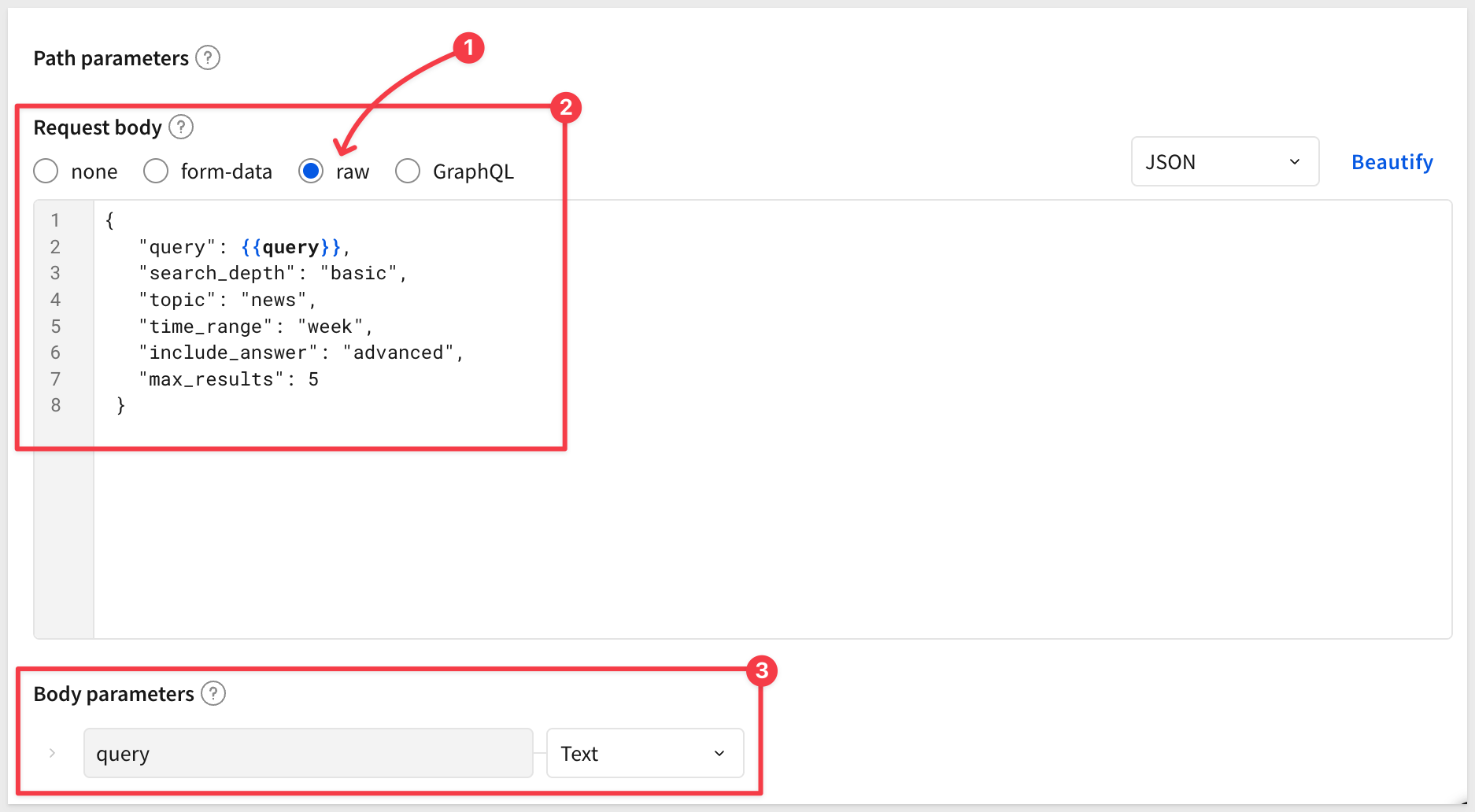
8. Select raw, then paste:
{
   "query": {{query}},
   "search_depth": "basic",
   "topic": "news",
   "time_range": "week",
   "include_answer": "advanced",
   "max_results": 5
 }
9. Below the body, find {{query}} in the detected values list and set Type to Text. This tells Sigma to wrap the value in quotes automatically at send time — never type the quotes yourself.
Response output (scroll down more...)
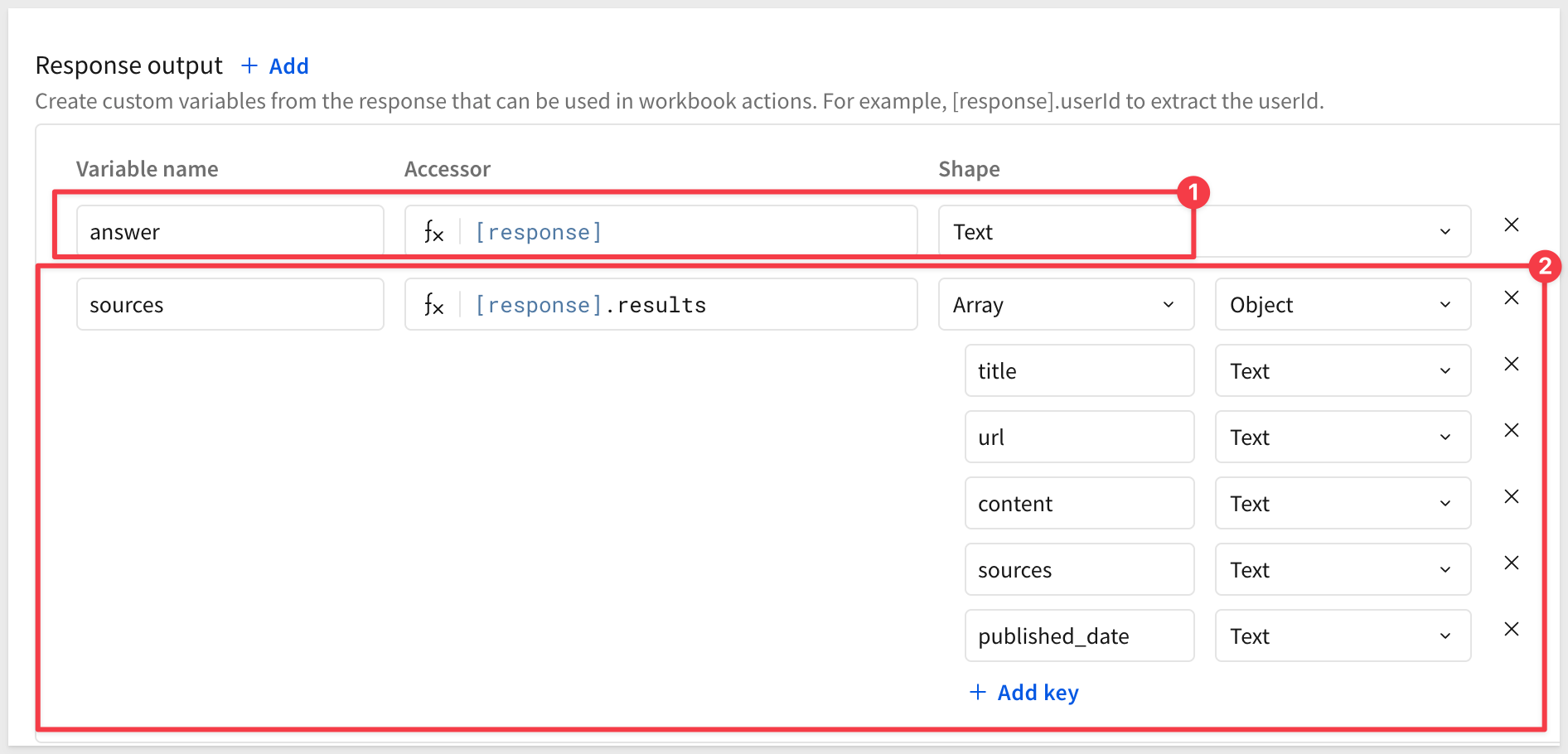
10. Click + Add and create the first variable:
- Variable name:
answer - Accessor:
[response].answer - Shape:
Text
11. Click + Add again and create the second variable:
- Variable name:
sources - Accessor:
[response].results - Shape:
Array>Object
12. Inside sources, click + Add key five times and add:
title—Texturl—Textcontent—Textsources—Textpublished_date—Text
answer is the synthesized paragraph the agent reads and responds with. sources gives it the individual articles it can name, link to, quote, and date if asked to cite them.
Advanced configuration
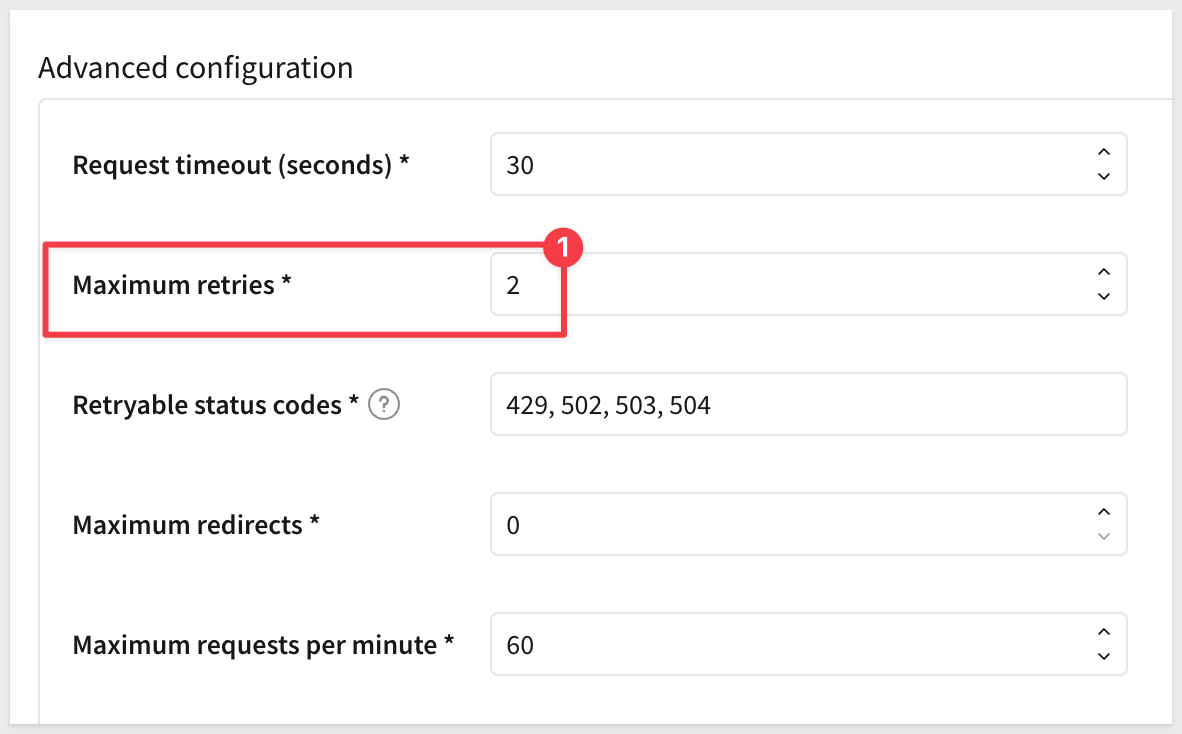
Sigma pre-fills this section with sensible defaults for a new connector — only Maximum retries needs to change.
13. Set:
- Request timeout (seconds):
30— Tavily typically replies in 1-3 seconds; this leaves margin. - Maximum retries:
2— defaults to0; raise it so a temporary failure doesn't kill the whole call. - Retryable status codes:
429, 502, 503, 504— temporary failures worth retrying. - Maximum redirects:
0— this endpoint never redirects. - Maximum requests per minute:
60— keeps the connector inside Tavily's free-tier quota during testing.
14. Click Save — the connector has to be saved before it can be tested.
Test the connector
Click on Tavily Web Search to reopen the connector and click the Edit button.
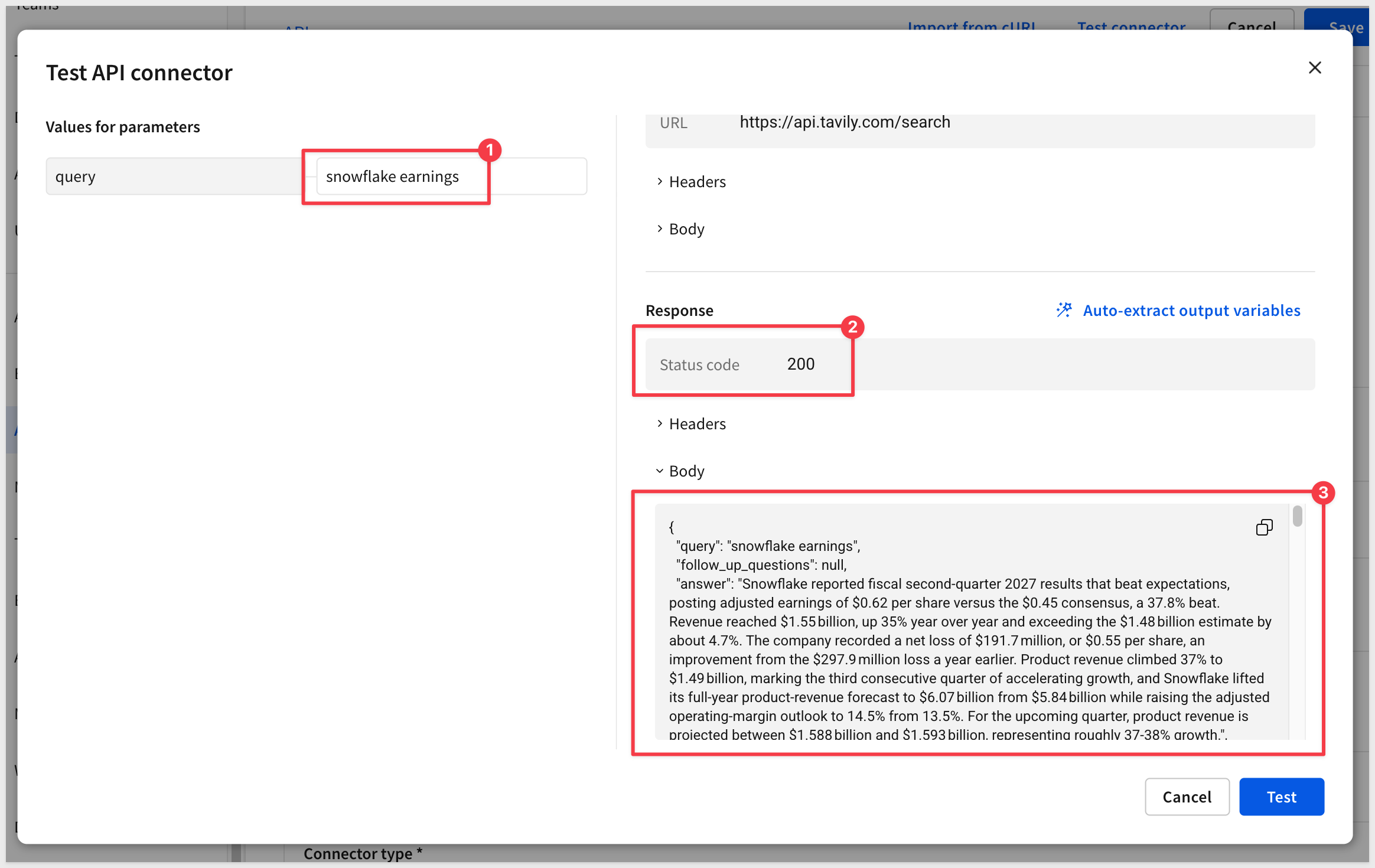
1. Click Test connector.
2. Enter a query, for example:
snowflake earnings
3. Run it and confirm the status code is 200 and answer holds a written paragraph, not null:
4. Click Save.
The connector is live.
With the connector tested, wire it into an agent as an action it can call mid-conversation.
Add the action
1. Create a new workbook, add a Chat element from the UI group on the Element bar:
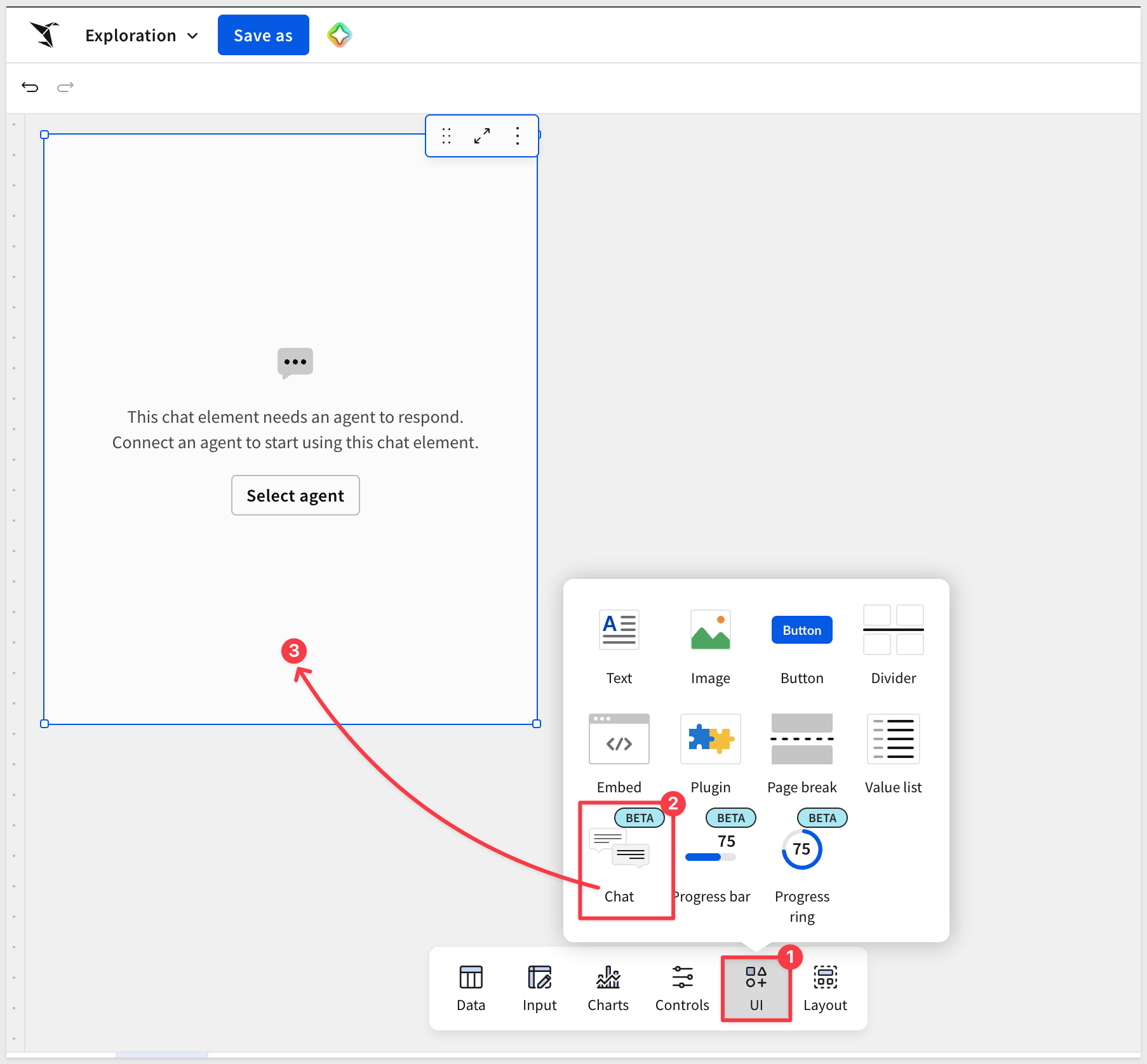
Click the Select agent button and select + Create new agent.
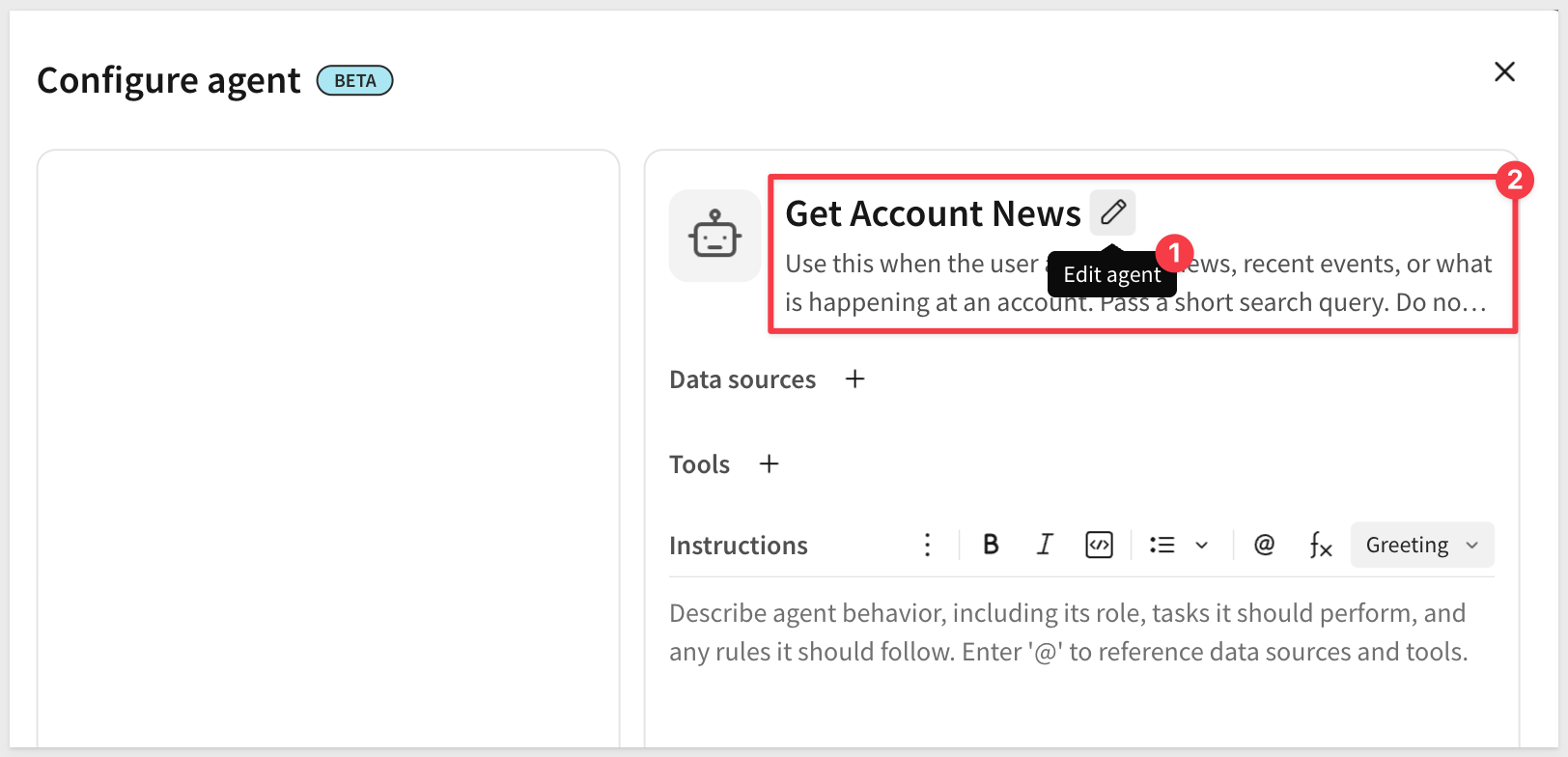
2. In the agent's configuration, under Tools, click + and select Actions.
3. In the Actions panel, click the pencil icon next to Untitled and rename it:
Get Account News
Configure the step
Still in the same Configure agent panel, add a step that defines what actually happens when the agent calls this action.
1. Click + next to Tools to add one.
2. Under Step type, select Run an action.
3. Under Action, select Call API.
4. Below that, select the connector:
Tavily Web Search
5. Under Send as, set the query parameter's type to Agent input.
6. Rename the step:
Call Tavily API
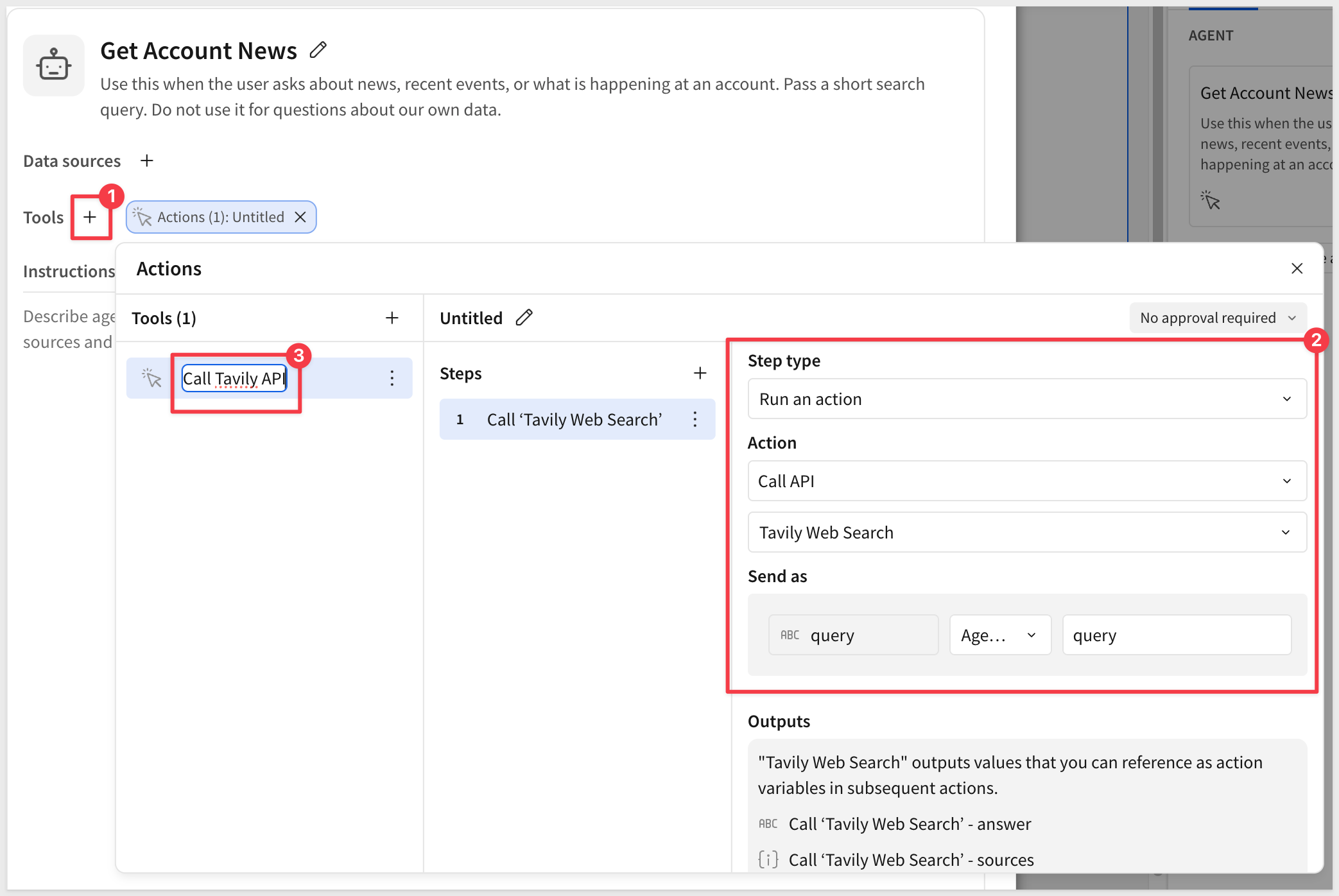
7. Click Save to save the action.
8. Save the workbook itself as:
Web Search Agent QuickStart
Confirm both sides of the behavior: that the tool fires when a question calls for it, and stays quiet when it doesn't.
Confirm it fires for live questions
1. Ask the agent:
What's the latest news on Snowflake?
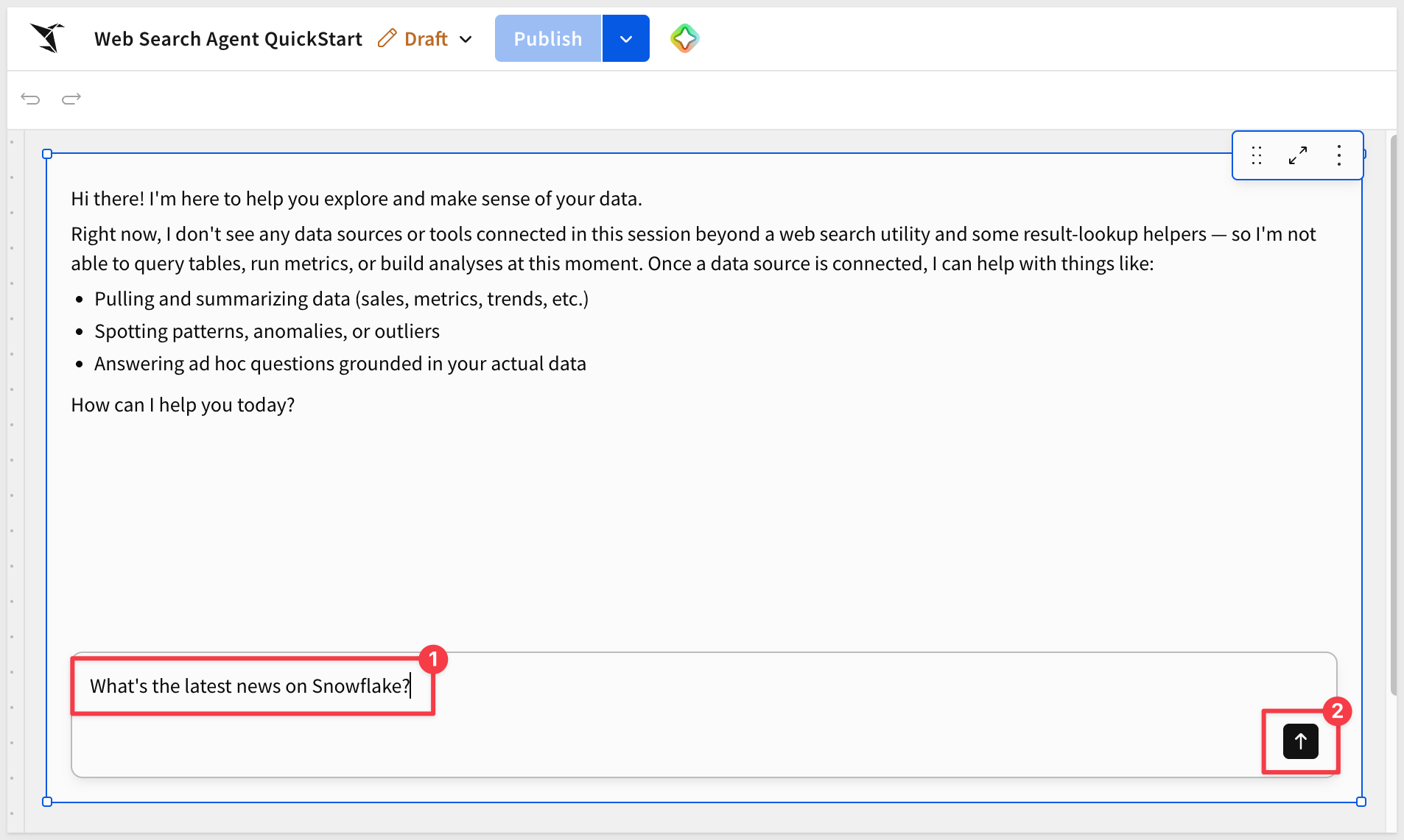
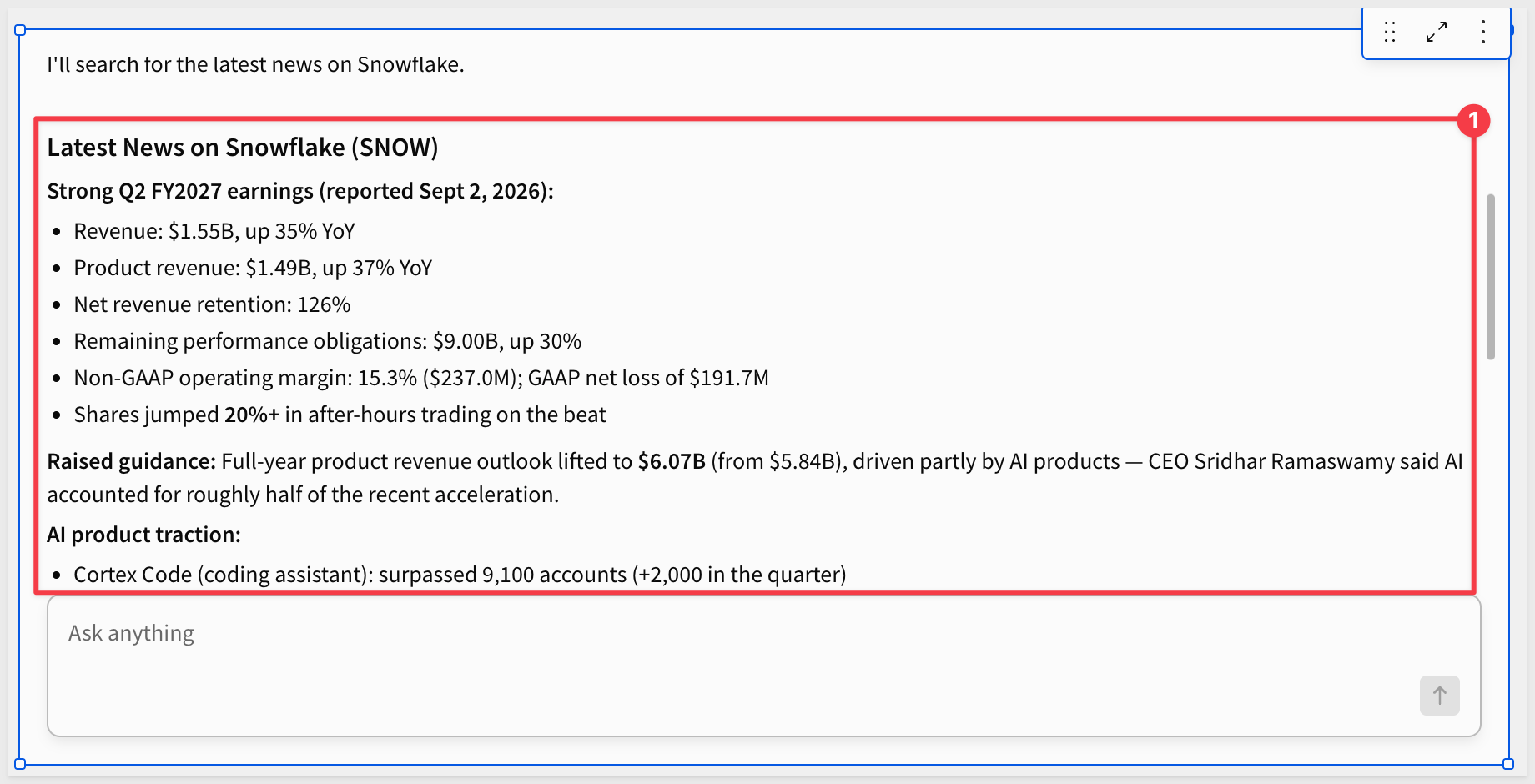
2. Confirm the tool fires in the tool-call trace, the response reflects the synthesized answer, and the agent can name a source from sources if asked to cite one:
Confirm the boundary
1. Ask the agent a question about your own data, for example:
What's our largest open opportunity?
2. Confirm the tool does not fire:
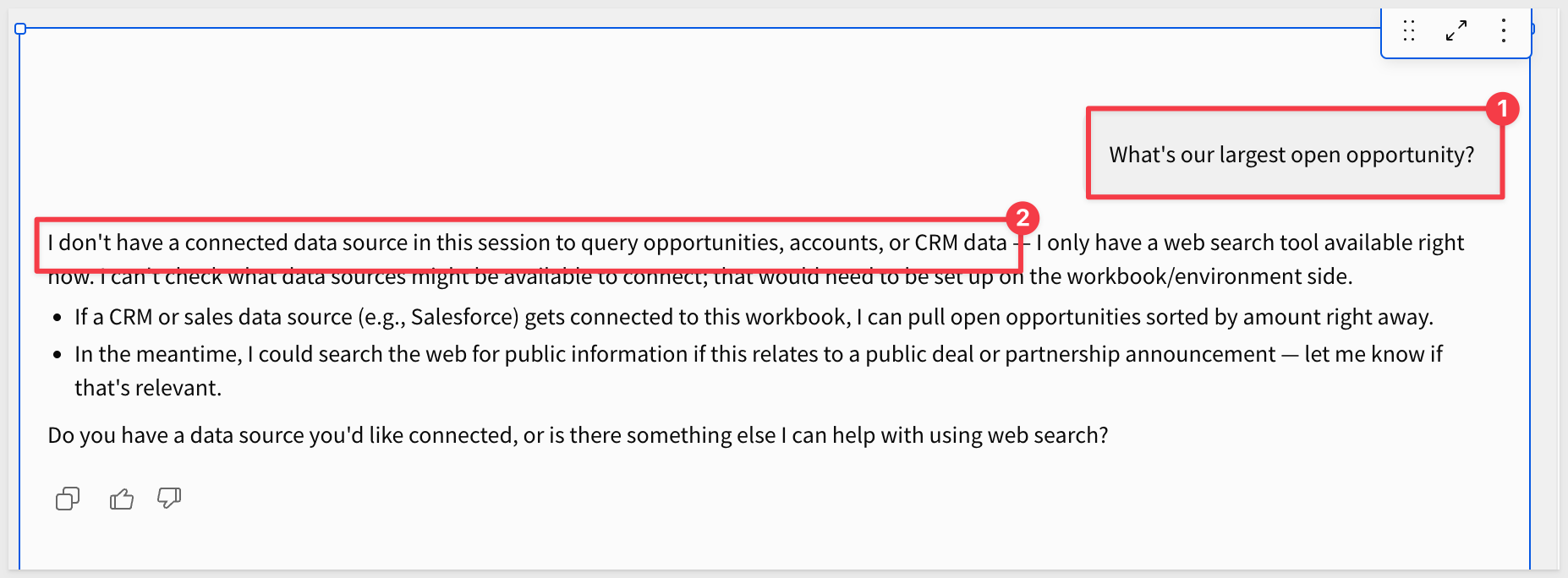
If it does fire, tighten the agent's Instructions field (see Add the action) until the boundary holds.
We connected Sigma to Tavily's search API as a custom connector, then gave a Sigma agent a callable action that uses it — so the agent can pull in live, current information and cite its sources alongside the data it already reasons over.
Core concepts
- A web search action reaches outside your warehouse without ever becoming a data source — Tavily never gets added as something the agent reads from directly; it's a callable Tool the agent invokes mid-conversation, the same
Toolssurface a warehouse specialist or an MCP server uses elsewhere in this series - The credential and the connector split the trust boundary from the request shape — the credential holds the scoped secret, locked to
api.tavily.comand nowhere else; the connector defines the JSON request and response Tavily actually expects. Neither one does the other's job - A clear action name does more work than a paragraph of instructions —
Get Account Newsalone was specific enough for the model to reach for it at the right moment;Instructionsare there for when a name alone isn't precise enough
Key takeaways
"Agent input" is reserved for content only the model should generate:
- The
queryparameter was mapped toAgent inputbecause the search text is the one thing meant to come from the model, not from you - A URL, a recipient, or a table name should never be mapped that way — those belong as a static value or a formula, set once and left alone
Scoping the credential to one domain is the actual governance boundary:
- The Tavily API key can never be sent anywhere but
api.tavily.com, no matter what the connector or the agent does with it - Every call still runs through the same admin-managed access grants as the rest of your data — extending an agent's reach doesn't loosen control over it
The pattern generalizes past Tavily:
- Any REST API that accepts a JSON body and returns JSON back can become a Sigma agent action the same way
- What changes per API is the request shape and the response mapping, not the mechanism connecting it to an agent
Two tests proved two separate guarantees, not the same thing twice:
- Asking about live news proved the tool actually fires and the agent can cite a real source from
sources - Asking about your own data proved the same agent knows when not to reach for it
Next steps
Explore the rest of the Agents series.
Additional Resource Links
Blog
Community
Help Center
QuickStarts
Be sure to check out all the latest developments at Sigma's First Friday Feature page!