Sigma's Scheduled Actions let you automate sequences of operations on a workbook — refreshing data, updating controls, writing to input tables, and sending notifications — all triggered on a time-based schedule.
In this QuickStart, you'll build a nightly inventory monitoring workflow using Sigma's Plugs Electronics sample dataset.
Two scheduled sequences run each night: one unconditionally writes an audit log entry recording the current stock status, and another sends an email alert to the operations team only when products have fallen below the minimum stock threshold.
Along the way you'll learn how to:
- Build a workbook with a calculated inventory status view
- Create an input table to serve as a persistent audit log
- Configure a nightly Scheduled Action sequence with a time-based trigger
- Use formula-based conditions to control which sequences fire based on live workbook data
- Send an email notification with a workbook link pre-filtered to show only low-stock SKUs
For more information on Sigma's product release strategy, see Sigma product releases.
If something doesn't work as expected, here's how to contact Sigma support.
Target Audience
This QuickStart is intended for Sigma builders and administrators who want to automate recurring workbook-based workflows. Familiarity with building workbooks in Sigma is assumed.
Prerequisites
- Any modern browser is acceptable.
- Access to your Sigma environment with Creator or Admin permissions.
- An email address to use as the notification recipient during testing.
- Some familiarity with Sigma workbooks is assumed. Not all steps will be shown in detail.

In this section, you'll create a workbook using the F_INVENTORY_ADJUSTED table from the Plugs Electronics sample dataset and build an inventory summary that flags any products below a minimum stock threshold.
Create the Workbook
From the Sigma home page, click Create New > Workbook.
Using the Element bar, add a new Table from the Data group.
In the data source picker, navigate to Sigma Sample Database > RETAIL > PLUGS_ELECTRONICS and select F_INVENTORY_ADJUSTED.
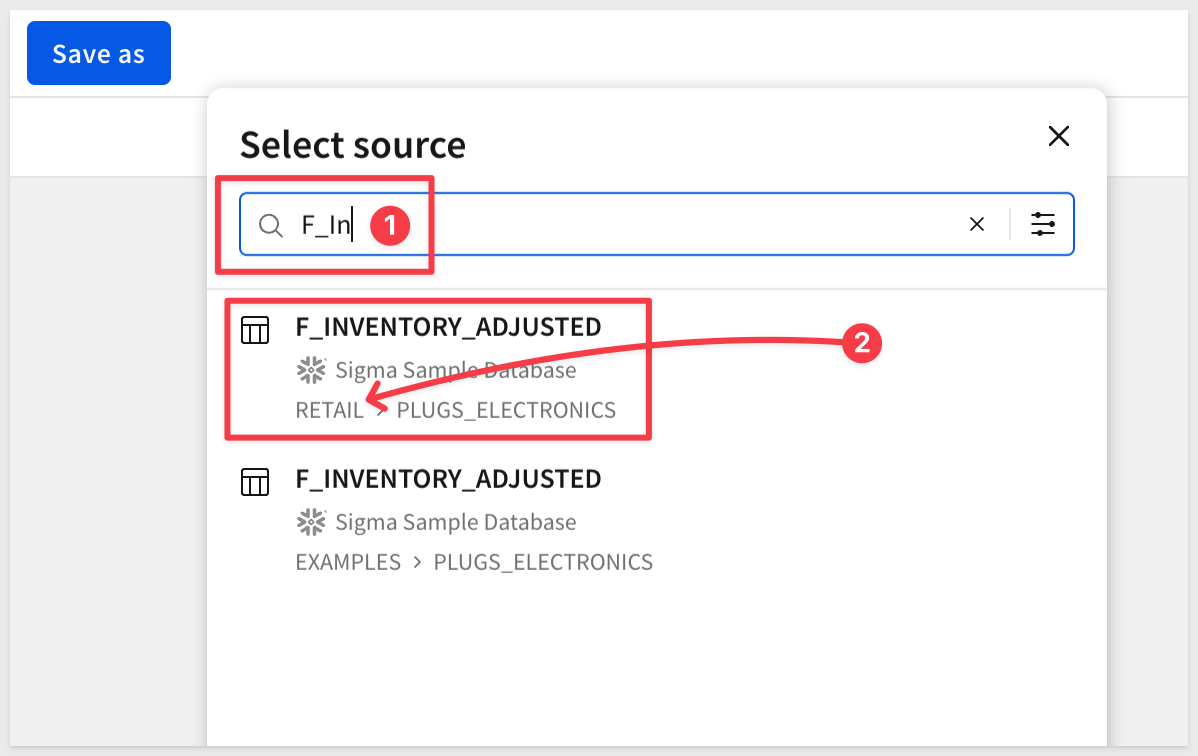
Click the table to load it.
Double-click the page tab at the bottom and rename it Inventory Dashboard.
Save the workbook as Scheduled Actions QuickStart in your preferred workspace.
Build the Inventory Summary
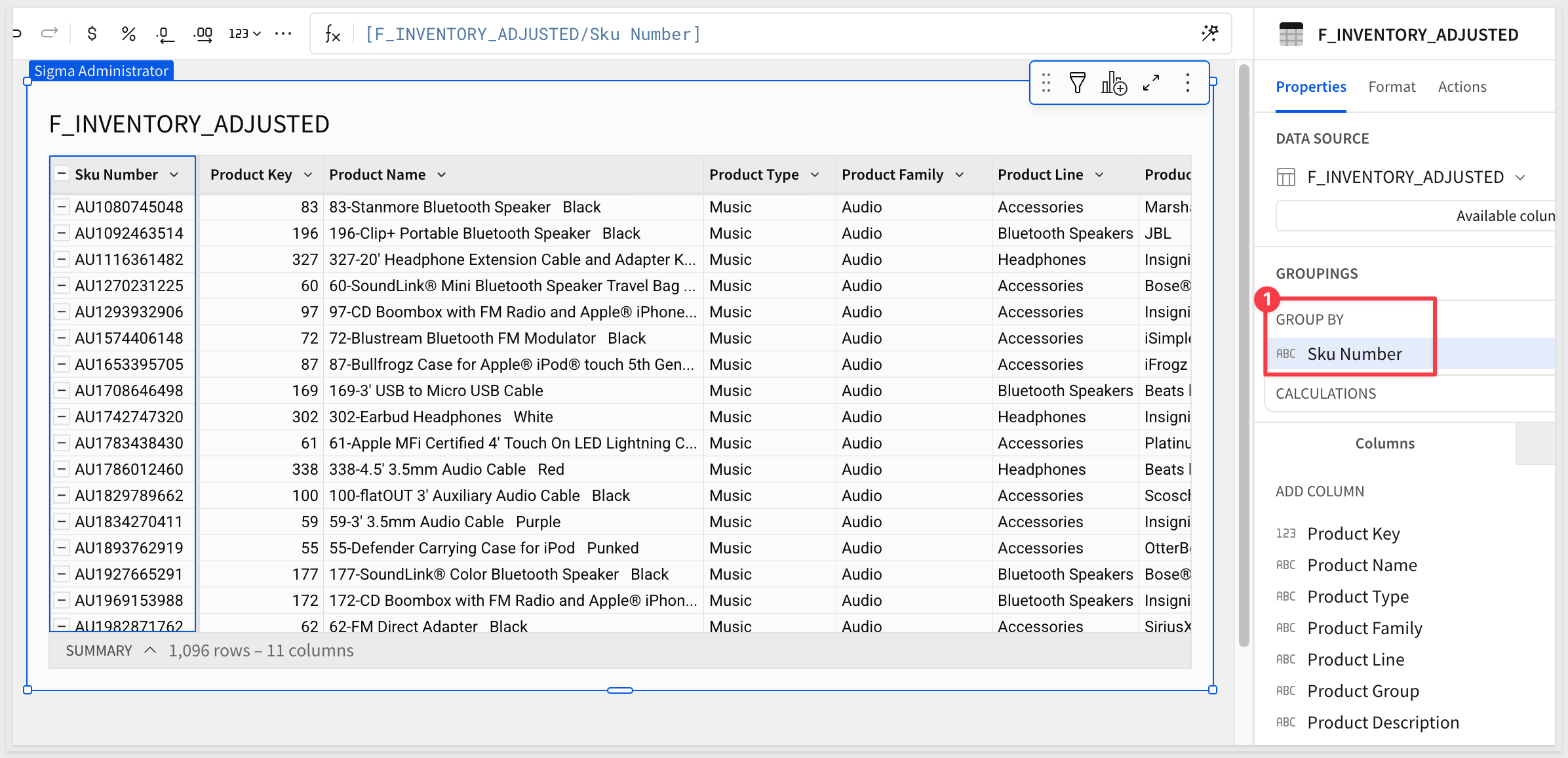
Using the Element panel, drag the Sku Number column up to Group by so that each row represents a unique product SKU:
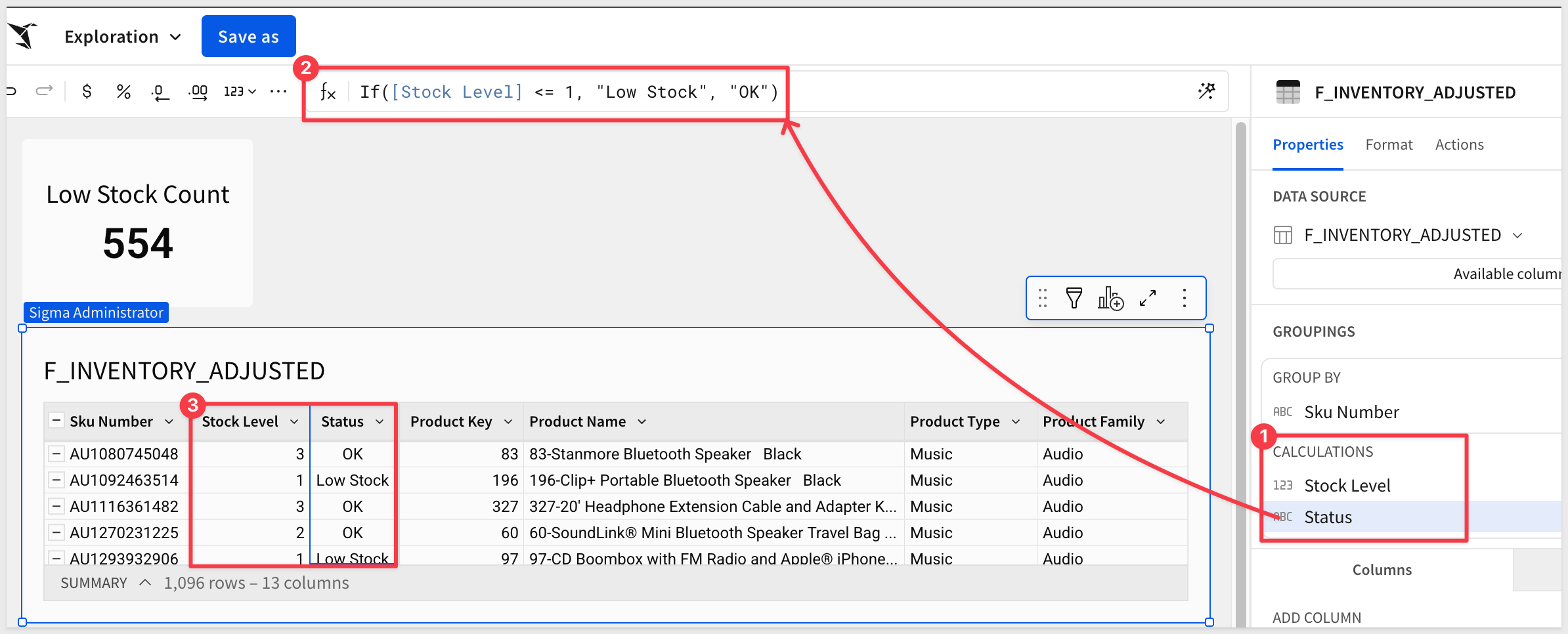
Using the + in the CALCULATIONS panel, add the following columns:
Column 1: Stock Level
Sum([Quantity On Hand])
Rename this column Stock Level.
Column 2: Status
If([Stock Level] <= 1, "Low Stock", "OK")
Rename this column Status.
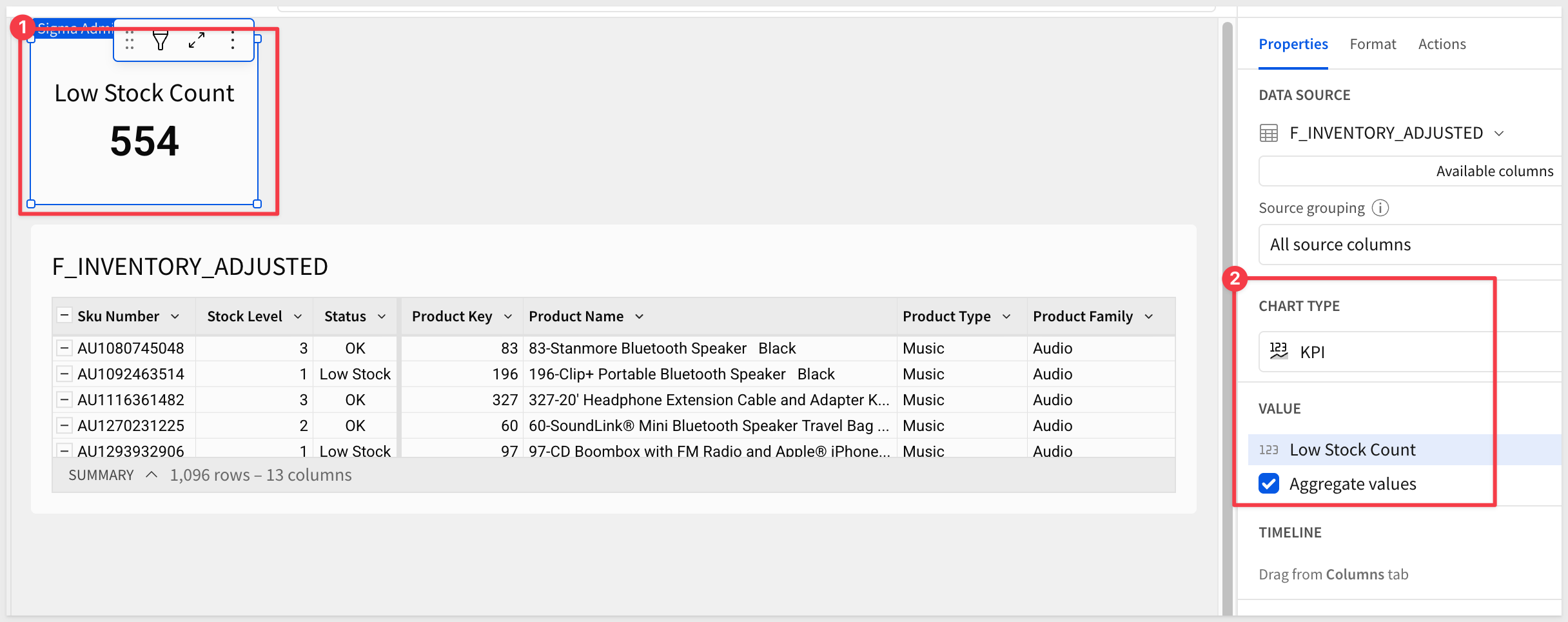
Add a Low-Stock Count KPI
We want a KPI element to display the total count of low-stock SKUs. The Scheduled Action will reference this value in its conditional logic.
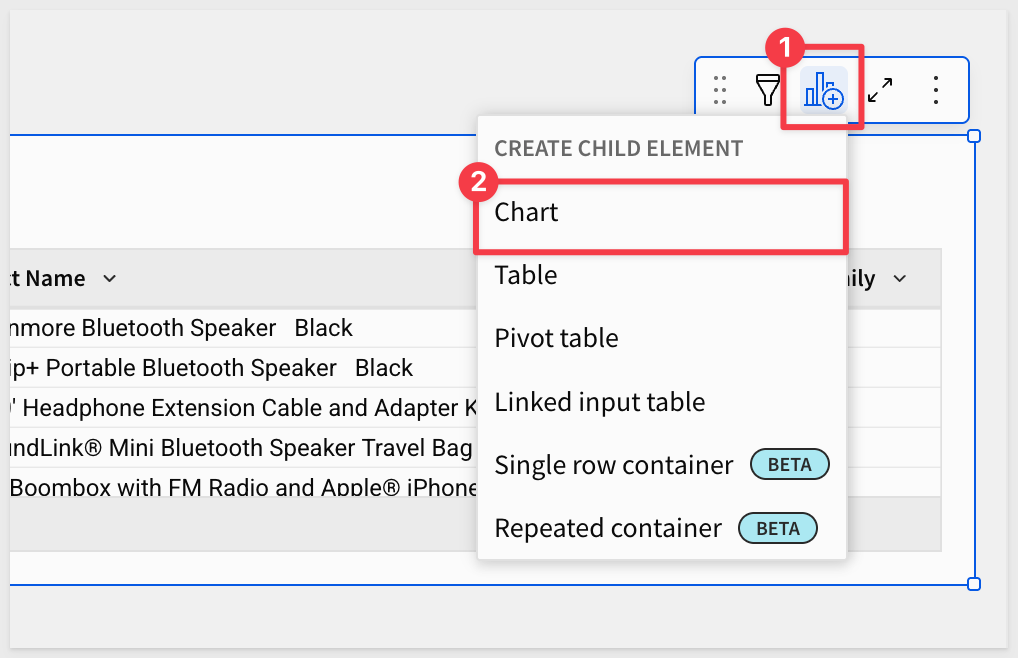
With the inventory table selected, click Child Element > Chart:
Change the CHART TYPE to KPI and in the VALUE group click the + to Add a new column and use this formula:
CountIf([Status] = "Low Stock")
Rename the KPI element to Low Stock Count.
Add a Status Filter Control
Adding a filter control to the dashboard allows the alert email to open the workbook pre-filtered to show only low-stock items. The Scheduled Action passes the filter value automatically through the notification link.
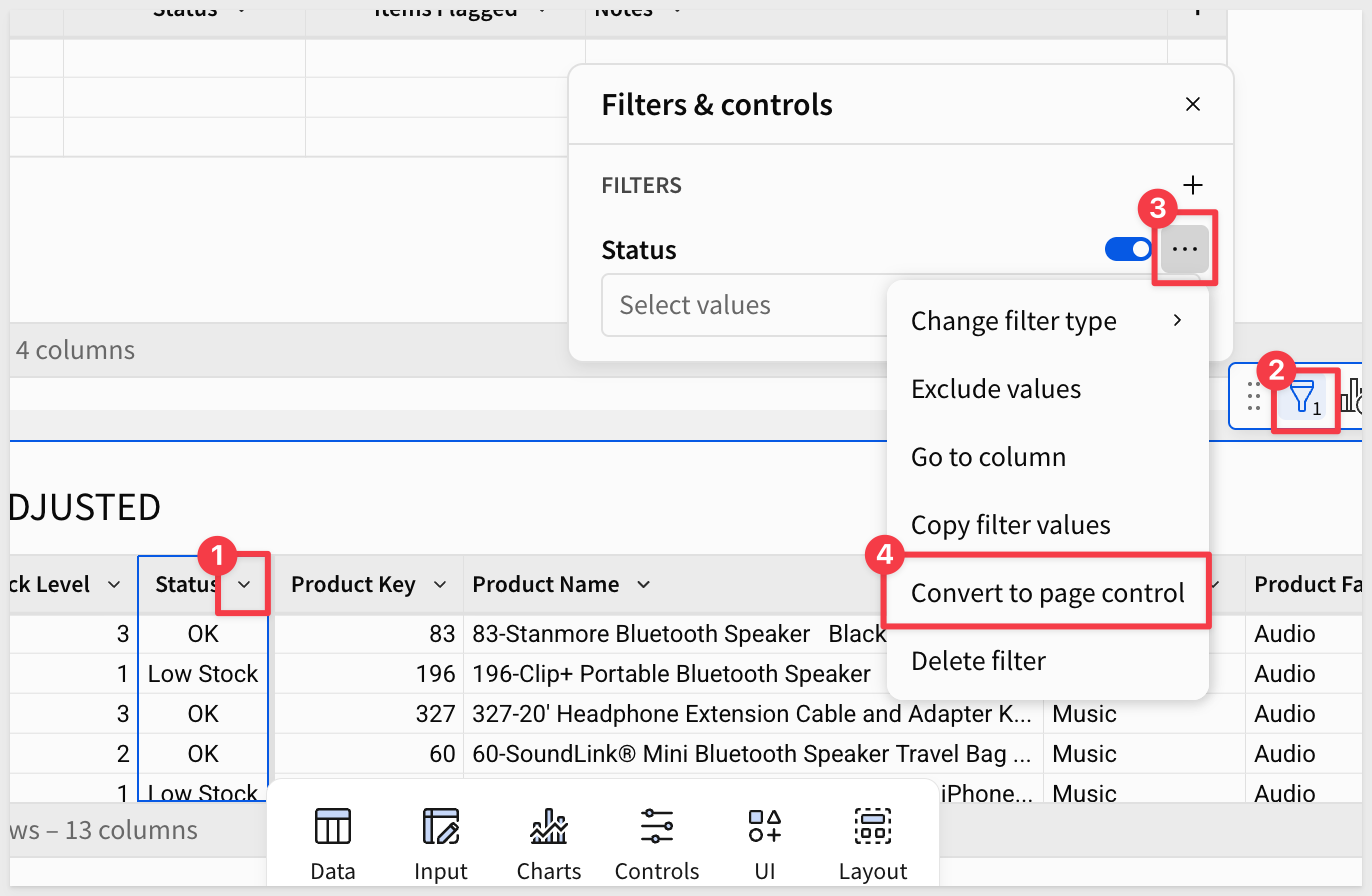
Click the Status column header in the inventory table and select Filter. This adds a Status filter in the Filters & controls panel.
In the Filters & controls panel, click the ... menu on the Status filter and select Convert to page control.
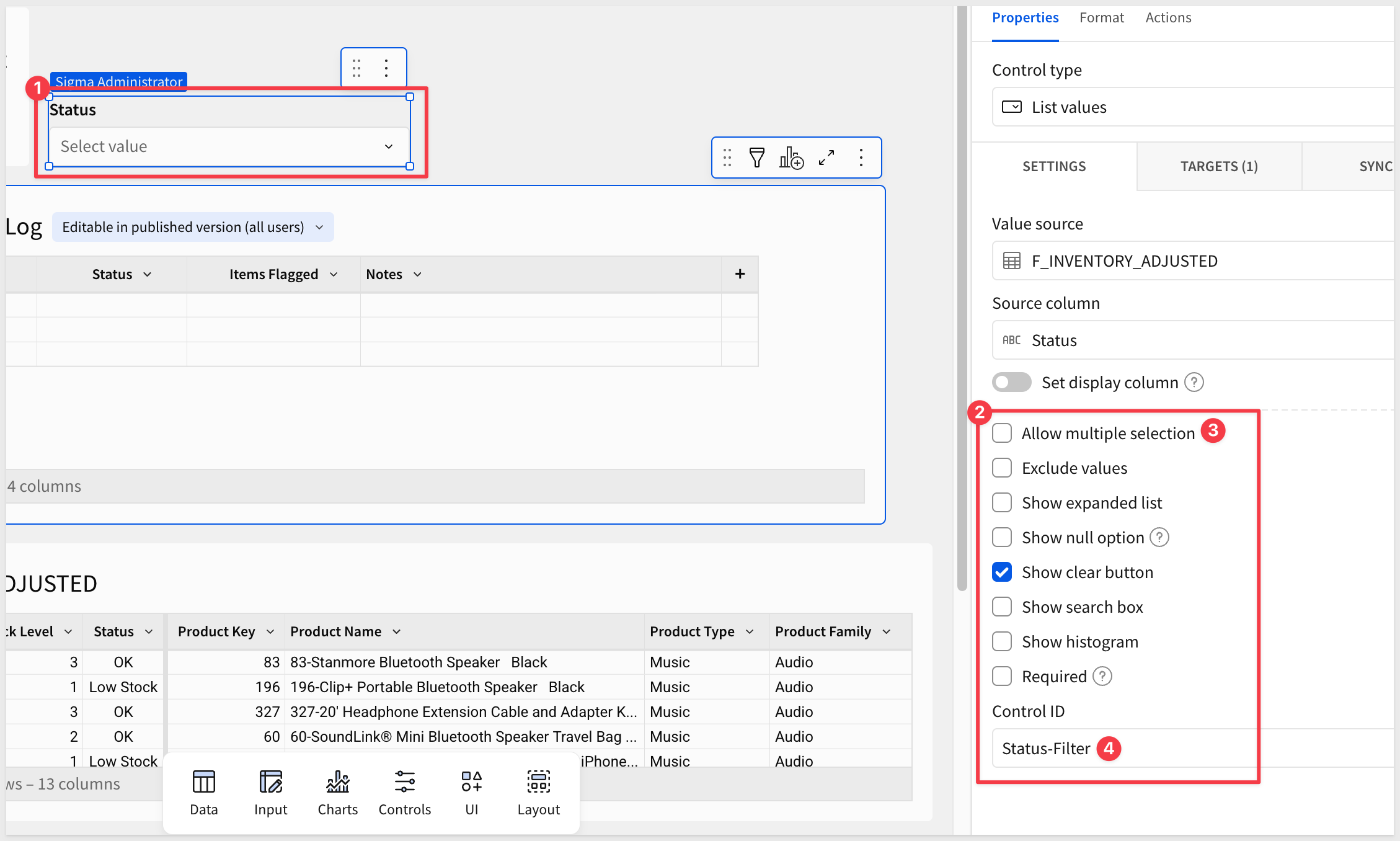
Set the Control ID to Status-Filter:
Click Save.
WHY IT MATTERS: Flagging stock status with a formula column rather than a manual export means the inventory view always reflects live data. The KPI gives the Scheduled Action a single, reliable value to evaluate — no queries, no external scripts, just a formula Sigma already knows how to compute.
The Scheduled Action will append a row to an input table every time it runs — regardless of whether low-stock items were found. This creates a complete audit trail of every nightly execution.
Add a New Workbook Page
Click the + button next to the Inventory Dashboard tab to add a new page.
Rename the new page to Audit Log.
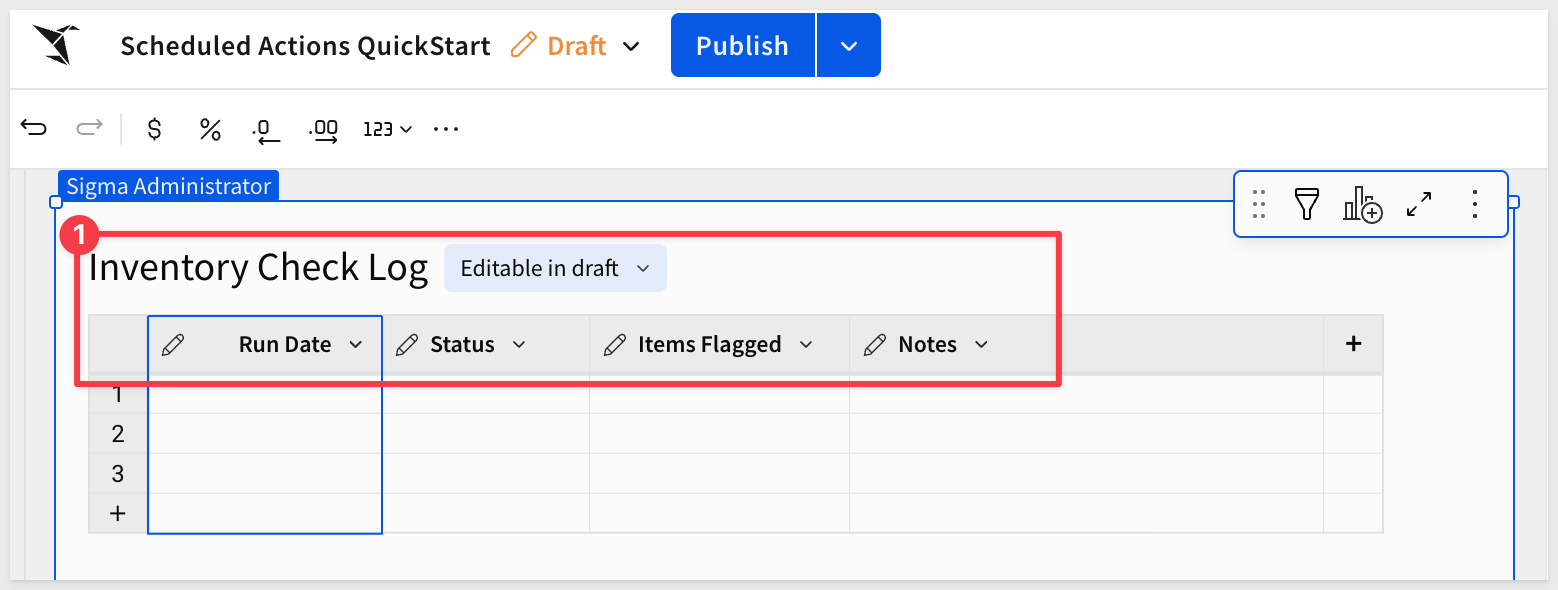
Create the Input Table
On the Audit Log page, use the Element bar to add a new Empty input table from the Input group.
Set the connection to Sigma Sample Database and click Create.
Rename the first column to Status.
Add the following columns to the input table, moving the Run Date column to the first position:
Column Name | Type |
| Date |
| Number |
| Text |
Rename the input table element to Inventory Check Log.
WHY IT MATTERS: Storing execution history inside Sigma eliminates the need for an external database or logging service. Every nightly run — whether it triggered an alert or not — is captured and queryable alongside the same data that drove the decision.
With the workbook and input table in place, we are ready to configure the Scheduled Actions. We'll create two sequences on the same nightly schedule — one that always writes an audit log entry, and one that sends an email alert only when low-stock items are detected.
Open Scheduled Actions
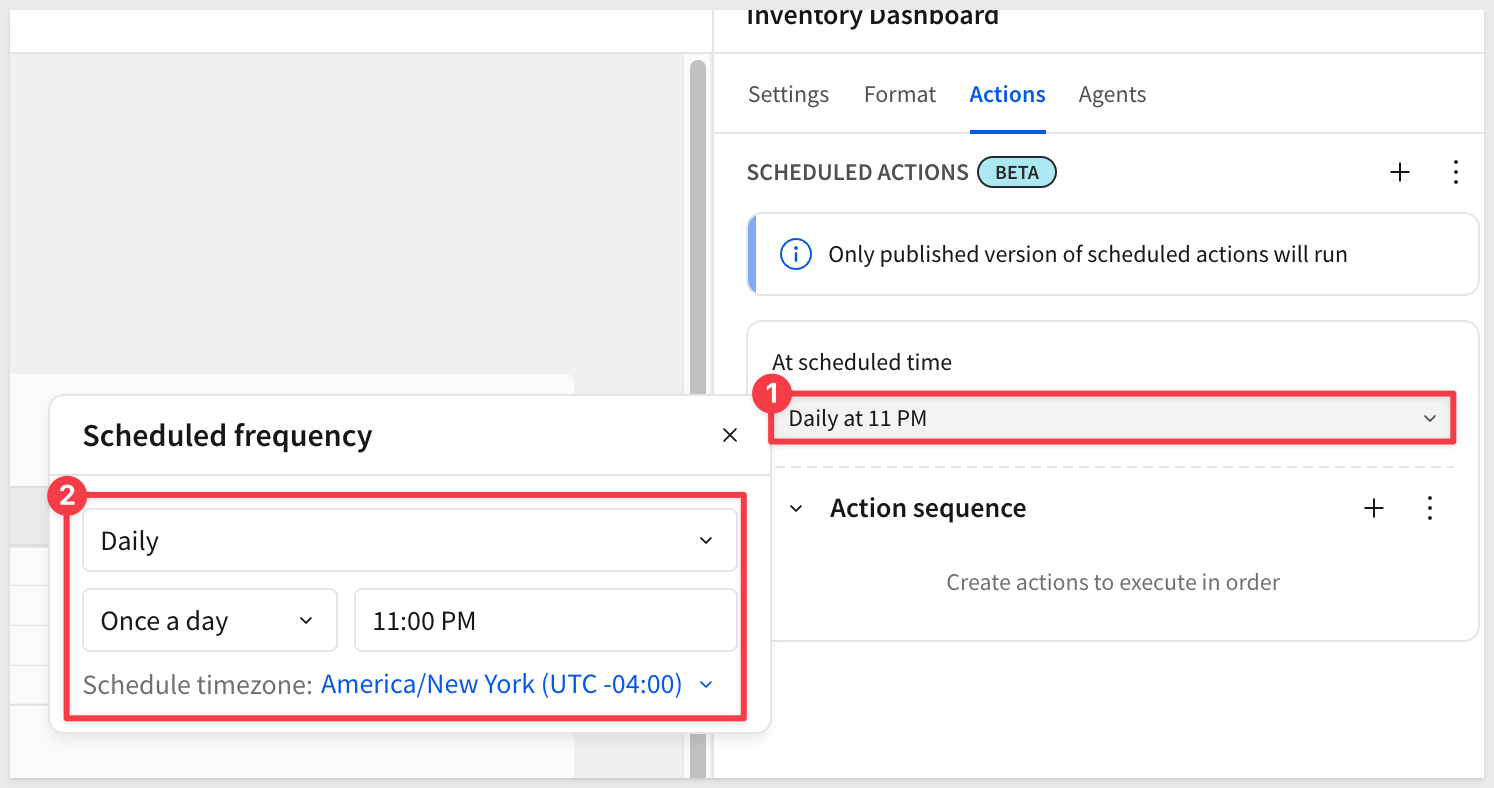
With the workbook open in draft mode, click the Actions tab in the right-hand panel.
Sequence 1: Audit Log (Always Runs)
This sequence runs every night without a condition, writing a status record to the Inventory Check Log regardless of whether low-stock items are found.
Under SCHEDULED ACTIONS, click + to create the first sequence.
In the At scheduled time dropdown, select Daily at 11 PM and choose the appropriate time zone.
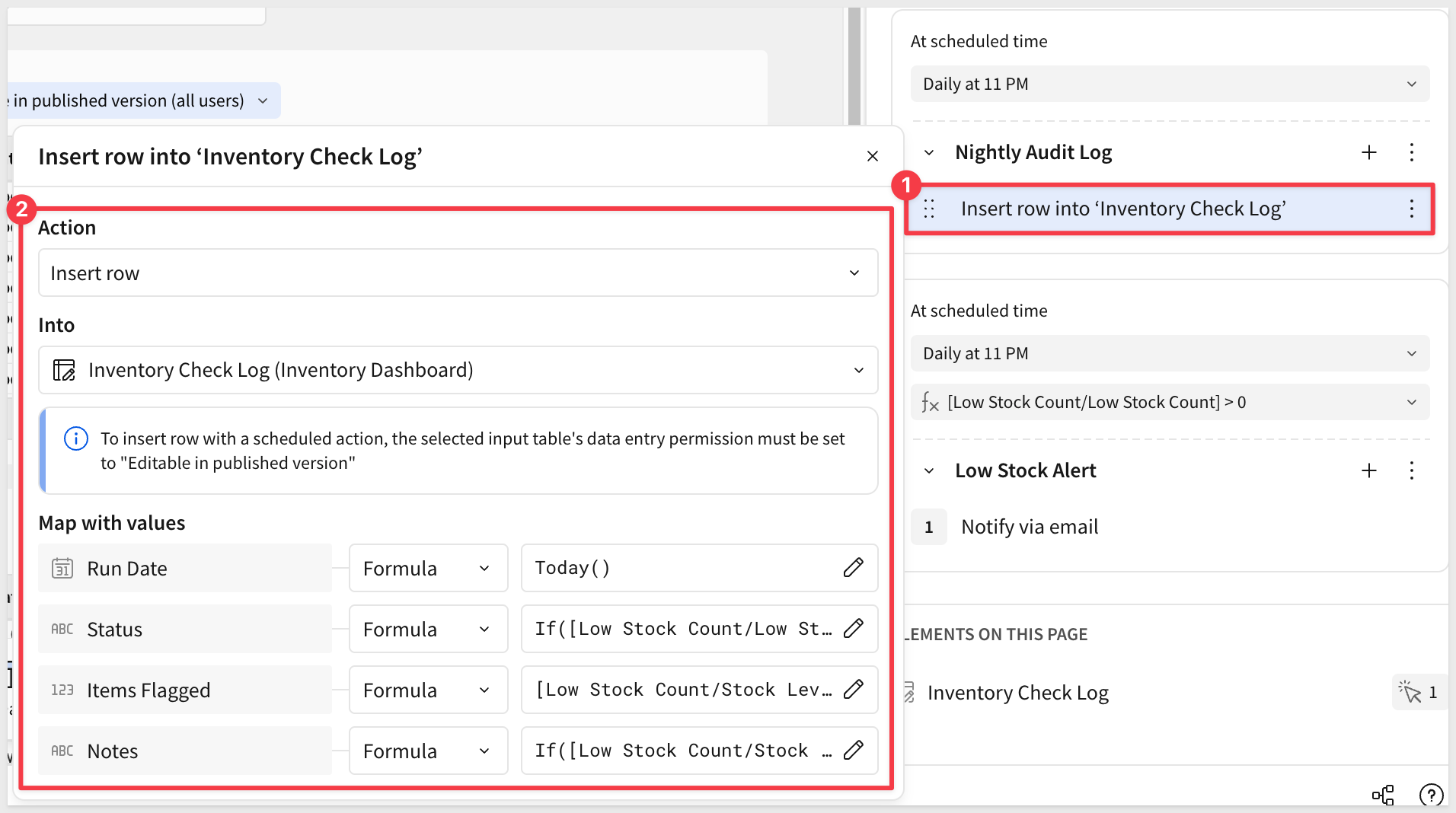
Under Action sequence, click + and select Insert row.
Configure the following:
- Into:
Inventory Check Log - Map with values:
- Run Date / Formula:
copy-code
Today()
- Status / Formula:copy-code
If([Low Stock Count/Stock Level] > 0, "Low Stock Alert", "All Clear") - Items Flagged / Formula:
copy-code
[Low Stock Count/Stock Level]
- Notes / Formula:copy-code
If([Low Stock Count/Stock Level] > 0, "Nightly check detected products below threshold.", "Nightly check completed. All stock levels within acceptable range.")
- Run Date / Formula:
Sequence 2: Low Stock Alert (Conditional)
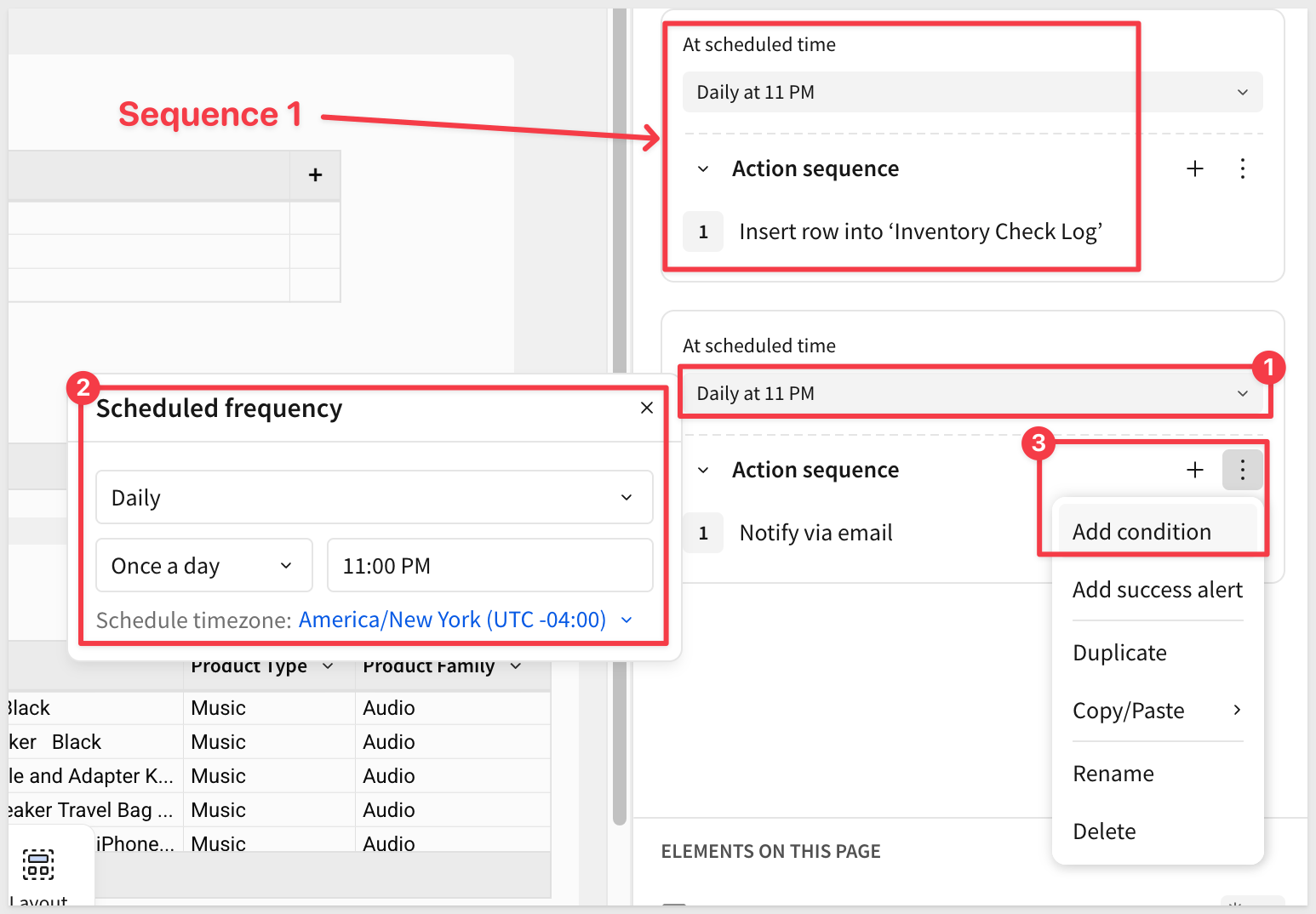
This sequence runs on the same nightly schedule but only fires when the Low Stock Count is greater than zero.
Under SCHEDULED ACTIONS, click + to create a second sequence.
Set the At scheduled time dropdown to the same schedule — Daily at 11 PM with the same time zone.
Add a Condition:
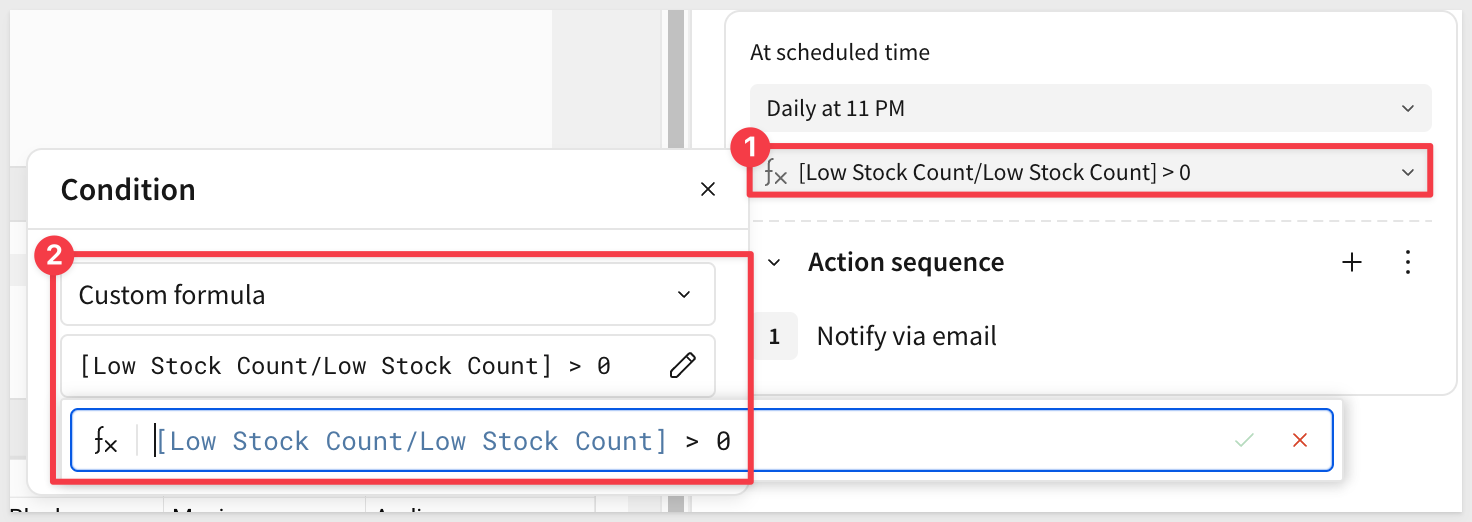
Use the Custom formula:
[Low Stock Count/Stock Level] > 0
Add the Email Notification Step
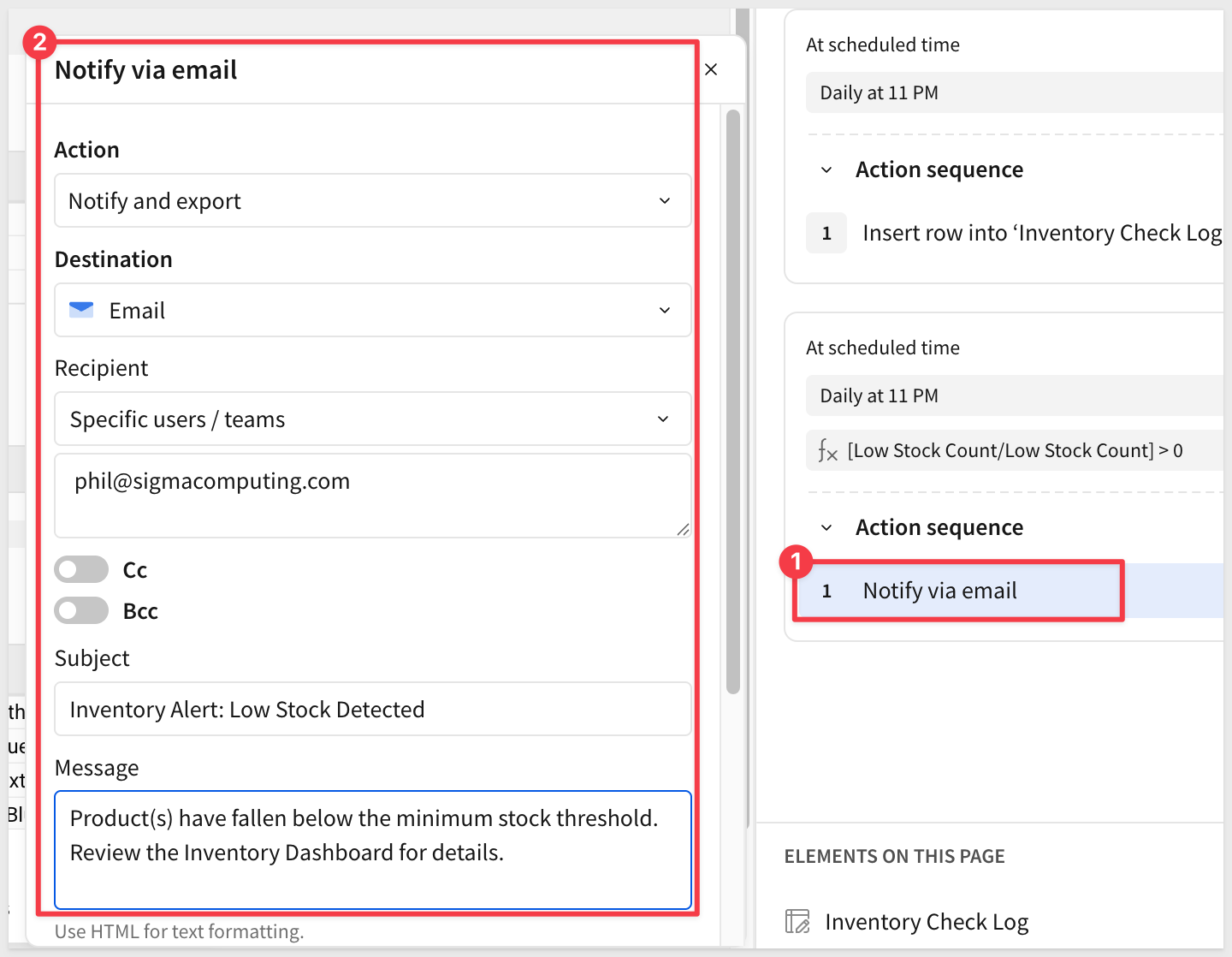
Under Action sequence, click + and select Notify and export.
Set Destination to Email and configure the following:
- Recipient: Use your own email address for testing
- Subject:
Inventory Alert: Low Stock Detected - Message:
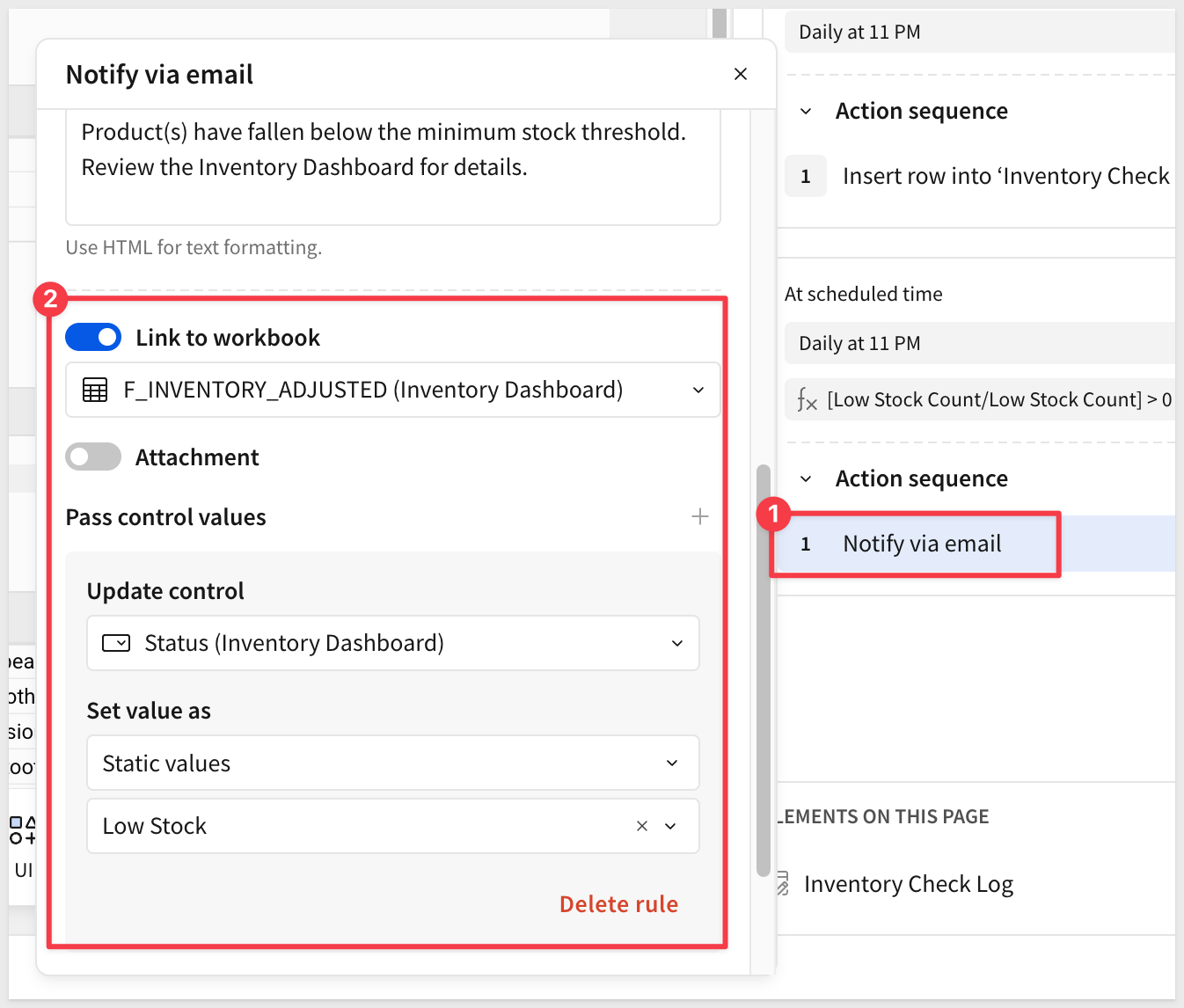
Product(s) have fallen below the minimum stock threshold. Review the Inventory Dashboard for details. - Scroll down and enable
Link to workbook
Scroll down to Pass control values, click + and configure:
- Control:
Status Filter - Value:
Low Stock
This ensures the workbook link opens the Inventory Dashboard pre-filtered to show only low-stock SKUs.
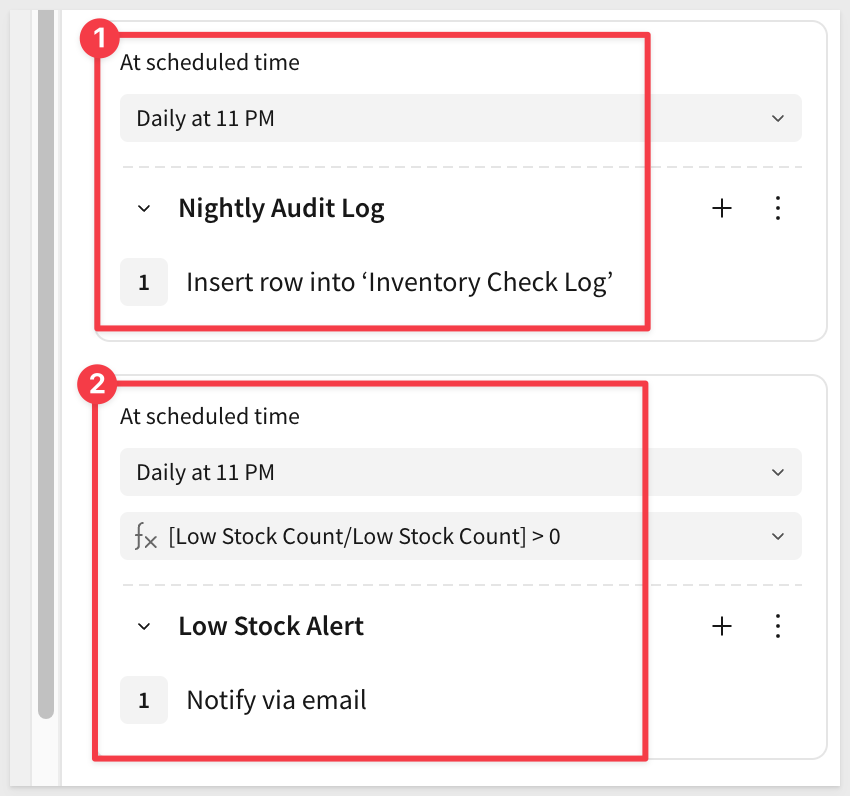
Name the Sequences
Before publishing, give each sequence a descriptive name so they're easy to identify in the panel and in run history.
Click the ... menu on the first sequence (the audit log) and select Rename. Enter Nightly Audit Log.
Click the ... menu on the second sequence (the email alert) and select Rename. Enter Low Stock Alert.
Publish to Activate
Click Publish in the top toolbar. Both sequences are now active and will run nightly.
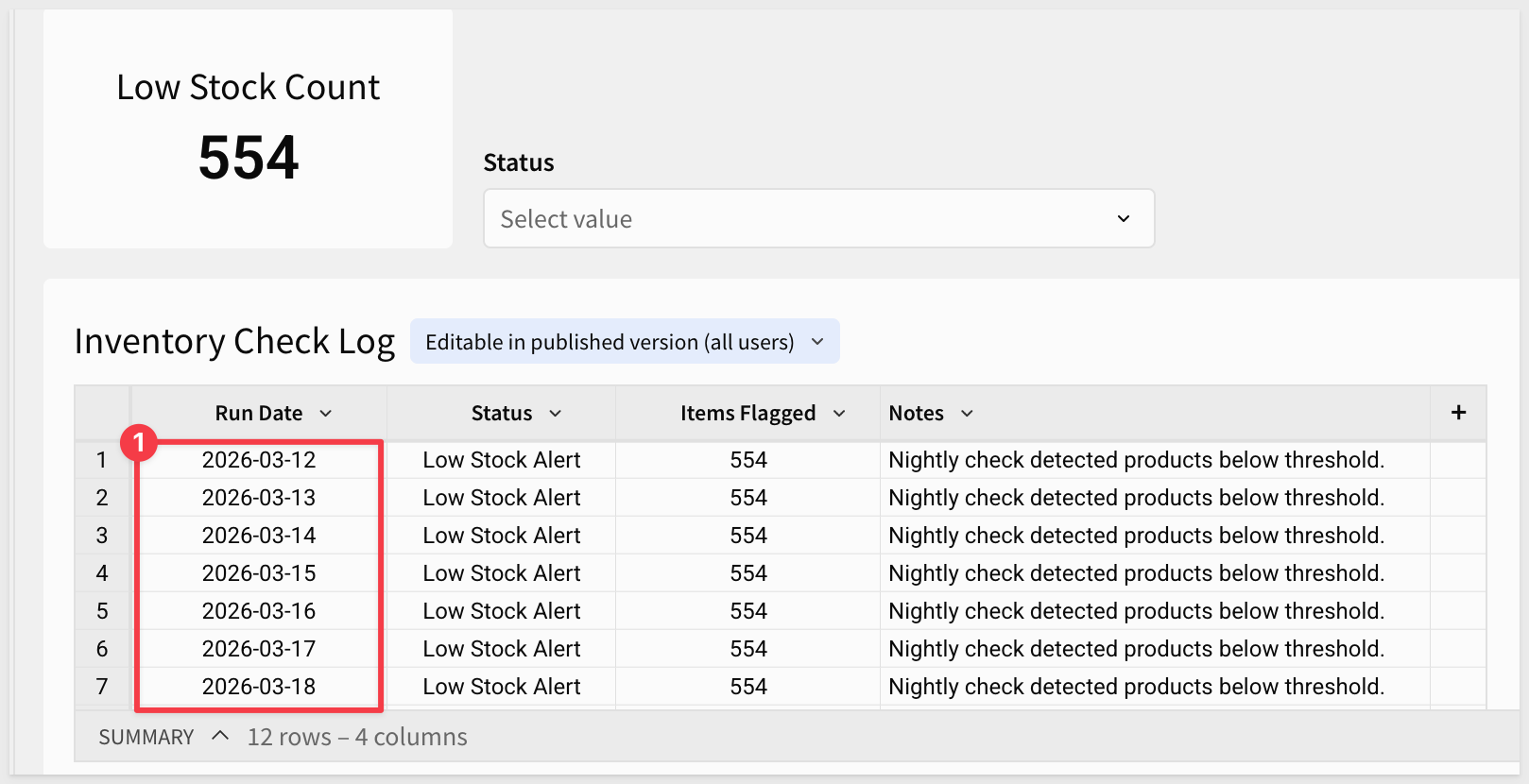
After publishing, sequences run on the configured schedule. The following shows the run history after several days:
Alert emails will appear in the recipient's inbox:
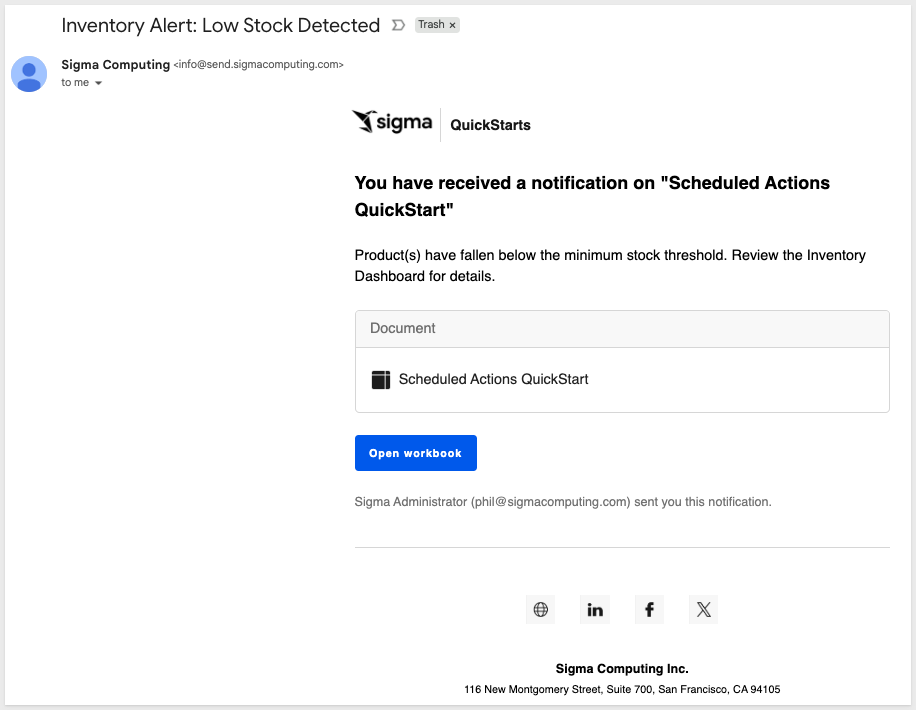
For example:
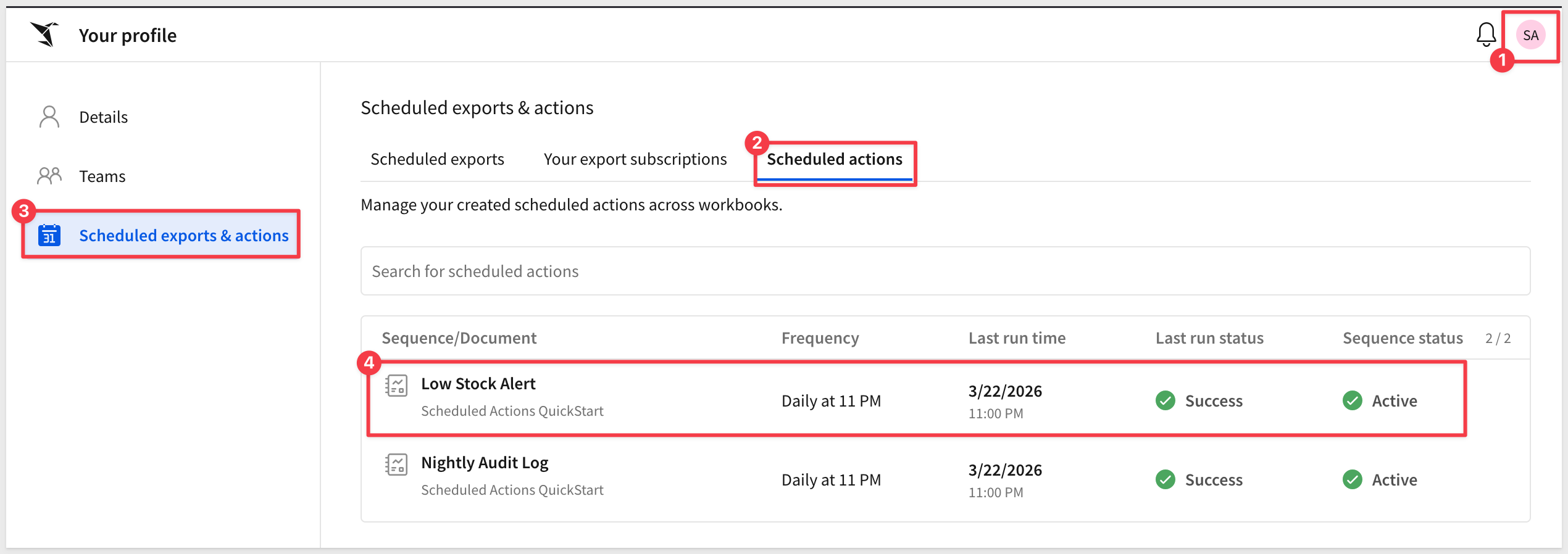
WHY IT MATTERS: Formula-based conditions let you coordinate multiple automated workflows on a single schedule without any external orchestration. Operations teams get notified only when action is required, and the audit log gives them a complete history to reference — all configured entirely within Sigma.
In this QuickStart, you built a fully automated nightly inventory monitoring workflow using Sigma's Scheduled Actions — without writing a single line of pipeline code or relying on any external orchestration tool.
The workflow demonstrates a pattern that applies broadly across business functions: recurring processes that need to run reliably, log what happened, and notify the right people only when action is required. In an inventory context, that means operations teams are alerted to stock issues before they become fulfillment problems, and every run is recorded — whether it triggered an alert or not — so there's always an auditable history to reference.
Beyond the specific use case, the techniques covered here are reusable building blocks:
- Input tables as audit logs — a lightweight way to capture operational history directly inside Sigma, no external database required
- Formula-based sequence conditions — a flexible mechanism to control when automation fires, based on live data rather than fixed schedules alone
- Pass control values — a simple but powerful feature that makes notification links context-aware, so recipients land exactly where the data matters most
Additional Resource Links
Blog
Community
Help Center
QuickStarts
Be sure to check out all the latest developments at Sigma's First Friday Feature page!