This QuickStart shows how to connect Claude to Sigma using the Sigma MCP server and to Slack using the claude.ai Slack connector, then use both to query live Sigma data, format the results as a daily digest, and deliver it to a Slack channel or DM on a recurring schedule — automatically, with fresh data each time.
The workflow has two phases:
- browser-based design phase where you query Sigma, refine the format, and confirm Slack delivery works
- a Claude Code scheduling step that hands the workflow off to run automatically each morning.
Along the way you'll learn how to:
- Connect Claude to Sigma using the Sigma MCP server
- Query live Sigma data and format the results as a Slack message
- Test Slack delivery from the claude.ai browser
- Schedule the full workflow as a recurring routine using Claude Code
For more information on Sigma's product release strategy, see Sigma product releases
If something doesn't work as expected, here's how to contact Sigma support
Target Audience
Analysts and data practitioners who use Sigma for data analysis and want to automate recurring data workflows. The design phase is entirely browser-based; scheduling requires Claude Code in a terminal.
Prerequisites
- A claude.ai account on a Pro, Max, Team, or Enterprise plan
- Claude Code installed and up to date (required for scheduling)
- The Slack integration connected in claude.ai — navigate to
Settings>Integrationsand connect Slack withSend messageset toAlways allow - Access to your Sigma environment
- An AI provider configured for your Sigma organization — see Configure AI features for your organization

The Sigma MCP server is a remote connector that gives Claude the ability to search, explore, and query your Sigma organization. It authenticates using OAuth and inherits your existing Sigma account permissions — no additional credentials or API keys are required.
Setup
The Sigma MCP Server is available to all Sigma customers today via Claude's MCP registry. This provides a pre-configured MCP server that connects Claude to Sigma.
Required from Sigma
We need two pieces of information from Sigma so that we can provide them to Claude.
Copy these two values to a text file for use in Claude later.
- MCP URL:
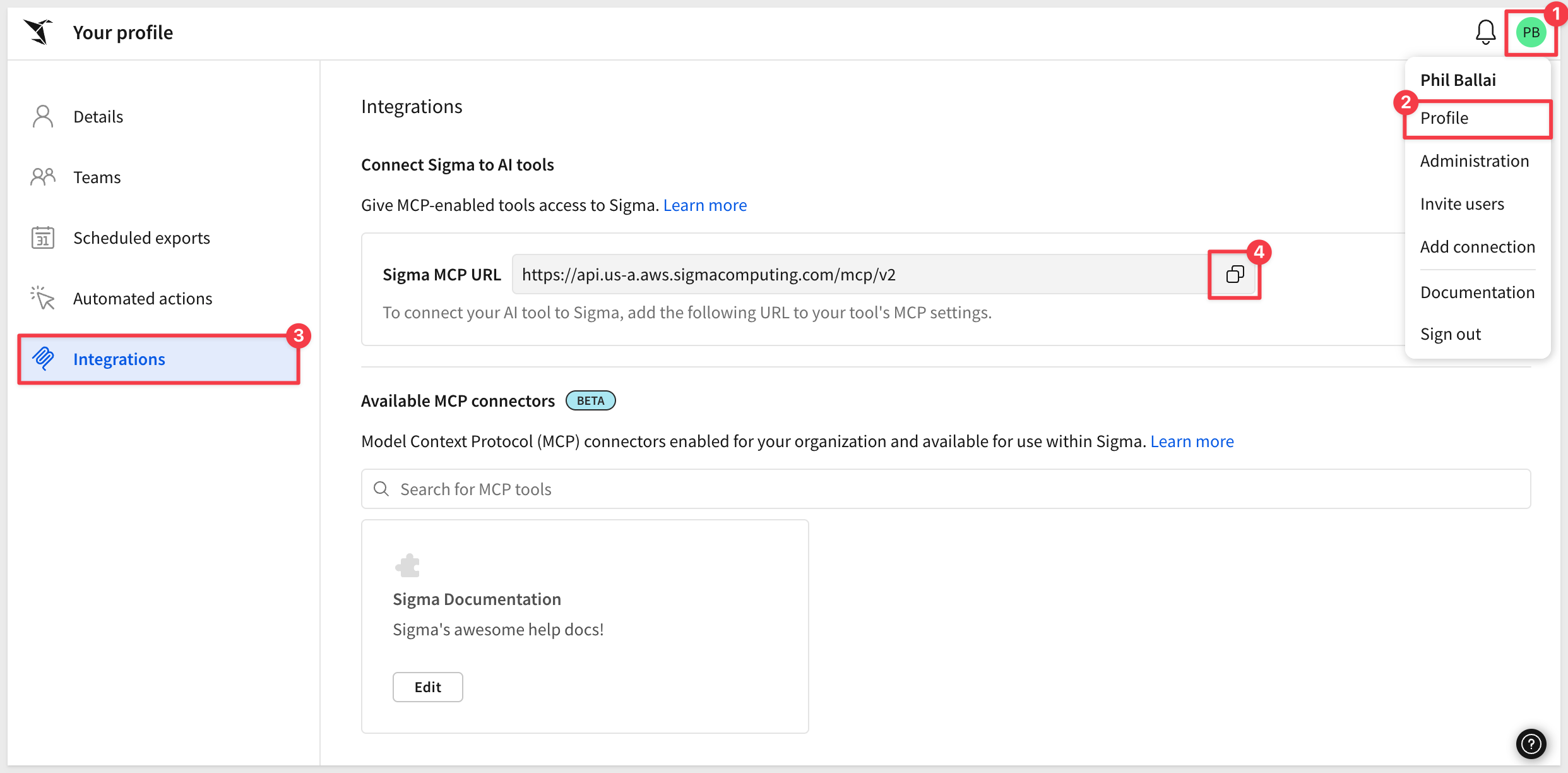
Log into Sigma and click the profile icon in the upper right corner and selectProfile. SelectIntegrations, then underConnect Sigma to AI tools, click the copy icon next to theSigma MCP URLand save the value off to a text file.
- Organization name:
This is part of the URL Sigma is using in your browser; for example:

Copy your value off to a text file.
Claude setup
Log into Claude using your browser.
- In Claude, click
Customizefrom the left sidebar:
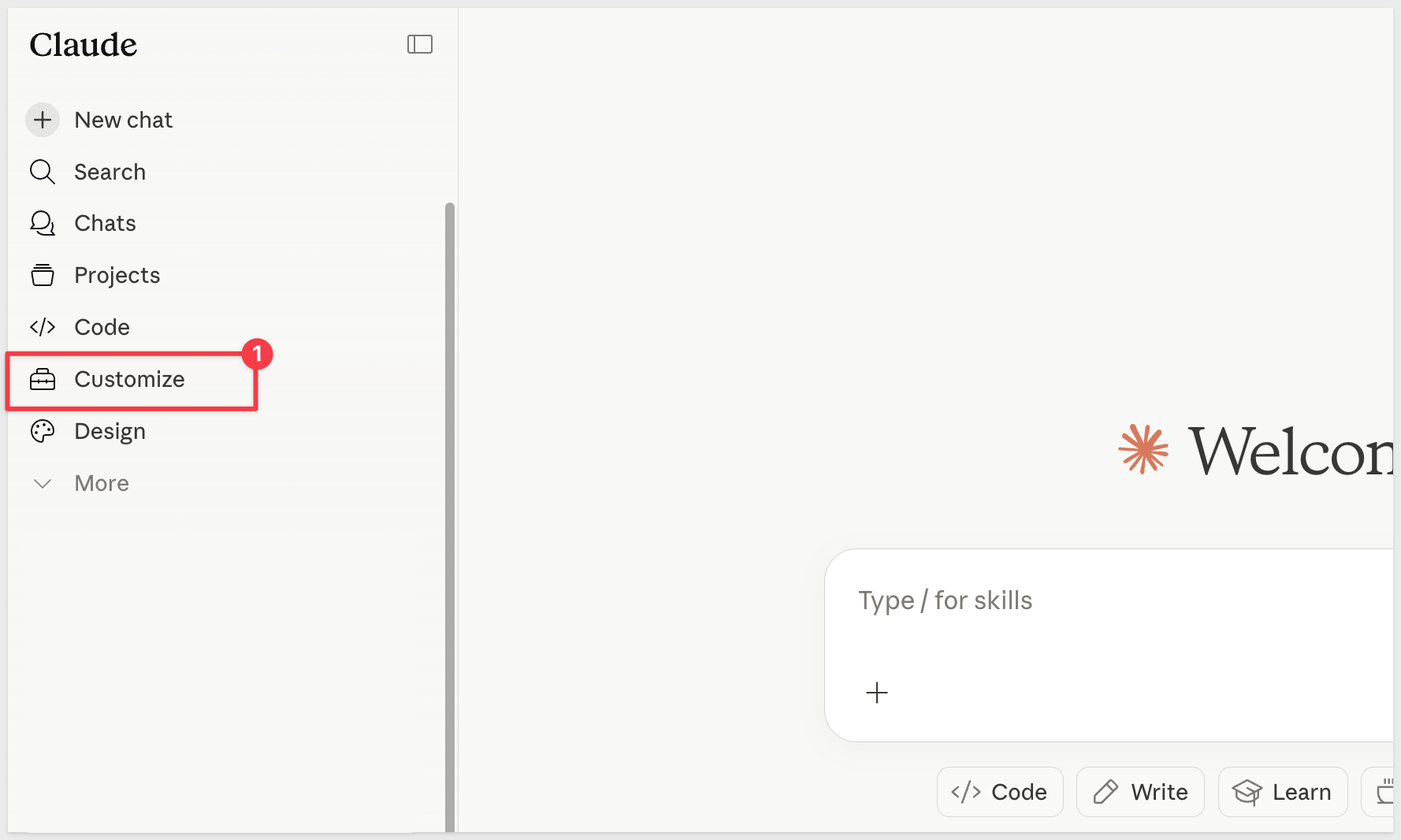
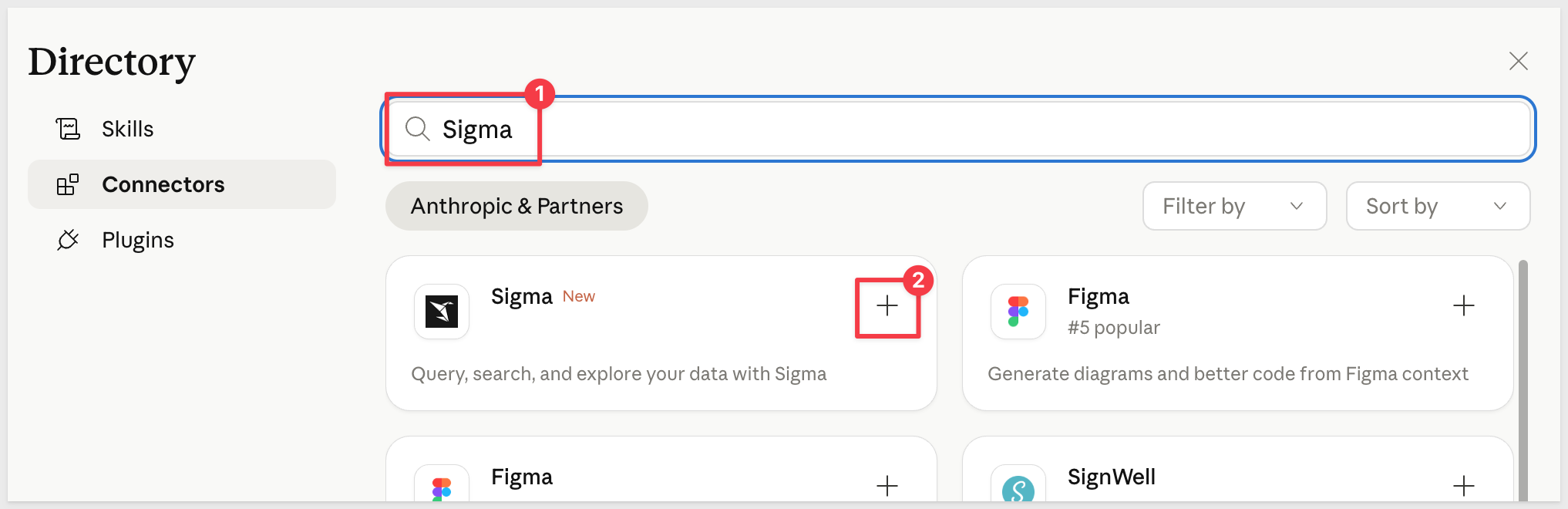
Under Customize click Connectors, + and Browse connectors:

- Search for
Sigmaand click+:
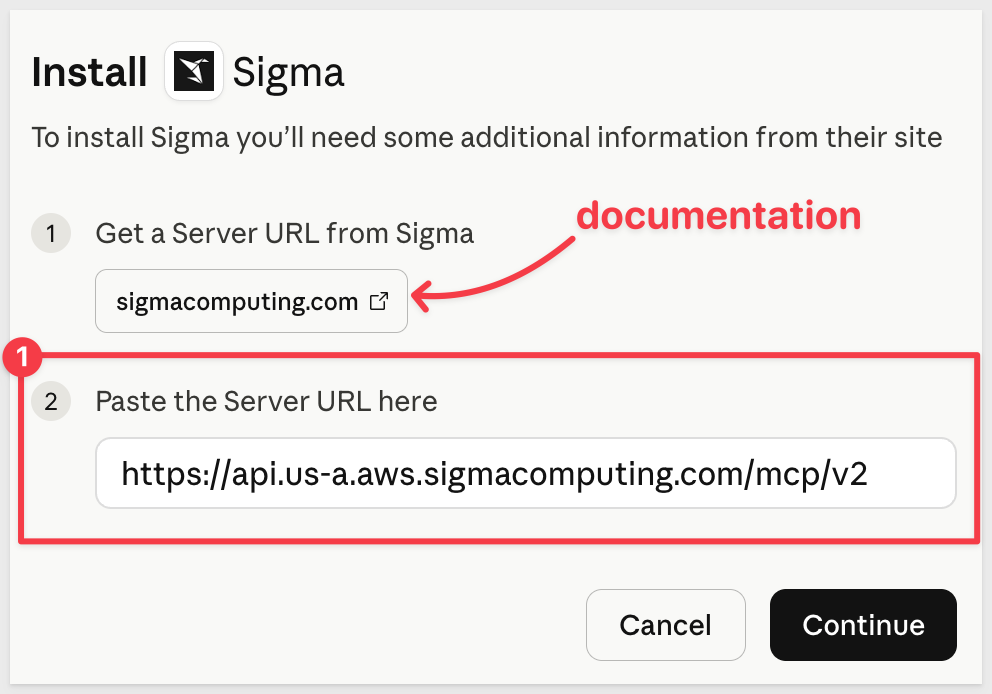
- Paste the
MCP URLcopied from Sigma into Claude and clickContinue:
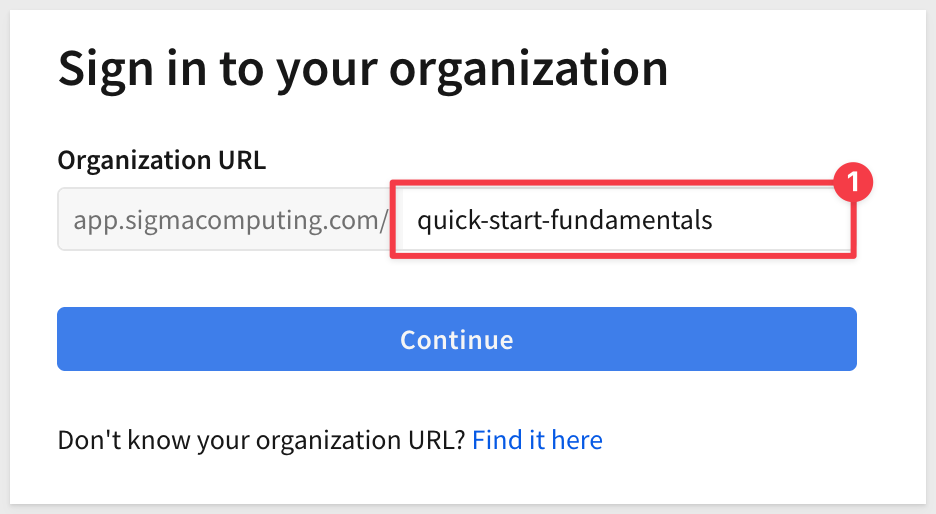
- Add your Sigma organization name and click
Continue:
Provide your Sigma credentials and log in.
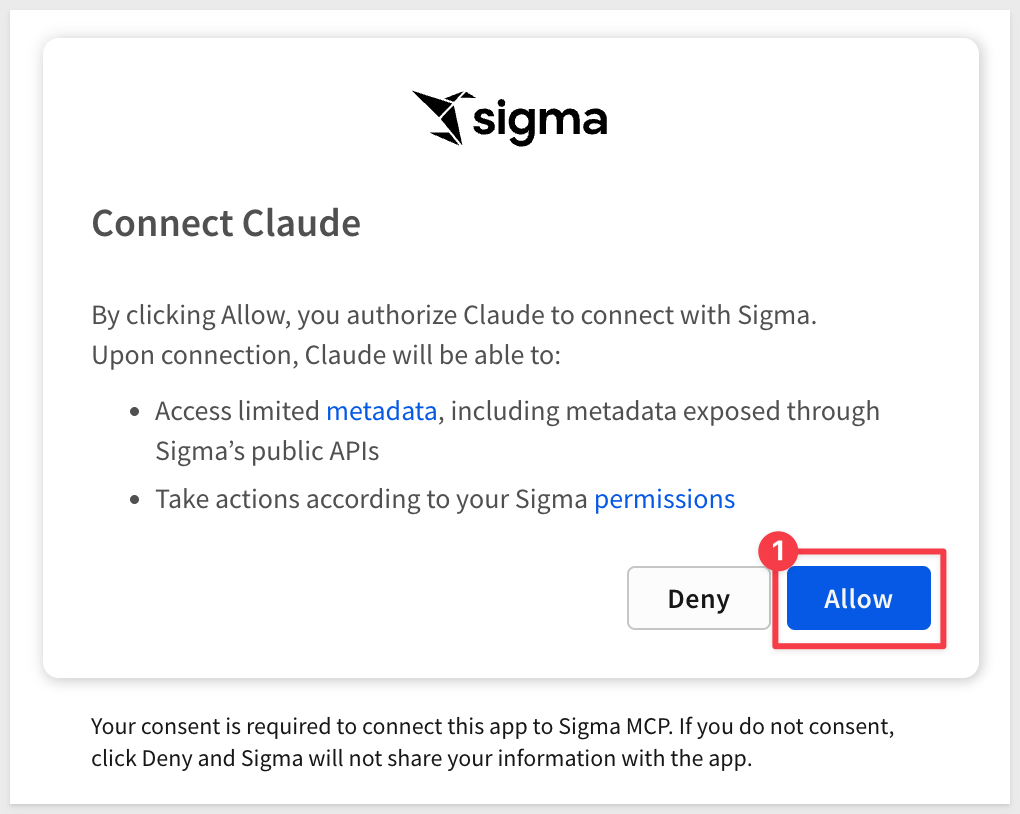
- When prompted by Claude, click
Allow:
If successful, we can Approve the operations Sigma will permit via Claude. For testing we selected Always allow for all tools:
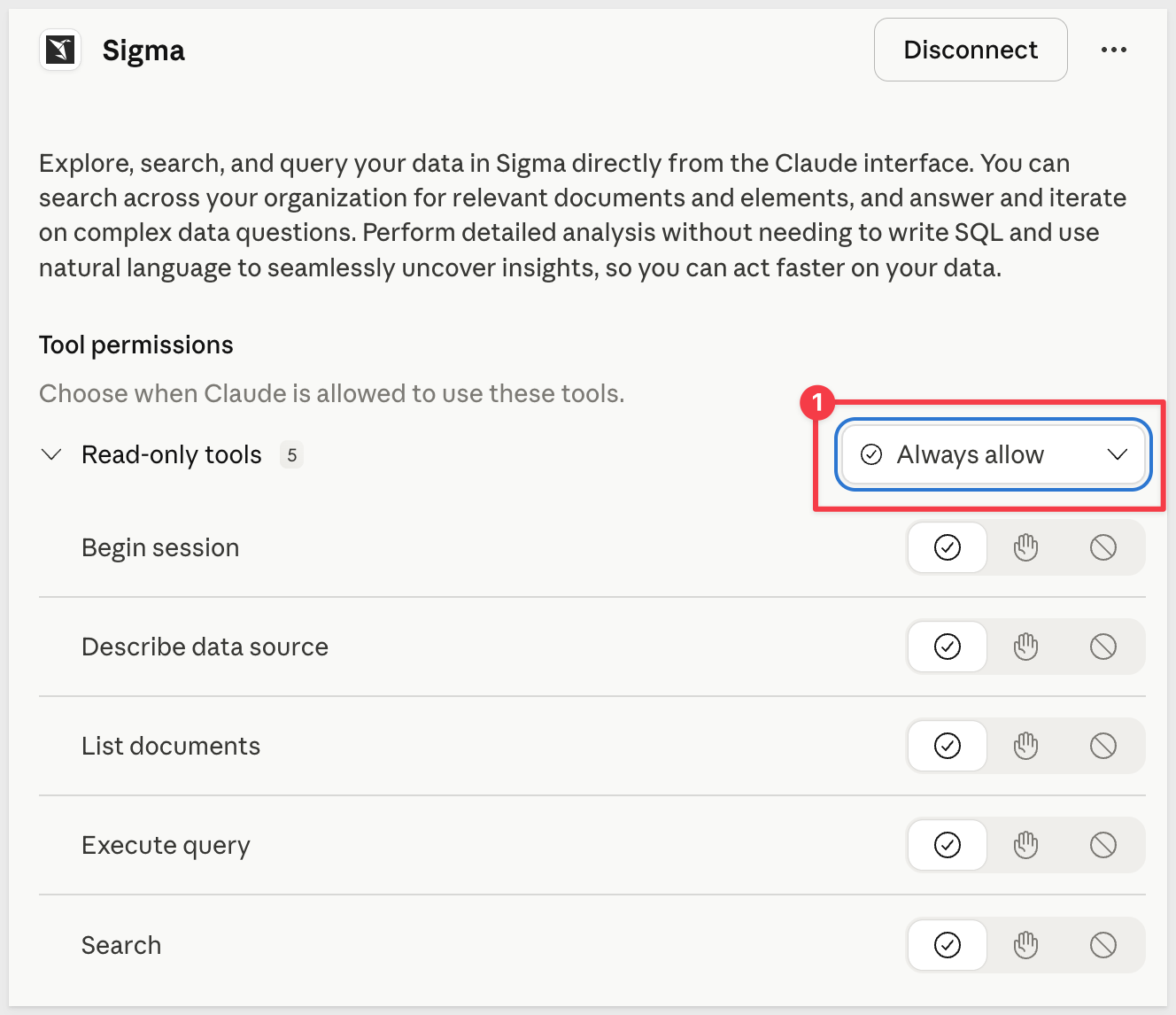
Now Claude can interact with your Sigma environment using plain language. We can also decide which tool permissions we want to allow.
For full setup details, see Use the Sigma MCP Server
We will demonstrate with Sigma sample data, but the workflow that is enabled can be applied to any type of data.
We will use a retail transaction dataset called PLUGS_ELECTRONICS.
Use case:
You're on the sales operations team at a retail company. You want to start each morning with a Slack summary of sales performance without opening Sigma or building a dedicated dashboard.
The goal:
Use Claude Code to query live data from Sigma, format the results as a daily sales digest, and deliver it to Slack automatically — once now to verify it works, then on a recurring schedule.
The data:
All examples reference PLUGS_ELECTRONICS_HANDS_ON_LAB_DATA from the RETAIL schema. If your organization uses different data, the approach is identical — substitute your own connection and table names in the prompts.
Before Claude can query your data through the MCP, the data source must be enabled in Sigma's AI settings. This is a one-time administrator setup.
Enable PLUGS_ELECTRONICS as a data source
In Sigma, navigate to Administration > AI settings and select the Assistant tab. Click Add source, search for Hands, select PLUGS_ELECTRONICS_HANDS_ON_LAB_DATA from the RETAIL schema, and click Add:
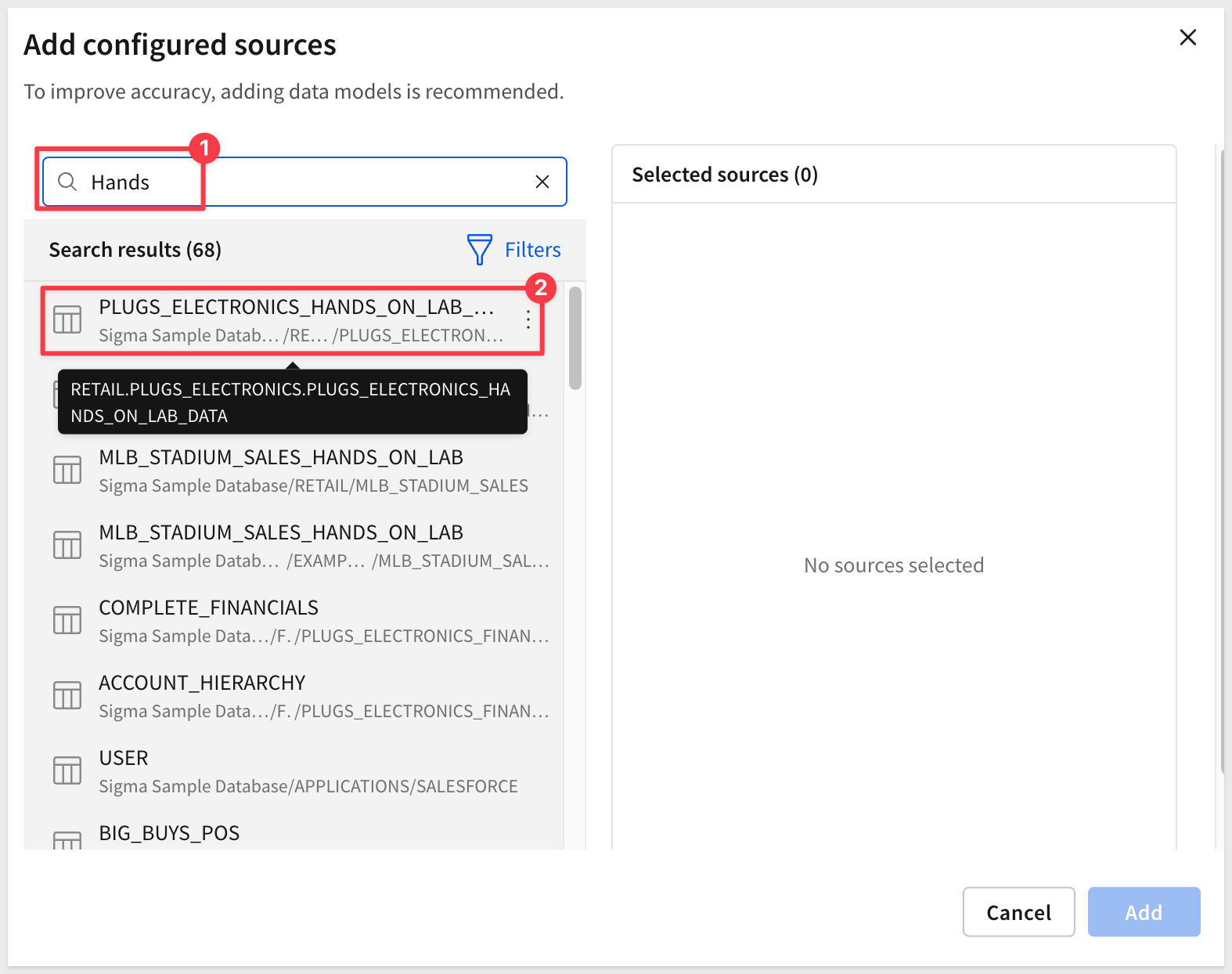
With the Sigma MCP connected, start a new conversation in claude.ai and work through the following prompts in sequence.
Discover available data
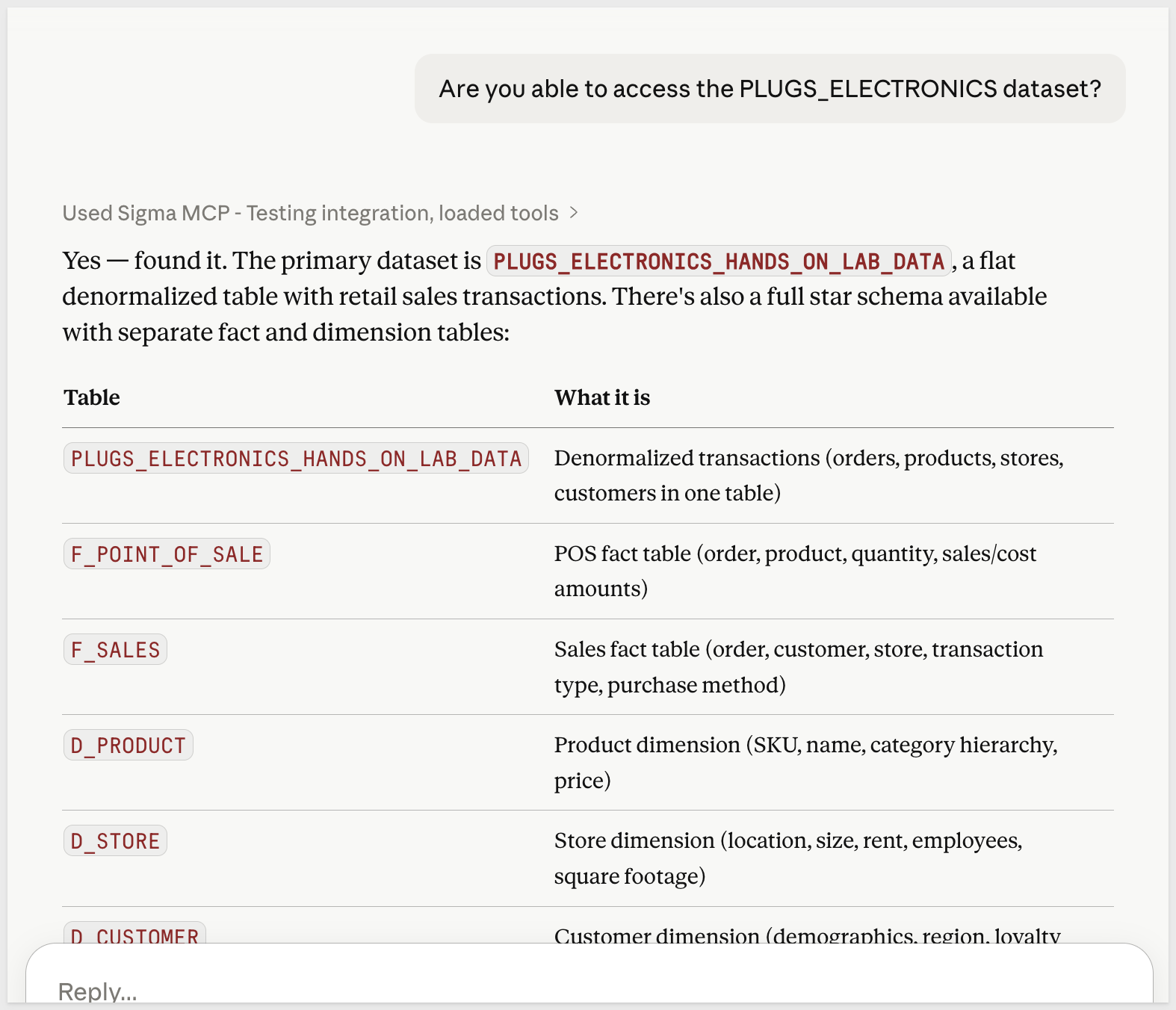
Begin by confirming Plugs is accessible in your Sigma org:
Are you able to access the PLUGS_ELECTRONICS dataset?
Claude will call the Sigma MCP and reply with some details:
Run the sales summary query
With the data source confirmed, ask for the analysis:
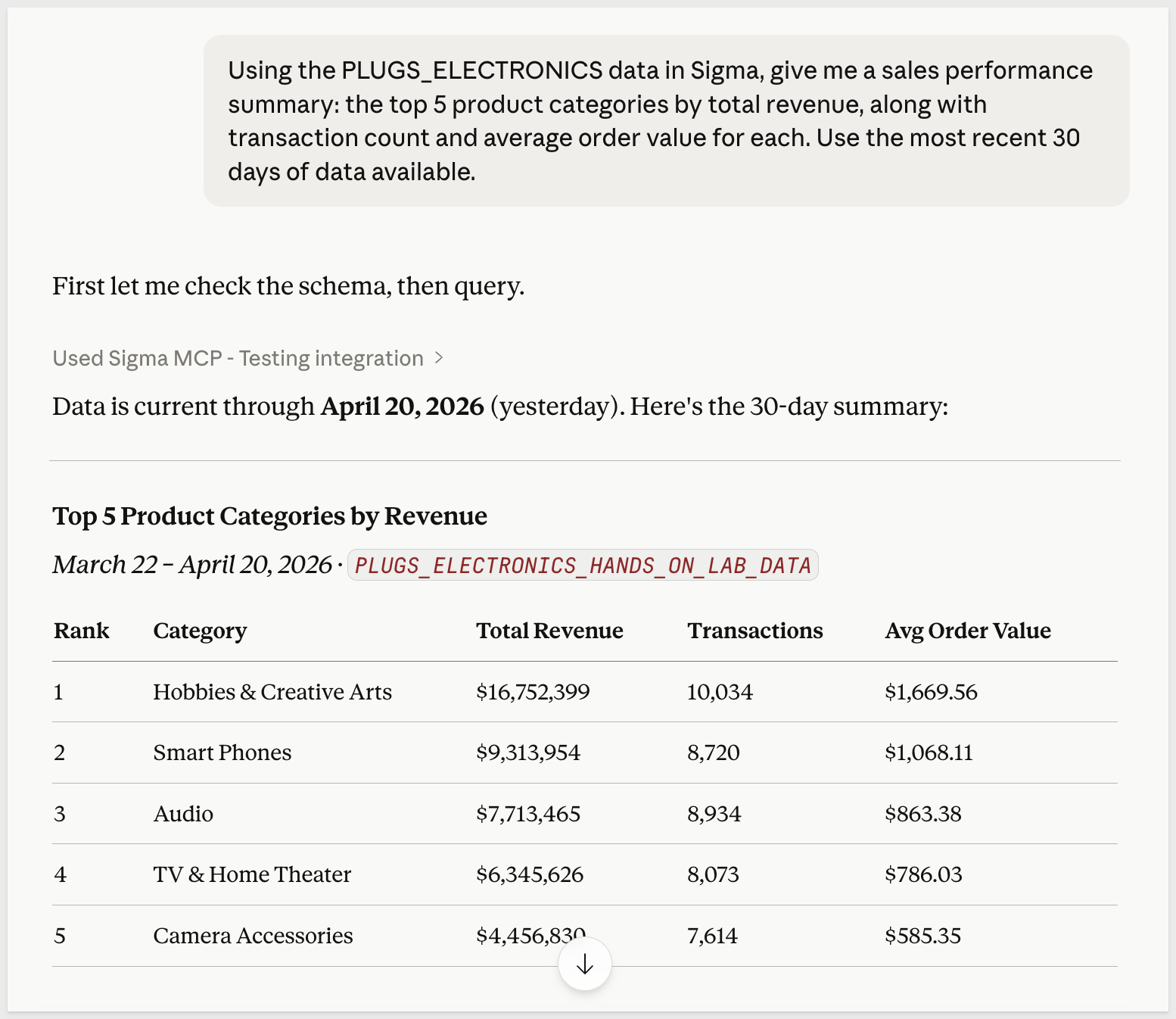
Using the PLUGS_ELECTRONICS data in Sigma, give me a sales performance summary: the top 5 product categories by total revenue, along with transaction count and average order value for each. Use the most recent 30 days of data available.
Claude will query the live data and return a structured breakdown by category:
WHY IT MATTERS:
Claude queries live data each time — not a snapshot or a cached result. When this runs on a schedule, the numbers always reflect your current data.
The raw analysis is useful, but for a Slack message it needs to be compact, scannable, and clearly formatted. Ask Claude to reformat it:
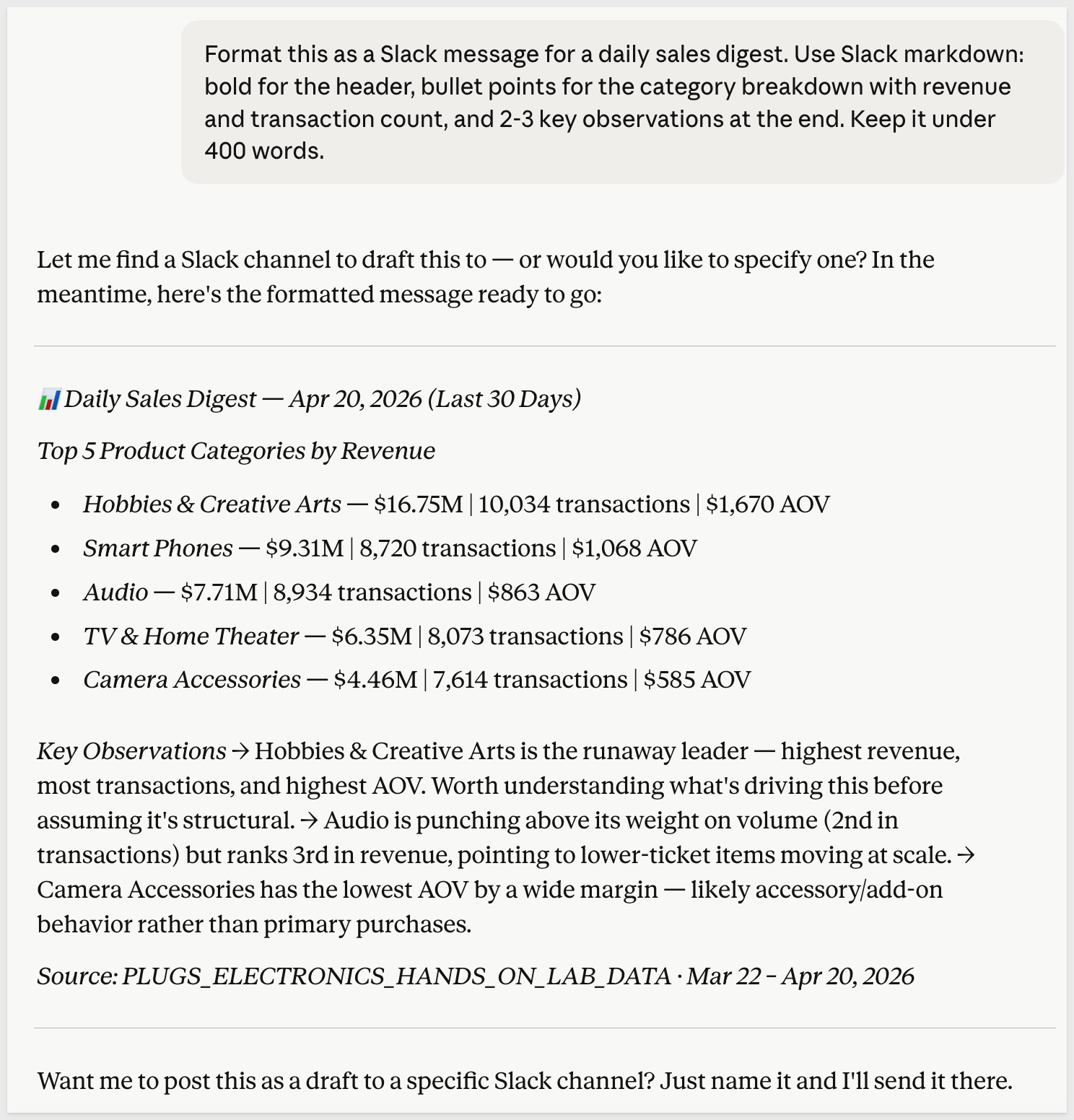
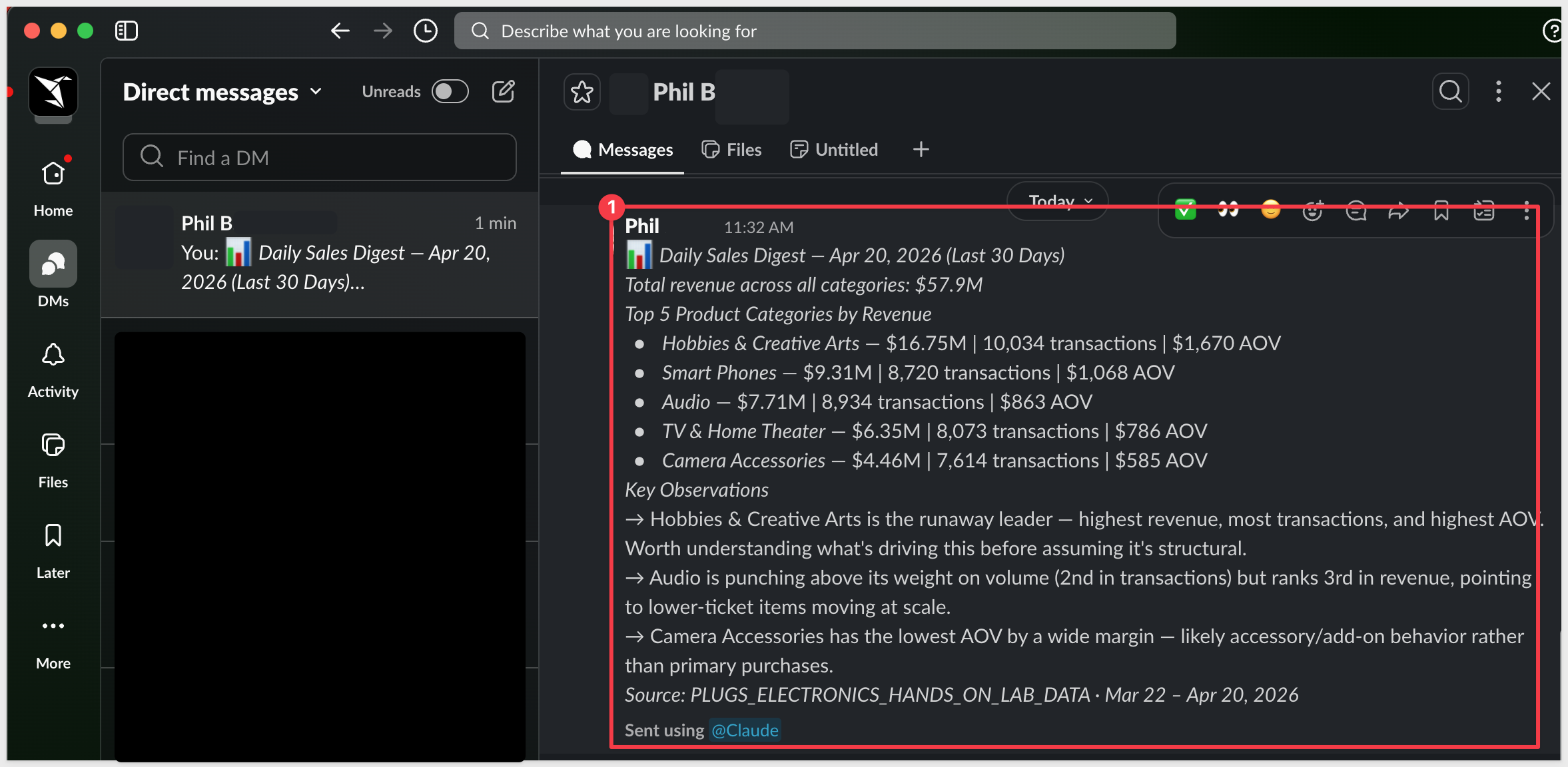
Format this as a Slack message for a daily sales digest. Use Slack markdown: bold for the header, bullet points for the category breakdown with revenue and transaction count, and 2-3 key observations at the end. Keep it under 400 words.
Claude will produce a Slack-ready message using Slack's markdown syntax (*bold*, bullet lists, etc.):
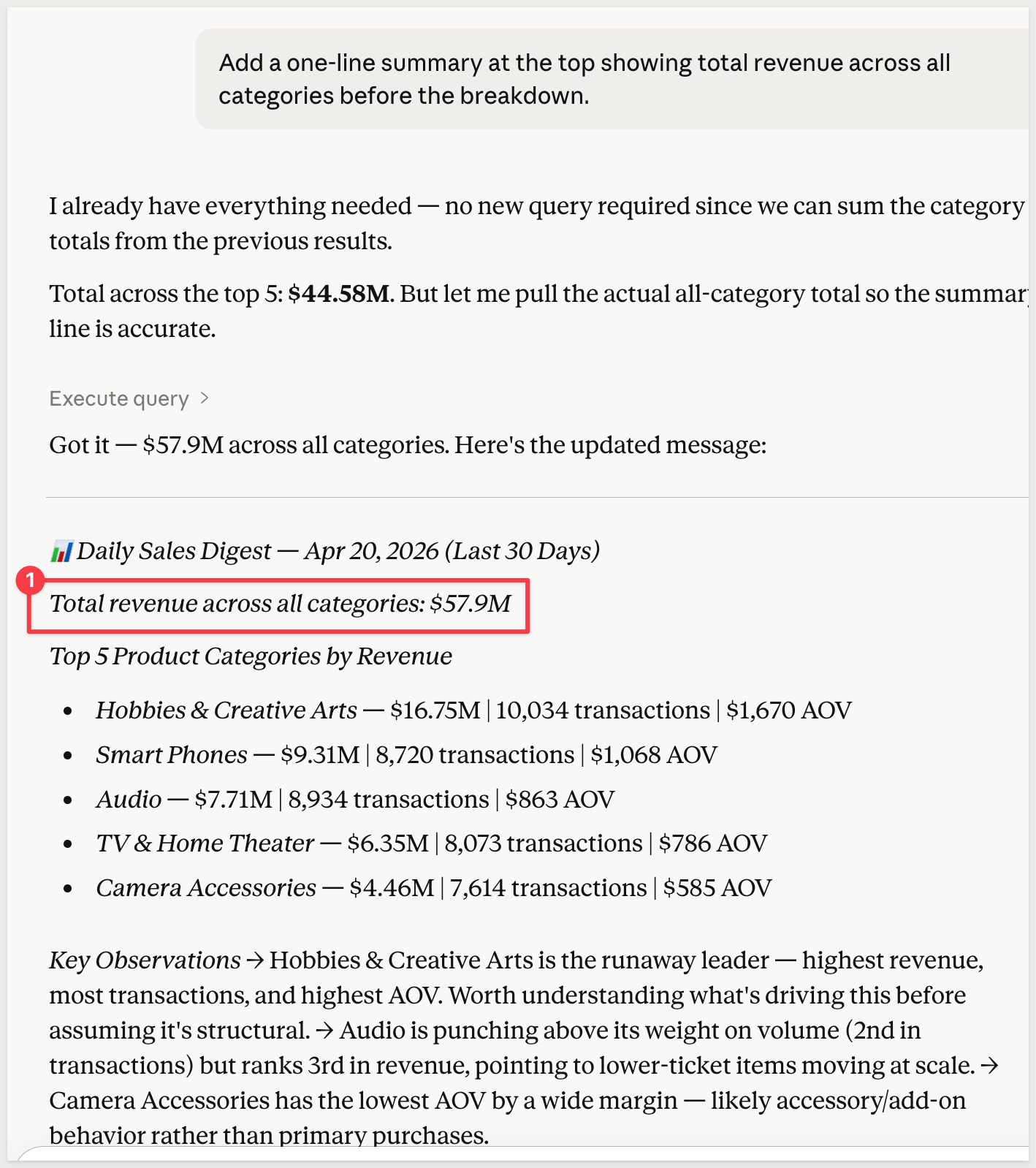
You can iterate on the format by following up in the same conversation:
Add a one-line summary at the top showing total revenue across all categories before the breakdown.
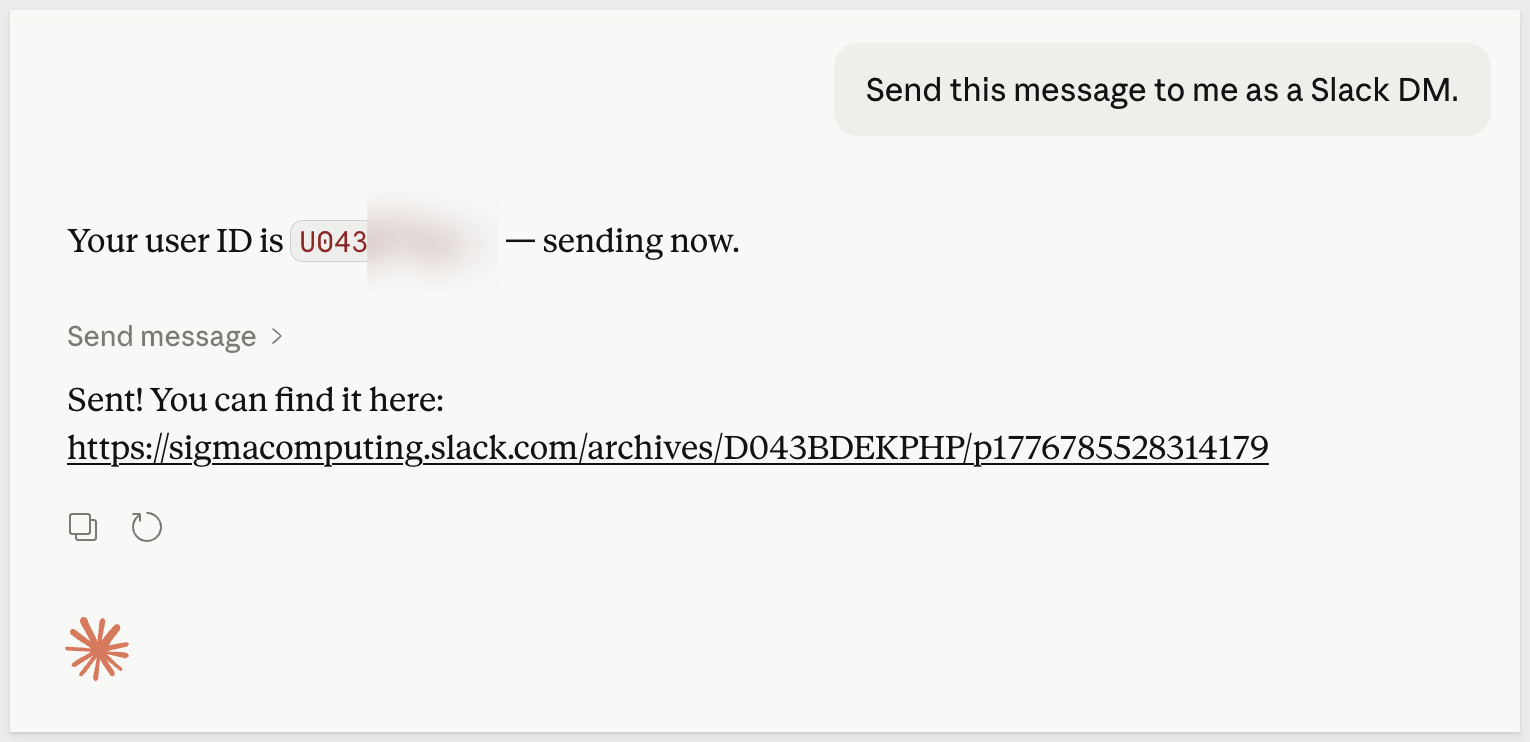
Once the format looks right, test delivery before setting up the schedule. In the same claude.ai conversation, prompt:
Send this message to me as a Slack DM.
Claude will use the Slack connector to locate your Slack user ID and deliver the message. Check your Slack DMs to confirm it arrived and the formatting renders correctly:
Once the format looks right and the test DM has arrived, the browser session has served its purpose — this is the design phase.
You've confirmed:
- what data to query
- how to format it
- Slack delivery works.
In the next section, you'll encode all of that into a scheduling prompt in Claude Code and hand it off to run automatically.
Scheduling requires Claude Code (at the time of this QuickStart) — the scheduling skill is not available in the claude.ai browser. If you haven't installed Claude Code yet, see Claude Code.
With the design confirmed in the browser, open a terminal and launch Claude Code.
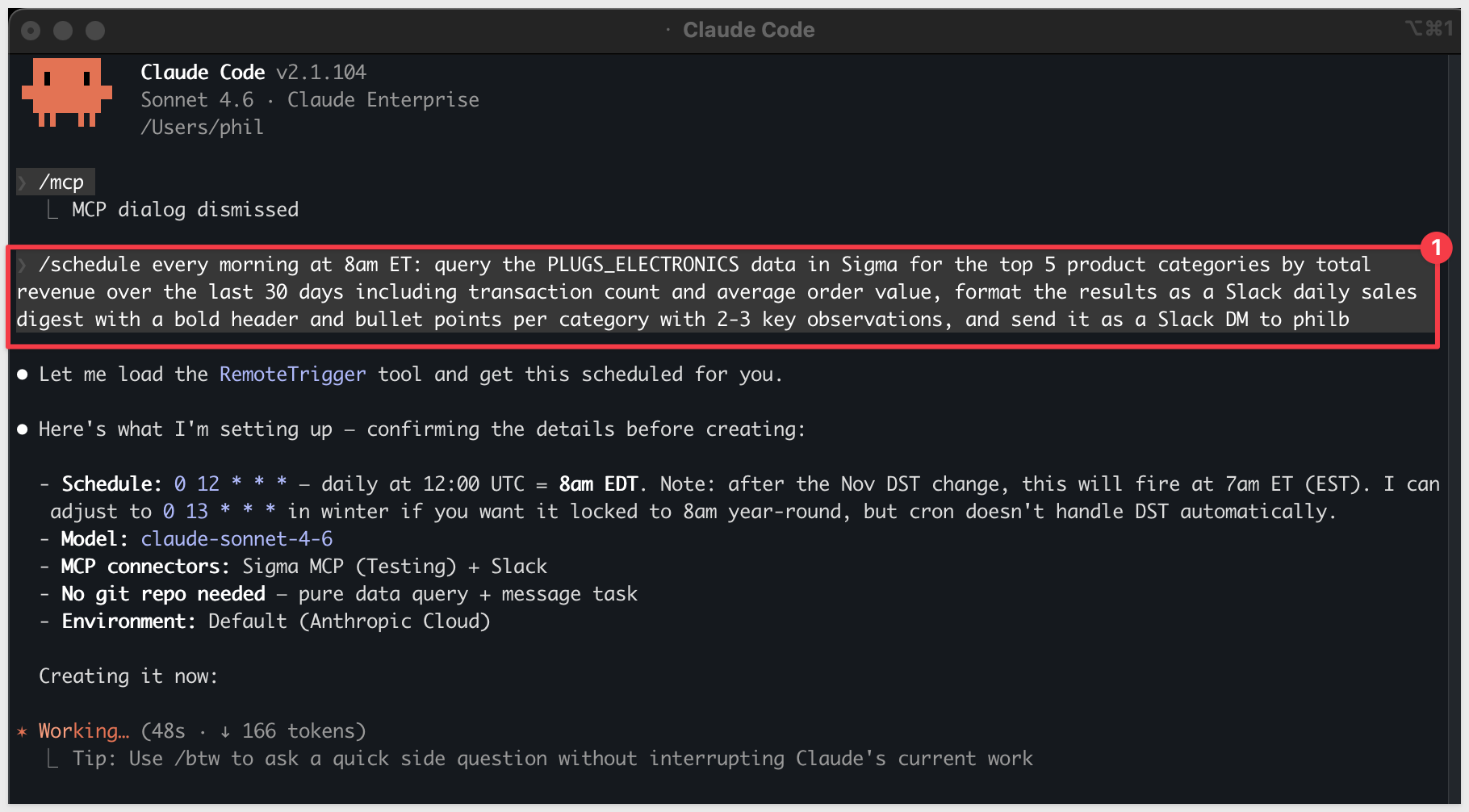
We will use the /schedule command to describe the full workflow — Claude will load the scheduling skill and create the agent:
Create the schedule
The following command uses /schedule to describe the task:
/schedule every morning at 8am ET: query the PLUGS_ELECTRONICS data in Sigma for the top 5 product categories by total revenue over the last 30 days including transaction count and average order value, format the results as a Slack daily sales digest with a bold header and bullet points per category with 2-3 key observations, and send it as a Slack DM to [YOUR_SLACK_USERNAME_OR_CHANNEL].
Before creating the schedule, Claude will display a configuration summary for your review — showing the cron schedule, model, connectors, and other details:
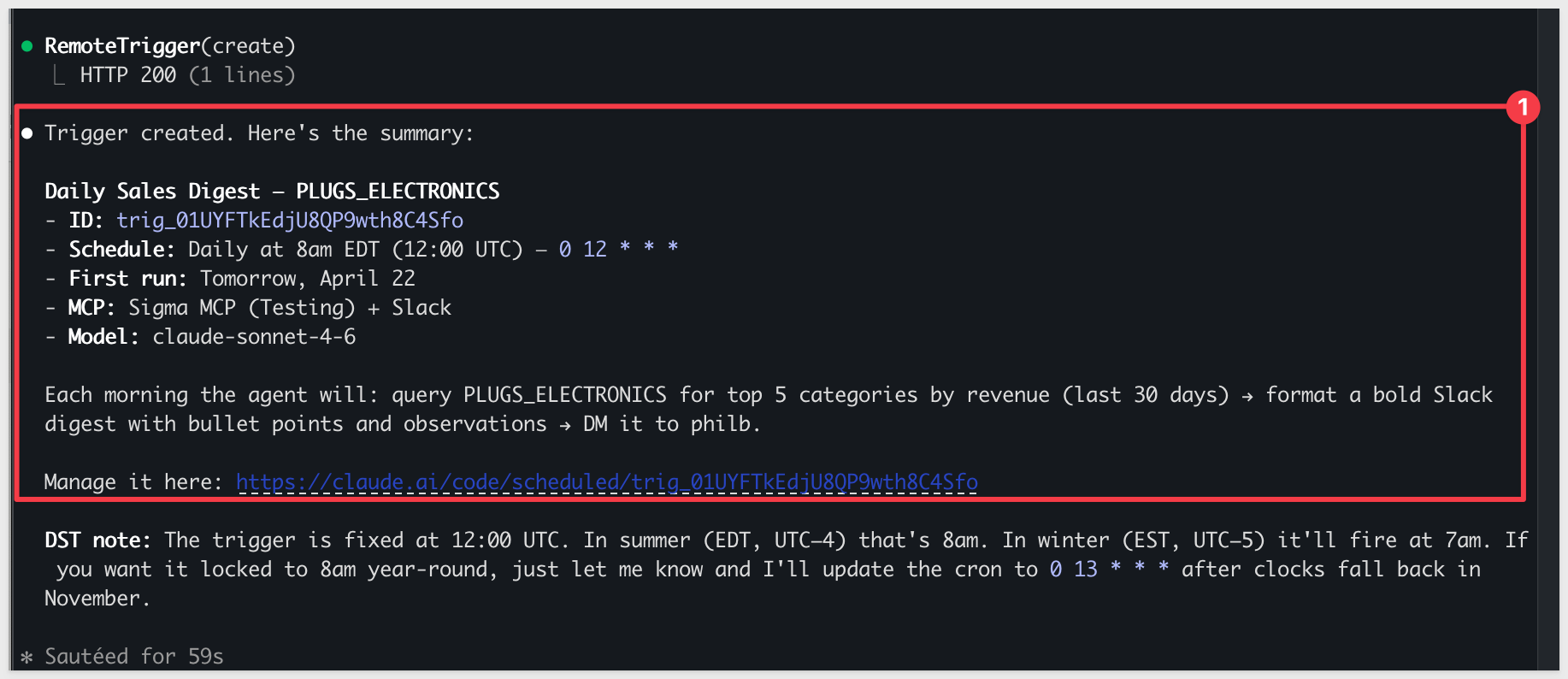
Once confirmed, Claude creates the scheduled agent and returns a completion summary showing the trigger name, ID, schedule, next run time, connectors, and the steps it will execute each run:
Verify it works
Before waiting for the scheduled time, trigger an immediate run to confirm the full workflow end-to-end:
Send this manually now.
Claude will execute the workflow immediately. Check your Slack DM or channel to confirm the message arrived and the formatting renders correctly:
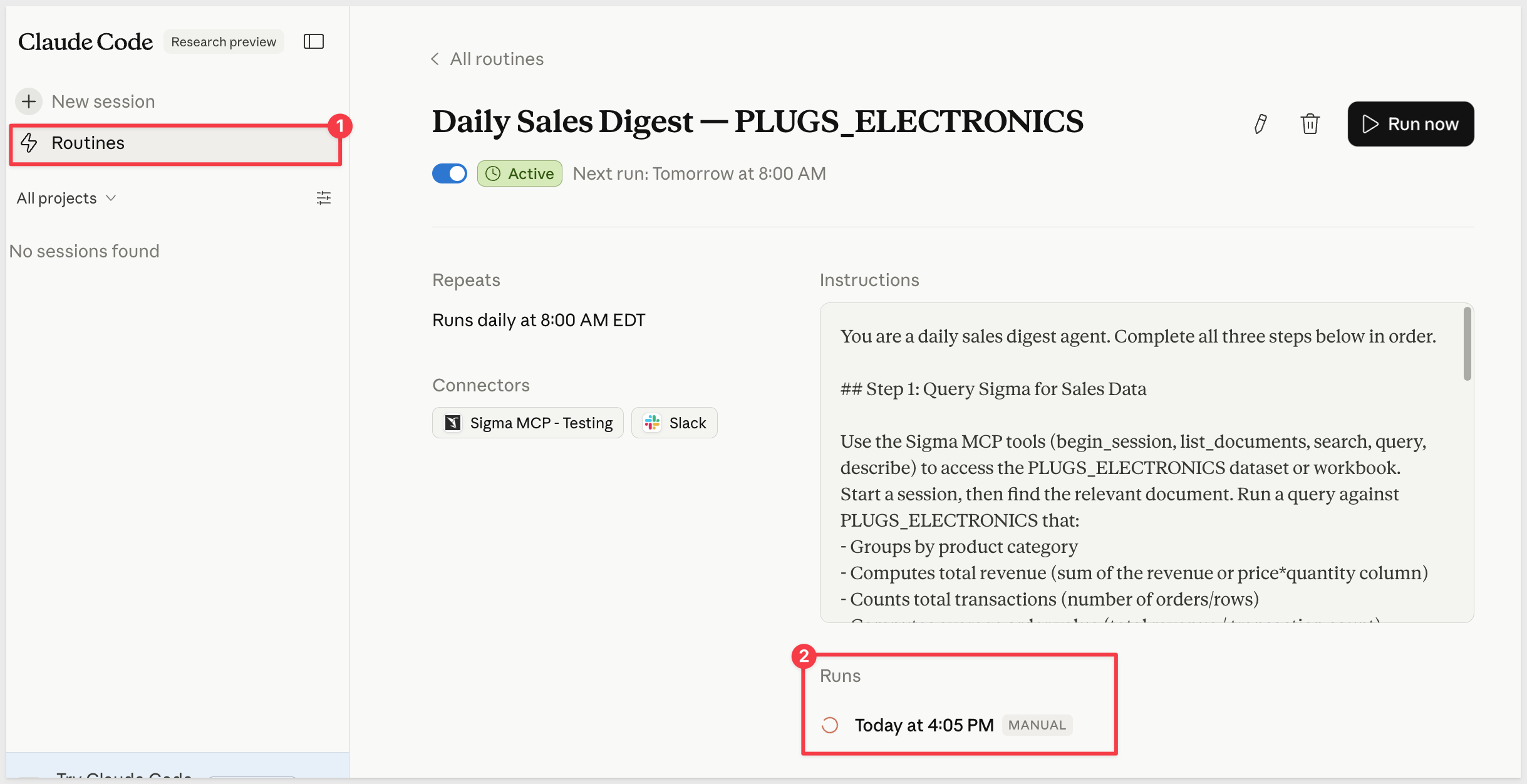
Manage the schedule
The completion summary includes a direct link to manage or disable the schedule:
https://claude.ai/code/scheduled/[your-trigger-id]
Open that URL to view the schedule details, update the instructions, or disable it:
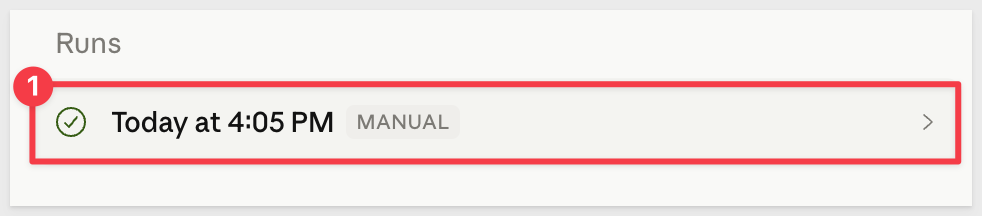
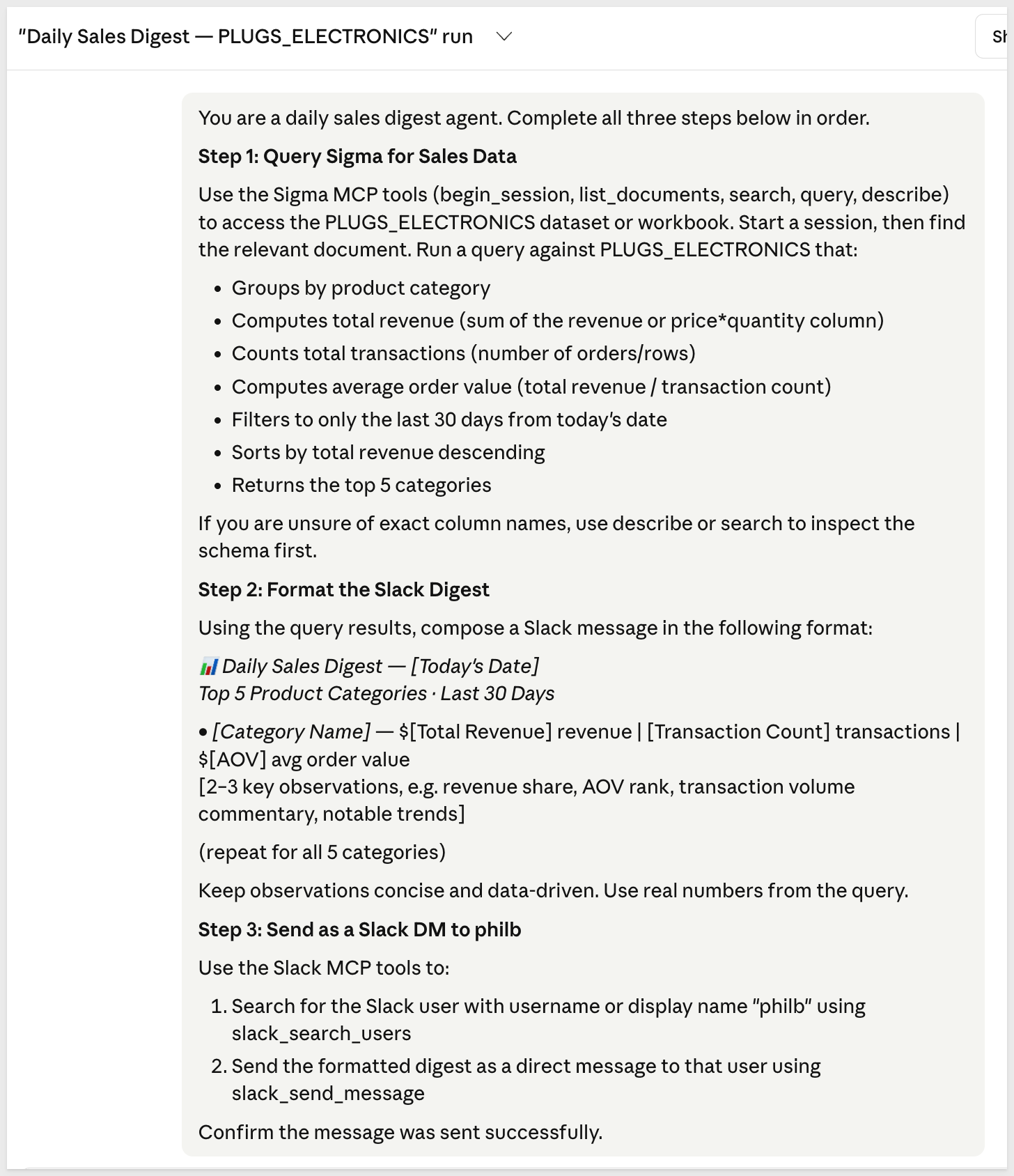
Clicking into a Runs entry shows a log of every step Claude executed during that run:
This QuickStart demonstrated how to connect Claude to Sigma using the Sigma MCP and to Slack using the claude.ai Slack connector, then use both to automate a recurring data workflow — designed in the browser, scheduled via Claude Code.
The pattern is straightforward: Claude queries live Sigma data on a schedule, formats the result, and posts it to Slack — no dashboard to maintain, no pipeline to build, no manual steps once the schedule is running. The same approach applies to any recurring analytical question your team needs answered on a regular cadence.
Sigma brings the data governance, live querying, and organizational structure. Claude brings the reasoning, formatting, and ability to act. Together they make it possible to go from a question — "what were my top categories this month?" — to a formatted, delivered answer on a recurring schedule, without building a pipeline or maintaining a dashboard.
Additional Resource Links
Blog
Community
Help Center
QuickStarts
Be sure to check out all the latest developments at Sigma's First Friday Feature page!