This QuickStart presents common challenges when working with dates. Sigma can be used to manipulate dates to get the desired results, quickly and easily.
There are many ways to work with dates in Sigma. Not every solution is covered and you may even find a better method. Suggestions and feedback are always appreciated.
This QuickStart assumes you have a working instance of Sigma and the connection called Sigma Sample Database.
We will use the Sigma-provided RETAIL.PLUGS_ELECTRONICS.PLUGS_ELECTRONICS_HANDS_ON_LAB_DATA table so you can follow along and recreate each step in your own Sigma environment.
Template
We have also made the final workbook that is created during this QuickStart available as a Sigma Template. This option allows you to read along while having the workbook built for you. The template is not required and the end result is the same if you build it yourself.
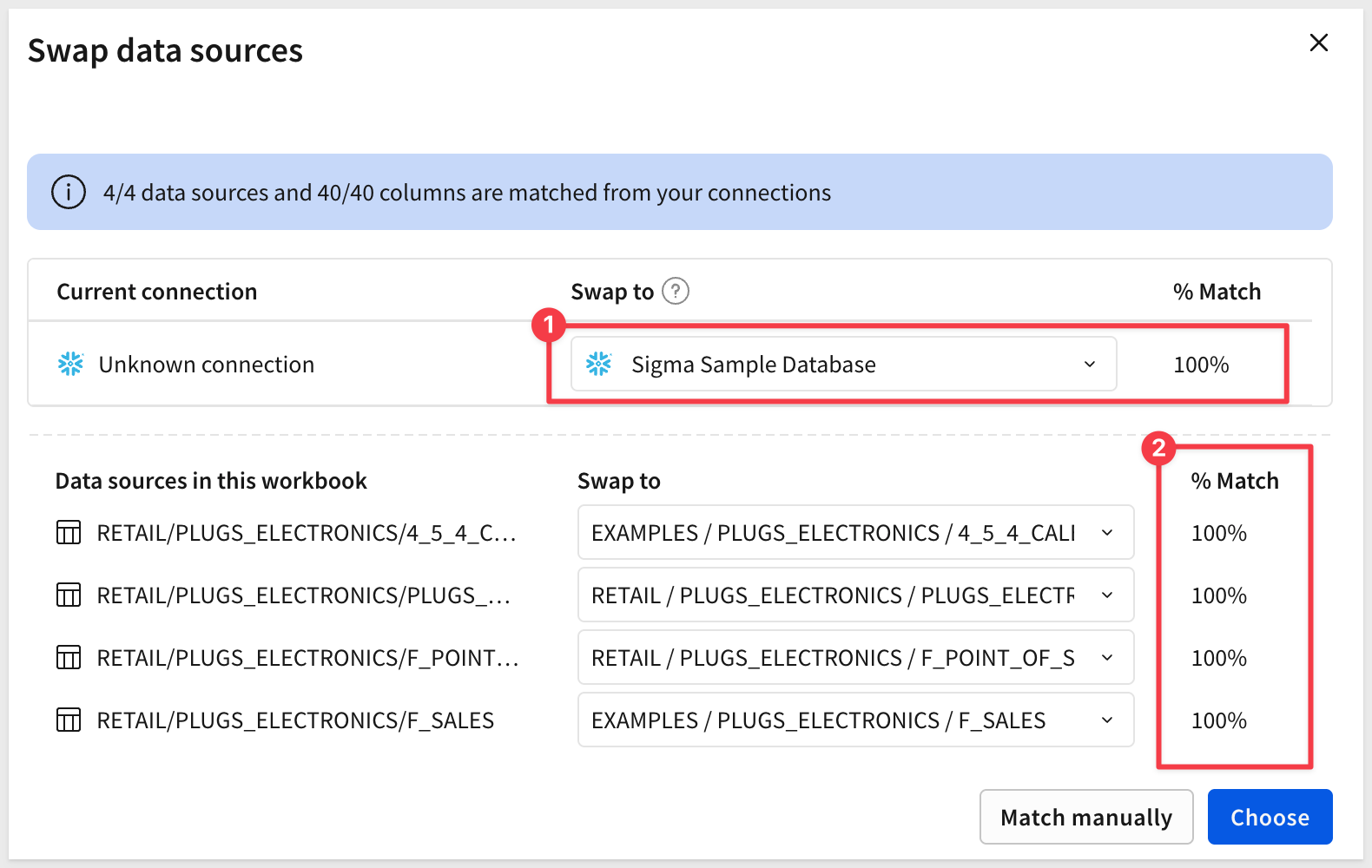
The template will prompt to Swap data sources. Since it uses Sigma provided sample data, the % Match should be 100%.
Click Choose:
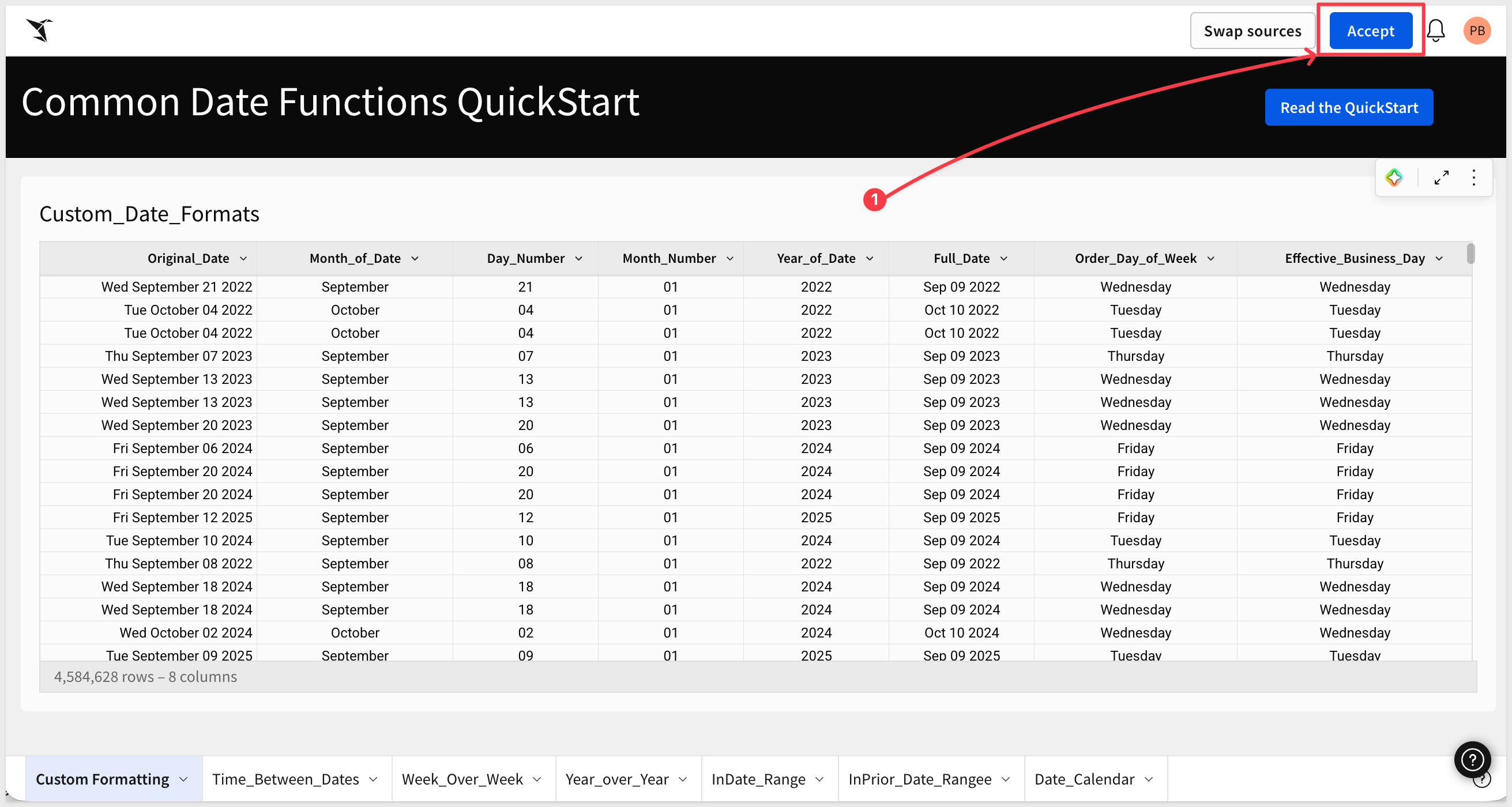
Once done, the fully-built workbook is presented and we can Accept the swap and save the workbook normally:
Target Audience
Sigma builders looking for solutions to date challenges or who just want to learn new date methods.
Prerequisites
- Any modern browser is acceptable.
- Access to your Sigma environment.
- Some familiarity with Sigma is assumed. Not all steps are shown, as basic Sigma functionality is assumed.

Before we dig in, let's first create a Data page so that we can use the same table data several times, but only query the warehouse one time.
Log into Sigma, click Create new and select Workbook.
From the Element bar, under the Data group, place a new Table on the page.
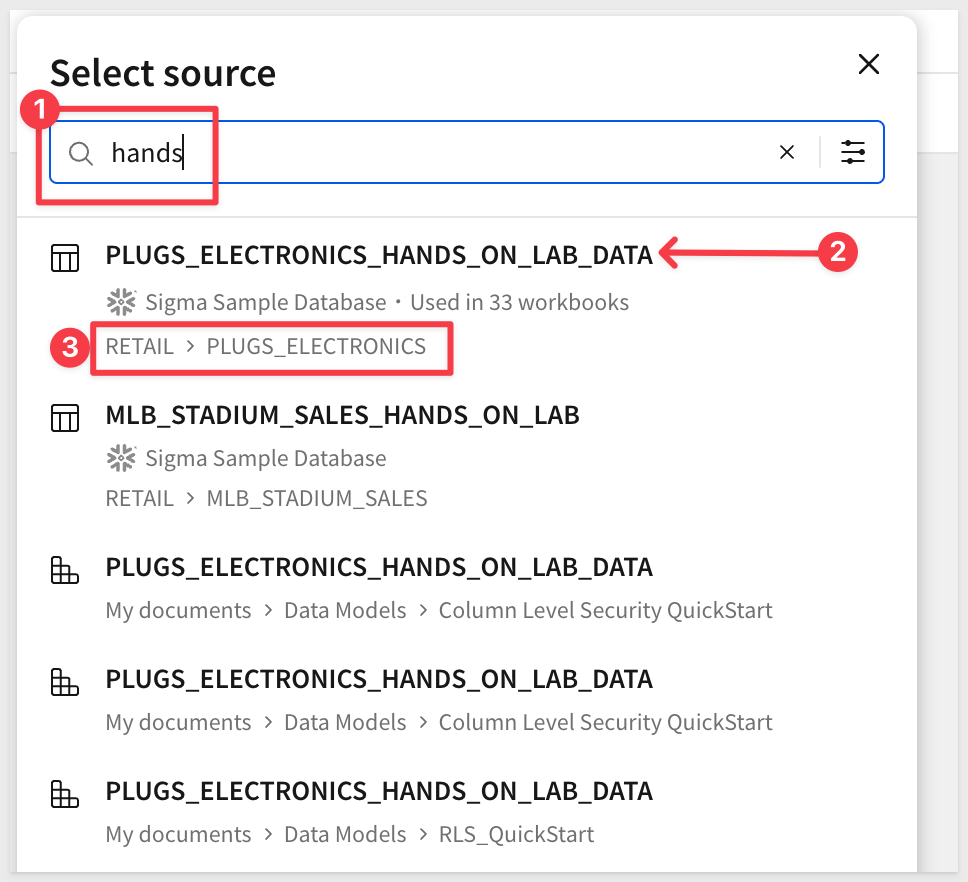
In the Select source modal, search for Hands and select the PLUGS_ELECTRONICS_HANDS_ON_LAB_DATA table from the RETAIL database:
Rename the page to Data.
Save the workbook as Common_Date_Functions_QuickStart.
Basic formatting
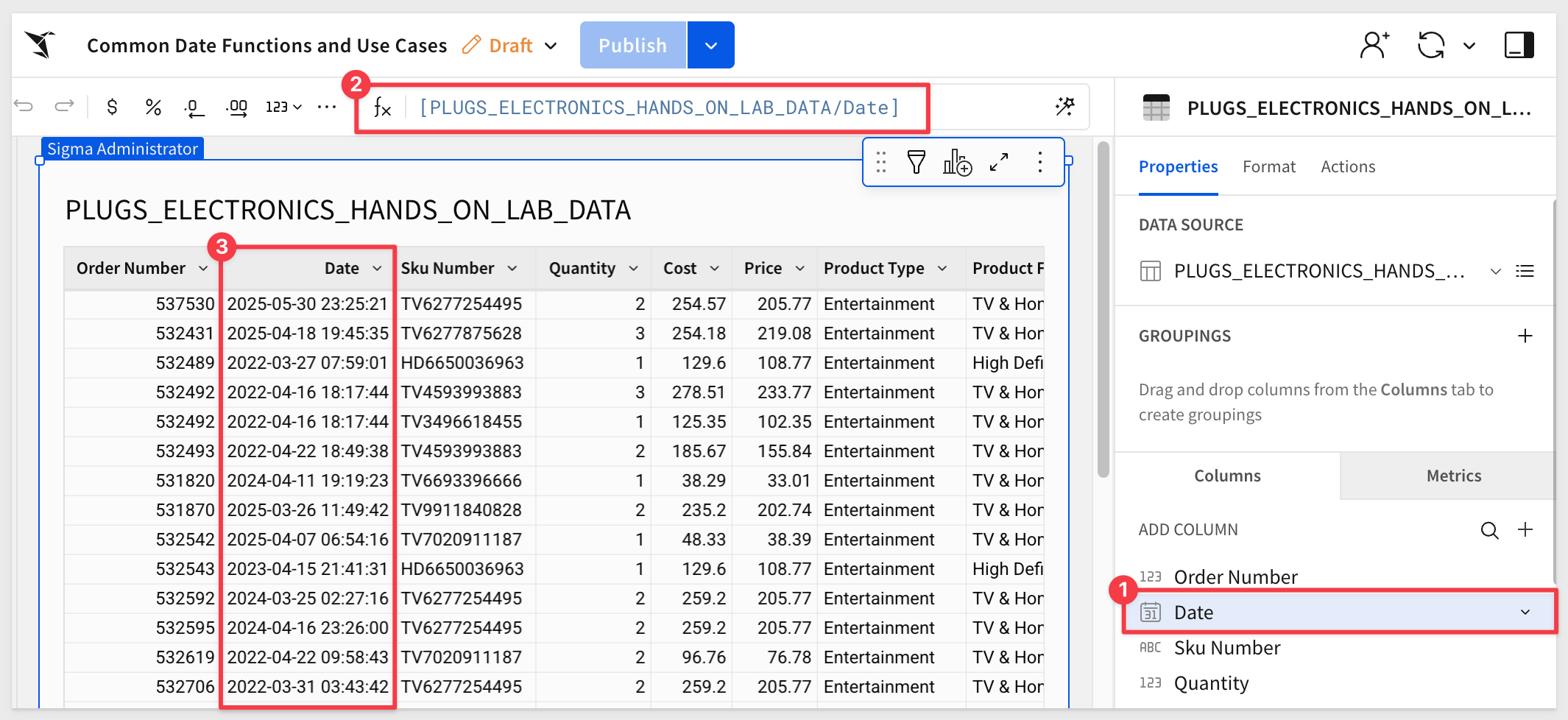
We're primarily interested in the Date column, which is coming in ‘as-is' from the warehouse:
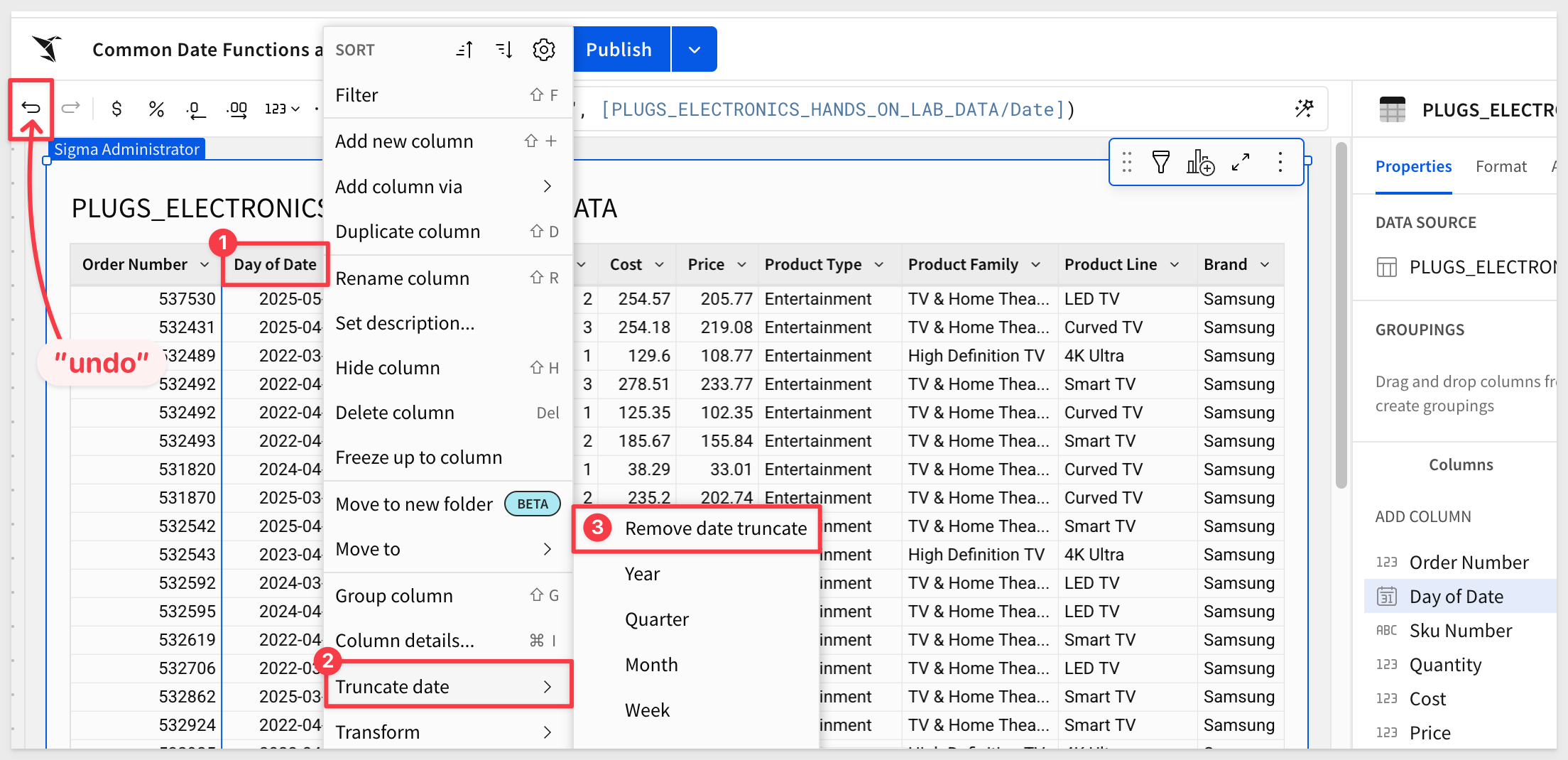
Click on the Date column down arrow and select Truncate date. This is one way to modify how the Date column is displayed.

If you select the Day option, you'll see the column name changes to Day of Date.
Reset the Date column back to the default. You can use Remove date truncate from the column's menu but the Undo icon is faster:
Click on the Date column down arrow and select Format date. This is another way to change how the Date column is displayed:
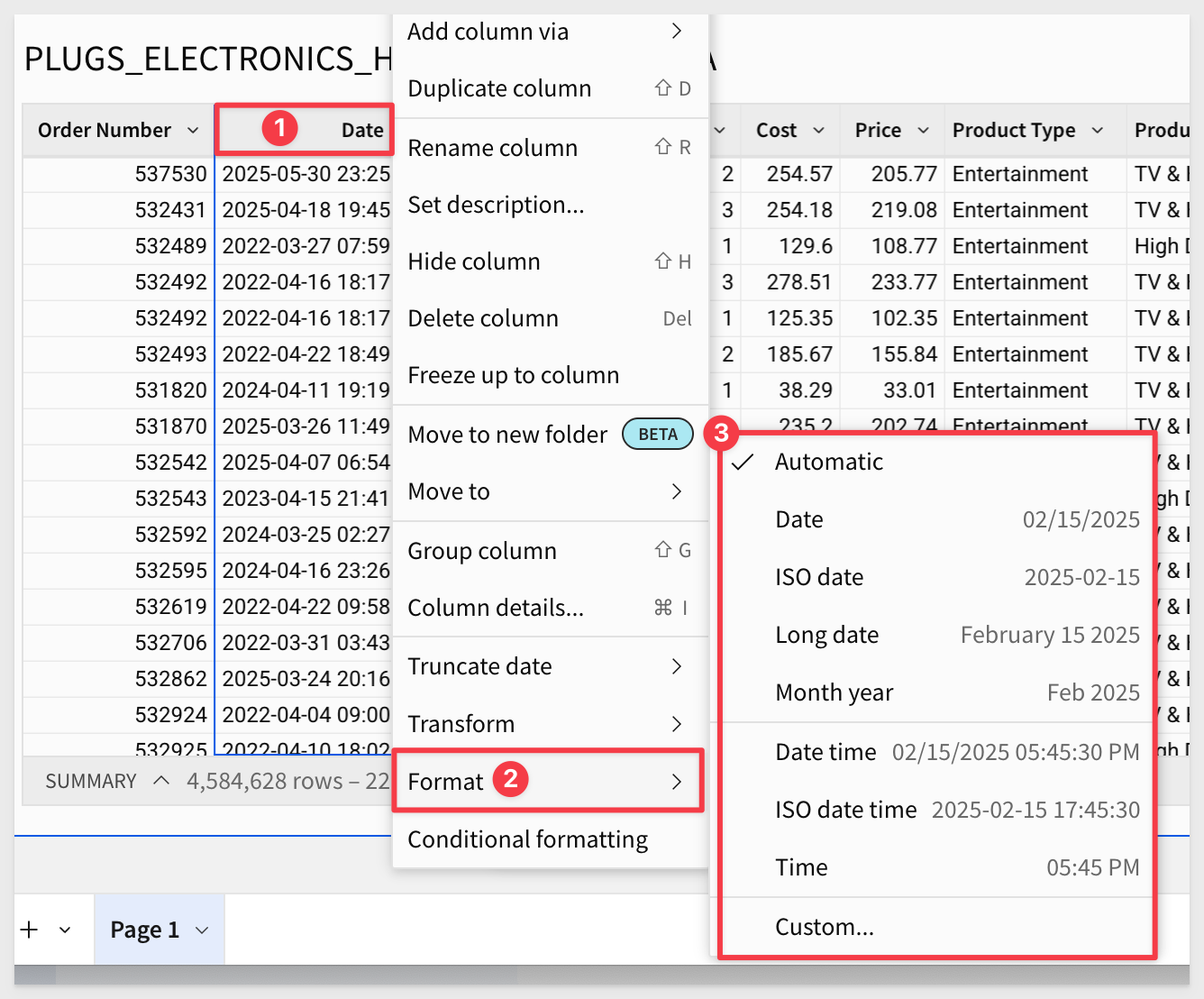
Feel free to experiment with the available options, resetting to the original when done.
Let's create a page for this section so that you can easily reference the material later.
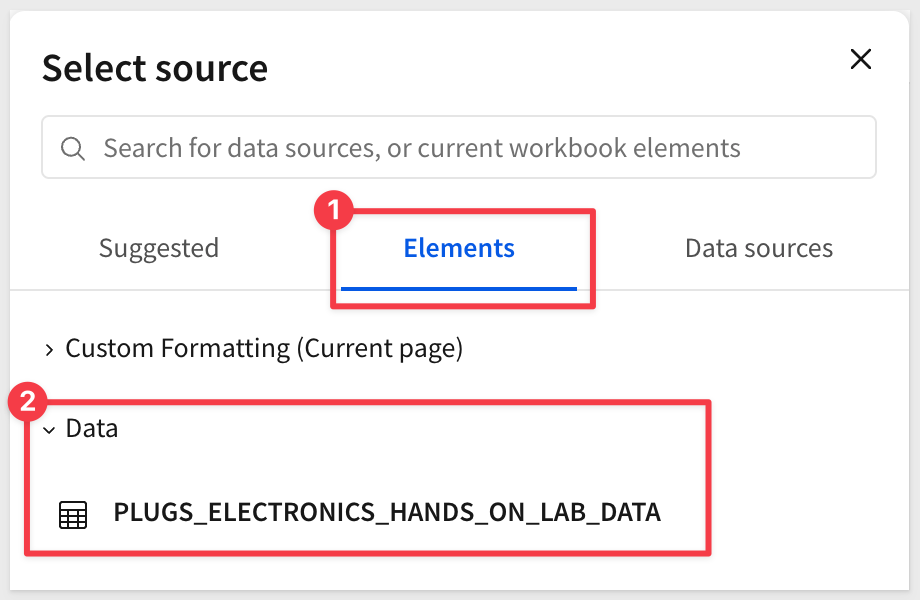
Create a new page and rename it Custom Formatting and add another table from Element bar > Data, this time selecting the PLUGS_ELECTRONICS_HANDS_ON_LAB_DATA from the Data page:
Rename the table to Custom_Date_Formats.
We can also hide all the columns except for Date just to make things easier to see.
We will create more child tables as we go through more sections later.
Custom date formats
Sigma supports applying custom formats to date columns. You can do this by selecting the Date column menu and then Format > Custom:
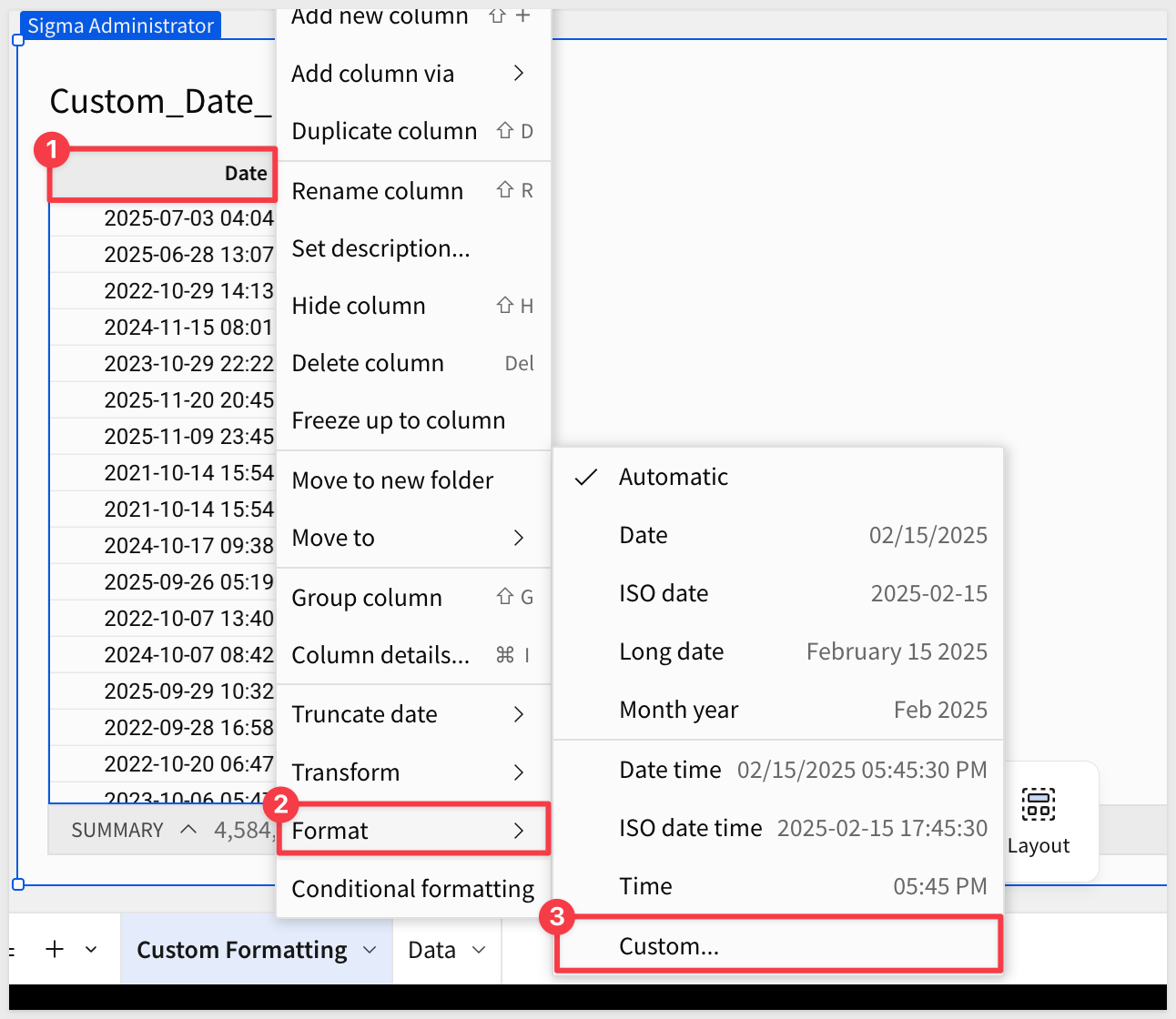
Entering the format string below will show a sample output in the popup:
%a %B %d %Y
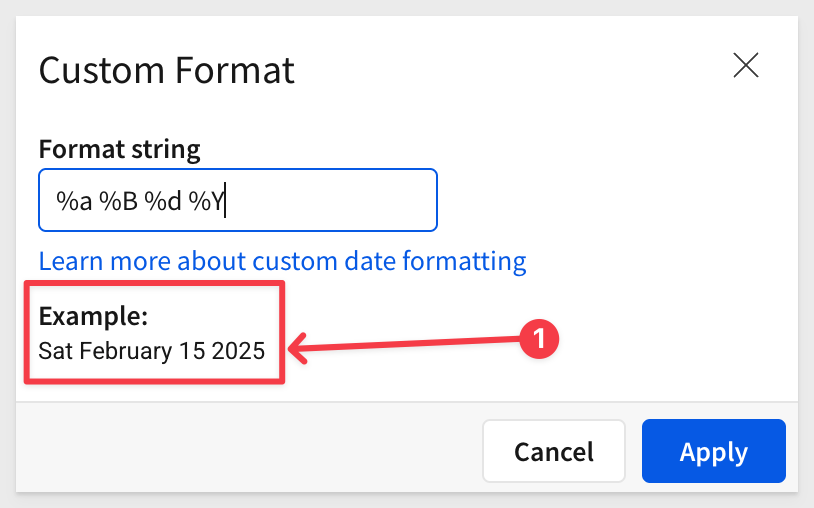
This helps confirm your format string is correct before applying it.
Feel free to experiment, then reset the Date column back to the default when done.
The formula bar
Another way to apply custom date formatting is by using the formula bar and the DateFormat function.
For example, you may want to get the full month name from a date column.
Rename the Date column to Original_Date.
Create a new column by using the Date column's menu and selecting Add new column.
Rename the new column Month_of_Date.
Click the Month_of_Date column, copy/paste this formula into the formula bar and press enter.
DateFormat(Date([Original_Date]), "%B")
This demonstrates how to use the formula bar to apply both a function (DateFormat) and a custom format string:
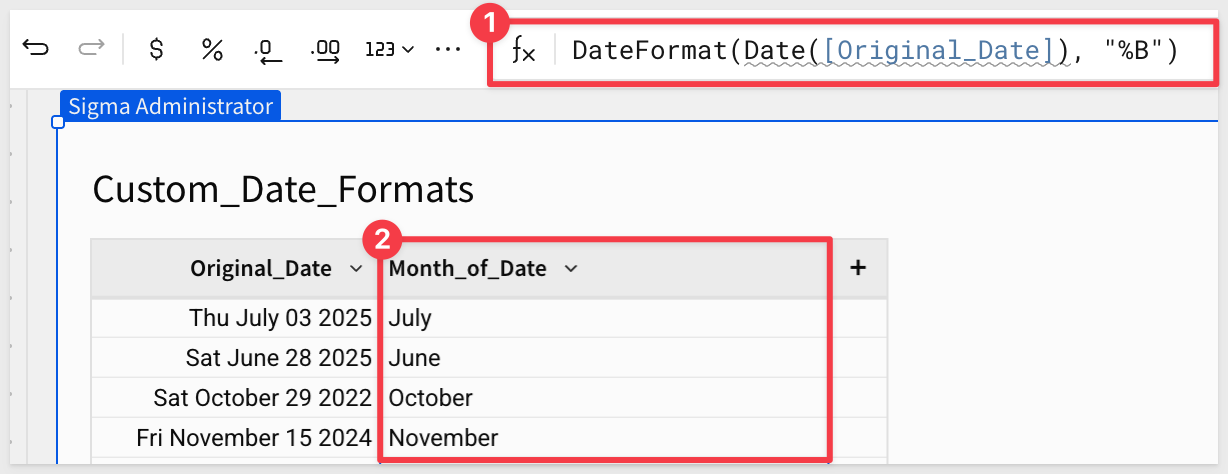
Here are a few other examples created by adjusting the value after the percent in the formula:

For more information, see Custom format strings
Click Publish.
Now that we've covered the basics, let's apply what we've learned to a new use case.
For example, it's often useful for users to know the Effective Business Day an order was placed. If an order is placed on a Saturday or Sunday, this column will show Friday as the effective day, helping analysts align reporting with standard business operations.
We'll continue working with the Custom_Date_Formats table from the previous section.
First, let's see what day of the week each order was placed. Add a new column and rename it to Order_Day_of_Week.
Set the formula to:
DateFormat([Original_Date], "%A")
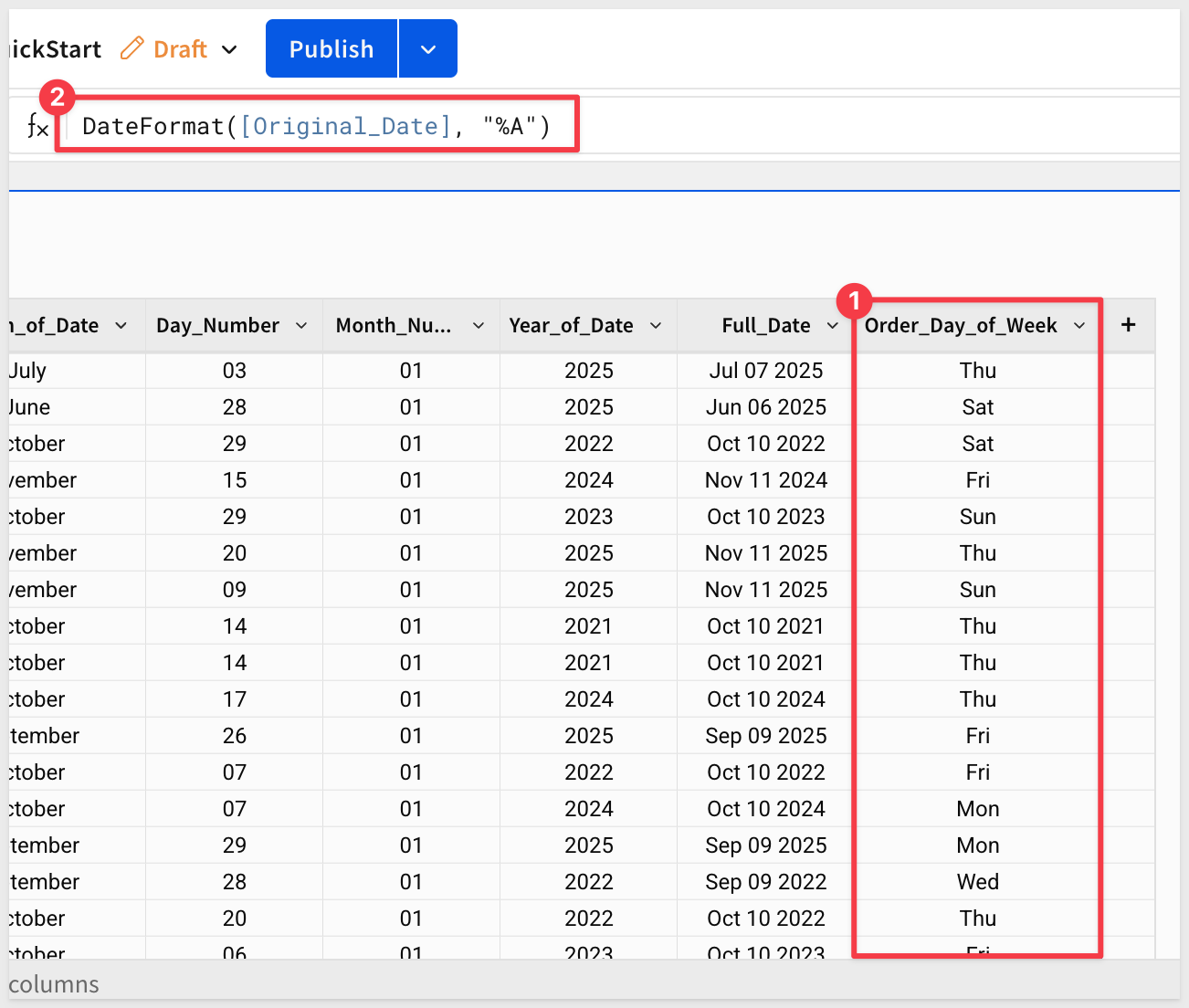
Now we can see which orders were placed on weekends. Let's create a column that shows the effective business day.
Add another new column and rename it to Effective_Business_Day.
Use the following formula:
DateFormat(DateAdd("day", If(Weekday([Original_Date]) = 7, -1, Weekday([Original_Date]) = 1, -2, 0), [Original_Date]), "%A")
This formula evaluates the order date:
- If it's Saturday (7), it subtracts 1 day to show Friday
- If it's Sunday (1), it subtracts 2 days to show Friday
- Otherwise, it shows the actual order date (0 days difference)
- Then formats the result to display only the weekday name
The table now shows both the actual day the order was placed and the effective business day for reporting:
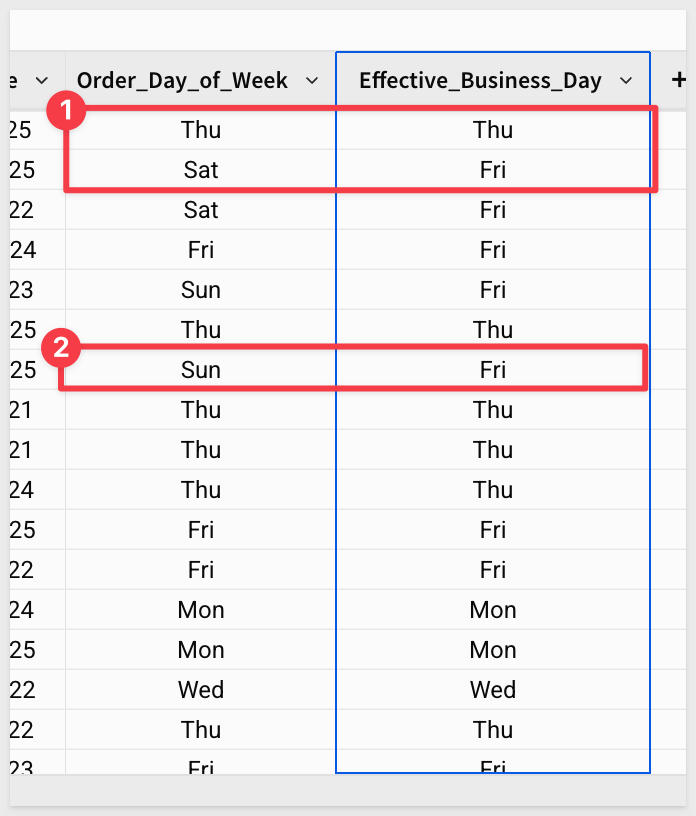
For more information, see Define custom datetime formats
Click Publish.
It can be useful to measure the time elapsed between two dates (or timestamps). Some examples are:
Call Center Support: Call duration
Customer Service: Order fulfillment time
Healthcare: Time since last blood test
Let's take a look at the customer service use case.
Marketing is interested in targeting customers who purchase frequently but only has a table with all orders to start with.
They want to answer a few key questions:
Create a new page named Time_Between_Dates.
Place another child table of the Data > PLUGS_ELECTRONICS_HANDS_ON_LAB_DATA table onto the new page.
Rename the child table Time_Between_Dates.
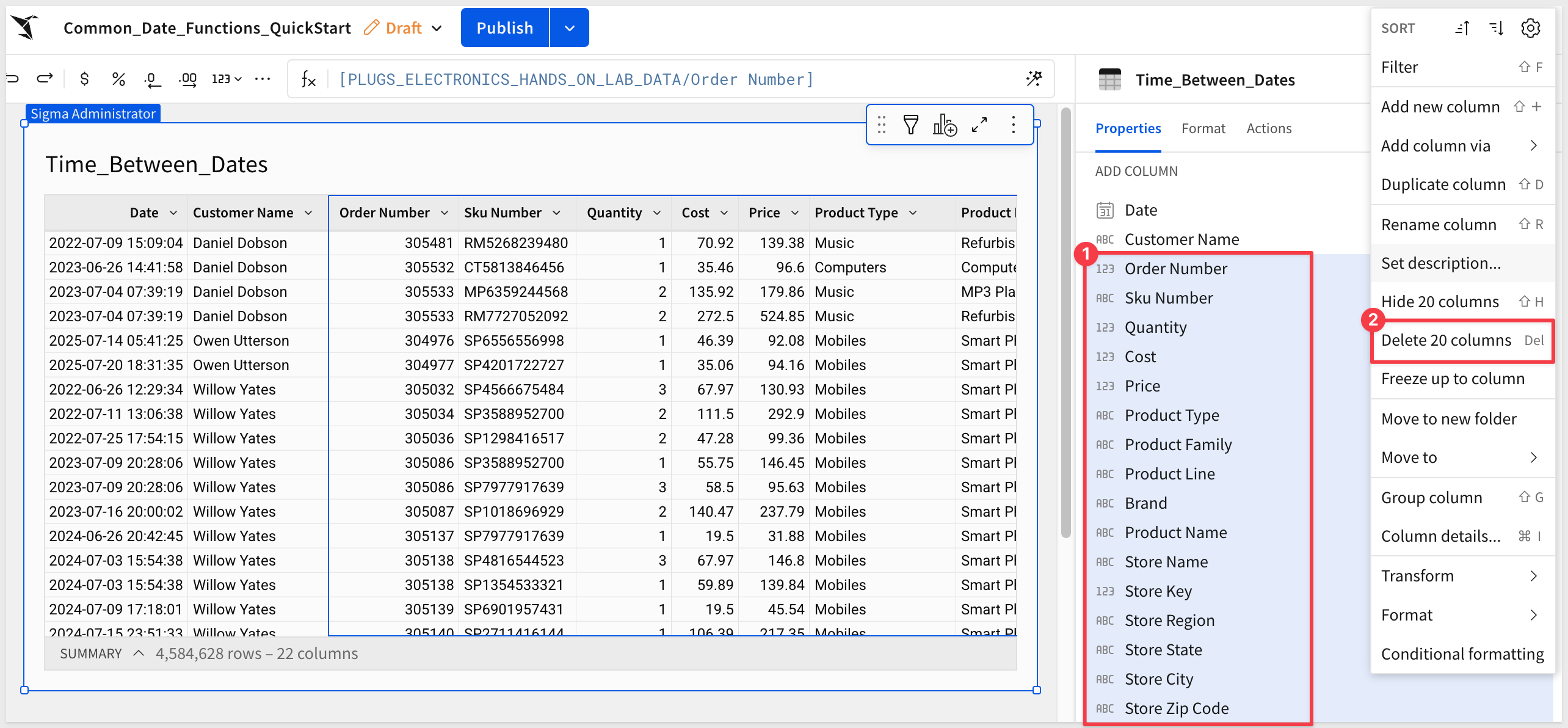
Since we don't need most columns in the child table, we can delete them, leaving only the Customer Name and Today columns.
Using the Element panel, move the Customer Name and Today columns to the top of the list and then select all others and click Delete 20 columns:
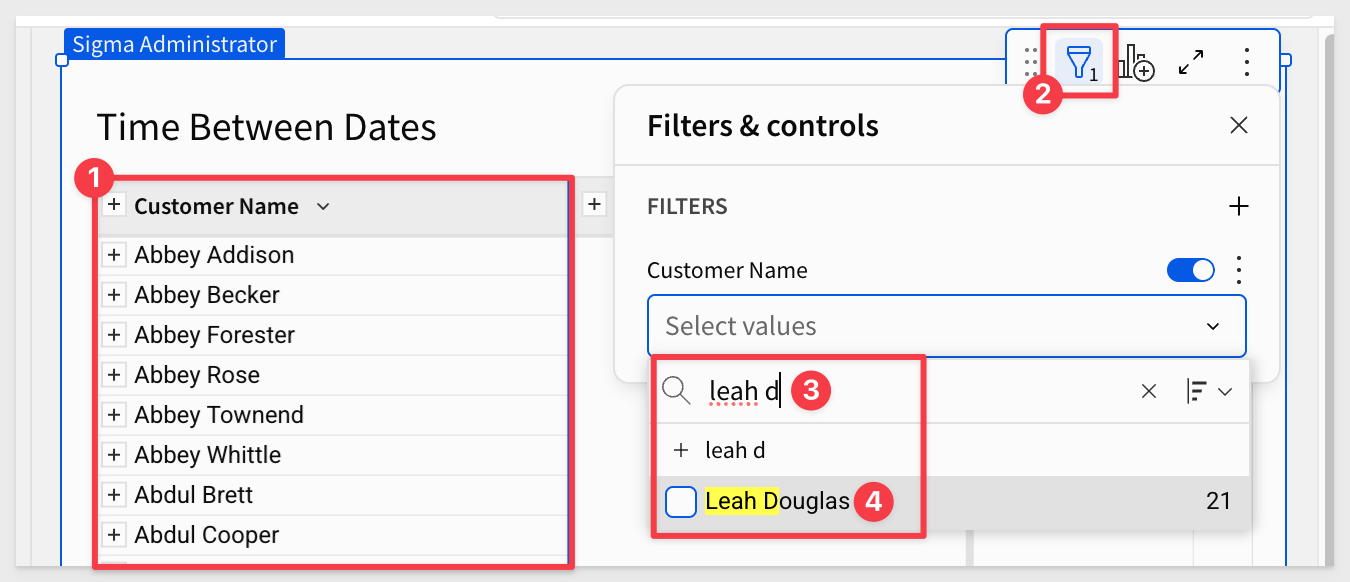
Drag the Customer Name column to GROUP BY.
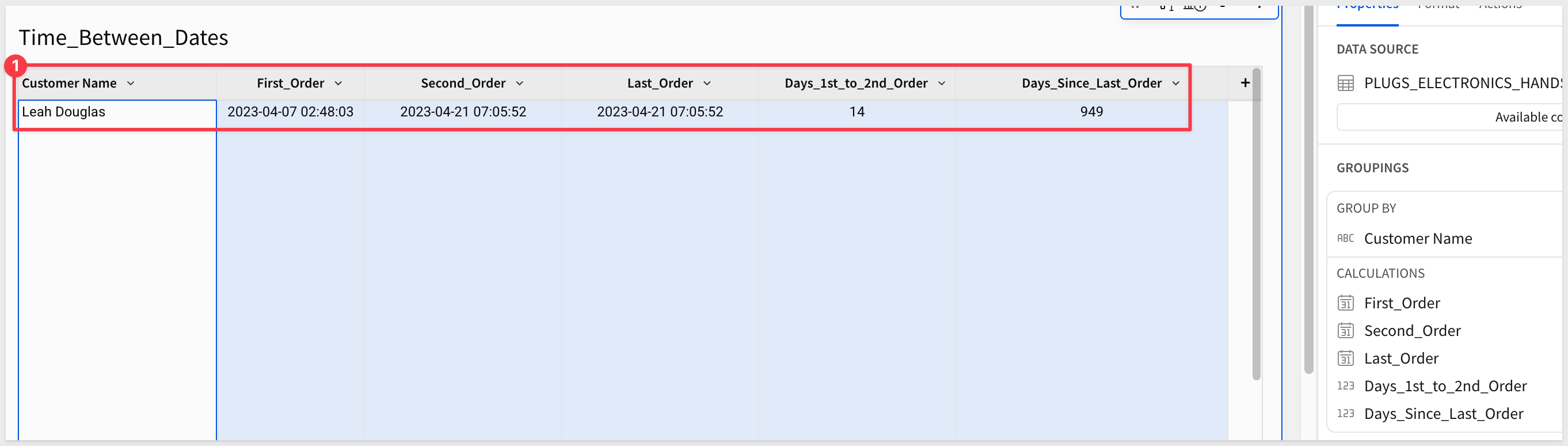
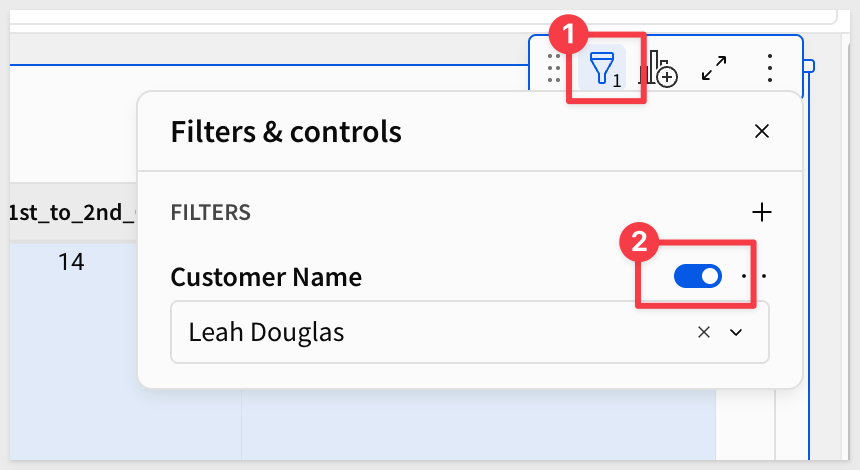
To simplify the view, filter the data where Customer Name = Leah Douglas:
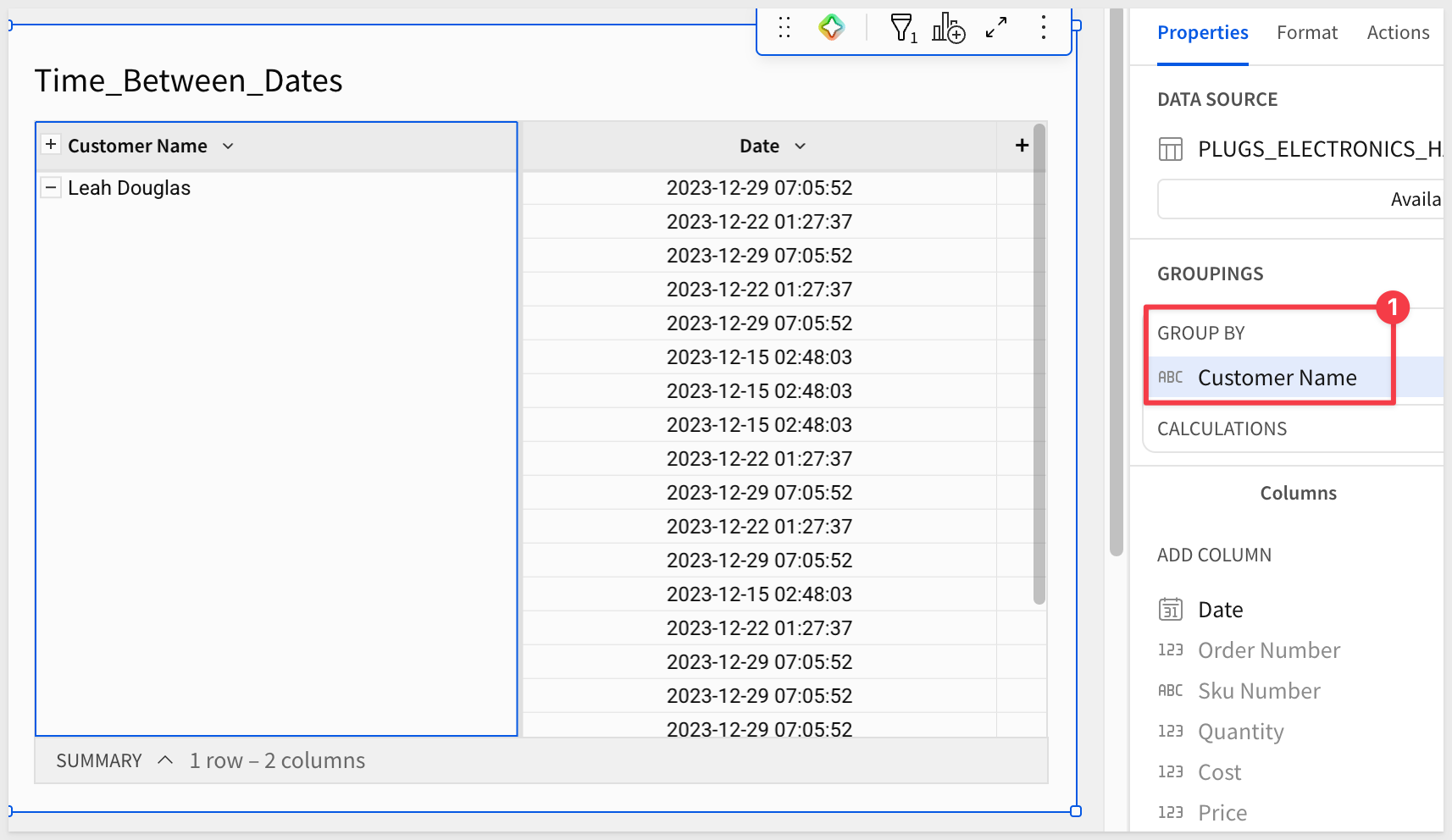
The table should now look like this:
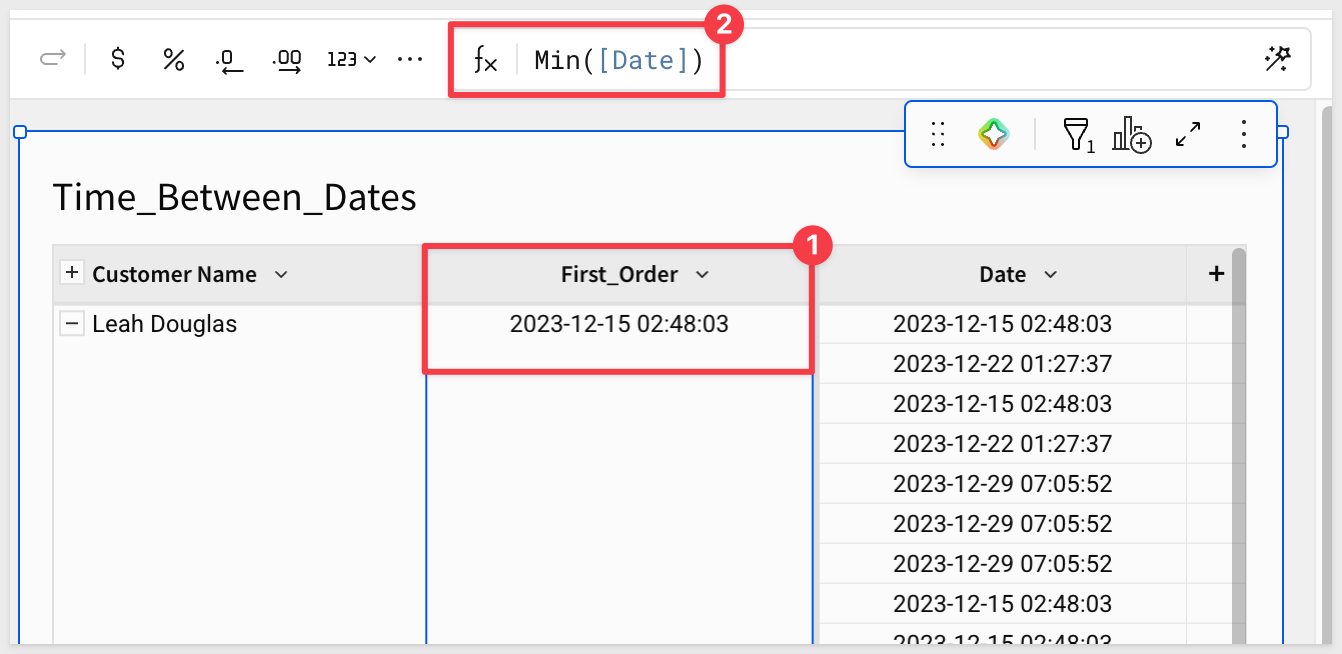
Add a new column next to Customer Name and rename it to First_Order.
For First_Order set the formula to:
Min([Date])
Now add four more columns, renaming them and applying the following formulas:
For more information, see Keyboard shortcuts: Microsoft Windows or Keyboard shortcuts: Mac OS
Column Name:                    Formula:
Second_Order                    Nth([Date], 2)
Last_Order                      Max([Date])
Days_1st_to_2nd_Order           DateDiff("day", [First_Order], [Second_Order])
Days_Since_Last_Order           DateDiff("day", [Last_Order], Today())
Hide the Date column.
The table should now look like this:
Go ahead and disable the filter.
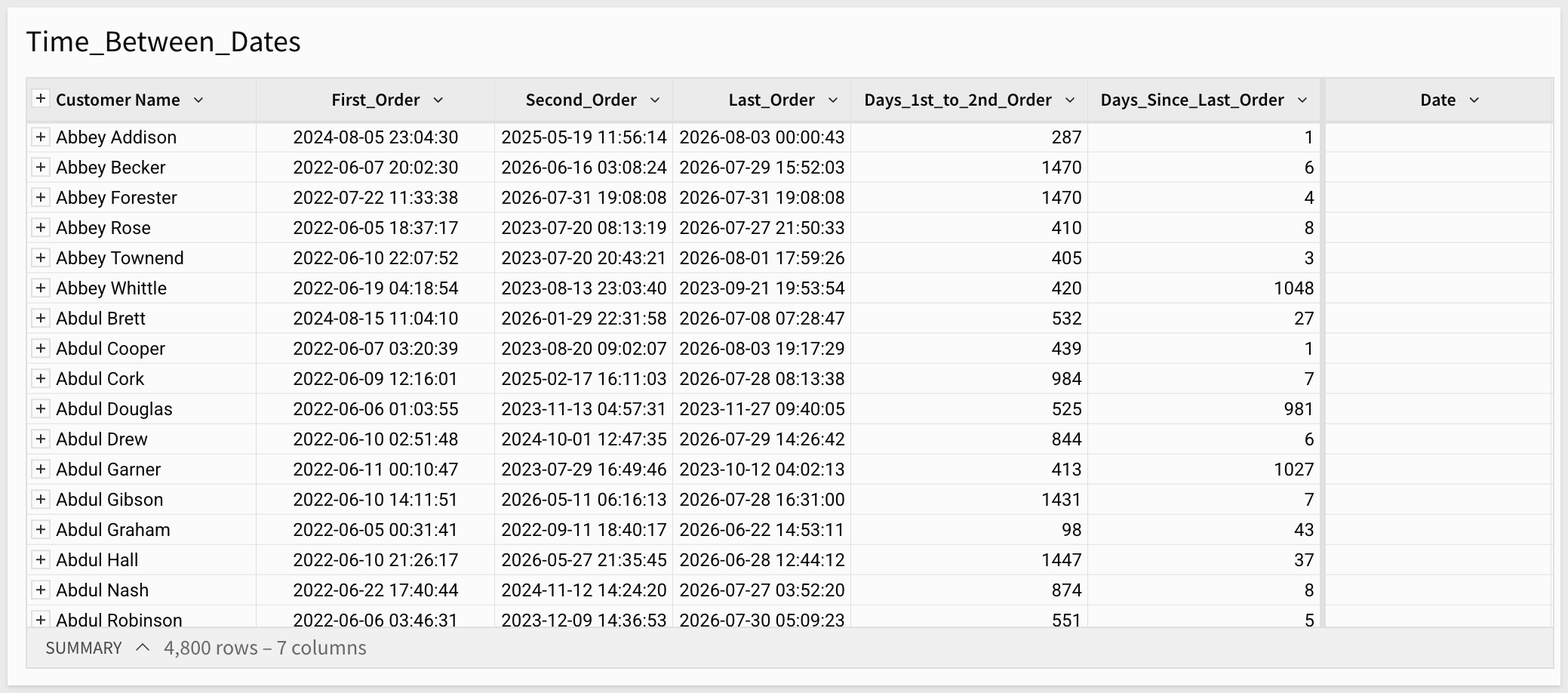
Marketing now has the data they requested:
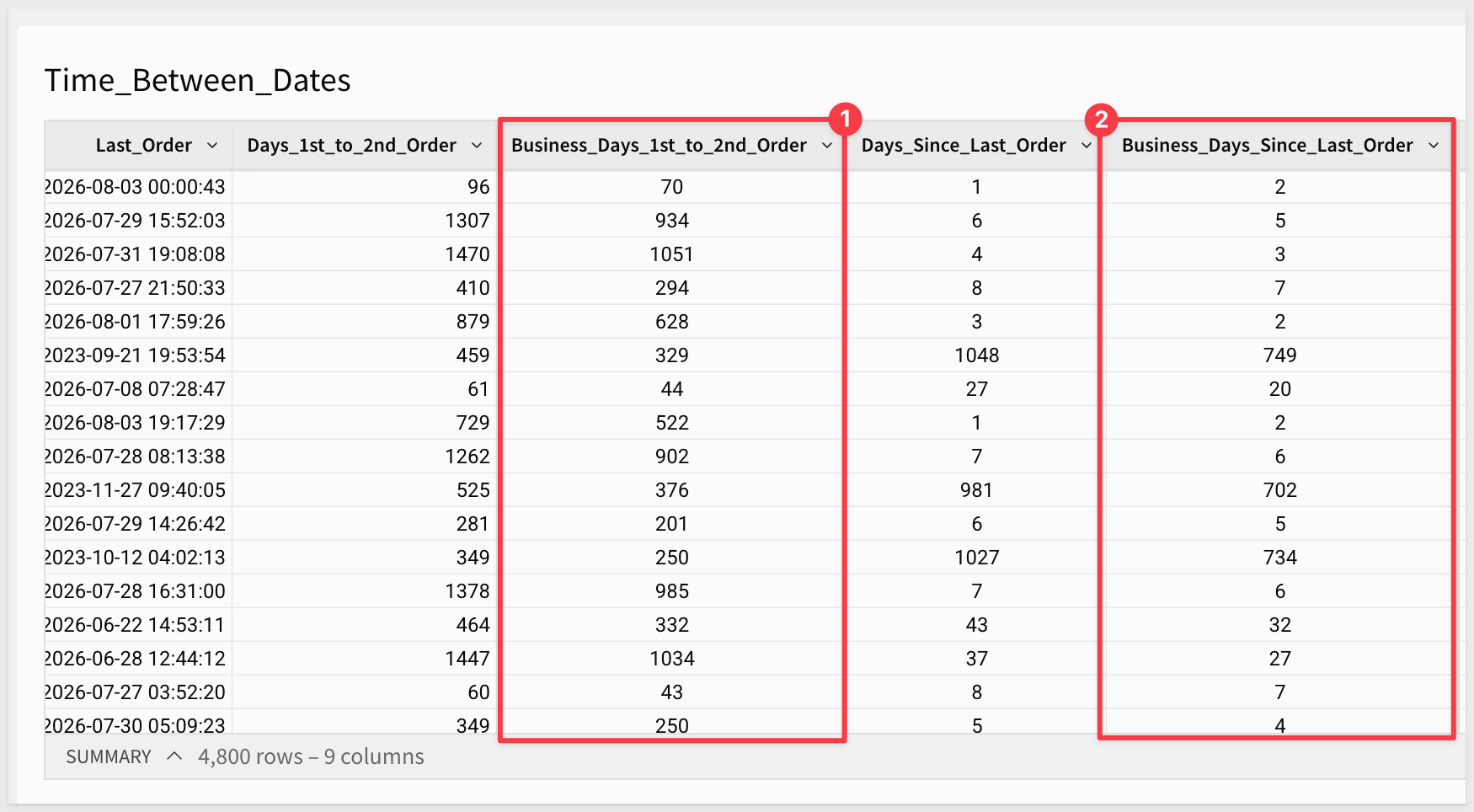
DateDiff counts every calendar day between two dates, but many business processes only care about weekdays. The BusinessDays function counts the weekdays between two dates, including both the start and end date, while excluding Saturdays and Sundays.
Let's return to the Time_Between_Dates table and compare BusinessDays against the DateDiff columns we already built.
Add a new column next to Days_1st_to_2nd_Order and rename it Business_Days_1st_to_2nd_Order.
Set the formula to:
BusinessDays([First_Order], [Second_Order])
Add another new column next to Days_Since_Last_Order and rename it Business_Days_Since_Last_Order.
Set the formula to:
BusinessDays([Last_Order], Today())
Comparing the two sets of columns highlights the difference between the two functions. BusinessDays counts both the start and end date, while DateDiff counts the days elapsed between them, so the values won't line up exactly—BusinessDays runs higher over short weekday-only ranges, and lower whenever the range spans a weekend:
For more information, see BusinessDays
Click Publish.
Sales Operations wants to see how weekly sales numbers look compared to the previous week.
Let's use this example to explore Sigma's Lead and Lag functions. These functions make this type of comparison surprisingly easy.
In this example, we'll approach the data a bit differently.
Create another workbook page named Week_Over_Week.
Add a table to the page, and this time select F_Sales from the Sigma Sample Database.
This gives us all the sales transactions.
Next, we'll join another table to bring in point-of-sale data.
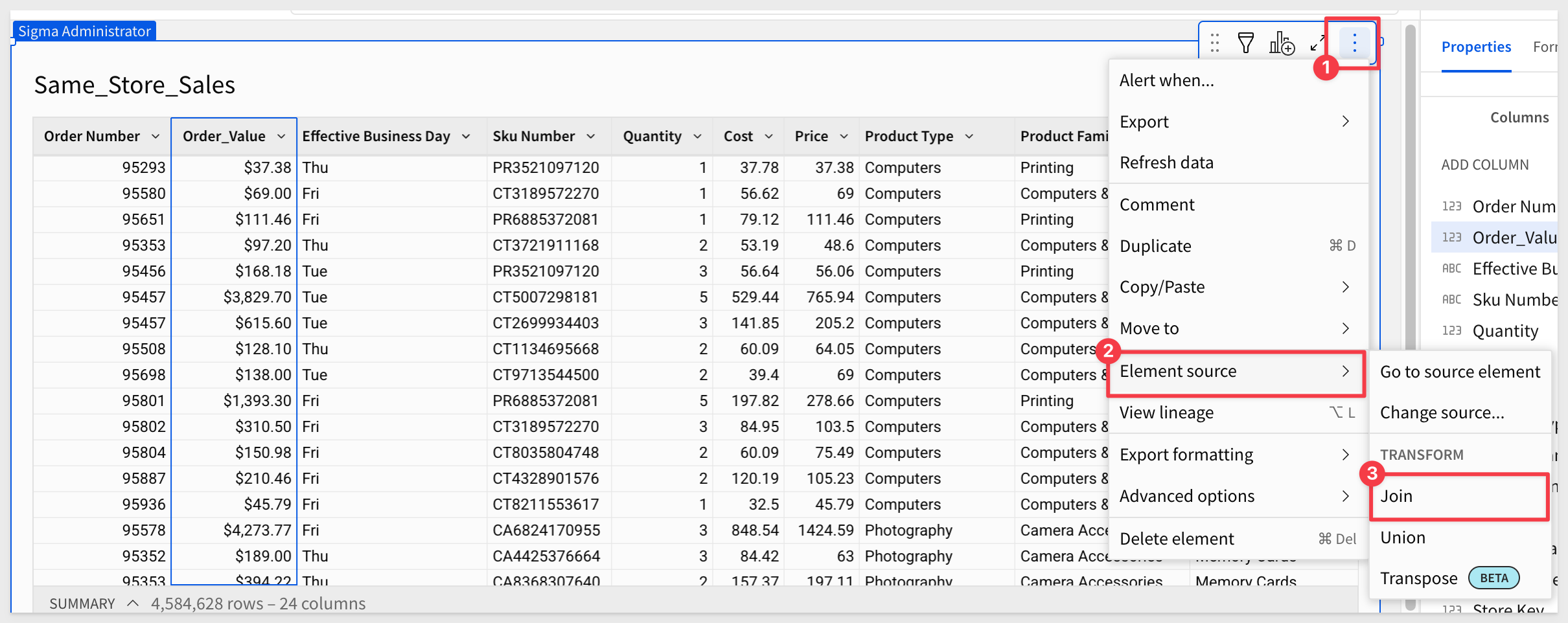
Click the 3-dot menu on the F_Sales table and select Element Source and then Join:
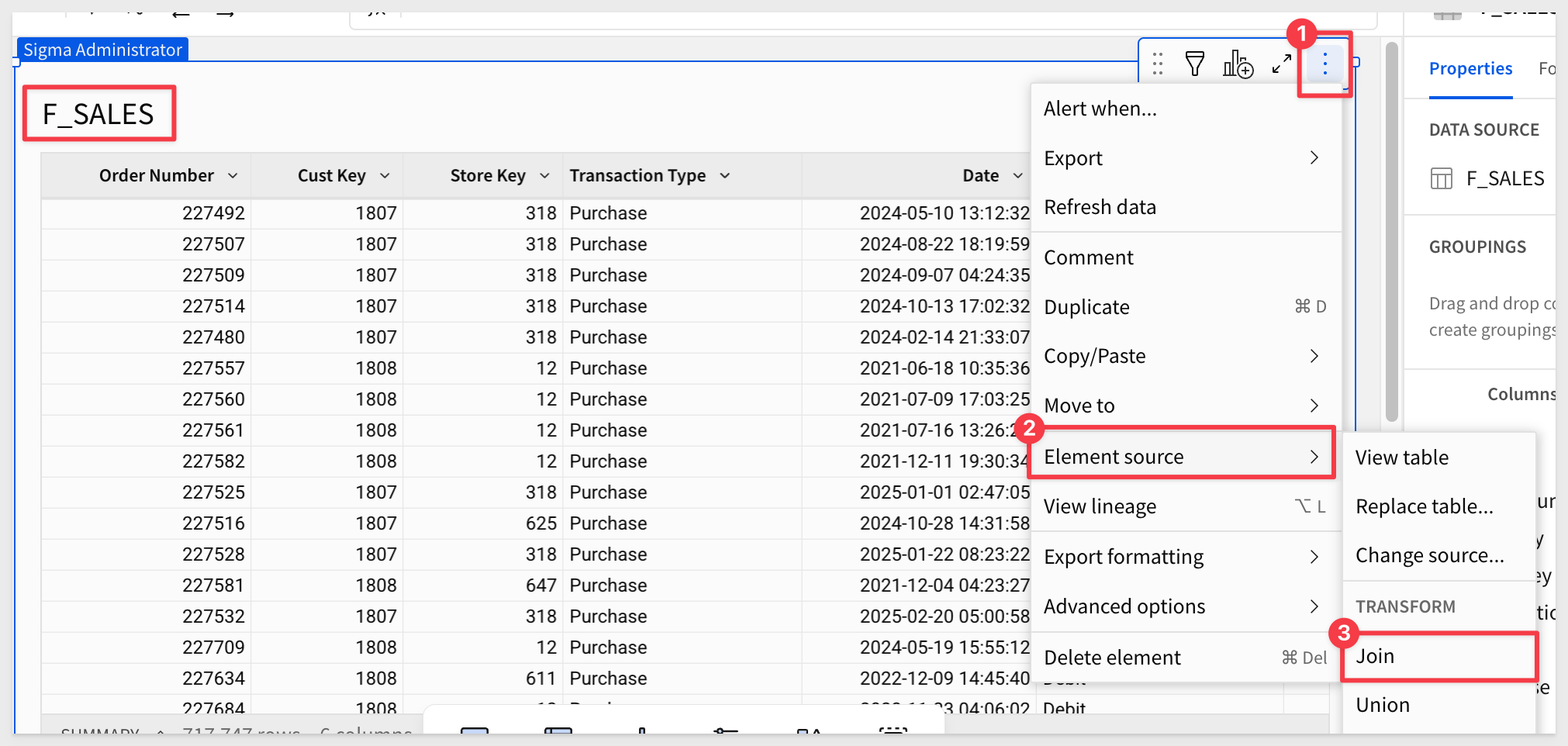
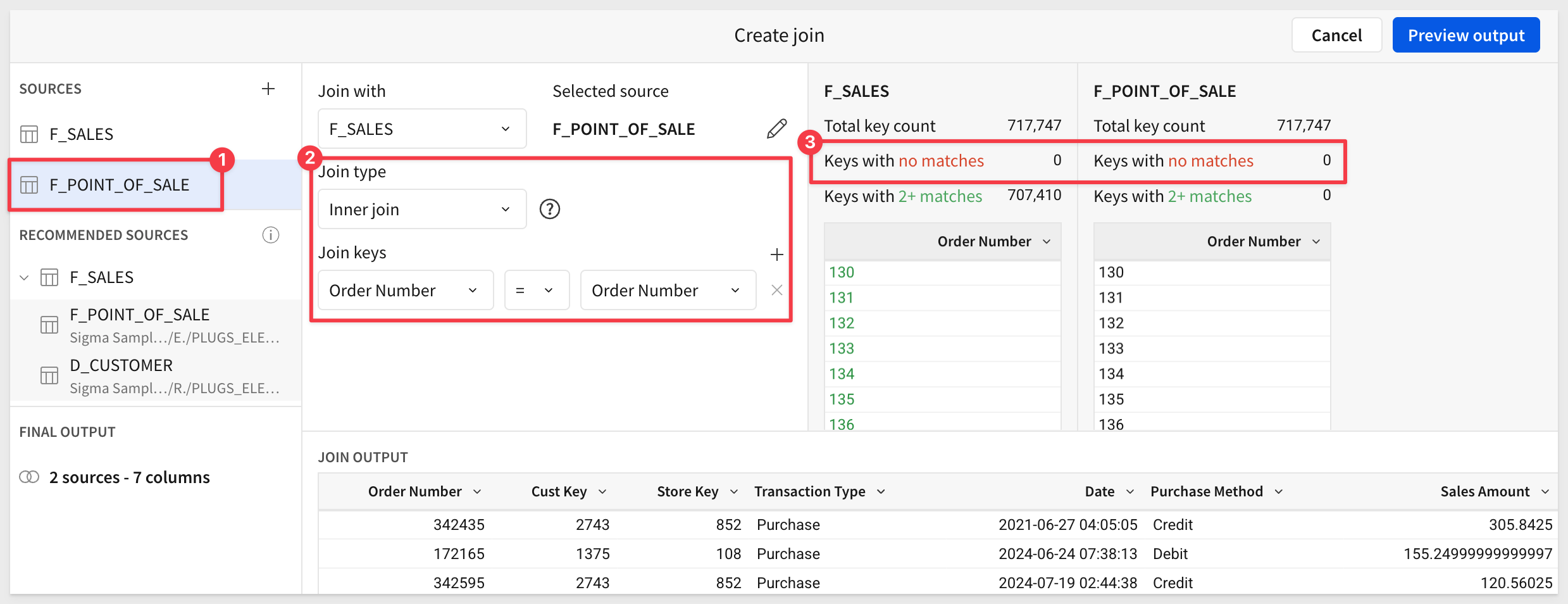
Search for and select F_Point_of_Sale from the RETAIL schema and select only the Sales Amount column.

Now choose the type of join and identify the join keys (matching columns from each table).
Since we're joining the two tables on Order Number, we have a 100% match. This works because every sale must have an order number, so it exists in both tables.
For more information, see Join types
Click Preview output. Sigma shows the table lineage. This allows us to see how our table was constructed, which columns are selected and more. We could also join more tables from here:
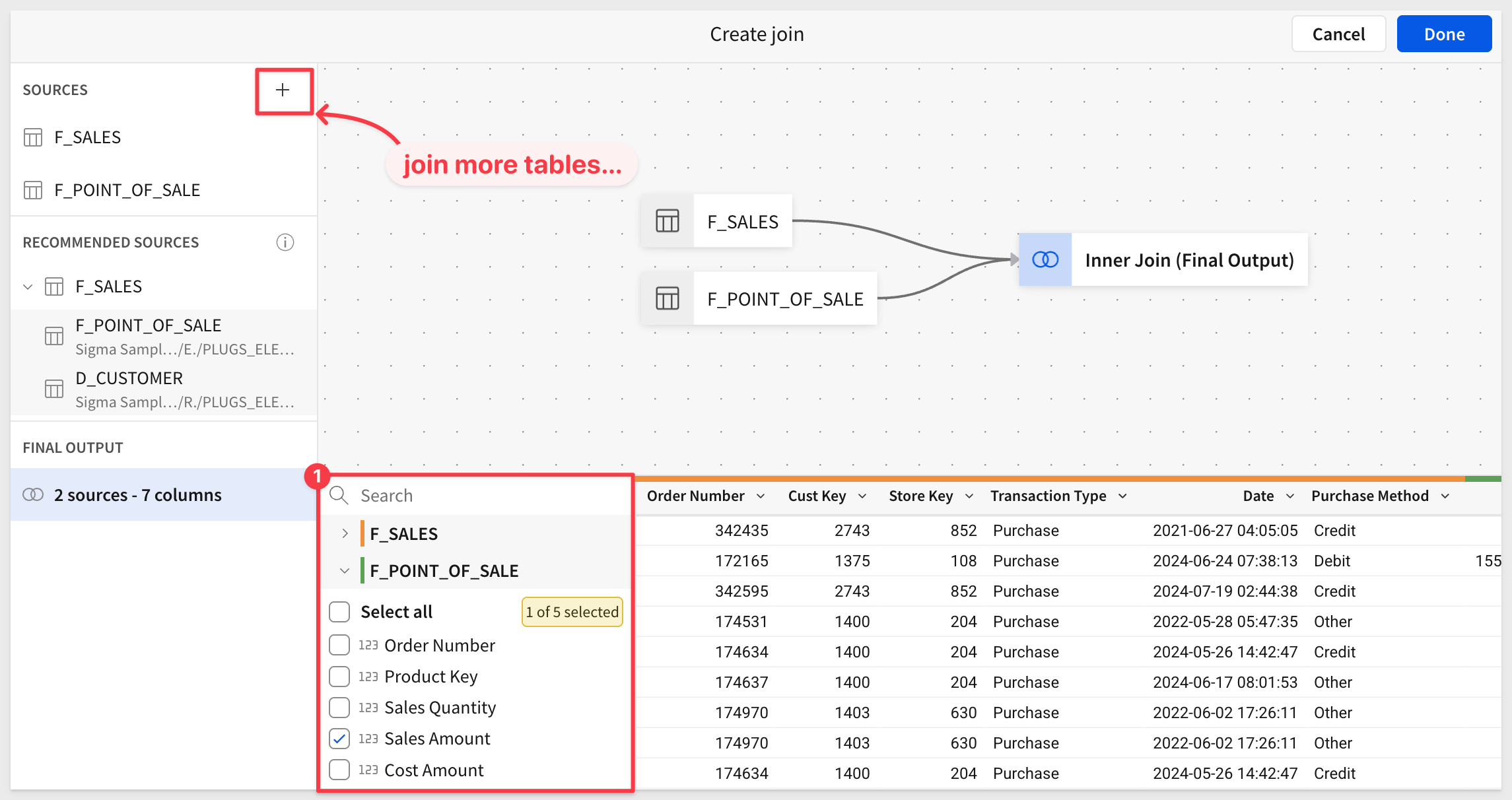
For more information, see View workbook and data model data lineage
Click Done, and rename the table Week_over_Week_Sales.
Drag the Date column to Groupings and truncate it to Week.
Hide the Order Number, Cust Key and Store Key columns:
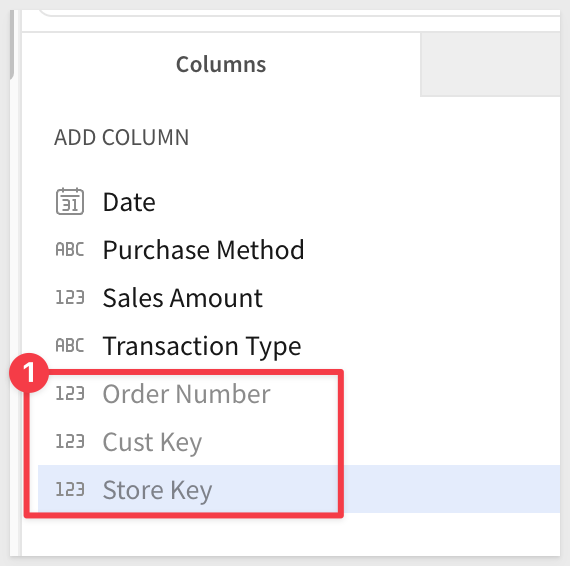
Drag the Sales Amount column to Calculations, rename it to Weekly_Sales and set the format to currency:
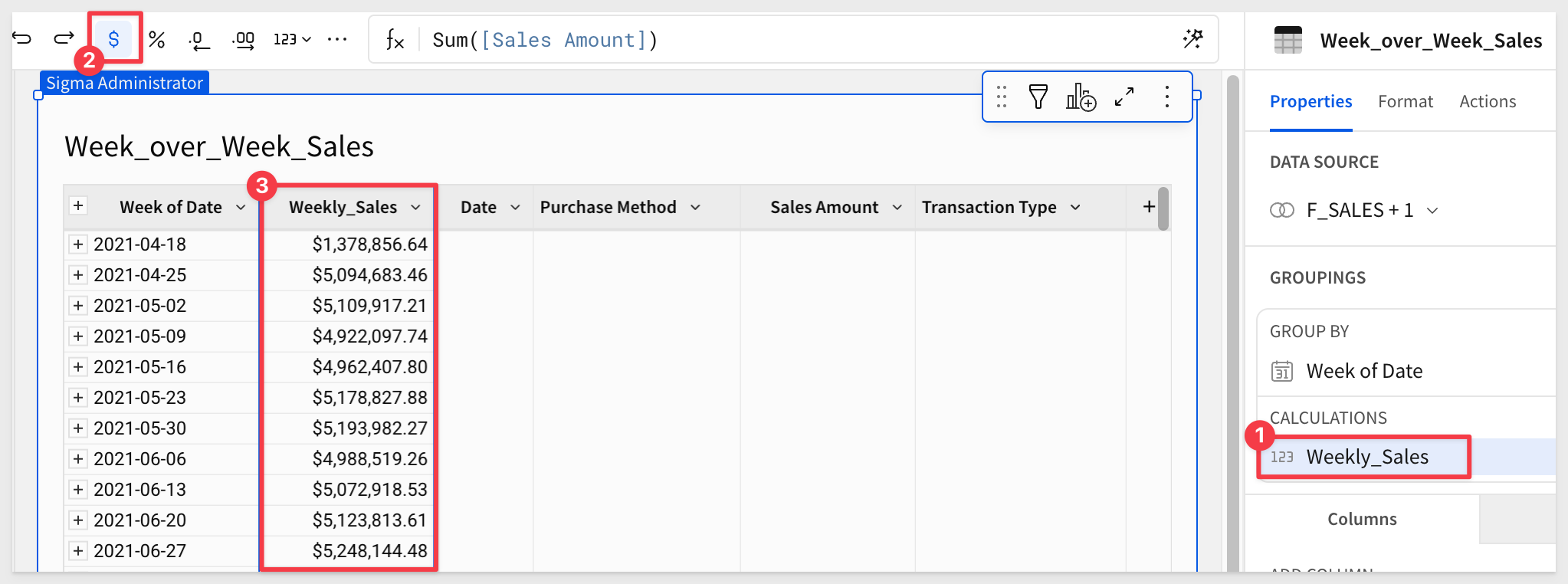
Add two calculated columns using the + icon in the CALCULATIONS panel. Rename each and set the formulas to:
Column:                         Formula:
Sales_Lag_1_Week      [Weekly_Sales] / Lag([Weekly_Sales], 1)
Sales_Lead_1_Week     [Weekly_Sales] / Lead([Weekly_Sales], 1)
Format the Lead/Lag columns as percentages and sort the Week of Date column in descending order:
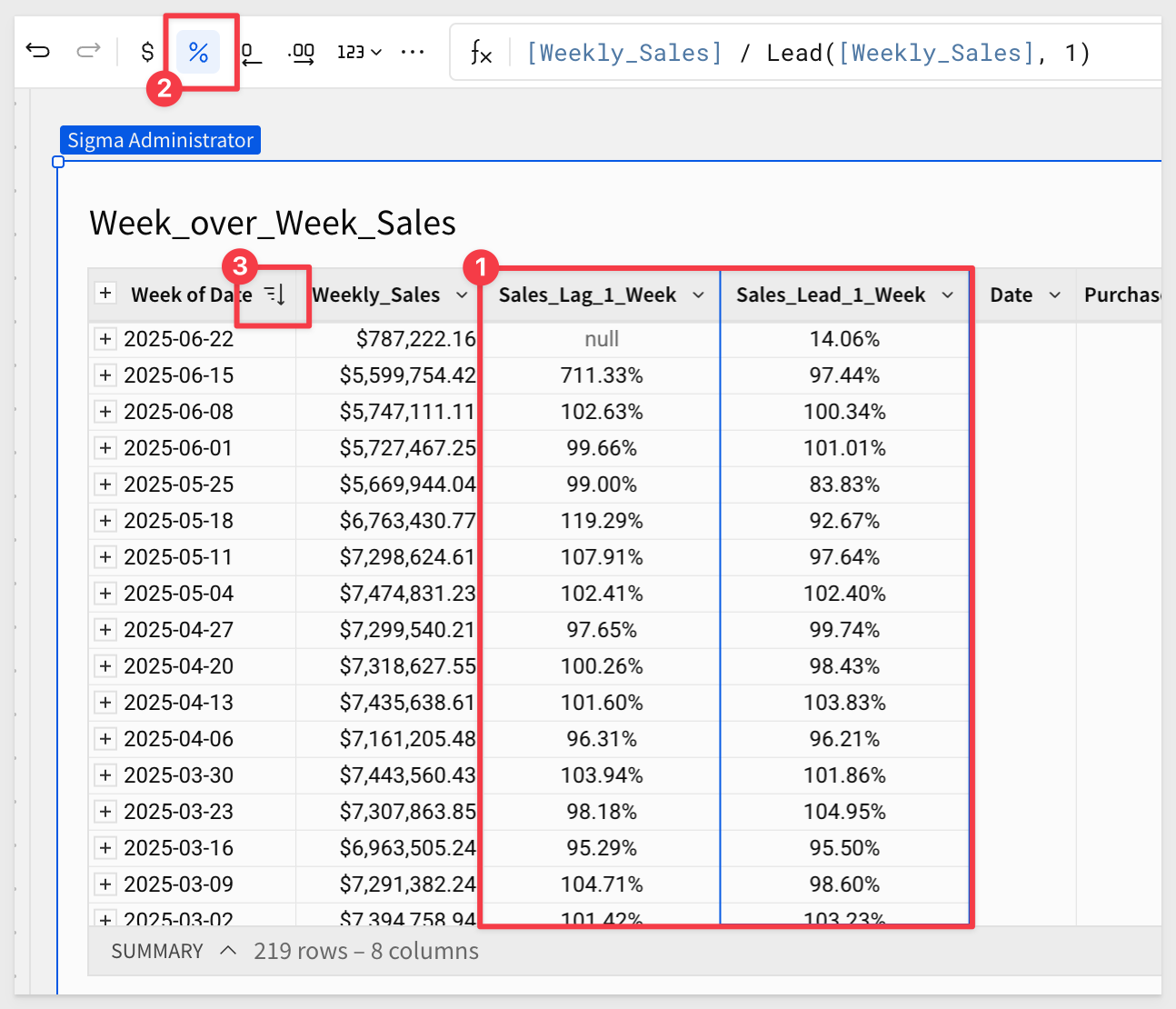
For more information, see Lead
Sales Operations can now compare weekly sales performance at a glance.
This use case could also be solved using Sigma's DateLookback function. The DateLookback function returns the value of a variable at a previous point in time (or lookback period) determined by a specified date and offset.
We will use DateLookback in the next section.
Viewing data organized year over year by month helps users understand business performance in use cases like seasonality. It allows users to see whether performance is improving, flat, or declining year over year.
Now that we've learned how to navigate Sigma, we'll move a bit faster.
Create another workbook page named Year_over_Year.
Add another child of the PLUGS_ELECTRONICS_HANDS_ON_LAB_DATA table to it.
Rename the table to Year_Over_Year_by_Month.
Start by hiding all 22 columns. Use Shift + Click to select the first and last, then click Hide column.
Now we have lots of columns to work with but none are displayed:
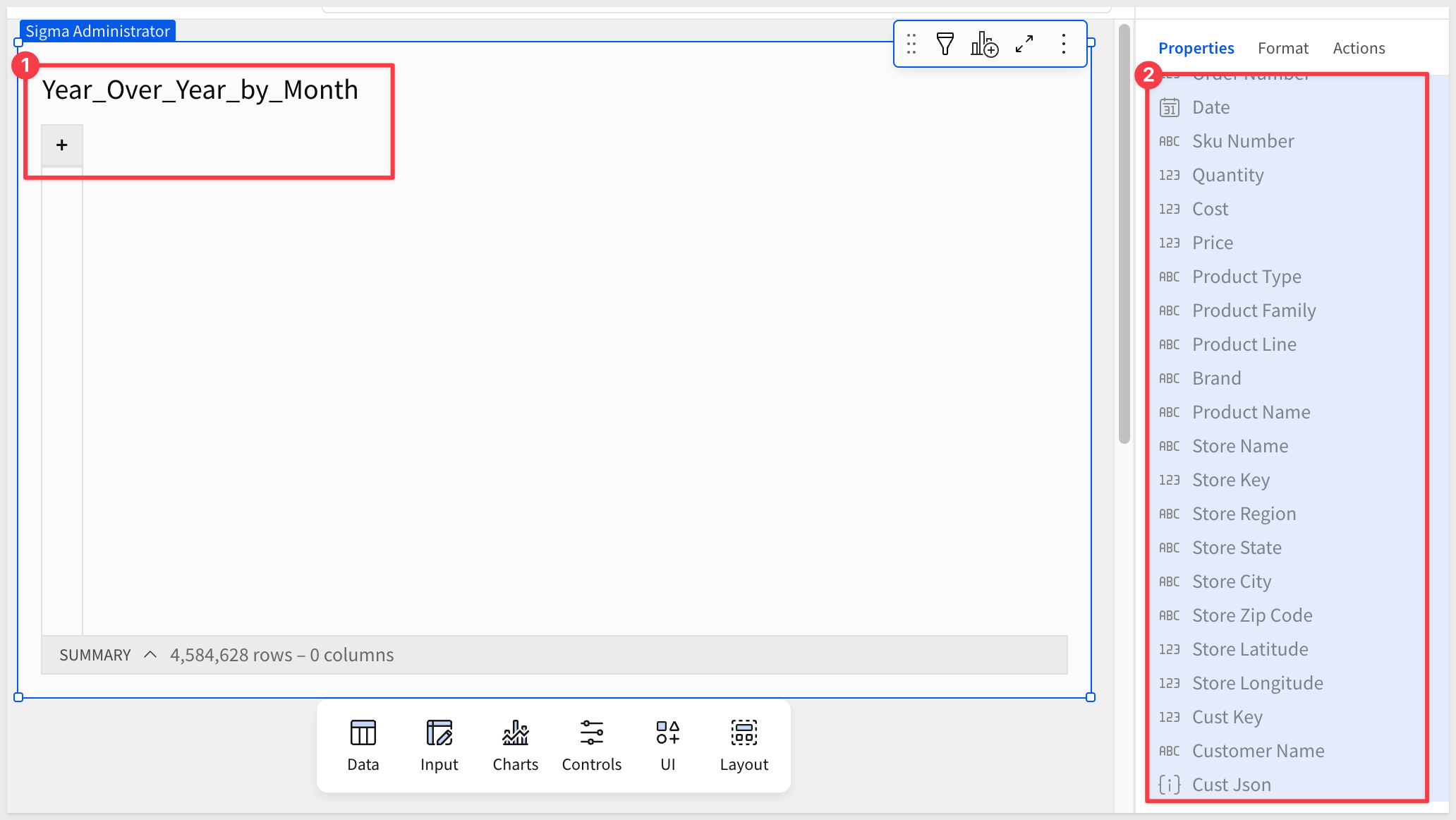
First, rename the hidden Date column to Today, just to avoid confusion with the formulas later.
Add a new grouping by clicking the + next to GROUPINGS and selecting Add new column:
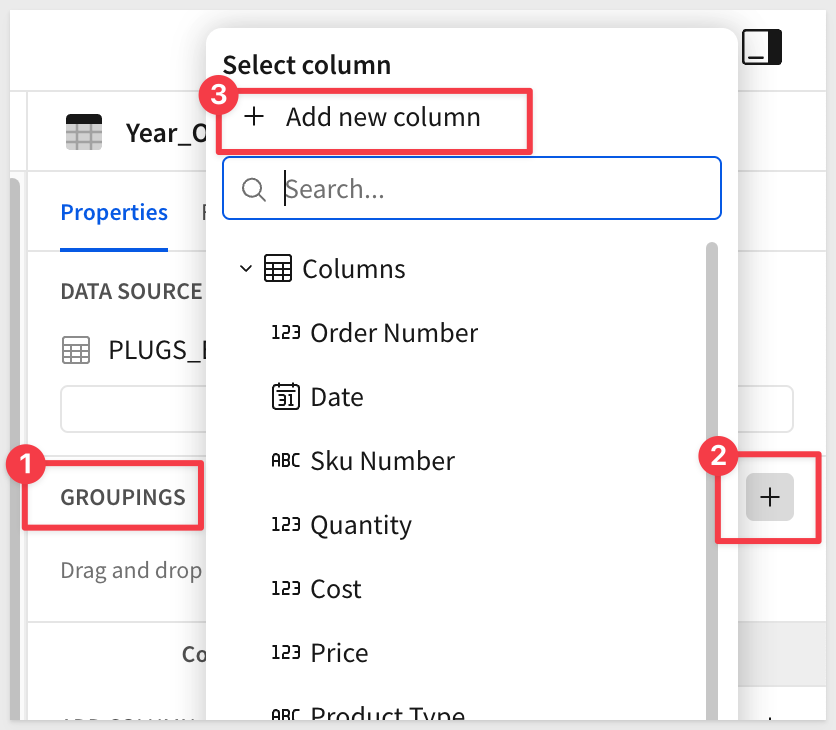
Set the formula to:
DateFormat(Date([Today]), "%m")
Rename this column Month_Number and set its sort order to Ascending.
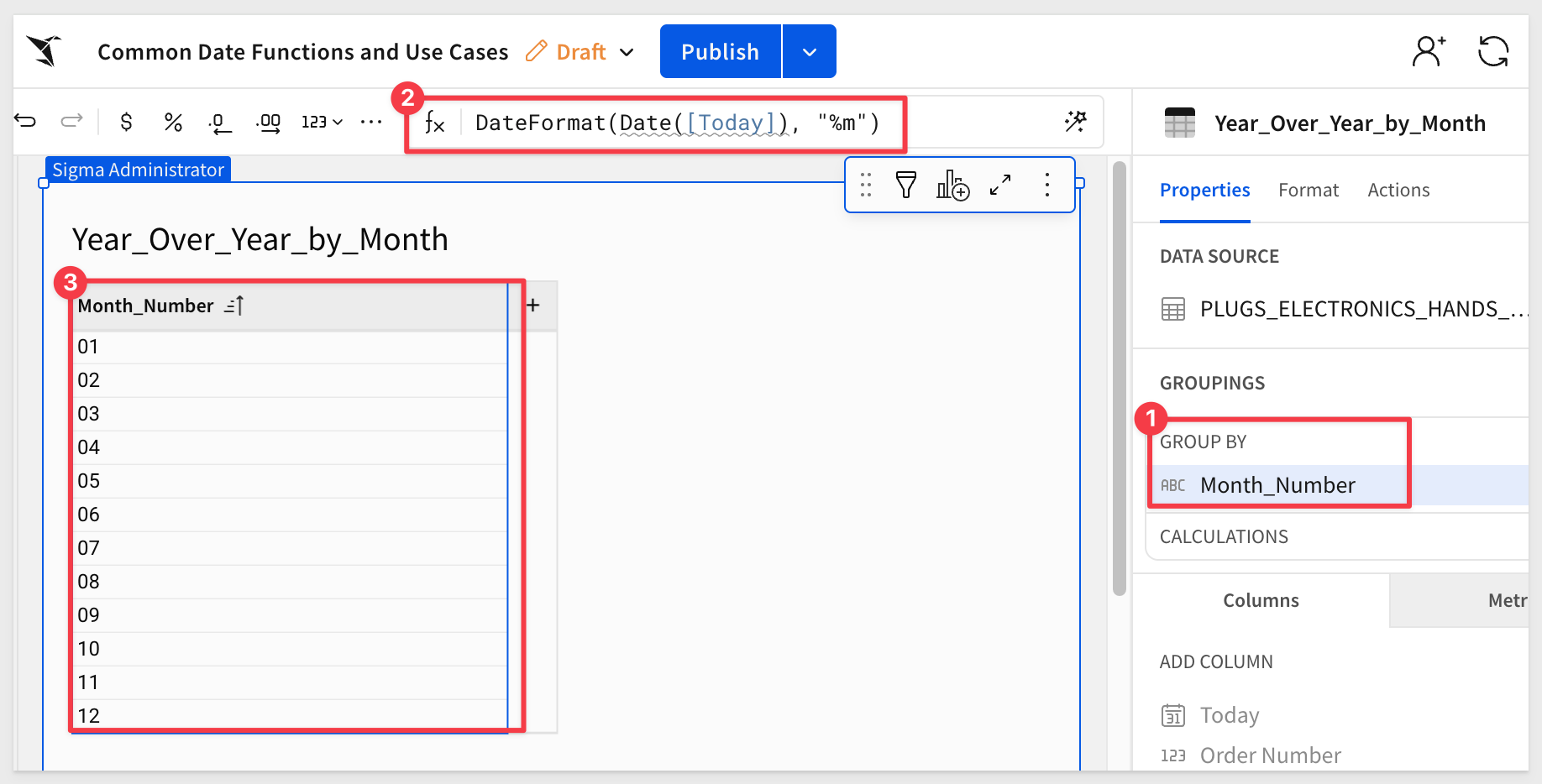
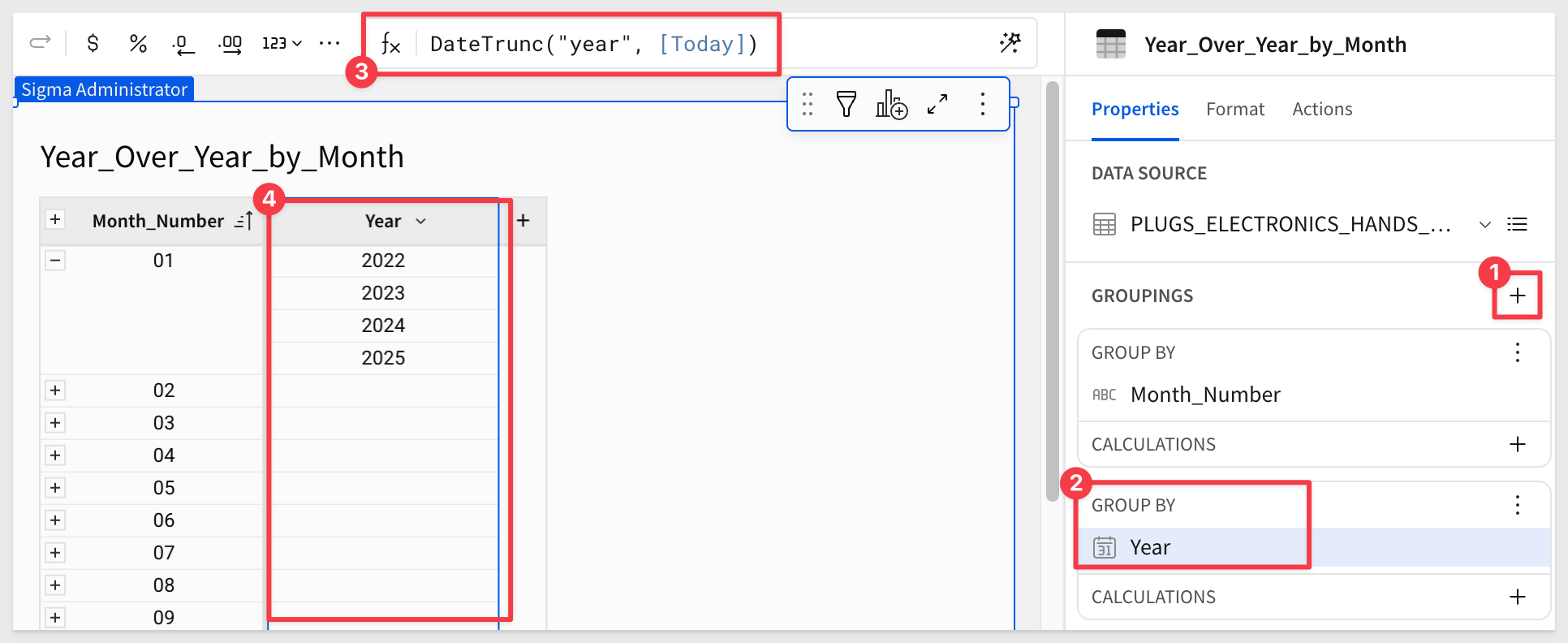
Add the Today column to a second grouping.
Set the new column's formula to:
DateTrunc("year", [Today])
Rename the column Year:
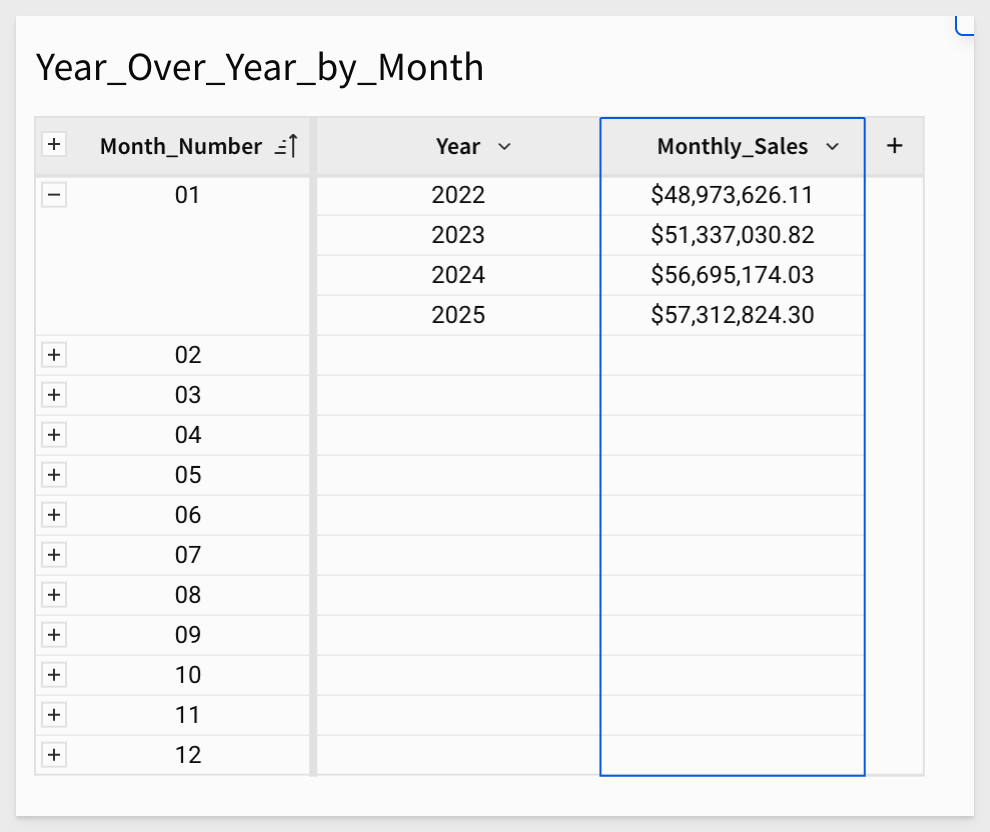
Add a new calculation by clicking the + next to CALCULATIONS in the Year grouping, and select New column:
Sum([Quantity] * [Price])
Format the column as currency and rename it Monthly_Sales.
The table should now look similar to this (after collapsing/expanding and formatting):
Add a new CALCULATION by clicking the + to the right of CALCULATIONS in the Year grouping and select New column.
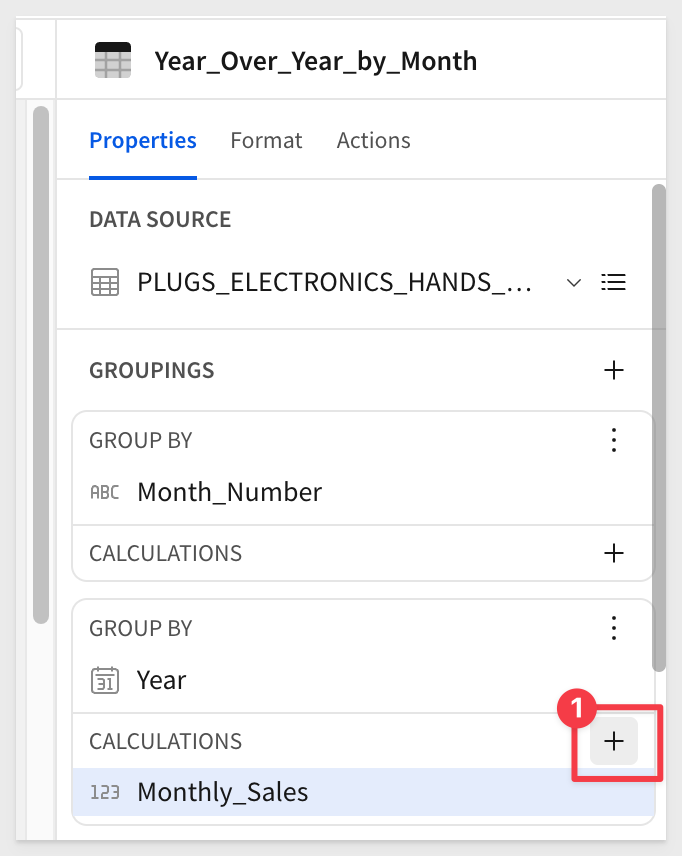
Configure the new column as shown below:
Column Name:       Formula:
Previous_Year      DateLookback([Monthly_Sales], [Year], 1, "year")
Now we can calculate the year over year percentage difference for each month.
Add another new CALCULATION column to the same grouping and configure it using:
Column Name:      Formula:
% Change          ([Monthly_Sales] - [Previous_Year]) / [Previous_Year]
Set the column's format to Percentage.
Now we can start to see trends in the data.
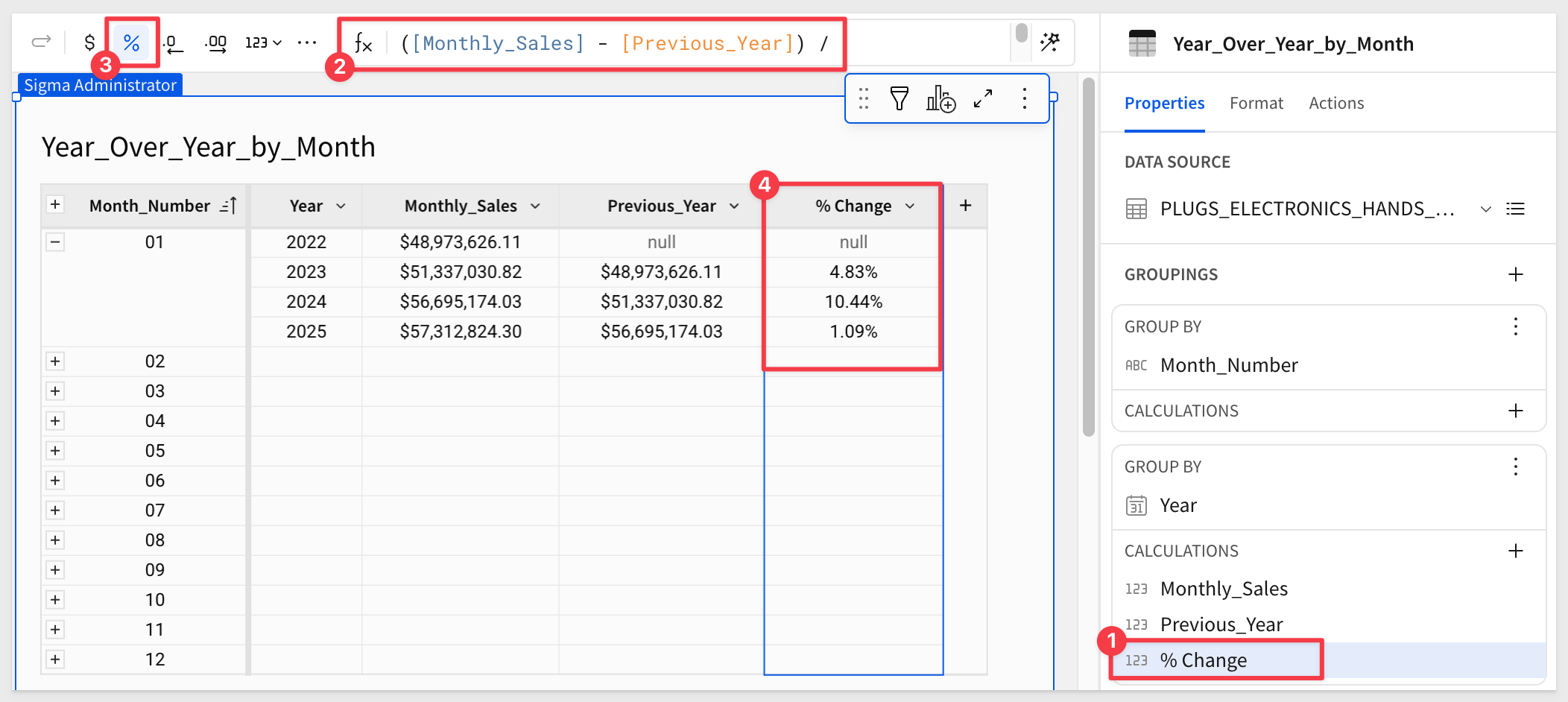
For more information, see DateLookback
Click Publish.
The InDateRange function provides a succinct way to write calculations such as last year or this year. It also simplifies more complex calculations, making them shorter and easier to read. While there are other ways to solve this, let's explore a different approach using InDateRange.
What's different with the InDateRange function is that it will return True or False based on its configuration. The table can then be filtered based on an InDateRange column being True or False.
For example, we may want to see how sales this year compare with last year, side by side.
Create a new page and rename it to InDate_Range.
Add another child of the PLUGS_ELECTRONICS_HANDS_ON_LAB_DATA table to it.
Rename the table Sales_Comparison.
Change the Date column's format to Date (to remove the time portion of it).
Rename the Date column to Today.
Hide all other columns.
Add a new column using this configuration:
Column Name:      Formula:
Week              DatePart("week", [Today])
Add another new column using this configuration:
Column Name:      Formula:
Sales_Amount     [Price] * [Quantity]
Hide this column.
Next, use the InDateRange function to create four new columns.
For each of the following new columns, use the following configuration:
Column Name:              Formula:
isCurrent_Year            InDateRange([Today], "current", "year")
isLast_Year               InDateRange([Today], "last", "year")
This_Year_Sales_Amount    SumIf([Sales_Amount], [isCurrent_Year])
Last_Year_Sales_Amount    SumIf([Sales_Amount], [isLast_Year])
The table should now look like this. Notice that sales amount values only appear for the current and previous years. All others are null:
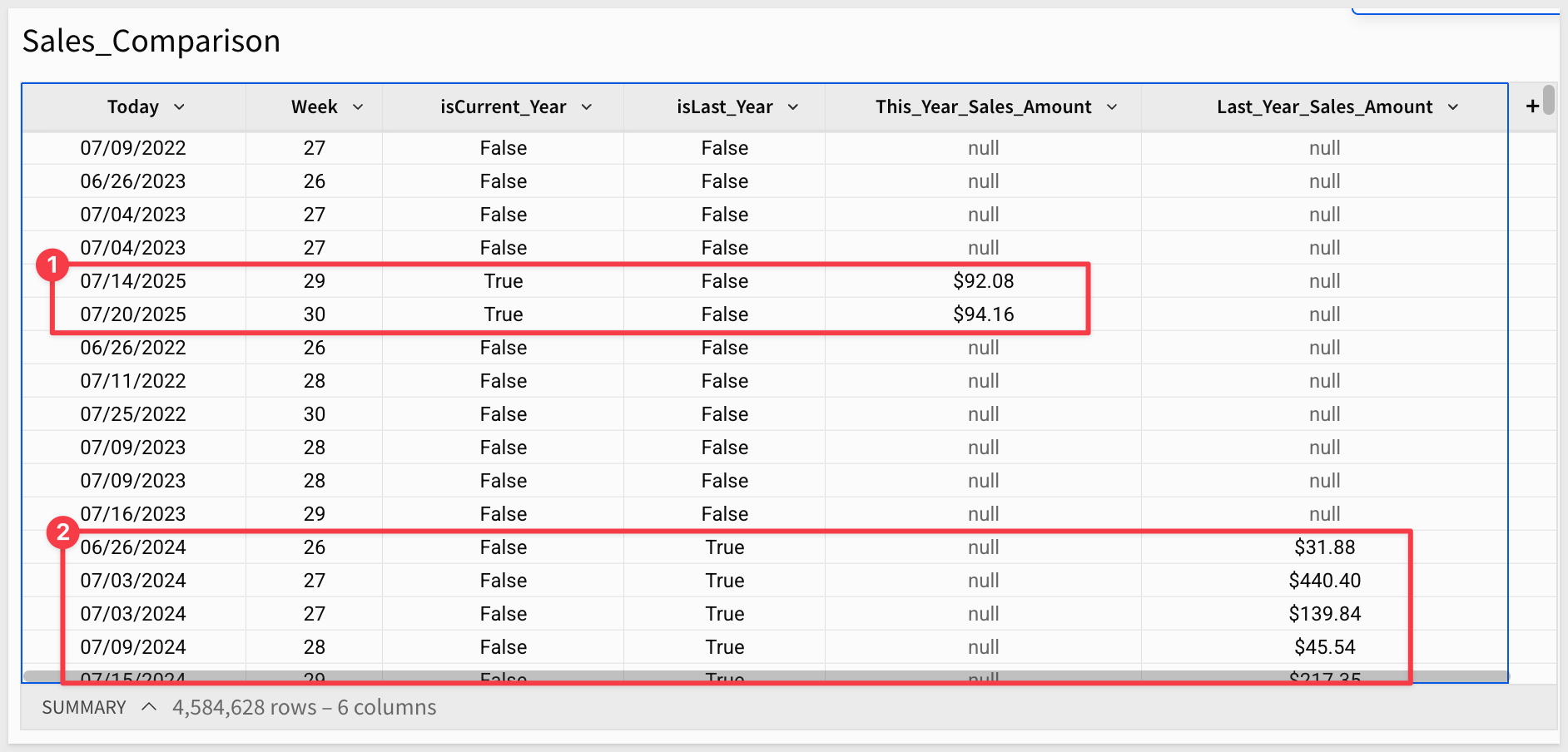
Instead of filtering the table to show only rows for the current and previous years, let's use a pivot table.
Add a child pivot table:
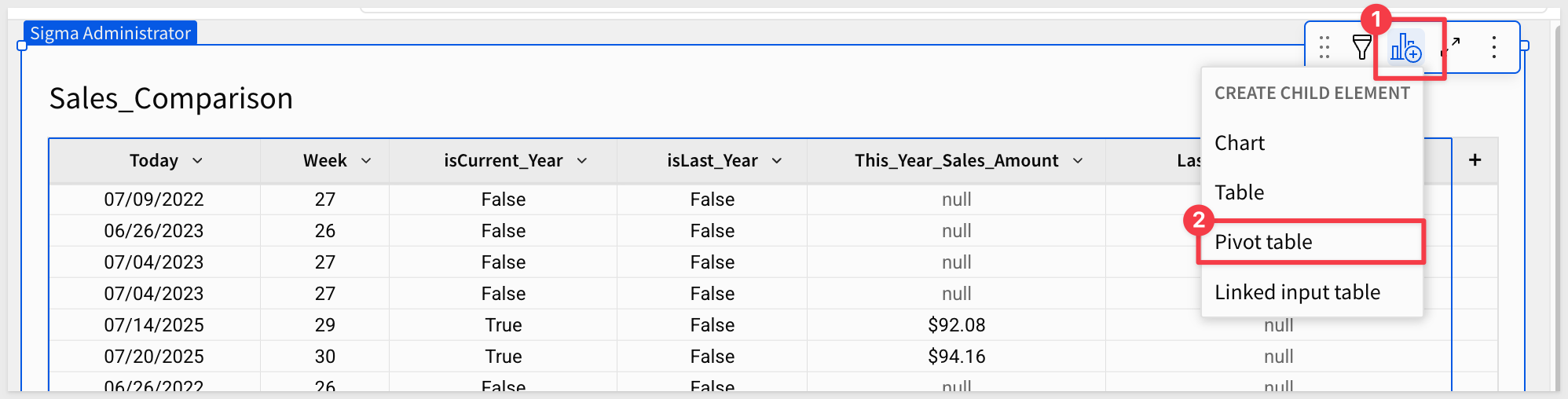
Configure the pivot table as shown below and rename it Sales - This Year vs. Last:

From here we can start to dig deeper into the analysis by calculating sales changes or adding visualizations.
For more information, see InDateRange
The InPriorDateRange function is used to calculate values from a prior time period such as "This Week Last Year" or "Same Quarter Last Year".
It returns a Boolean (True or False), which we can use in formulas to compare current and prior period performance.
A common use case is comparing quarterly sales performance year-over-year by region to identify growth trends.
Create a new page and rename it to InPrior_Date_Range.
Add another child of the PLUGS_ELECTRONICS_HANDS_ON_LAB_DATA table to it.
Rename the table Quarterly_Sales_Comparison.
First, let's create a column to calculate sales amount. Add a new column and configure it:
Column Name:     Formula:
Sales_Amount     [Price] * [Quantity]
Hide this column - we'll use it in calculations but don't need to display it.
Now group the data by Store Region.
Next, we'll create Boolean columns to identify which rows belong to the current quarter and the same quarter last year.
Add two new columns with these configurations:
Column Name:              Formula:
isCurrent_Quarter         InDateRange([Date], "current", "quarter")
isPrior_Quarter           InPriorDateRange([Date], "quarter", "year")
The InPriorDateRange function evaluates each row's date and returns true if it falls in the same quarter one year ago.
Now we can use these Boolean columns to calculate sales for each period. Add three more calculated columns:
Column Name:                    Formula:
Current_Quarter_Sales           SumIf([Sales_Amount], [isCurrent_Quarter])
Prior_Quarter_Sales             SumIf([Sales_Amount], [isPrior_Quarter])
Quarter_over_Quarter_Change     ([Current_Quarter_Sales] - [Prior_Quarter_Sales]) / [Prior_Quarter_Sales]
Hide the isCurrent_Quarter, isPrior_Quarter, and Sales_Amount columns.
Format the Quarter_over_Quarter_Change column as a percentage.
Format the sales columns as currency.
Hide all other columns.
If we filter on isCurrent_Quarter = True, we can see the sales for the current quarter, by Store Region:
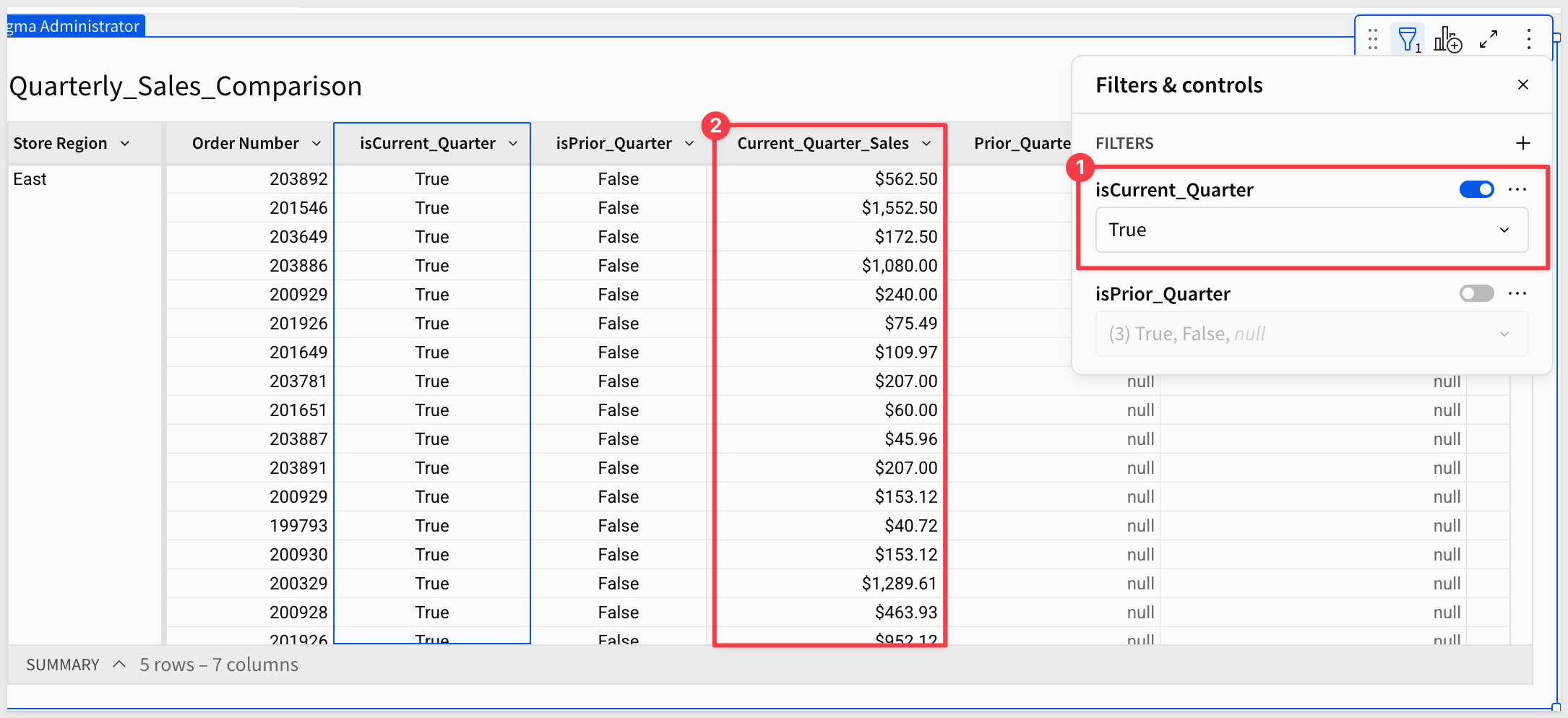
The same is true for Prior_Quarter_Sales:
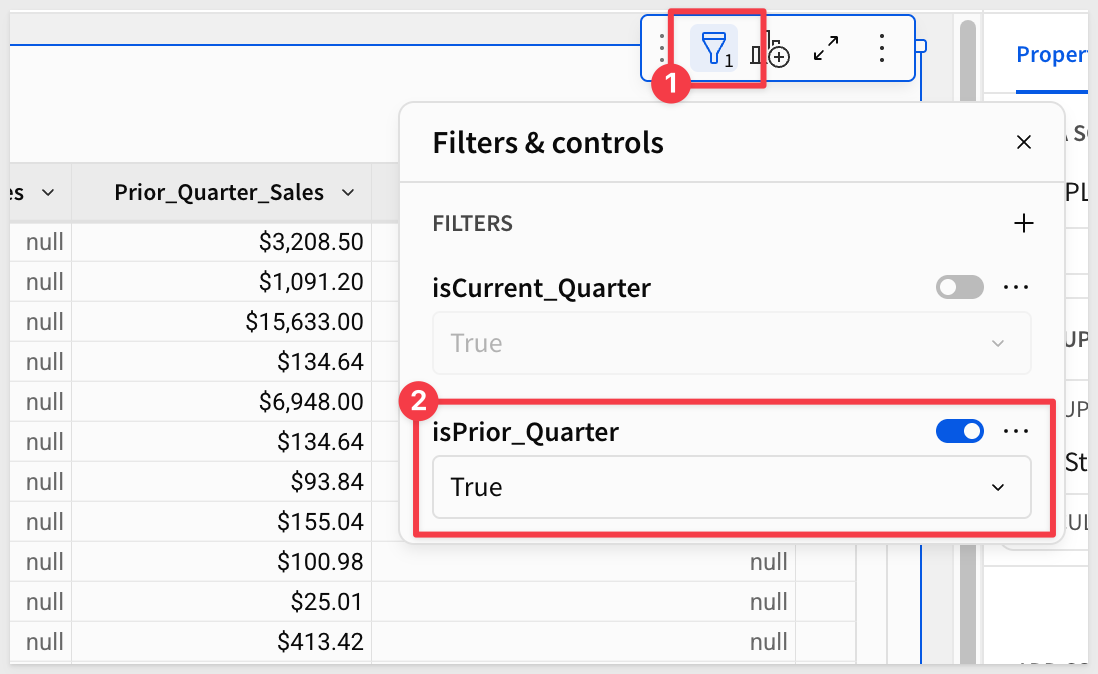
From here we can leverage this data using grouping, pivot tables, and charts to orient the comparisons in many different ways.
For more information, see InPriorDateRange
Companies often use table-based calendars in analytics to help address data consistency, seasonality, and planning.
In this QuickStart step, we'll build a pivot table that leverages the NRF Retail 4-5-4 Calendar combined with our Plugs Electronics sample data to analyze same-store sales the way most retailers prefer. These same general methods apply to any table-based calendar you use.
The NRF Retail 4-5-4 Calendar is a standardized retail calendar developed by the National Retail Federation (NRF) to help retailers track and analyze their sales performance. It is widely used by retailers in the United States, and it is particularly useful for businesses that operate on a fiscal year that does not align with the traditional calendar year. The calendar helps retailers plan their inventory, staffing, and marketing strategies based on historical sales data and seasonal trends.
For more information, see NRF 4-5-4 Calendar
Add a new workbook page, and this time, add the PLUGS_ELECTRONICS_HANDS_ON_LAB_DATA table by selecting it from the sample database instead of the Data page:
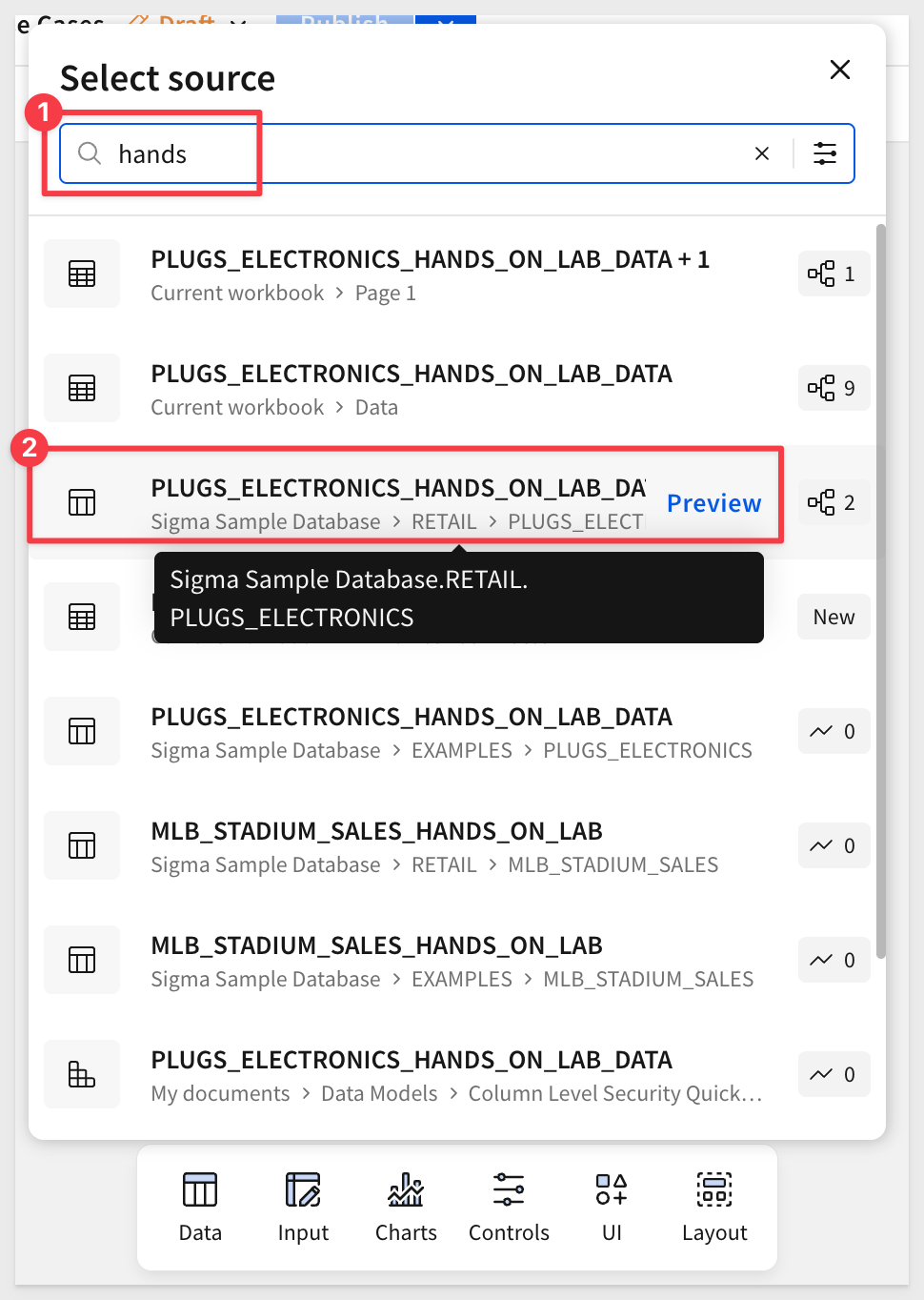
Rename the page Date_Calendar.
Rename the table to Same_Store_Sales.
Add a new column, rename it to Order_Value and use this formula:
[Quantity] * [Price]
Create a new join:
Search for the 4_5_4_CALENDAR in the RETAIL schema and select it:

We are now presented with a screen that allows us to adjust how the two tables are joined. We need to adjust the join to use the Date and Today columns
If we look closely at the join results we can see there is a mismatch; the timestamps are causing a problem:
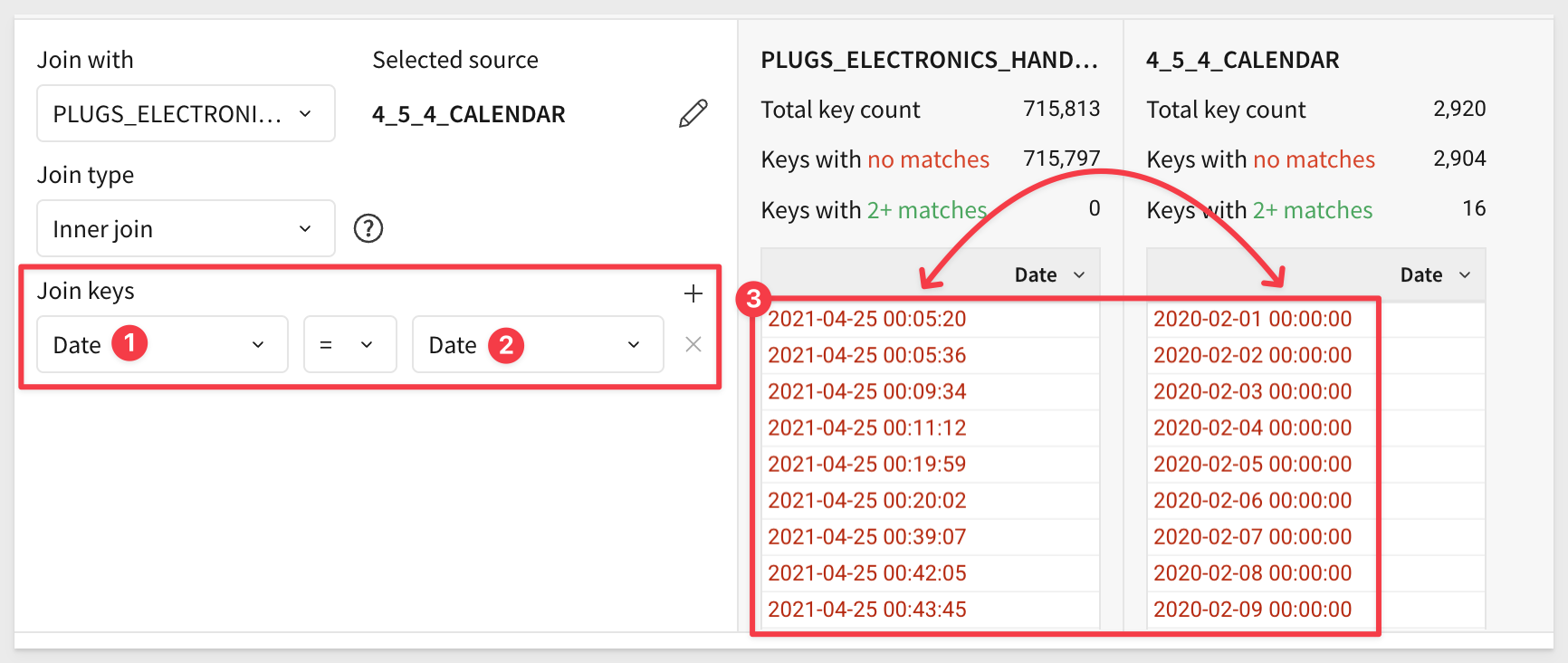
Joining on mismatched data types can cause issues, but Sigma supports formula-based joins to correct the issue.
To handle the datatype issue, we will use a formula for each join key:
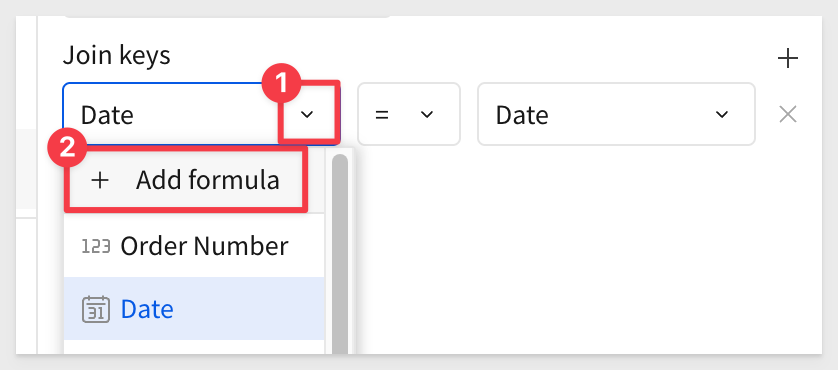
Apply this formula to both join keys:
DateTrunc("day", [Date])
After making the changes, you should have many matches. It won't be a 100% match, as there are some values in the Plugs table that are not in the 4-5-4 table.
Click Preview Output and Done.
Now, create a child of this table and select Pivot Table as the type:
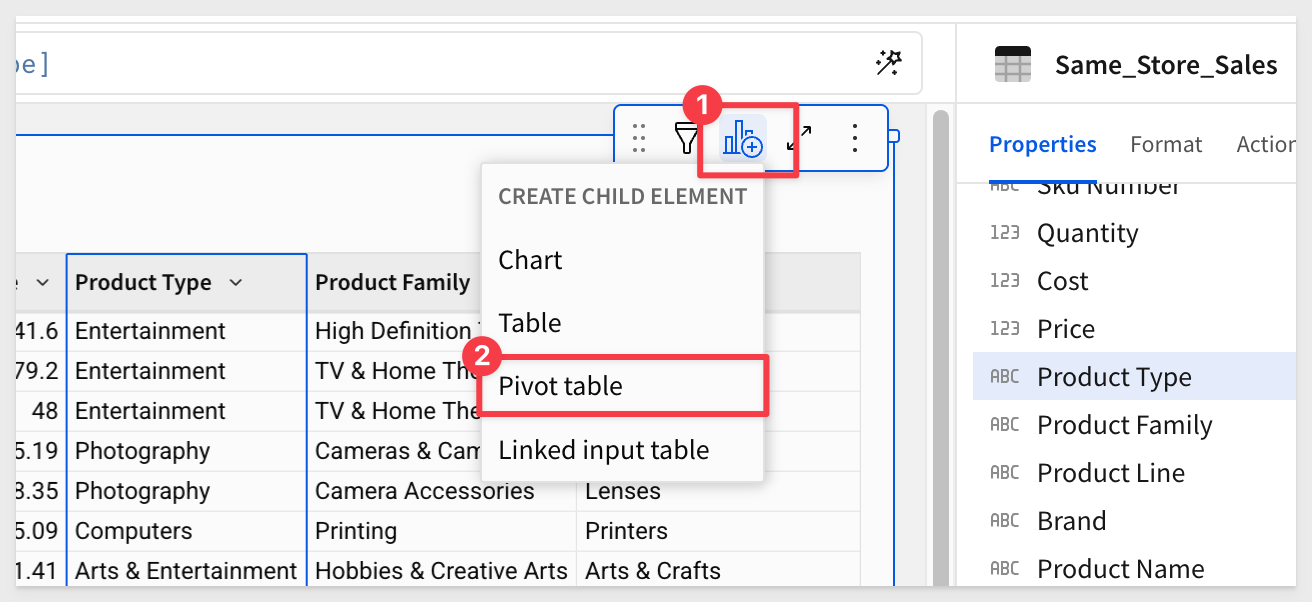
Rename the pivot table to Same_Store_Sales_454_Calendar.
Configure the pivot table as shown below:
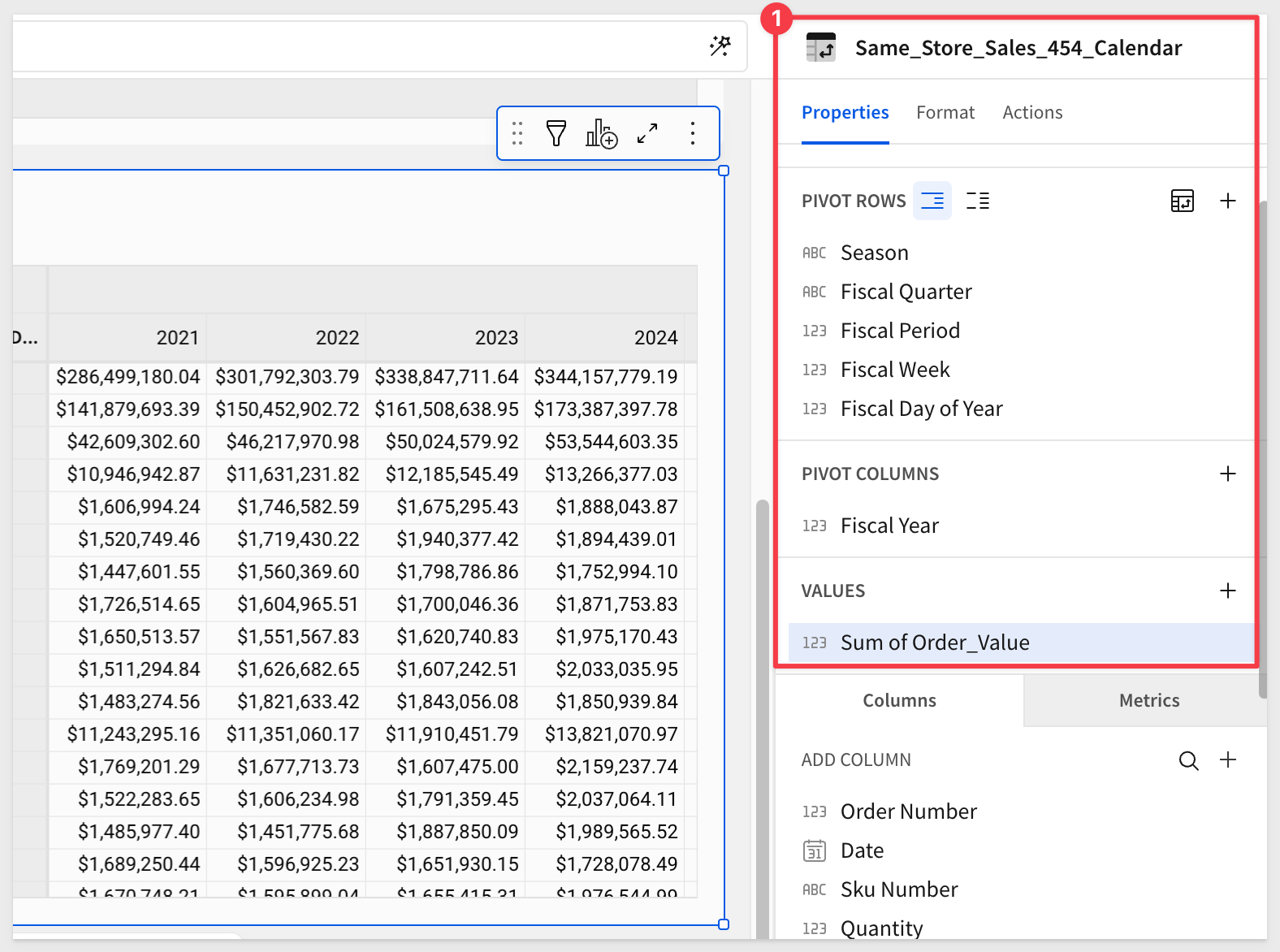
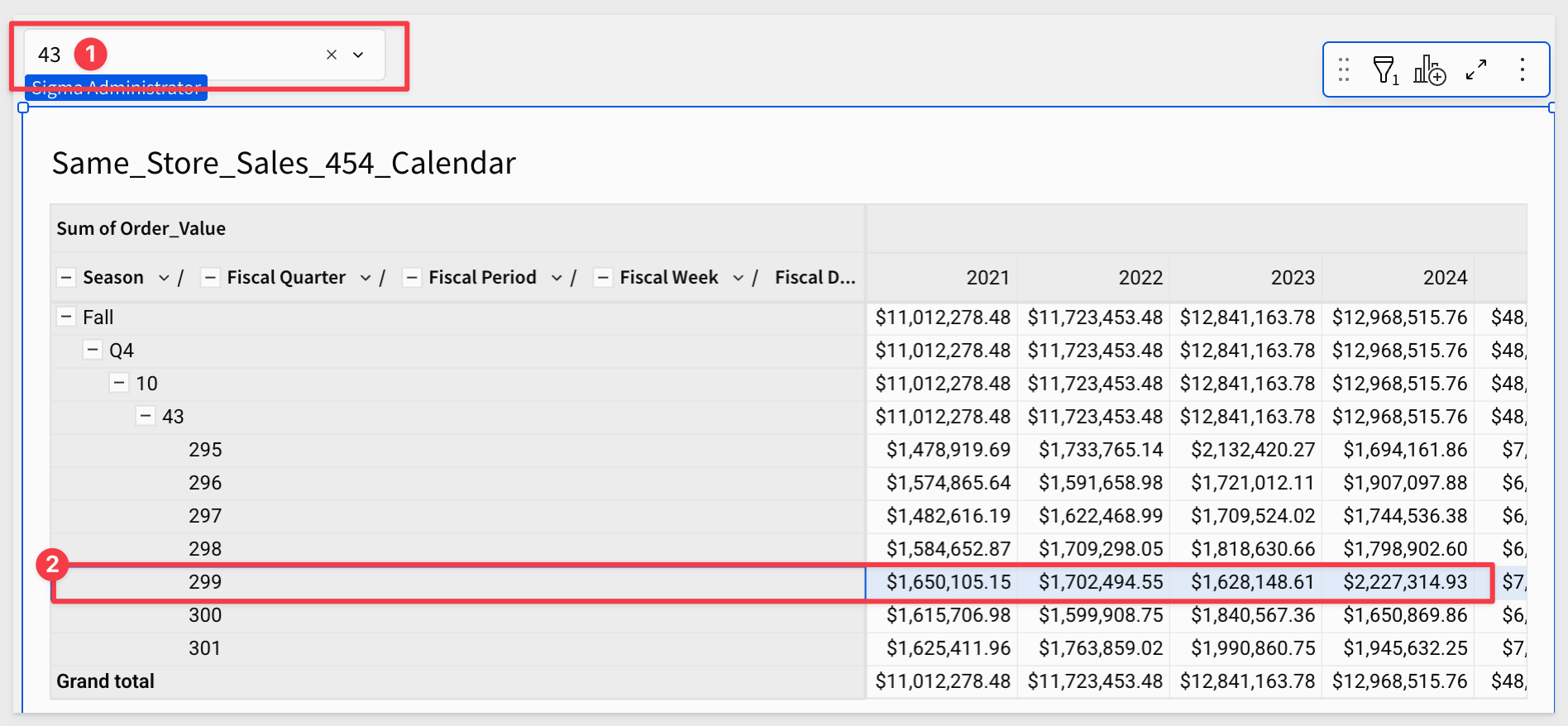
Let's say we want to see same-store sales for Thanksgiving. The Fiscal Day of the Year value according to the 4-5-4 Calendar is 299 in week 43.
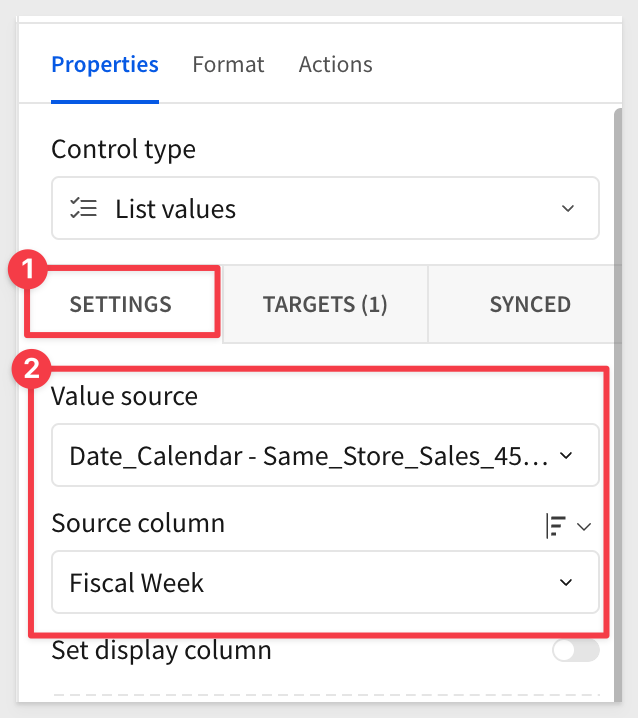
We can add a list page control to the page:
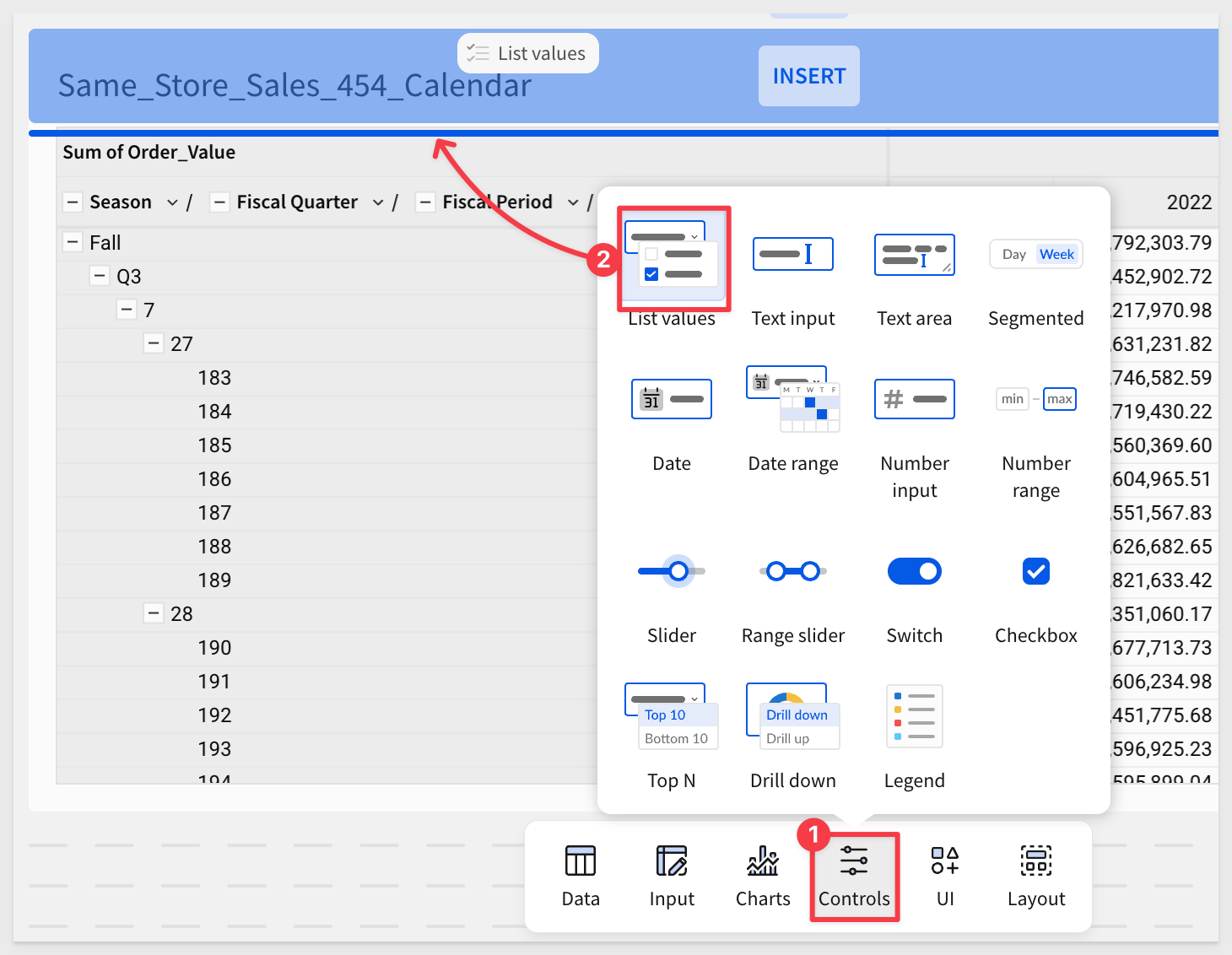
Configure it to filter based on the Fiscal Week:
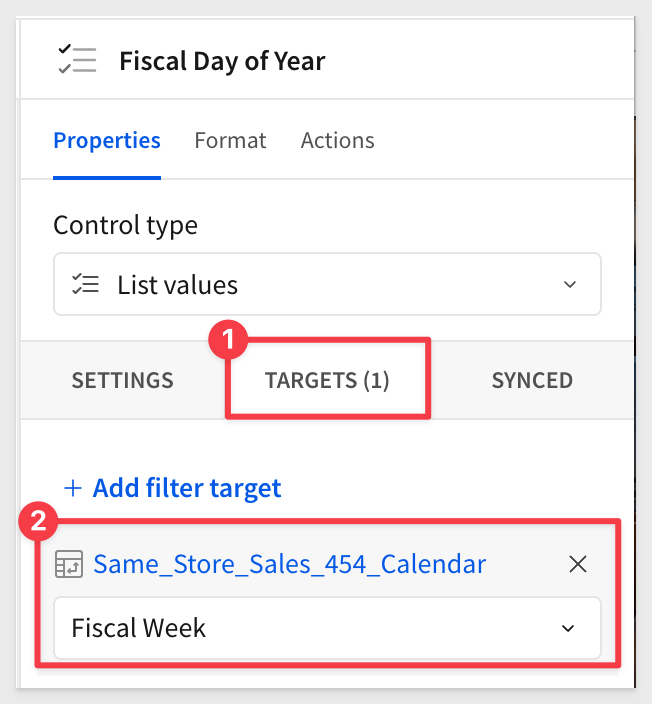
And set its target to Fiscal Week:
Use the control to find week 43:
Click Publish.
Of course, we could make this more user-friendly by making a control that shows major holidays by name and other improvements but that is outside the scope of this QuickStart.
In this QuickStart, we explored many of the most commonly used date functions and the use cases where they're applied. While not comprehensive, this guide highlights key patterns and techniques for working with dates in Sigma. There are many more ways to leverage dates—so keep exploring!
For more information, see Function index
Additional Resources:
Be sure to check out all the latest developments at Sigma's First Friday Feature page!
Blog
Community
Help Center
QuickStarts