Sigma lets teams define their data once and put governed content in front of everyone who needs it. Many teams that use Sigma, including those that embed it in their own application, want their users to stay in that application instead of moving into Sigma to build their own views.
Workbook as code makes that possible. A workbook's elements and layout become a specification that an application can read, change and write back through the API, so the application can offer self-service layouts while Sigma continues to supply the governed data and the elements.
This QuickStart demonstrates that with a Layout Composer. We will build a small library of Sigma elements, then an application where users choose elements, place them in zones on a canvas, and generate a real Sigma workbook from their selections. The workbook displays in a single view, is regenerated in place as the layout changes, and can be saved by the user as their own.
Along the way you'll learn how to:
- Build a governed data model and an element library workbook that act as the source of reusable elements
- Read a workbook specification and rewrite its layout with workbook as code
- Create and update a workbook in place through the REST API
- Display the generated workbook with a signed embed URL
- Let users save copies of the generated workbook as their own and switch between them
This design is extensible into more areas, for example:
- More element types, such as maps, pivot tables, controls and chat or agent elements
- More layouts and multi-page workbooks
- Saved layouts for each user, using each user's own identity in the signed token
- Starting points by role, such as pre-composed layouts for sales or finance users
- Scheduled exports or sharing of a saved workbook
- Use outside embedding, as a page in an internal portal
For more information on Sigma's product release strategy, see Sigma product releases
If something doesn't work as expected, here's how to contact Sigma support
Target Audience
Developers who want to let their users assemble their own Sigma workbooks from approved elements, inside an application they control.
Prerequisites
- Any modern browser is acceptable.
- Access to your Sigma environment, with permission to create teams and client credentials.
- Some familiarity with Sigma is assumed. Not all steps will be shown, as the basics are assumed to be understood.
- Microsoft VSCode or other suitable development tool.
- Git and Node.js (LTS) installed.

Every element a user can place on the canvas needs to answer to the same trusted definition of the data. A Sigma data model gives us that: one governed place where Sales, COGs and Profit are defined once, so every element we build, and every workbook the application generates later, calculates them the same way.
Create the model
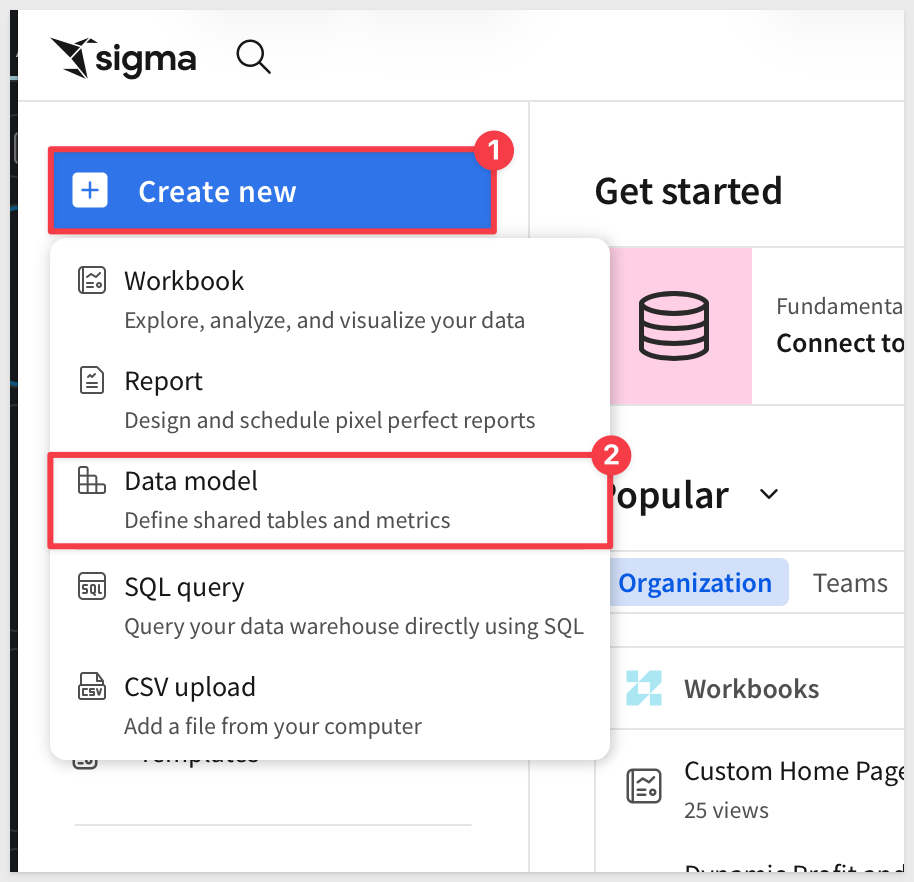
From the Sigma homepage, click Create new > Data model.
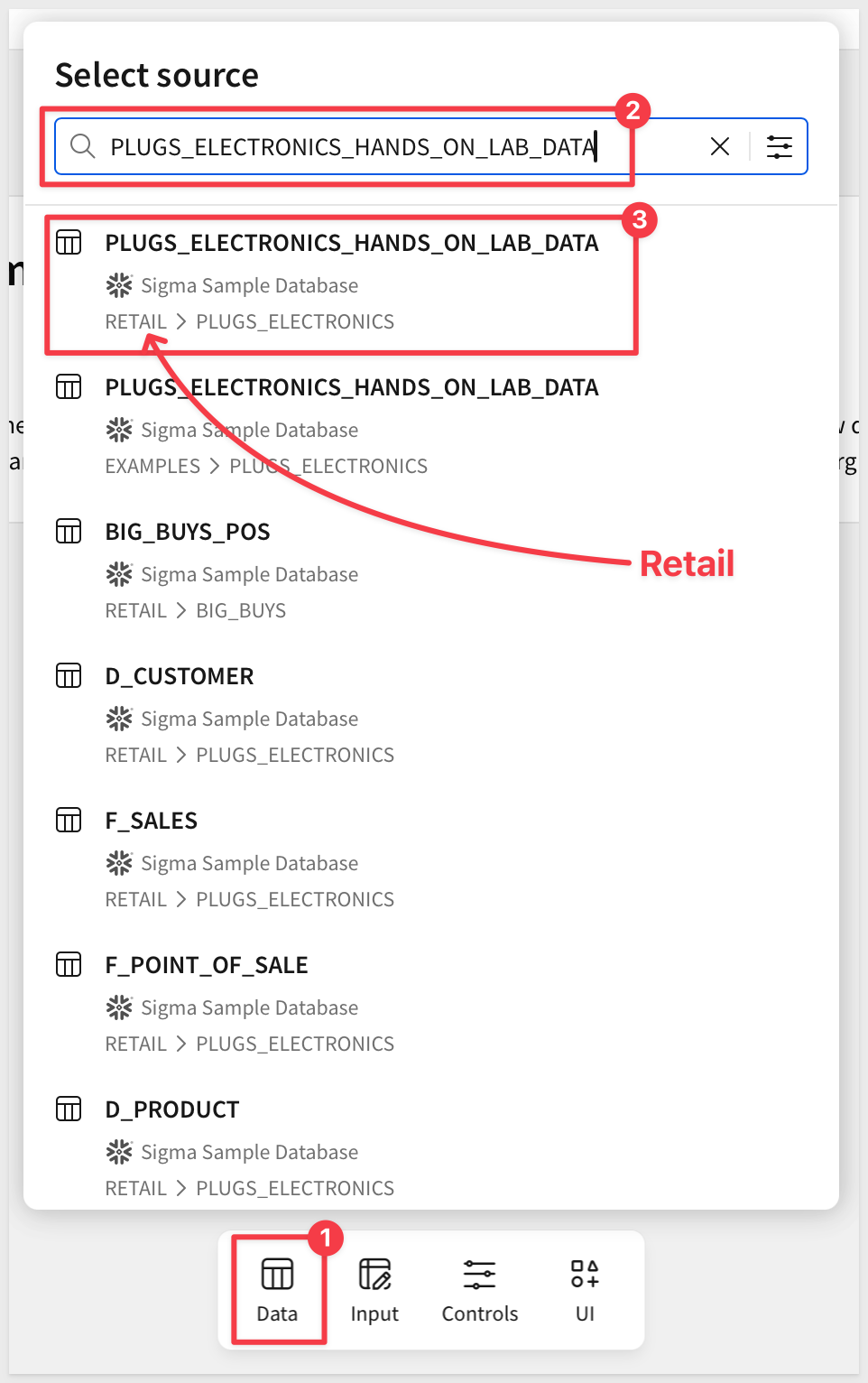
Add a table from the Element bar > Data group, search for:
PLUGS_ELECTRONICS_HANDS_ON_LAB_DATA
Select the table from the Sigma Sample Database > RETAIL schema.
Rename the table to:
Plugs Sales
Add calculated columns
The source table has Price, Quantity and Cost, but not the measures our elements will need. We add them here, once, instead of in every element.
Add four new columns. Rename each as shown, then enter its formula in the formula bar:
Column name: Sales
[Price] * [Quantity]
Column name: COGs
[Quantity] * [Cost]
Column name: Profit
[Sales] - [COGs]
Column name: Profit Margin
[Profit] / [Sales]
Set Profit Margin to a % format, and Sales, COGs and Profit to a currency format.
Finally, add a month column for trend charts and rename it:
Month
The formula is:
Month([Date])
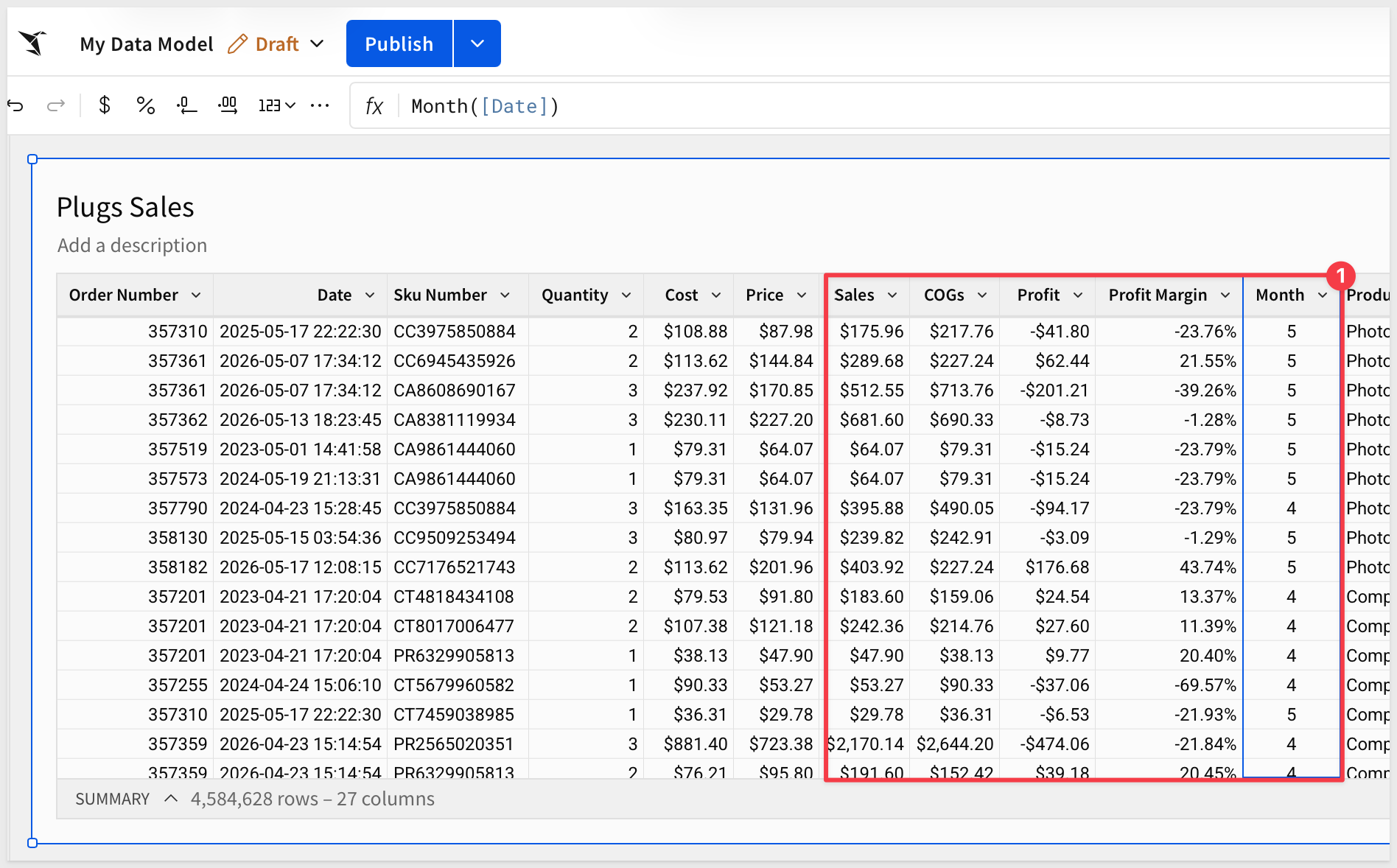
Save the model
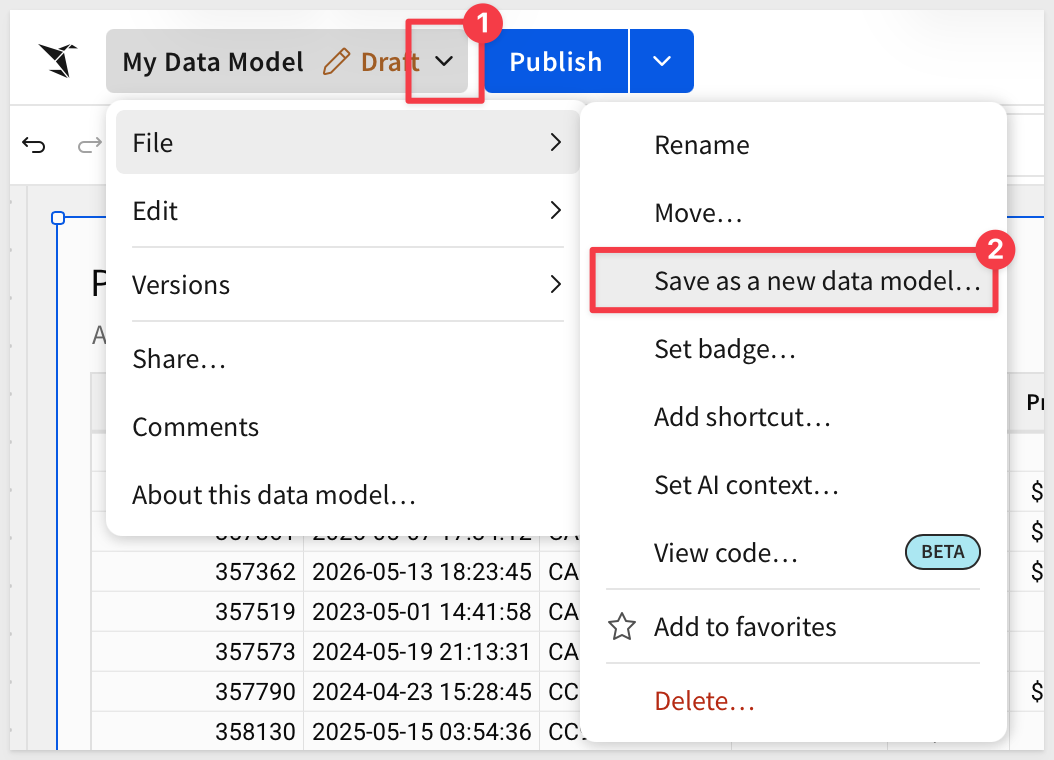
Save the data model with the name:
Layout Composer Data
With the data model in place, we can build the elements users will choose from. We keep them together in a single workbook that acts as the application's library: build each element once in Sigma, and the application allows new workbooks to be assembled from those same elements.
Create the library workbook
Create a new workbook, rename the first page to Library, and save it as:
Layout Composer Library
Add a second page named Source.
From the Element bar > Data group, add a Table to it and set its source to the Layout Composer Data data model, using the Plugs Sales table.
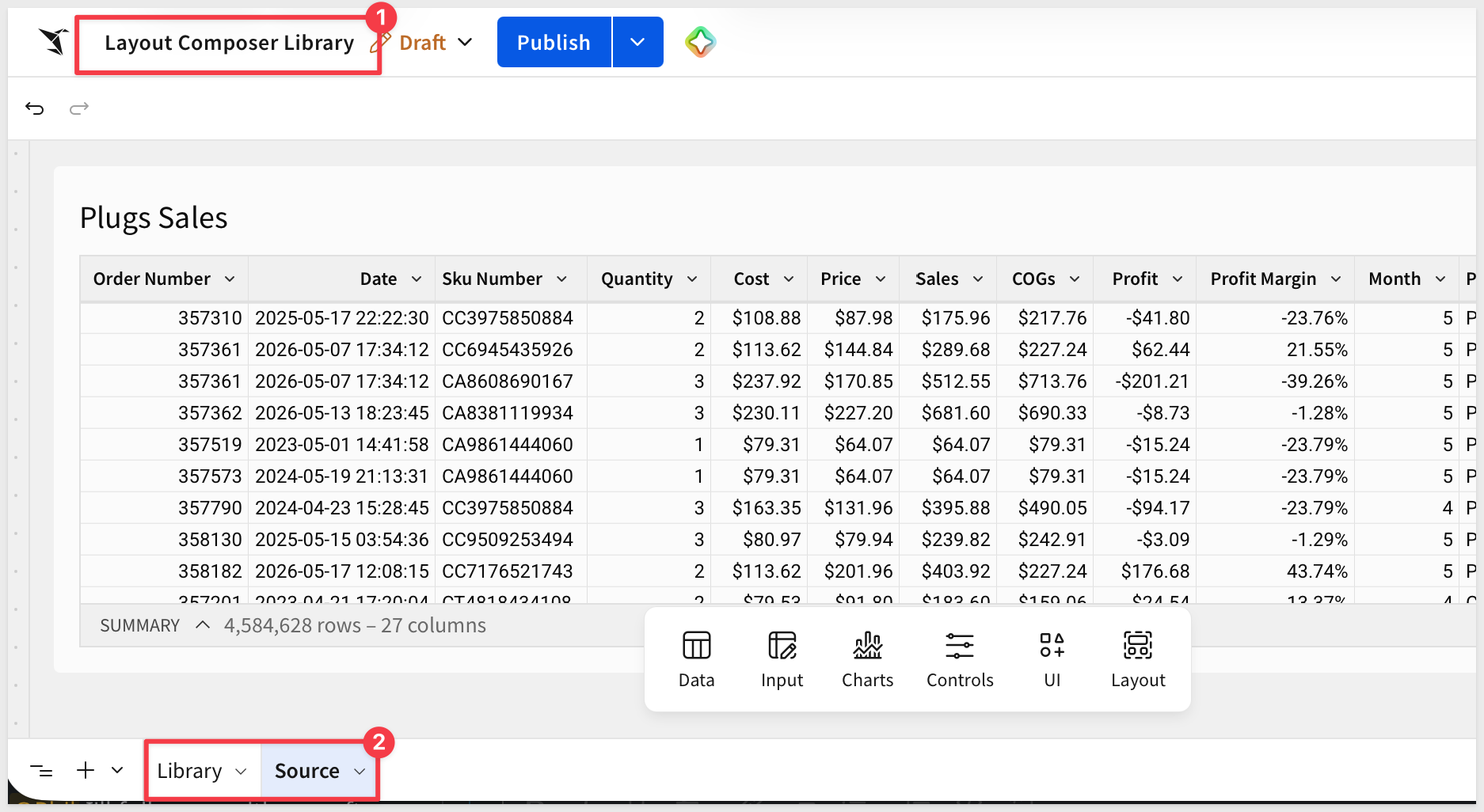
The library elements below use this table as their source, and keeping it off the Library page leaves that page for the elements users will choose from.
Name elements for the picker
The name we give each element here is the label users will see in the application's element picker. Name them the way you want them displayed, but keep them short.
The application builds its element list by reading the first page of this workbook, so any element you place on that page appears in the application automatically. The Source page is never listed.
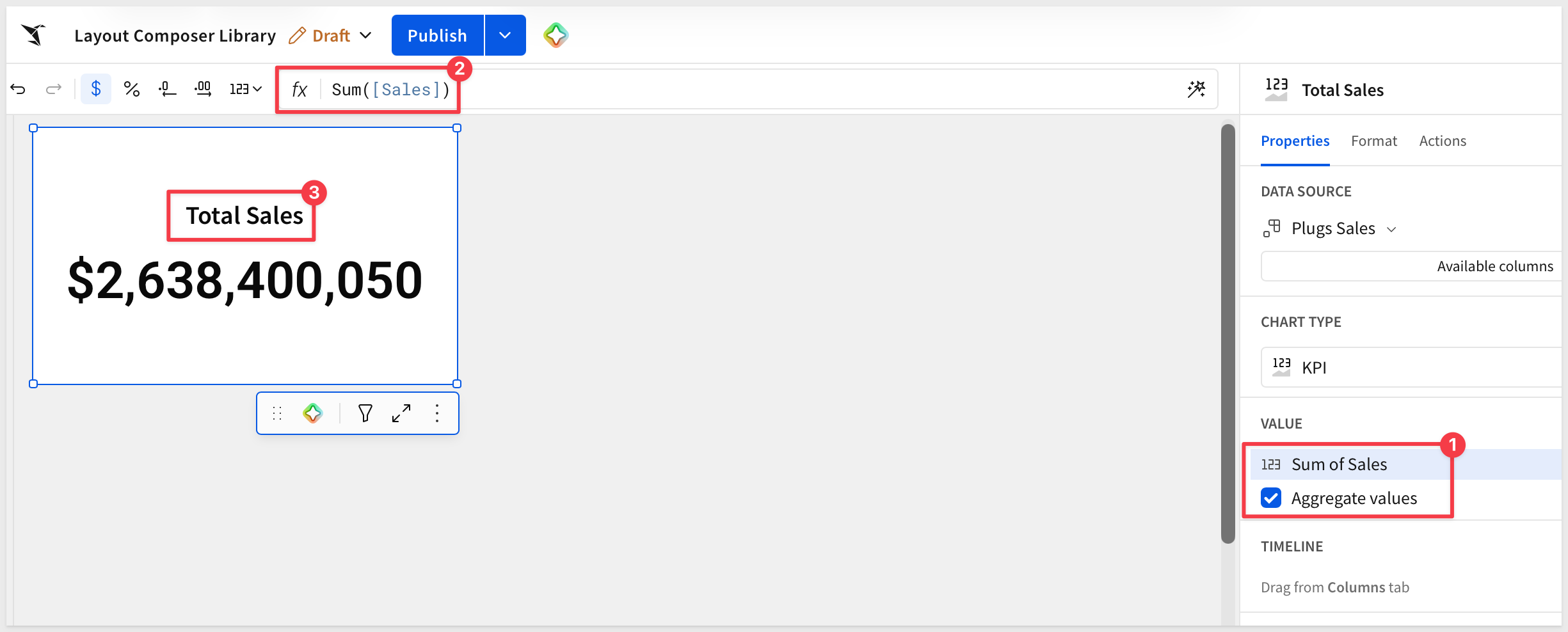
Add a KPI
Add a KPI element to the Library page, using the Plugs Sales table on the Source page as its source. Style the elements any way you see fit. Apart from the size of each element, the layout here does not matter.
Configure it in the Element panel:
- Value:
Sum of Sales - Title:
Total Sales
Add a second KPI
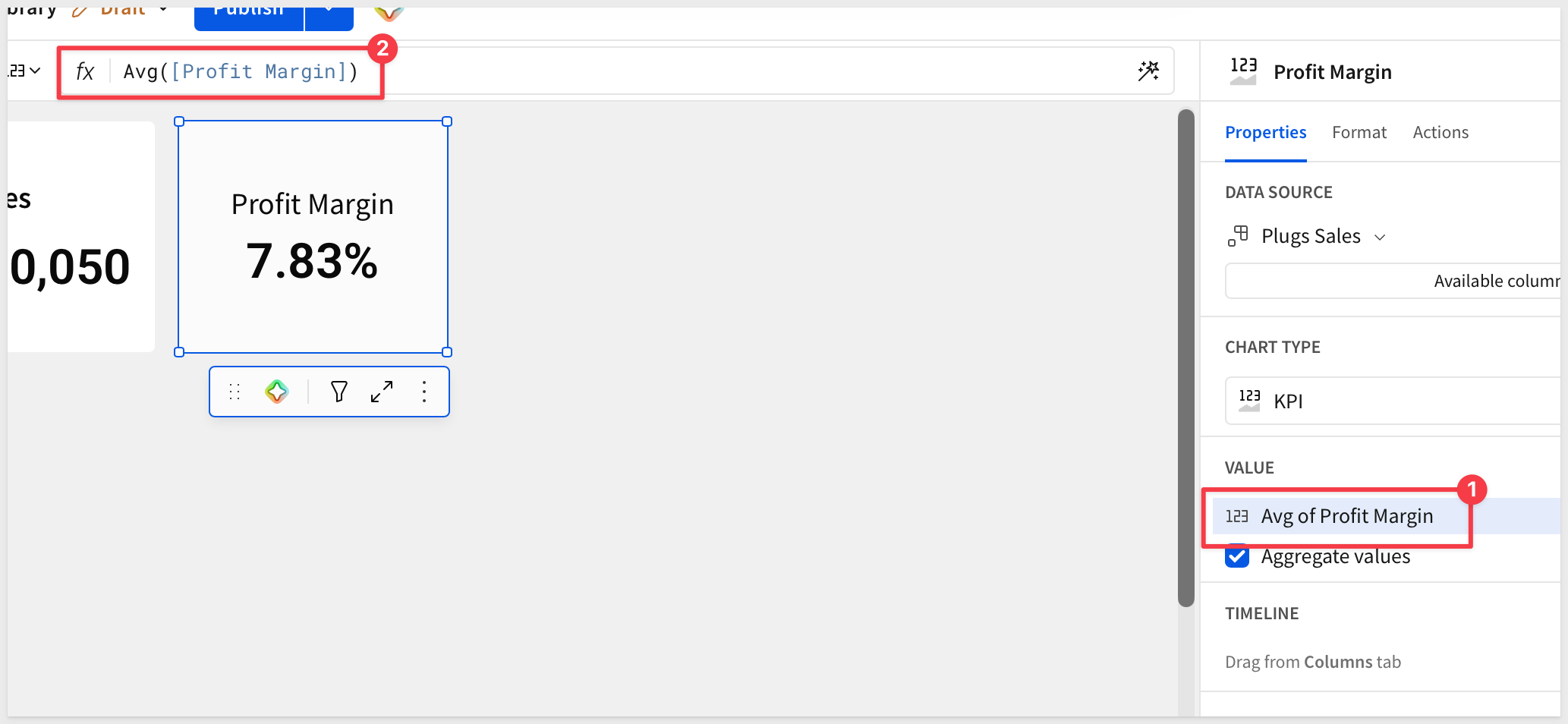
Add another KPI element, using the Plugs Sales table on the Source page as its source.
Configure it in the Element panel:
- Value:
Average of Profit Margin - Title:
Profit Margin
Add a bar chart
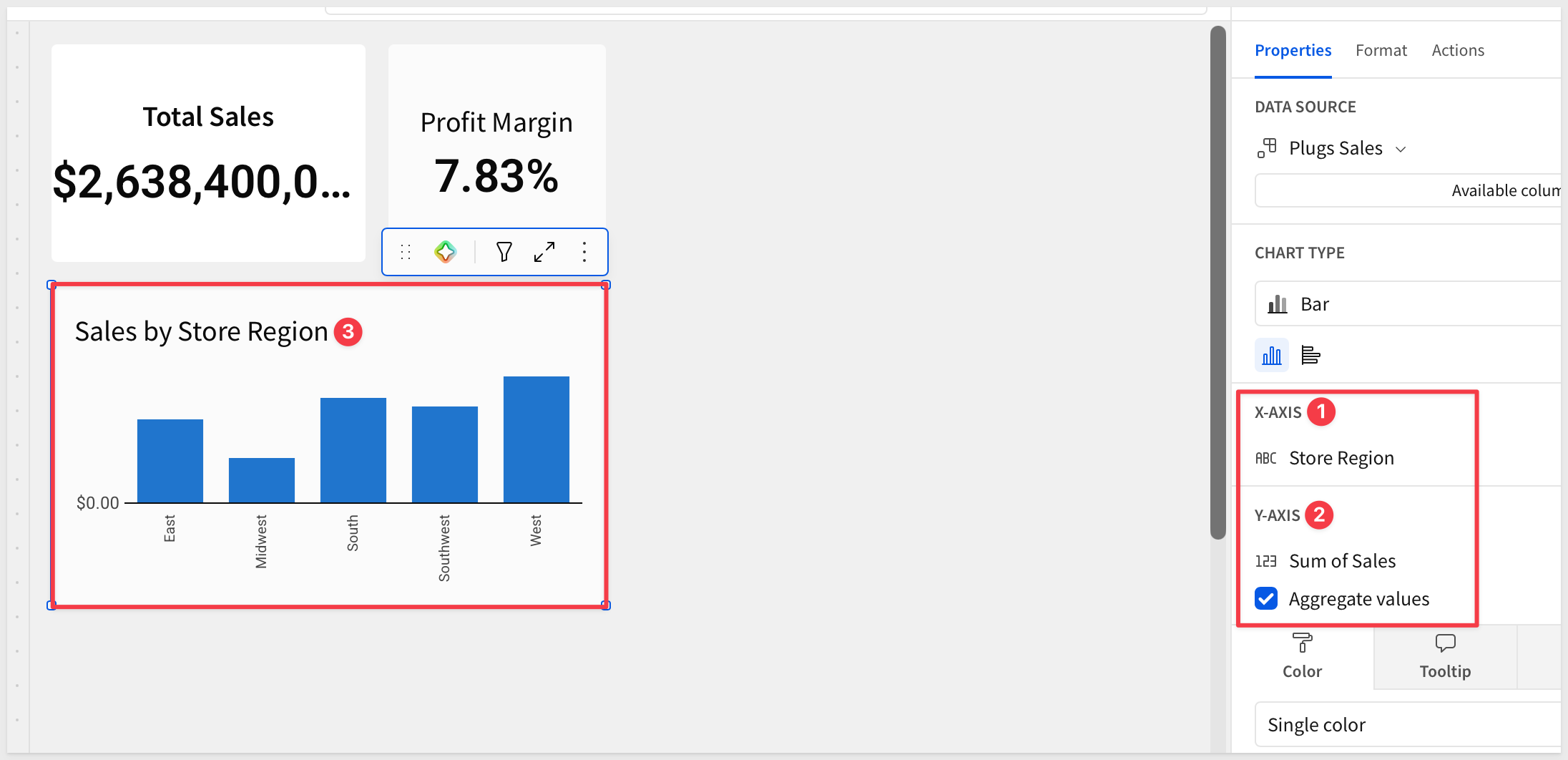
Add a Bar chart element, using the Plugs Sales table on the Source page as its source.
Configure it in the Element panel:
- X-axis:
Store Region - Y-axis:
Sum of Sales - Title:
Sales by Store Region
Add a line chart
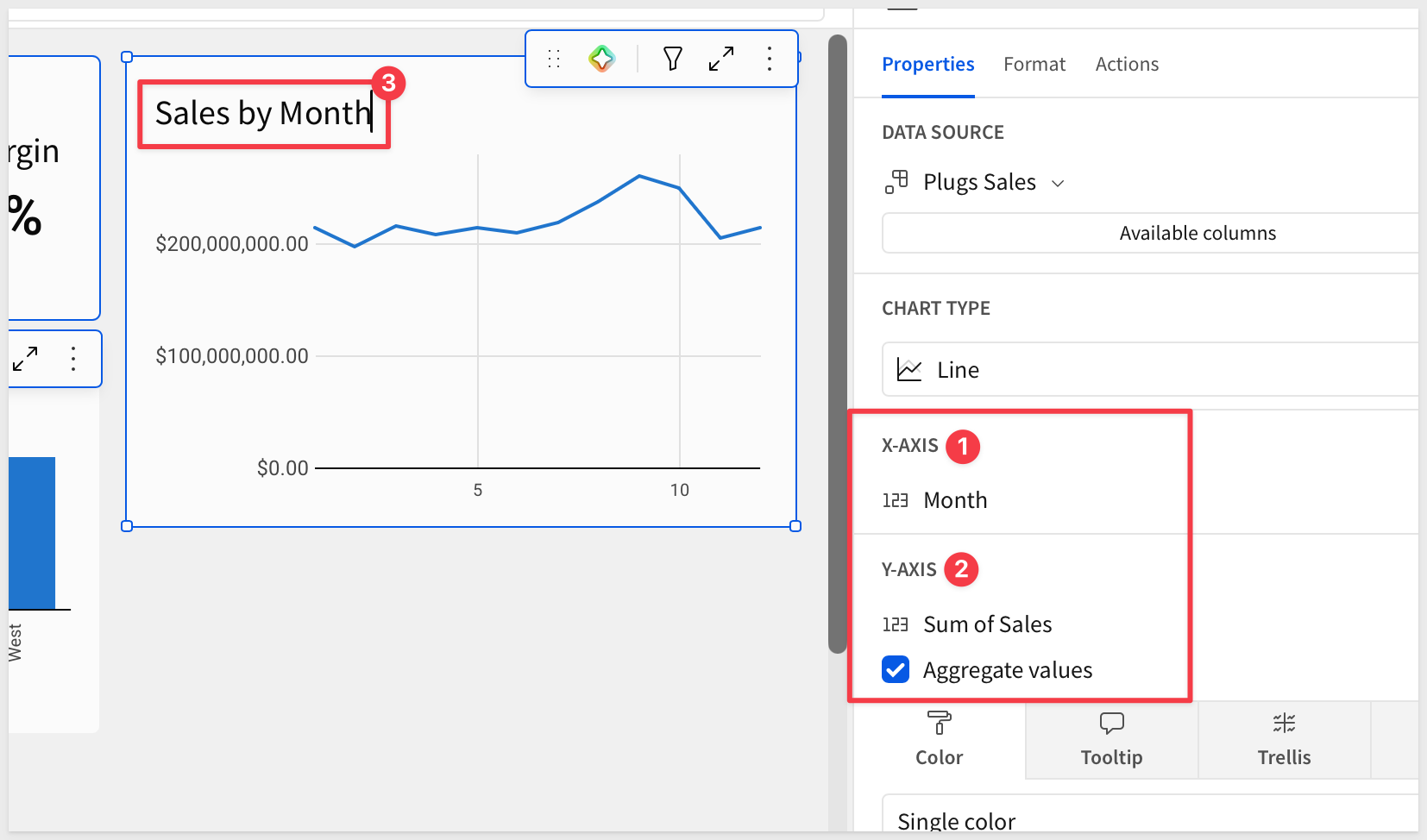
Add a Line chart element, using the Plugs Sales table on the Source page as its source.
Configure it in the Element panel:
- X-axis:
Month - Y-axis:
Sum of Sales - Title:
Sales by Month
Add a table
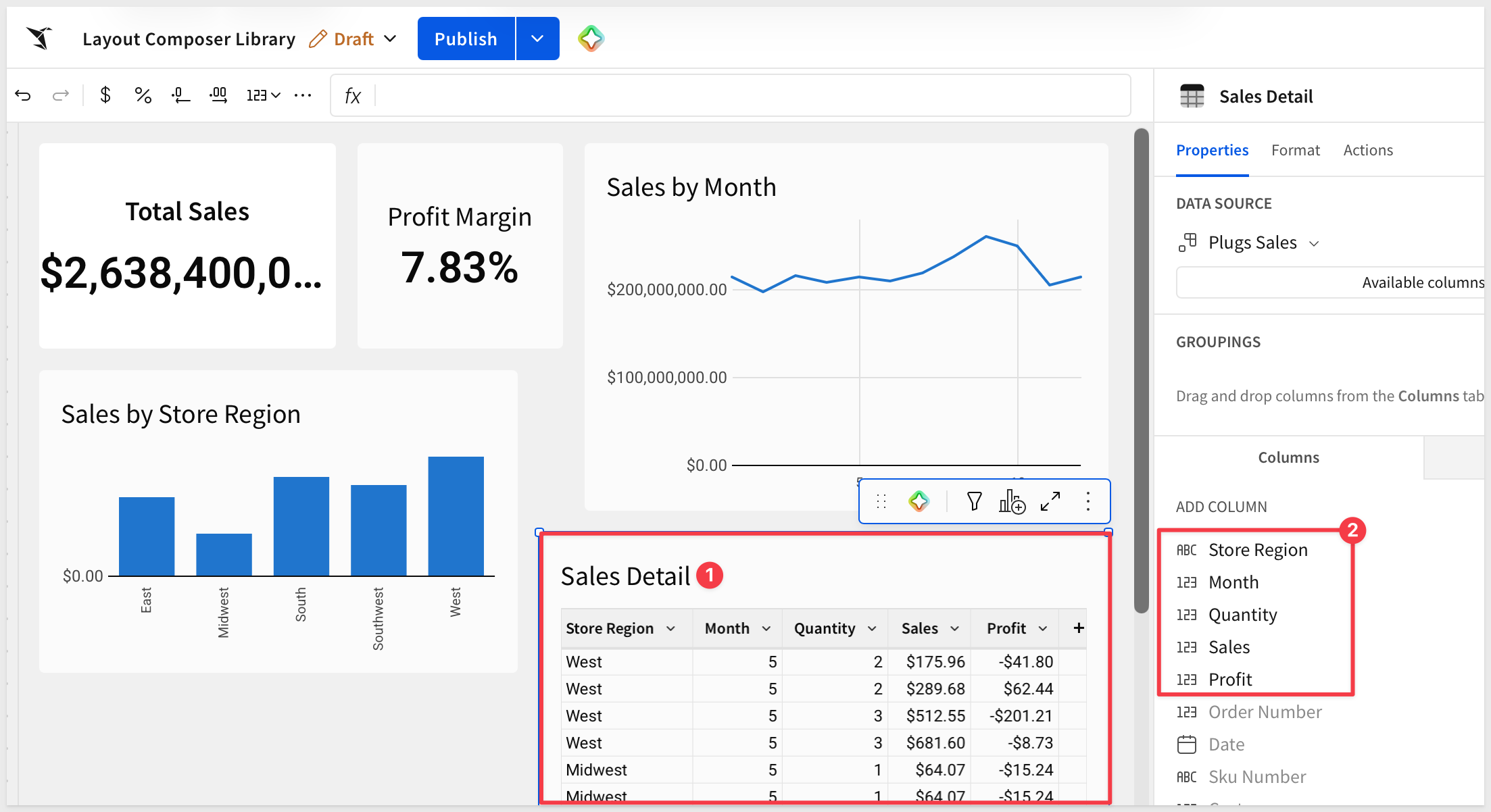
Tables are among the most common elements, so we include one. Add a Table element to the Library page, using the Plugs Sales table on the Source page as its source.
Show only these columns and hide the rest: Store Region, Month, Quantity, Sales and Profit.
Rename the table:
Sales Detail
Five elements are enough to demonstrate the approach, and the application works the same way with more.
Publish the workbook.
The generated workbooks display for an embed user, so Sigma needs two things ready first: a team the embed user belongs to, and a folder where the application creates workbooks that the team can view. Granting access once, at the team level, means every workbook the application creates or updates is visible to the embed user without any per-workbook sharing steps.
Create the team
Navigate to Administration > Teams and click Create team. Name the team:
Embed_Users
Create and share the folder
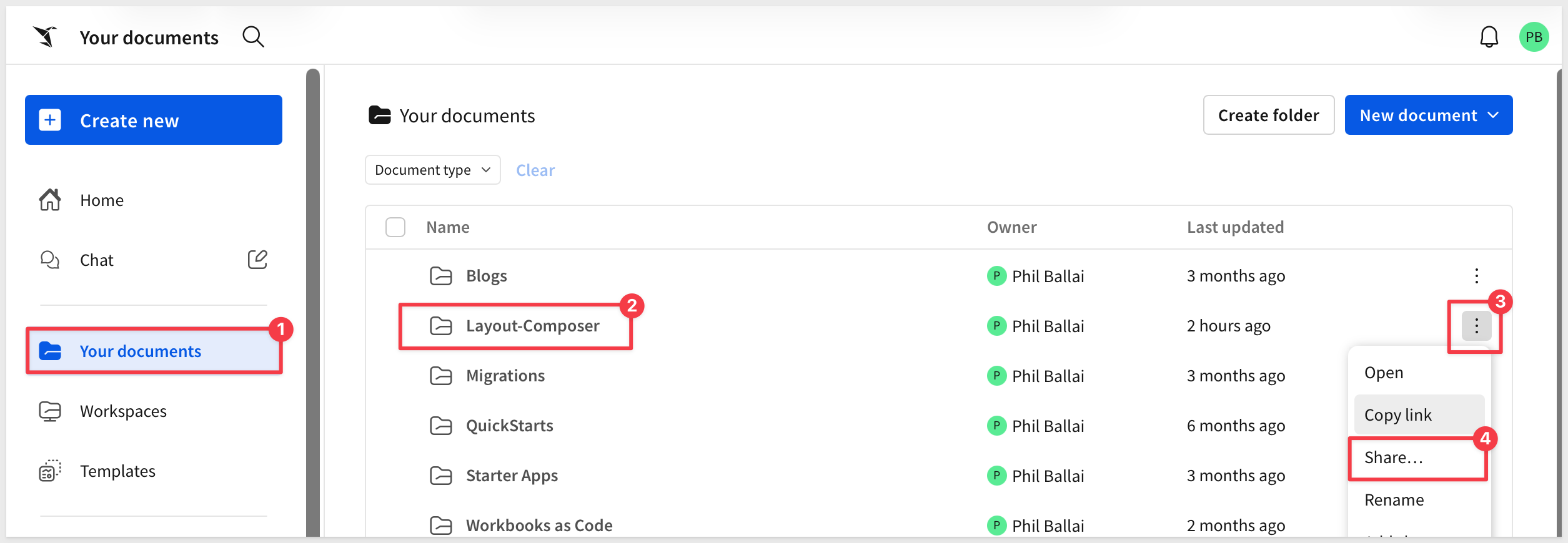
In Your Documents, create a new folder named:
Layout-Composer
From the folder's menu, select Share, add the Embed_Users team with Can view permission, and save.
The application is a small Node.js project that talks to Sigma's REST API, so the same governed library we just built can be assembled into new workbooks by code. Sigma does the heavy lifting; the project only decides which elements go where.
The sample application runs standalone here so we can focus on the pattern. In practice, it is intended to be one page inside your own application, such as an embedded analytics product, an internal portal or any other web application your users already work in. Your application owns the sign-in and the experience around it, while Sigma supplies the governed data, the elements and the rendering.
The details of how it all works are covered in the How It Works section.
Clone the project
The sample code is in a public GitHub repository. Rather than cloning the entire repository, we use a sparse-checkout to pull only the project folder we need, which keeps the local folder clean.
Open VSCode and start a new Terminal session.
Create a new directory in your preferred location:
mkdir sigma_quickstarts
Change to the new directory:
cd sigma_quickstarts
Initialize an empty Git repository:
git init
Add the QuickStarts repository as the origin:
git remote add -f origin https://github.com/sigmacomputing/quickstarts-public.git
Enable sparse checkout:
git config core.sparseCheckout true
Specify the project folder to pull:
echo "layout_composer" >> .git/info/sparse-checkout
Pull the folder from the repository:
git pull origin main
Change into the project folder:
cd layout_composer
Install the project dependencies:
npm install
In VSCode, click Open Folder, locate the layout_composer folder and click Open. The project structure should look like this:
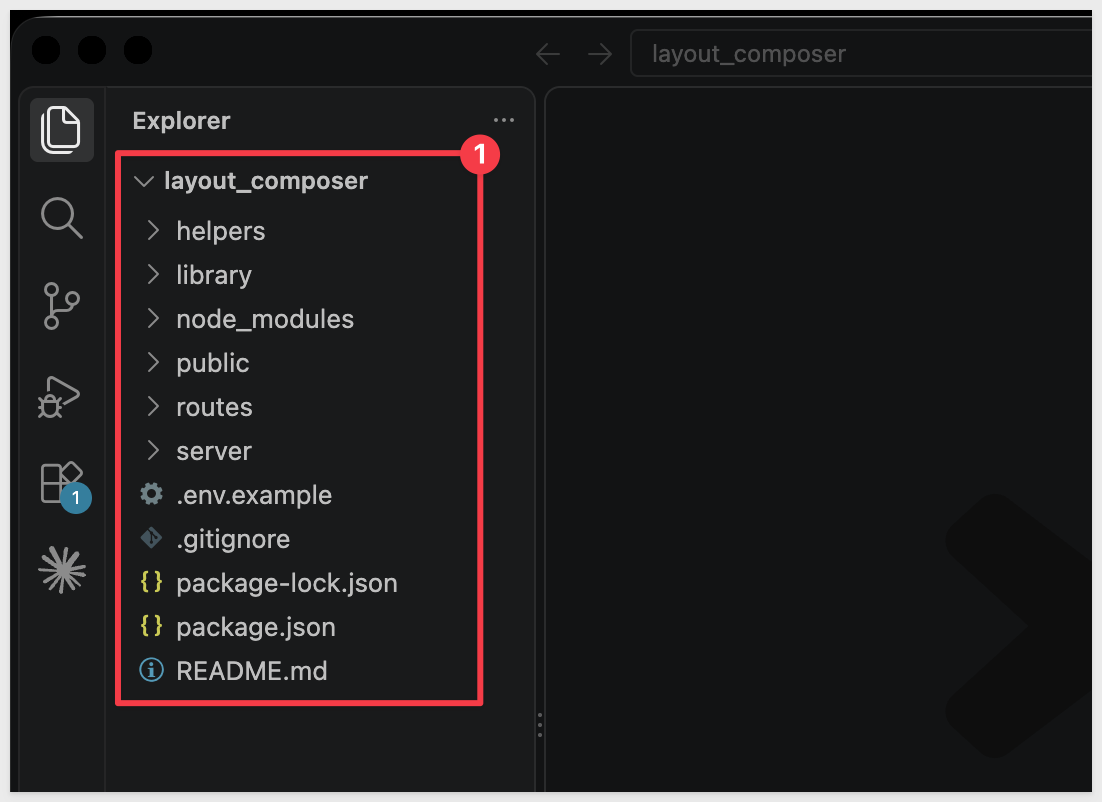
Here is what each part of the project is for:
server/starts the Express server and serves the applicationroutes/holds the API endpoints the application callshelpers/holds the code that talks to Sigma, including the code that builds the workbook specificationlibrary/holds a reference copy of the element library's specificationpublic/holds the canvas page, styles and element icons that run in the browser
Create client credentials
The application calls Sigma's REST API to read the element library and create the generated workbook, and signs the embed URL for the embedded view. Both need client credentials.
In Sigma, navigate to Administration > Developer Access and click Create New.
Select both the REST API and Embedding checkboxes, provide a name, and assign an administrative user as the owner. Click Create.
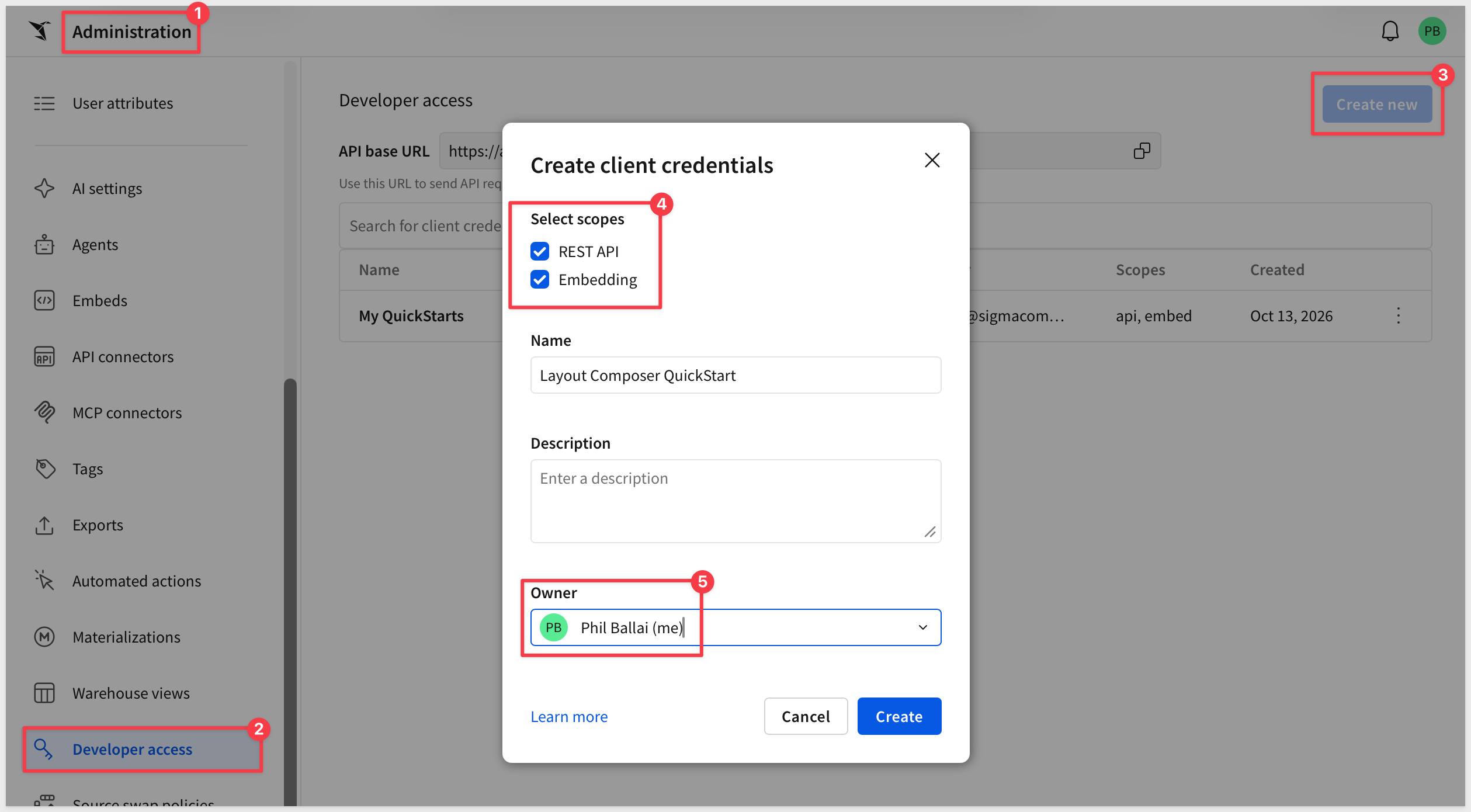
If you completed REST API Usage 01: Getting Started, you can reuse the same client credentials.
Configure the environment file
The project reads its settings from a .env file that is never committed to Git. Create it from the provided example.
In the terminal, from the layout_composer folder:
cp .env.example .env
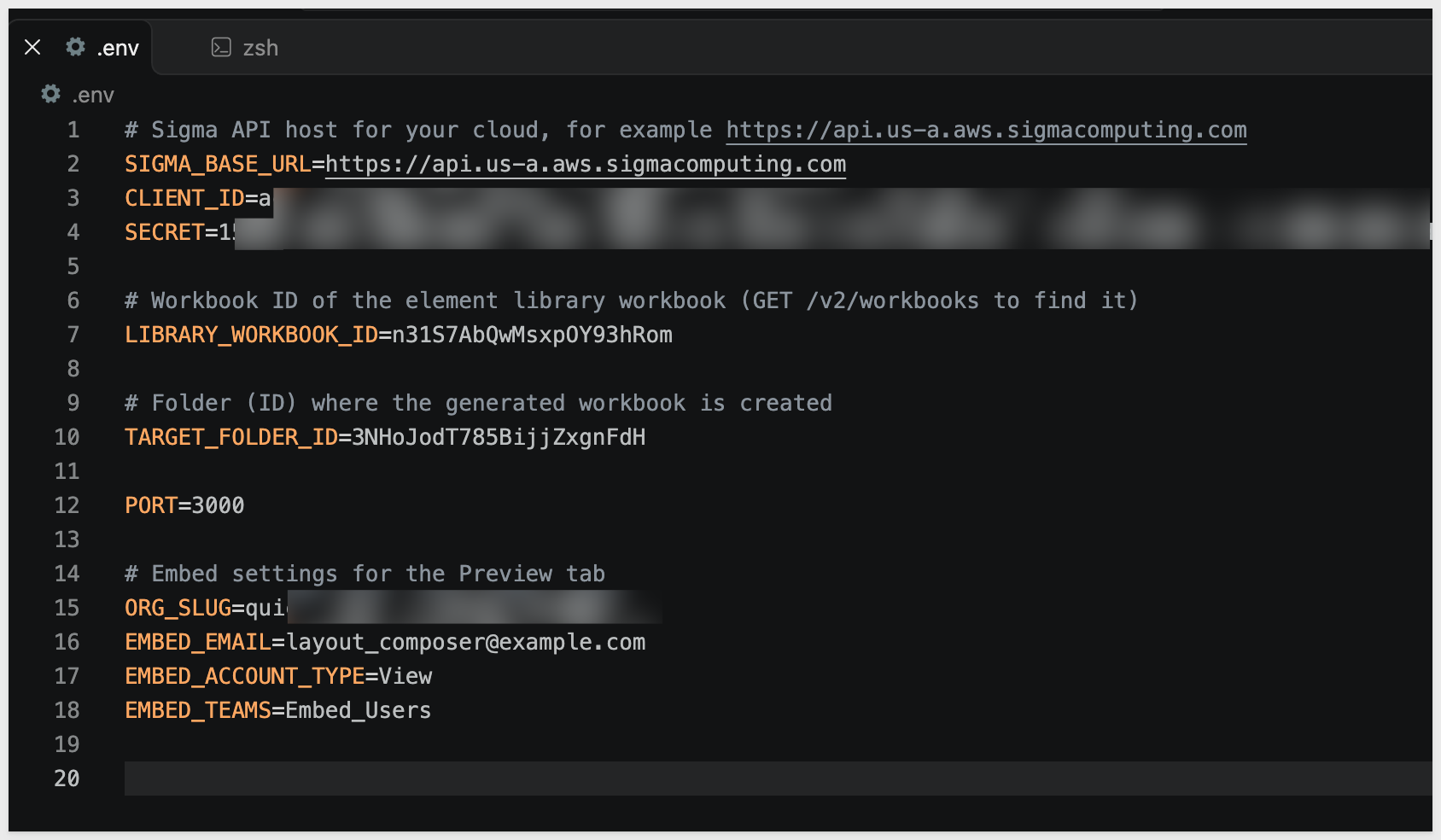
Open .env and set the following values:
SIGMA_BASE_URL: the API host for your Sigma cloud, for examplehttps://api.us-a.aws.sigmacomputing.comCLIENT_ID: the client ID from the previous stepSECRET: the secret from the previous step
For more information, see Identify your API request URL
Next, tell the application where the element library is and where to create the generated workbook. Both IDs can be copied straight from the browser address bar in Sigma, so there is nothing to look up.
Open the Layout-Composer folder and copy the ID at the end of the browser URL (the text after the last hyphen) into TARGET_FOLDER_ID.
Open the Layout Composer Library workbook and copy the ID at the end of its URL the same way into LIBRARY_WORKBOOK_ID. For example, in .../workbook/Layout-Composer-Library-n31S7AbQwMsxpOY93hRom the ID is n31S7AbQwMsxpOY93hRom.
Then, set ORG_SLUG to your organization's slug. It is the text immediately after https://app.sigmacomputing.com/ in the browser. For example, if the URL is https://app.sigmacomputing.com/quick-starts-fundamentals, the slug is quick-starts-fundamentals.
Set the embed user settings:
EMBED_EMAIL=layout_composer@example.com
EMBED_ACCOUNT_TYPE=View
EMBED_TEAMS=Embed_Users
For example:
With the project configured, we can run the application and compose a first layout. The page is intentionally simple: the library's elements on one side, a canvas on the other, and one button that turns the arrangement into a workbook.
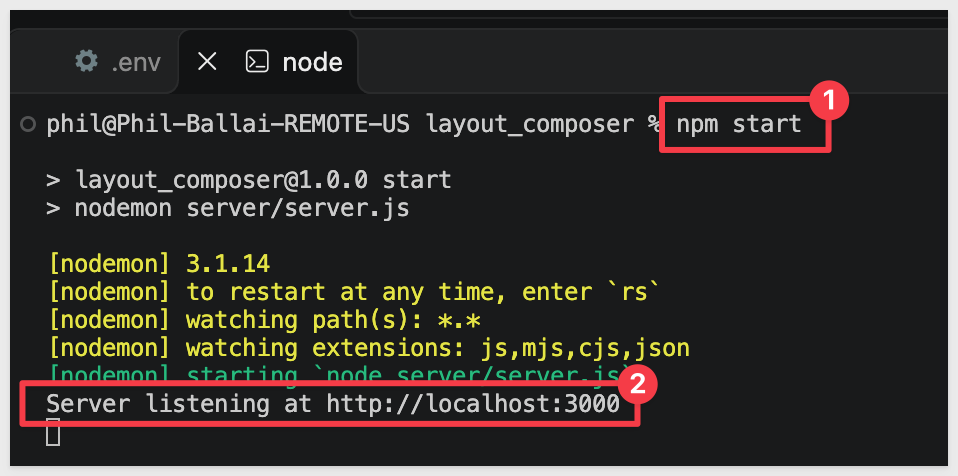
Start the server in the terminal, from the layout_composer folder:
npm start
The server is ready when it displays: Server listening at http://localhost:3000.
Browse to the application:
http://localhost:3000
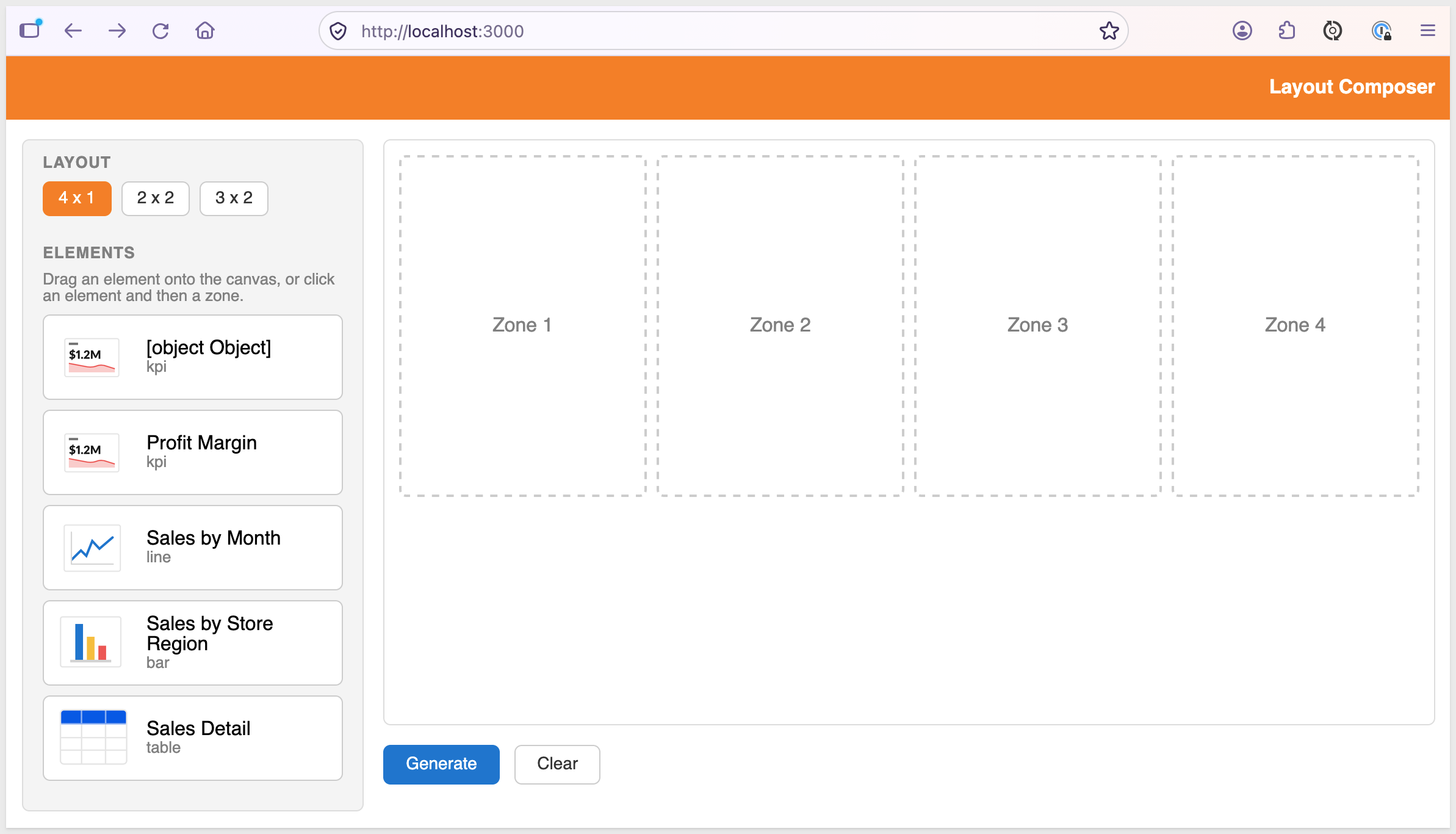
Choose a layout
The three layout buttons set the canvas:
4 x 1: four zones in one row2 x 2: two rows of two zones3 x 2: two rows of three zones
Changing the layout clears any placements.
Place elements
The Elements list shows every element on the library workbook's first page. Place an element by dragging it onto a zone, or by clicking the element and then clicking a zone.
An element can be placed once. Moving it to another zone clears its previous zone, the x in a zone removes it, and Clear resets the canvas. Zones can stay empty; only filled zones appear in the generated workbook.
Placing elements arranges a plan on the canvas. Generate turns that plan into a real Sigma workbook, so the result is native and governed, built from the same elements and definitions we prepared earlier.
Click Generate.
The status line reports Workbook created. the first time and Workbook updated. after that, and the page switches to the result: the generated workbook displayed in a single embedded view.
The workbook has one visible page, Layout Composer. Any supporting page the elements depend on, such as Source, is marked hidden.
Iterate on the layout
Click Back to layout, change the layout or move elements, and click Generate again. The application updates the same workbook in place rather than creating a new one each time, so users can refine a layout as many times as they like without cluttering Sigma.
WHY IT MATTERS:
Users build the view they need without anyone writing a workbook for them, and because every element comes from the governed library, what they compose inherits the same data definitions and permissions as everything else in Sigma.
A generated workbook is a working copy that the next Generate overwrites. To keep a layout, users save a copy as their own and return to it later.
Save a workbook
In the result view, enter a name and click Save as my workbook. The status line confirms Saved as "{name}". and the name box clears, ready for the next save.
The copy is placed in the embed user's Your Documents. It is a separate workbook, so later Generates do not change it.
Switch between saved workbooks
Once at least one workbook is saved, the Saved Workbooks list appears at the top left of the page.
Selecting a workbook loads it in the embedded view.
Saved workbooks do not show the save controls, since they are already saved. Back to layout returns to the canvas, and Generate returns to the working copy.
The application is small because Sigma does most of the work. It reads a workbook's specification, rewrites the part that describes layout, and writes the result back. This section walks through each step and the code behind it.
All of the code is in the layout_composer project.
At a high level, one trip through the application looks like this:
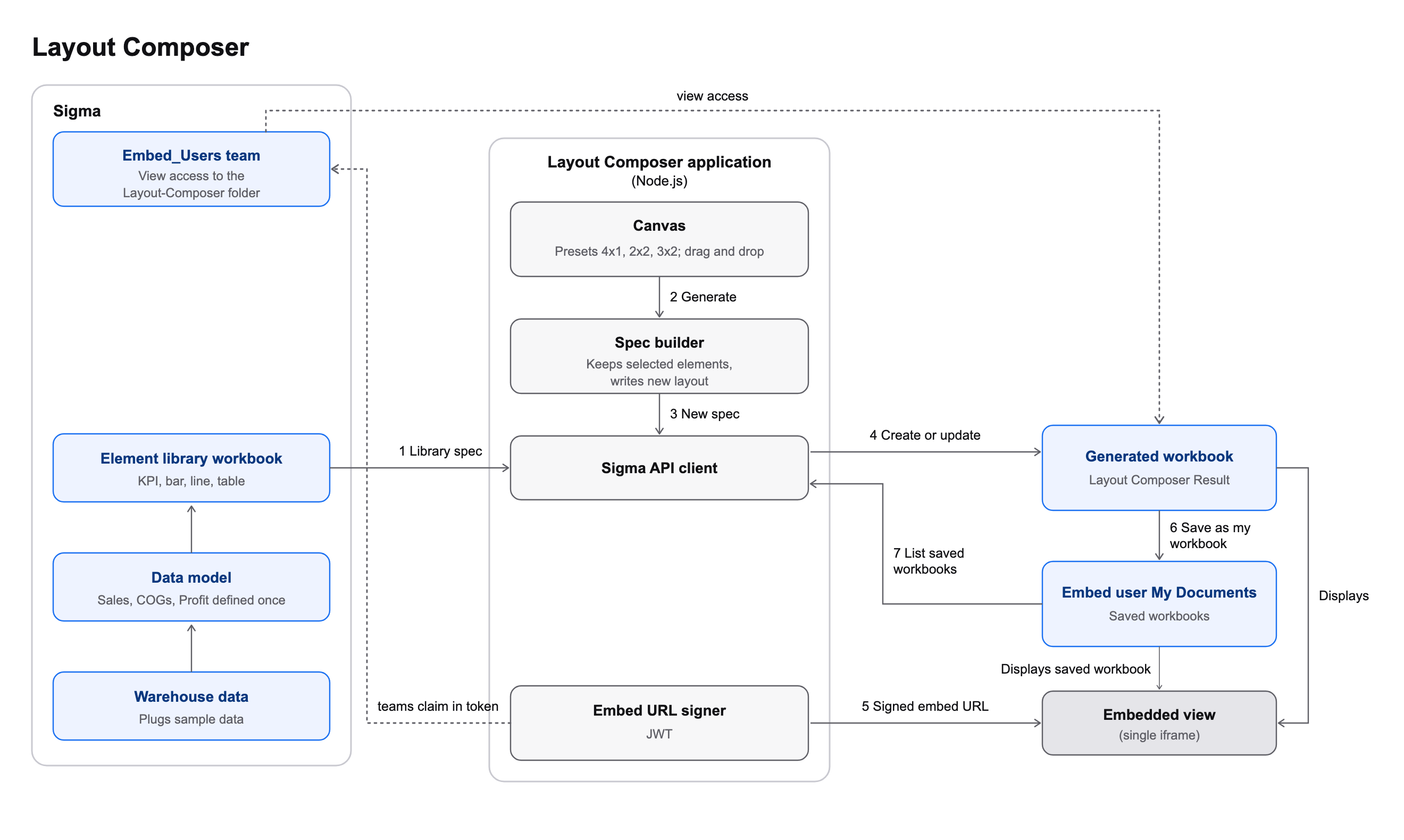
Simply put:
- The application reads the element library workbook's specification
- The user's selections are combined with a preset's grid to produce a new specification
- The application creates the workbook the first time, and updates it in place after that
- A signed embed URL displays the workbook to the embed user
- Saving copies the workbook into the embed user's
Your Documents
The workbook specification
Workbook as code represents a workbook as a document you can read and write through the REST API. Three parts matter here:
elements: a flat list of every element, each with anid, akind(such askpi-chart,bar-chart,line-chartortable) and asourcepages: metadata for each page, such as its name and whether it is hiddenlayout: an XML string that places elements on each page's grid
Here is the Total Sales element from the library workbook, trimmed to the parts we use:
{
  "id": "3nm3tybYvL",
  "kind": "kpi-chart",
  "name": "Total Sales",
  "source": { "dataModelId": "{data model id}", "elementId": "{table id}", "kind": "data-model" }
}
The element's source records where its data comes from, here the Plugs Sales table in the data model. An element can also read from another element in the workbook, such as a table on the Source page. When that happens, the element it reads from has to travel with it into any new workbook.
The layout for the library's first page looks like this. Sigma pages use a 24-column grid, and each element is placed with gridColumn and gridRow ranges:
<Page type="grid" gridTemplateColumns="repeat(24, 1fr)" id="LNCiKoJCN7">
  <Element elementId="3nm3tybYvL" gridColumn="1 / 12" gridRow="1 / 10"/>
  <Element elementId="rFpMyuqoKb" gridColumn="12 / 18" gridRow="1 / 10"/>
</Page>
The project keeps a reference copy of the full library specification in library/, so you can compare it with the live one.
Read the library
routes/api.js fetches the specification with a single call:
const { libraryWorkbookId } = await resolveIds();
const spec = await sigma('get', `/v2/workbooks/${libraryWorkbookId}/spec`);
const document = spec.document;
helpers/spec.js then lists the elements on the first page's layout. Those are the elements users see in the picker:
// A styled title comes back as { text, fontWeight, fontSize } instead of a plain string.
const elementName = (el) => (typeof el.name === 'string' ? el.name : (el.name && el.name.text) || el.id);

function listLibraryElements(doc) {
  const firstPage = doc.layout.split('<Page ')[1];
  const ids = [...firstPage.matchAll(/elementId="([^"]+)"/g)].map((m) => m[1]);
  return ids.map((id) => {
    const el = doc.elements.find((e) => e.id === id);
    return { id, name: elementName(el), kind: el.kind };
  });
}
The helper is there because an element's name is a plain string until you style its title in Sigma. After that it becomes an object with a text property.
Presets are grid coordinates
helpers/presets.js defines each canvas as a list of zones. A zone is [startColumn, endColumn, startRow, endRow] in the same 24-column grid the layout uses:
{
  id: '2x2',
  zones: [
    [1, 13, 1, 15],   // top left
    [13, 25, 1, 15],  // top right
    [1, 13, 15, 29],  // bottom left
    [13, 25, 15, 29], // bottom right
  ],
}
Because presets are data, adding a layout means adding an entry to this list. The canvas in the browser draws its zones from the same list.
Build the new document
buildDocument in helpers/spec.js does the real work. It keeps only the elements the user placed, plus anything they depend on, and writes a new layout with one
// Keep the placed elements plus anything they use as a source.
const keep = neededElementIds(libraryDoc, placedIds);

const leaves = placed
  .map(([zone, id]) => {
    const [c1, c2, r1, r2] = preset.zones[zone];
    return `  <Element elementId="${id}" gridColumn="${c1} / ${c2}" gridRow="${r1} / ${r2}"/>`;
  })
  .join('\n');
neededElementIds walks each kept element's source.elementId until nothing new is found, so any element a placed element reads from comes along without the application knowing it exists.
The function also decides which pages to keep. Layout that references an element that is not in the new workbook is rejected, so a supporting page such as Source is kept only if every element on it is kept. Any page that remains, other than the canvas page, is marked hidden using the page's visibility setting:
const keptBlocks = otherBlocks.filter((block) =>
  [...block.matchAll(/elementId="([^"]+)"/g)].every((m) => keep.has(m[1]))
);
const keptPageIds = new Set(keptBlocks.map((block) => block.match(/id="([^"]+)"/)[1]));
const pages = libraryDoc.pages
  .filter((pg) => pg.id === canvasPageId || keptPageIds.has(pg.id))
  .map((pg) => (pg.id === canvasPageId ? { ...pg, name: 'Layout Composer' } : { ...pg, visibility: 'hidden' }));
The result is a complete workbook document: filtered elements, adjusted pages and a rewritten layout.
Create or update in place
The first Generate creates the workbook. Later ones update it. Both calls send the document that buildDocument produced:
if (workbookId) {
  await sigma('put', `/v2/workbooks/${workbookId}/spec`, { document });
} else {
  const created = await sigma('post', '/v2/workbooks/spec', {
    name: 'Layout Composer Result',
    folderId,
    document,
  });
  writeState({ workbookId: created.workbookId });
}
Element and page IDs are preserved on create, which is why layout entries can refer to elements by the same IDs the library used. The workbook's ID is stored in a small local file, .generated.json, so the next Generate knows which workbook to update. If an update fails because the workbook was deleted or archived, the application falls through to the create call.
Display with a signed embed URL
routes/api.js signs a short-lived token for the embed user and appends it to the workbook's URL:
const token = jwt.sign(
  {
    sub: EMBED_EMAIL,
    iss: CLIENT_ID,
    jti: crypto.randomUUID(),
    iat: now,
    exp: now + 3600,
    account_type: EMBED_ACCOUNT_TYPE,
    teams: [EMBED_TEAMS],
  },
  SECRET,
  { algorithm: 'HS256', keyid: CLIENT_ID }
);
const url = `${workbookUrl}?:embed=true&:jwt=${token}`;
sub is the embed user, teams places that user in Embed_Users (which can view the folder), and the client ID, sent as both iss and the key ID, tells Sigma which secret to verify with. Sigma requires iat, so do not remove it.
Save and list workbooks
Saving uses the copy endpoint, with the embed user's home folder as the destination:
const { homeFolderId } = await getEmbedMember();
await sigma('post', `/v2/workbooks/${workbookId}/copy`, {
  name,
  destinationFolderId: homeFolderId,
});
getEmbedMember finds the embed user by email (GET /v2/members?email=). The Saved Workbooks list is the embed user's files (GET /v2/members/{memberId}/files) filtered to workbooks in My Documents. Sigma's file list can lag a moment behind a new copy, so the page adds a just-saved workbook to the list itself.
Short IDs in the environment file
The IDs you pasted from the browser are Sigma's short URL IDs. The Sigma API accepts them when reading a workbook (GET /v2/workbooks/{id}) and a folder (GET /v2/files/{id}), and returns the full IDs that later calls need. resolveIds in helpers/sigma.js does this once at startup, which is why you never have to look up a UUID.
Extend the sample
The pieces above are the points developers are most likely to change:
- Add a layout: add an entry to
helpers/presets.js - Add an element: place it on the library workbook's first page and refresh the application
- Give each user their own saved workbooks: sign the token with each signed-in user's email
- Use it without embedding: link to the generated workbook's URL instead of loading the iframe
In this QuickStart, we built an application that lets users assemble their own Sigma workbook from approved elements. Users choose elements and place them on a canvas, and the application writes the arrangement back to Sigma as a real workbook that displays in a single view, updates in place as the layout changes, and can be saved as the user's own.
The pattern works because Sigma holds the parts that need governing. The data model defines the measures once, the element library holds the approved elements, and the generated workbook inherits both. The application only decides which elements go where.
Key takeaways:
- A workbook's specification is data: read it, filter and rearrange it, and write it back through the API
- A library workbook is a convenient way to author reusable elements in the Sigma UI instead of writing them by hand
- Creating a workbook once and updating it in place keeps the experience fast and the folder tidy
- A team-level share and a signed embed URL let you display content to users without per-workbook permissions
- The same approach extends to more layouts, more elements and per-user saved workbooks
Places to extend the app:
- Containers as library cards: build a library item as a container, such as a KPI with a text element that explains it, so one choice in the picker brings a complete card. The sample lists individual elements today, so this means changing how the picker reads the library page
- Widgets in your own dashboard: embed library elements one at a time inside your application's dashboard, and let your own admin pages decide which element appears in which widget. The library workbook can serve as the catalog
- Role-based starting points: pre-compose layouts for sales, finance or operations users and let them adjust from there
- More element types: maps, pivot tables, controls, and chat or agent elements follow the same pattern
- Sharing and scheduling: share or schedule exports of a saved workbook
- Your own identity: sign the token with each signed-in user's email so saved workbooks are private to each user
Additional Resource Links
Blog
Community
Help Center
QuickStarts
Be sure to check out all the latest developments at Sigma's First Friday Feature page!