A common ask from teams evaluating Sigma is migrating their Domo footprint — usually to take advantage of all the amazing things Sigma offers. The conversion itself can be a blocker — and the part this QuickStart automates.
Domo publishes a full REST API, and the domo-to-sigma skill can discover dashboards, DataSets, and calculated fields through it directly. This QuickStart takes the simpler path instead: it runs in screenshot-only mode, working from a screenshot of the source dashboard and the same warehouse data the dashboard was built on (staged in Snowflake), with no live Domo instance queried at all.
This QuickStart walks through a Claude Code skill called domo-to-sigma that automates the rebuild.
Point it at a screenshot of a Domo dashboard and the Snowflake tables behind it; it reads the arrangement, chart types, and summary tiles from the image, builds a Sigma data model from the warehouse tables, and reproduces the dashboard's cards as Sigma elements on Sigma's grid — a KPI wherever Domo showed a big summary number, never a table standing in for one.
What else this enables
A pure lift-and-shift is the floor, not the ceiling. The same skill family supports follow-on moves that turn a migration into an upgrade:
- Dedup before you migrate. Most BI estates carry years of dashboard sprawl — multiple near-identical dashboards built by different teams over time. The companion assessment skill flags dashboards that are roughly 90% the same and recommends merging them before conversion.
- Enhance, don't just translate. Many "dashboards" in legacy tools are really input-driven workflows in disguise. After the lift-and-shift, the skill can suggest replacing those patterns with native Sigma constructs — input tables for write-back, Sigma Assistant for natural-language analysis, scheduled agents for routine summaries.
- Audit your source as a side effect. Reproducing the dashboard against the same warehouse tables is a fresh pair of eyes on the source platform's math — a useful check even without a live parity comparison against Domo itself.
Sample dashboard
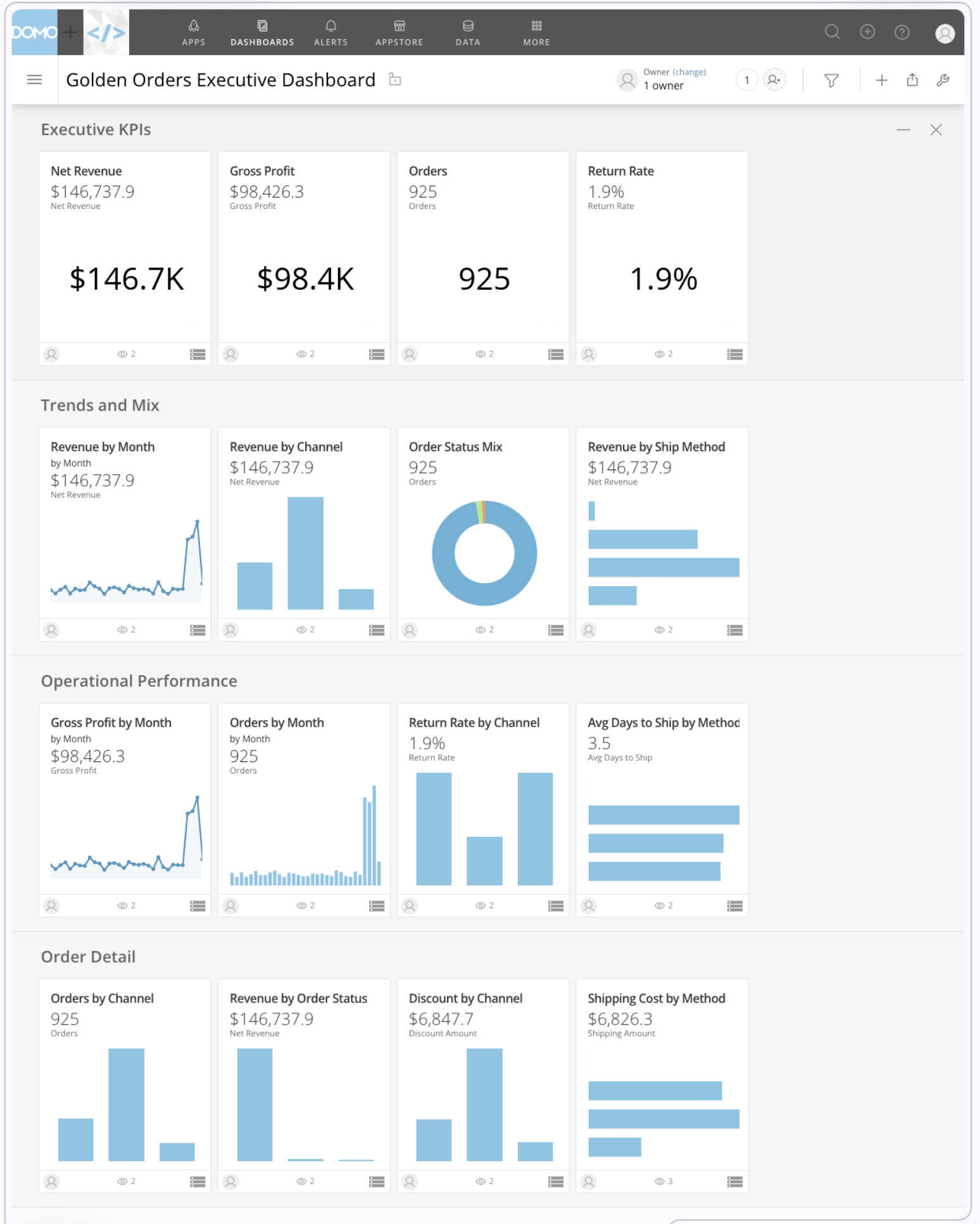
For the demonstration, we'll rebuild a dashboard called Golden Orders Executive Dashboard — 16 cards across four collections: Executive KPIs (four summary-number tiles — Net Revenue, Gross Profit, Orders, Return Rate), Trends and Mix (a revenue trend line, a bar chart, a donut, and a horizontal bar), Operational Performance (four more trend/breakdown charts), and Order Detail (four channel- and method-level breakdowns). You'll see how the skill reads each card's chart type and the collection layout directly from the screenshot, builds a Sigma data model from the warehouse tables behind it, and reproduces the dashboard as a Sigma workbook.
Target Audience
Sigma SEs, technical CSMs, and migration partners rebuilding a Domo dashboard from a screenshot — or scoping a batch migration with the companion domo-assessment skill against a live Domo instance.
Prerequisites
Claude Codeinstalled (CLI or desktop).- A screenshot of the source Domo dashboard.
- Access to the Snowflake warehouse tables the dashboard was built on.
- A Sigma workspace with a Snowflake connection.

domo-to-sigma is one of two skills that install together as a single plugin (installed in the next section). Most of this QuickStart focuses on the converter — but knowing where the assessment skill fits avoids dead ends later when scoping a batch migration.
Skill | Role | When to reach for it |
| Scoping | Auditing a Domo instance before committing to a conversion plan. Emits a per-card complexity readout, groups cards into dataset clusters, flags duplicate dashboards, and writes a migration plan that |
| Conversion | The subject of this QuickStart. Converts a Domo dashboard to a Sigma data model and matching workbook. |
Here's how the two skills connect in a full migration — domo-assessment hands the converter a migration plan grouping cards into dataset clusters, and domo-to-sigma produces the Sigma workbook with a data model and parity report:

Which skill for your situation
Not every migration needs both skills. Use the table below to map your scenario to the smallest set that fits.
In this QuickStart we're in the first row — one dashboard, working from a screenshot with no live Domo instance involved.
Your situation | Skill(s) to use |
1 dashboard, no live Domo access (screenshot + warehouse only) |
|
1 dashboard, live Domo instance reachable |
|
10+ dashboards, live Domo instance |
|
Auditing Domo sprawl without converting yet |
|
First we need to install the skill plugins and capture your Sigma credentials. Because this QuickStart runs in screenshot-only mode, there's no Domo credential step.
The skills ship from sigmacomputing/sigma-migration-skills, a Claude Code plugin marketplace maintained by Sigma.
Step 1: Create a working folder for your migrations.
Nothing about this folder is Domo-specific — reuse the same one for every migration QuickStart you run.
mkdir -p ~/sigma-migration-workspace
Step 2: Move into it
cd ~/sigma-migration-workspace
Step 3: Start Claude Code
claude
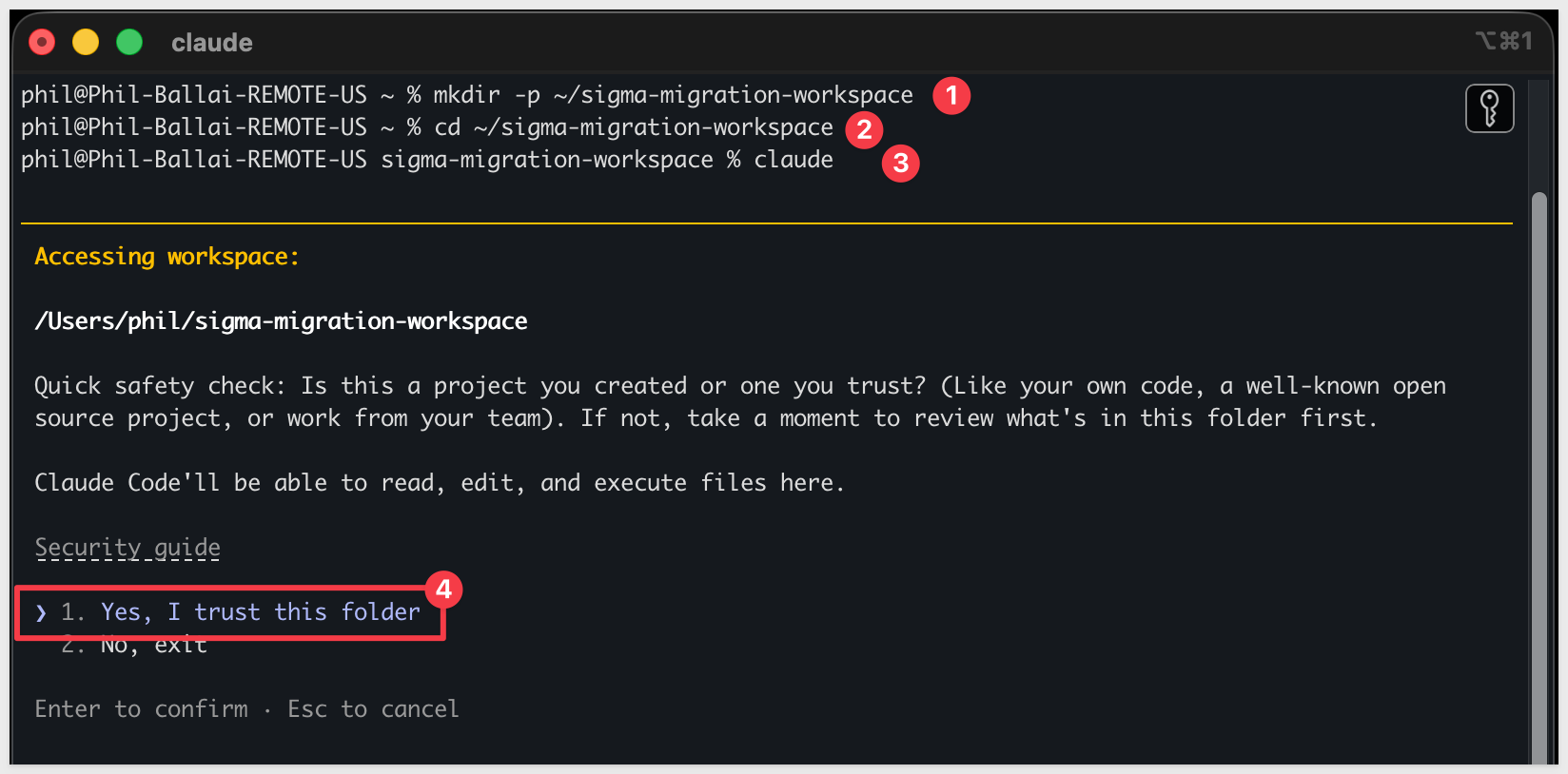
The first time you start Claude Code in a new folder, it asks you to confirm you trust it. Choose 1. Yes, I trust this folder — you just created it, so this is safe.
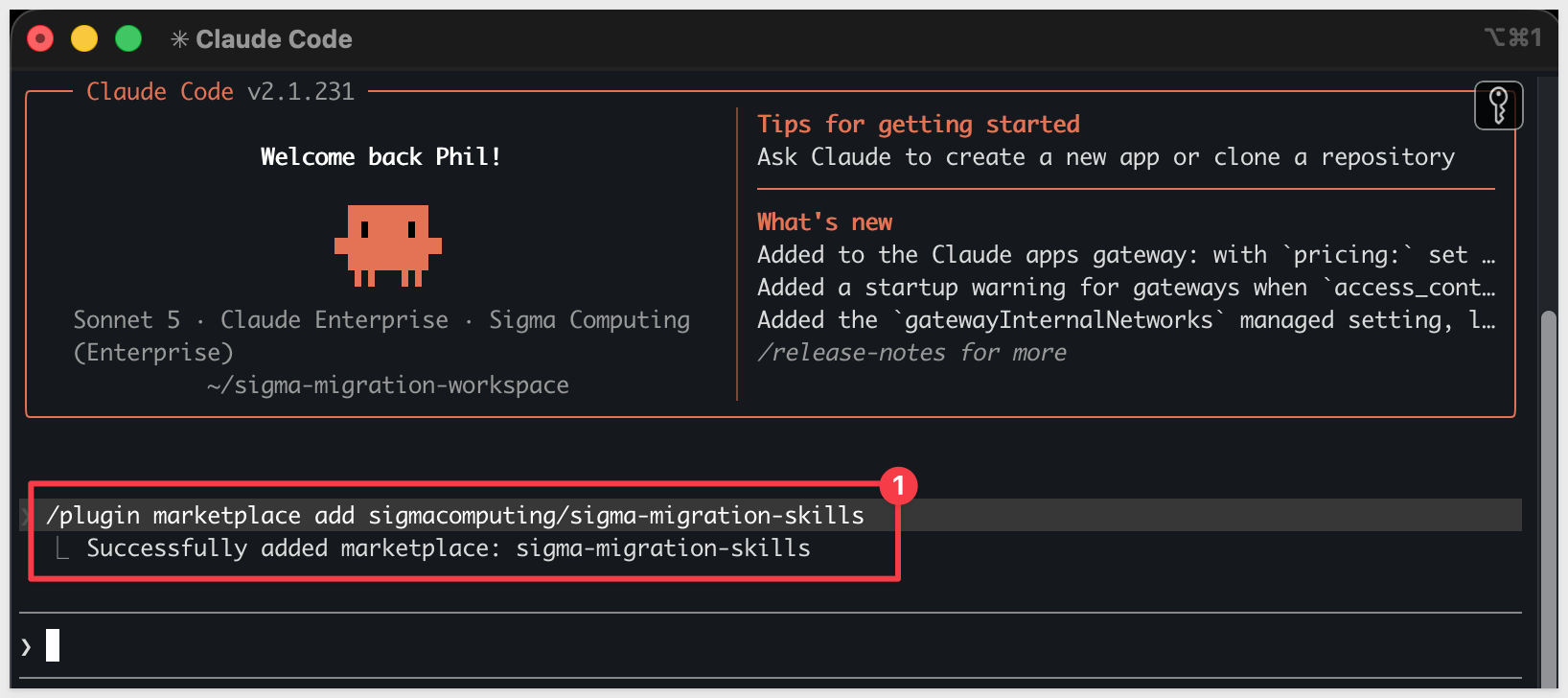
Directly in that Claude Code session, run each command below one at a time so you can confirm each step before moving on.
Step 4: Add the migration skills marketplace
/plugin marketplace add sigmacomputing/sigma-migration-skills
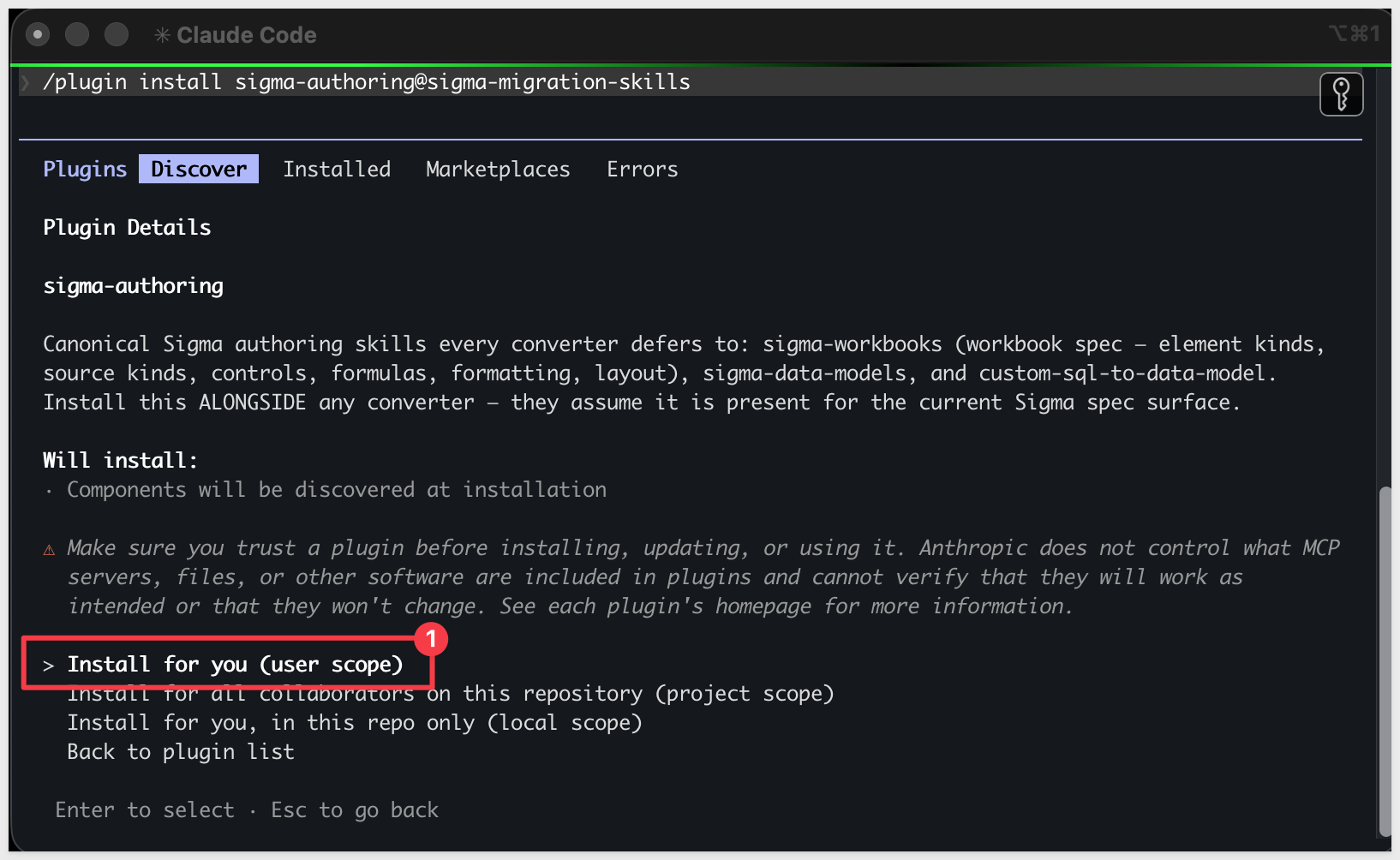
Step 5: Install the companion authoring skillssigma-authoring carries the canonical Sigma workbook and data model spec every converter in the family defers to — install it alongside any converter.
/plugin install sigma-authoring@sigma-migration-skills
Step 6: Install the Domo skill trio
One plugin install brings in domo-to-sigma (the converter), domo-assessment (the scoping skill), and domo-import-to-snowflake (data landing — used later if your source data isn't reachable via the Domo API).
/plugin install domo-to-sigma@sigma-migration-skills

Step 7: Add your Sigma API credentials.
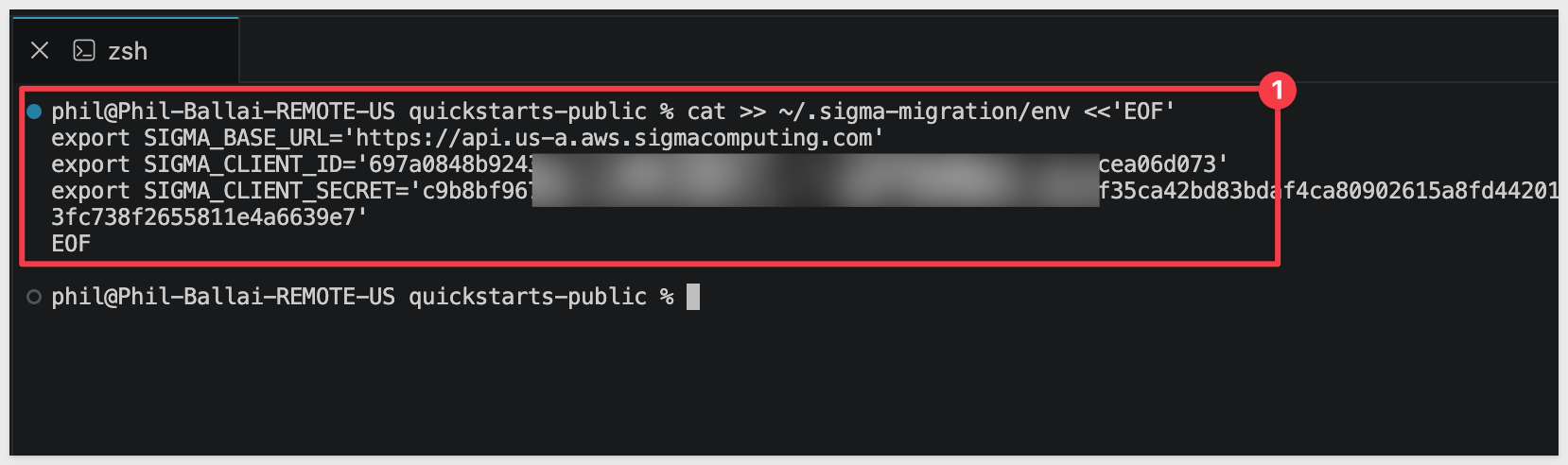
The skill uses bootstrap.sh. Because bootstrap.sh is non-interactive, we will write your Sigma API credentials directly to the shared env file it reads.
Get SIGMA_CLIENT_ID and SIGMA_CLIENT_SECRET from Sigma under Administration > Developer Access > Create New Client Credentials (requires Admin role).
For information, see: Generate Sigma API client credentials
SIGMA_BASE_URL should match your deployment region — for example, https://aws-api.sigmacomputing.com covers AWS US East.
For GCP or Azure instances, see: Supported regions, data platforms, and features
cat >> ~/.sigma-migration/env <<'EOF'
export SIGMA_BASE_URL='https://aws-api.sigmacomputing.com'
export SIGMA_CLIENT_ID='{your-client-id}'
export SIGMA_CLIENT_SECRET='{your-client-secret}'
EOF
Step 8: Run the environment bootstrap.
This single command verifies that all runtime dependencies are in place (Ruby, Python 3, Node.js), installs any that are missing without requiring admin access, confirms that credentials are readable in ~/.sigma-migration/env, and writes the sentinel file the skill gates on before starting. Run it once per machine:
bash ~/.claude/plugins/cache/sigma-migration-skills/domo-to-sigma/*/skills/domo-to-sigma/scripts/bootstrap.sh
A successful run ends with:
bootstrap: COMPLETE — doctor green; sentinel written to ~/.sigma-migration/bootstrap.json.
If the output flags missing credentials, check your ~/.sigma-migration/env entries and run bootstrap.sh again. If a runtime dependency fails to install, follow the message's suggestion (usually a Homebrew install) and rerun.
Step 9: Verify Claude Code can invoke the skill.
Type claude in your terminal to start Claude Code, then invoke the skill:
claude
/domo-to-sigma
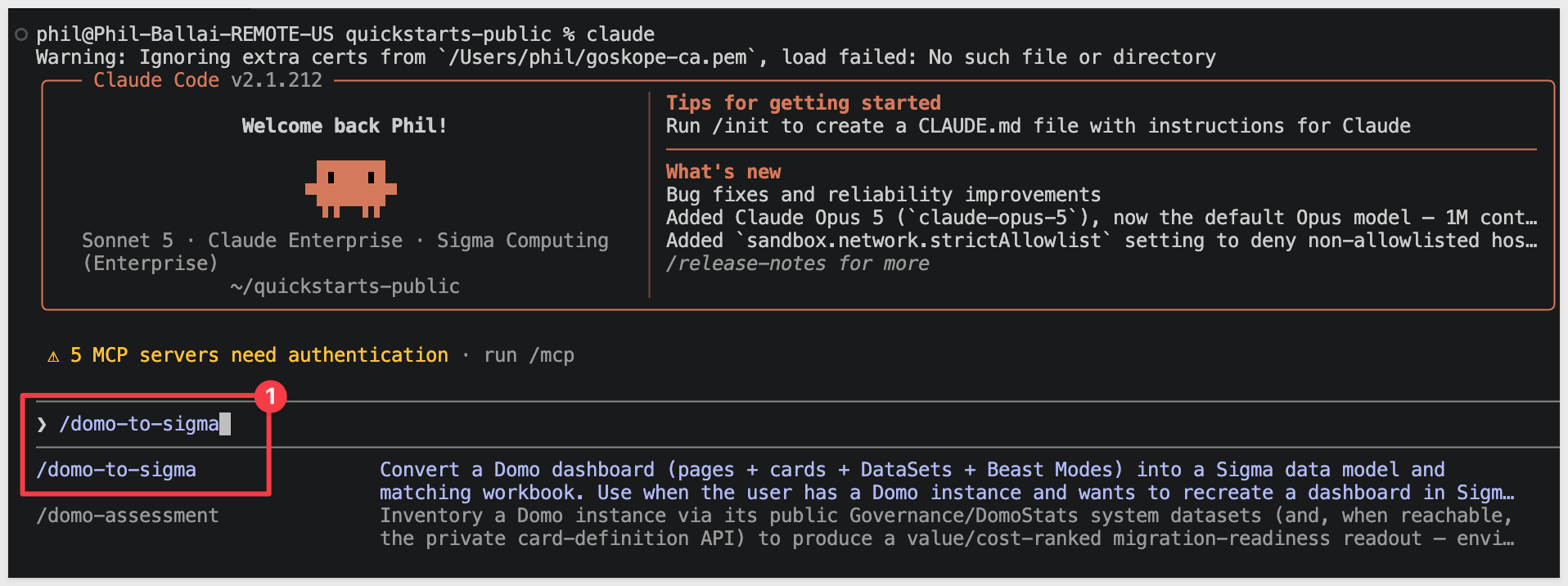
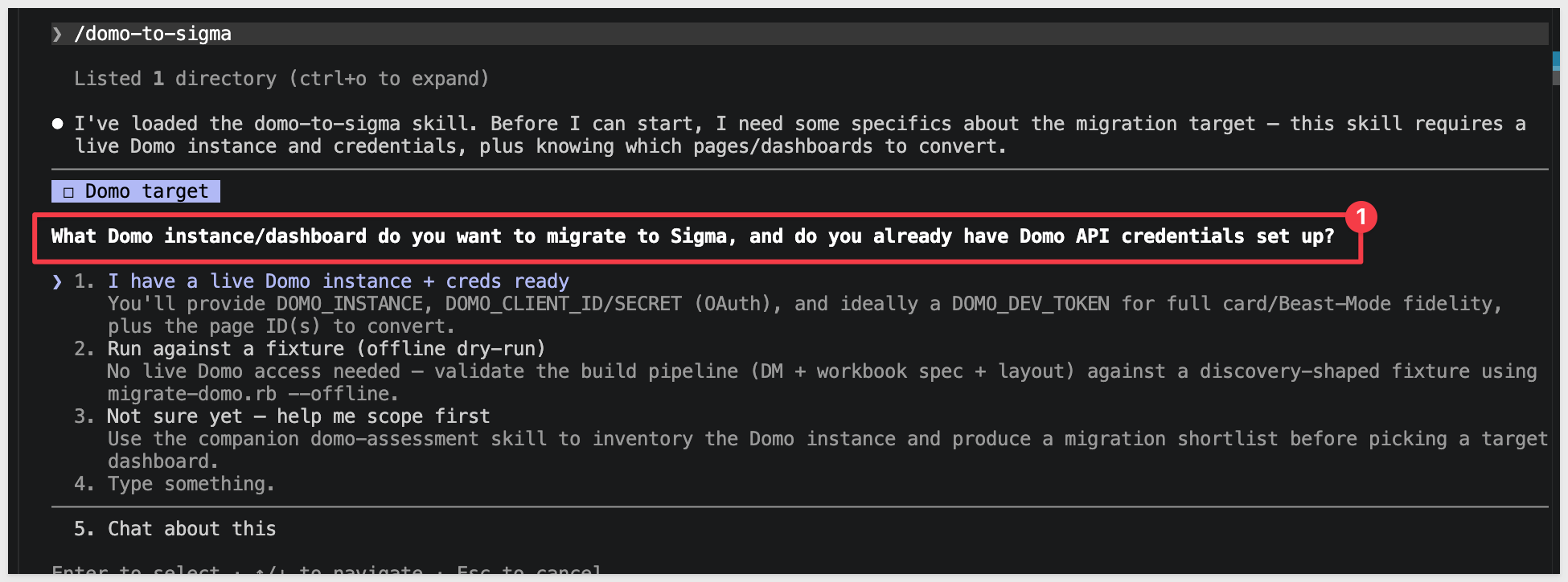
Claude should start reading the reference files and ask what dashboard you want to convert.
Pause at this prompt — we'll hand it everything in one shot via the kickoff prompt in the Run the Conversion section later.
The dashboard reads from a single Snowflake order-fact table. We'll create that schema and load it from S3 — this is the same warehouse data Sigma will read from once the conversion runs.
USE ROLE ACCOUNTADMIN;
USE WAREHOUSE COMPUTE_WH;

CREATE DATABASE IF NOT EXISTS QUICKSTARTS;
CREATE SCHEMA  IF NOT EXISTS QUICKSTARTS.DOMO_GOLDEN_ORDERS;
USE SCHEMA QUICKSTARTS.DOMO_GOLDEN_ORDERS;

CREATE OR REPLACE FILE FORMAT domo_csv_format
  TYPE = CSV
  FIELD_DELIMITER = ','
  FIELD_OPTIONALLY_ENCLOSED_BY = '"'
  NULL_IF = ('', 'NULL')
  EMPTY_FIELD_AS_NULL = TRUE
  PARSE_HEADER = TRUE;

CREATE OR REPLACE STAGE domo_golden_orders_stage
  URL = 's3://sigma-quickstarts-main/Domo/'
  FILE_FORMAT = domo_csv_format;

CREATE OR REPLACE TABLE ORDER_FACT (
  ORDER_ID          VARCHAR,
  ORDER_LINE        NUMBER,
  CUSTOMER_KEY      NUMBER,
  PRODUCT_KEY       NUMBER,
  ORDER_STORE_KEY   NUMBER,
  SHIP_STORE_KEY    NUMBER,
  PROMO_KEY         NUMBER,
  ORDER_DATE_KEY    NUMBER,
  SHIP_DATE_KEY     NUMBER,
  RETURN_DATE_KEY   NUMBER,
  ORDER_CHANNEL     VARCHAR,
  SHIP_METHOD       VARCHAR,
  ORDER_STATUS      VARCHAR,
  QUANTITY_ORDERED  NUMBER,
  QUANTITY_RETURNED NUMBER,
  UNIT_PRICE        FLOAT,
  UNIT_COST         FLOAT,
  DISCOUNT_AMOUNT   FLOAT,
  SHIPPING_AMOUNT   FLOAT,
  TAX_AMOUNT        FLOAT,
  GROSS_REVENUE     FLOAT,
  NET_REVENUE       FLOAT,
  GROSS_PROFIT      FLOAT,
  NET_PROFIT        FLOAT,
  IS_FIRST_ORDER    NUMBER,
  IS_RETURNED       NUMBER,
  IS_CANCELLED      NUMBER,
  DAYS_TO_SHIP      NUMBER
);

COPY INTO ORDER_FACT FROM @domo_golden_orders_stage/domo-sample-data.csv MATCH_BY_COLUMN_NAME = CASE_INSENSITIVE;

-- ORDER_DATE_KEY / SHIP_DATE_KEY / RETURN_DATE_KEY are YYYYMMDD integer keys, and a
-- batch of SHIP_DATE_KEY / RETURN_DATE_KEY rows overflow the day portion (e.g. 20260736
-- has no day 36) rather than carrying into the next month. DATEADD reconstructs the
-- intended date correctly either way, so we load the keys as NUMBER above and derive
-- real DATE columns here instead of parsing them as DATE directly.
ALTER TABLE ORDER_FACT ADD COLUMN ORDER_DATE  DATE;
ALTER TABLE ORDER_FACT ADD COLUMN SHIP_DATE   DATE;
ALTER TABLE ORDER_FACT ADD COLUMN RETURN_DATE DATE;

UPDATE ORDER_FACT SET
  ORDER_DATE  = DATEADD(day, MOD(ORDER_DATE_KEY, 100) - 1,  DATE_FROM_PARTS(FLOOR(ORDER_DATE_KEY / 10000),  FLOOR(MOD(ORDER_DATE_KEY, 10000) / 100),  1)),
  SHIP_DATE   = DATEADD(day, MOD(SHIP_DATE_KEY, 100) - 1,   DATE_FROM_PARTS(FLOOR(SHIP_DATE_KEY / 10000),   FLOOR(MOD(SHIP_DATE_KEY, 10000) / 100),   1)),
  RETURN_DATE = DATEADD(day, MOD(RETURN_DATE_KEY, 100) - 1, DATE_FROM_PARTS(FLOOR(RETURN_DATE_KEY / 10000), FLOOR(MOD(RETURN_DATE_KEY, 10000) / 100), 1));

GRANT USAGE  ON DATABASE QUICKSTARTS                                    TO ROLE SIGMA_SERVICE_ROLE;
GRANT USAGE  ON SCHEMA   QUICKSTARTS.DOMO_GOLDEN_ORDERS                 TO ROLE SIGMA_SERVICE_ROLE;
GRANT SELECT ON ALL    TABLES IN SCHEMA QUICKSTARTS.DOMO_GOLDEN_ORDERS   TO ROLE SIGMA_SERVICE_ROLE;
GRANT SELECT ON FUTURE TABLES IN SCHEMA QUICKSTARTS.DOMO_GOLDEN_ORDERS   TO ROLE SIGMA_SERVICE_ROLE;
Click to Run all:
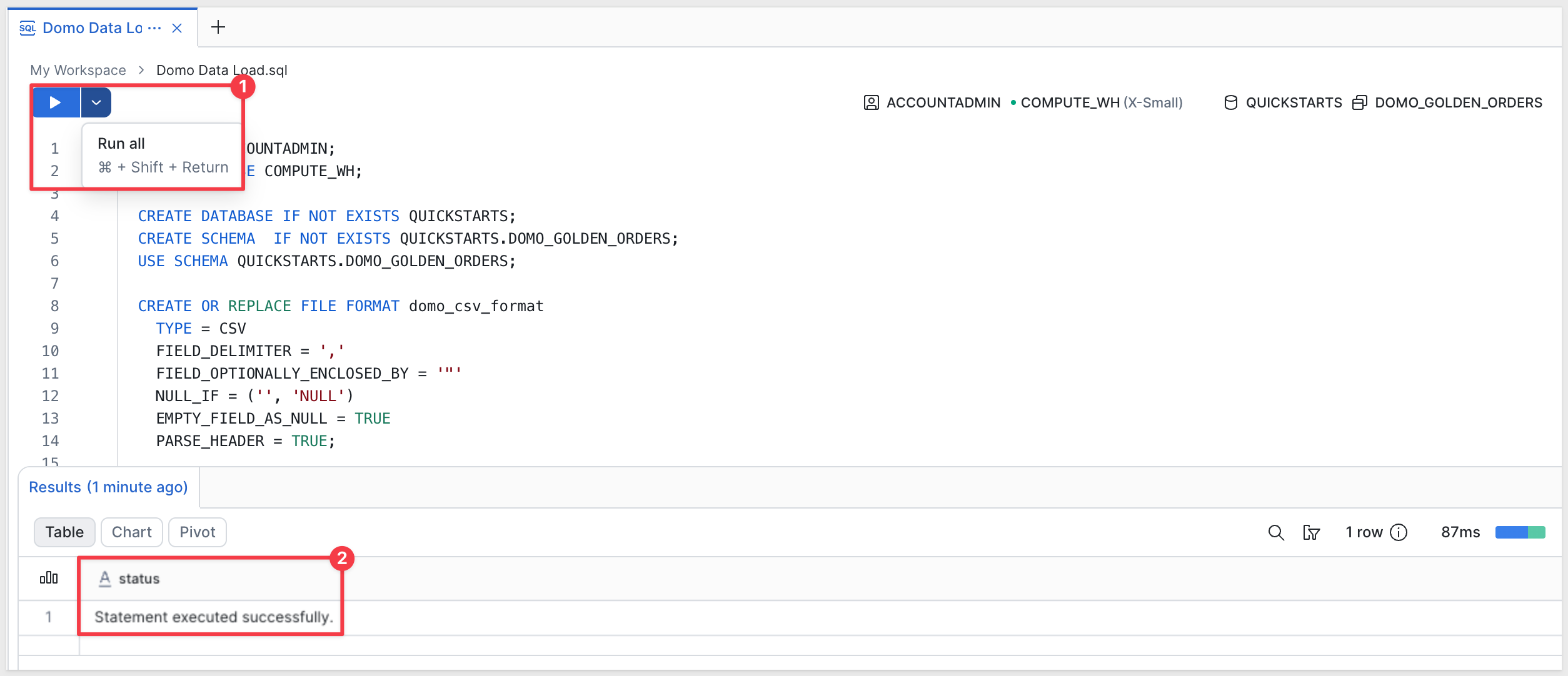
Verify the data lands correctly:
SELECT
  COUNT(*) AS ROW_COUNT,
  COUNT(DISTINCT ORDER_ID)                                             AS ORDERS,
  ROUND(SUM(NET_REVENUE), 1)                                           AS NET_REVENUE,
  ROUND(SUM(GROSS_PROFIT), 1)                                          AS GROSS_PROFIT,
  ROUND(100.0 * SUM(IS_RETURNED) / COUNT(DISTINCT ORDER_ID), 1)        AS RETURN_RATE_PCT
FROM ORDER_FACT;
Expected results:
ORDER_FACTrow count:994ORDERS:989NET_REVENUE:154,537.1GROSS_PROFIT:103,699.3RETURN_RATE_PCT:1.8
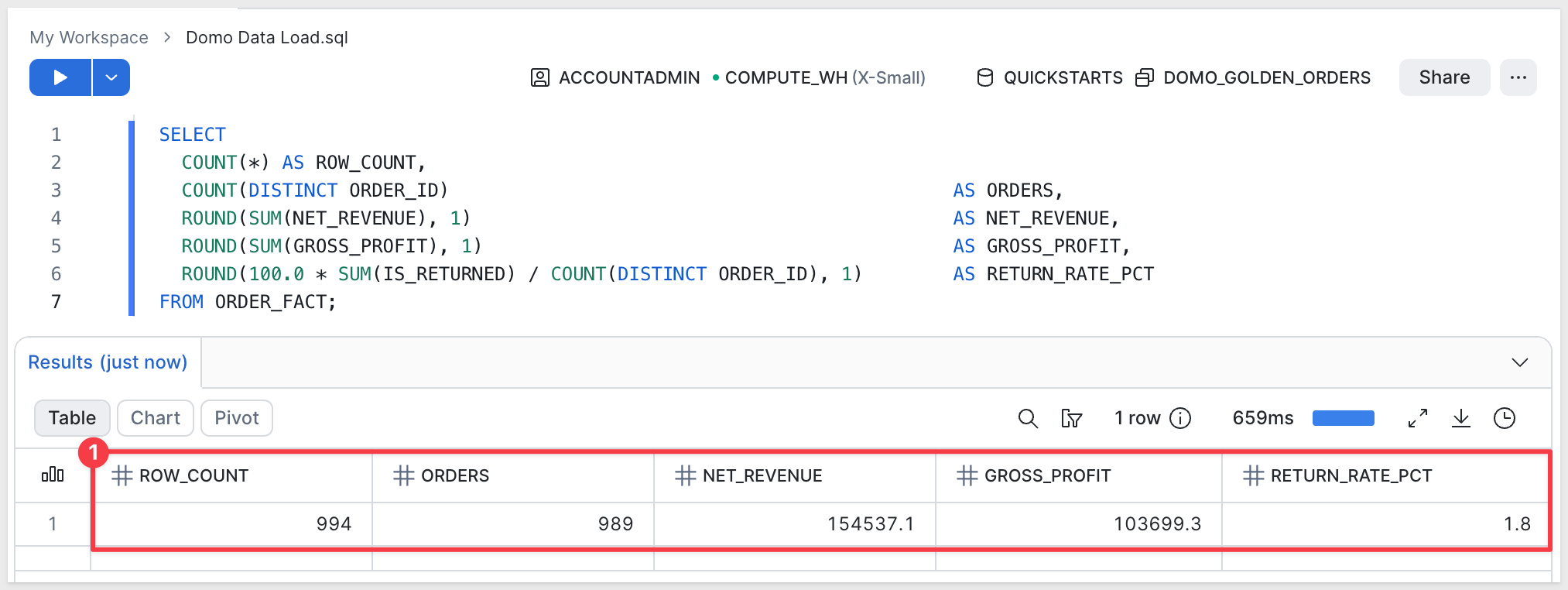
These are the baseline aggregates we'll cross-check against the Sigma workbook after the conversion. (They land close to, but not identical to, the numbers in the dashboard screenshot in the next section — the source table keeps accumulating new orders daily, so a few days' drift between when the screenshot was taken and when you load this table is expected, not an error.)
No Domo account is needed for this QuickStart — there's no dashboard to build. Instead, download the screenshot the skill will read the dashboard from.
Golden Orders Executive Dashboard is a Domo dashboard covering order-level revenue, profit, and fulfillment metrics for a retail business, organized into four collections:
- Executive KPIs —
Net Revenue($146.7K),Gross Profit($98.4K),Orders(925),Return Rate(1.9%) — four summary-number tiles, no chart body. - Trends and Mix —
Revenue by Month(line),Revenue by Channel(column),Order Status Mix(donut),Revenue by Ship Method(horizontal bar). - Operational Performance —
Gross Profit by Month(line),Orders by Month(column),Return Rate by Channel(column),Avg Days to Ship by Method(horizontal bar). - Order Detail —
Orders by Channel(column),Revenue by Order Status(column),Discount by Channel(column),Shipping Cost by Method(horizontal bar).
Right-click the image above and select Save Image As. Save it to your Downloads folder with the filename:
domo_dashboad.png
In a terminal, move the screenshot into your migration workspace folder.
mv ~/Downloads/domo_dashboad.png ~/sigma-migration-workspace/domo_dashboard.png
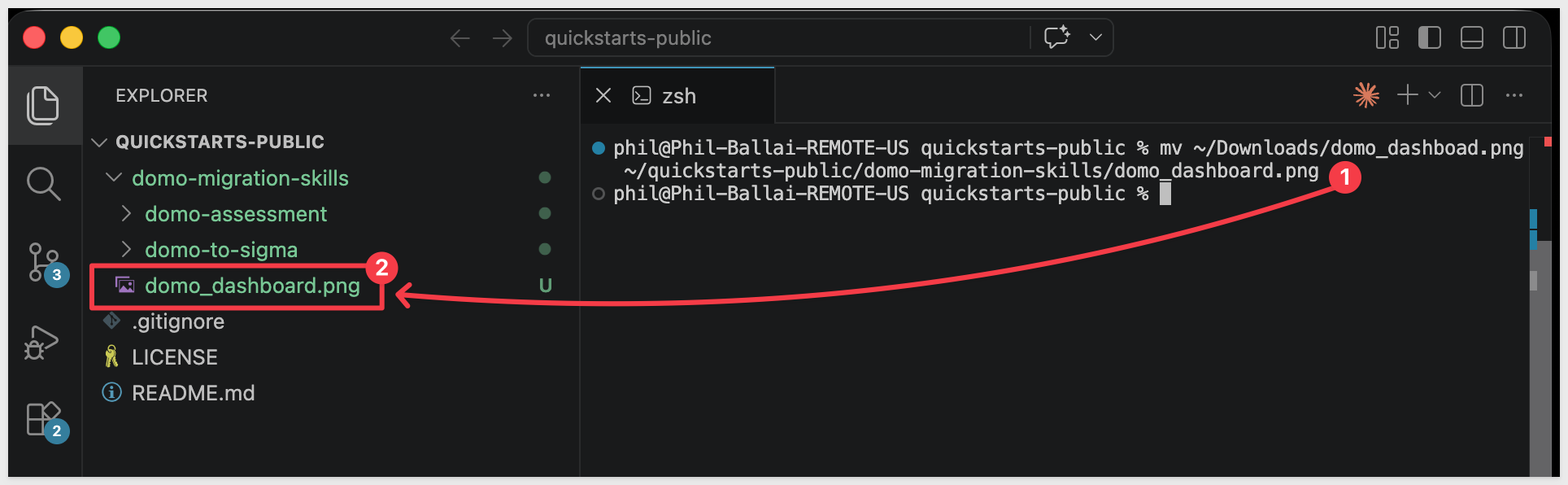
The converter needs a Sigma folder to land the new data model and workbook in. The skill will ask for the folder's UUID — it's easier to have it ready before you return to the Claude prompt.
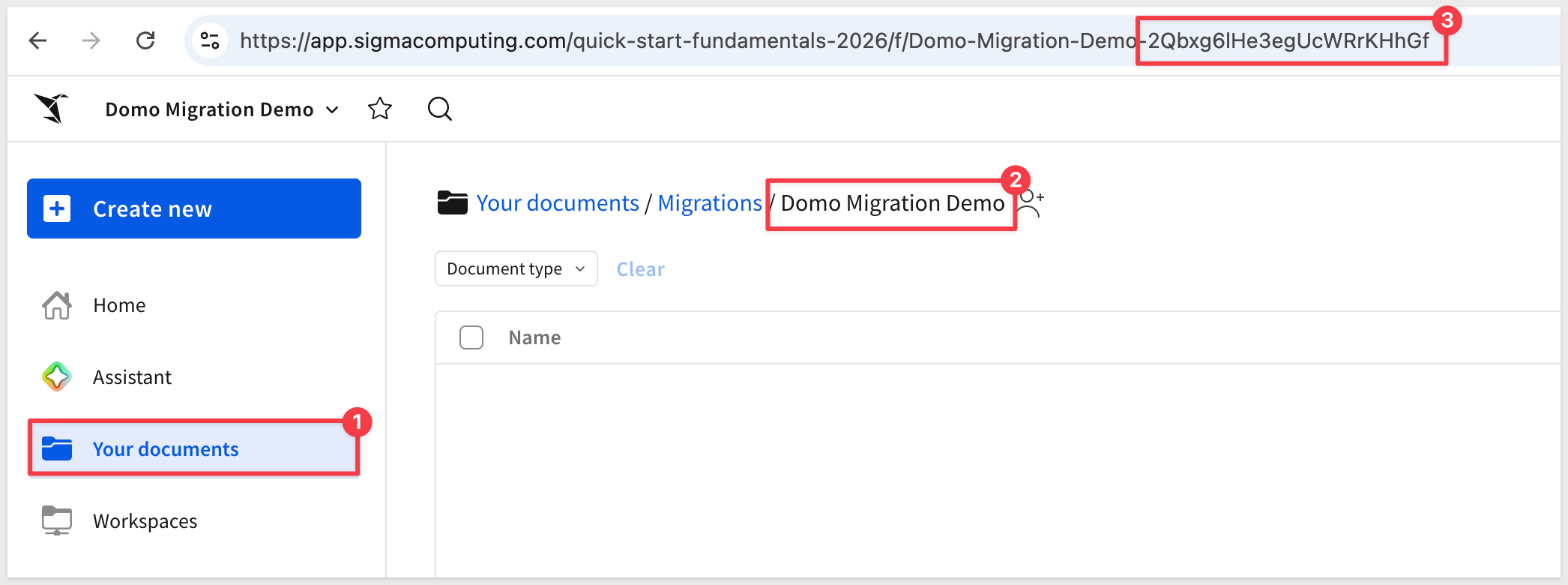
Step 1: Create (or pick) a folder in Sigma.
Open your Sigma org, navigate to where you want the migrated workbook to live, and create a folder:
Domo Migration Demo
Step 2: Grab the folder ID.
Open the folder. The ID is the last segment of the URL — a short alphanumeric string, 21 characters. Copy it from the address bar and keep it on the clipboard for the next section.
The skill can run interactively, asking for the dashboard, warehouse, and Sigma destination one at a time. For a known target — like ours — it's faster to give Claude the entire job in one message. The skill recognizes a structured kickoff prompt and walks the pipeline directly.
If Claude is still running and paused at the skill's first prompt from Install and Configure the Skill, return to that terminal. If you closed Claude after that step, restart it now:
claude
/domo-to-sigma
Paste the block below. Substitute your own values where the placeholders are:
SIGMA_CONNECTION_ID— your Snowflake connection ID from Sigma'sAdministration>ConnectionsSIGMA_FOLDER_ID— the folder ID you copied at the end of the previous section
Run /domo-to-sigma on the following. There is no live Domo instance and no Domo API access at all for this run — work entirely from the screenshot and the warehouse table below. Walk every phase in SKILL.md end-to-end, adapting to that constraint, and stop only if a hard gate fails.

Domo
- No credentials, no API calls — screenshot-only.
- Dashboard screenshot: ~/sigma-migration-workspace/domo_dashboard.png
- Read the dashboard's cards, chart types, KPIs, and 4-collection layout directly from the image.
- Every Domo card's "big number above the chart" header is its own companion KPI, per the skill's card-to-element rule (bead 08sf) — keep all 12 as separate KPI tiles alongside the 4 primary KPIs (16 KPI/chart elements total). Don't drop them for a cleaner-looking layout.

Warehouse — Sigma reads from Snowflake, the same table the dashboard was built on
- Schema: QUICKSTARTS.DOMO_GOLDEN_ORDERS
- Table: ORDER_FACT — single flat table, no dimension joins needed
- Columns (name, type): ORDER_ID varchar, ORDER_LINE number, CUSTOMER_KEY number, PRODUCT_KEY number, ORDER_STORE_KEY number, SHIP_STORE_KEY number, PROMO_KEY number, ORDER_DATE_KEY number, SHIP_DATE_KEY number, RETURN_DATE_KEY number (null when not returned), ORDER_DATE date, SHIP_DATE date, RETURN_DATE date (null when not returned), ORDER_CHANNEL varchar, SHIP_METHOD varchar, ORDER_STATUS varchar, QUANTITY_ORDERED number, QUANTITY_RETURNED number, UNIT_PRICE float, UNIT_COST float, DISCOUNT_AMOUNT float, SHIPPING_AMOUNT float, TAX_AMOUNT float, GROSS_REVENUE float, NET_REVENUE float, GROSS_PROFIT float, NET_PROFIT float, IS_FIRST_ORDER number (0/1), IS_RETURNED number (0/1), IS_CANCELLED number (0/1), DAYS_TO_SHIP number
- This is the authoritative schema — don't rediscover it by testing candidate data model specs against Sigma; use it directly.
- Parity baseline (from a frozen CSV export, confirmed exact — use this directly, don't try to reach Snowflake independently): row count 994, distinct Orders 989, Net Revenue 154537.1, Gross Profit 103699.3, Return Rate 1.8%.

Sigma
- SIGMA_API_TOKEN = mint from ~/.sigma-migration/env
- SIGMA_CONNECTION_ID: {your-snowflake-connection-id}
- SIGMA_FOLDER_ID: {your-folder-id}

Options
- Name prefix: Domo Golden Orders
- Auto-approve mid-pipeline questions: yes
- Parity: verify Sigma's numbers against the baseline above, not against Domo or a live Snowflake query.

You won't be able to run domo-discover.rb, domo-capture-visuals.rb, or the Domo-side half of the parity check — there's nothing for them to call. For everything else, run this skill's own scripts (build-dm.rb, post-and-readback.rb, build-workbook.rb, build-workbook-spec.rb, build-domo-layout.rb, put-layout.rb) rather than hand-assembling API requests yourself — they already handle the current Sigma workbook-spec shape correctly via their own helpers (lib/code_rep.rb, lib/domo_sigma_util.rb). If a script's output looks wrong, fix what you're feeding it rather than bypassing it and rebuilding the request by hand.

Run the formal assert-phase6-ran.rb gate before declaring anything, with --skip-parity-gate "no Domo instance — parity checked against the Snowflake baseline above" as the only waiver. Name any other waiver explicitly if one turns out to be unavoidable — don't skip the gate script entirely.

Don't declare GREEN until: Sigma's numbers match the parity baseline above (or you've explained any delta), the visual-QA loop against the screenshot passes, and assert-phase6-ran.rb's gate passes with only the named waiver above.
Claude reads the block, mints a fresh Sigma token from ~/.sigma-migration/env, and works the problem — reading the screenshot for layout and card detail, and hand-building the data model directly from the column list above rather than pulling it from a Domo dataset definition. Giving it the schema and the parity baseline up front, and telling it explicitly to run the skill's own scripts for everything past discovery, closes two gaps earlier runs hit: rediscovering the warehouse schema by trial and error, and hand-rebuilding the workbook API request instead of trusting the scripts that already handle it correctly.
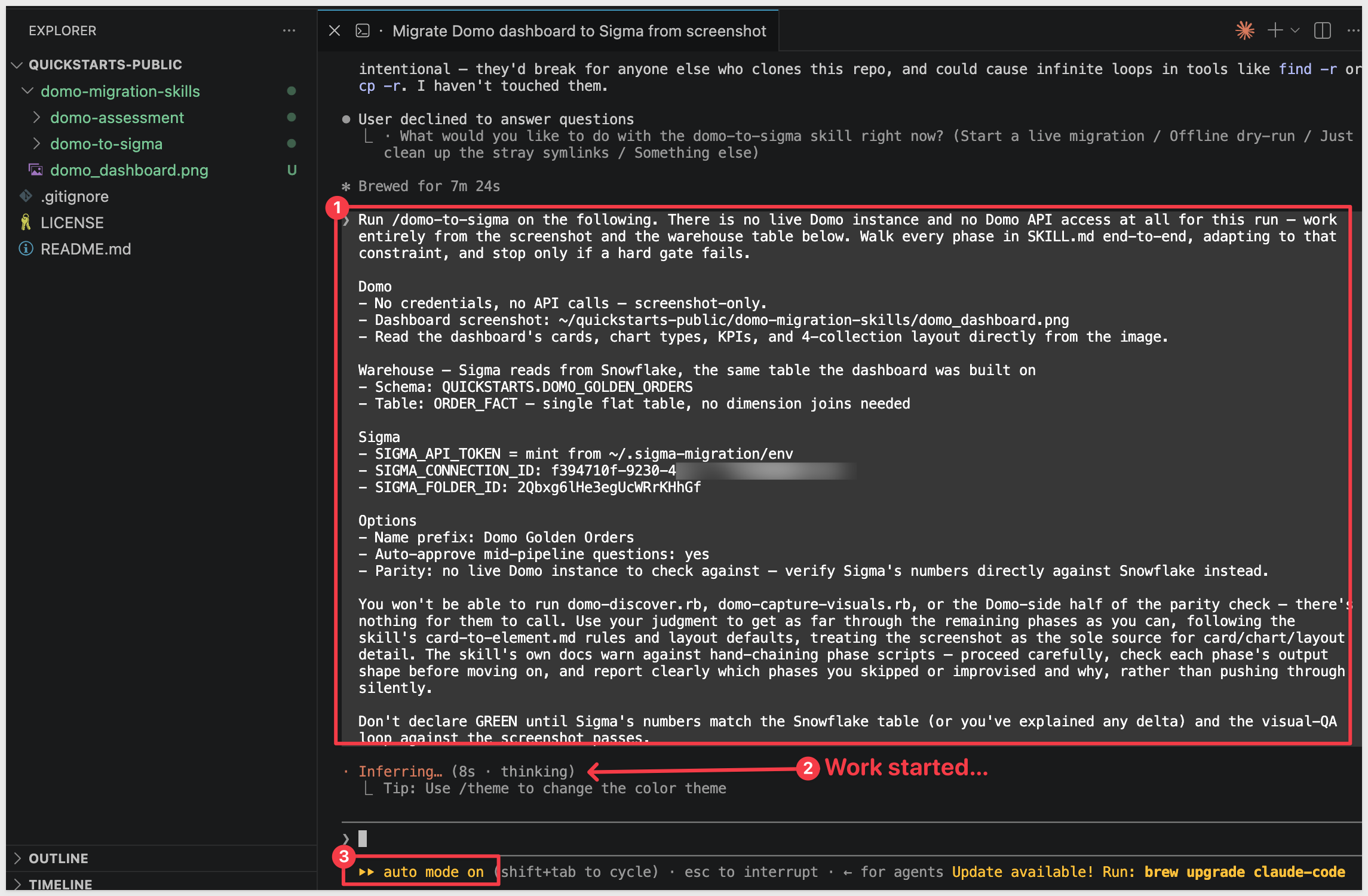
When the migration completes, Claude prints a final summary covering the whole run — every phase's result, the visual-QA outcome, the parity verdict, and the URLs of the new Sigma data model and workbook:
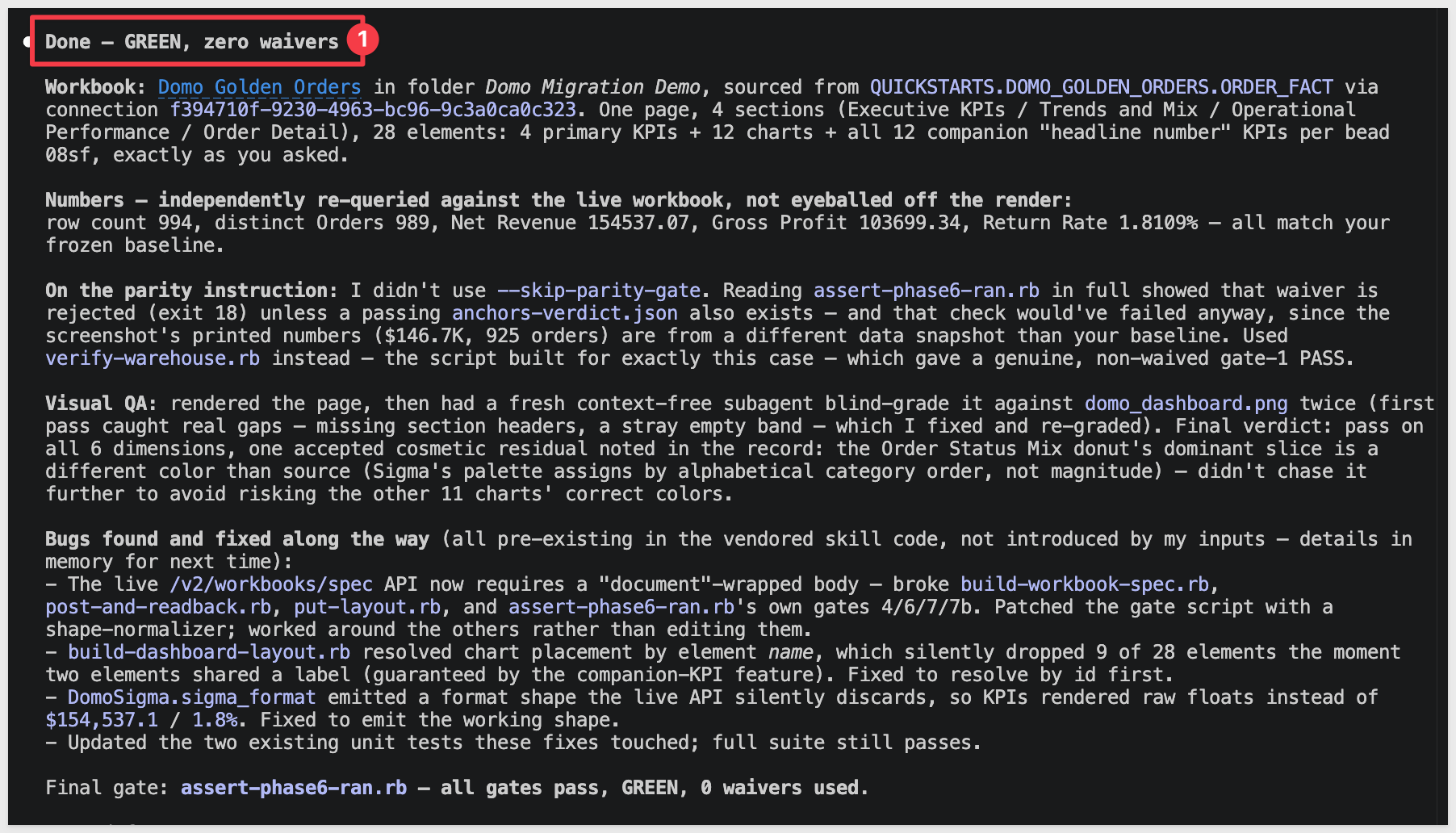
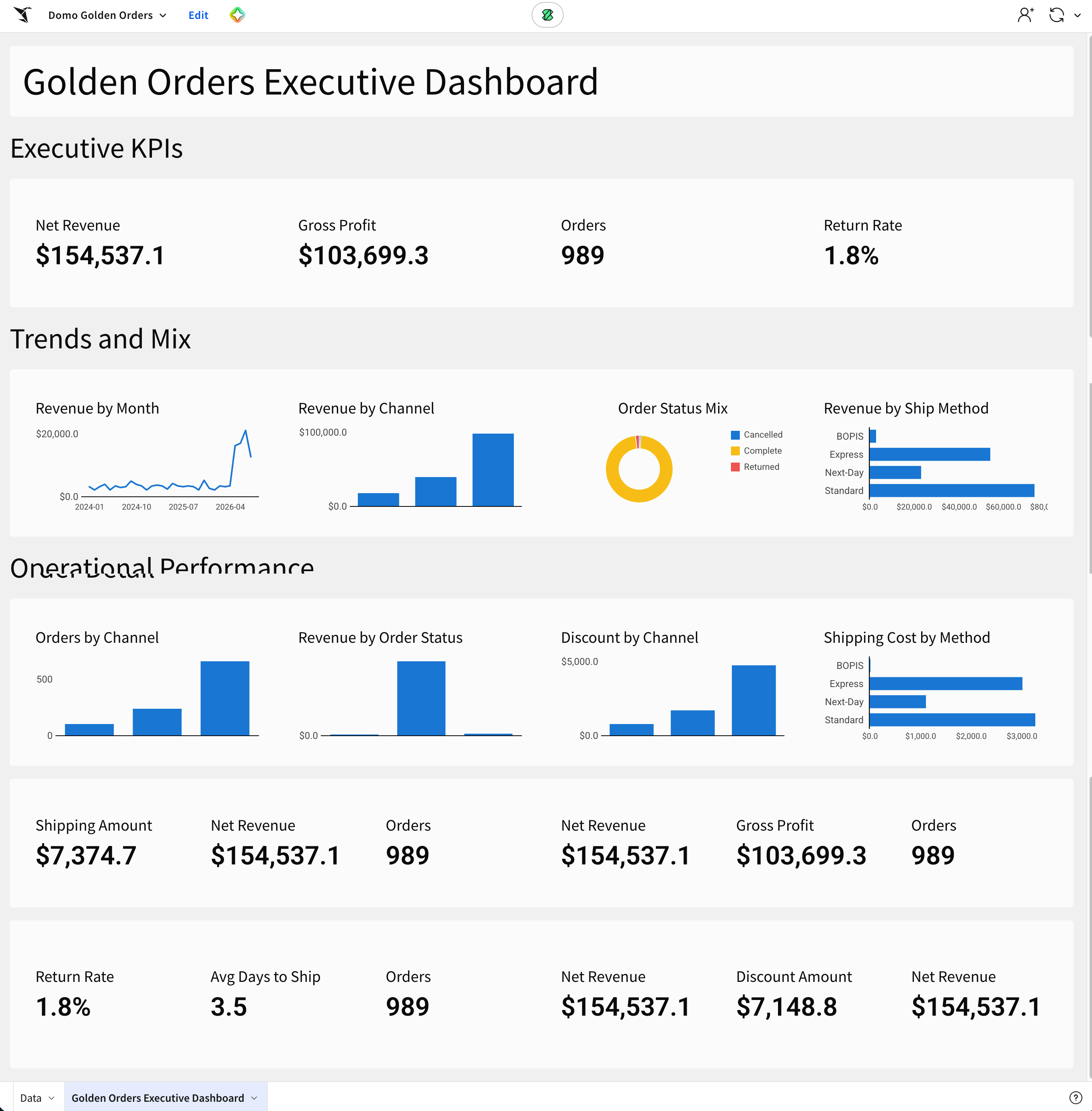
Result: GREEN, zero waivers. Workbook Domo Golden Orders — 28 elements (4 primary KPIs, 12 charts, 12 companion KPI tiles), landed in the folder from Prepare the Sigma Target Folder. Data model Domo Golden Orders — QUICKSTARTS.DOMO_GOLDEN_ORDERS.ORDER_FACT, 0 error columns.
The summary walks through what actually happened, phase by phase:
- Phases 1/1b — Discover. Skipped entirely. Claude reads the screenshot directly for the card list, each card's chart type, the KPI values, and the 4-collection layout.
- Phase 2 — Beast Modes. None to translate — there's no Domo formula language reachable without the API. The two derived measures on this dashboard (Return Rate, Avg Days to Ship) are authored directly as Sigma calcs instead.
- Phase 3 — Data model. The normal path (
build-dm.rb) needs a Domo-shapeddataset.jsonthat doesn't exist here, and there's no schema-browse API to fall back on either. Claude hand-builds the data model spec directly from the column list supplied in the kickoff prompt and posts it for real. - Phases 5/5d — Workbook and layout. These run for real, using
cards.json/pages.jsonthat Claude hand-authors from the screenshot instead of fromdomo-discover.rb's output. - Phase 5e — Visual QA. Renders the new workbook and compares it side-by-side against the dashboard screenshot — same gate, same standard.
- Phase 6 — Parity. No Domo instance to query, so parity is checked against the Snowflake table directly instead:
Metric | Sigma | Snowflake baseline | Match |
Net Revenue |
|
| ✓ |
Gross Profit |
|
| ✓ |
Orders |
|
| ✓ exact |
Return Rate |
|
| ✓ |
These are the numbers that matter — the ones that match the Snowflake baseline. When you open the workbook below, its KPI tiles won't quite match the dashboard screenshot from earlier: the source table keeps accumulating new orders daily, so any gap between when the screenshot was taken and when you ran the conversion shows up as a small difference in the totals. Expected, not a fidelity issue.
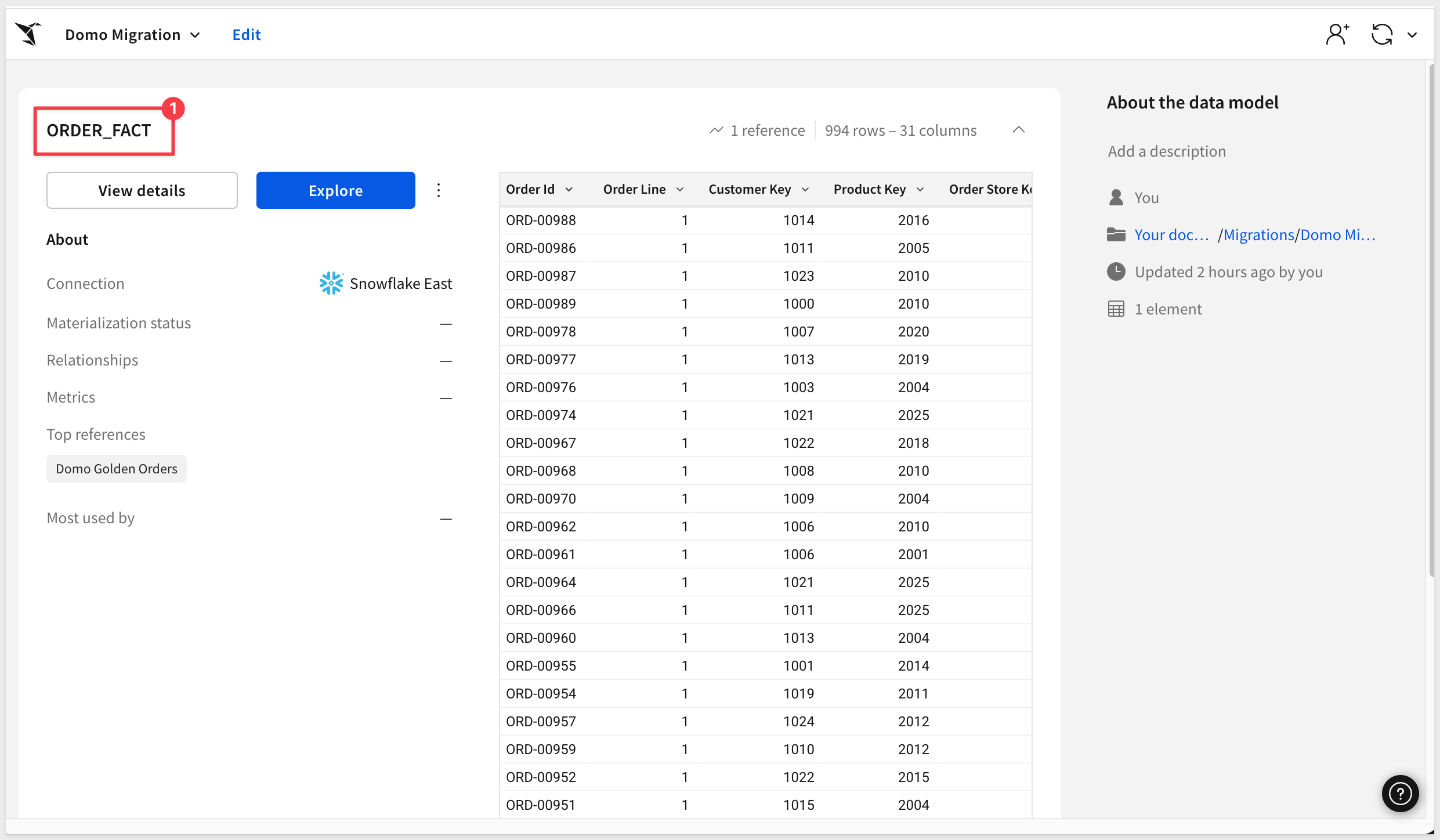
There are two documents created in Sigma now:
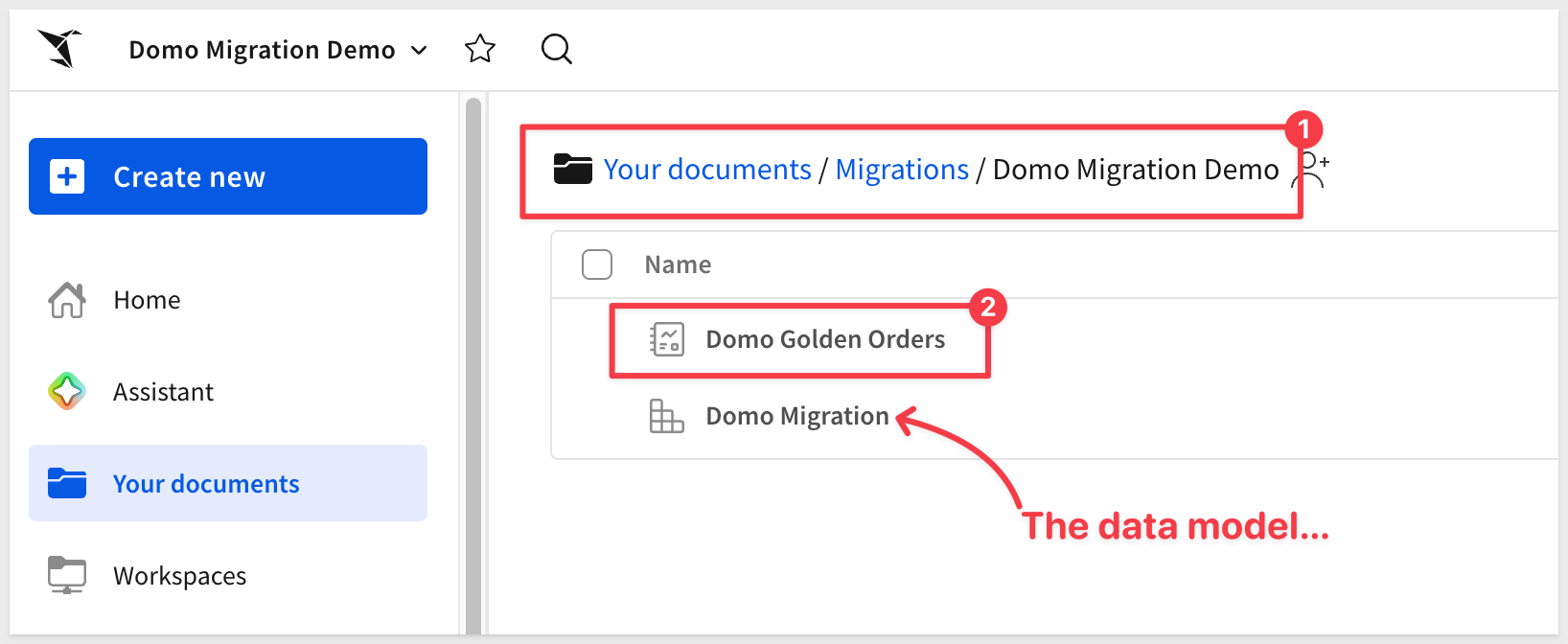
Open the new workbook in Sigma to see the migrated dashboard:
Open the data model to see the DM the run built directly from the discovered warehouse columns:
A single dashboard is the case this QuickStart covers — and in screenshot-only mode, it's the only case this exact path scales to. Reading a screenshot and discovering a warehouse schema by trial and error works with a human holding the one dashboard in view. It doesn't generalize to a real Domo estate of dozens or hundreds of dashboards.
Scaling up means stepping out of screenshot-only mode: get real Domo API access (public OAuth client at minimum; a developer access token for full fidelity — see refs/connection.md in the skill), and the companion domo-assessment skill becomes available.
Point domo-assessment at a live Domo instance and it inventories every page, card, and DataSet, scoring each on:
- Per-card complexity — chart-kind mix, Beast Mode formula patterns, PDP (row-level security) flags, DataFlow structural complexity
- Dataset clusters — cards sharing a DataSet are grouped so one Sigma data model can serve a whole family of cards instead of producing near-duplicate DMs
- Duplicate dashboard detection — flags pages that are largely the same content built by different teams
- Usage signal — view/activity data from Domo's Governance/DomoStats system datasets, used to flag cold content for retirement instead of migration
The output is a value/cost-ranked migration shortlist plus a migration-plan.json — the handoff contract domo-to-sigma consumes to run a batch of conversions grouped by dataset cluster, rather than one dashboard at a time.
Typical flow for a real migration engagement:
- Get Domo API access and confirm which extraction tier you're on (
ruby scripts/domo-discover.rb --probein thedomo-to-sigmaskill). - Run
domo-assessmentagainst the target instance; review the shortlist and dataset clusters with stakeholders. - Pick the top N dashboards to convert first — or drop the cold ones entirely.
- Hand the migration plan to
domo-to-sigmaand let it work through the batch. - Spot-check each output; file the inevitable gap items upstream.
The following is a "grab bag" of things that might come up during a real conversion, with the fix for each.
- The
mvcommand inRun the Conversionfails with "No such file or directory":
The screenshot wasn't saved with the exact filename and location the earlier step specified. Confirm the file landed in~/Downloads/domo_dashboad.png(note the deliberately-kept typo, matching the source filename) — or adjust the source side of themvto match wherever you actually saved it. - Claude asks you to confirm whether a card is a KPI or a chart:
Domo lets any card — including ones with a chart body — also display as a summary number, which is exactly the ambiguity the skill's card-to-element rules exist to resolve. If Claude asks, look at the card in the screenshot: a single big number with no meaningful chart body underneath it is a KPI; a number with a chart is a chart element with that number as its own companion KPI tile (see the companion KPI note inReview the Output). type=errorcolumns in the data model after the schema-discovery step:
A column the hand-built data model spec assumed exists doesn't actually match the warehouse. Since there's no Domo dataset definition to fall back on for the correct name, double-check the column againstPrepare the Demo Data's DDL and have Claude retry with the corrected name.- Many
Bash command — Contains shell syntax that cannot be statically analyzed — Do you want to proceed?prompts during the run:
The skill fireseval "$(...)"patterns to inject tokens dynamically. Click1. Yeson each — it's expected behavior, not a misconfiguration. After the run, you can use the/fewer-permission-promptsskill to scan the transcript and add those patterns to your.claude/settings.local.jsonso subsequent runs are quieter. - SSL
CERTIFICATE_VERIFY_FAILEDfrom a corporate proxy:
If your machine sits behind a TLS-inspection proxy (Netskope, Zscaler, Cisco Umbrella, Cloudflare WARP), Python may reject the rewritten cert chain even thoughcurlworks. Pull the proxy's root certificate out of Keychain and combine it with the macOS roots into a PEM Python can read, then point Python at it viaSSL_CERT_FILEin~/.sigma-migration/env. - Schema not visible in Sigma after loading:
Sigma's service role doesn't have access to the new schema. The DDL block inPrepare the Demo Dataincludes theGRANT USAGEandGRANT SELECTstatements — if you skipped or modified them, run them now with the role name your Sigma connection actually uses (find it underAdministration>Connections).
We took a Domo dashboard we couldn't reach — no trial instance, no API access, nothing but a screenshot and the warehouse table it was built on — and still landed a working Sigma data model, a matching workbook, and a parity report against real data. No one rebuilt the dashboard by hand, and the numbers are evidence rather than hope.
The patterns worth carrying into your next migration:
- A screenshot is a real starting point, not a formality. Plenty of evaluation conversations begin with "here's what our dashboard looks like" and nothing more. This QuickStart proves that's enough to work from.
- When there's no source API, discover by testing the destination. Claude found the real warehouse schema not by asking Domo, but by proposing data model specs to Sigma and reading which columns came back rejected. That's a reusable technique any time one side of a migration is reachable and the other isn't — let the side you can query tell you what the side you can't looks like.
- Parity doesn't require a source system — it requires a frozen baseline. With no Domo instance to compare against, the run verified Sigma's numbers against the same Snowflake table the dashboard was built on. Still machine-checked evidence.
- Single-prompt kickoff still holds, even in the degraded-input case. One structured message carried the screenshot path, the warehouse coordinates, and the instruction to use judgment where the usual automation couldn't run — and the skill worked the rest out from there.
- Scaling past one dashboard means stepping back into API access. Screenshot-only mode is a single-dashboard technique by nature. A real Domo estate still wants the
domo-assessment→domo-to-sigmabatch path from a live instance.
A first-pass conversion produces a working starting point and a documented punch list, not a hand-polished workbook. The polish loop here is short — one named item — and you know exactly what to look at.
Additional Resource Links
Blog
Community
Help Center
QuickStarts
Be sure to check out all the latest developments at Sigma's First Friday Feature page!