This QuickStart guides you through the process of embedding Sigma Assistant — Sigma's AI analyst — into your application.
You'll learn how to integrate natural language querying capabilities, enabling users to interact with data seamlessly within your product environment. By the end, you'll have a functional, embedded Sigma Assistant instance, ready to enhance user engagement and data accessibility.
Before proceeding, ensure you've completed the Embedding 01: Getting Started
What is Sigma Assistant?
Sigma Assistant is Sigma's natural language query interface designed to function like a data analyst. It allows users to pose questions in everyday language and receive guided, transparent analyses.
Key features include:
Discovery:
Uncover new data sources, related workbooks, and insights beyond the initial query.
Transparency:
View each step of the AI's analytical process, including data sources and calculations.
Control:
Modify any part of the analysis — change data sources, adjust formulas, or refine prompts.
A Path Forward:
Receive suggestions for further exploration, enabling deeper data understanding.
This approach ensures users not only get answers but also comprehend the methodology behind them, fostering trust and enabling informed decision-making.
Embedding Use Cases
Embedding Sigma Assistant into your application can transform user interactions with data. Potential use cases include the following:
Customer-Facing Dashboards:
Allow clients to query data directly, enhancing transparency and engagement.
Internal Tools:
Equip teams with intuitive data exploration capabilities without requiring SQL knowledge.
Premium Offerings:
Differentiate your product by offering advanced analytics features as part of a premium package.
By integrating Sigma Assistant, you provide users with a powerful tool to derive insights, fostering a data-driven culture within your application.
Benefits
Embedding Sigma Assistant offers several advantages:
Enhanced User Experience:
Users interact with data conversationally, helping to reduce the learning curve.
Increased Engagement:
Interactive analytics encourage deeper data exploration.
Operational Efficiency:
Reduces reliance on data teams by empowering users to find answers independently.
Scalability:
As your user base grows, embedded analytics will scale without significant additional resources.
These benefits collectively contribute to a more dynamic, user-centric application, positioning your product as a leader in data accessibility and innovation.
For more information on Sigma's product release strategy, see Sigma product releases
If something doesn't work as expected, here's how to contact Sigma support
Target Audience
Semi-technical users who will be aiding in the planning or implementation of Sigma with embedding. No SQL or technical data skills are needed to complete this QuickStart. It assumes some basic computer skills, such as installing software, using Terminal, navigating folders and copy/paste operations
Prerequisites
- Any modern browser is acceptable.
- Access to your Sigma environment.
- Some familiarity with Sigma is assumed. Not all steps will be shown, as the basics are assumed to be understood.
- An AI provider (discussed in a later section)
- Embedding 01: Getting Started is required to complete this QuickStart.

Before anyone can use Sigma Assistant, two configuration steps are required: configuring a data warehouse hosted model as the AI provider, and enabling source permissions on the Assistant tab.
Step 1: Configure a data warehouse hosted model
Log in to Sigma as Administrator and navigate to Administration > AI settings.
Under Model provider, select Data warehouse hosted model and choose the connection to your Snowflake or Databricks warehouse.
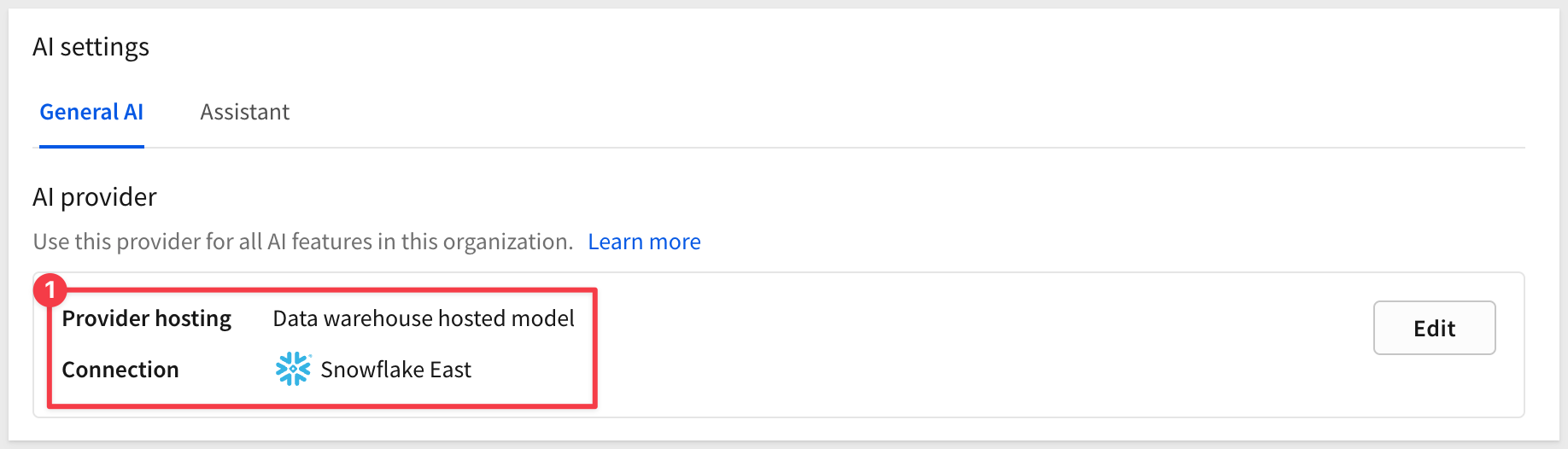
Save the configuration. Sigma will use this connection to process all Sigma Assistant requests.
For the full list of supported providers and configuration options, see Configure an AI provider.
Step 2: Enable source permissions on the Assistant tab
With the model provider configured, you now need to specify which data sources Sigma Assistant is allowed to query.
On the AI settings page, select the Assistant tab. Locate the Sigma Assistant data sources section and add the connections, schemas, or tables you want to make available.
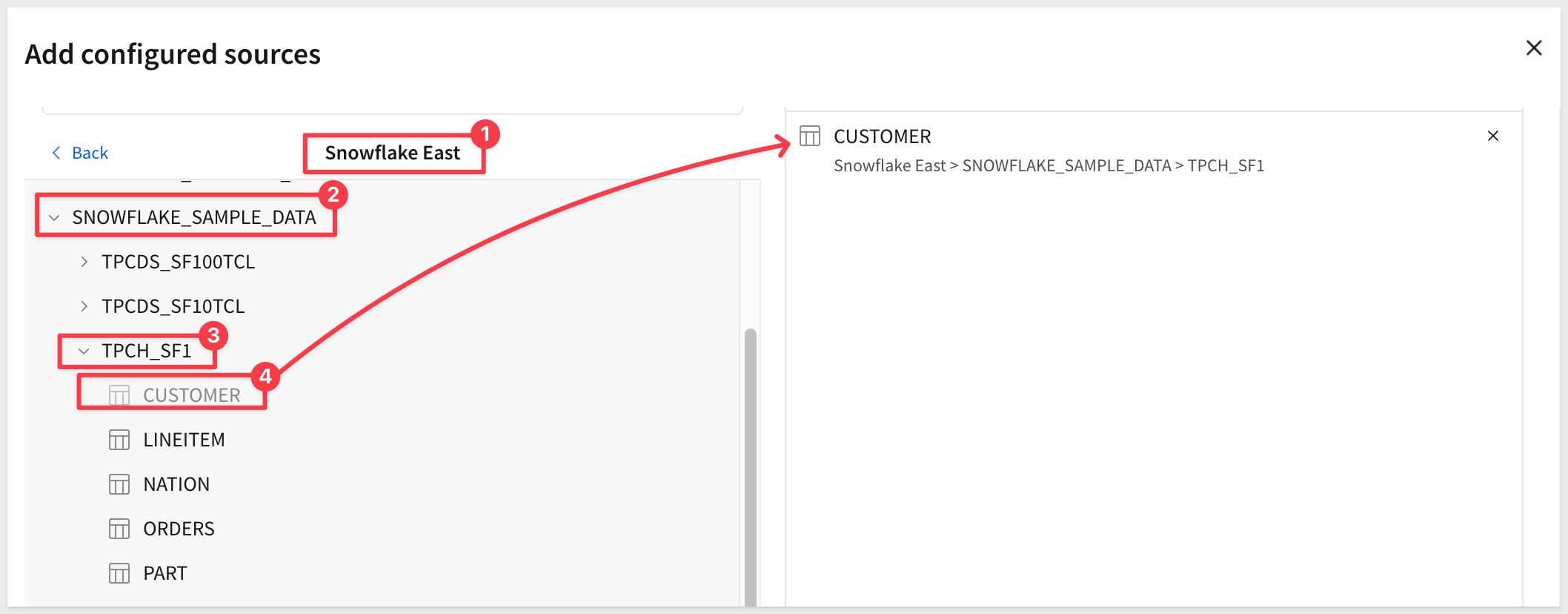
For example, we need to share the CUSTOMER table with the Sales_People team:
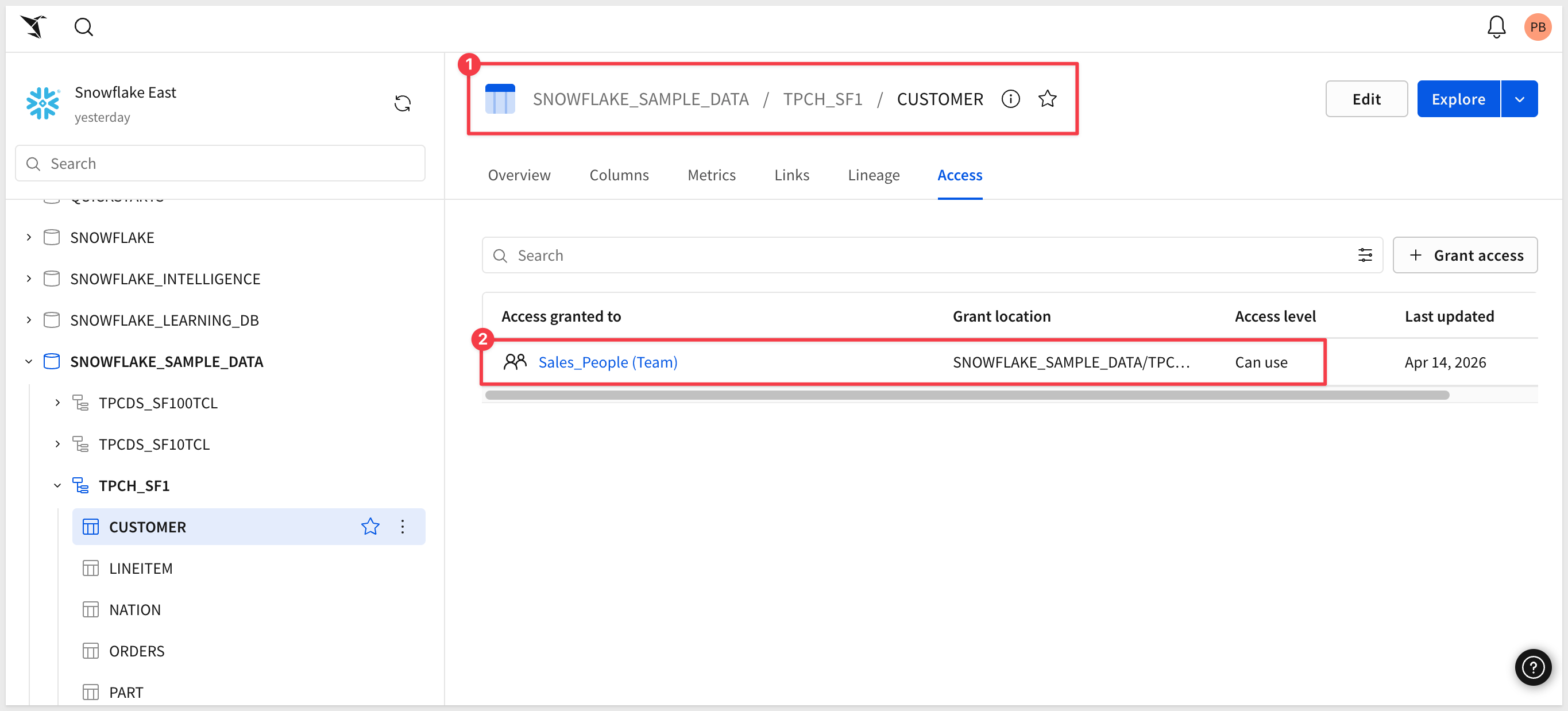
We'll move through this quickly, assuming you've done similar configurations before in Embedding 01: Getting Started
In VSCode > Terminal, start the local web server in the embedding_qs_series_2 project folder:
npm start
In a browser, open:
http://localhost:3000/assistant/?mode=assistant
The page loads, but the message Failed to load Sigma embed. Check console for details is shown. This happens because we haven't passed the required values yet.
Edit .env file
In VSCode, open the project's .env file and scroll to the # Embedding 08: Embedding Sigma Assistant.
We configured a few values for you but you will need to provide your {org-slug}, which is the part of the URL directly following https://app.sigmacomputing.com/ in the browser:
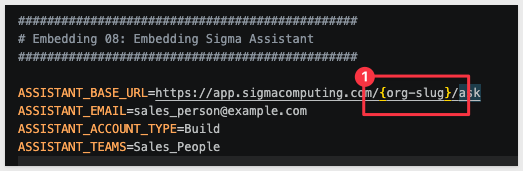
For example, in the URL https://app.sigmacomputing.com/my_company_name/, the org-slug is my_company_name.
Once .env is updated, save your changes.
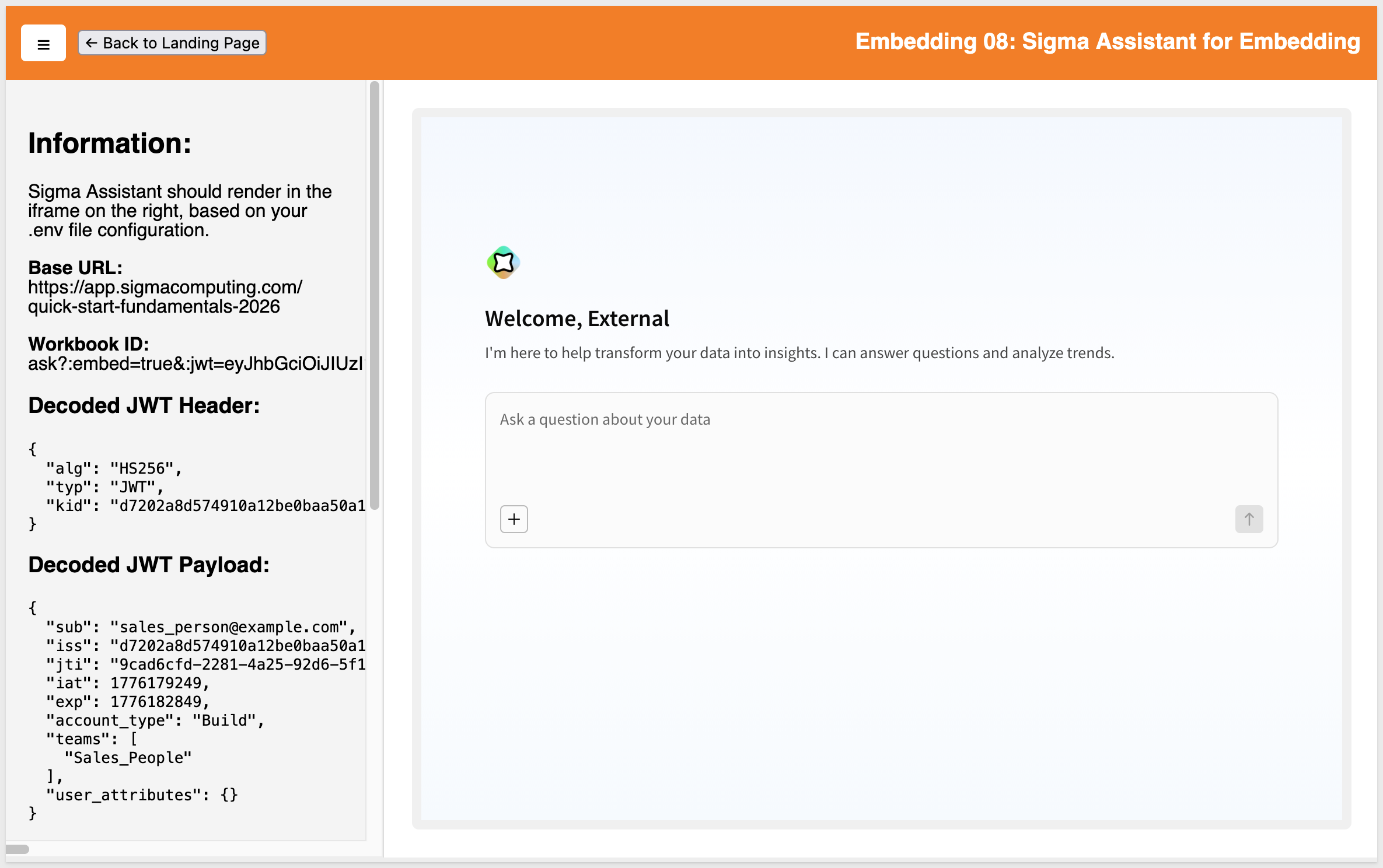
Refresh the browser page, and Sigma Assistant should appear:
AI is a powerful tool, but how it's implemented makes a huge difference to users.
Allowing users to ask questions is one thing but how can we tell what the AI is doing?
- Is it using trusted data sources?
- What steps, calculations, and workflows did it use to generate results?
- Once we have the response, what's next for the user?
We have addressed all these and more with our unique design, summarized below in three sections:
1: Discovery
Ensure corporate governance by restricting source data used for analysis and preventing data from being exposed to third parties.
2: Trust
Ensure that only verified, trusted data sources are used. Decisions made from bad data are time-consuming and potentially costly too.
3: Exploration
Allow users to launch selected results into a workbook for further analysis or sharing.
A quick test
Let's ask a simple question, since we have one table to work with: CUSTOMER:
How many customers are there per market segment?
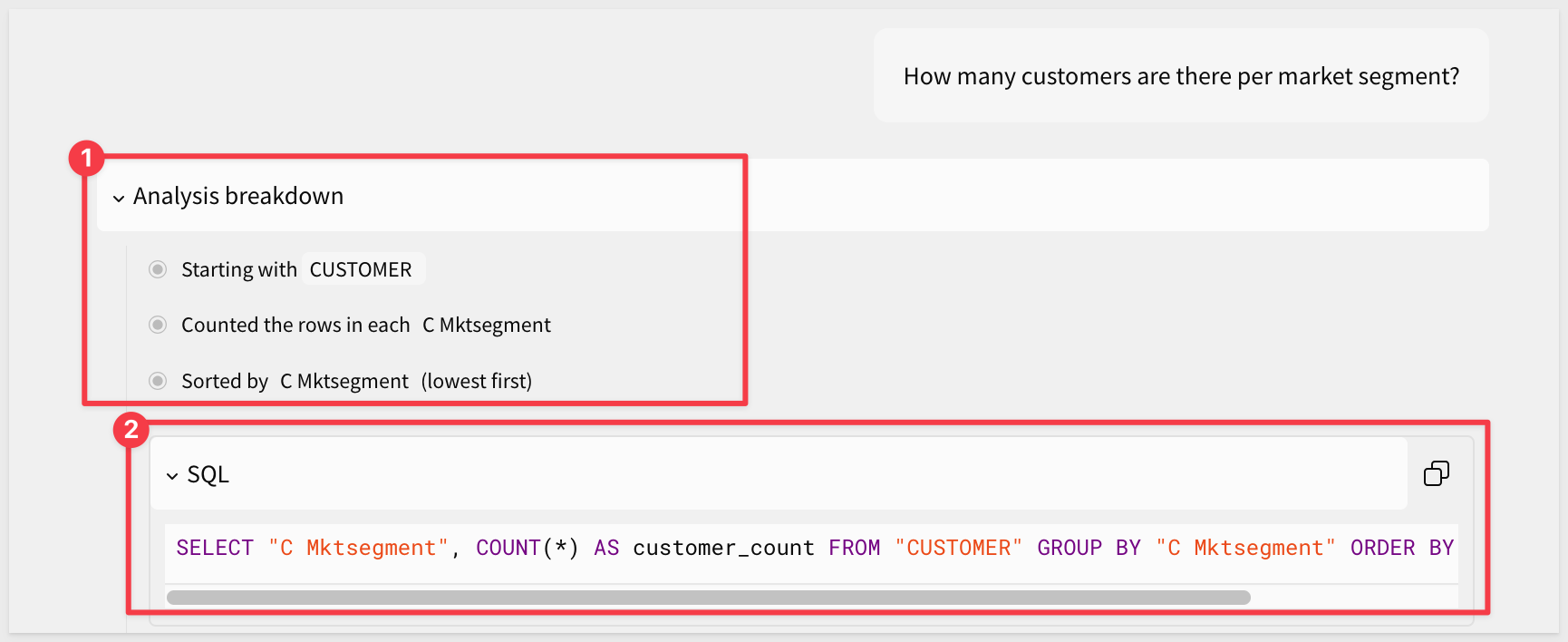
As the processing starts, we can see the first thing the AI decided was to use the CUSTOMER table (obviously!) but Sigma also displays the decision logic in Analysis breakdown?, shedding light on the choices the AI is making.
It also lets us peek at the SQL used to obtain the data:
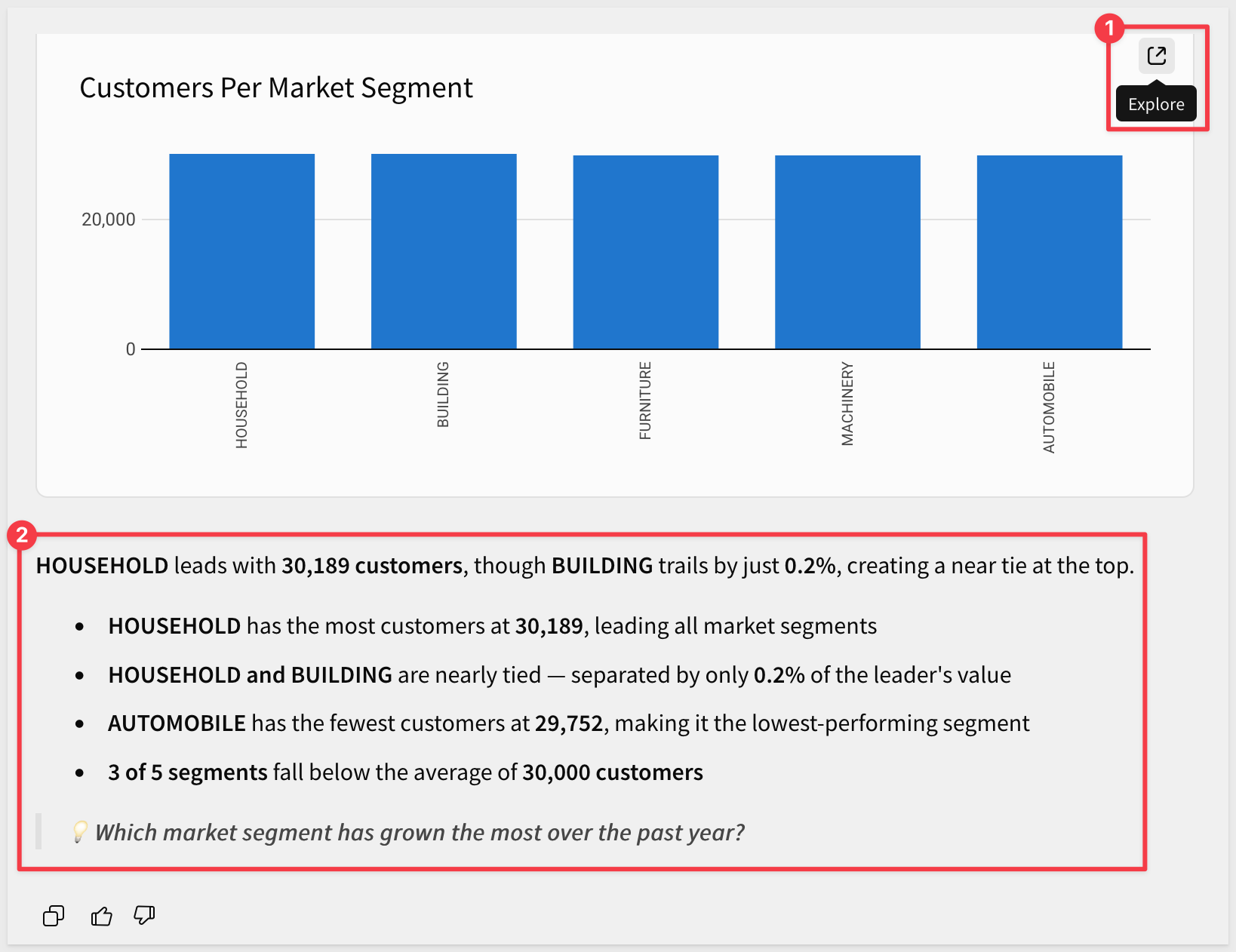
Then it provides a bar chart and some detail on the findings. We can Explore the response in a Sigma workbook:
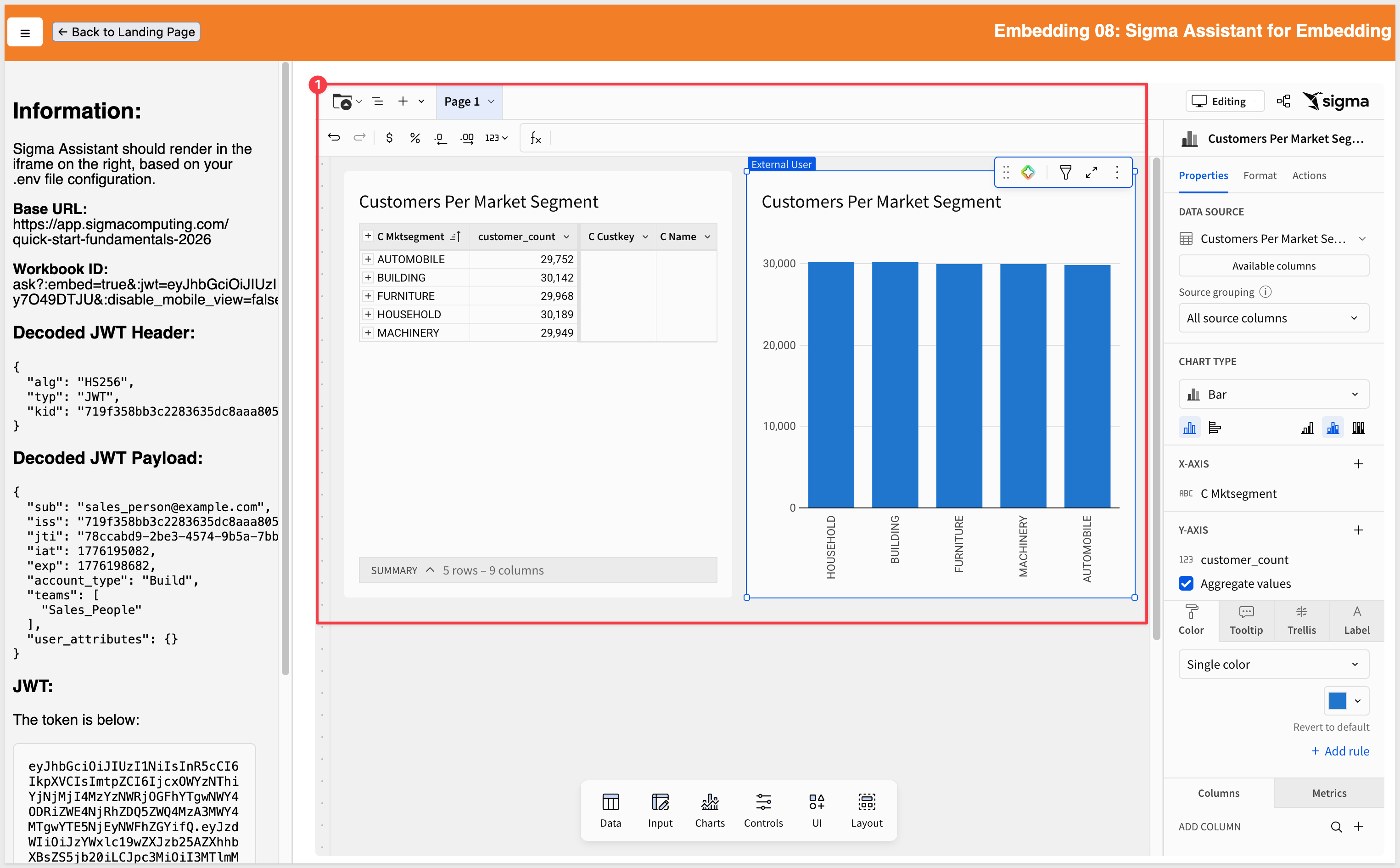
Because we are a Build user, we have access to all of the other tools Sigma provides.
The functionality available to the user is determined by their Account type setting. This enables different user experiences and allows embedded customers to offer premium services:
In this QuickStart, we explored how to embed Sigma Assistant into an application and configure it for secure, governed use.
Sigma Assistant can deliver conversational analytics in a secure, customizable, and highly intuitive way — ready to enhance any embedded experience.
Additional Resource Links
Blog
Community
Help Center
QuickStarts
Be sure to check out all the latest developments at Sigma's First Friday Feature page!