Sigma's App Templates are ready-to-use applications built on Sigma's native features and connected to sample data. Each one ships fully functional — you can explore it immediately, learn how it's built by switching to edit mode, and adapt it to your own projects without starting from scratch.
The Shift Management app — called Clockwork — gives restaurant and hourly-workforce teams a single surface for building weekly schedules, tracking attendance, logging clock-in and clock-out times, and monitoring labor costs against budget. Managers can spot coverage gaps at a glance, fill open shifts, flag attendance issues in real time, and get an AI-generated briefing on the week's operational priorities. The same structure adapts to any team that manages shift-based scheduling — retail, hospitality, healthcare, or operations.
This QuickStart walks through how the app works across each of its pages, how the AI summary is built, and how to adapt it for your own team.
Target Audience
Restaurant managers and operations leads evaluating Sigma for shift scheduling and workforce tracking. Solutions Engineers and technical stakeholders exploring the app as a reference design for input-table-driven scheduling, attendance tracking, and AI-assisted labor operations.
Prerequisites
- Access to a Sigma environment.
- The Shift Management App Template available in your org — find it under
Templates>App Templates. - Write access enabled on a connection — required for the input tables that store shift definitions, assignments, attendance records, and budget data. See Set up write access
- AI provider configured for your organization — required for the Agent Summary on the Labor Performance page. See Configure AI features for your organization
- Some familiarity with Sigma workbooks is helpful but not required.
What You'll Learn
- How Clockwork manages the full scheduling workflow — from building the weekly schedule through tracking attendance and analyzing labor costs
- How the AI Agent Summary on the Labor Performance page is built and what data it draws from
- The data model behind the app and the key design patterns it uses
- How to adapt the app for your team and connect it to your own employee data

Open and Save the Template
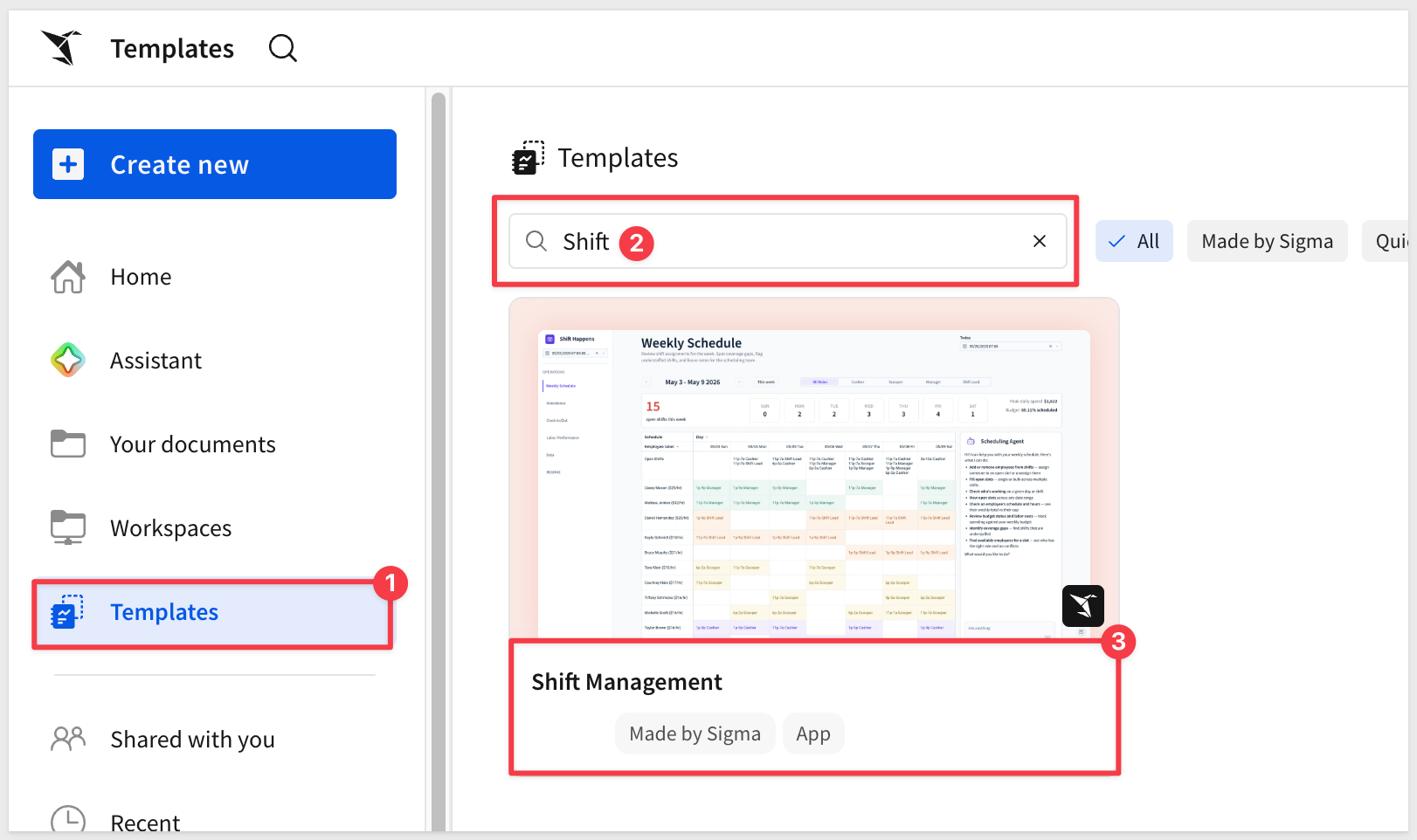
Navigate to Templates in the left sidebar. The Shift Management app appears in the Made by Sigma collection:
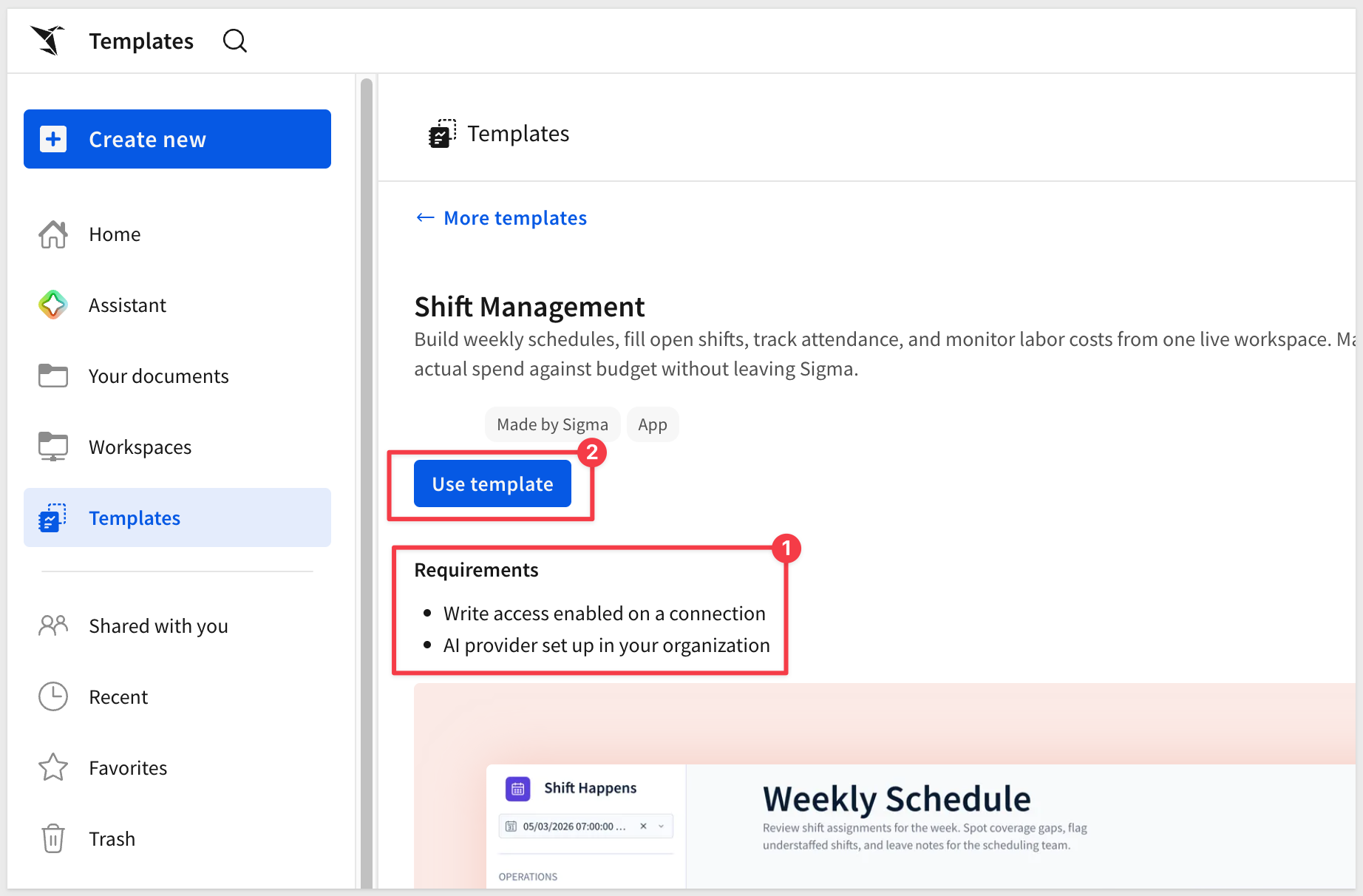
Click the template card to open a preview. Before clicking Use template, confirm both requirements shown on the detail page are met:
- Write access enabled on a connection — required for input tables to store shifts, assignments, and attendance records. See Set up write access
- AI provider set up in your organization — required for the Agent Summary on the Labor Performance page. See Configure AI features for your organization
Once both are in place, click Use template. Sigma creates a personal copy in your workspace:
Click Save as and give the workbook a name:
Shift Management
README Page
The app opens on its README page — an orientation guide built directly into the workbook:
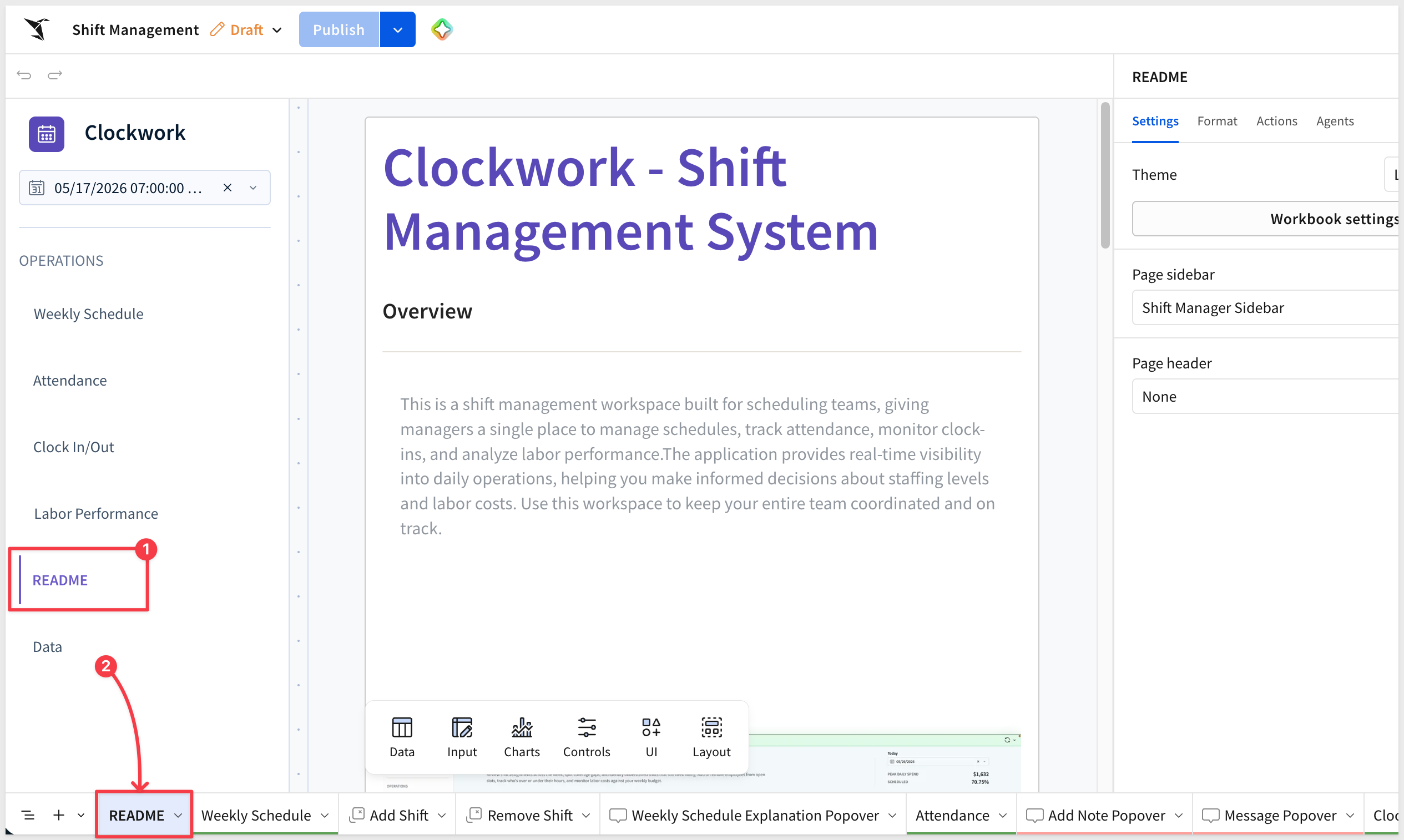
The README includes a demo video, a five-step getting-started guide, and a description of each application page. The recommended sequence is:
- Create Weekly Schedule — build shift assignments by adding employees to shifts throughout the week
- Review Schedule Coverage — check the Weekly Schedule page to ensure all shifts are properly staffed and balanced across roles
- Track Attendance — monitor scheduled vs. actual attendance on the Attendance page to spot no-shows or late arrivals
- Monitor Clock In/Out Activity — use the Clock In/Out page to log employee punch times and flag early or late clock-ins
- Analyze Labor Performance — review labor costs, overtime, and variance against budget on the Labor Performance page
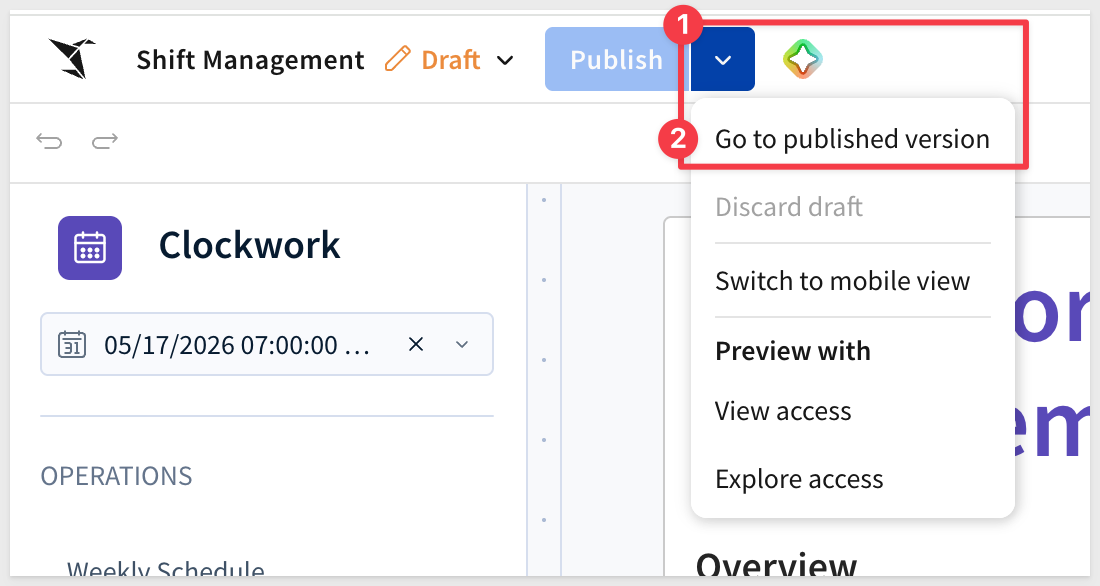
Place the workbook into Published mode:
App Pages
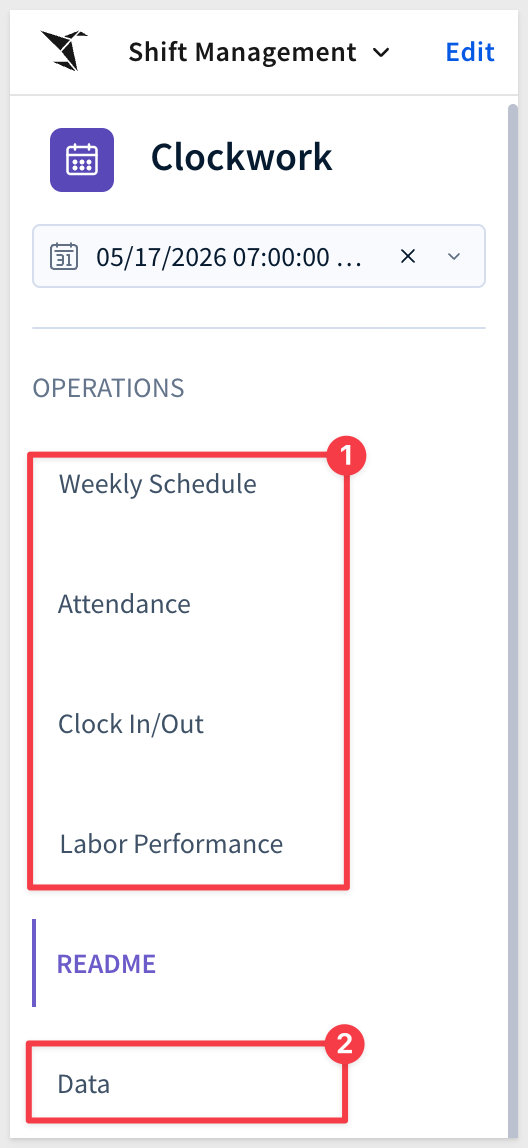
Clockwork has four active pages and a hidden data backend:
- Weekly Schedule — the scheduling hub: view and edit shift assignments by day and employee, spot coverage gaps, and monitor labor cost against budget
- Attendance — day-level attendance view: track who has clocked in, flag no-shows and late arrivals, and add notes to individual shifts
- Clock In/Out — employee self-service surface for logging punch times; designed to be embedded in a mobile app so workers can clock in from their phones
- Labor Performance — weekly cost summary: actual vs. projected spend by day, an AI-generated manager briefing, and an employee-level hours and cost breakdown
- Data — hidden backend containing all input tables, derived views, and AI prompt controls
The Weekly Schedule page is the manager's primary workspace for building and maintaining the week's shift assignments.
Page Header
The header shows a live count of shifts that still need coverage this week and two KPI tiles on the right:
- PEAK DAILY SPEND — the highest single-day projected labor cost across the week, calculated using
Greatest(SumIf(...))across all seven days - SCHEDULED — total projected cost as a percentage of the weekly budget, pulled via
Lookupfrom the Weekly Budget input table
A date range control at the top lets you navigate between weeks. The date range title updates dynamically — {{[dates-input].start | %b %-d}} - {{[dates-input].end | %b %-d %Y}} — so the header always reflects the selected week.

Needed Coverage by Day
Below the header, a seven-day strip shows open shift counts by day (SUN through SAT).
Each day's count comes from CountIf([New Schedule/Employee label] = "Open Shifts", ...) filtered to that specific day.
Days with open slots stand out at a glance, making it easy to prioritize which days to fill first.

Schedule Grid
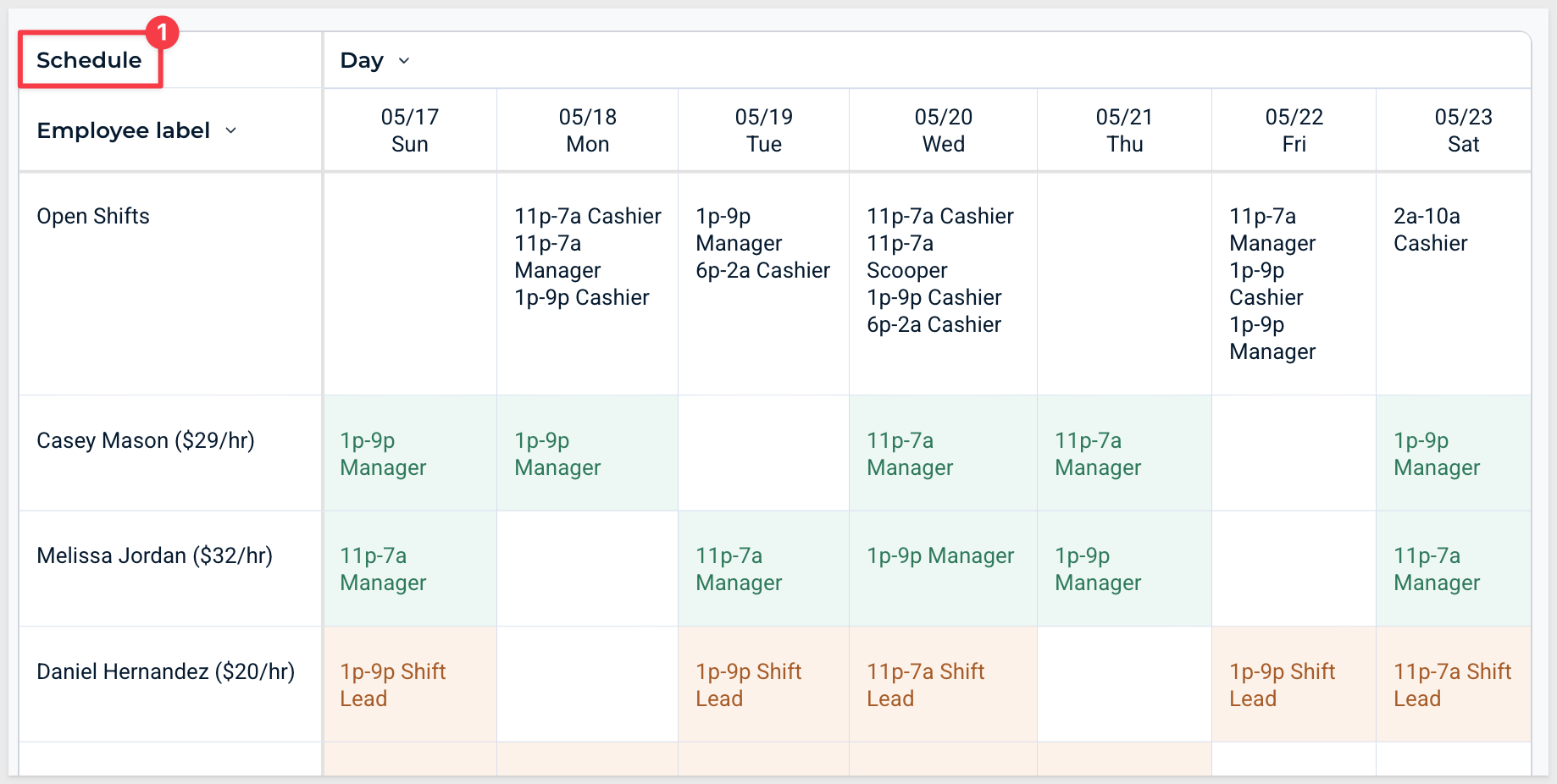
The main schedule grid is a pivot table organized by employee (rows) and day (columns). Each cell shows the shift time range and role — for example, 11p-7a Shift Lead or 6p-2a Cashier — or Open Shifts for unfilled slots.
A Role segmented filter at the top of the grid lets you narrow the view to a single role — useful when staffing a specific position.
To assign an employee to an open slot, click the cell and select from the employee dropdown. The assignment is written to the Shift Assignments input table:
Cost Row
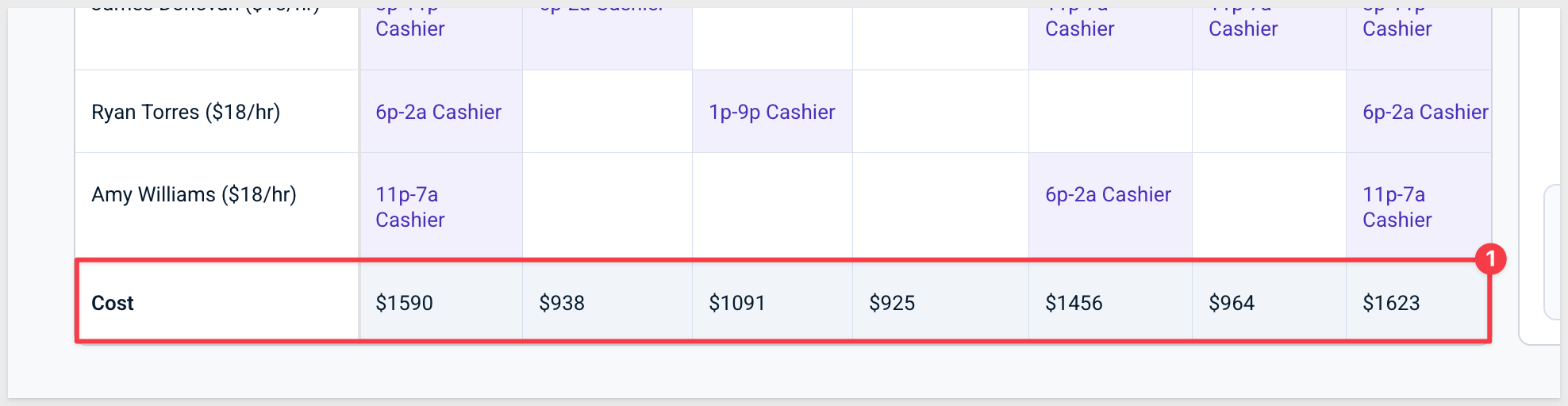
A Cost row at the bottom of the grid shows the total projected labor cost for each day of the week. This gives managers an immediate read on which days are most expensive before finalizing assignments:
Scheduling Agent
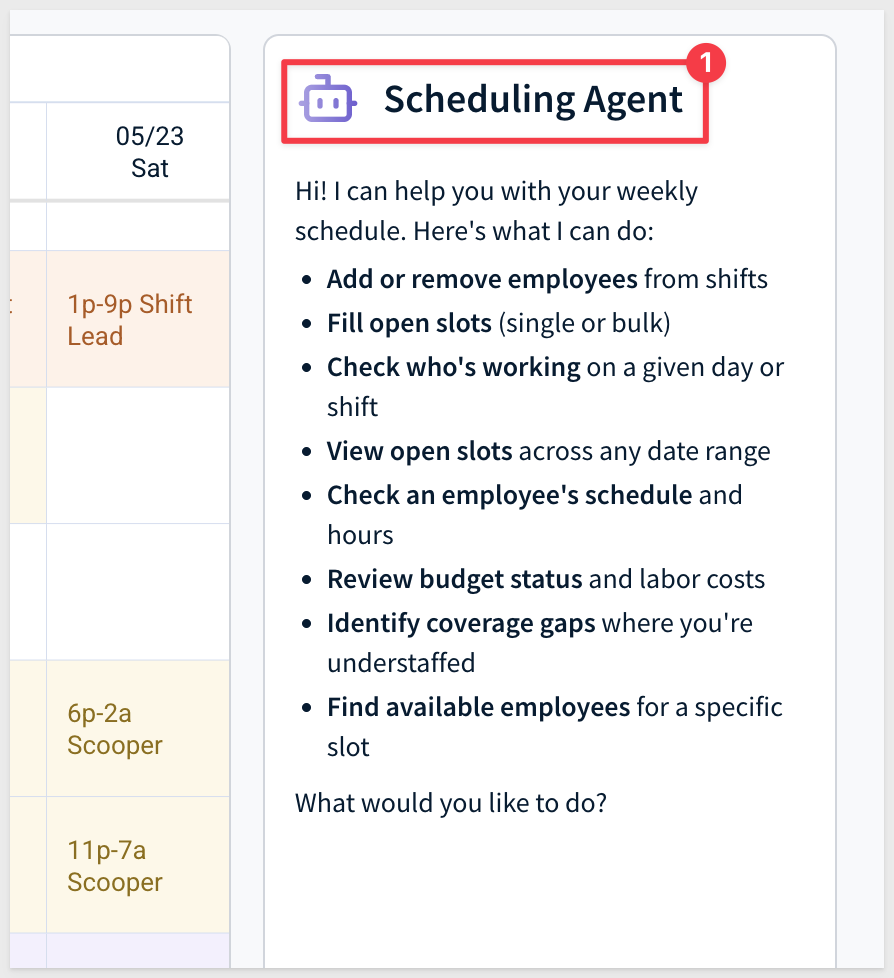
A Scheduling Agent panel sits alongside the schedule grid. It is a Sigma Agent — a governed AI assistant scoped to the scheduling context — that lets managers ask questions and take actions in natural language:
Type a request in the Ask anything field to interact with the agent. For example: "Fill all open Cashier slots on Wednesday" or "Who is working Saturday night?":
The Attendance page gives managers a real-time view of who has shown up, who is late, and who has not appeared for their scheduled shift.
Page Header
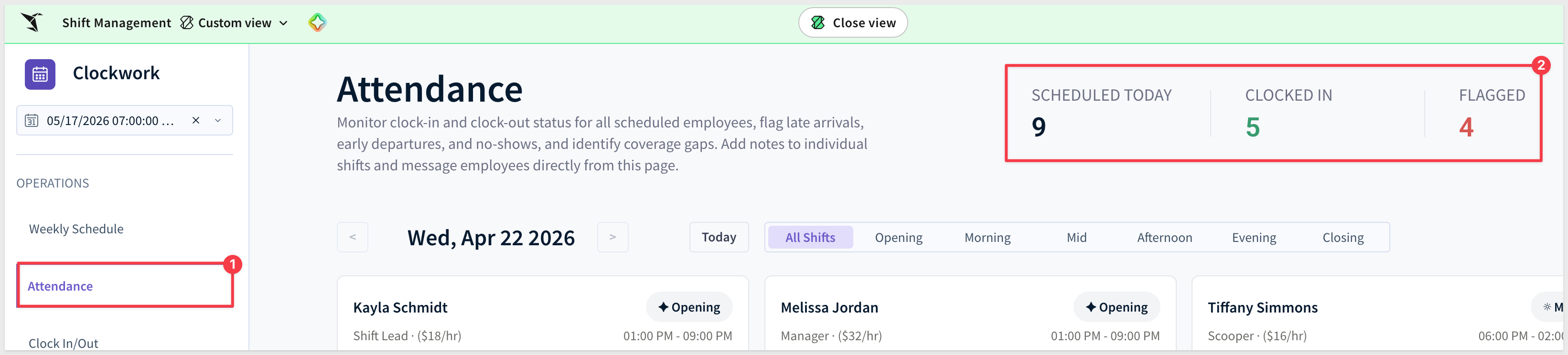
Three KPIs across the top of the page summarize the day at a glance:
- SCHEDULED TO... — total employees scheduled for the selected date
- CLOCKED IN — employees who have logged a clock-in time (shown in green)
- FLAGGED — employees with a deviation from their scheduled time — late arrival, early departure, or no-show (shown in red)
Date navigation arrows and a Today button let you move between days. A shift filter — All Shifts, Opening, Morning, Mid, Afternoon, Evening, Closing — narrows the view to a single shift type:
Employee Cards
Each employee scheduled for the selected day gets their own card. The card shows:
- Employee name, role, and hourly rate
- Shift badge (Opening, Mid, Evening, etc.) and scheduled time range
- CLOCKED IN — actual clock-in time with a delta note:
1 min early,2 min late, or similar - CLOCKED OUT — actual clock-out time with its own delta
- Notes — any notes added to this shift
MessageandAdd Notebuttons for direct manager actions
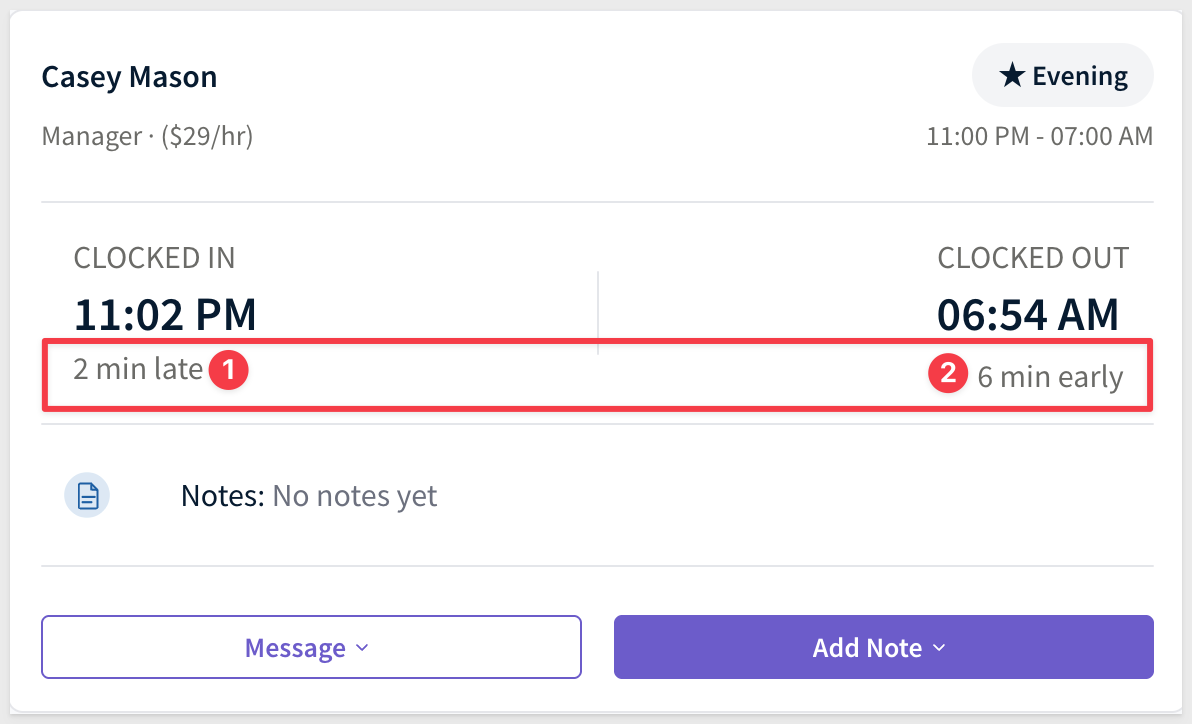
The delta values — how early or late each punch is relative to the scheduled time — come from the Delta and Delta Out computed columns in the Attendance input table: DateDiff("minute", [scheduled_start], [actual_clock_in]).
A positive number means the employee clocked in late; negative means early. The FLAGGED KPI in the header counts employees with non-zero deltas or a no-show status.
WHY IT MATTERS:
Attendance records in Clockwork are write-surfaces, not read-only imports. Managers log notes and the app captures clock times directly, and those records immediately power the Labor Performance summary and AI briefing. A single input table connects the scheduling, attendance, and cost layers — no sync required.
The best way to understand Clockwork's scheduling workflow is to run through it end to end. This section walks through assigning an employee to an open shift on the Weekly Schedule page, then completing a clock-in on the Clock In/Out page.
Assign a Shift on Weekly Schedule
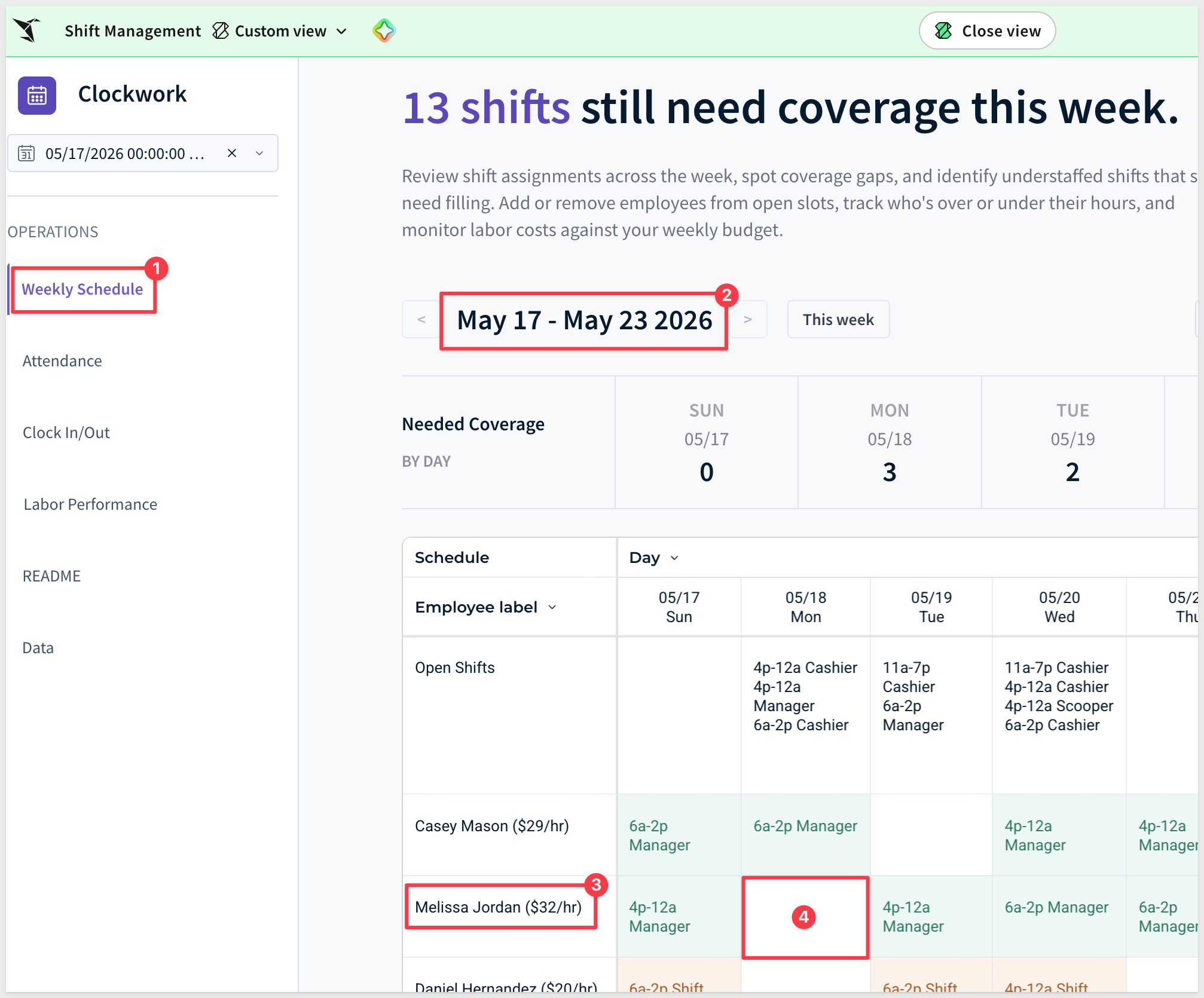
Navigate to the Weekly Schedule page and click This week to jump to the current week. The Needed Coverage strip shows which days have open slots — Monday shows several unfilled shifts:
Scroll down to find Melissa Jordan in the schedule grid. Her Monday cell is empty. In the Open Shifts row, Monday lists the unfilled slots for the day.
Click the empty cell in Melissa Jordan's Monday row.
The available shifts and open slot count are displayed — select the 4p-12a · 05/18 Mon slot to assign her.
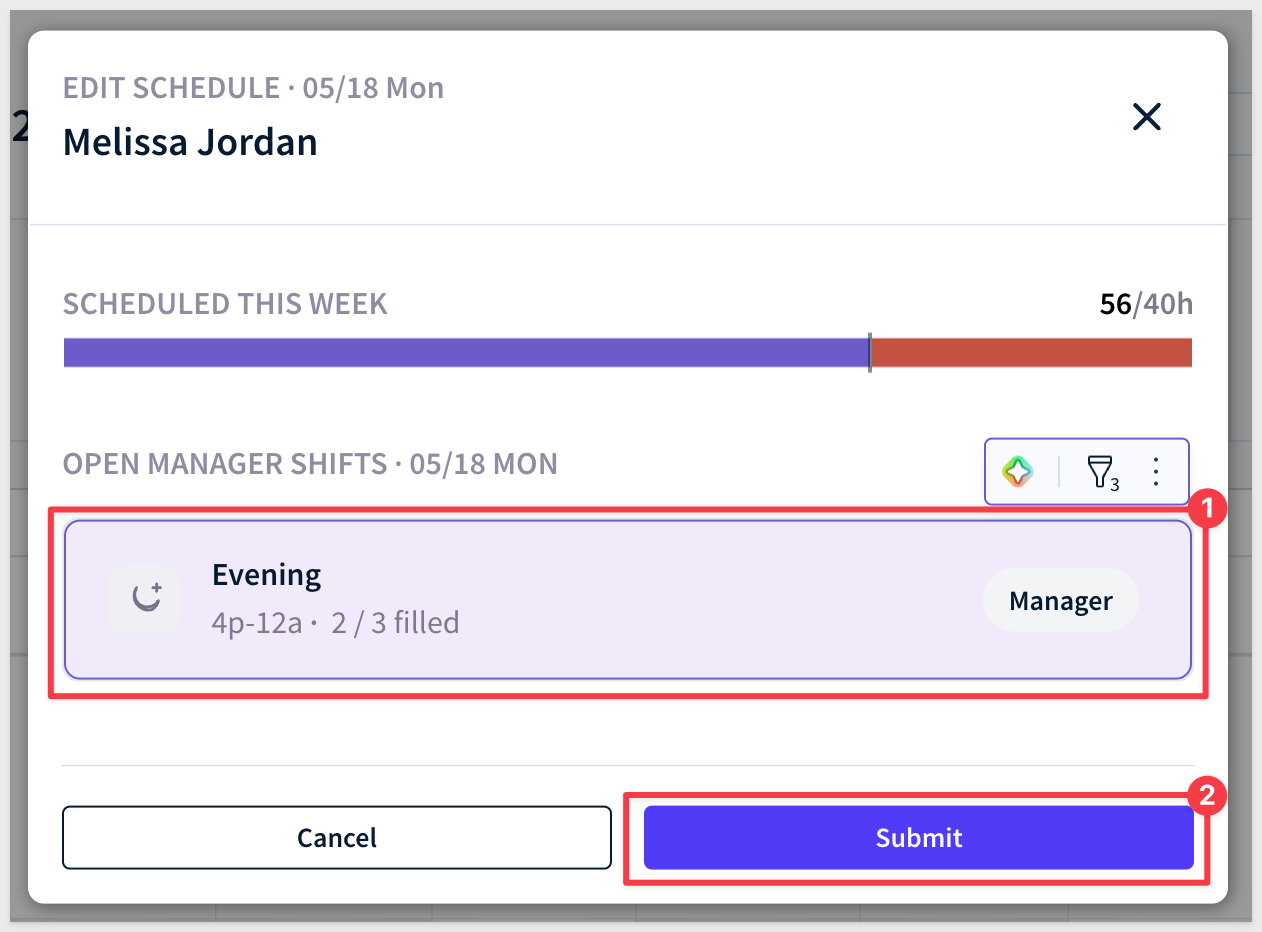
Click Submit.
The schedule grid now shows Melissa Jordan's slot filled, with the remaining open slot still visible in row three.

Clock In as Melissa Jordan
Navigate to the Clock In/Out page. The page displays a live clock and the current date, driven by the today-input control. The prompt reads "Who's clocking in?" with a name field below it.
Selecting Melissa Jordan from the select control loads the fixed sample data:
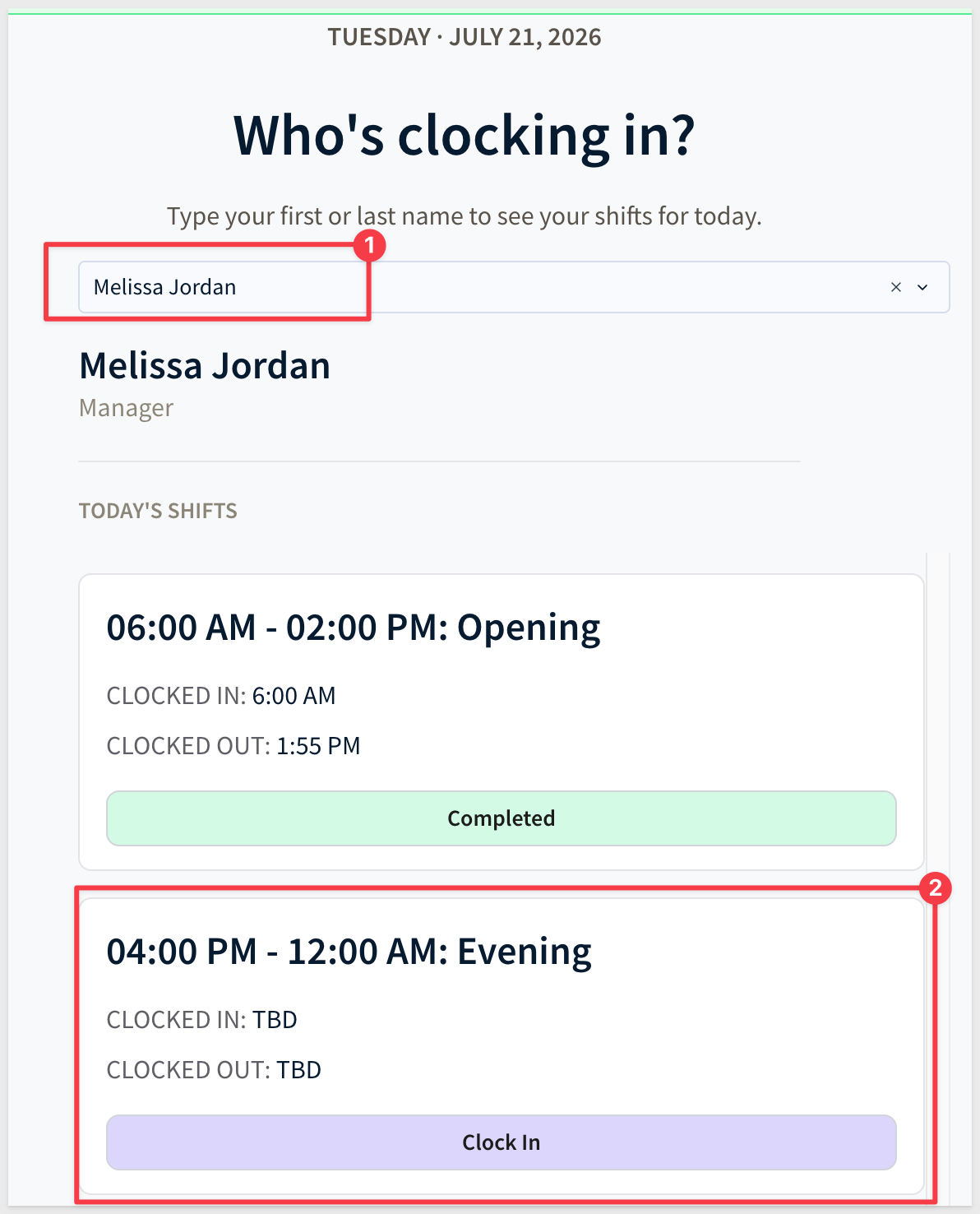
Once the date is made dynamic as mentioned above, the actual clock-in time is written to the Attendance input table's actual_clock_in field. The Delta column — DateDiff("minute", [scheduled_start], [actual_clock_in]) — computes the difference from the scheduled start automatically, so the Attendance page immediately reflects whether the clock-in was on time, early, or late.
The card then shows the Clocked In time and waits for the Clocked Out to be logged later.
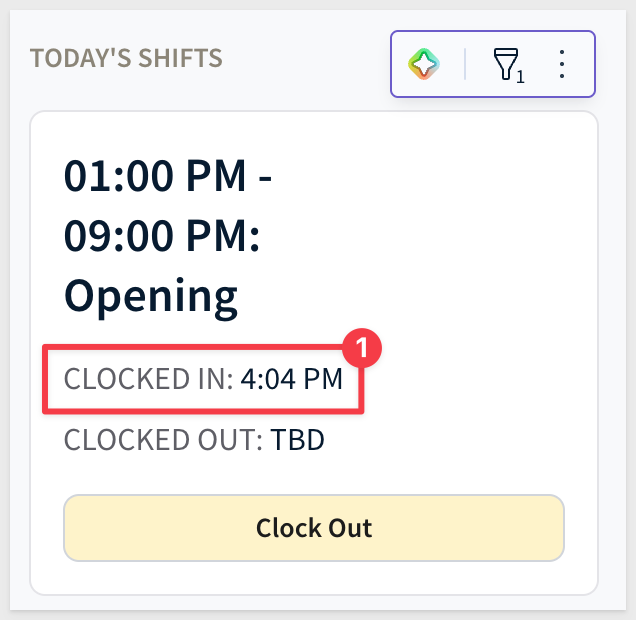
Mobile Embed
The Clock In/Out page is intentionally minimal — a clock, a date, and a name search — so it works well embedded in a mobile app. Workers can clock in from their phones at the store without accessing the full workspace. Sigma's embed capability lets you surface any workbook page inside an external application.
The Labor Performance page gives managers a weekly cost summary — how much has been spent against budget, how projected and actual spending compares by day, and an AI-generated briefing on the week's most pressing operational priorities.
Page Header
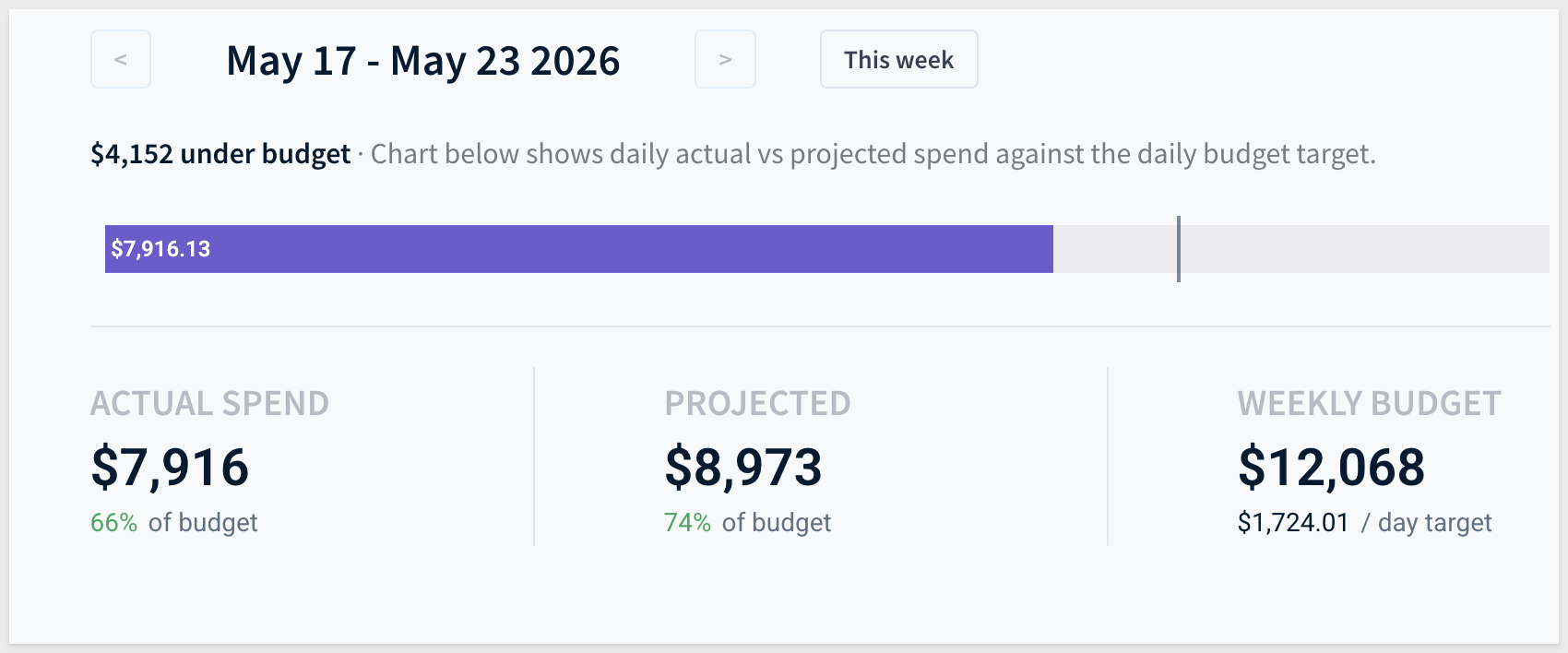
The headline KPI reads: "Labor cost is X% of budget this week." The percentage is computed dynamically — actual cost divided by the sum of actual plus remaining budget — and updates as attendance records come in:

Below the headline, a single line shows the dollar variance:
{{[WEEKLY BUDGET/Weekly Budget] - [ACTUAL SPEND/Sum of Actual Cost]}}- followed by
over budget,at budget, orunder budgetbased on the sign
AI Agent Summary
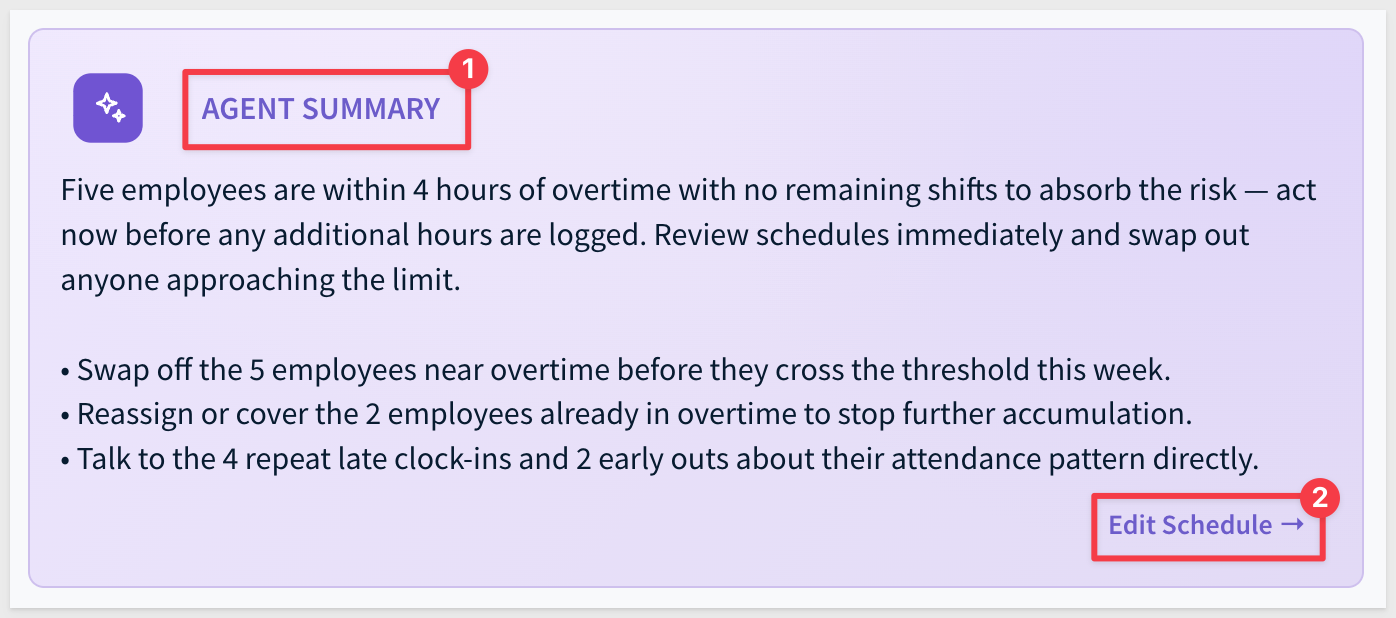
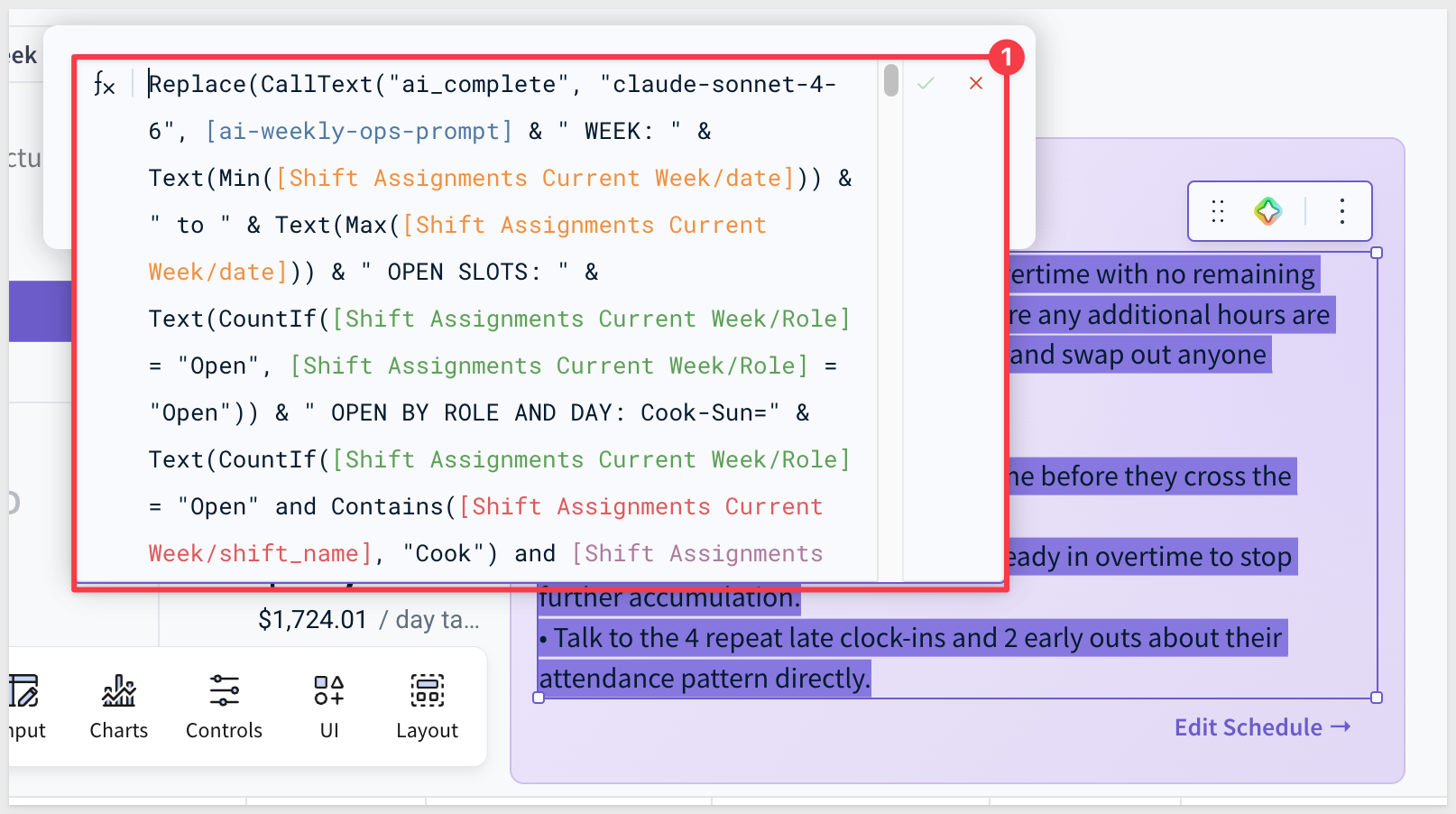
The page includes a prominent AGENT SUMMARY panel that delivers a brief, action-oriented manager briefing. It is implemented as a CallText("ai_complete", "claude-sonnet-4-6", ...) formula directly in a text element — a live formula that runs each time the page loads or the date range changes:
The formula assembles a structured payload before passing it to the model. It concatenates the prompt control text with CountIf metrics computed inline:
- Week date range
- Total open slots
- Open slots broken down by role (Cashier, Scooper, Shift Lead, Manager) and day of week
- Employees currently in overtime
- Employees near overtime (within 4 hours of their weekly limit)
- Late clock-ins and early outs for the week
- Remaining unfilled shifts
The model — instructed by the Ai Weekly Ops Prompt control — returns a briefing in 75 words or fewer: one to two sentences on the most urgent priority, followed by up to three directive bullets. The format is designed for speed: a manager glancing at the page gets the three things that need action today, without reading through raw tables.
To see the formula, place the workbook in Edit mode and click the Agent Summary text element. The full CallText(...) expression appears in the element body:
WHY IT MATTERS:
The AI briefing is not a separate service or integration — it is a formula in a text element, governed by Sigma's existing permission model and driven by a prompt stored in an editable control. Operations managers can adjust the briefing's focus (e.g., emphasize overtime risk over coverage gaps) by editing the prompt on the Data page, without touching any formula. The model's inputs are explicit Sigma expressions — the same CountIf values a manager could read in the table below — which makes the output auditable and explainable.
Budget vs. Actual Bar Chart
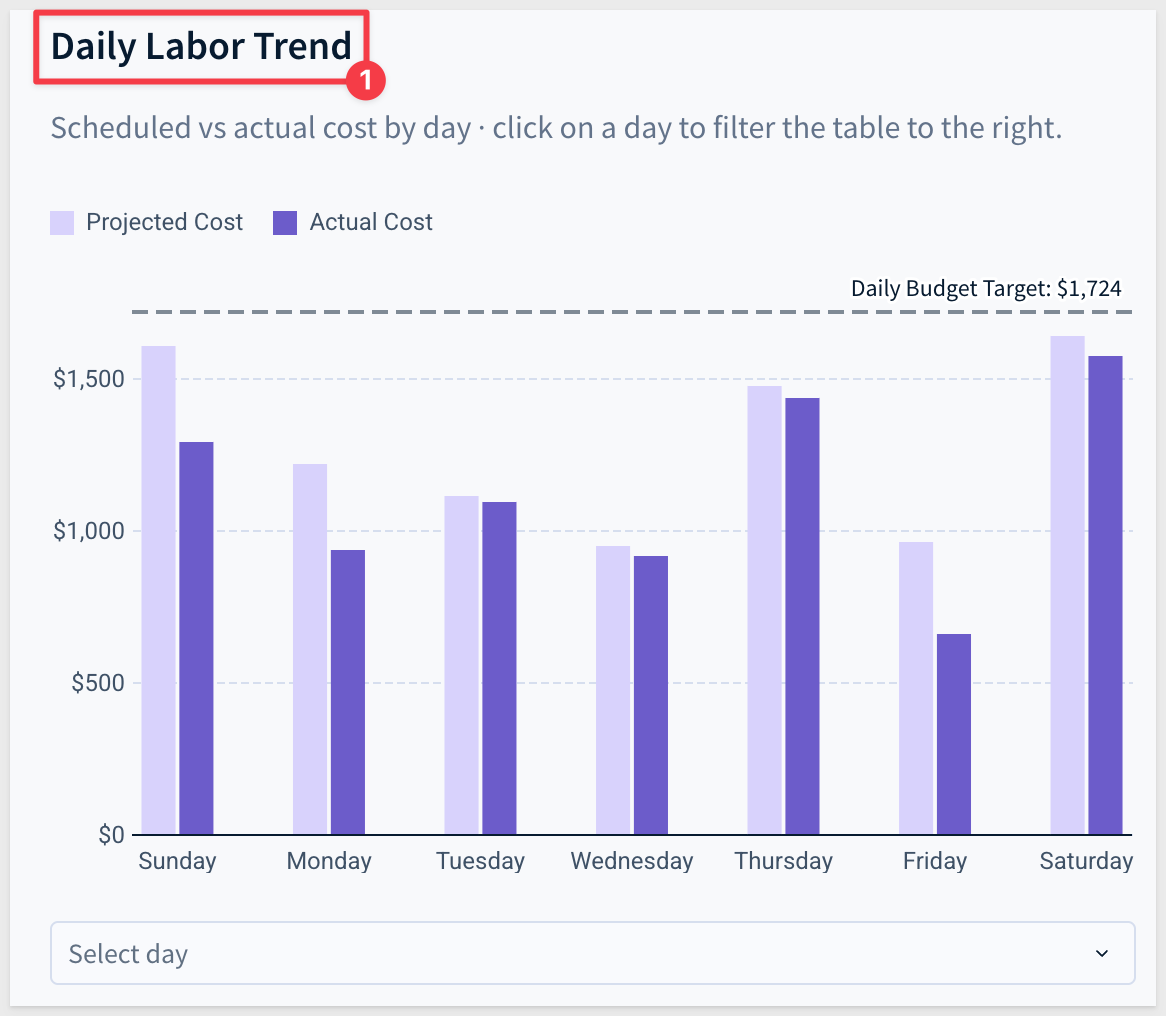
Below the AI summary, a bar chart shows daily labor spend — actual cost, projected cost, and remaining budget — for each day of the selected week. This makes it easy to see which days ran over projection and how much runway remains for the week:
Employee-Level Breakdown
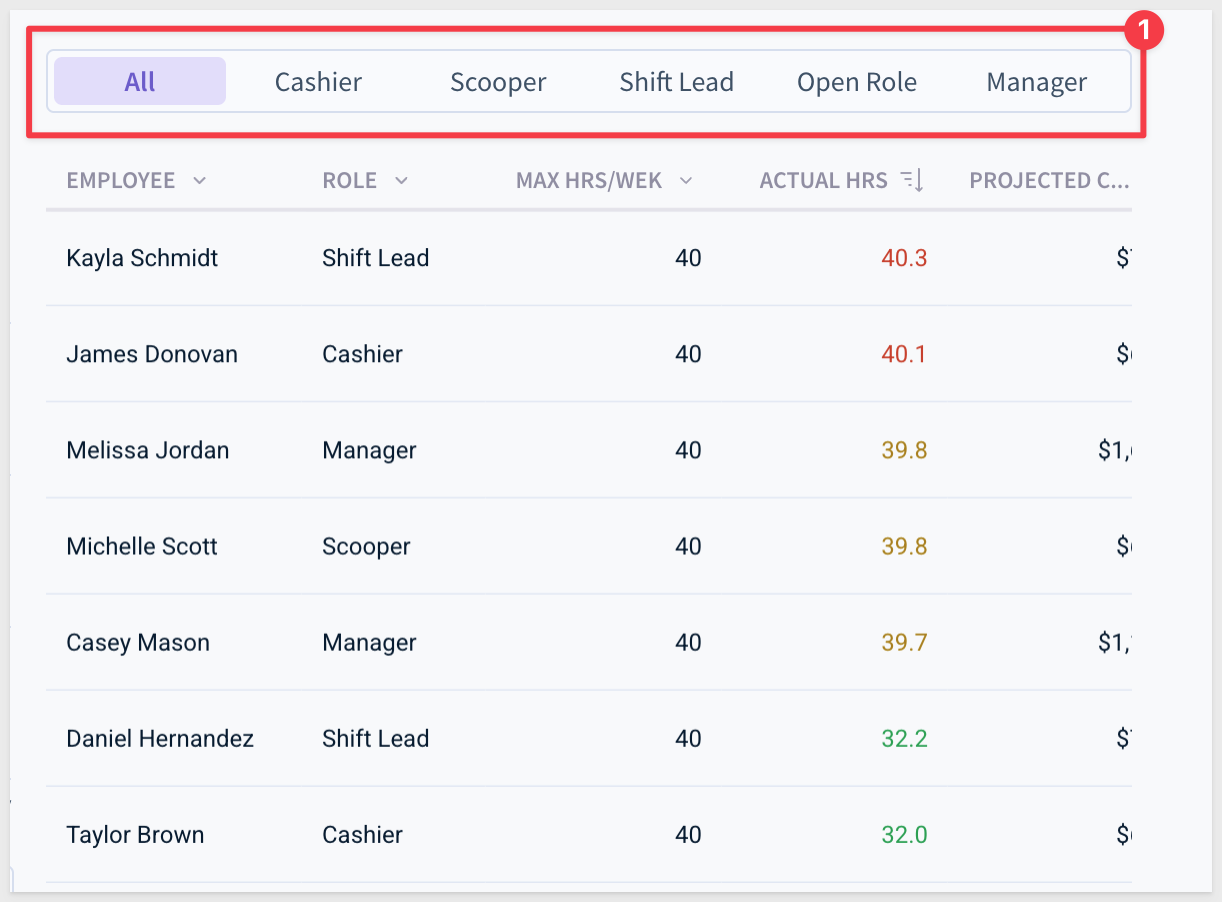
A table at the bottom of the page shows each employee's actual hours, projected cost, actual cost, and weekly totals. Overtime is visible here — employees whose actual hours exceed their weekly maximum appear with cost calculated at the overtime rate:
Place the workbook in Edit mode.
Six tabs organize everything that powers the app:
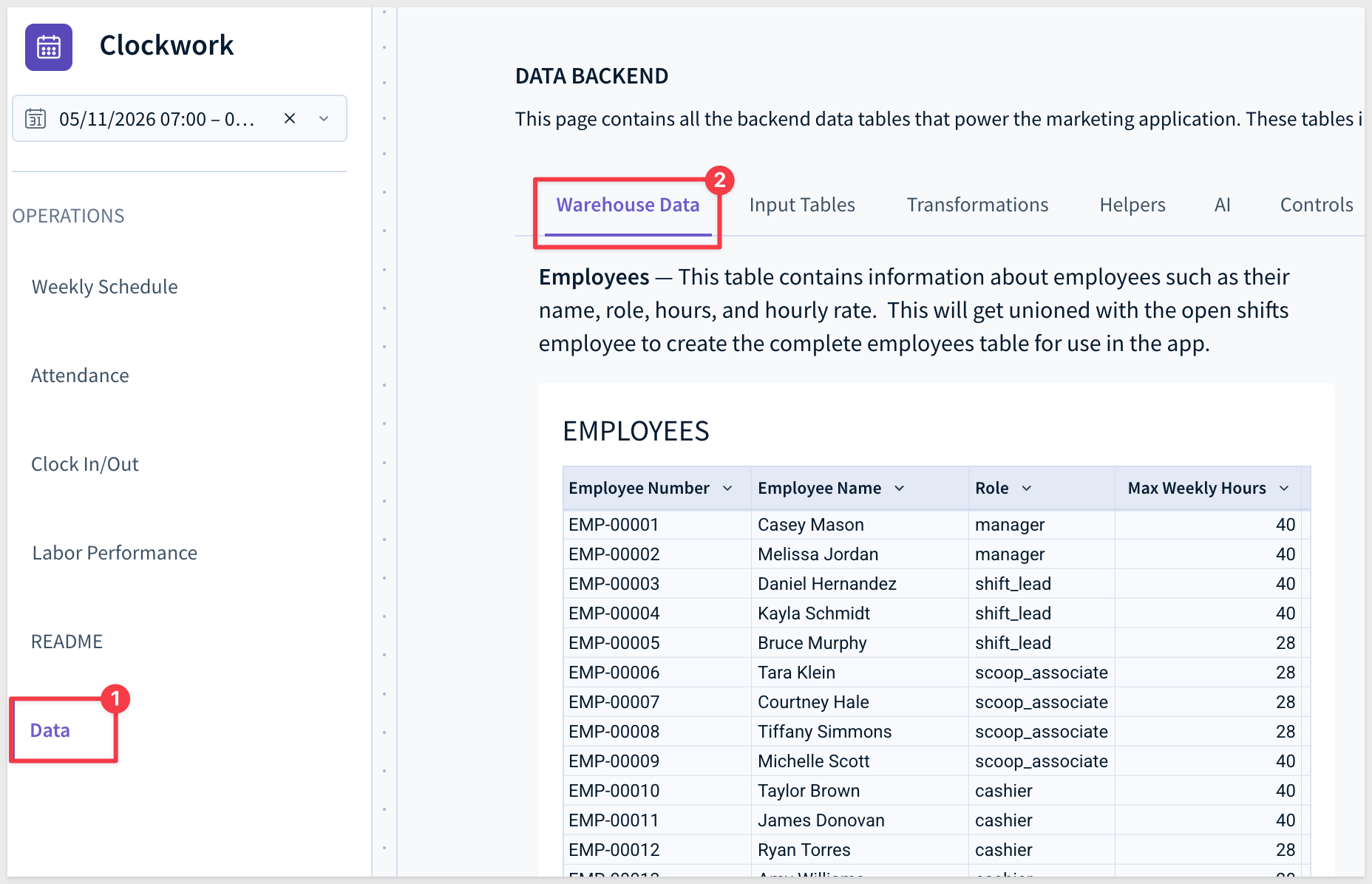
- Warehouse Data — the employee source table pulled from the warehouse
- Input Tables — the five write-surfaces that store all scheduling and attendance data
- Transformations — joined and enriched tables used by page pivots and cost calculations
- Helpers — filtered views scoped to the selected date or week
- AI — editable prompt controls that drive the AI features
- Controls — page coordination controls shared across the workbook
Warehouse Data
The Employees table is sourced from EXAMPLES.COLD_PROVISIONS.EMPLOYEES in the connected warehouse. It provides the employee directory: Employee Number, Employee Name, Role, Max Weekly Hours, and Hourly Rate Usd. This is the only warehouse table in the app — all scheduling data lives in input tables:
Input Tables
Five input tables store all application data. Four are editable in the published version by all users; the Open Shifts Employee placeholder is editable in draft only:
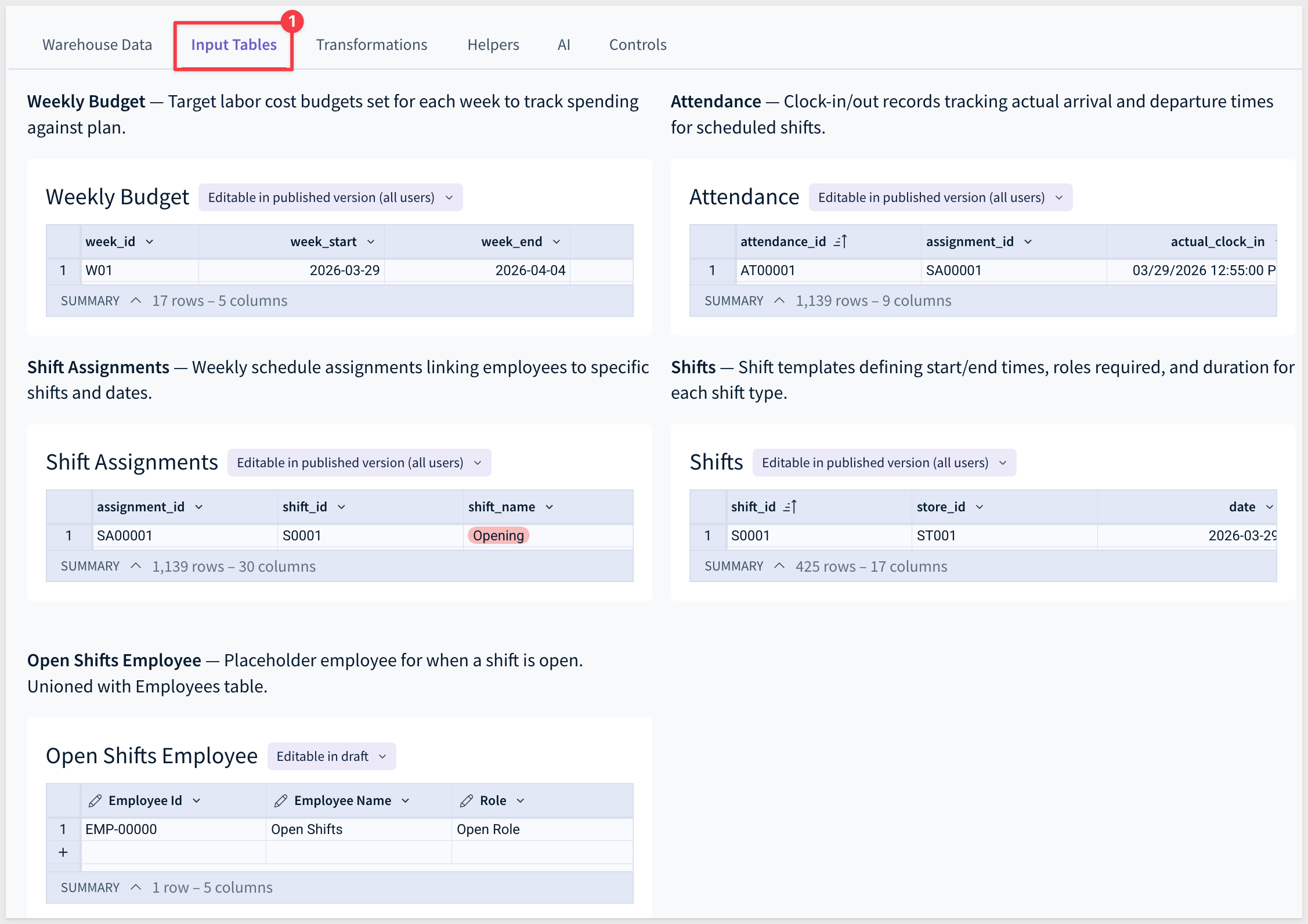
Shifts (Editable in published version, all users) — the shift template library. Each row defines a shift type: shift_id, store_id, date, day_of_week, shift_name, start_time, end_time, duration_hours, min_staff_needed, and week_id. Computed columns aggregate assigned employee names and look up projected and actual shift costs from Shift Assignments.
Shift Assignments (Editable in published version, all users) — the primary scheduling table. Each row links one employee to one shift on one date: assignment_id, shift_id, shift_name, employee_id, date, required_role, has_open_slot (checkbox), scheduled_start, and scheduled_end. Computed columns resolve employee names, look up clock-in and clock-out times from Attendance, and calculate Projected Cost and Actual Cost using the overtime-aware formula described below.
Attendance (Editable in published version, all users) — clock-in and clock-out records. Each row captures actual_clock_in, actual_clock_out, status (On Time / Late / No Show / Early Out / On Shift / Completed), scheduled_start, and scheduled_end. Two computed columns — Delta and Delta Out — calculate the difference between scheduled and actual times in minutes using DateDiff("minute", ...).
Weekly Budget (Editable in published version, all users) — per-week labor budget targets. Each row stores week_id, week_start, week_end, labor_budget, and store_id. Budget figures are looked up across the app using Lookup([Weekly Budget/labor_budget], [week_id], [Weekly Budget/week_id]).
Open Shifts Employee (Editable in draft) — a single-row placeholder (EMP-00000 / Open Shifts / Open Role) representing unfilled shift slots. When has_open_slot is true in Shift Assignments, this placeholder makes coverage gaps visible in the schedule grid as "Open Shifts" rather than nulls.
Transformations
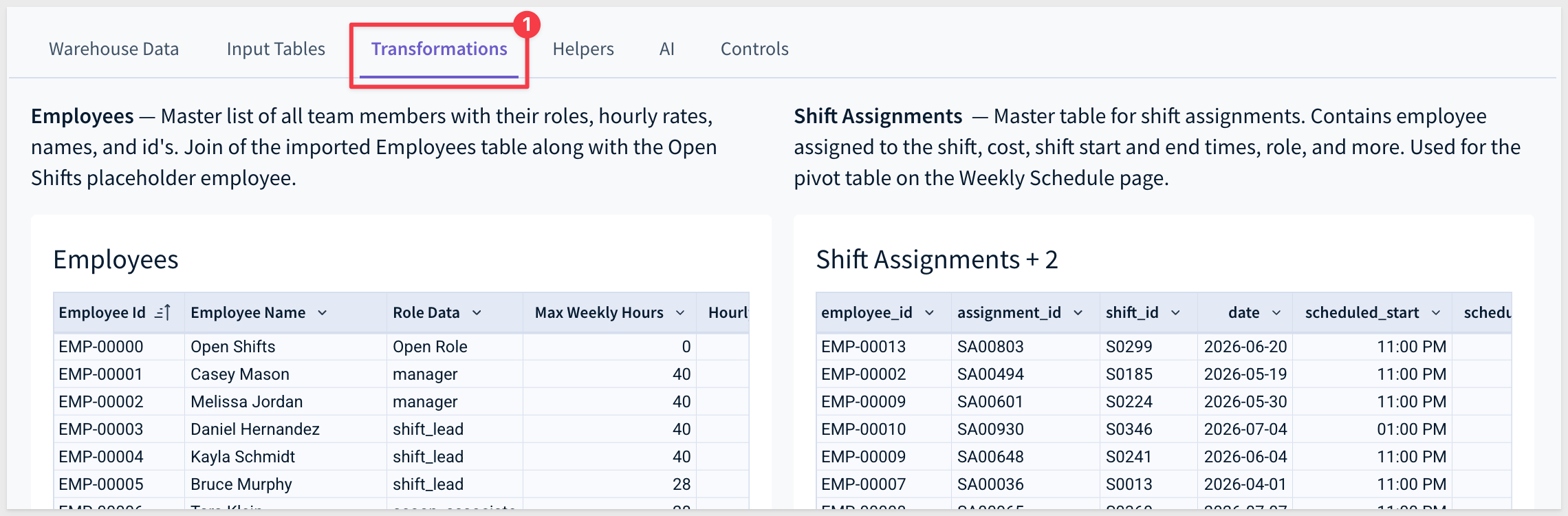
The Transformations tab holds two joined tables:
Employees — a union of the warehouse EMPLOYEES table and the Open Shifts Employee input table. This is the master employee list that powers all dropdowns and lookups across the app. The Open Shifts placeholder row (EMP-00000) participates in the union so unfilled slots resolve to "Open Shifts" rather than a null employee name.
Shift Assignments + 2 — the enriched master assignments table, joining Shift Assignments with employee data, rates, and computed cost columns. This is the table the Weekly Schedule pivot reads for its employee × day grid:
Helpers
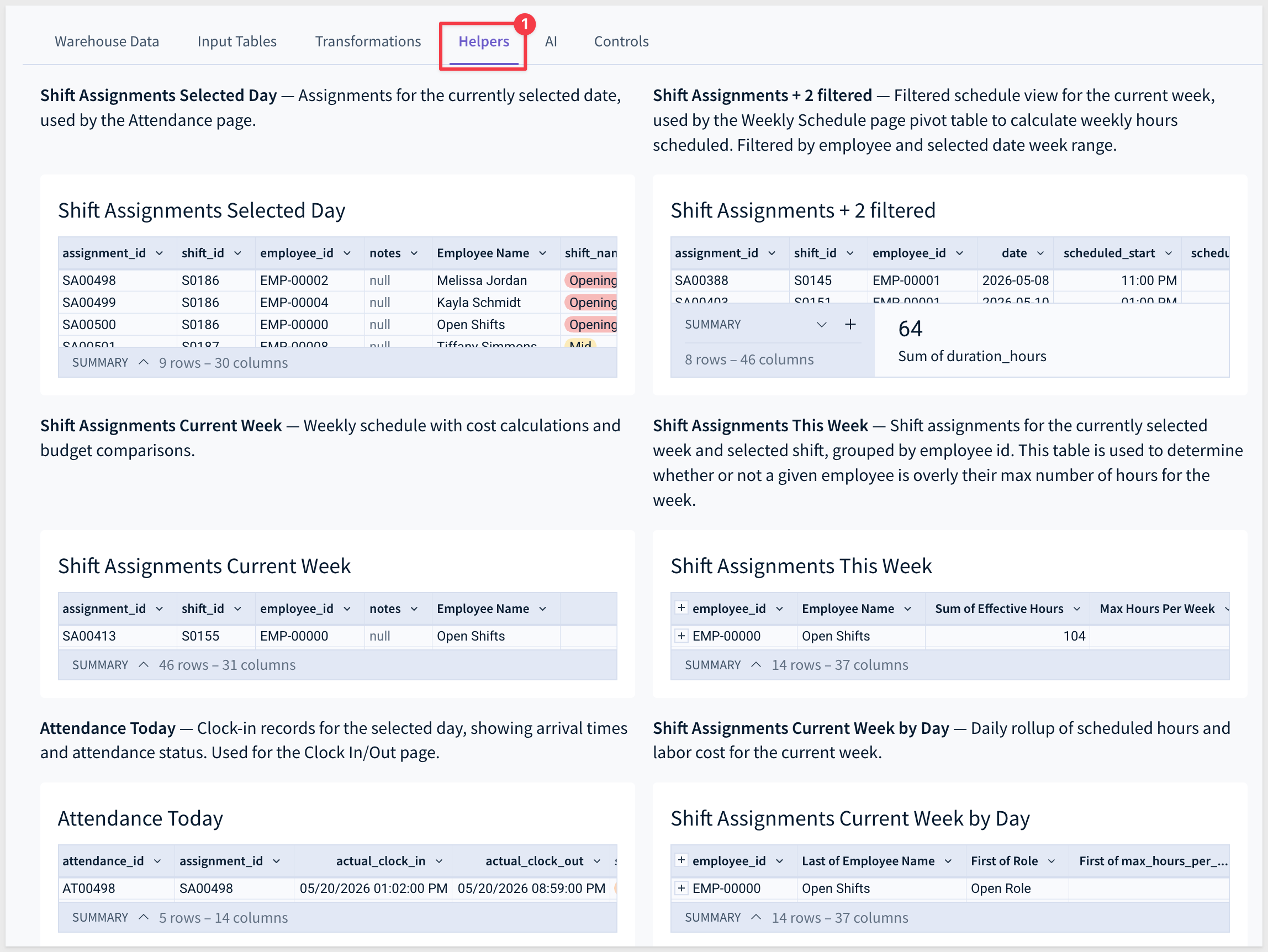
Six filtered views on the Helpers tab scope the master tables to the current date, week, or selection. They recalculate each time a date or selection changes:
- Shift Assignments Selected Day — Shift Assignments filtered to the currently selected date; used by the Attendance page
- Shift Assignments + 2 filtered — filtered to the selected week and employee; powers the Weekly Schedule pivot's weekly-hours calculations
- Shift Assignments Current Week — weekly schedule with cost calculations and budget comparisons
- Shift Assignments This Week — assignments for the selected week grouped by employee ID; used to determine whether an employee is over their
max_hours_per_weeklimit - Attendance Today — Attendance filtered to the selected date; used by the Clock In/Out page to show today's shifts and enable clock-in
- Shift Assignments Current Week by Day — daily rollup of scheduled hours and labor cost; drives the bar chart on the Labor Performance page
Overtime-Aware Cost Calculation
The Projected Cost and Actual Cost columns in Shift Assignments use a Least/Greatest pattern to split weekly hours at the employee's max_hours_per_week limit:
If([Weekly Total Projected Hours] = 0, 0,
  [Effective Hours] * (
    Least([Weekly Total Projected Hours], [max_hours_per_week]) / [Weekly Total Projected Hours] * [Hourly Rate]
    + Greatest(0, [Weekly Total Projected Hours] - [max_hours_per_week]) / [Weekly Total Projected Hours] * [Overtime Hourly Rate]
  )
)
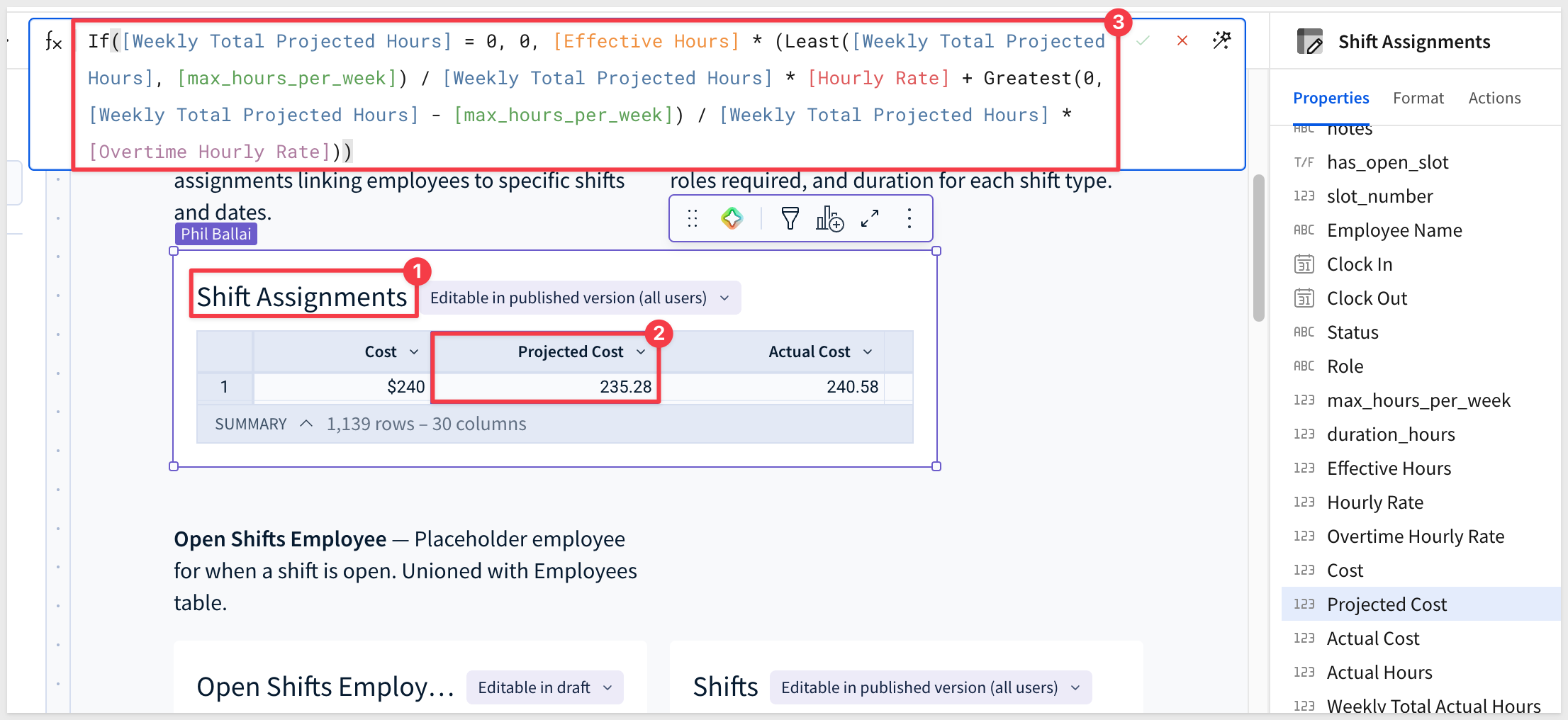
This formula apportions each shift's cost between the regular rate (for hours within the weekly limit) and the overtime rate (for hours above it).
The apportionment recalculates automatically whenever hours are added or removed — no manual adjustments needed when the schedule changes mid-week.
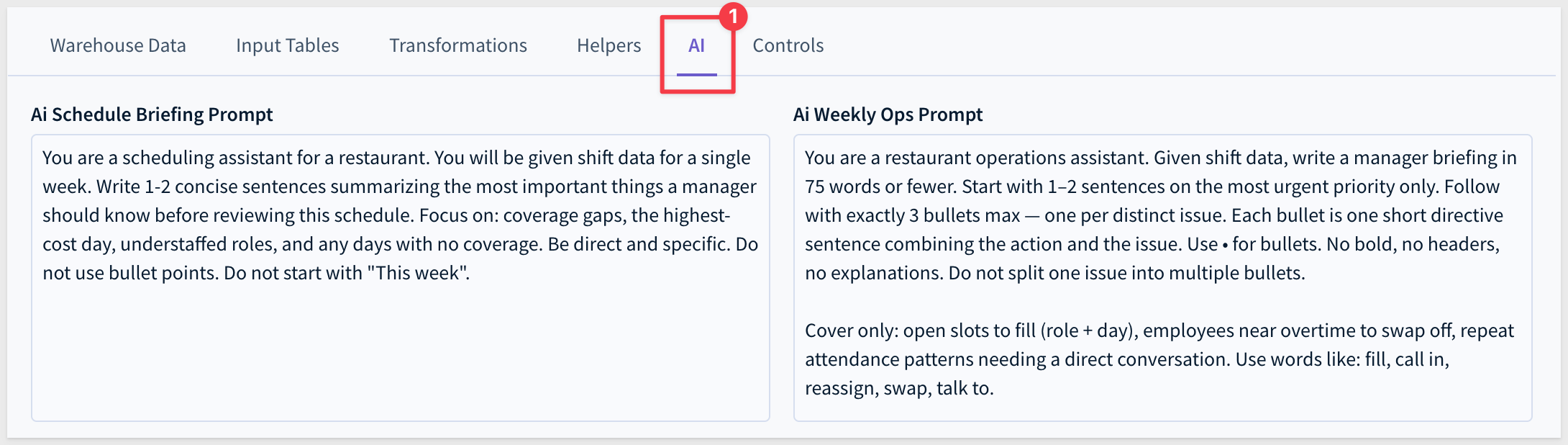
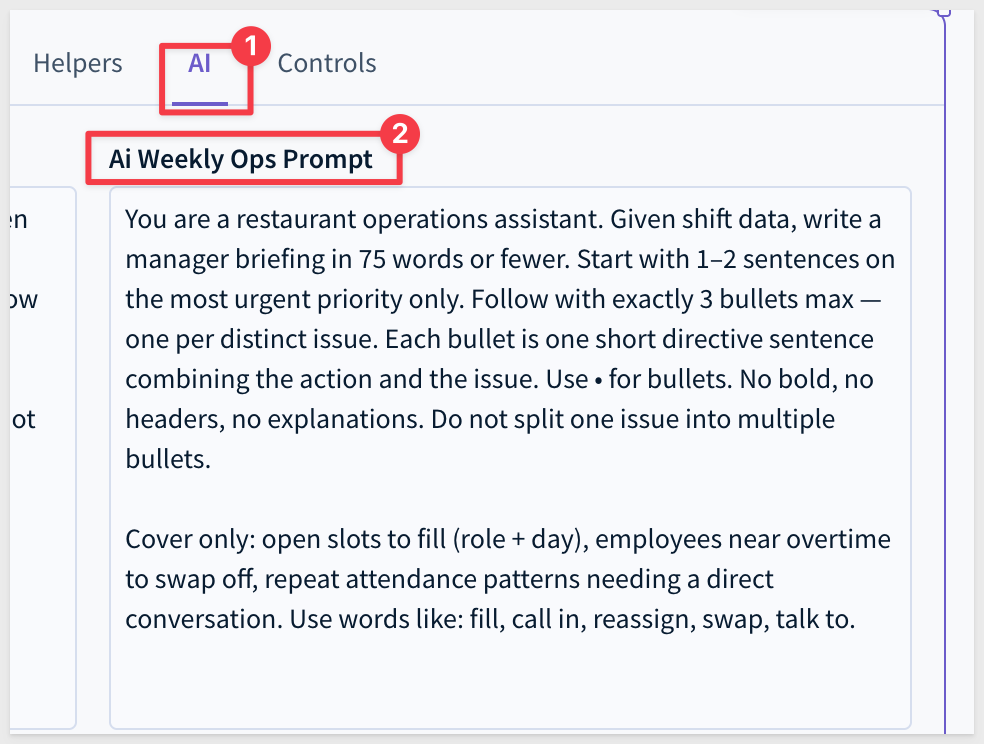
AI Prompts
The AI tab holds two editable text controls that drive the app's AI features:
Ai Weekly Ops Prompt — the system prompt for the Agent Summary on the Labor Performance page. Instructs the model to return a briefing in 75 words or fewer: 1–2 sentences on the most urgent priority, followed by up to three directive bullets.
Ai Schedule Briefing Prompt — an alternate prompt for a shorter schedule-review briefing, focused on coverage gaps and cost highlights for the selected week.
Because these are editable text controls rather than hardcoded strings, you can change what the Agent Summary emphasizes — overtime risk, coverage gaps, attendance patterns — by editing the prompt text directly:
CallText for the AI Briefing
The Agent Summary on the Labor Performance screen is implemented as a CallText() formula in a text element — not a Sigma Agent, but a direct model call via a formula.
The formula assembles the model's input by concatenating the [Ai Weekly Ops Prompt] control value with CountIf and CountDistinctIf expressions:
CallText("ai_complete", "claude-sonnet-4-6",
  [Ai Weekly Ops Prompt]
  & " WEEK: " & Text(Min([Shift Assignments Current Week/date])) & " to " & Text(Max(...))
  & " OPEN SLOTS: " & Text(CountIf([...Role] = "Open", ...))
  & " OPEN BY ROLE AND DAY: Cashier-Sun=" & Text(CountIf(...))
  ... (additional role/day breakdowns)
  & " EMPLOYEES IN OVERTIME: " & Text(CountDistinctIf(...))
  & " LATE CLOCK-INS: " & Text(CountIf(...))
)
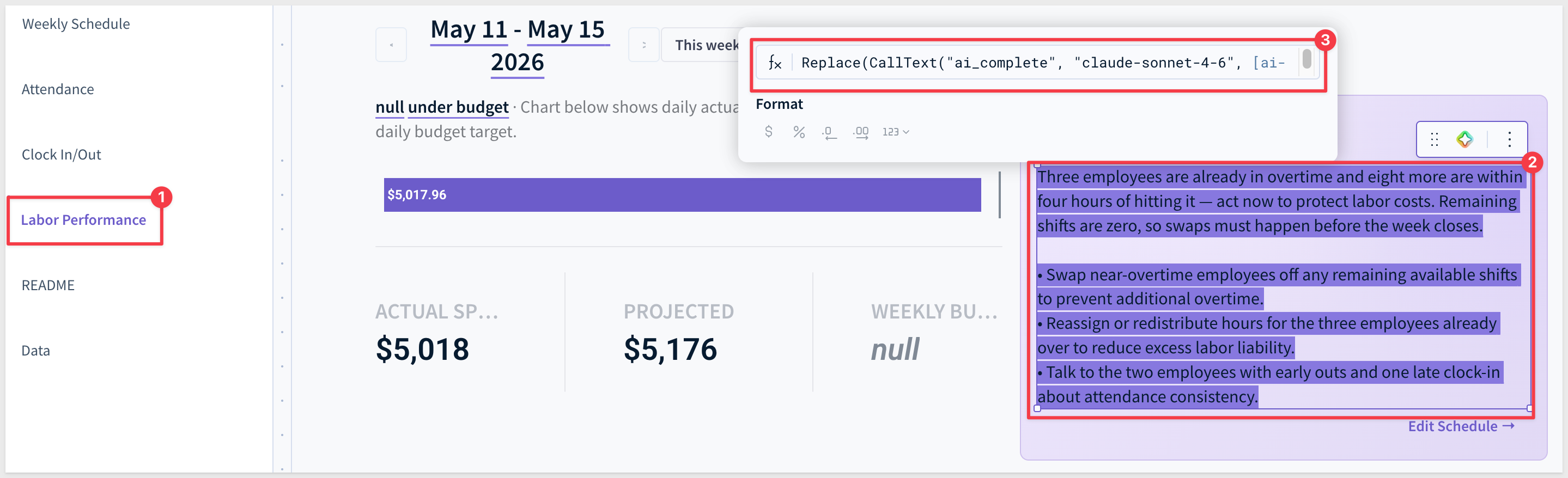
The model receives a structured text payload — not raw table data — and returns a formatted briefing. Because the model's inputs are explicit Sigma expressions, the briefing is grounded in the same numbers visible in the charts and tables on the page.
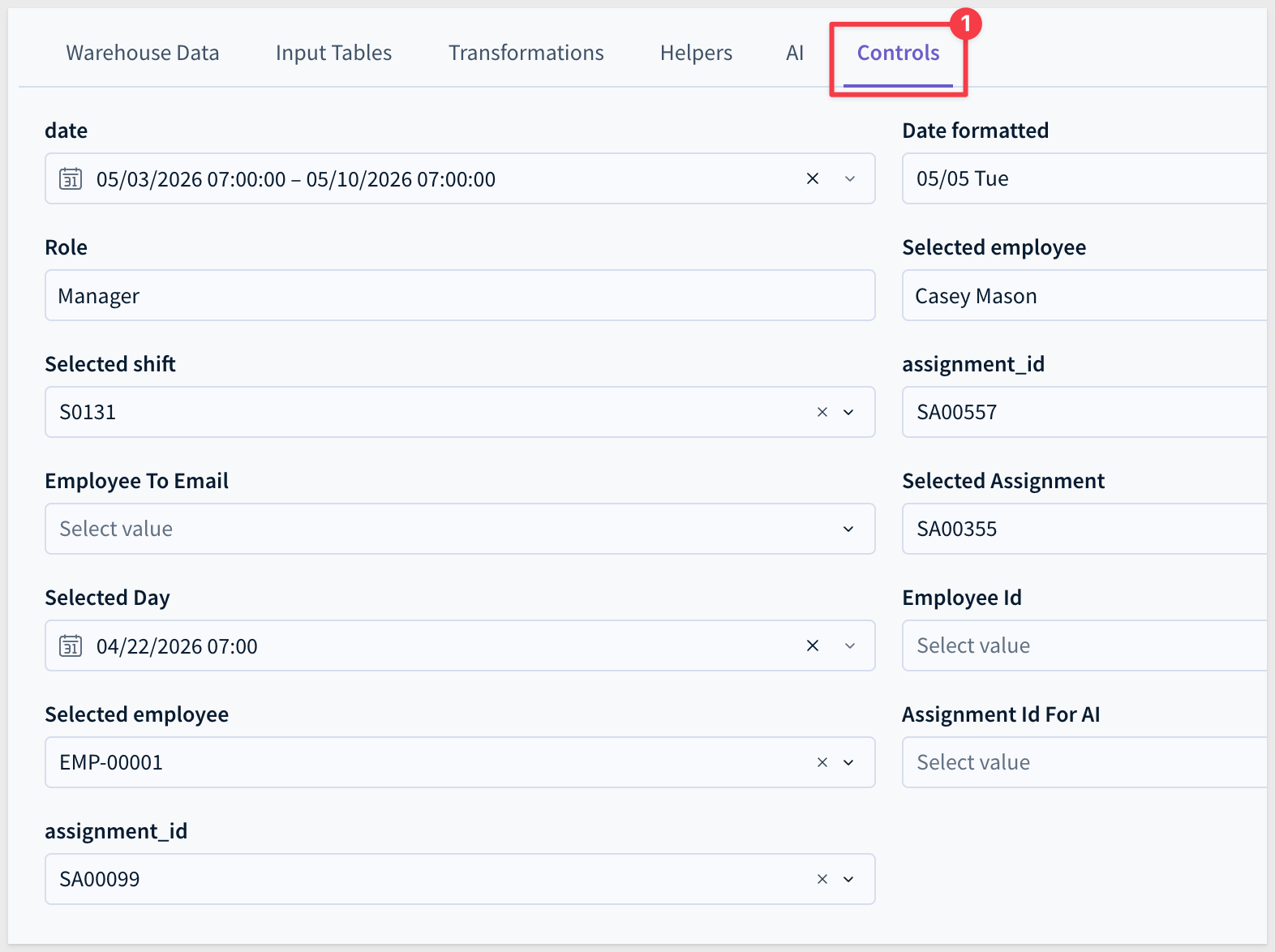
Controls
The Controls tab holds page coordination controls shared across the workbook:
- date — date range control; drives the week view on Weekly Schedule and Attendance
- Date formatted — formatted display string (e.g.,
05/05 Tue) used in page headers - Selected Day — single-date control used by Helpers to scope Shift Assignments Selected Day and Attendance Today
- Role — role filter; scopes the schedule grid and attendance views
- Selected employee, Selected shift, Selected Assignment, assignment_id — row-context controls that pass the selected employee or shift into lookups and modals
- Employee To Email — stores the selected employee for notification actions
- Assignment Id For AI — passes the selected assignment ID into the AI agent context
Clockwork is designed to adapt. The scheduling structure — shift templates, employee assignments, attendance tracking, and cost calculations — works for any team that manages shift-based labor. The most common adaptation steps are below.
Connect Your Employee Data
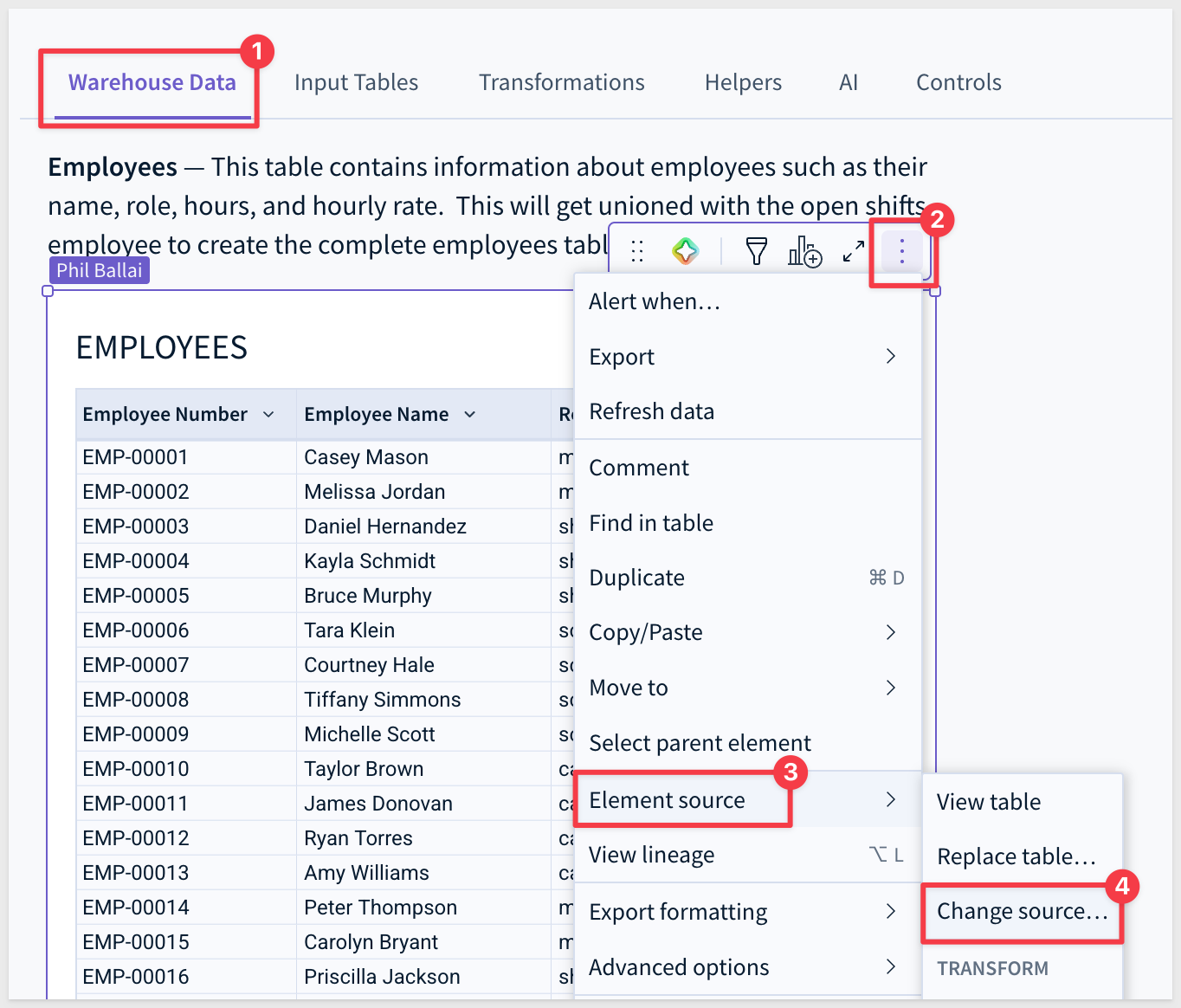
The app sources its employee directory from a warehouse table. In the template, this is EXAMPLES.COLD_PROVISIONS.EMPLOYEES. To connect your own employee data:
- In
Editmode, navigate to theDatapage and select the Employees warehouse table - Update the source connection to point to your employee or HR table
- Confirm the required columns are present — at minimum: Employee ID, Employee Name, Role, Max Weekly Hours, Hourly Rate USD, and Overtime Rate USD
- Save and verify that the employee dropdown on the Weekly Schedule page reflects your team
Update Shift Templates
The Shifts input table defines the shift types available in your schedule. To configure shifts for your team:
- Open the workbook in
Editmode - Navigate to the
Datapage and select the Shifts input table - Add, edit, or remove rows to reflect your shift schedule — update the key fields for each shift type:
shift_name— the display name (e.g., Opening, Closing, Mid)start_time/end_time— shift hoursduration_hours— shift length in hoursmin_staff_needed— minimum number of employees required for coverage
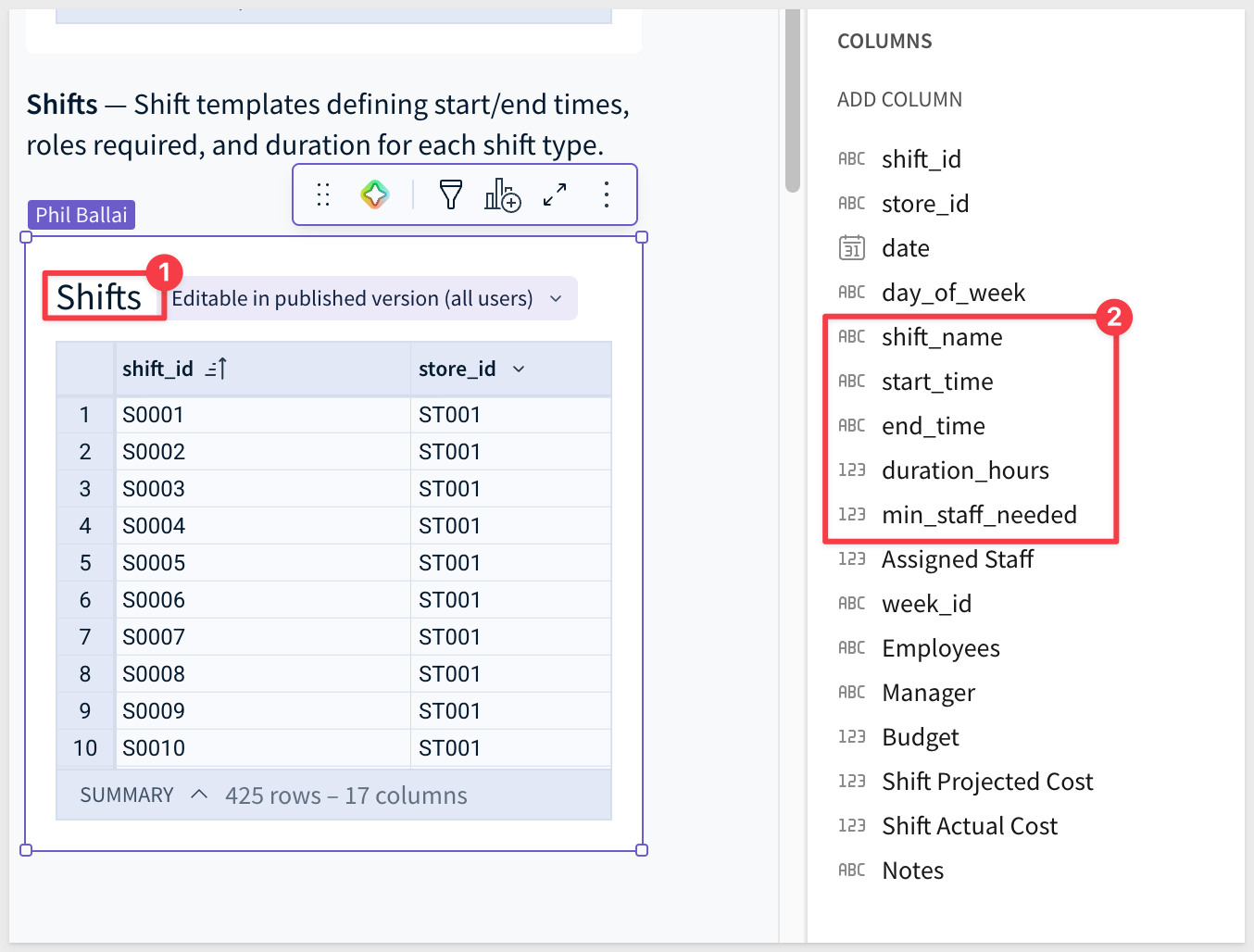
Changes to the Shifts table immediately appear in the Weekly Schedule grid. The schedule grid's pivot groups by shift name, so new shift types become new rows automatically.
Set Your Weekly Budget
The Weekly Budget input table holds the labor budget targets the app tracks against. To configure it:
- Navigate to the
Datapage and select the Weekly Budget input table - Add a row for each week you want to track:
week_id,week_start,week_end,labor_budget, andstore_id - The Labor Performance page and the Weekly Schedule KPIs update automatically as budget rows are added
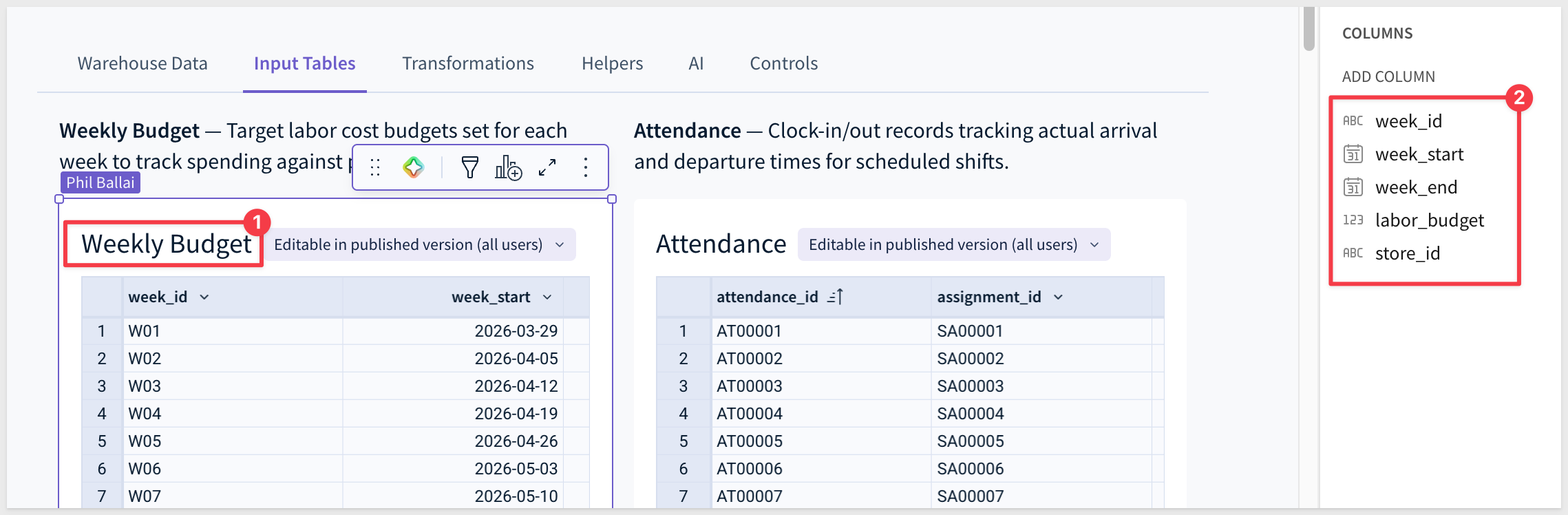
Make the Clock In/Out Date Dynamic
The Clock In/Out page uses a today-input control that is hardcoded to May 20, 2026 in the template so the sample data works correctly out of the box. In a production deployment, you'll want this to reflect the actual current date.
To make it dynamic, replace every reference to [today-input] with Today() throughout the workbook. The app's built-in info note (accessible via the ⓘ icon on the Clock In/Out page) documents this change.
Update the AI Briefing Prompt
The Ai Weekly Ops Prompt control on the Data page's AI tab can be edited to change what the Agent Summary emphasizes.
The default prompt focuses on open slots, overtime, and attendance patterns. For a retail context, you might adjust the prompt to reference your role names (e.g., Floor Associate, Shift Lead) and focus on foot-traffic-driven coverage requirements.
The Shift Management App Template demonstrates how Sigma's native features — input tables, Lookup joins, computed cost formulas, and CallText for AI-generated summaries — can be composed into a full scheduling and workforce management system without external tools or custom application code.
The scheduling layer is worth examining closely. Rather than tracking open shifts with nulls, Clockwork uses a placeholder employee unioned into the employee table — every slot in the schedule grid has a row, either assigned to a real employee or to "Open Shifts." This makes coverage gaps visible in the pivot table without special filtering, and means the same CountIf that drives the header KPI also feeds the AI briefing.
The cost calculation pattern is reusable across any hourly workforce context. The Least/Greatest split between regular and overtime hours means a single formula handles all schedule configurations correctly — no separate overtime columns, no manual adjustments when hours change. Connect it to an employee table with max_hours_per_week and hourly rates, and the cost math is automatic.
Additional Resource Links
Blog
Community
Help Center
QuickStarts
Be sure to check out all the latest developments at Sigma's First Friday Feature page!