Sigma Tenants allows organizations to create and manage multiple isolated Sigma environments (called "tenants") within a single parent organization. This powerful feature solves two opposing challenges that organizations face when managing analytics at scale:
Administration Challenge: Share documents across multiple customers or business units without creating duplicate workbooks or manually sharing each document individually.
Collaboration Challenge: Enable secure collaboration and sharing within each customer or business unit without exposing sensitive data to other groups.
Why Sigma Tenants?
Sigma Tenants enables you to organize and isolate workbooks, data, users, and permissions—all within one platform. This approach is ideal when you need to:
- Segregate environments, deployments, or data access (e.g., dev/test/prod, regional teams, external customers)
- Provide delegated administration where each business unit or customer needs self-service admin capabilities without full Sigma root access
- Maintain fully isolated data and environments to meet security, compliance, or contractual requirements
- Release different versions of Sigma assets to different customers or business units
- Support multi-region deployments for GDPR or other data residency requirements
Four Core Use Cases
Sigma Tenants enables four distinct organizational patterns:
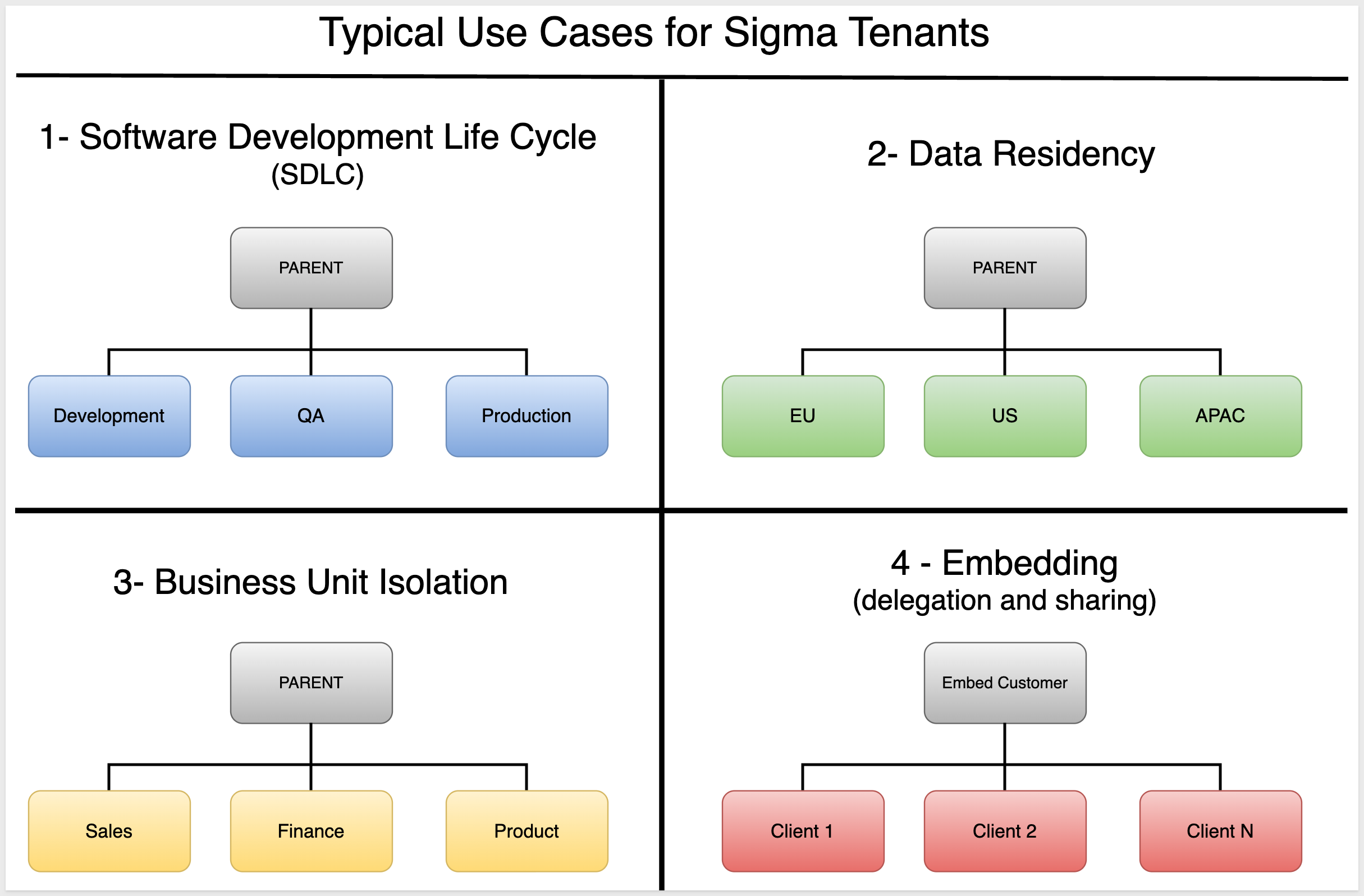
1. SDLC (Software Development Lifecycle) Separate development, QA, and production environments while maintaining the same content structure. Deploy tested workbooks from Dev → QA → Prod seamlessly.
2. Data Residency Comply with regional data regulations by creating tenants for different geographic regions (EU, US, APAC). Each tenant connects to region-specific data warehouses.
3. Business Unit Isolation ← Focus of this QuickStart Organize regional sales teams (Sales-East, Sales-West) or departments (Finance, Marketing, Product) as separate tenants with their own data connections and users, while sharing standardized reports from a central team.
4. Embed (Delegation & Sharing) Provide each customer of your embedded analytics with their own isolated Sigma environment, sharing the same workbooks but connected to their own data.
How It Works
Parent Organization: The Sigma organization that provisions and manages all tenant organizations. It serves as the administrative hub where you control settings, users, and access for all tenants.
Tenant Organizations: Child Sigma organizations provisioned by the parent. Each tenant has:
- Isolated data, assets, and users
- Delegated administration (local admins manage tenant-level permissions)
- Its own configuration (email domains, Slack/Teams integrations, etc.)
Deployments: Share Sigma assets from the parent organization to selected tenants. When you share content with a tenant, it automatically appears in a workspace within that tenant, available to all members based on the permissions you specify.
Connection Swap Policies: Automatically route each tenant to their appropriate data connection. When a workbook is deployed, the connection swaps from the parent's template connection to each tenant's specific data source.
User Attributes: Map each tenant to their specific connection ID, enabling dynamic connection swapping at deployment time.
This QuickStart demonstrates Business Unit Isolation using a regional sales scenario, showing how to create tenants for Sales-East and Sales-West teams, configure their data connections with warehouse-level security, and deploy shared dashboards.
For more information on Sigma's product release strategy, see Sigma product releases
If something doesn't work as expected, here's how to contact Sigma support
Target Audience
Product Managers and semi-technical users who will be aiding in the planning or implementation of Sigma with embedding. No SQL or technical data skills are needed to complete this QuickStart.
Prerequisites
- Any modern browser is acceptable.
- Access to your Sigma environment.
- Some familiarity with Sigma is assumed. Not all steps will be shown, as the basics are assumed to be understood.
- Access to your Snowflake Environment with access to the ACCOUNTADMIN role.

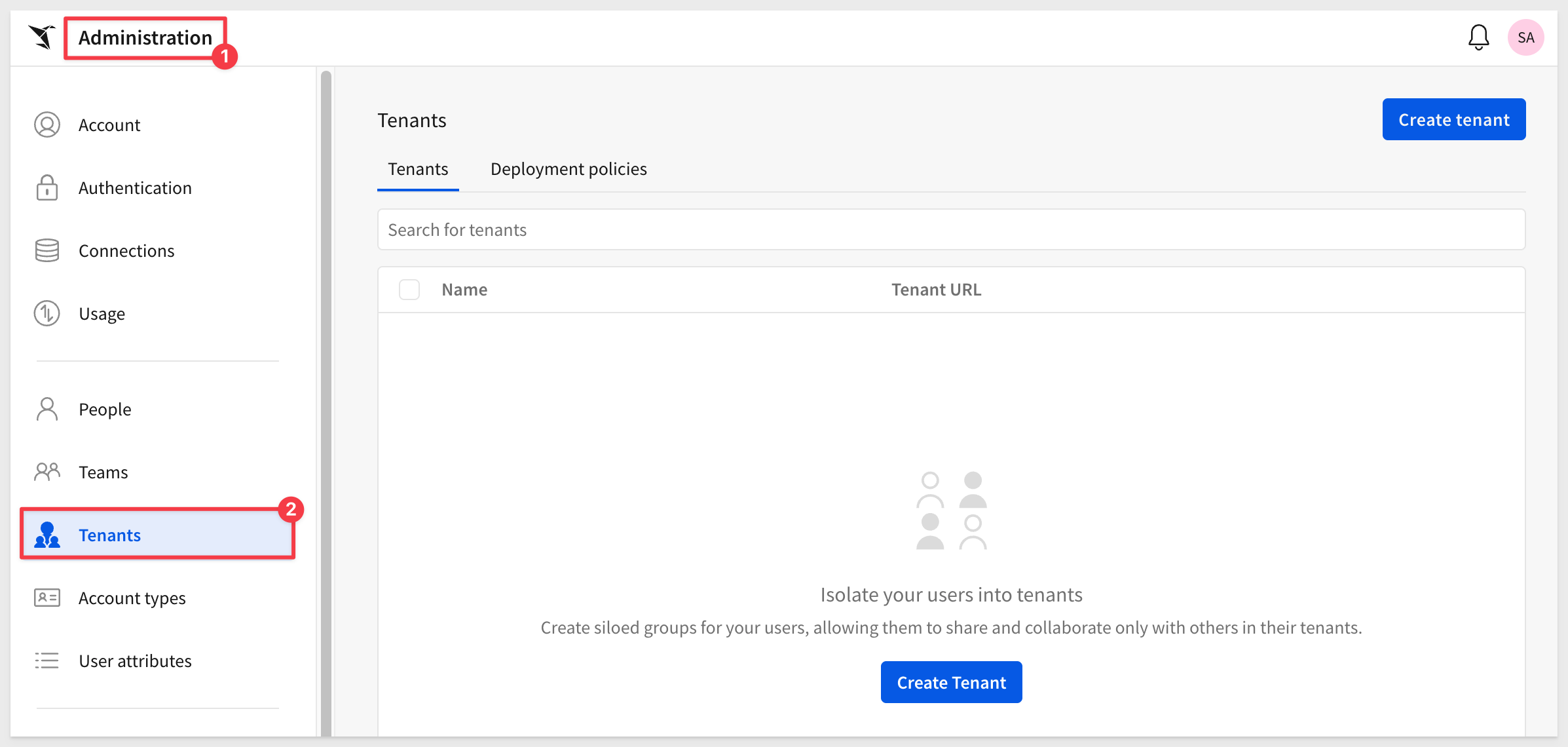
Once enabled by Sigma, the Tenants option will appear in the left sidebar.
Log into Sigma as an administrator and go to Administration > Tenants:
Add a tenant
In this QuickStart, we'll demonstrate regional sales team isolation by creating separate tenants for Sales-East and Sales-West. Each regional sales team will have its own isolated Sigma environment with data filtered to show only their territory.
On the Tenants page, click Create Tenant.
The URL shown will match your Sigma instance and we append a tenant name to the end.
Name the new tenant Sales-East:
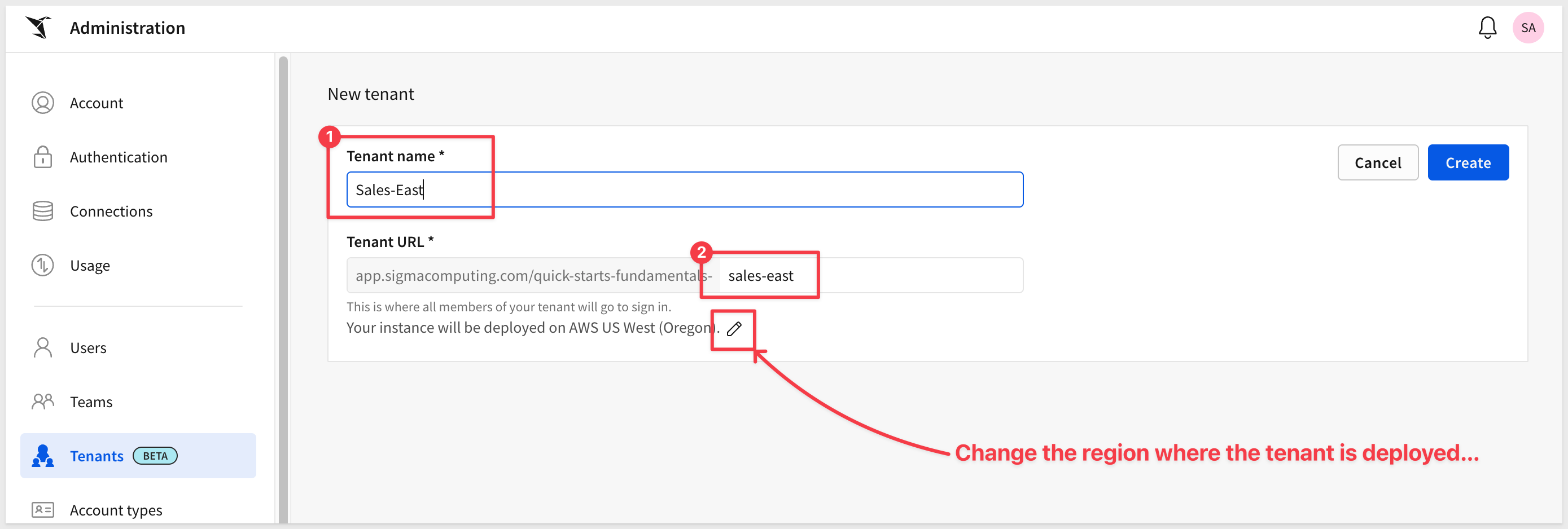
Click Create:
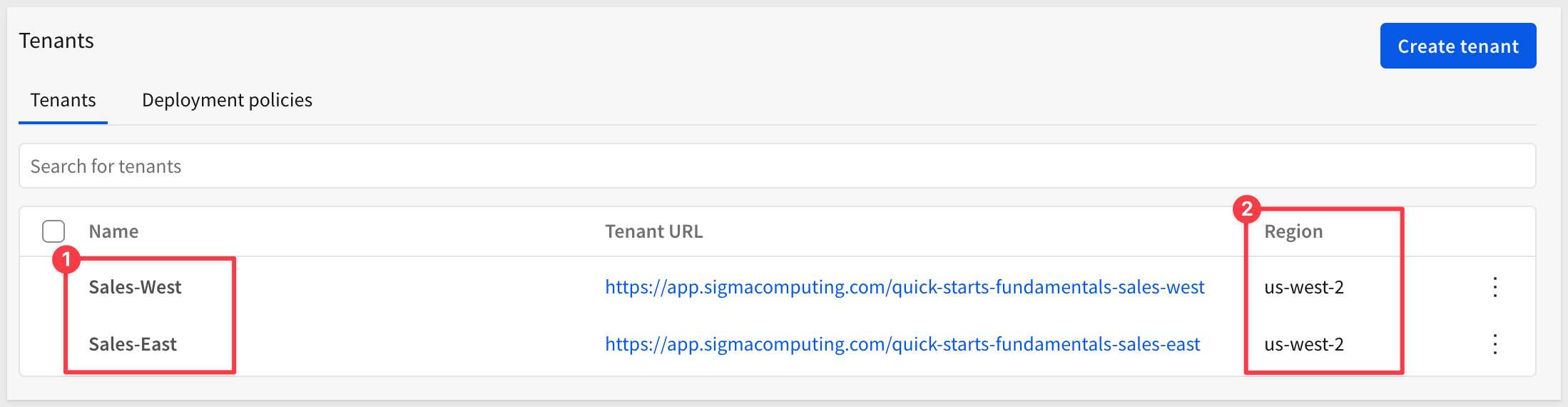
Repeat the process for Sales-West.
We now have two regional sales tenants, both deployed in the AWS region us-west-2:
Configure tenants
With each tenant created, we need an easy way to configure them. Sigma provides the ability for parent administrators to impersonate a tenant administrator, allowing you to set up the tenant environment without creating separate login credentials.
Open the 3-dot menu for Sales-East and select Open tenant as admin:
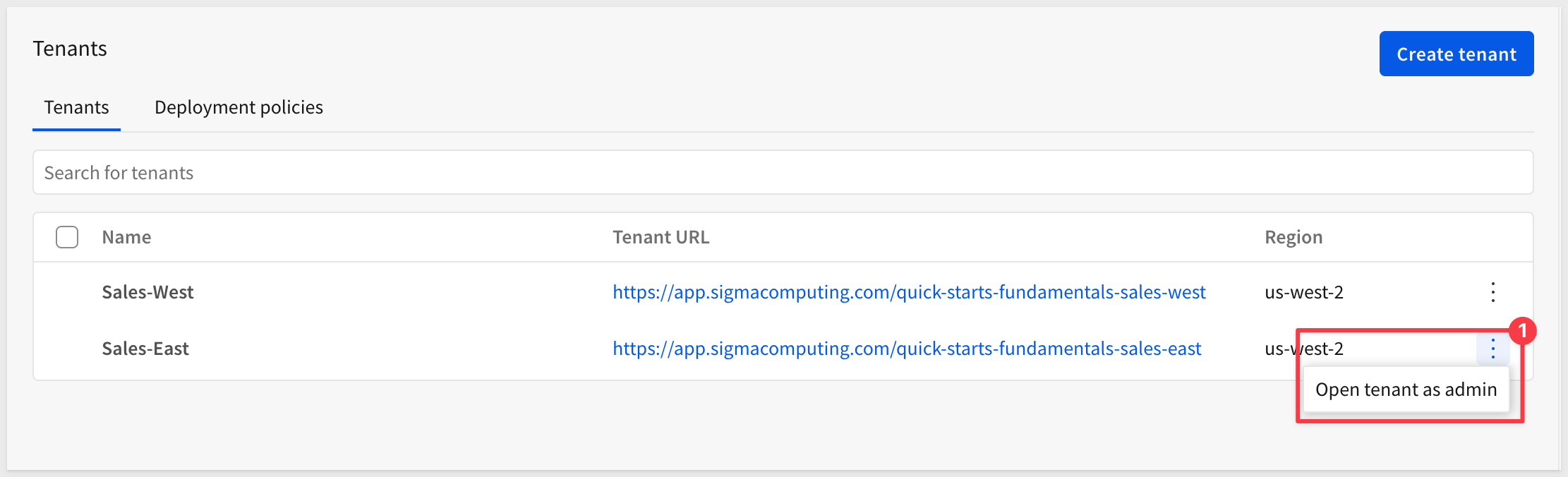
We are placed onto the Sigma landing page for Sales-East as if we had logged in the first time as administrator.
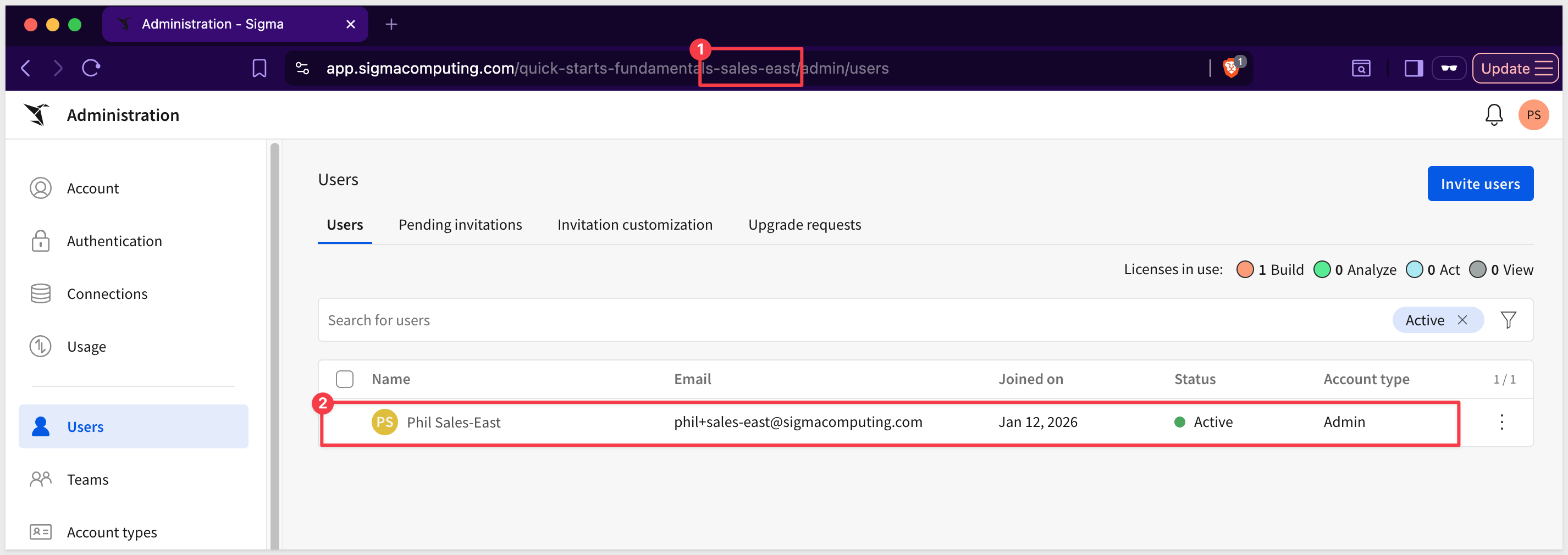
Note that the tenant name sales-east is appended to the URL:
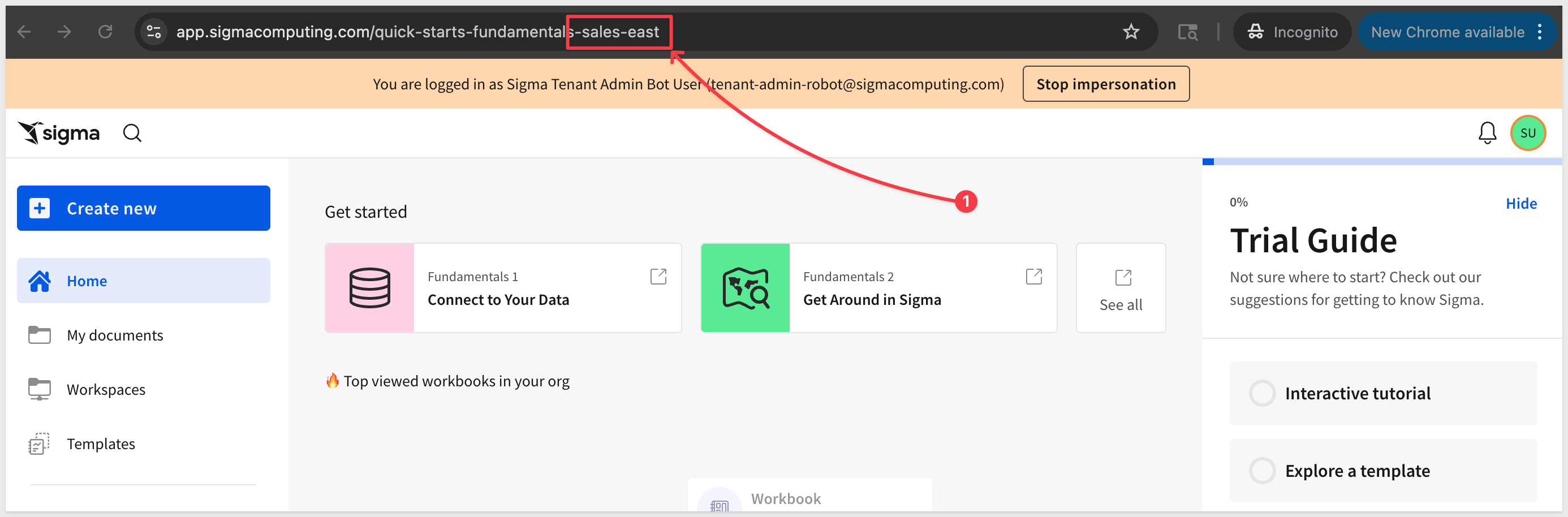
This is a completely isolated environment. Content, users, and connections created here are available only to the Sales-East tenant and not to Sales-West or any other tenant.
In a regional sales model, you may want to delegate administrative tasks to regional sales managers. For example, the East Regional Manager might manage users and content within the Sales-East tenant, while the West Regional Manager manages their own environment.
Since we are already impersonating Sales-East, we can add a tenant administrator in the same way a parent Sigma admin would.
New tenants do not have any users (including administrators) after they are created:
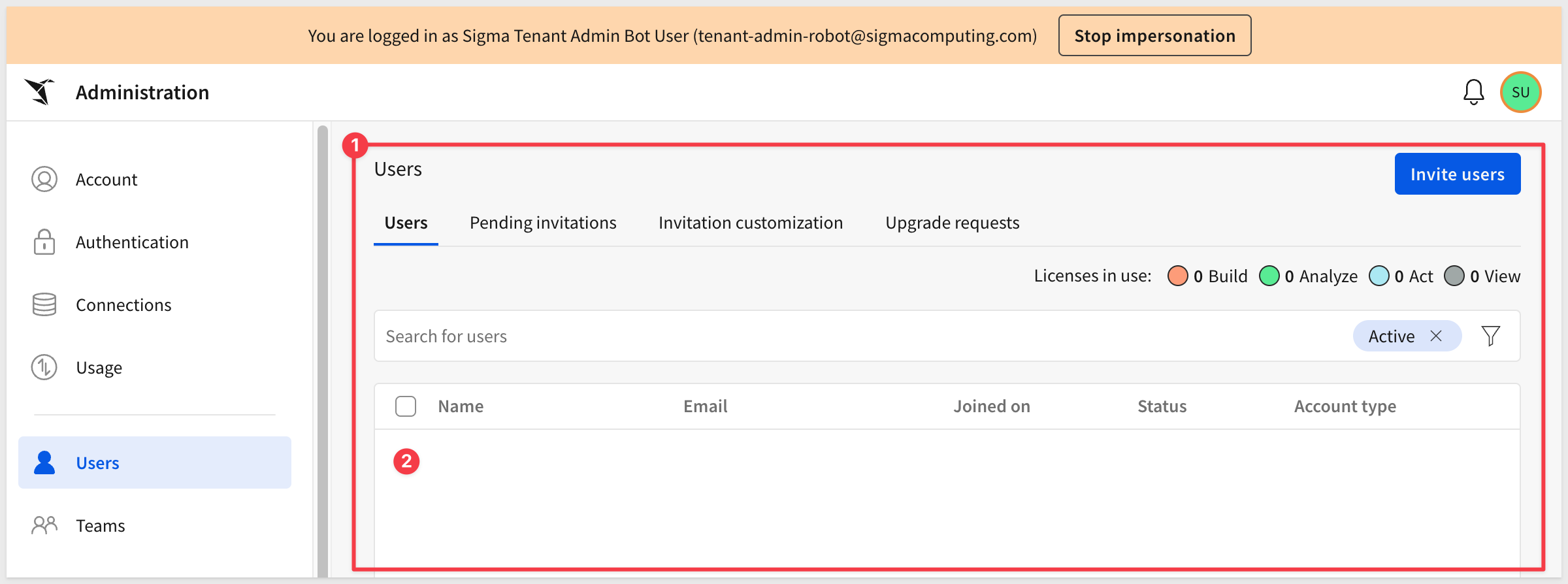
Inviting a Tenant Admin (optional)
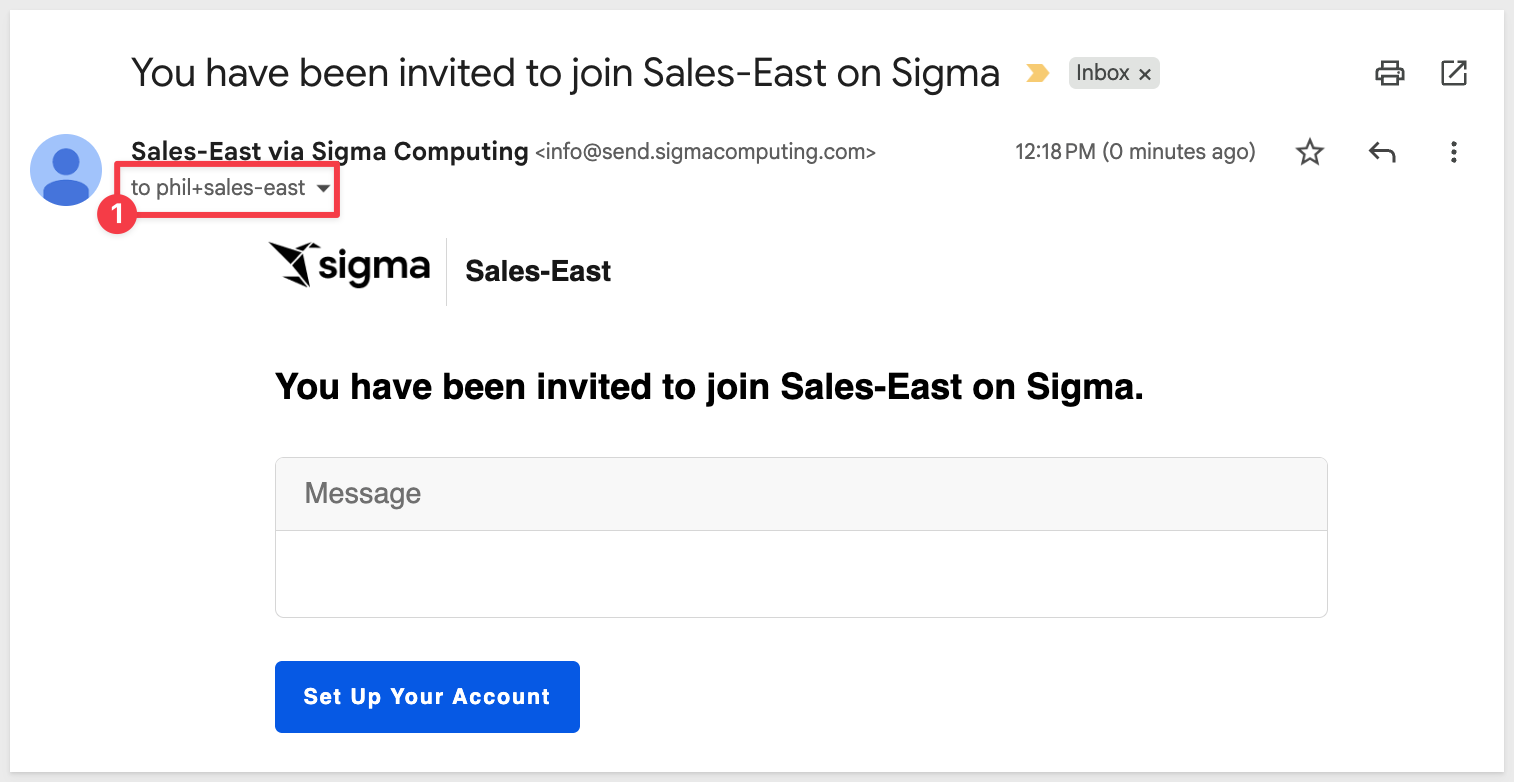
If we want, we can add an admin using the normal process of invitation, using an email alias so we don't need to create new email accounts.
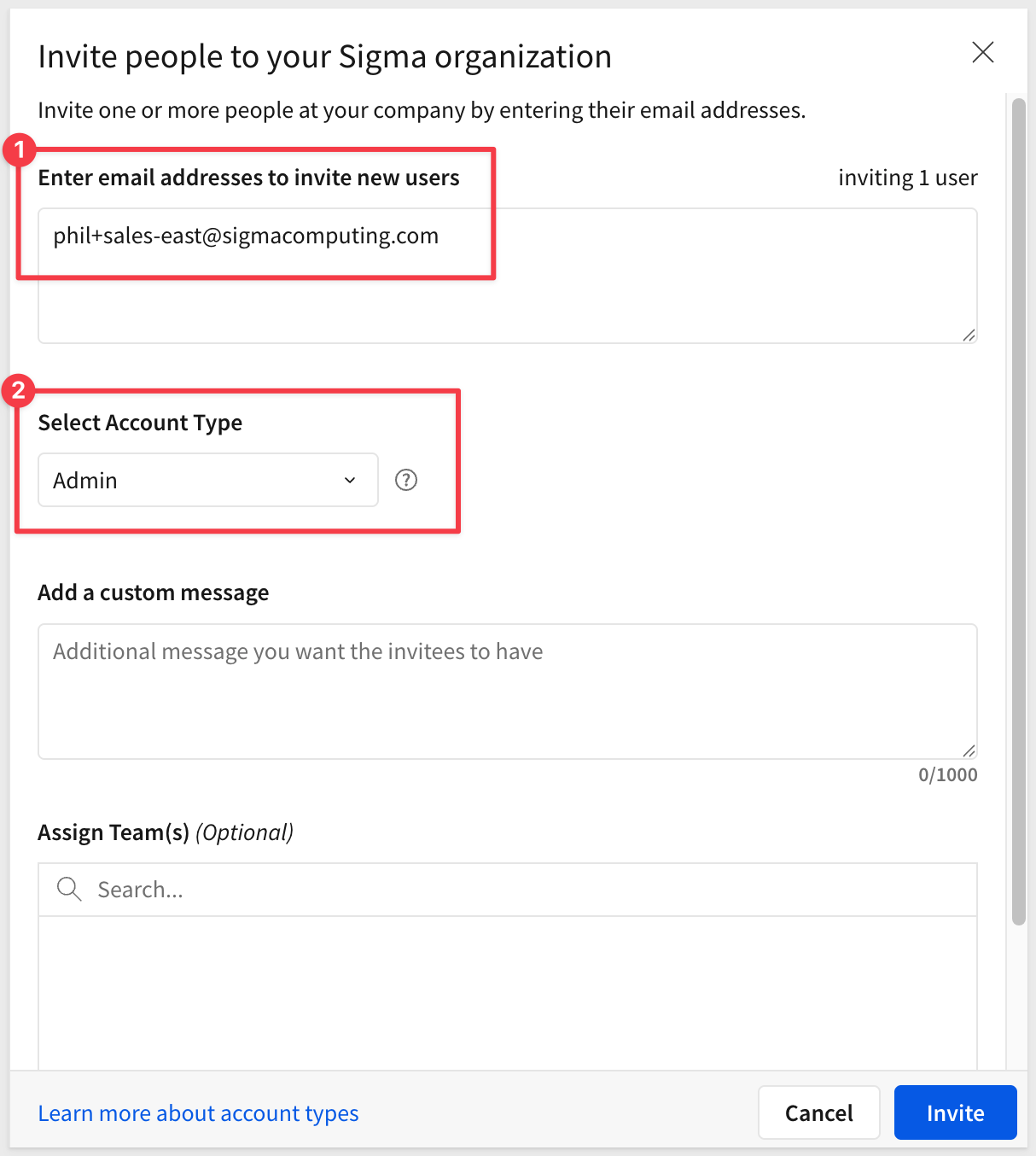
The tenant admin will receive the standard email invitation prompting them to set up their account:
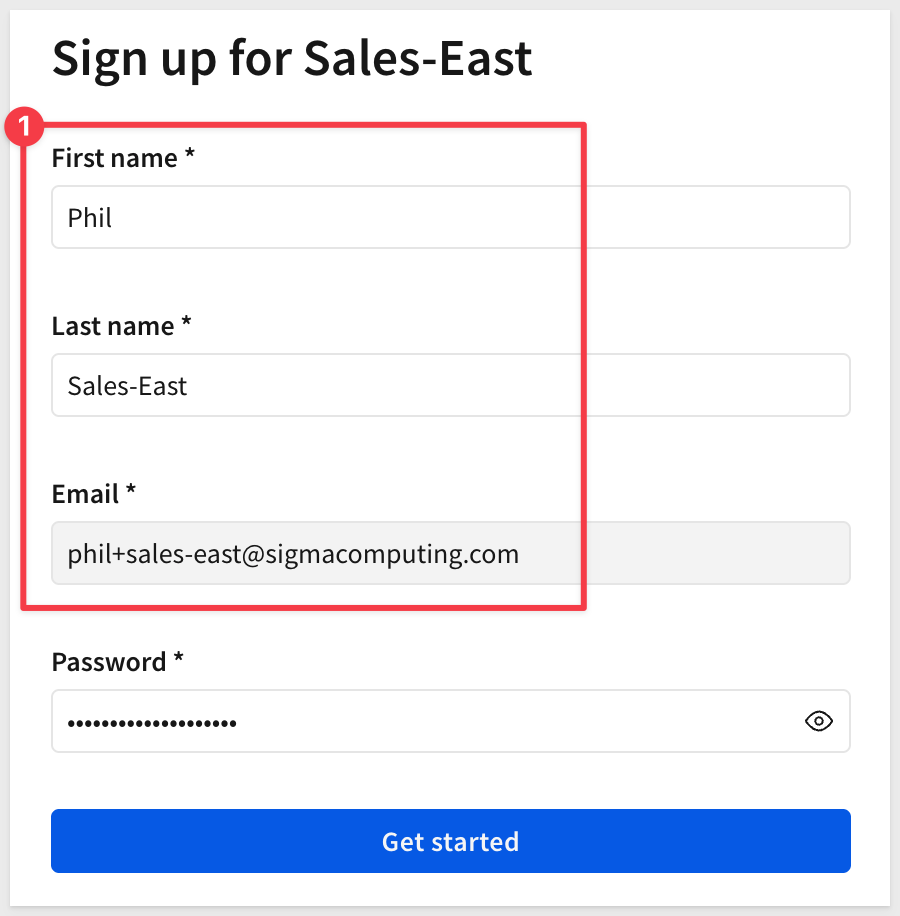
After opening the invitation and completing the new account (in a private browser so we can be logged into two Sigma sessions):
...we only see our one user:
Click Stop impersonation to return to the parent Sigma instance. We can see the new admin user listed under their tenant:
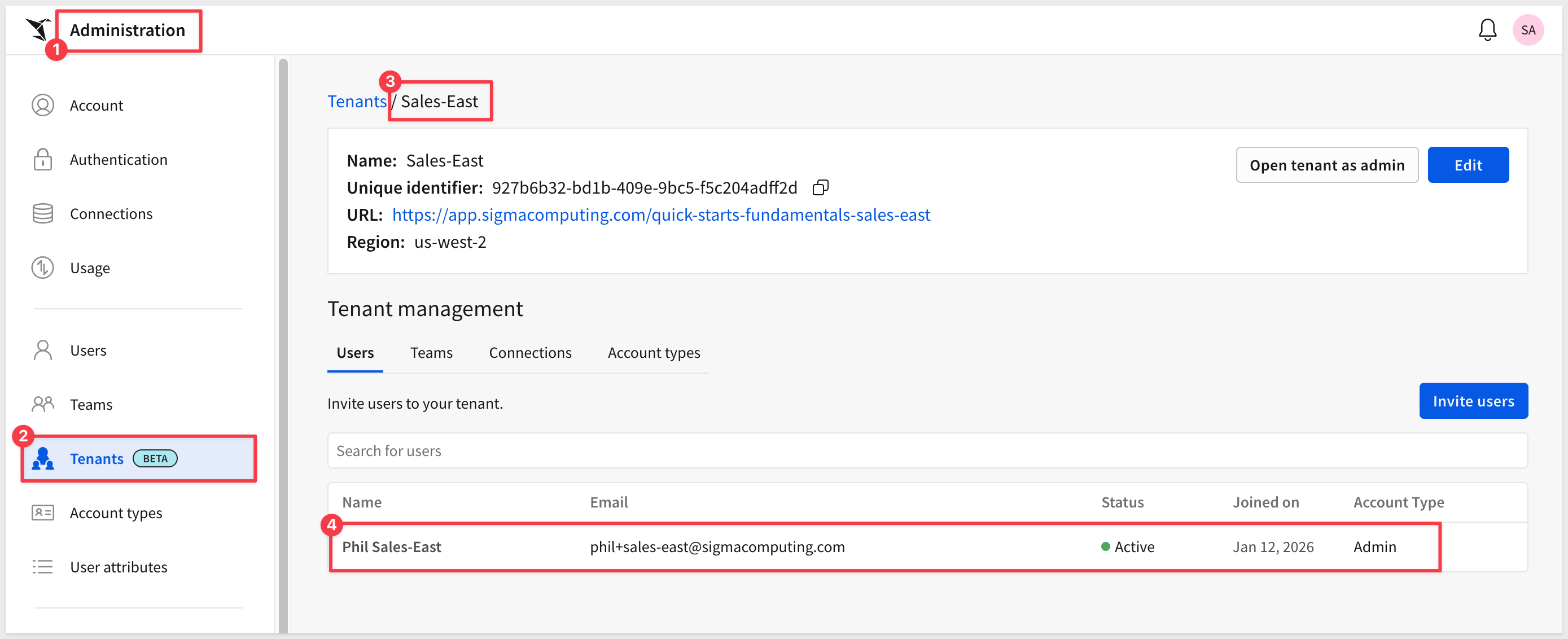
This allows the parent administrator to have visibility into tenant users and provide support if required. Details on user counts, teams, connections and account types are available for the selected tenant.
For more information, see the QuickStart: Embedding 06: Creating a Premium Service
This is also where we can Open tenant as admin (upper right corner) anytime the need to impersonate for a specific tenant.
To demonstrate regional sales isolation, we'll load sample store sales data for each region into separate Snowflake databases. Each tenant will connect to their own database, ensuring they only see data for their territory.
For more information, see: Example configurations
We'll create two databases with identical schemas but different data:
- SALES_EAST Database: Contains only East region store sales data
- SALES_WEST Database: Contains only West region store sales data
The data is stored in CSV files on S3 and includes columns for tenant identification and store region. Each tenant will connect to their regional database, enforcing data governance at the warehouse level.
Log into Snowflake as ACCOUNTADMIN.
Open a new SQL worksheet, copy and paste the following code and click Run All to create the Sales-East database and load data.
This script performs the following operations:
- Creates the
SALES_EASTdatabase and schema - Defines the
STORE_SALEStable structure with columns matching the CSV format - Creates a Snowflake stage pointing to the Sales-East CSV file on S3
- Loads data from the CSV into the table
- Creates a dedicated role (
SALES_EAST_ROLE) and user (SALES_EAST) with appropriate permissions - Grants access to
ACCOUNTADMINrole (or your service account role) for parent org workbook development - Tests the data to verify only East region records were loaded
// SALES-EAST REGIONAL DATABASE
// ----------------------------------------------------------------------------------------------------------
// SECTION 1: DATA CONFIGURATION
// ----------------------------------------------------------------------------------------------------------

USE ROLE ACCOUNTADMIN;
USE WAREHOUSE COMPUTE_WH;

// 1: CREATE DATABASE AND SCHEMA
CREATE OR REPLACE DATABASE SALES_EAST;
USE DATABASE SALES_EAST;

// 2: CREATE SCHEMA
CREATE SCHEMA IF NOT EXISTS SALES_EAST_SCHEMA;

// 3: CREATE TABLE SCHEMA
CREATE OR REPLACE TABLE SALES_EAST_SCHEMA.STORE_SALES (
    TENANT_NAME VARCHAR,
    "Store Region" VARCHAR,
    "Order Number" VARCHAR,
    "Date" TIMESTAMP,
    "Sku Number" VARCHAR,
    "Quantity" INT,
    "Cost" FLOAT,
    "Price" FLOAT,
    COGS FLOAT,
    "Sales" FLOAT,
    "Profit" FLOAT,
    "Profit _Margin" FLOAT,
    "Product Type" VARCHAR,
    "Product Family" VARCHAR,
    "Product Line" VARCHAR,
    "Brand" VARCHAR,
    "Product Name" VARCHAR,
    "Store Name" VARCHAR,
    "Store Key" VARCHAR,
    "Store State" VARCHAR,
    "Store City" VARCHAR,
    "Store Zip Code" VARCHAR,
    "Store Latitude" FLOAT,
    "Store Longitude" FLOAT,
    "Cust Key" INT,
    "Customer Name" VARCHAR,
    "Day" VARCHAR,
    "Week" VARCHAR,
    "Month" VARCHAR,
    "Quarter" VARCHAR,
    "Year" VARCHAR
);

// 4: CREATE STAGE FOR CSV FILE
CREATE STAGE IF NOT EXISTS SALES_EAST_STAGE
  URL='s3://sigma-quickstarts-main/embedding_2/Sales_East.csv';

// 5: CREATE CSV FILE FORMAT
CREATE OR REPLACE FILE FORMAT my_csv_format
  TYPE = 'CSV'
  FIELD_DELIMITER = ','
  SKIP_HEADER = 1
  FIELD_OPTIONALLY_ENCLOSED_BY = '"'
  ESCAPE_UNENCLOSED_FIELD = 'NONE'
  NULL_IF = ('NULL', 'null');

// 6: LOAD DATA FROM CSV
COPY INTO SALES_EAST_SCHEMA.STORE_SALES
  FROM @SALES_EAST_STAGE
  FILE_FORMAT = my_csv_format;

// 7: VERIFY DATA LOADED
SELECT * FROM SALES_EAST_SCHEMA.STORE_SALES LIMIT 10;

// ----------------------------------------------------------------------------------------------------------
// SECTION 2: ROLE AND USER CONFIGURATION
// ----------------------------------------------------------------------------------------------------------

// 1: CREATE ROLE
CREATE OR REPLACE ROLE SALES_EAST_ROLE;

// 2: CREATE USER
CREATE USER IF NOT EXISTS SALES_EAST PASSWORD = 'SALES_EAST';

// 3: GRANT ROLE TO USER
GRANT ROLE SALES_EAST_ROLE TO USER SALES_EAST;

// 4: GRANT WAREHOUSE USAGE
GRANT USAGE ON WAREHOUSE COMPUTE_WH TO ROLE SALES_EAST_ROLE;

// 5: GRANT DATABASE USAGE
GRANT USAGE ON DATABASE SALES_EAST TO ROLE SALES_EAST_ROLE;

// 6: GRANT SCHEMA USAGE
GRANT USAGE ON SCHEMA SALES_EAST_SCHEMA TO ROLE SALES_EAST_ROLE;

// 7: GRANT TABLE SELECT
GRANT SELECT ON ALL TABLES IN SCHEMA SALES_EAST_SCHEMA TO ROLE SALES_EAST_ROLE;

// 8: GRANT ACCESS FOR PARENT ORG WORKBOOK DEVELOPMENT
// This allows the parent org connection to access this tenant database for building workbooks
// For Snowflake trials: Use ACCOUNTADMIN
GRANT USAGE ON DATABASE SALES_EAST TO ROLE ACCOUNTADMIN;
GRANT USAGE ON SCHEMA SALES_EAST.SALES_EAST_SCHEMA TO ROLE ACCOUNTADMIN;
GRANT SELECT ON ALL TABLES IN SCHEMA SALES_EAST.SALES_EAST_SCHEMA TO ROLE ACCOUNTADMIN;

// For Production: Replace ACCOUNTADMIN with your service account role
// Example: GRANT USAGE ON DATABASE SALES_EAST TO ROLE SIGMA_SERVICE_ROLE;
// Example: GRANT USAGE ON SCHEMA SALES_EAST.SALES_EAST_SCHEMA TO ROLE SIGMA_SERVICE_ROLE;
// Example: GRANT SELECT ON ALL TABLES IN SCHEMA SALES_EAST.SALES_EAST_SCHEMA TO ROLE SIGMA_SERVICE_ROLE;

// ----------------------------------------------------------------------------------------------------------
// SECTION 3: TESTING
// ----------------------------------------------------------------------------------------------------------

// Verify East region data only:
SELECT TENANT_NAME, "Store Region", COUNT(*) AS ROW_COUNT
FROM SALES_EAST.SALES_EAST_SCHEMA.STORE_SALES
GROUP BY TENANT_NAME, "Store Region";
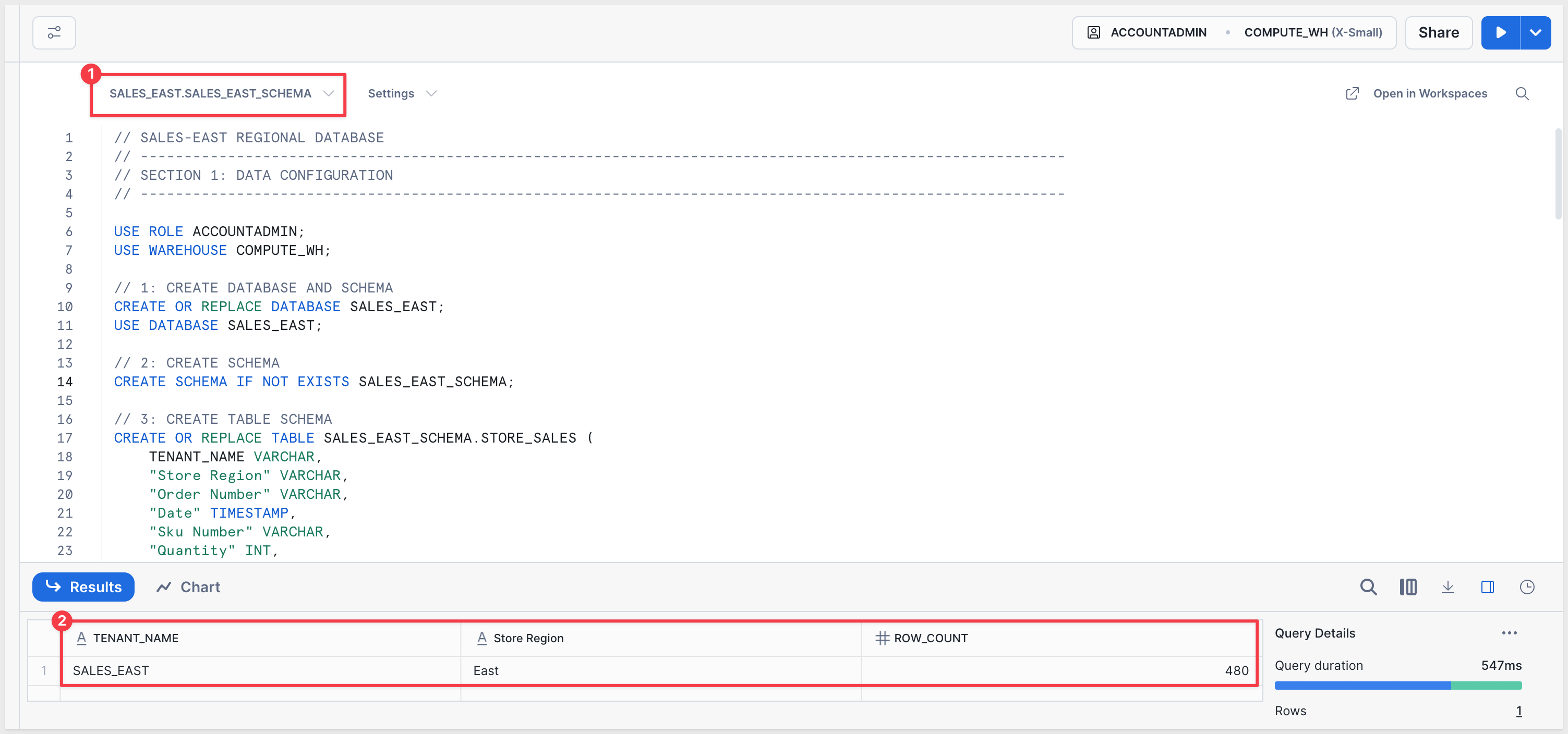
When done, the results should show Sales-East tenant with East region store data:
Now repeat using this script for the Sales-West region.
This script mirrors the Sales-East setup but for the West region:
- Creates the
SALES_WESTdatabase and schema - Defines an identical table structure
- Loads data from the Sales-West CSV file on S3
- Creates the
SALES_WEST_ROLEandSALES_WESTuser - Grants access to
ACCOUNTADMINrole (or your service account role) for parent org workbook development - Tests to verify only West region records were loaded
// SALES-WEST REGIONAL DATABASE
// ----------------------------------------------------------------------------------------------------------
// SECTION 1: DATA CONFIGURATION
// ----------------------------------------------------------------------------------------------------------

USE ROLE ACCOUNTADMIN;
USE WAREHOUSE COMPUTE_WH;

// 1: CREATE DATABASE AND SCHEMA
CREATE OR REPLACE DATABASE SALES_WEST;
USE DATABASE SALES_WEST;

// 2: CREATE SCHEMA
CREATE SCHEMA IF NOT EXISTS SALES_WEST_SCHEMA;

// 3: CREATE TABLE SCHEMA
CREATE OR REPLACE TABLE SALES_WEST_SCHEMA.STORE_SALES (
    TENANT_NAME VARCHAR,
    "Store Region" VARCHAR,
    "Order Number" VARCHAR,
    "Date" TIMESTAMP,
    "Sku Number" VARCHAR,
    "Quantity" INT,
    "Cost" FLOAT,
    "Price" FLOAT,
    COGS FLOAT,
    "Sales" FLOAT,
    "Profit" FLOAT,
    "Profit _Margin" FLOAT,
    "Product Type" VARCHAR,
    "Product Family" VARCHAR,
    "Product Line" VARCHAR,
    "Brand" VARCHAR,
    "Product Name" VARCHAR,
    "Store Name" VARCHAR,
    "Store Key" VARCHAR,
    "Store State" VARCHAR,
    "Store City" VARCHAR,
    "Store Zip Code" VARCHAR,
    "Store Latitude" FLOAT,
    "Store Longitude" FLOAT,
    "Cust Key" INT,
    "Customer Name" VARCHAR,
    "Day" VARCHAR,
    "Week" VARCHAR,
    "Month" VARCHAR,
    "Quarter" VARCHAR,
    "Year" VARCHAR
);

// 4: CREATE STAGE FOR CSV FILE
CREATE STAGE IF NOT EXISTS SALES_WEST_STAGE
  URL='s3://sigma-quickstarts-main/embedding_2/Sales_West.csv';

// 5: CREATE CSV FILE FORMAT
CREATE OR REPLACE FILE FORMAT my_csv_format
  TYPE = 'CSV'
  FIELD_DELIMITER = ','
  SKIP_HEADER = 1
  FIELD_OPTIONALLY_ENCLOSED_BY = '"'
  ESCAPE_UNENCLOSED_FIELD = 'NONE'
  NULL_IF = ('NULL', 'null');

// 6: LOAD DATA FROM CSV
COPY INTO SALES_WEST_SCHEMA.STORE_SALES
  FROM @SALES_WEST_STAGE
  FILE_FORMAT = my_csv_format;

// 7: VERIFY DATA LOADED
SELECT * FROM SALES_WEST_SCHEMA.STORE_SALES LIMIT 10;

// ----------------------------------------------------------------------------------------------------------
// SECTION 2: ROLE AND USER CONFIGURATION
// ----------------------------------------------------------------------------------------------------------

// 1: CREATE ROLE
CREATE OR REPLACE ROLE SALES_WEST_ROLE;

// 2: CREATE USER
CREATE USER IF NOT EXISTS SALES_WEST PASSWORD = 'SALES_WEST';

// 3: GRANT ROLE TO USER
GRANT ROLE SALES_WEST_ROLE TO USER SALES_WEST;

// 4: GRANT WAREHOUSE USAGE
GRANT USAGE ON WAREHOUSE COMPUTE_WH TO ROLE SALES_WEST_ROLE;

// 5: GRANT DATABASE USAGE
GRANT USAGE ON DATABASE SALES_WEST TO ROLE SALES_WEST_ROLE;

// 6: GRANT SCHEMA USAGE
GRANT USAGE ON SCHEMA SALES_WEST_SCHEMA TO ROLE SALES_WEST_ROLE;

// 7: GRANT TABLE SELECT
GRANT SELECT ON ALL TABLES IN SCHEMA SALES_WEST_SCHEMA TO ROLE SALES_WEST_ROLE;

// 8: GRANT ACCESS FOR PARENT ORG WORKBOOK DEVELOPMENT
// This allows the parent org connection to access this tenant database for building workbooks
// For Snowflake trials: Use ACCOUNTADMIN
GRANT USAGE ON DATABASE SALES_WEST TO ROLE ACCOUNTADMIN;
GRANT USAGE ON SCHEMA SALES_WEST.SALES_WEST_SCHEMA TO ROLE ACCOUNTADMIN;
GRANT SELECT ON ALL TABLES IN SCHEMA SALES_WEST.SALES_WEST_SCHEMA TO ROLE ACCOUNTADMIN;

// For Production: Replace ACCOUNTADMIN with your service account role
// Example: GRANT USAGE ON DATABASE SALES_WEST TO ROLE SIGMA_SERVICE_ROLE;
// Example: GRANT USAGE ON SCHEMA SALES_WEST.SALES_WEST_SCHEMA TO ROLE SIGMA_SERVICE_ROLE;
// Example: GRANT SELECT ON ALL TABLES IN SCHEMA SALES_WEST.SALES_WEST_SCHEMA TO ROLE SIGMA_SERVICE_ROLE;

// ----------------------------------------------------------------------------------------------------------
// SECTION 3: TESTING
// ----------------------------------------------------------------------------------------------------------

// Verify West region data only:
SELECT TENANT_NAME, "Store Region", COUNT(*) AS ROW_COUNT
FROM SALES_WEST.SALES_WEST_SCHEMA.STORE_SALES
GROUP BY TENANT_NAME, "Store Region";
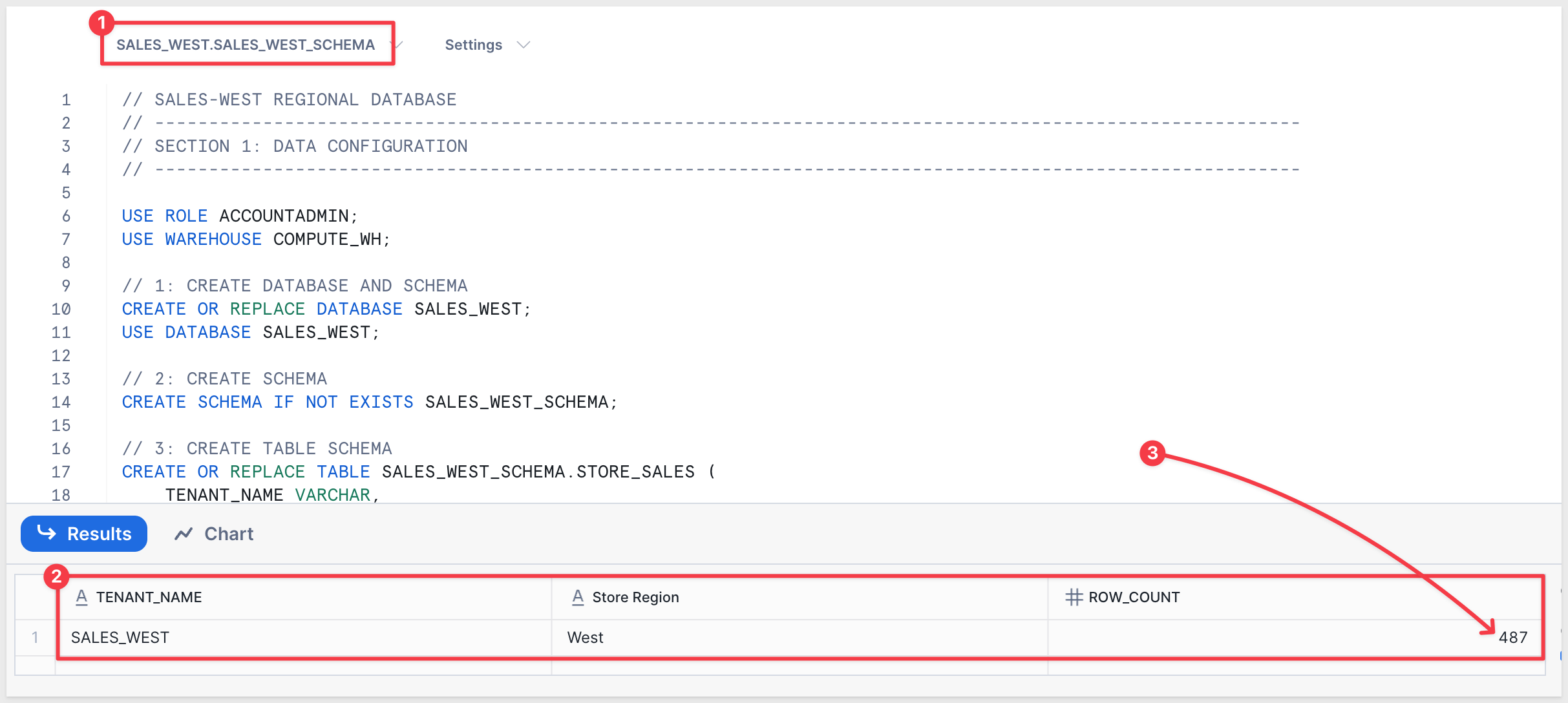
When done, the results should show Sales-West tenant with West region store data. Notice that Sales-West also has a few more rows:
Each regional sales tenant needs its own Snowflake connection pointing to its dedicated database. These connections are created inside each tenant instance.
We'll create these connections while impersonating each tenant administrator.
Sales-East Connection
Navigate to the parent Sigma instance and impersonate the Sales-East tenant admin (as we did in the Initial Configuration section).
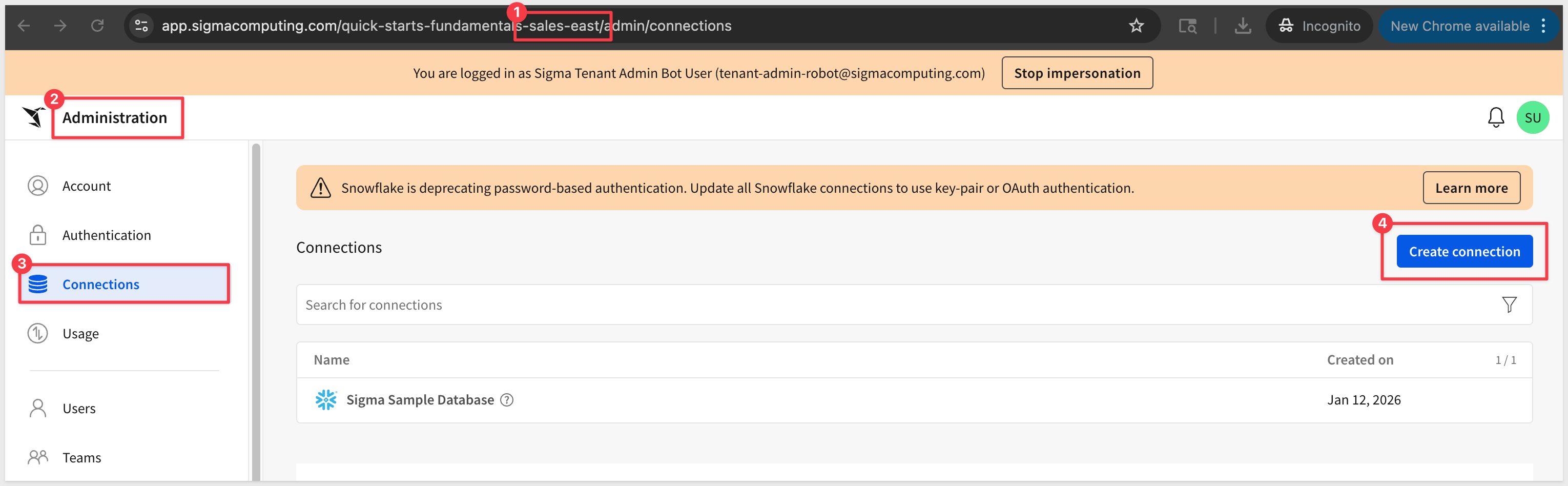
Once impersonating Sales-East, go to Administration > Connections and click Create Connection:
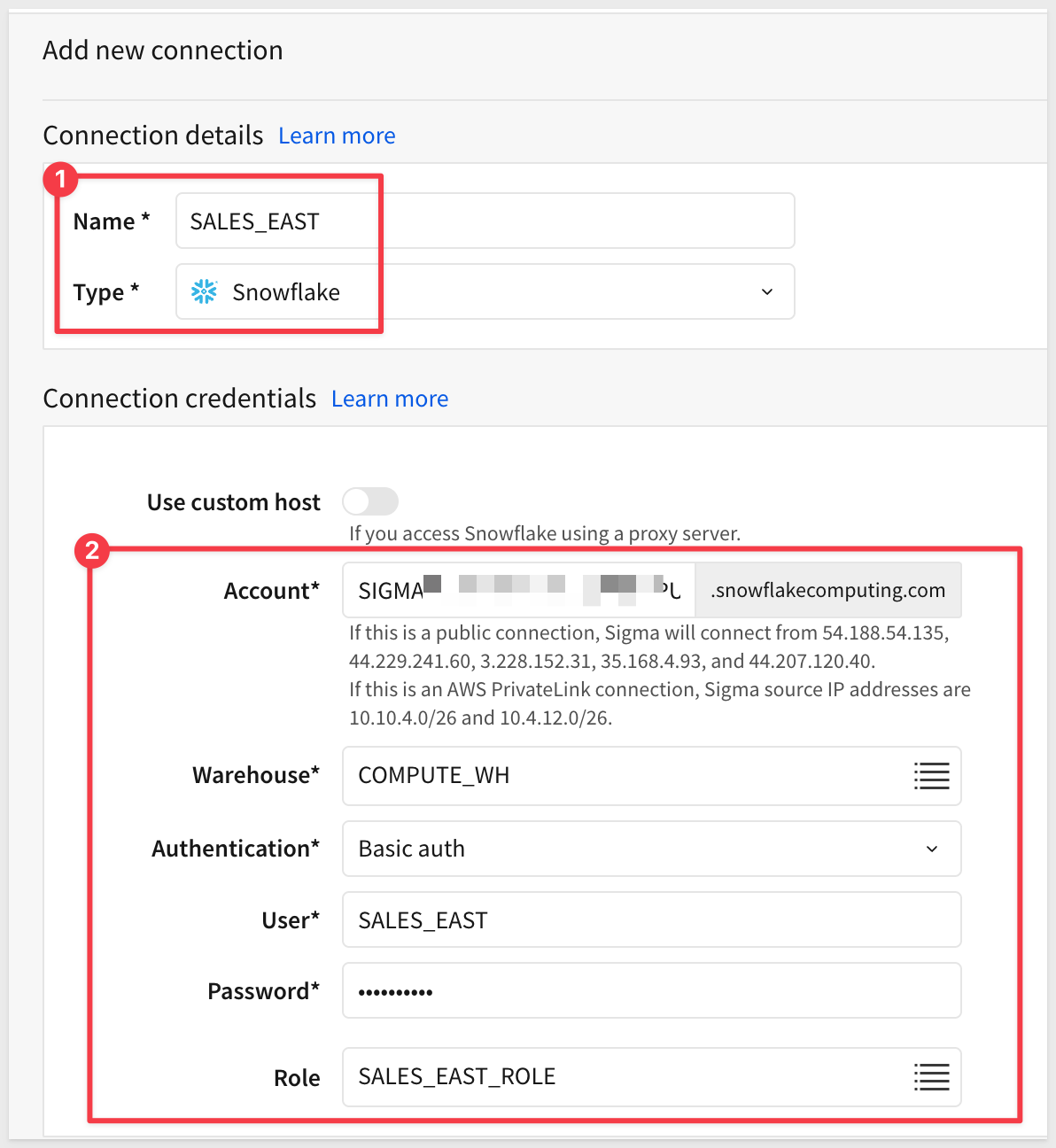
Add a new Snowflake connection using the Sales-East credentials:
Name:        SALES_EAST
User:        SALES_EAST
Password:    SALES_EAST
Role:        SALES_EAST_ROLE
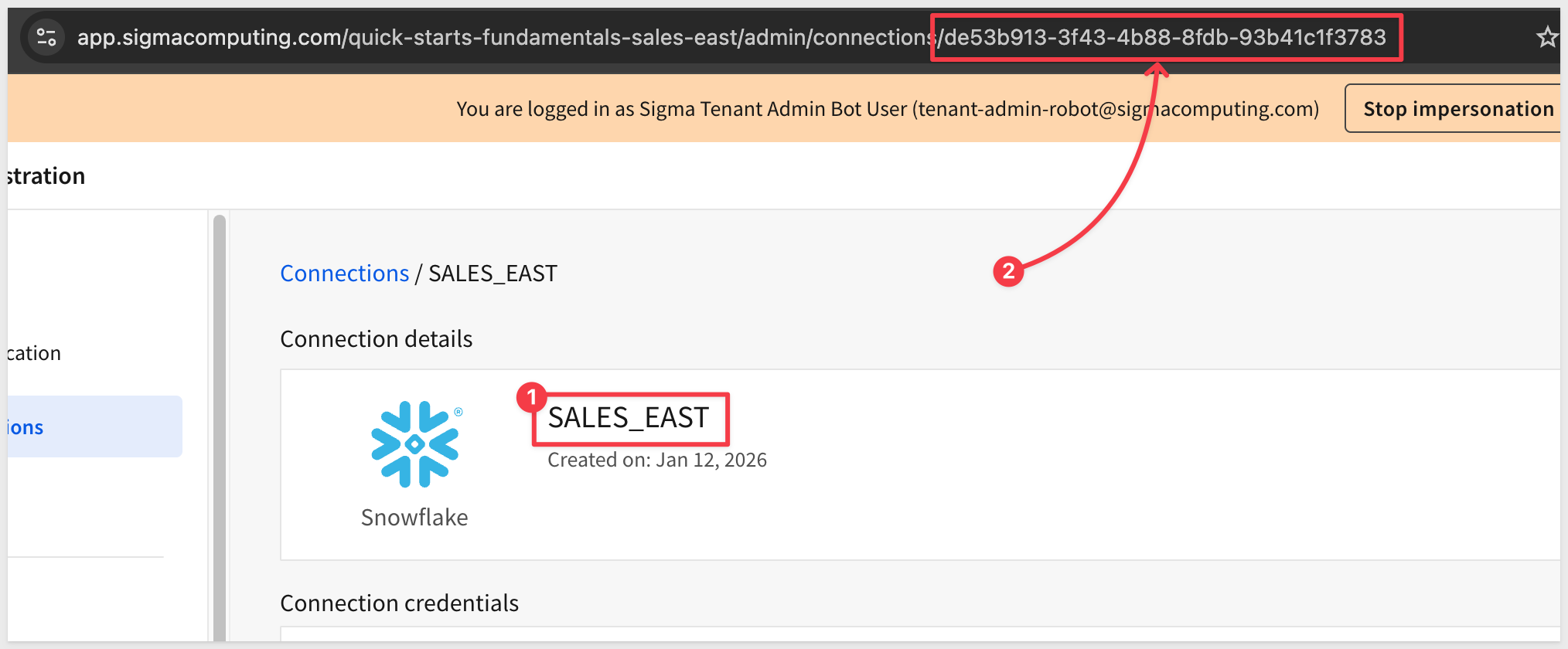
Once the connection is validated, copy its Connection ID to a text file - we'll use it later when configuring user attributes:
You can verify the data by clicking Browse connection:
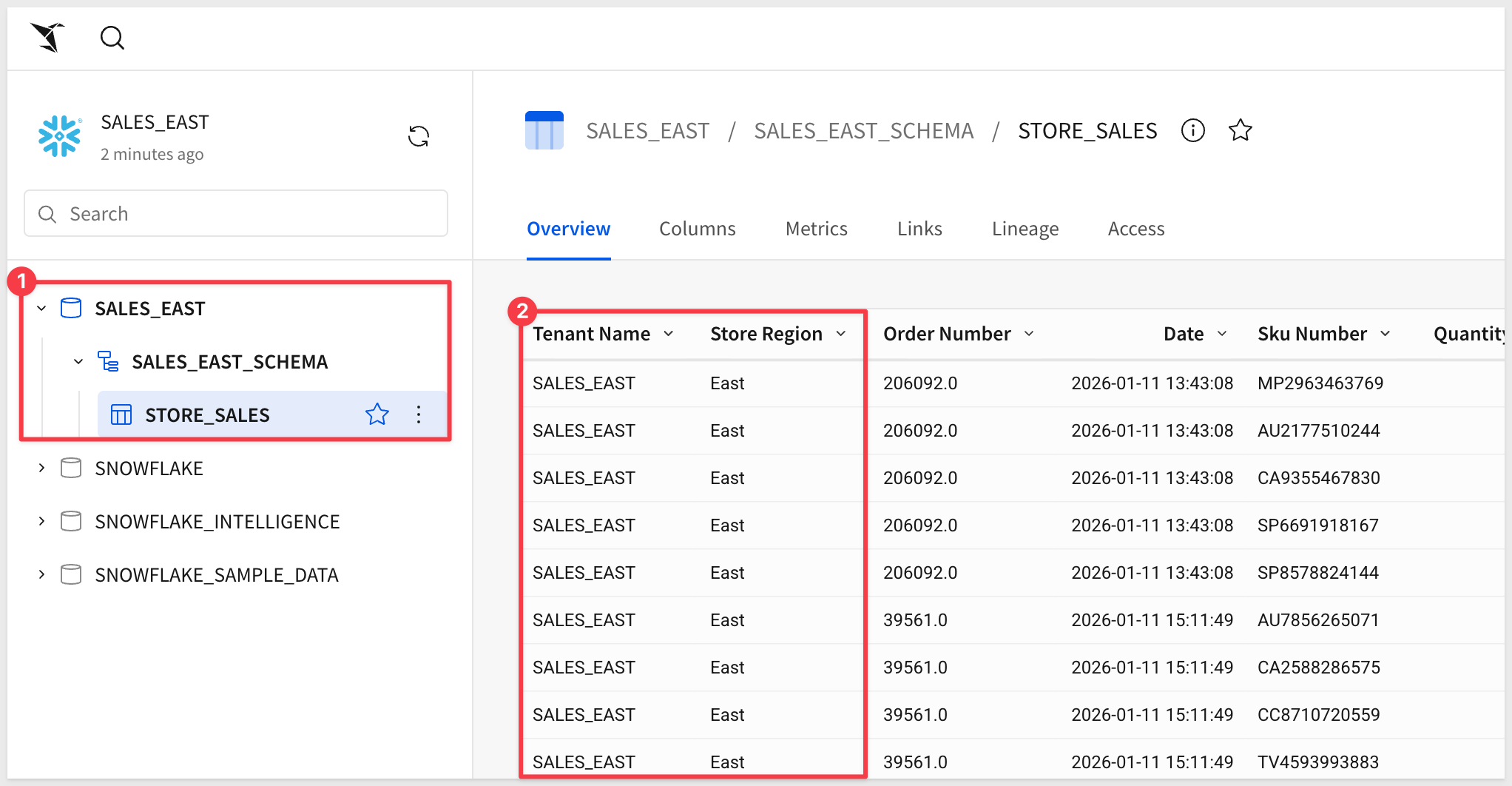
You should see the STORE_SALES table in the SALES_EAST_SCHEMA, showing only Sales-East tenant with East region data.
Sales-West Connection
Return to the parent organization (stop impersonation), then impersonate the Sales-West tenant admin.
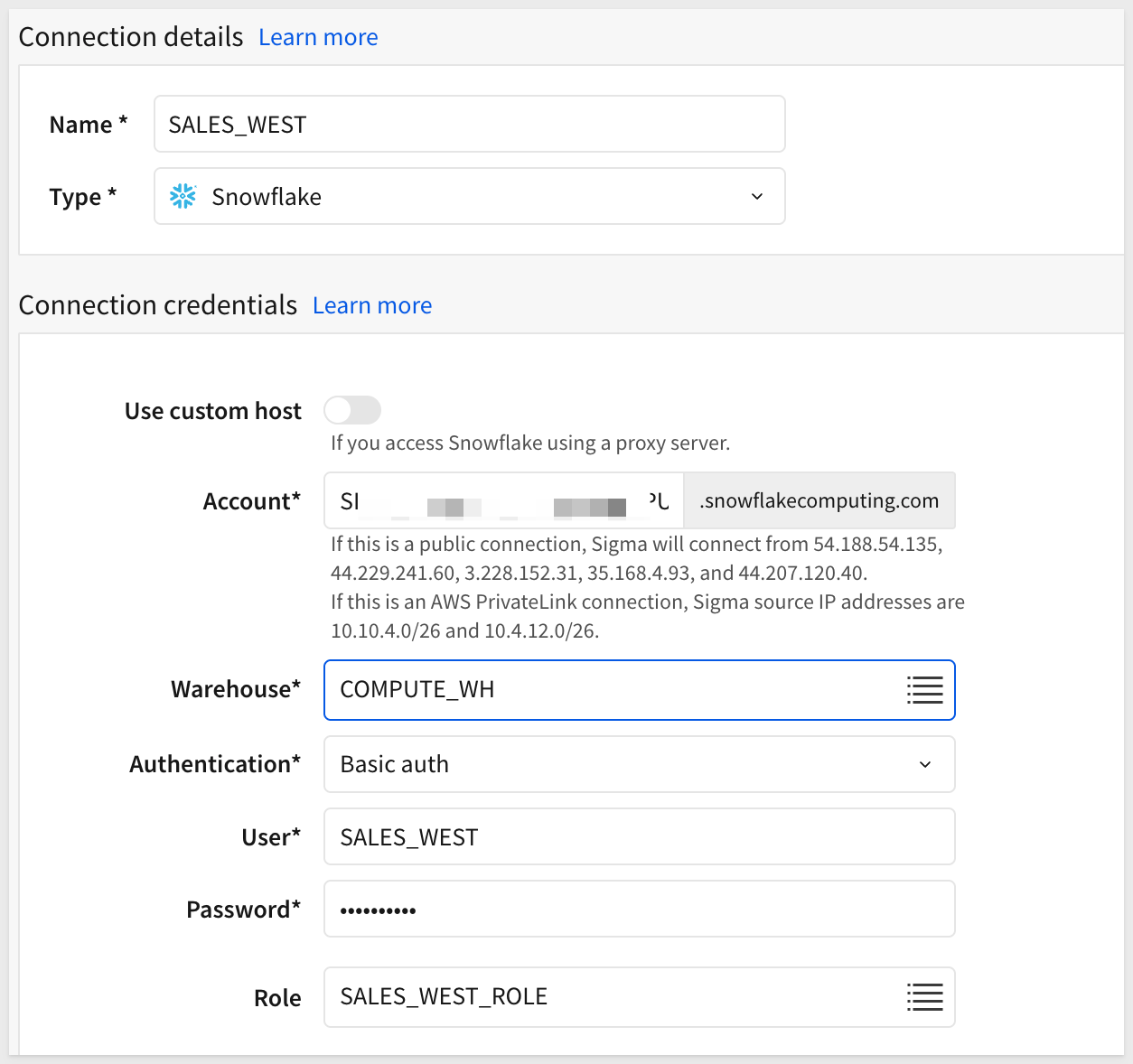
Repeat the process to create a Snowflake connection for Sales-West:
Name:        SALES_WEST
User:        SALES_WEST
Password:    SALES_WEST
Role:        SALES_WEST_ROLE
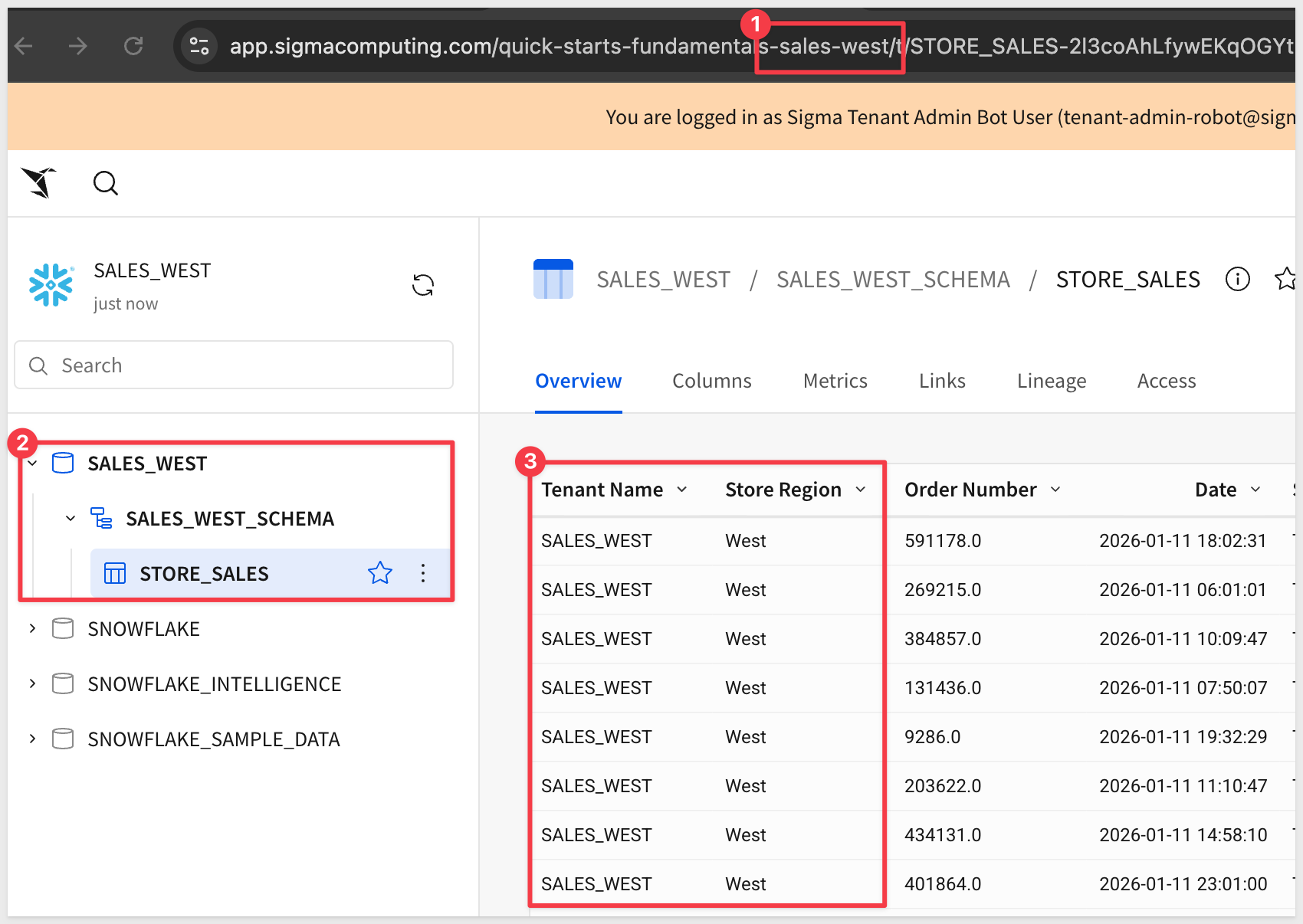
Copy the Connection ID for the Sales-West connection and save it for later.
You can verify that this connection only shows the STORE_SALES table with Sales-West tenant and West region data.
User attributes enable dynamic connection swapping when workbooks are deployed to tenants. We'll create a user attribute that maps each regional sales tenant to its specific Snowflake connection.
The user attribute maps the Connection ID we captured earlier to each tenant, allowing workbooks to automatically use the correct data source based on which regional sales team is accessing the content.
Create User Attributes
User attributes that map tenants to their data sources must be created in the parent organization (not within individual tenants).
We need to create three user attributes to enable complete connection swapping:
- Connection ID (which tenant connection to use)
- Database name (which database within that connection)
- Schema name (which schema within that database)
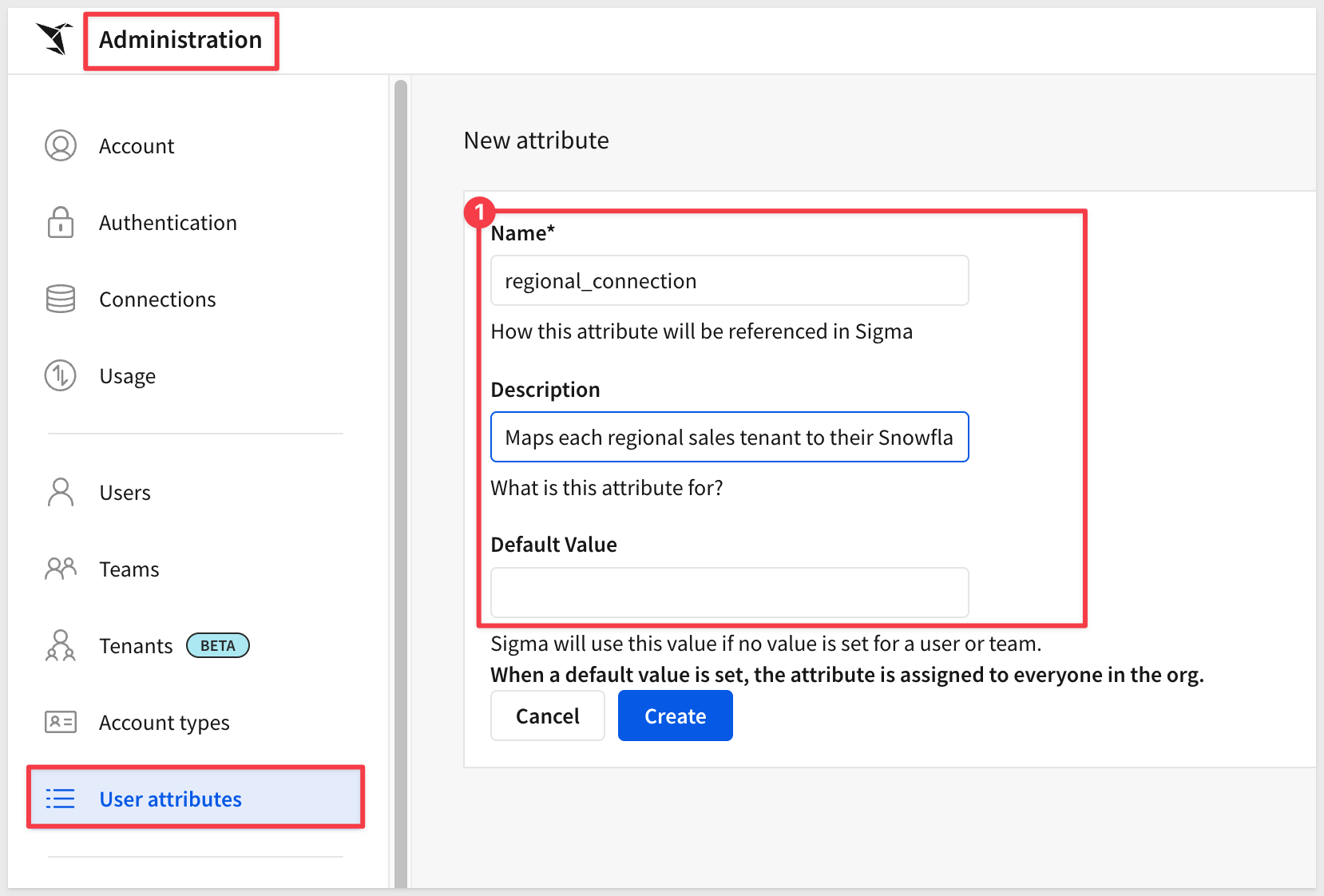
In the parent Sigma instance (ensure you're not impersonating any tenant), navigate to Administration > User attributes and click Create Attribute.
Create the first attribute:
- Name:
regional_connection - Description:
Maps each regional sales tenant to their Snowflake connection ID - Default value: Leave blank
Create the second attribute:
- Name:
regional_database - Description:
Maps each regional sales tenant to their Snowflake database name - Default value: Leave blank
Create the third attribute:
- Name:
regional_schema - Description:
Maps each regional sales tenant to their Snowflake schema name - Default value: Leave blank
Assign attributes to tenants
Now we need to assign all three user attribute values to each tenant.
Assign regional_connection: Click on the regional_connection user attribute, then click the Tenants Assigned tab and click Assign Attribute to Tenants.
A modal appears where you can search and select the tenant to configure.
Select Sales-East and paste the Connection ID you saved earlier for the Sales-East connection. Repeat for Sales-West:
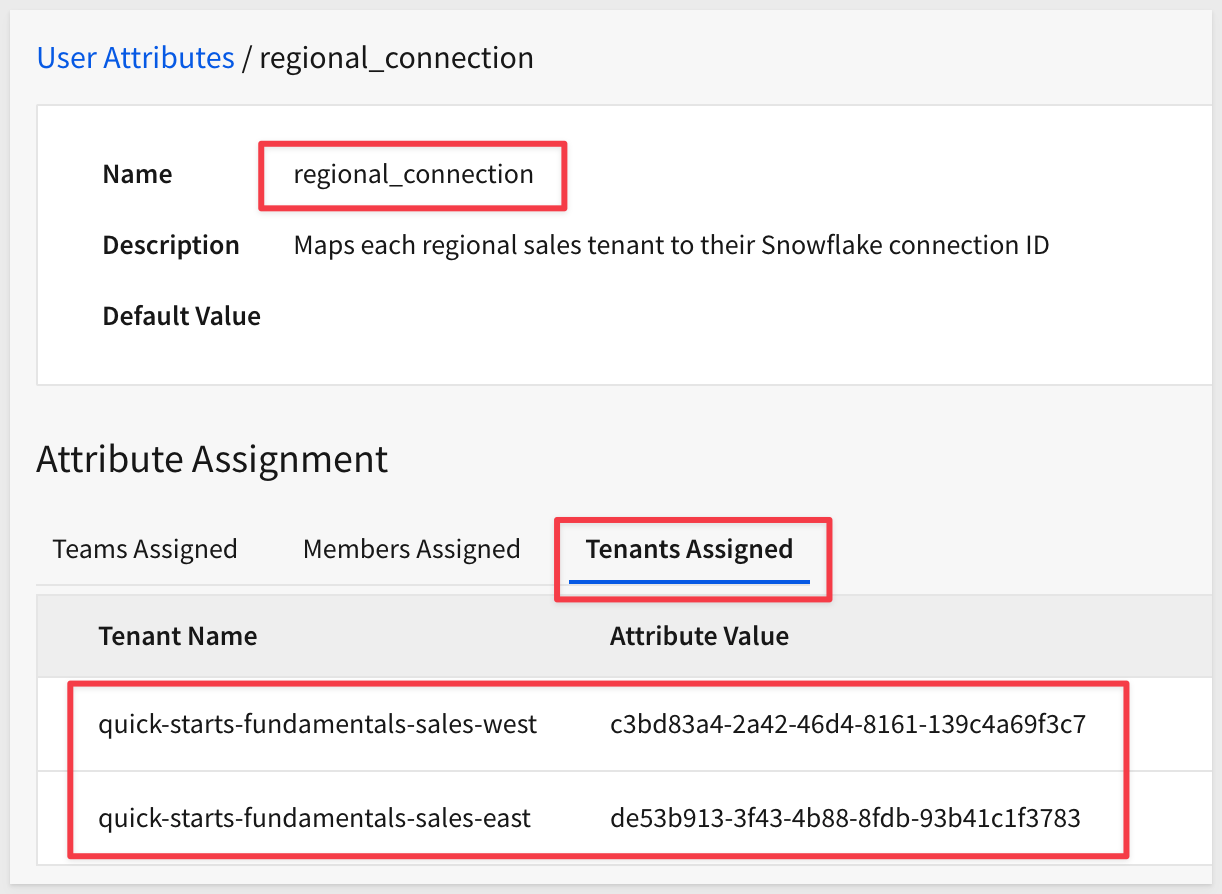
Click Assign.
Assign regional_database:
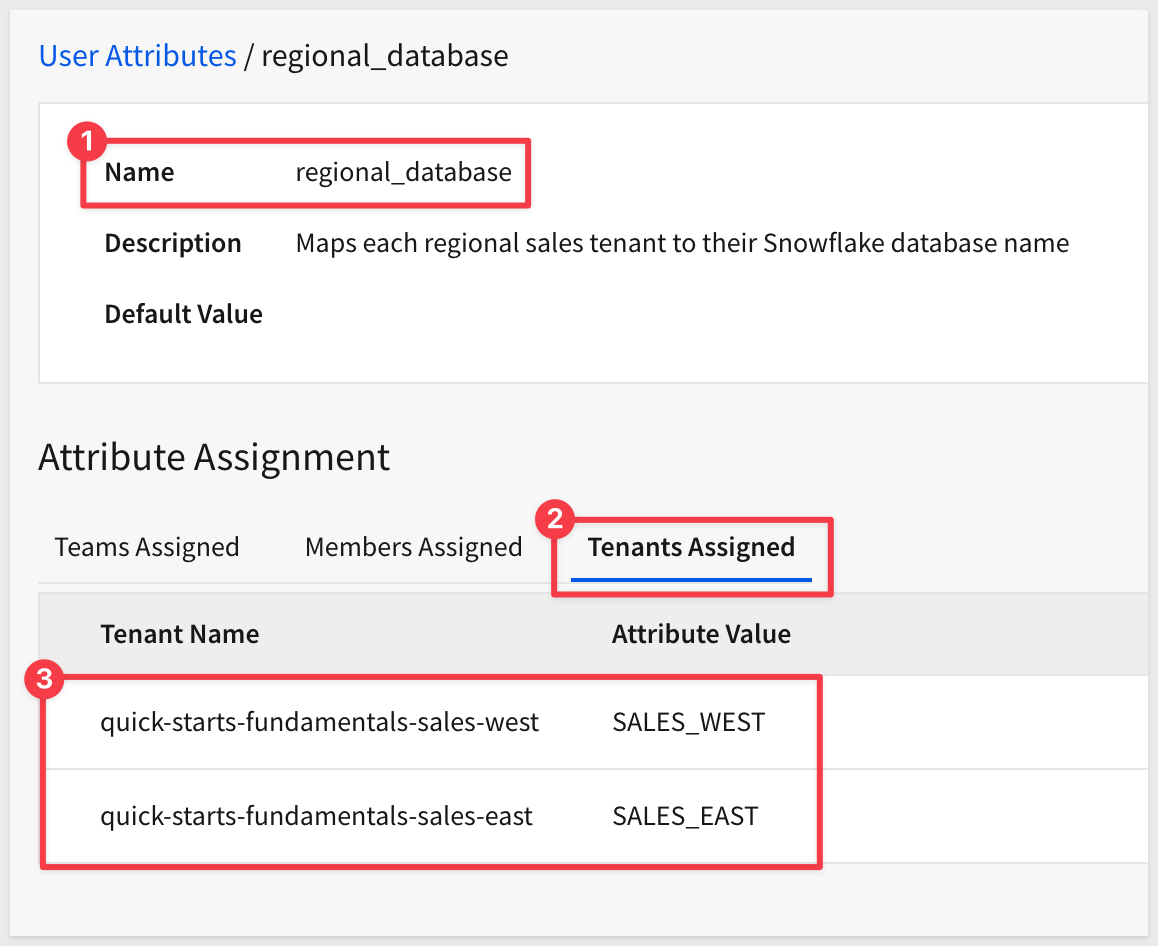
Navigate back to User attributes, click on regional_database, then click the Tenants Assigned tab and Assign Attribute to Tenants.
Select the Sales-East tenant and enter the database name SALES_EAST. Repeat for SALES_WEST.
Click Assign.
Assign regional_schema:
Navigate back to User attributes, click on regional_schema, then click the Tenants Assigned tab and Assign Attribute to Tenants.
Select the Sales-East tenant and enter the schema name SALES_EAST_SCHEMA. Repeat for SALES_WEST_SCHEMA:
Click Assign.
When done, each tenant should have all three attribute values configured. You can verify by viewing each user attribute and checking the Tenants Assigned tab.
Now we can create the connection swap policy that will use these user attributes to dynamically route data queries.
A connection's source swap policy dynamically replaces a table source based on predefined rules when users evaluate a workbook.
This is particularly useful in multitenant configurations. When you deploy a workbook from the parent organization to tenant organizations, the swap policy automatically routes each tenant to their appropriate data connection using the user attributes we configured earlier.
But what about the users who are building content at the parent level on behalf of tenants?
Create Source Connection in Parent Org
So far we've created two connections—one in each tenant (Sales-East and Sales-West). Now we will create a third connection in the parent organization that serves as the "source" connection in the parent org for building workbooks.
When you create a workbook in the parent org, it will use this source connection. When that workbook deploys to tenants, the swap policy automatically replaces this source connection with each tenant's actual connection.
Navigate to Administration > Connections in the parent organization (ensure you're not impersonating any tenant).
Click Create Connection and add a Snowflake connection with the following configuration:
Name:        Regional Sales Data
User:        [Your Snowflake admin or service account username]
Password:    [Your password] OR use Key-Pair Authentication
Role:        [ACCOUNTADMIN or your service role, e.g., SIGMA_SERVICE_ROLE]
Click Create.
Configure Swap Policy
Once the connection is created and validated, click Source swap policies (scroll down the left sidebar in Administration) and click Create policy.
Configure the swap policy:
Click + Add source swap policy.
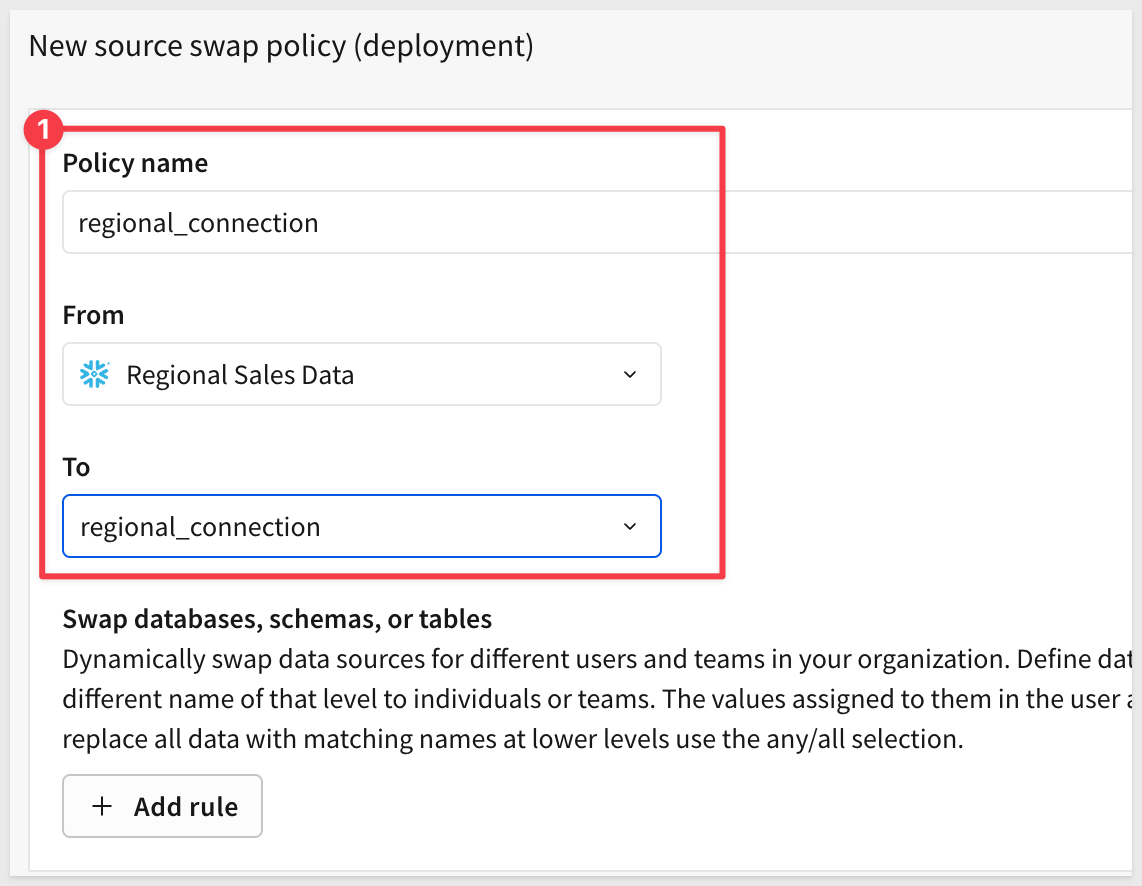
A New source swap policy (deployment) dialog opens. Configure it:
Policy name: regional_connection
From: Select Regional Sales Data (the parent connection we created)
To: Select regional_connection, the user attribute to use for swapping (this determines which tenant connection to use)
Click + Add rule to define the swap rule:
From:
- Database:
SALES_EAST - Schema:
SALES_EAST_SCHEMA - Table:
STORE_SALES
To:
- Database: Select
User attributeand chooseregional_database - Schema: Select
User attributeand chooseregional_schema - Table: Enter
STORE_SALES(fixed name - same across all tenants in this case)
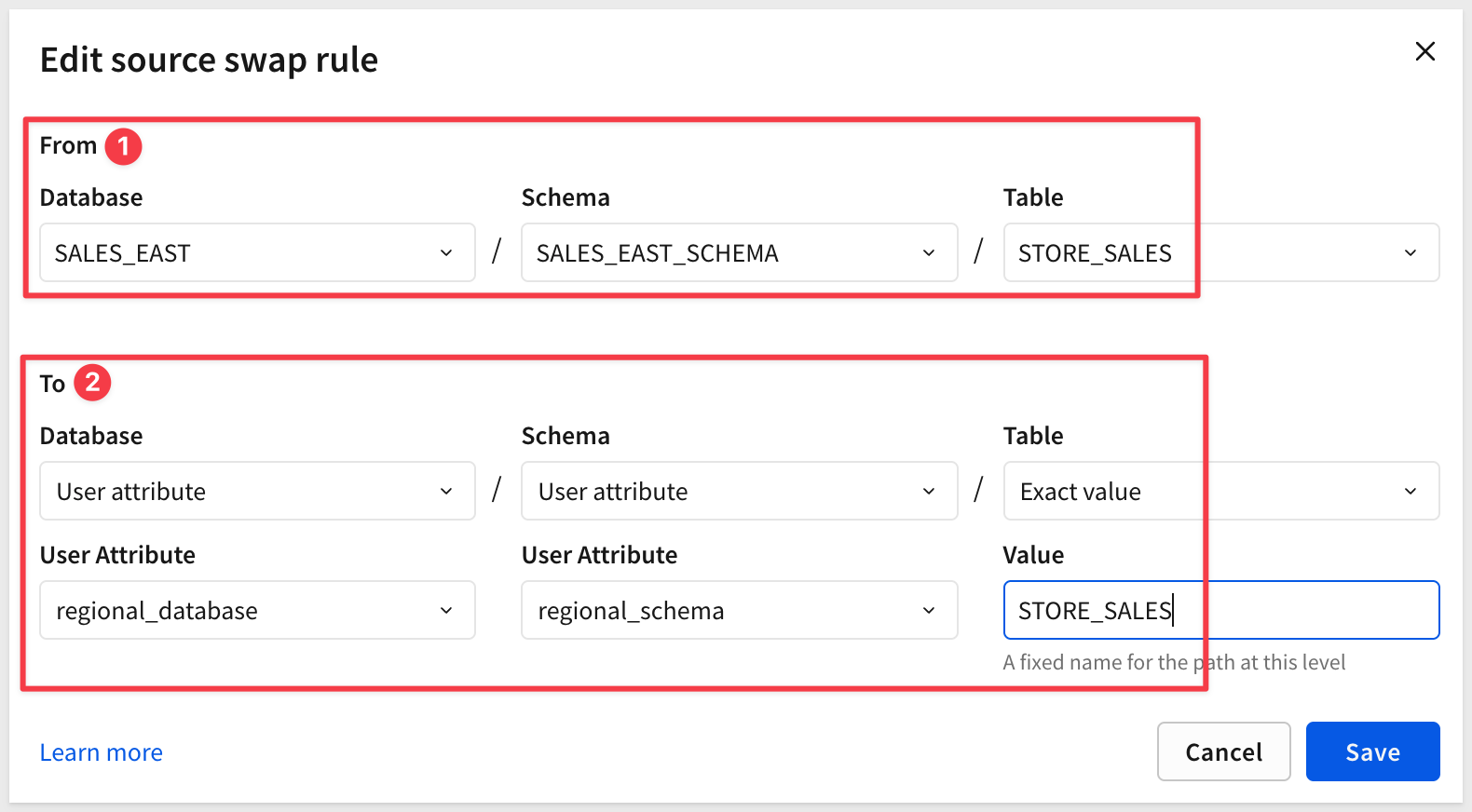
Be sure to click Save.
How It Works
When you deploy a workbook that uses the Regional Sales Data connection:
- In the parent org: The workbook connects to
Regional Sales Data→ SALES_EAST → SALES_EAST_SCHEMA → STORE_SALES - When deployed to Sales-East tenant: The swap policy automatically routes the query using three user attributes:
- Connection: Swaps to the Sales-East connection ID (from
regional_connectionuser attribute) - Database: Swaps to SALES_EAST (from
regional_databaseuser attribute) - Schema: Swaps to SALES_EAST_SCHEMA (from
regional_schemauser attribute) - Table: STORE_SALES (remains the same)
- Connection: Swaps to the Sales-East connection ID (from
- When deployed to Sales-West tenant: The swap policy automatically routes the query using:
- Connection: Swaps to the Sales-West connection ID (from
regional_connectionuser attribute) - Database: Swaps to SALES_WEST (from
regional_databaseuser attribute) - Schema: Swaps to SALES_WEST_SCHEMA (from
regional_schemauser attribute) - Table: STORE_SALES (remains the same)
- Connection: Swaps to the Sales-West connection ID (from
This ensures that each regional sales team only sees their own data, even though they're using the same workbook. The swap happens dynamically at query time based on which tenant is viewing the workbook.
Now we'll create a workbook in the parent organization that will be shared with both regional sales tenants.
This workbook uses the Regional Sales Data source connection, which will automatically swap to each tenant's specific connection, database, and schema when deployed—routing Sales-East to their data and Sales-West to theirs.
Create the Workbook
In the parent organization (not impersonating any tenant), navigate to Home and click Create New > Workbook.
Click Add new > Table and select the Regional Sales Data connection we created earlier.
Browse to SALES_EAST > SALES_EAST_SCHEMA and select the STORE_SALES table:
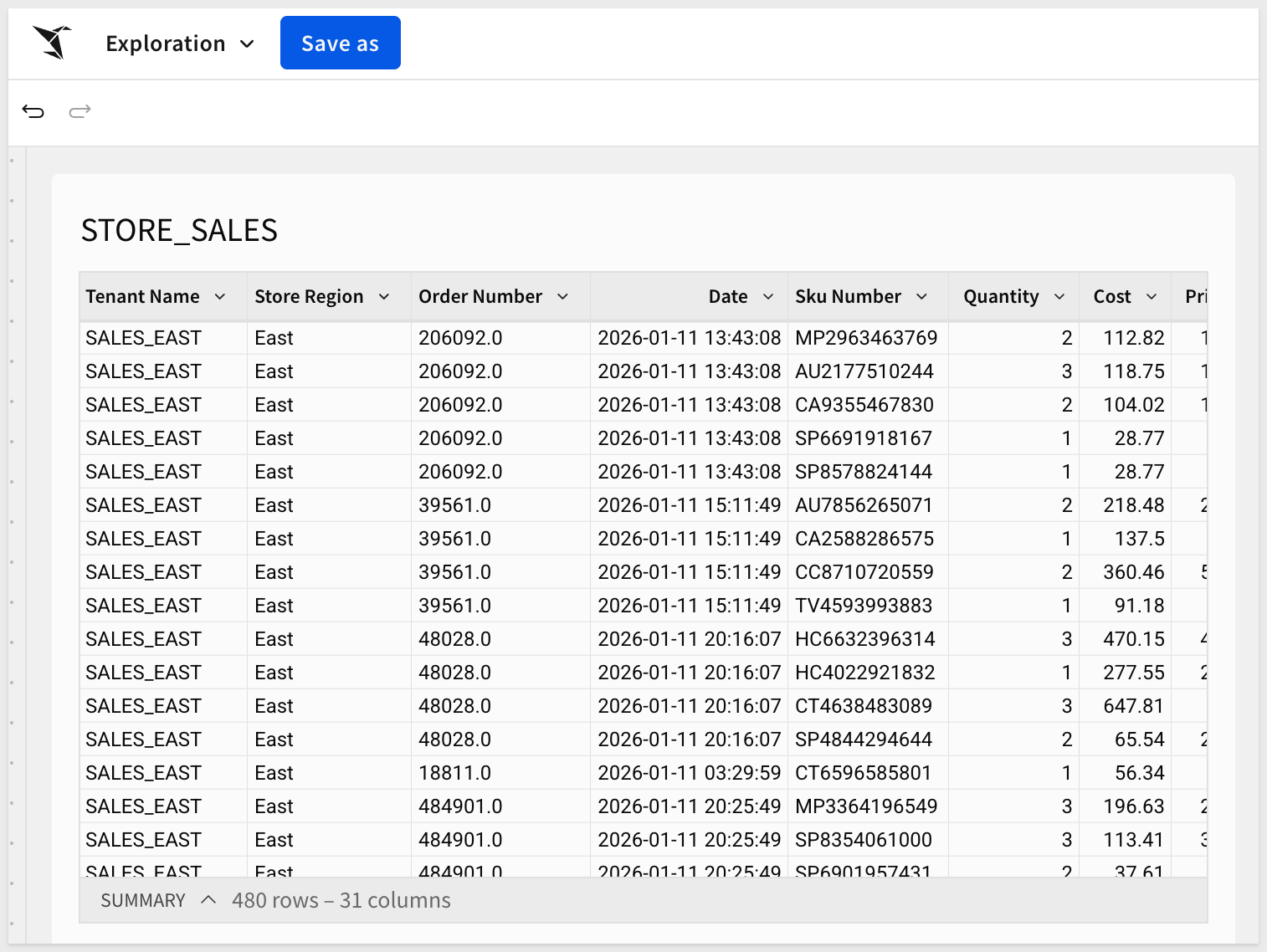
Click Publish in the top right and name the workbook Multi_Tenant_QuickStart and save it to a folder accessible in the parent organization.
The workbook is now ready to be deployed to the Sales-East and Sales-West tenants.
When deployed, the swap policy will dynamically route each tenant to their respective connection, database, and schema—ensuring complete data isolation at the warehouse level.
Deployment policies enable automatic distribution of content from the parent organization to selected tenant organizations. Once you add content to a deployment policy and share it with tenants, Sigma automatically creates copies in each tenant's workspace—no manual deployment action required.
When deployed, the connection swap policy automatically routes each tenant to their appropriate data connection.
Create Deployment Policy
In the parent organization, navigate to Administration > Tenants > Deployments policies (tab next to Tenants).
Click Create deployment policy.
Configure the deployment policy as:
- Name:
Regional Sales Deployment - Use a different name in tenants: Leave unchecked (workbook will keep same name)
- Version tag: Select
Published - Swap data sources: Enable this toggle (should be on)
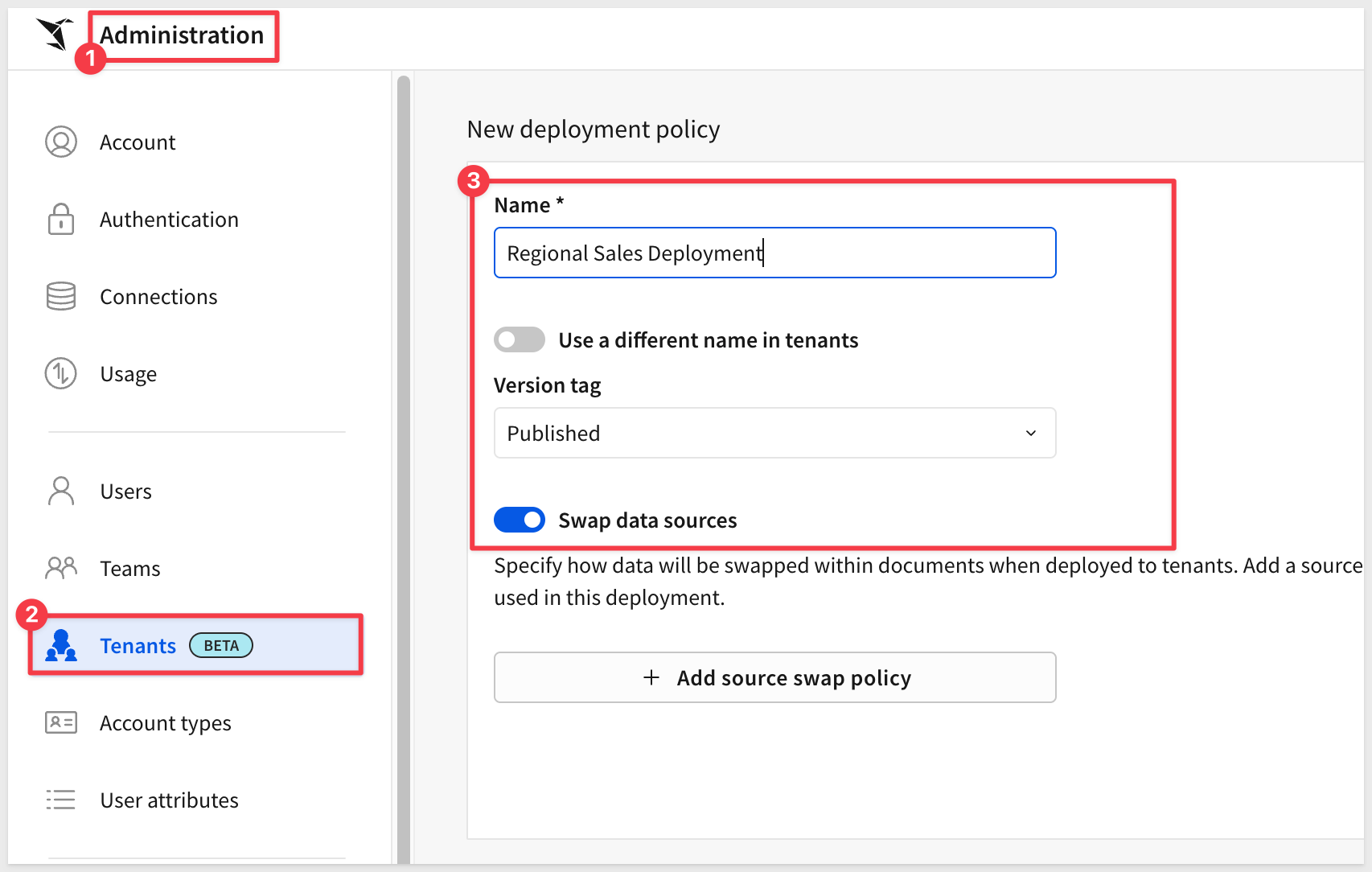
Click + Add source swap policy.
Select the regional_connection policy we created earlier:
Click Create to create the deployment policy.
Add Workbook and Share with Tenants
Once the deployment policy is created, you'll add content to the policy and share them with tenants:
Click Add document:
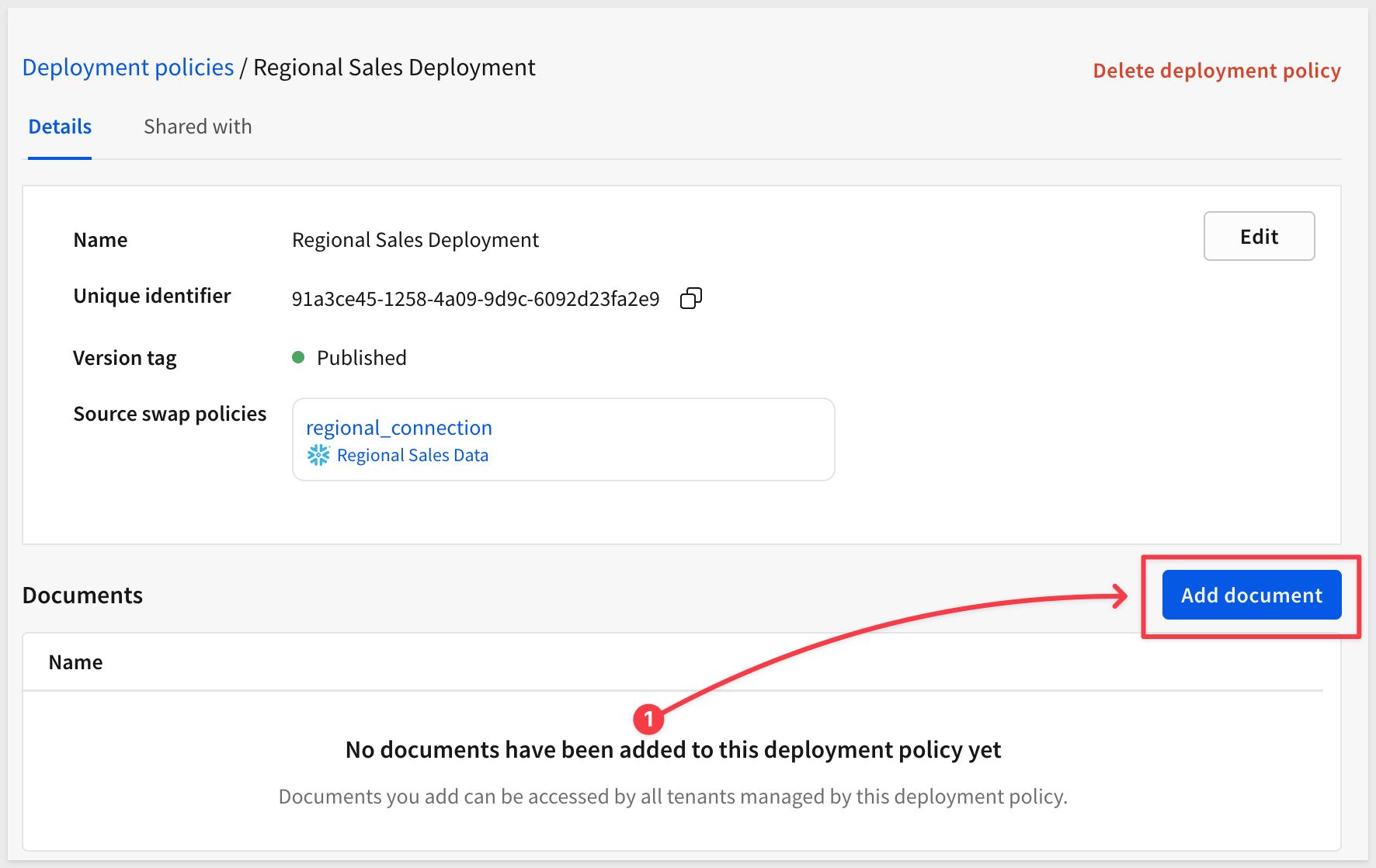
Select the Multi_Tenant_QuickStart from the Recent list and click Add.
Share with Tenants
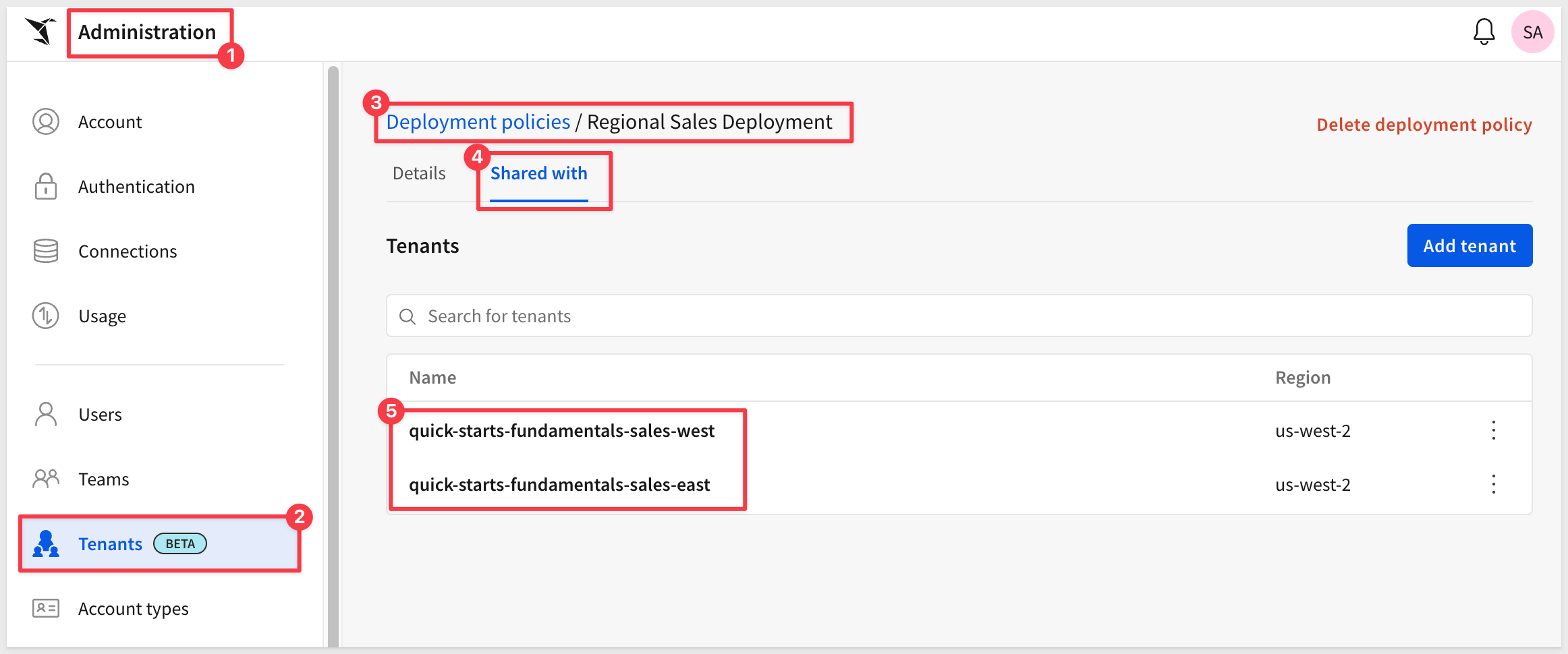
Click the Shared with tab and the Add tenant button. Add both tenants we created earlier:
Check for Deployment Errors
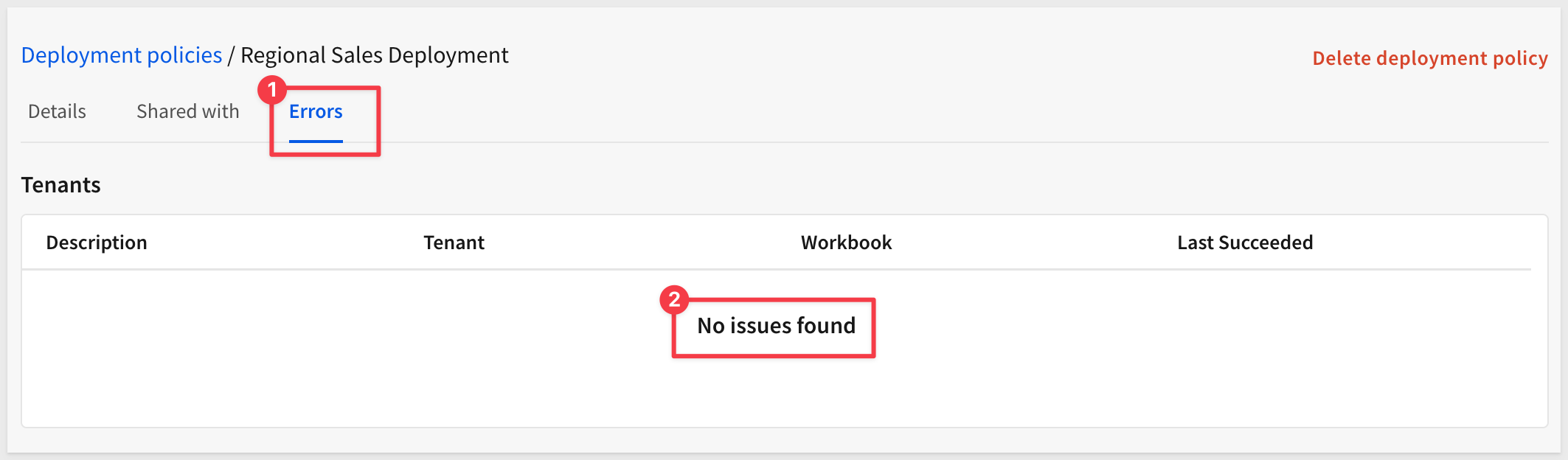
After adding tenants, Sigma automatically creates copies of the workbook in each tenant organization.
If any deployments fail, you can check for errors in the deployment policy's Errors tab:
Now we'll verify that the connection swap policy is working correctly by impersonating each tenant and confirming they see only their regional data.
Test Sales-East Tenant
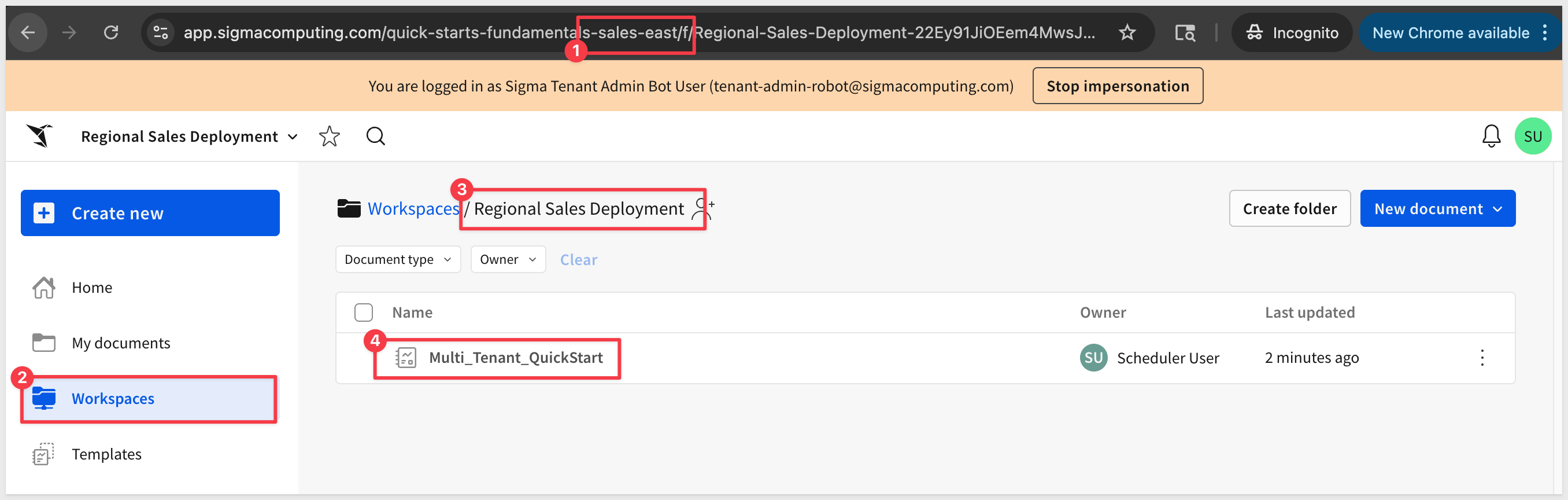
From the parent organization, impersonate the Sales-East tenant using Administration > Tenants as before.
Navigate to the Regional Sales Deployment workspace where the Multi_Tenant_QuickStart workbook was deployed:
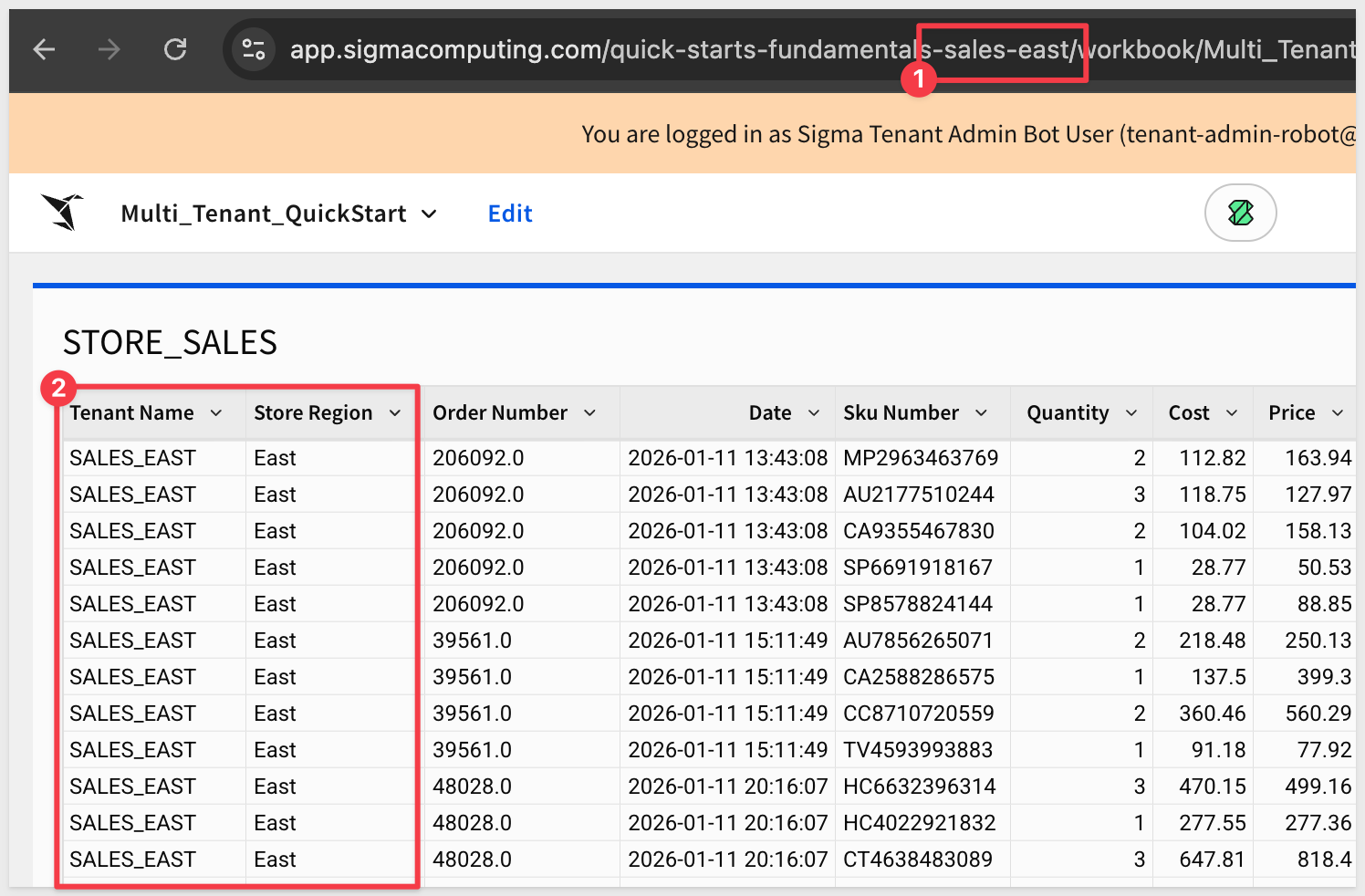
Open the workbook and verify:
- The dashboard loads successfully
- The TENANT_NAME shows
Sales-East - The
Store Regioncolumn shows onlyEastvalues
Stop impersonation.
Test Sales-West Tenant
Now impersonate the Sales-West tenant.
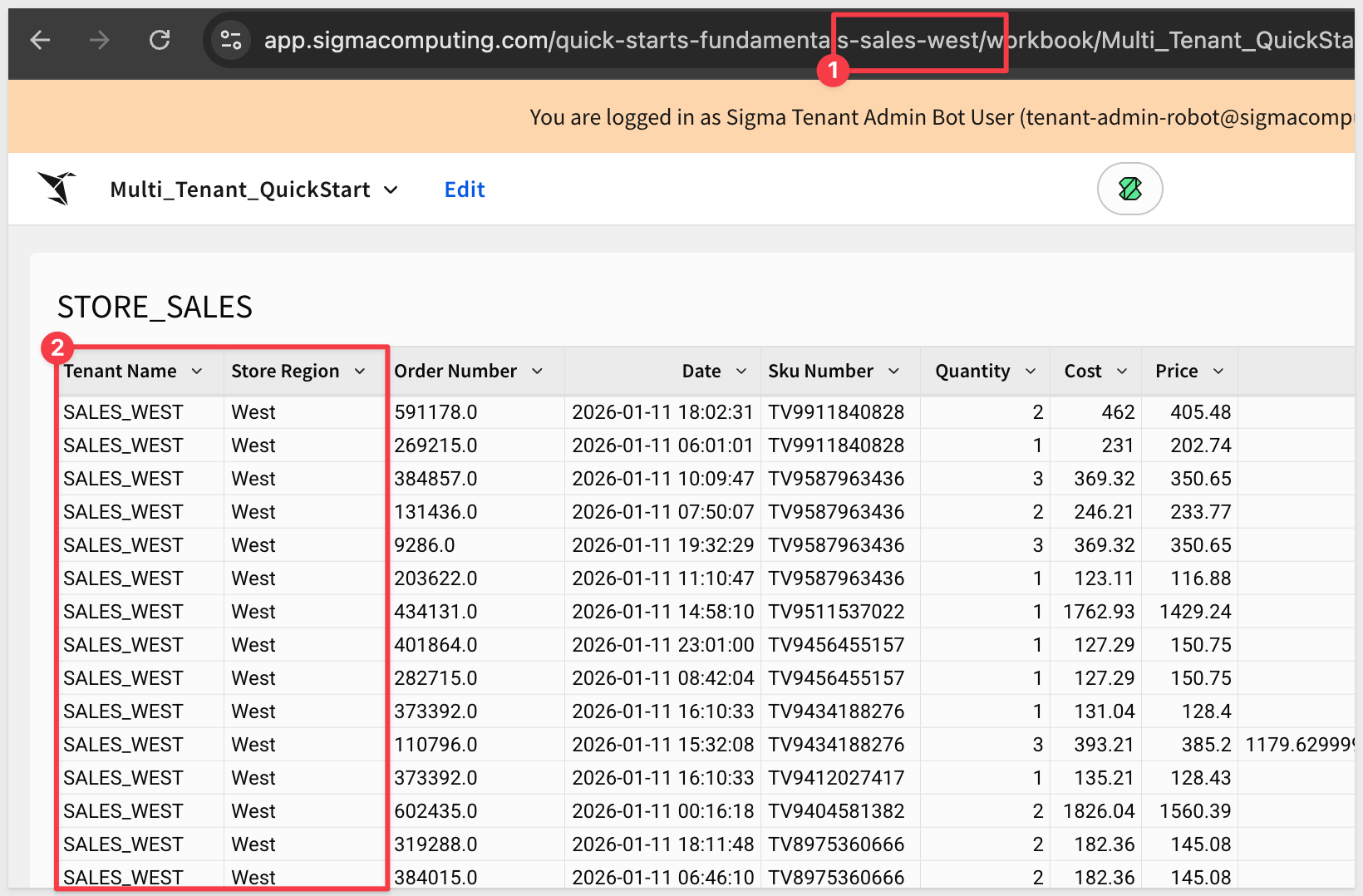
Open the same Multi_Tenant_QuickStart workbook in the Sales-West tenant.
It will show the expected Sales_West data:
What Just Happened?
When you opened the workbook in each tenant:
- Sales-East: The
Regional Sales Dataconnection swapped to theSales-Eastconnection → queriesSALES_EAST.SALES_EAST_SCHEMA.STORE_SALES→ shows onlySales-Easttenant with East region data - Sales-West: The same connection swapped to the Sales-West connection → queries
SALES_WEST.SALES_WEST_SCHEMA.STORE_SALES→ shows onlySales-Westtenant withWestregion data
This demonstrates warehouse-level data security - each tenant is restricted to their data through separate Snowflake databases and roles, not just Sigma permissions.
The features you've learned in this QuickStart—tenant creation, user attributes, connection swap policies, and deployments—apply to all four Sigma Tenants use cases. Here's how to adapt what you've built:
SDLC (Software Development Lifecycle)
Scenario: Separate Dev, QA, and Production environments
How to Apply:
- Tenant Setup: Create three tenants:
Development,QA, andProduction - Data Strategy: All environments connect to the same data structure, but different instances:
- Dev →
DEV_DATABASE(test/sample data) - QA →
QA_DATABASE(staging data) - Prod →
PROD_DATABASE(production data)
- Dev →
- User Attributes: Create
environment_connection,environment_database,environment_schemamapping each environment to their data paths - Swap Policy: Same as we built—swap connection, database, and schema based on user attribute values
- Version Tags: Tag your workbooks to control promotion through environments:
- Development: Tag workbooks in progress as
Development - Published: Tag tested workbooks as
Published(ready for QA) - Production: Tag validated workbooks as
Production(ready for Prod)
- Development: Tag workbooks in progress as
- Deployment Policies: Create separate deployment policies for each environment that target specific version tags:
- Dev Deployment Policy: Version tag =
Development→ deploys to Dev tenant - QA Deployment Policy: Version tag =
Published→ deploys to QA tenant - Prod Deployment Policy: Version tag =
Production→ deploys to Prod tenant
- Dev Deployment Policy: Version tag =
- Promotion Workflow:
- Develop and test workbook in parent org
- Tag as
Development→ auto-deploys to Dev tenant - After Dev testing, change tag to
Published→ auto-deploys to QA tenant - After QA validation, change tag to
Production→ auto-deploys to Prod tenant - Check for errors in each deployment policy's
Errorstab if promotion fails
Key Difference: Same data schema across environments, focus on content promotion and testing workflows using version tags to control deployment lifecycle.
Data Residency
Scenario: Comply with regional data regulations (EU, US, APAC)
How to Apply:
- Tenant Setup: Create regional tenants:
EU-Region,US-Region,APAC-Region - Data Strategy: Each region connects to geographically isolated warehouses:
- EU → Snowflake account in EU (Frankfurt, Ireland)
- US → Snowflake account in US (Virginia, Oregon)
- APAC → Snowflake account in APAC (Singapore, Sydney)
- User Attributes: Create
region_connectionmapping regions to their warehouse connections - Swap Policy: Same mechanism—swap based on user's region attribute
- Deployment: Deploy same analytics to all regions, data stays in respective jurisdictions
- Compliance: Each tenant's data never leaves its geographic boundary
Key Difference: Focus on geographic data isolation and regulatory compliance, not functional data differences.
Embed (Delegation & Sharing)
Scenario: Provide each customer their own isolated analytics environment
How to Apply:
- Tenant Setup: Create one tenant per customer:
Customer-Acme,Customer-GlobalCorp, etc. - Data Strategy: Each customer has their own database/schema:
- Acme →
CUSTOMER_ACMEschema or database - GlobalCorp →
CUSTOMER_GLOBALCORPschema or database
- Acme →
- User Attributes: Create
customer_connectionmapping each customer tenant to their connection ID - Swap Policy: Same pattern—swap based on customer's user attribute
- Deployment: Deploy standard dashboards to all customers, each sees only their data
- Scaling:
- Use Sigma's embedding API to generate signed URLs for customer users
- Automatically create new tenants as customers onboard
- Check deployment policy
Errorstabs to identify any failed customer deployments
Key Difference: Many tenants (one per customer), combined with embedding for external user access.
Common Pattern Across All Use Cases
Regardless of the use case, the workflow is:
- Create isolated tenants (different purposes: regions, environments, customers, business units)
- Configure data connections specific to each tenant's needs
- Map tenants to connections via user attributes
- Set up connection swap policies for automatic routing
- Deploy content once, render dynamically for each tenant
- Manage centrally from parent organization (check deployment policy
Errorstabs for troubleshooting)
The same features enable different organizational patterns—what changes is the semantic meaning of tenants and the data isolation strategy, not the technical implementation.
In this QuickStart, we demonstrated Business Unit Isolation using Sigma Tenants with a regional sales team scenario.
Key Concepts Covered:
- Sigma Tenants Architecture: Creating and managing isolated tenant organizations (Sales-East and Sales-West) within a single Sigma instance
- Tenant Impersonation: Accessing tenant environments as an administrator without separate credentials
- Warehouse-Level Security: Using separate Snowflake databases to enforce data isolation at the database level, ensuring each region only queries their permitted data
- Connection Swap Policies: Automatically routing tenants to their specific data connections using user attributes
- User Attributes: Mapping tenants to connection IDs for dynamic content rendering
- Workbook Deployments: Pushing shared dashboards from parent to multiple tenants with automatic connection swapping
What You Built:
- Two tenant organizations representing regional sales teams
- Separate Snowflake databases with regional sample data loaded from CSV files (East and West regions)
- Separate Snowflake roles and users for each region
- Tenant-specific connections to their dedicated databases
- Three user attributes (
regional_connection,regional_database,regional_schema) mapping tenants to their data paths - A connection swap policy enabling automatic data routing across connection, database, and schema
- A shared dashboard deployed to both tenants showing region-specific data
Business Value:
This architecture enables organizations to:
- Share standardized analytics across teams while maintaining strict data boundaries
- Enforce data governance at the warehouse level, not just the BI layer
- Manage content centrally while giving each team their own isolated environment
- Scale efficiently by deploying once to multiple tenants
- Delegate tenant administration to regional managers
Next Steps:
- Explore other Sigma Tenants use cases (SDLC, Data Residency, Embed)
- Configure auto-sync for deployments to keep tenants updated automatically
- Add more complex connection swap policies with conditional logic
- Integrate with your organization's SSO for tenant user management
Additional Resource Links
Blog
Community
Help Center
QuickStarts
Be sure to check out all the latest developments at Sigma's First Friday Feature page!