This QuickStart demonstrates how to give a Sigma agent a persistent memory — a fact or commitment it saves once and can recall in a completely separate conversation later.
Agents 02: Agent-Driven Actions & Writeback covered the mechanic: an agent inserting a row into a table, gated by your approval. Here, we'll point that same mechanic at a memory table, then prove it actually persists — save a note in one chat, and retrieve it from a brand new one.
Along the way you'll learn how to:
- Create an input table that stores a note tied to a specific scope
- Configure an approval-gated action that saves an explicitly-supplied note
- Write instructions that read prior notes before answering, matched to the exact scope requested
- Test that a note survives into a new chat, and doesn't leak into an unrelated scope
For more information on Sigma's product release strategy, see Sigma product releases
If something doesn't work as expected, here's how to contact Sigma support
Target Audience
Sigma workbook authors and admins building agents that need to remember something across conversations, not just within one. For the writeback mechanic this QuickStart builds on, see Agents 02: Agent-Driven Actions & Writeback — but this QuickStart includes everything you need to follow along on its own.
Prerequisites
- Any modern browser is acceptable.
- Access to your Sigma environment with permission to create and manage agents, and to create input tables.
- Write access enabled on the connection backing your workbook — the memory action in this QuickStart inserts a row into a table.
- Some familiarity with Sigma is assumed. Not all steps will be shown, as the basics are assumed to be understood.

A memory needs somewhere to live that outlasts a single conversation. This section builds that: a workbook, a table to hold saved notes, and an agent that can read both.
Create a new workbook
From Sigma Home, click Create New and select Workbook. Save and name it:
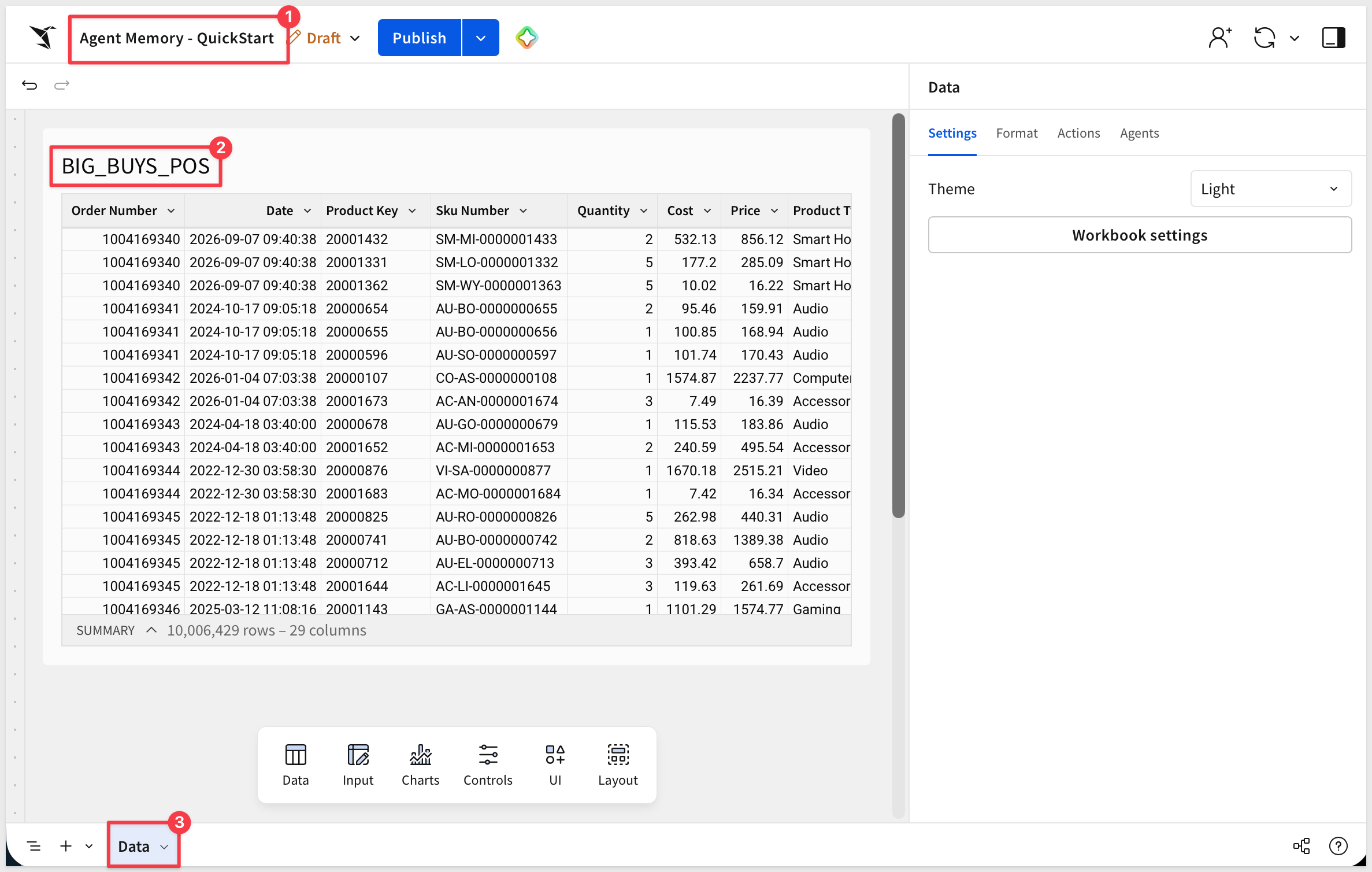
Agent Memory - QuickStart
Add BIG_BUYS_POS from Sigma Sample Database > RETAIL > BIG_BUYS as a Table element. Rename the page from Page 1 to:
Data
Create the Agent Memory input table
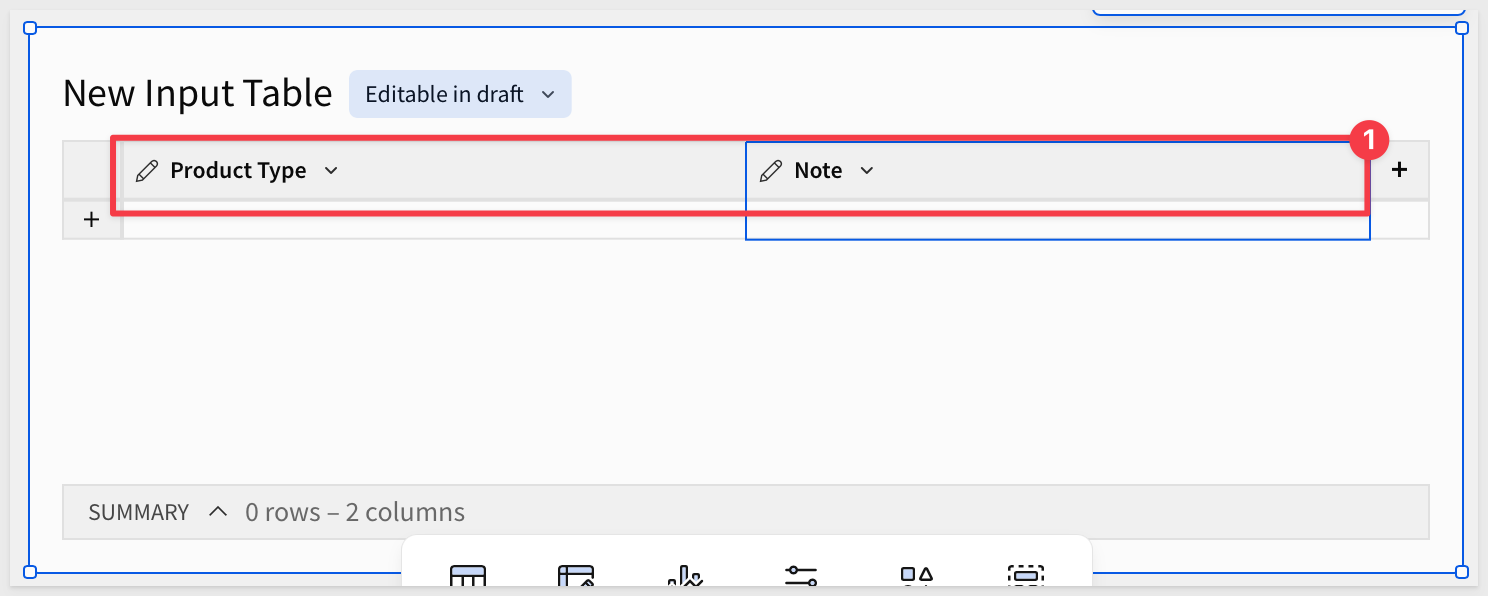
On the Data page, add Input > Empty. Select the Sigma Sample Database connection.
Rename the initial Text column to Product Type.
Click the + to the right of Product Type to add a second Text column and name it Note.
Delete the pre-populated seed row so the table starts empty.
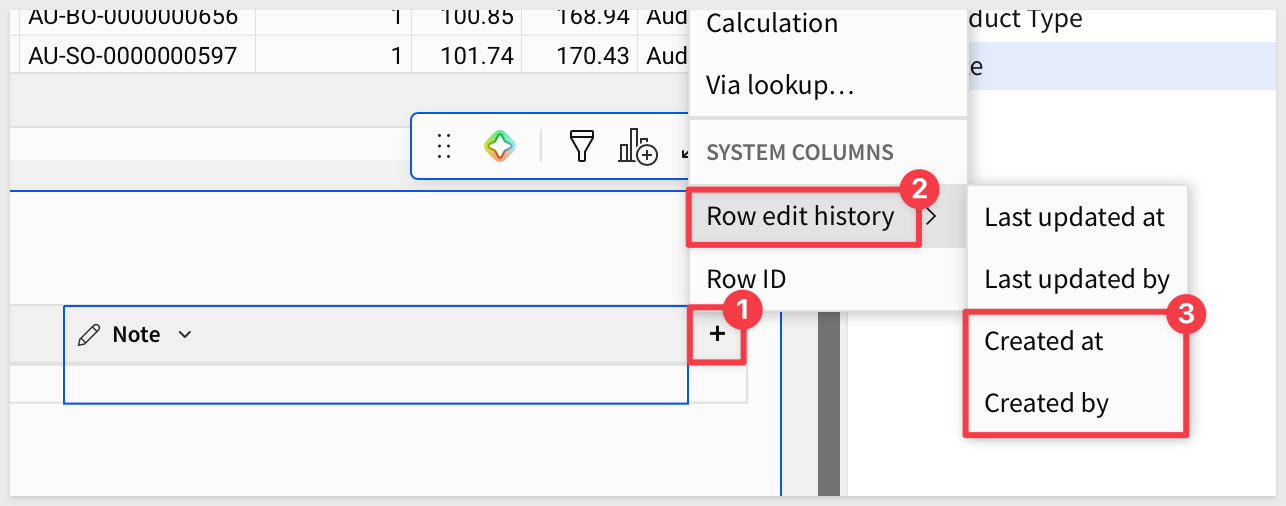
In the table's Properties, use Add column > Row edit history to add Created by and Created at automatically — the note's attribution, without the agent having to supply it.
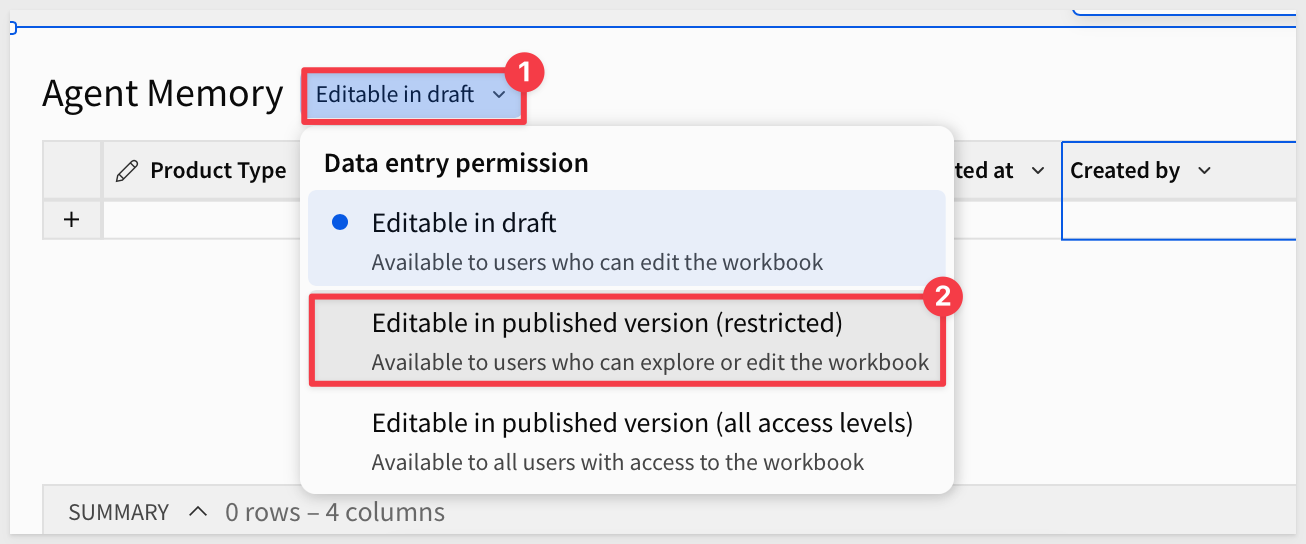
Rename the input table:
Agent Memory
Set Editable in to Published version (restricted), then click Publish.
Create the agent
With nothing selected on the page, open the Agents tab on the properties panel and click +.
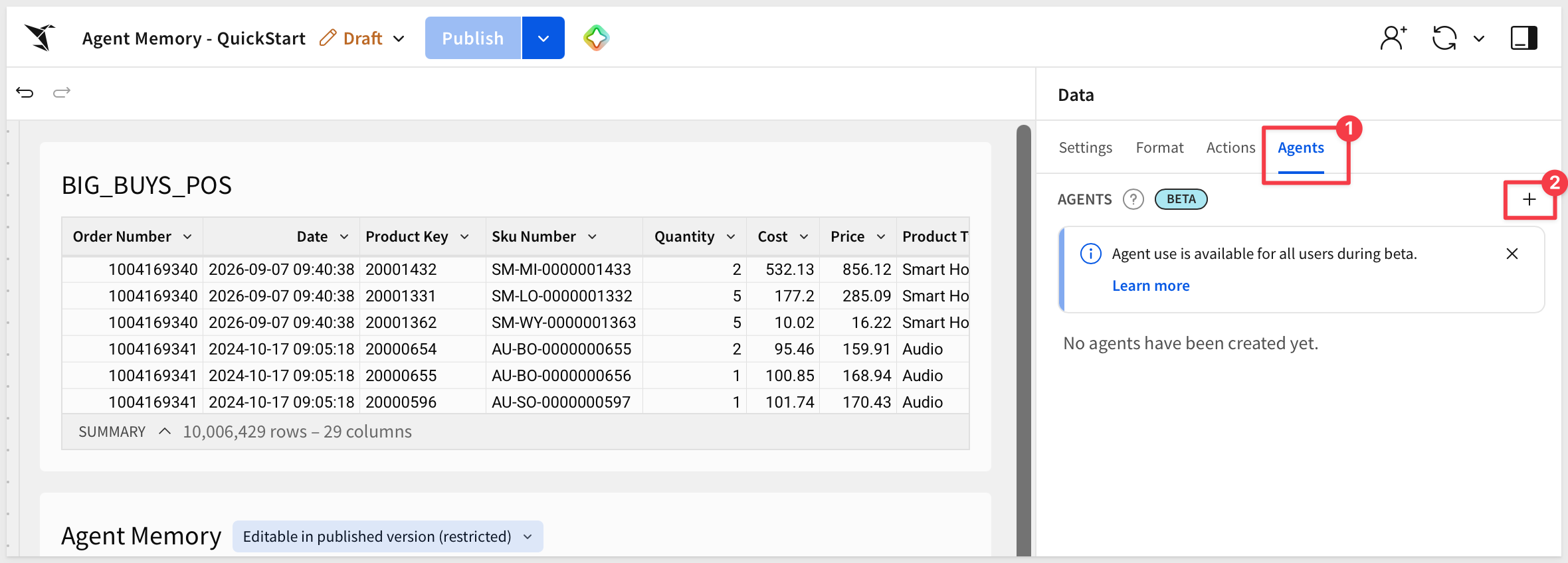
Use the pencil icon to rename the new agent:
My Memory Agent
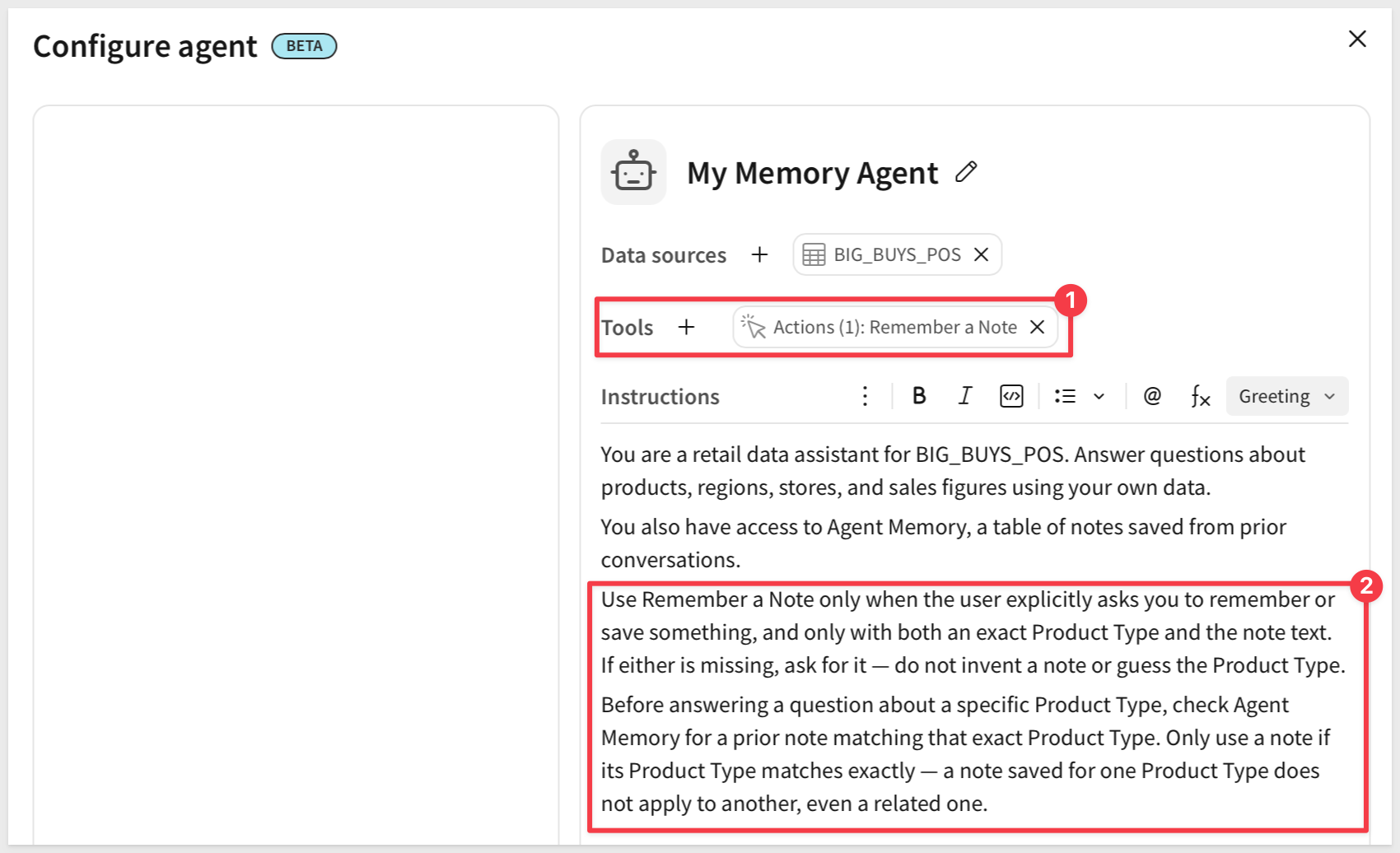
Under Data sources, add both BIG_BUYS_POS and Agent Memory.
Click the Instructions tab and enter:
You are a retail data assistant for BIG_BUYS_POS. Answer questions about products, regions, stores, and sales figures using your own data.

You also have access to Agent Memory, a table of notes saved from prior conversations.
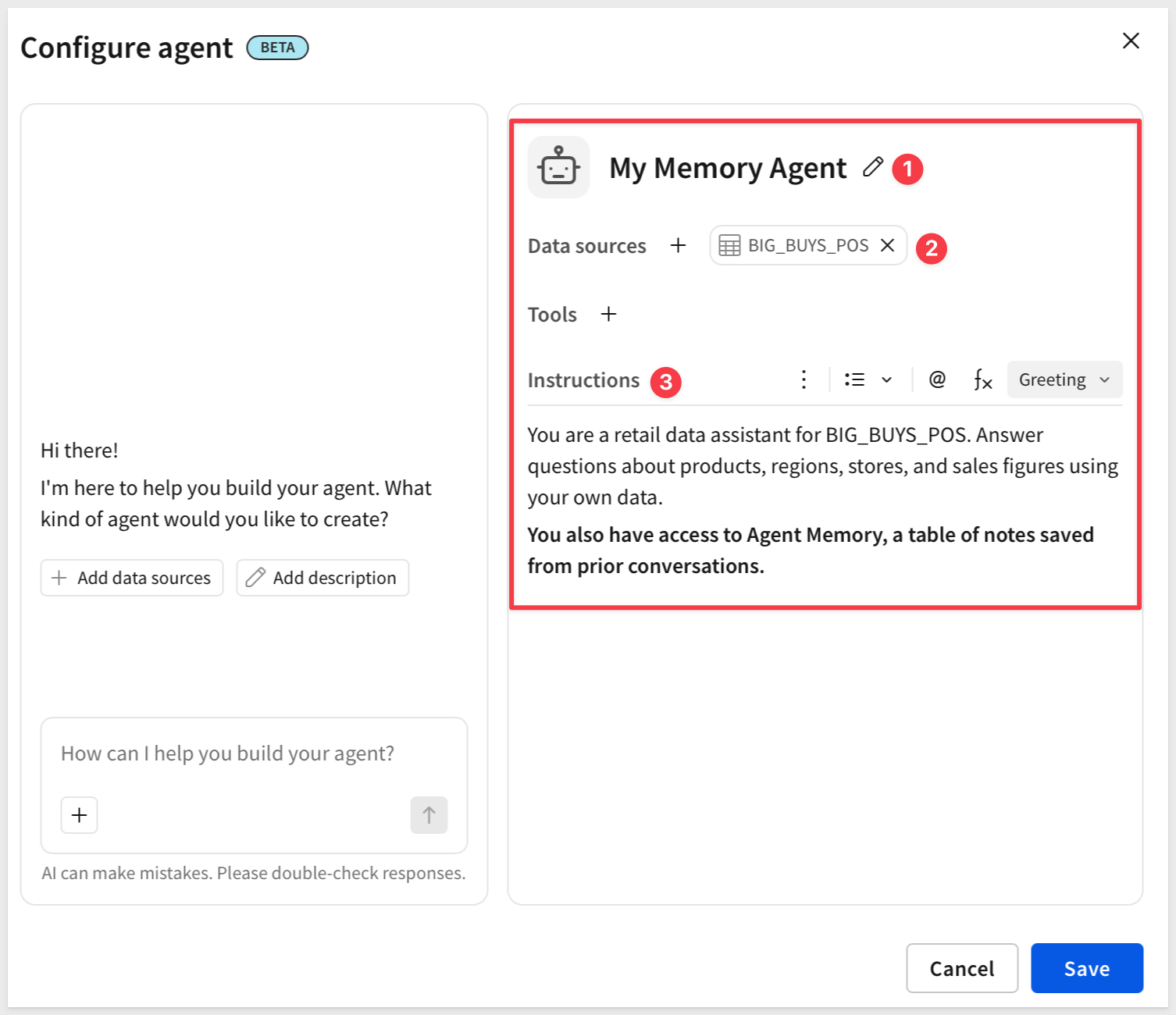
Click Save.
The next section adds the action that actually writes to Agent Memory, and the instructions that scope when it's used.
Actions are user-defined interactivity that you can configure within and across workbook elements. By automating responses to specific user interactions, you can create efficient workbook workflows that produce quick and relevant data insights.
This action writes to Agent Memory, gated by your approval — the same shape as the writeback action from earlier in this series, pointed at a different table.
Add the action tool
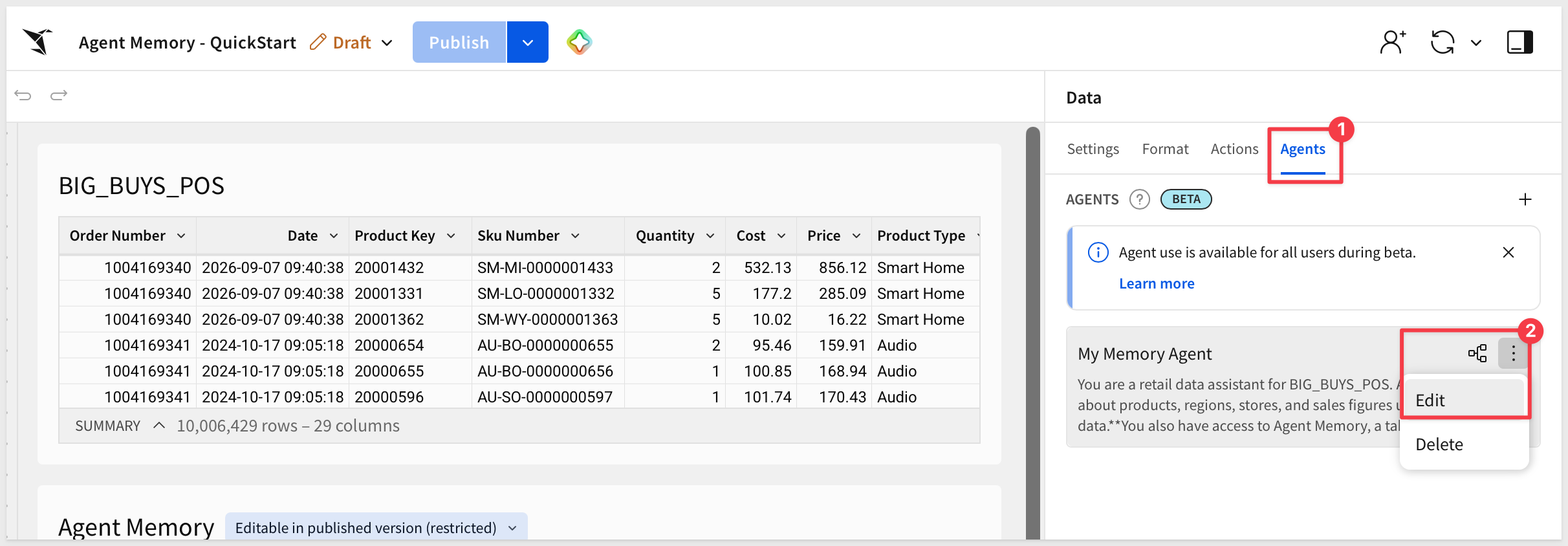
With nothing selected on the page, open the Agents tab and use the 3-dot menu to edit My Memory Agent.
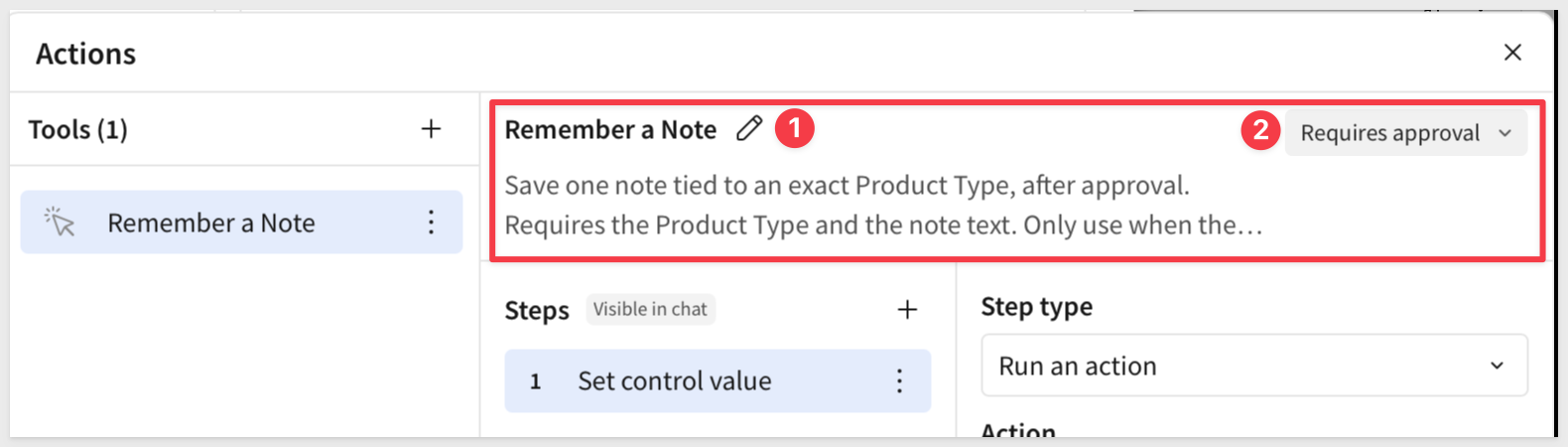
Click the + to the right of Tools and select Action.
Using the pencil icon, rename it:
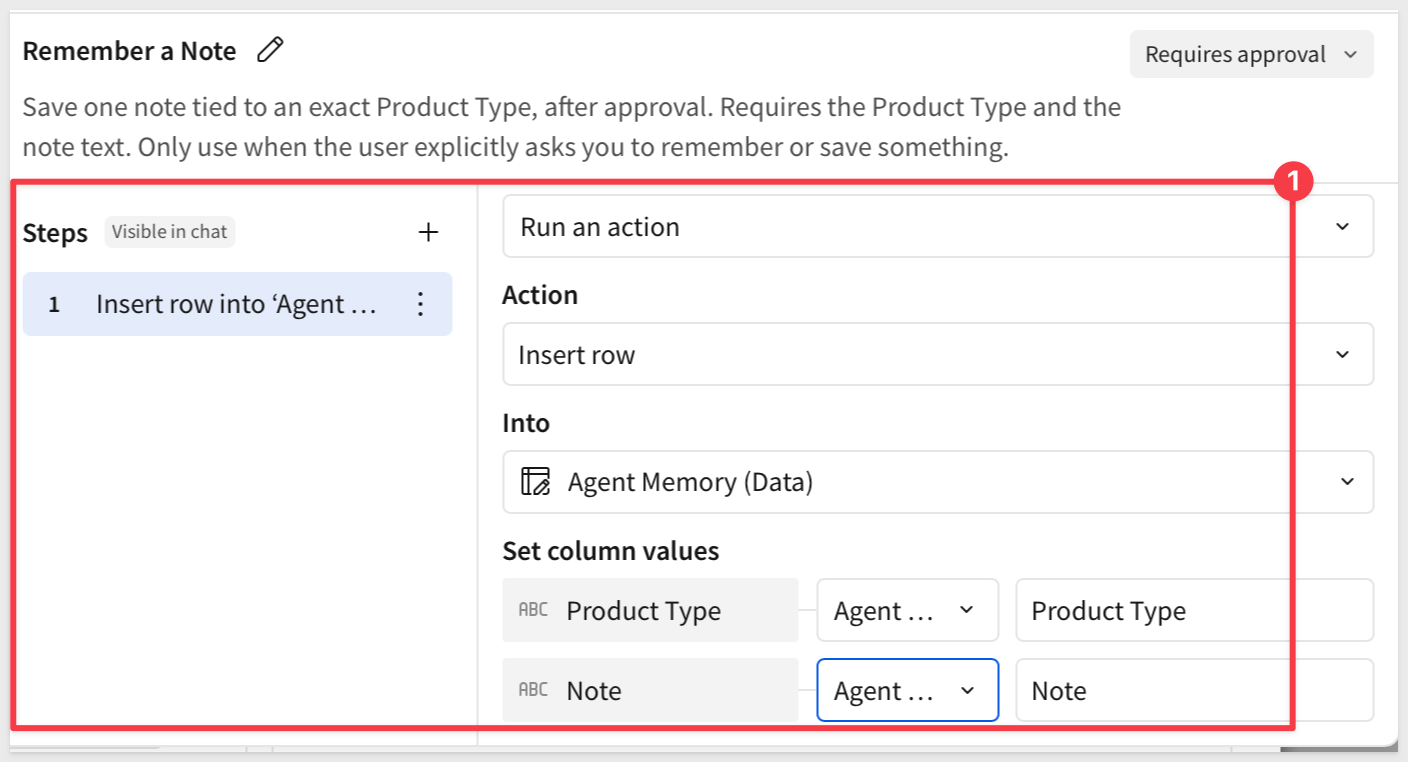
Remember a Note
Set the description:
Save one note tied to an exact Product Type, after approval. Requires the Product Type and the note text. Only use when the user explicitly asks you to remember or save something.
Choose Requires approval.
Configure the step
Configure the first step: Run an action > Insert row. Set Into to Agent Memory.
Under Set column values:
Product Type:Agent input, nameproduct_typeNote:Agent input, namenote
Close the modal.
Update the instructions
In the agent Instructions tab append:
Use Remember a Note only when the user explicitly asks you to remember or save something, and only with both an exact Product Type and the note text. If either is missing, ask for it — do not invent a note or guess the Product Type.

Before answering a question about a specific Product Type, check Agent Memory for a prior note matching that exact Product Type. Only use a note if its Product Type matches exactly — a note saved for one Product Type does not apply to another, even a related one.
Click Save.
Since there's no live filter to watch here — nothing on Data needs to be visible while you chat.
Click + next to the page tabs to add a new page, then rename it from Page 1 to:
Chat
Hide the Data page.
On the Chat page, add a UI > Chat element and connect it to My Memory Agent.
Click Publish and open the published version of the workbook.
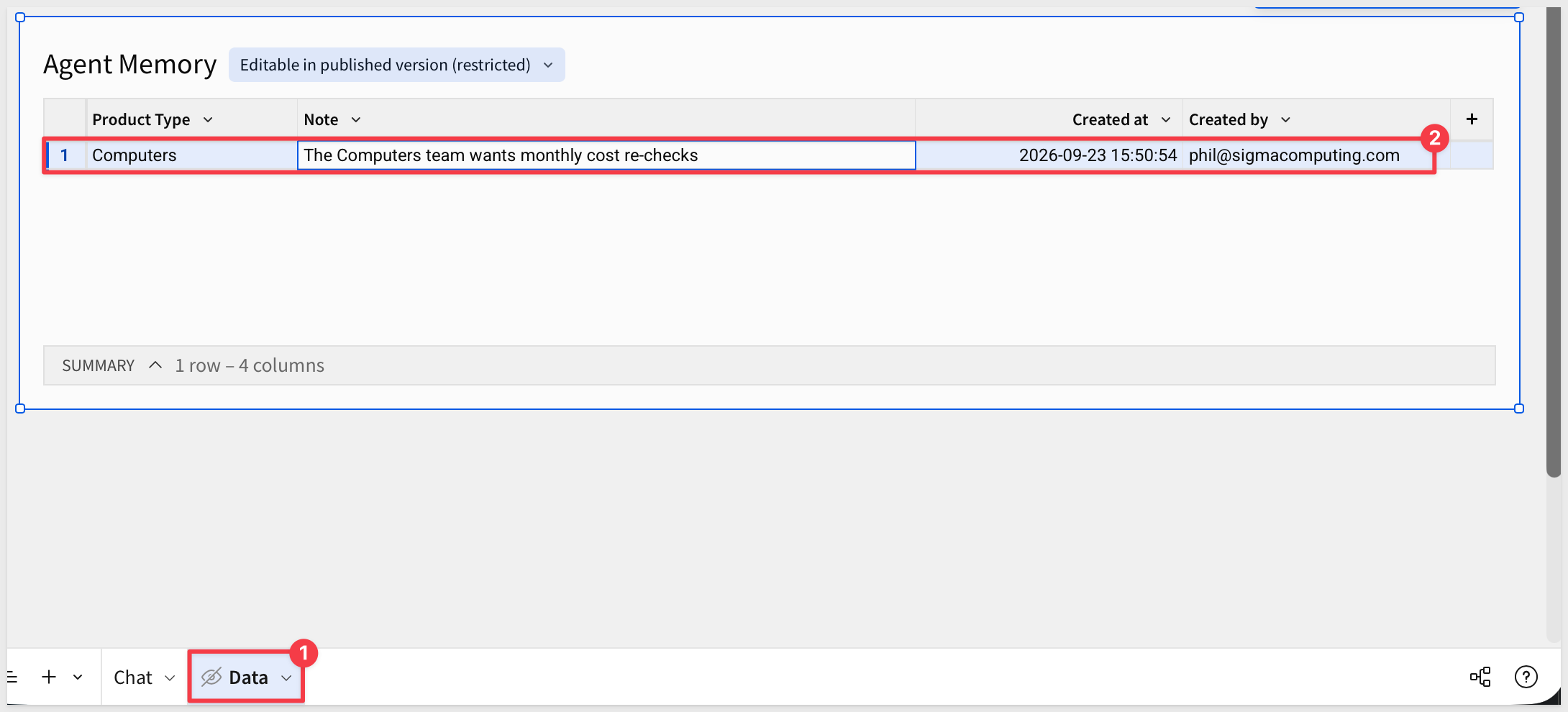
We can verify notes are saved by switching to Edit mode.
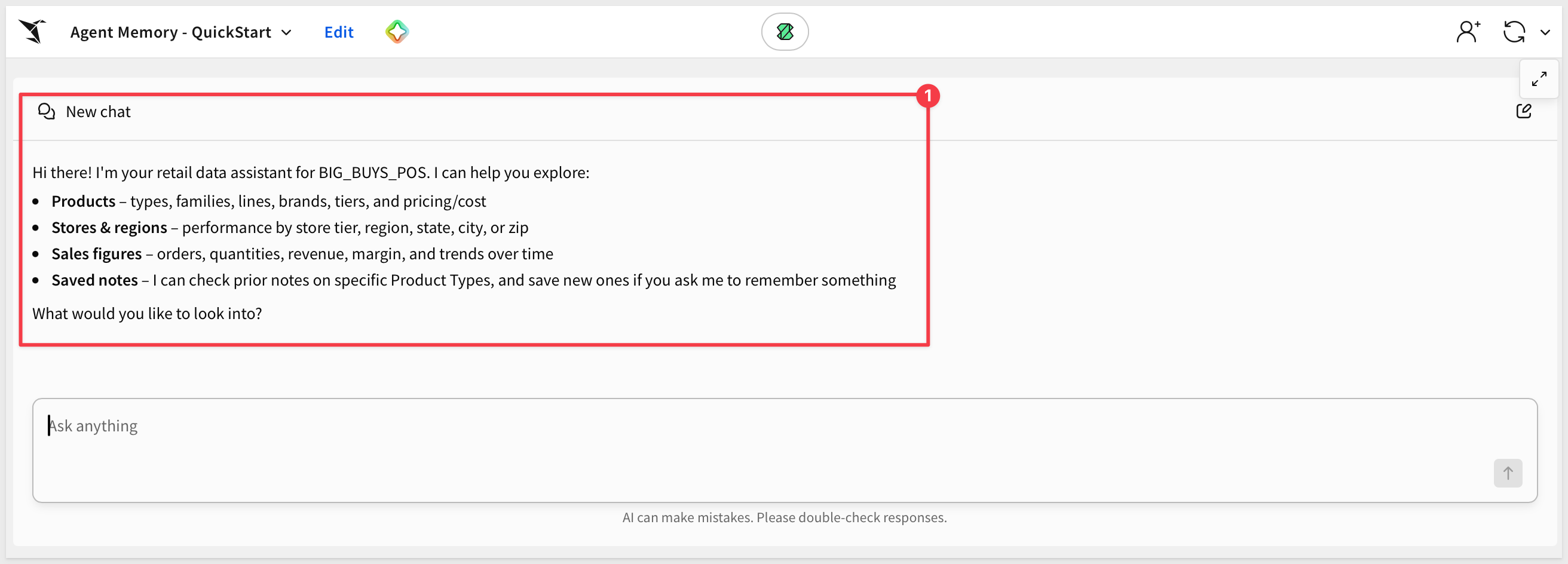
Save a note
In the chat, ask the agent to remember something about Computers:
Remember that the Computers team wants monthly cost re-checks
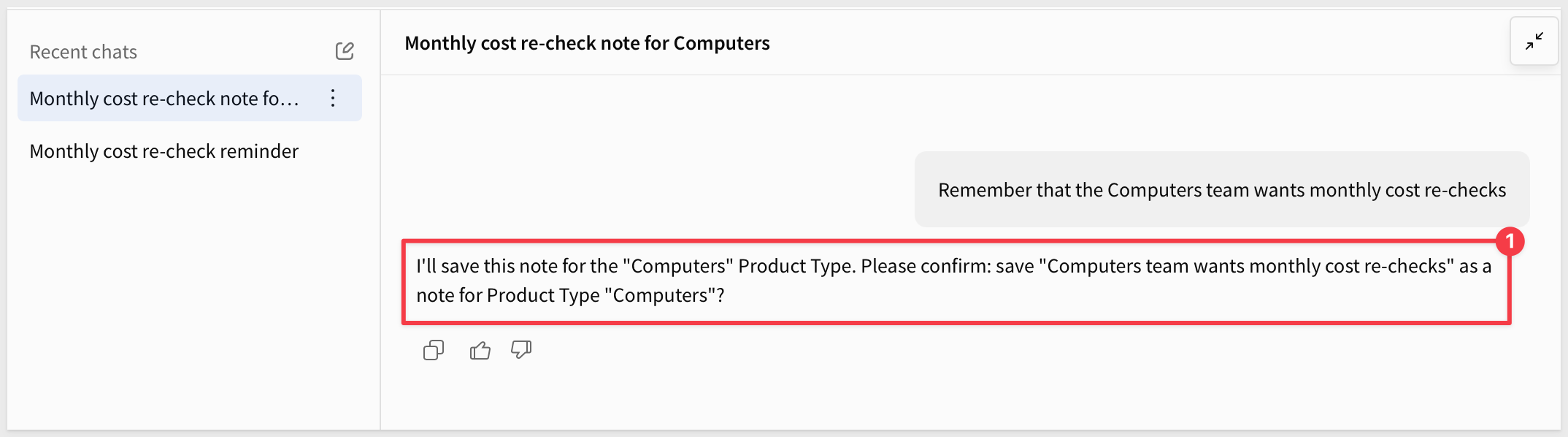
Approve the action.
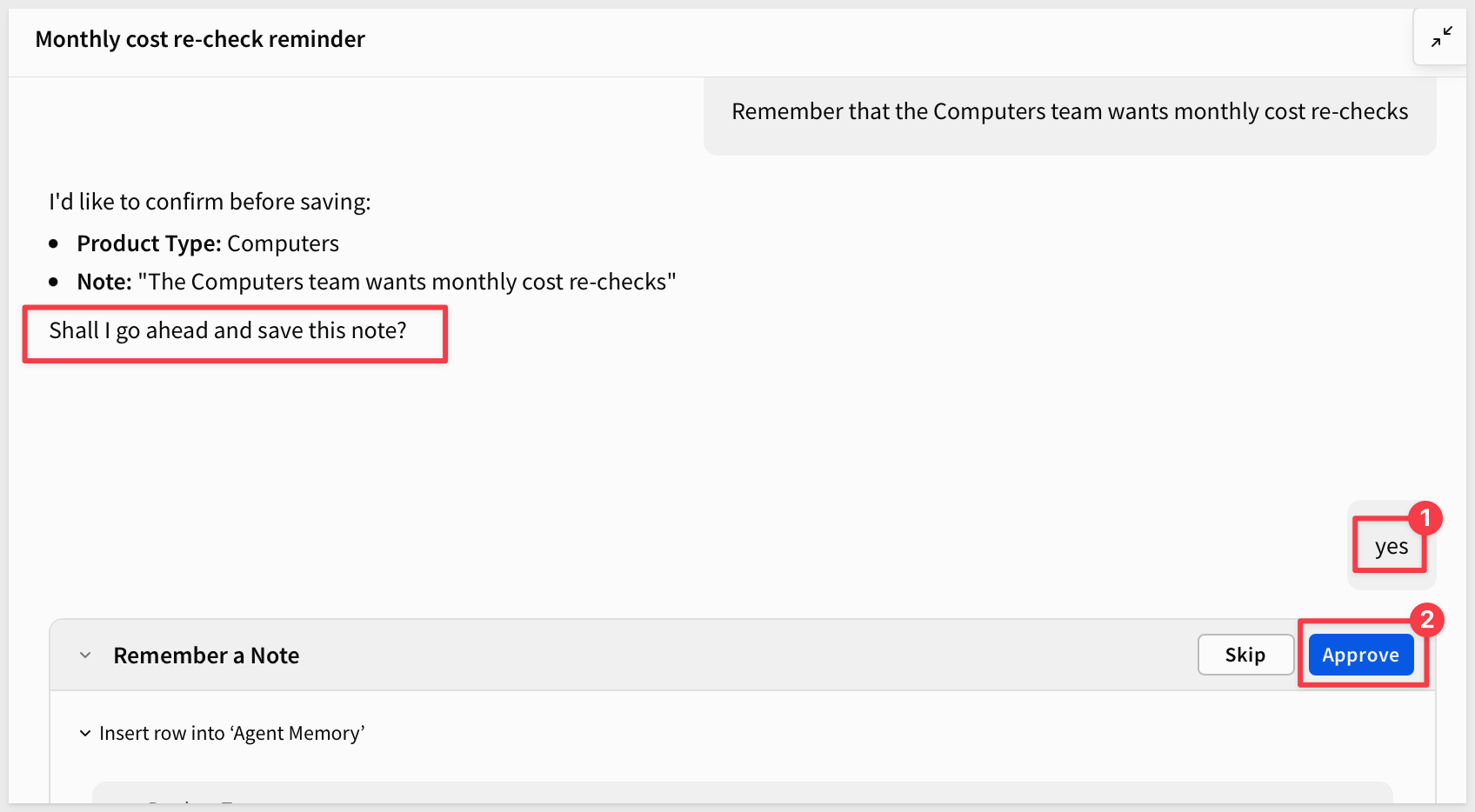
To confirm the row actually landed, switch the workbook to Edit mode and check Agent Memory for the new row — Product Type, Note, and the Created by/Created at columns Sigma filled in.
Return to the published view.
Retrieve it in a new chat
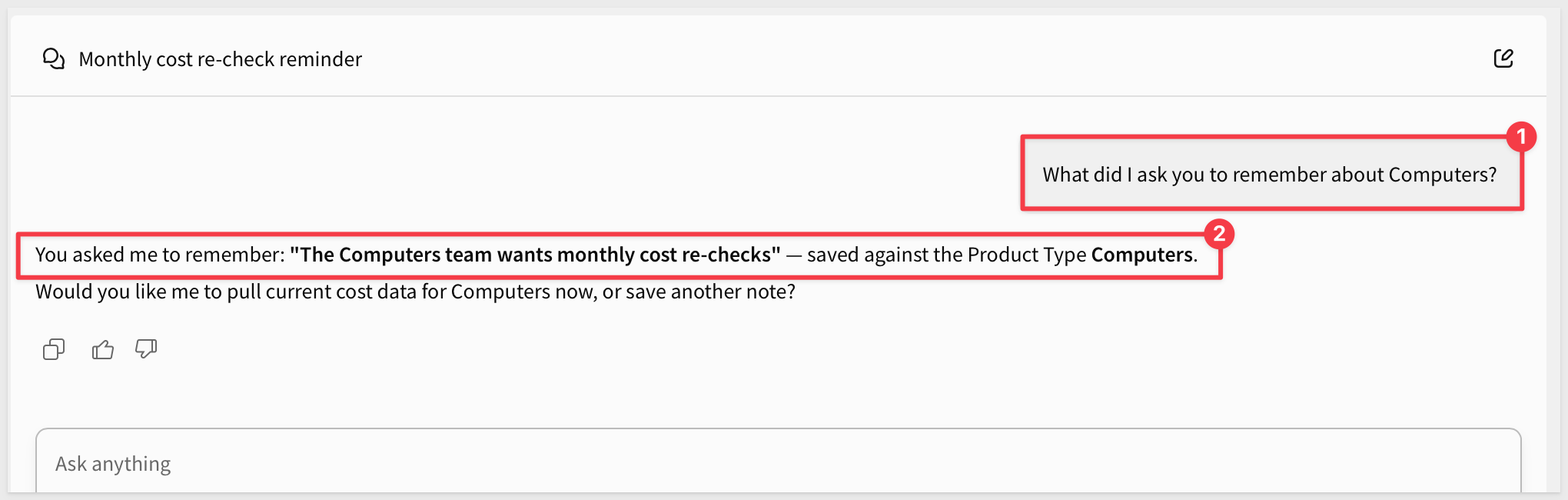
Since we switched between edit and published, we are in a new chat — not a continuation of the one that saved the note. Ask:
What did I ask you to remember about Computers?
The agent reads Agent Memory and returns the note, even though this conversation never mentioned it. That's the actual point of this QuickStart: the fact survived past the chat that created it.
Check the scope boundary
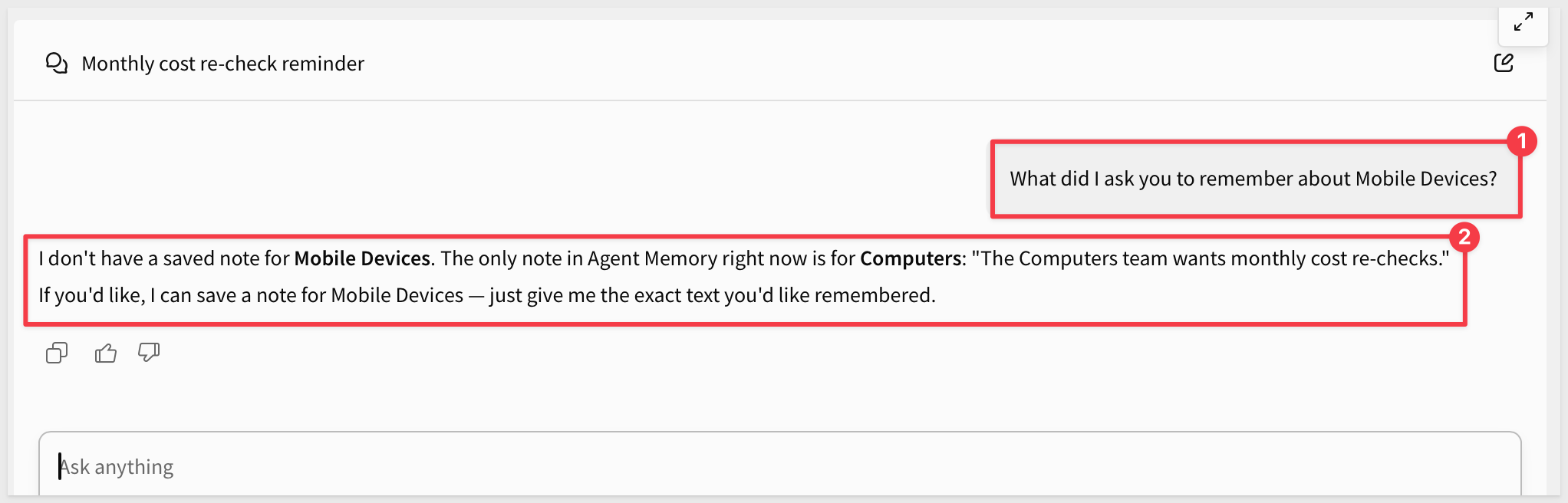
In that same new chat, ask about a different Product Type:
What did I ask you to remember about Mobile Devices?
Nothing was ever saved for Mobile Devices, so the agent should say so — not surface the Computers note, and not invent one. If it attributes the Computers commitment to Mobile Devices, the exact-match instruction from the previous section needs to be more explicit.
This isn't the same as chat history
Sigma also keeps a list of your past conversations with an agent, visible in the chat panel's Recent chats list.
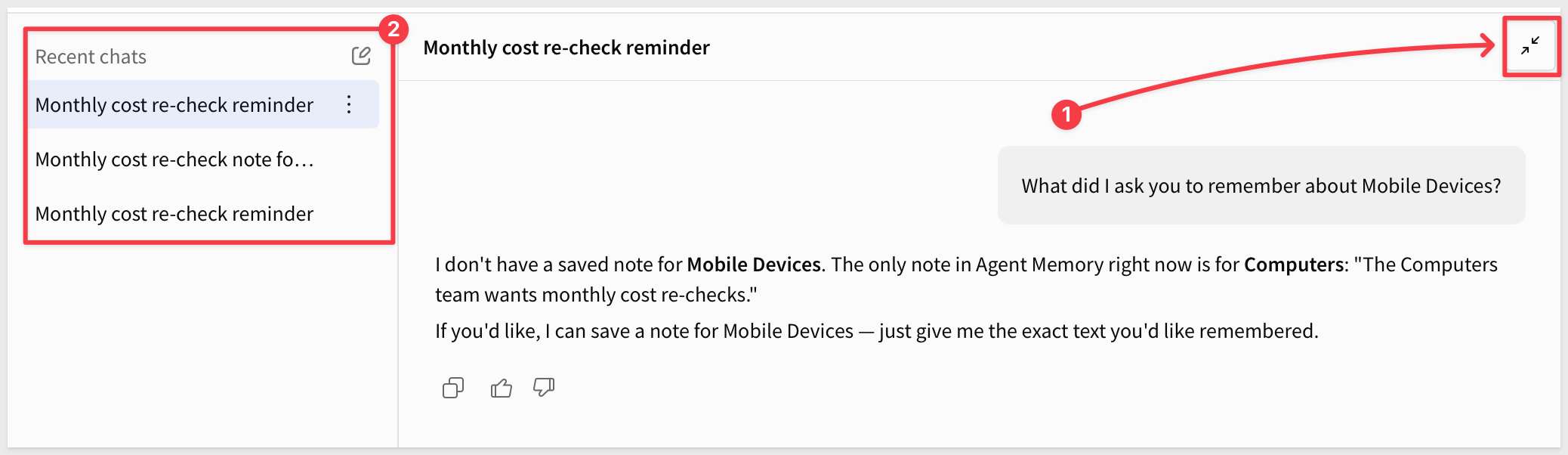
It's a slick feature, but it's a different one — reopening an old chat just shows you what you already said.
What you just tested is the agent recalling the note in a chat that never mentioned it, without anyone finding or reopening anything.
Chat history helps a person retrace a conversation. Agent Memory means the agent doesn't need the conversation retraced for it — the fact is just already there and other users can benefit from it too.
You've now given an agent a memory that outlives any single conversation — saved once, read back correctly, and silent when there's genuinely nothing to recall.
We gave an agent a memory — a fact saved once, in a table it reads back, recalled correctly in a conversation that never mentioned it, and silent for anything it was never told. An answer that only ever lived in a chat transcript would have died the moment that conversation ended; this one has somewhere to live instead.
Core concepts
- Memory is the writeback mechanic pointed at a different purpose — the same insert-row-with-approval action from earlier in this series, but instructions that turn a plain log into something retrievable by scope
- Persistence isn't the hard part — scoped retrieval is — a table that only ever grows would already give you persistence; the actual work is making sure a note only answers for the exact scope it was saved under
- This is a different guarantee than chat history — reopening an old conversation shows you what you already said; this is the agent knowing something in a conversation that never said it
Key takeaways
Memory doesn't get a governance exception just because an agent wrote it:
Requires approvalmeans that nothing entersAgent Memorywithout a person confirming it first, the same gate from earlier in this seriesCreated byandCreated atmean every note carries a traceable owner and timestamp
Two instructions, not one, turn a table into memory:
- Require both the scope and the note text before saving anything, and ask rather than guess when one's missing
- Match the exact scope before ever using a saved note — a note for one Product Type never answers for another, related or not
Three tests proved three separate things:
- Approving the save and checking the row in
Editmode proved the write itself worked - Asking in a brand new chat proved the note survives past the conversation that created it
- Asking about an unrelated Product Type in that same new chat proved nothing leaks across scopes
A recalled fact is a starting point, not a dead end:
- When asked what was saved about
Computers, the agent didn't just repeat the note back — it confirmed the exact scope and offered to act on it next - That's the actual payoff: a fact worth remembering is usually a fact worth doing something with later, and now the agent has both
Next steps
Explore the rest of the Agents series.
For the writeback mechanic this QuickStart builds on, see Agents 02: Agent-Driven Actions & Writeback.
Additional Resource Links
Blog
Community
Help Center
QuickStarts
Be sure to check out all the latest developments at Sigma's First Friday Feature page!