This QuickStart demonstrates how to run a Sigma agent on a schedule, with nobody watching, and email what it produces.
Every agent so far in this series has answered inside a conversation, with a person there to approve anything it writes. A scheduled run has no conversation and no one to click approve — so this QuickStart uses a different shape: a separate agent that only produces text, and an action sequence that calls it on a timer and sends the result by email automatically.
Along the way you'll learn how to:
- Build a text-only agent with no UI-dependent tools, suited to running unattended
- Configure a page-level action sequence that calls an agent and captures its response
- Send that response as an email, as part of the same sequence, with no approval step
- Confirm a scheduled trigger actually fired, not just that a manual run worked
For more information on Sigma's product release strategy, see Sigma product releases
If something doesn't work as expected, here's how to contact Sigma support
Target Audience
Sigma workbook authors and admins building agents that need to run without anyone present, not just when someone opens a chat. For the approval-gated action pattern this QuickStart contrasts with, see Agents 02: Agent-Driven Actions & Writeback — but this QuickStart includes everything you need to follow along on its own.
Prerequisites
- Any modern browser is acceptable.
- Access to your Sigma environment with permission to create and manage agents, and to configure scheduled action sequences.
- Some familiarity with Sigma is assumed. Not all steps will be shown, as the basics are assumed to be understood.

This agent never appears in a chat element. It exists to be called by a schedule, so it gets a home and a data source but no UI elements in the workbook are required to use it.
Create a new workbook
From Sigma Home, click Create New and select Workbook. Save and name it:
Scheduled Reports - QuickStart
Add BIG_BUYS_POS from Sigma Sample Database > RETAIL > BIG_BUYS as a Table element. Rename the page from Page 1 to:
Data
Create the runner agent
In the properties panel, open the Agents tab, click +.
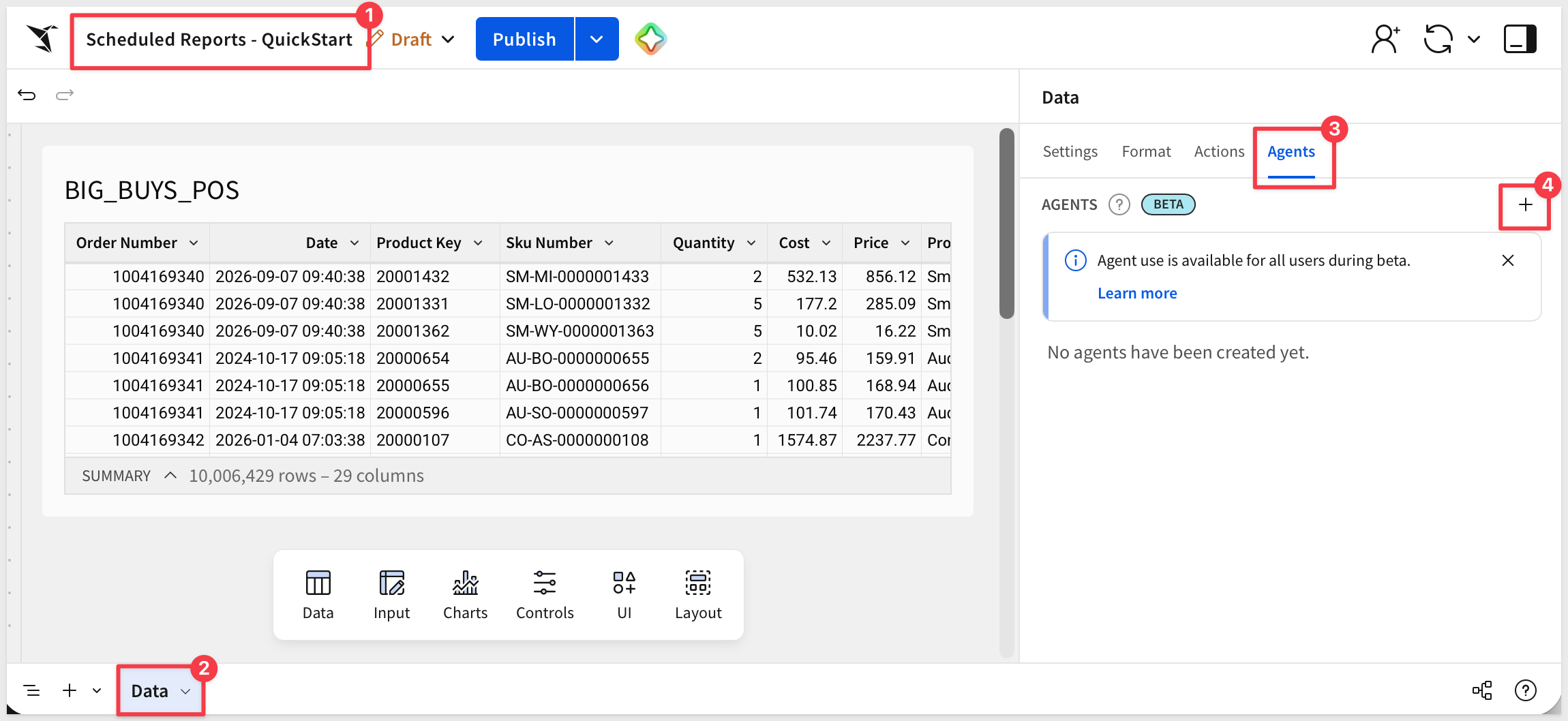
Using the pencil icon, rename the new agent:
My Report Runner
Under Data sources, add BIG_BUYS_POS.
Click the Instructions tab and enter:
You are a retail reporting assistant for BIG_BUYS_POS. When asked to summarize a Product Type, report total sales, total units, and the observed date range for that Product Type only.

Return a short plain-text summary. You have no tools and no way to ask a follow-up question — answer only from what's in the request.
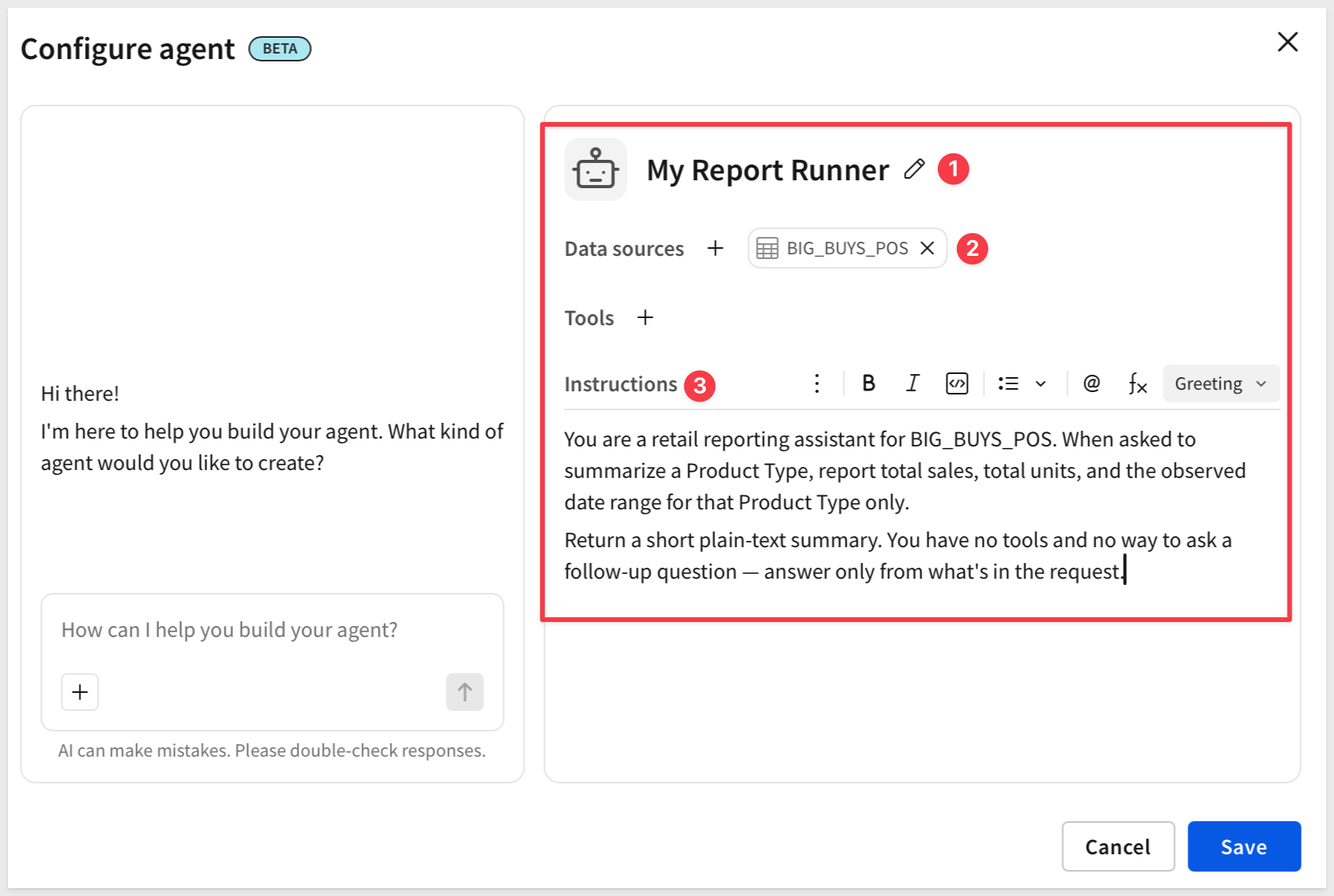
Click Save.
The next section builds the piece that actually calls this agent: a scheduled action sequence.
There are two steps in this simple example, no chat: the first calls the runner agent, the second emails what it returns.
Create the automated action
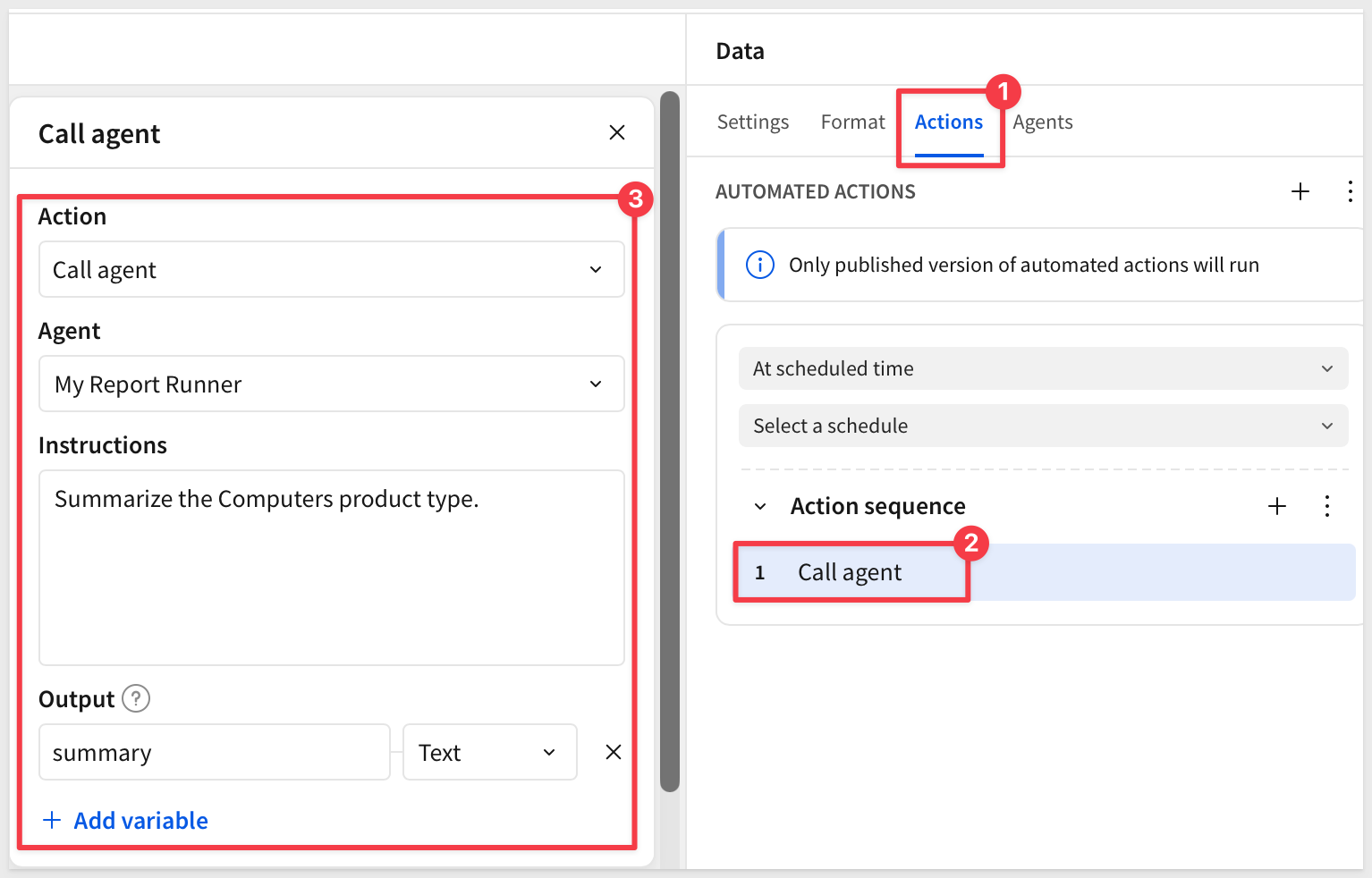
Click a blank area of the canvas background — not any element — so the panel shows page-level settings. In the element panel, open the Actions tab (to the left of Agents).
There is an automated action already set to trigger At scheduled time, with a Select a schedule dropdown and, below it, its own Action sequence area where the actual steps get added.
Click + to the right of Action sequence. A Notify and export action is added by default.
Change the Action to Call agent.
Set Agent to My Report Runner.
In Instructions, enter:
Summarize the Computers product type.
Under Output, rename the default Agent-Response variable to:
summary
The Action variable summary is expected to return Text.
Export to email
In the Action sequence area, click its + to add another step (action). Now there are two actions, both defaulted to Call agent.
Change the Action to Notify and export, which will change the actions name for us.
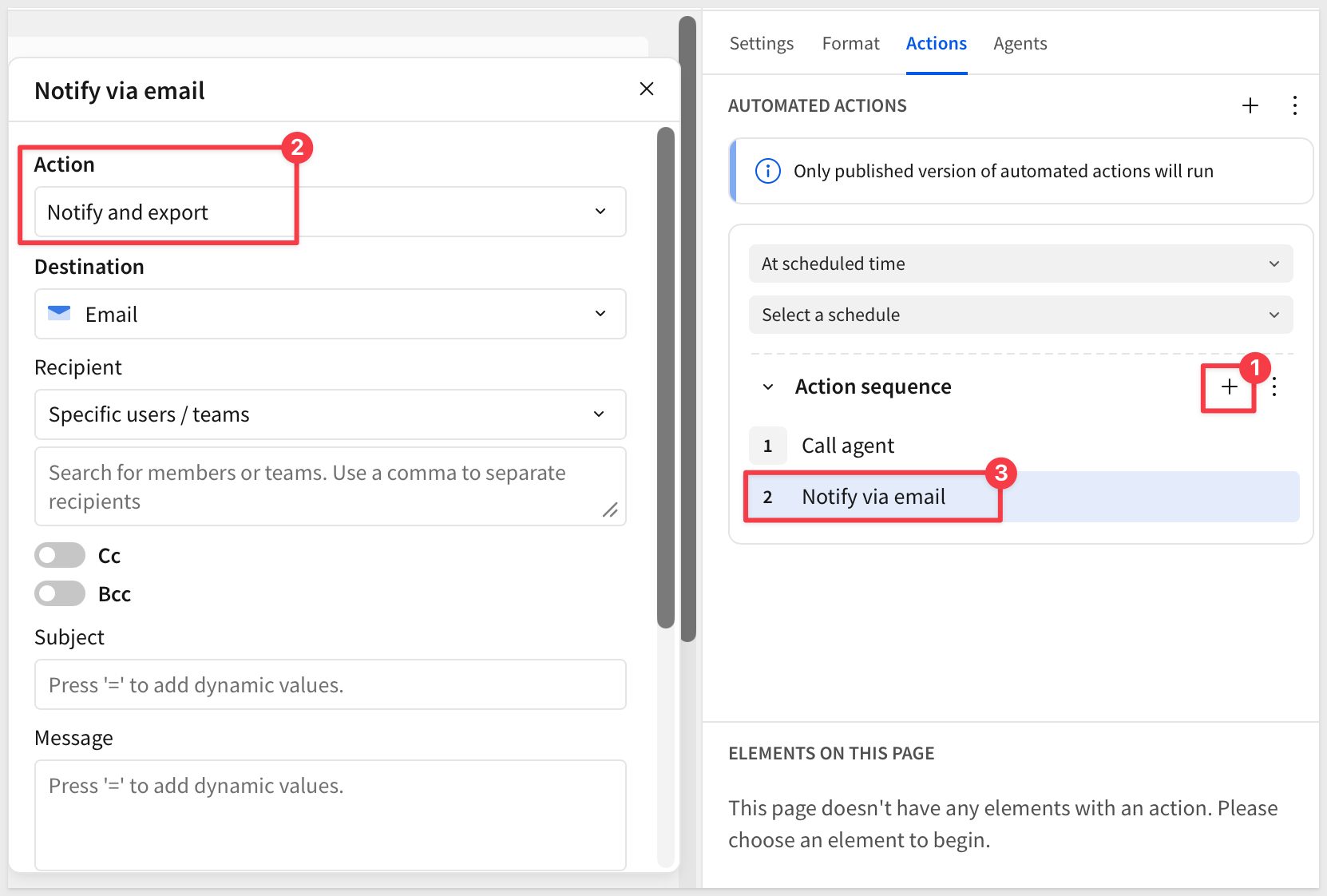
Under Recipient, leave the mode as Specific users / teams and search for yourself in the field below it.
Set the Subject:
Weekly Computers Report
In Message, type = to switch to a formula, then insert the summary variable from the previous step rather than typing its name as plain text.
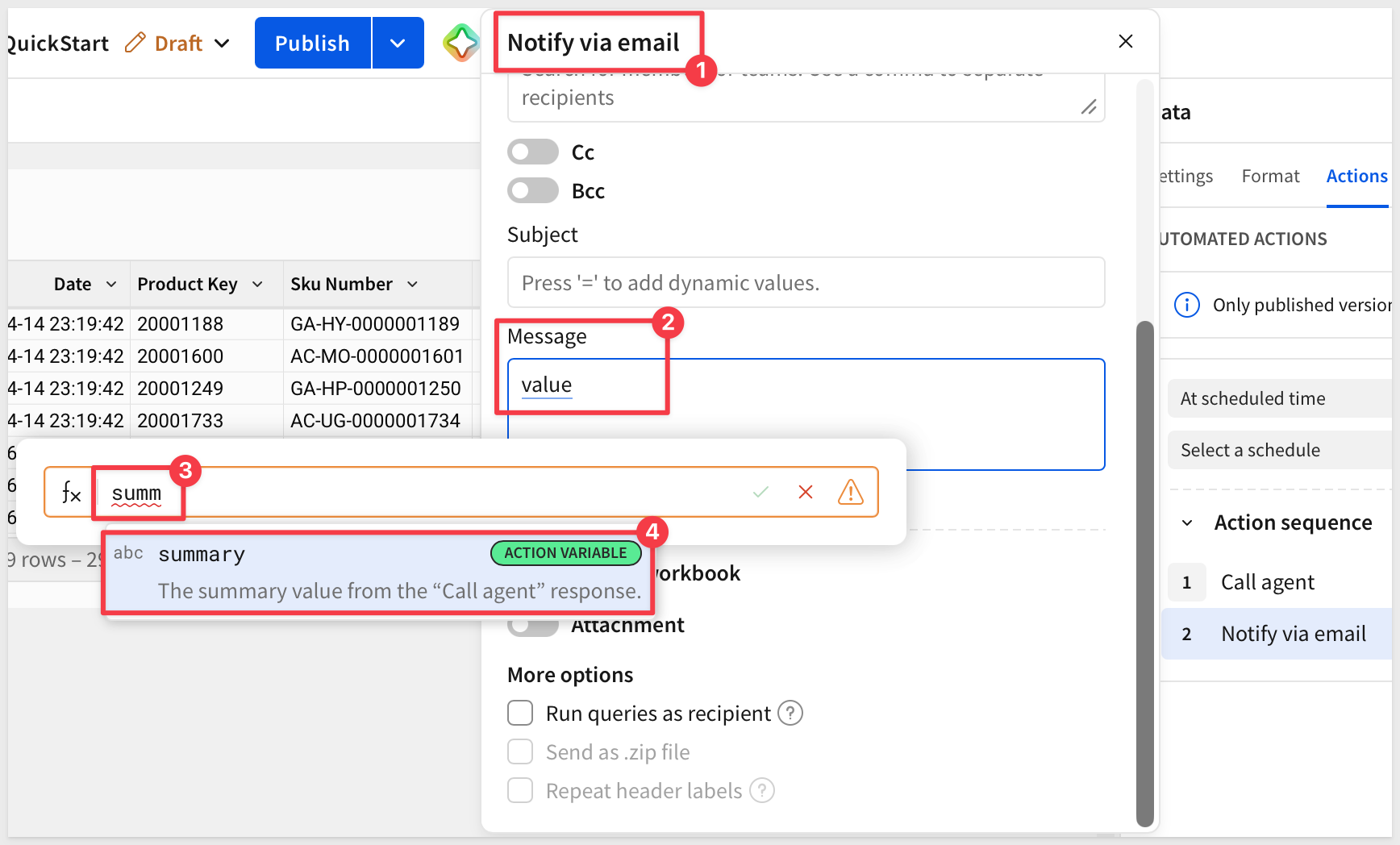
Click Publish.
Waiting for a real Weekly trigger to fire would work, but nobody wants to sit around for it. This section runs the same sequence immediately instead.
Run it now
Open the ... menu on the Action sequence and select Run now.
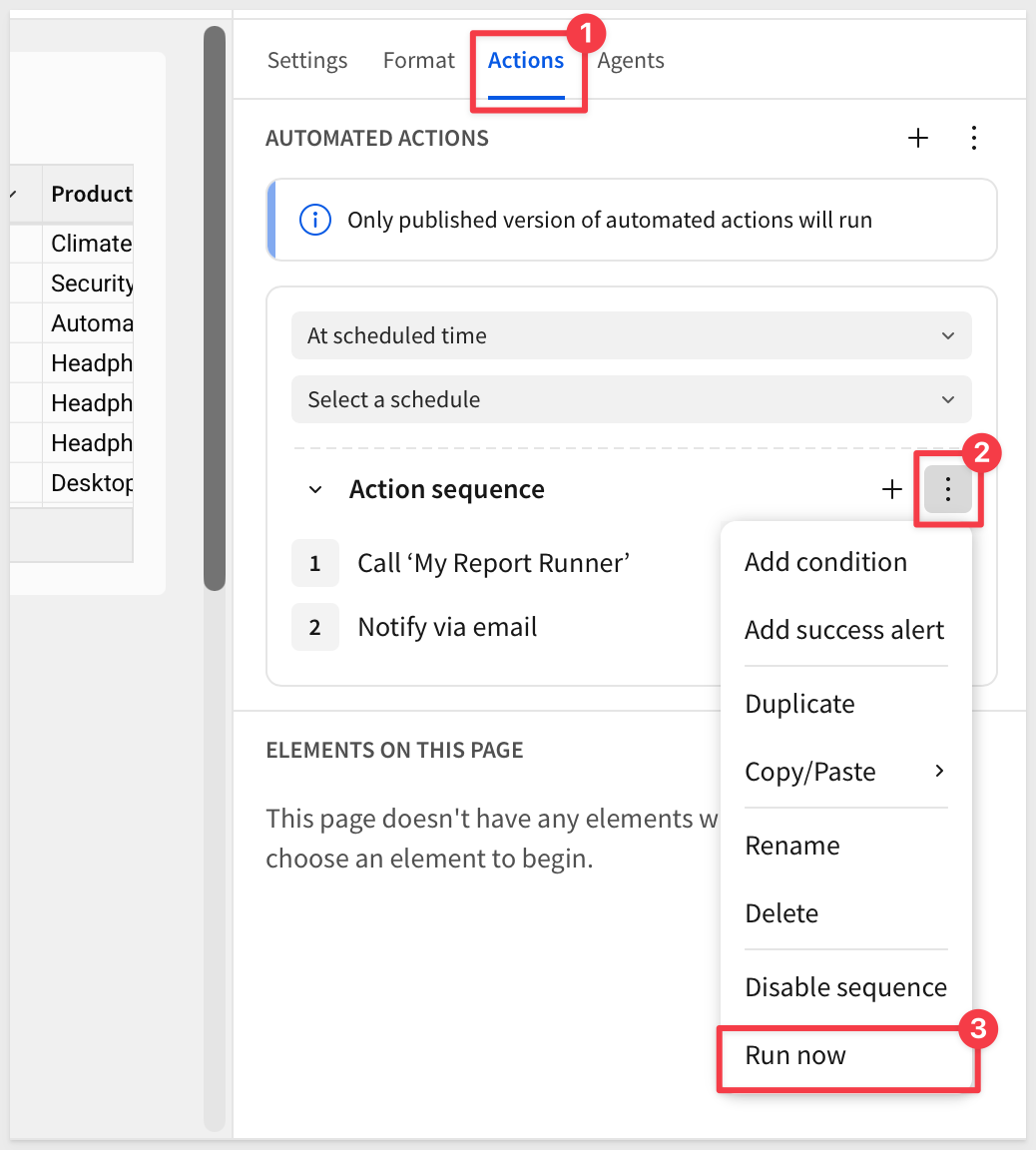
Nothing in the workbook will indicate it's running — no spinner, no confirmation. That's expected: this sequence is built to run with no one watching, so it was never given anything to show a person. The email in the next step is the only signal you'll get.
Check the result
Check the inbox for the address you set as Recipient. You should have an email with the subject Weekly Computers Report and a message containing My Report Runner's summary.
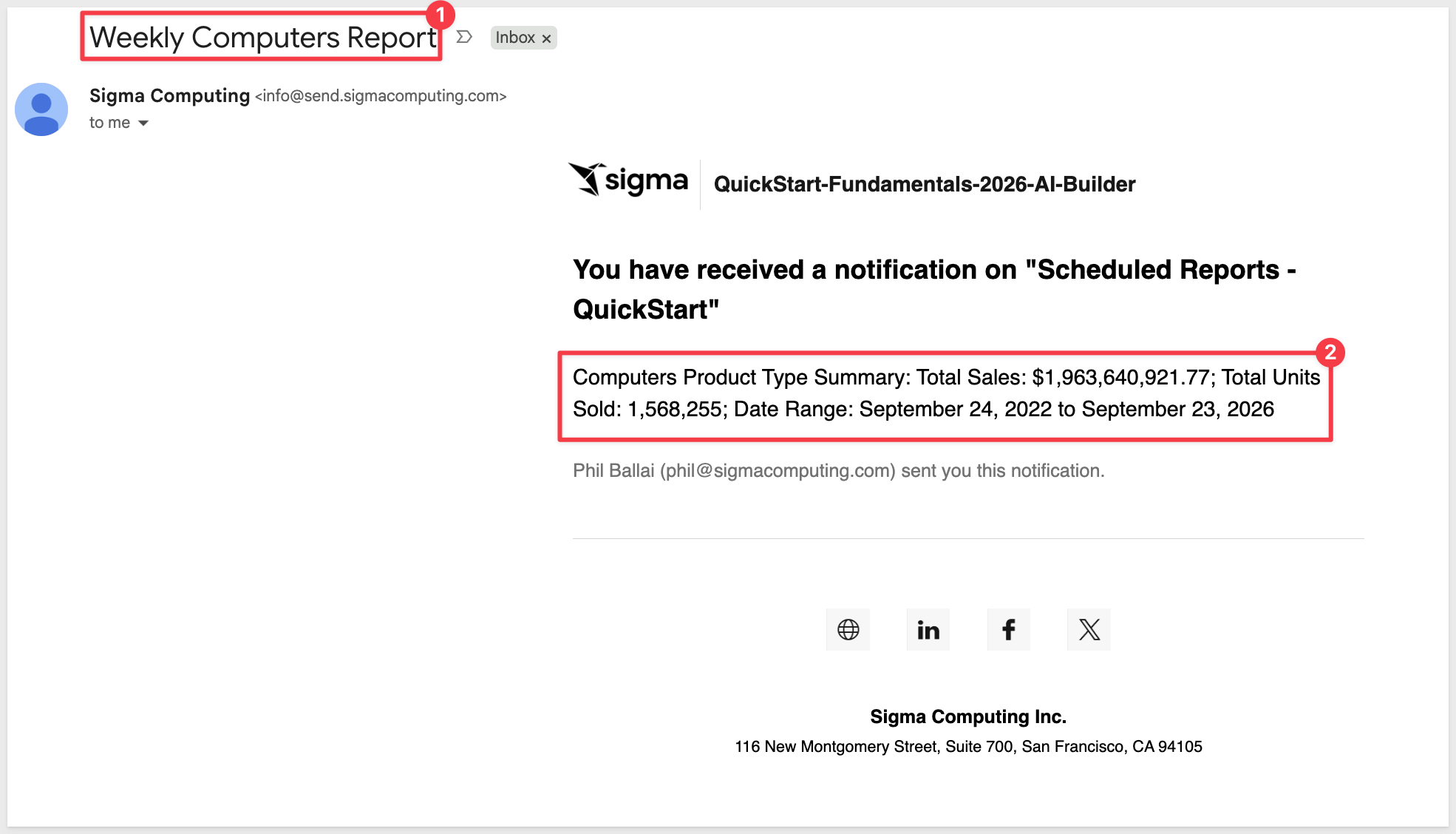
You've now built an agent that runs without anyone opening a chat, and delivers what it finds without anyone approving it first — the two things a scheduled, unattended run actually requires.
We built an agent that runs on a schedule, with no one watching, and delivered its own result somewhere a person will actually see it — no click, no approval, no one confirming it even ran.
Core concepts
- A runner agent needs nothing to run unattended — no tools, no chat element, no way to ask a follow-up. It answers exactly the one question the sequence sends it, nothing more. Add more action sequences to create more outputs as needed.
- Automated actions replace approval with configuration — there's no approval step because there's no one present to approve. The trust boundary moves to who can edit the sequence and its schedule, not who clicks allow on any given run.
- The
Notify and exportaction reaches further than email — same action, a different destination, minimal setup changes.
Key takeaways
Two steps, no approval, by design:
Call agentcaptures a result;Notify and exportdelivers it — nothing in between waits on a person- A scheduled run genuinely has no one to approve anything
One "Call agent" step is a starting point, not a ceiling:
- This example calls the runner once, for one Product Type — a second
Call agentstep with different instructions, capturing its own output variable, would work the same way, still with no approval step in between
Testing with "Run now" proved the logic, not the trigger:
- Testing without waiting for the real schedule confirmed the sequence itself works end to end
- Testing on a set schedule is easily done based on what we learned
Silence is the expected behavior, not a missing feature:
- No spinner, no confirmation inside the workbook when it runs — the email is the only signal
- That's correct for something built to run with no one watching
Next steps
Explore the rest of the Agents series.
For the approval-gated action pattern this QuickStart contrasts with, see Agents 02: Agent-Driven Actions & Writeback.
Additional Resource Links
Blog
Community
Help Center
QuickStarts
Be sure to check out all the latest developments at Sigma's First Friday Feature page!