This QuickStart demonstrates an interactive workbook selection experience using a simple, stable carousel interface. Users can visually browse available workbooks through thumbnail images and smooth navigation, creating an engaging way to discover and select embedded content.
It's important to understand how the workbooks displayed in the carousel are selected. Sigma is highly flexible, and workbooks can be stored in multiple locations—sometimes leading to content sprawl and the risk of exposing content to unauthorized users, whether embedded or not.
For that reason, it's best practice to store workbooks in dedicated workspaces and share those workspaces with specific users or teams. In the embed context, maintaining a 1:1 relationship between workspaces and user groups is ideal to simplify management and ensure proper access control.
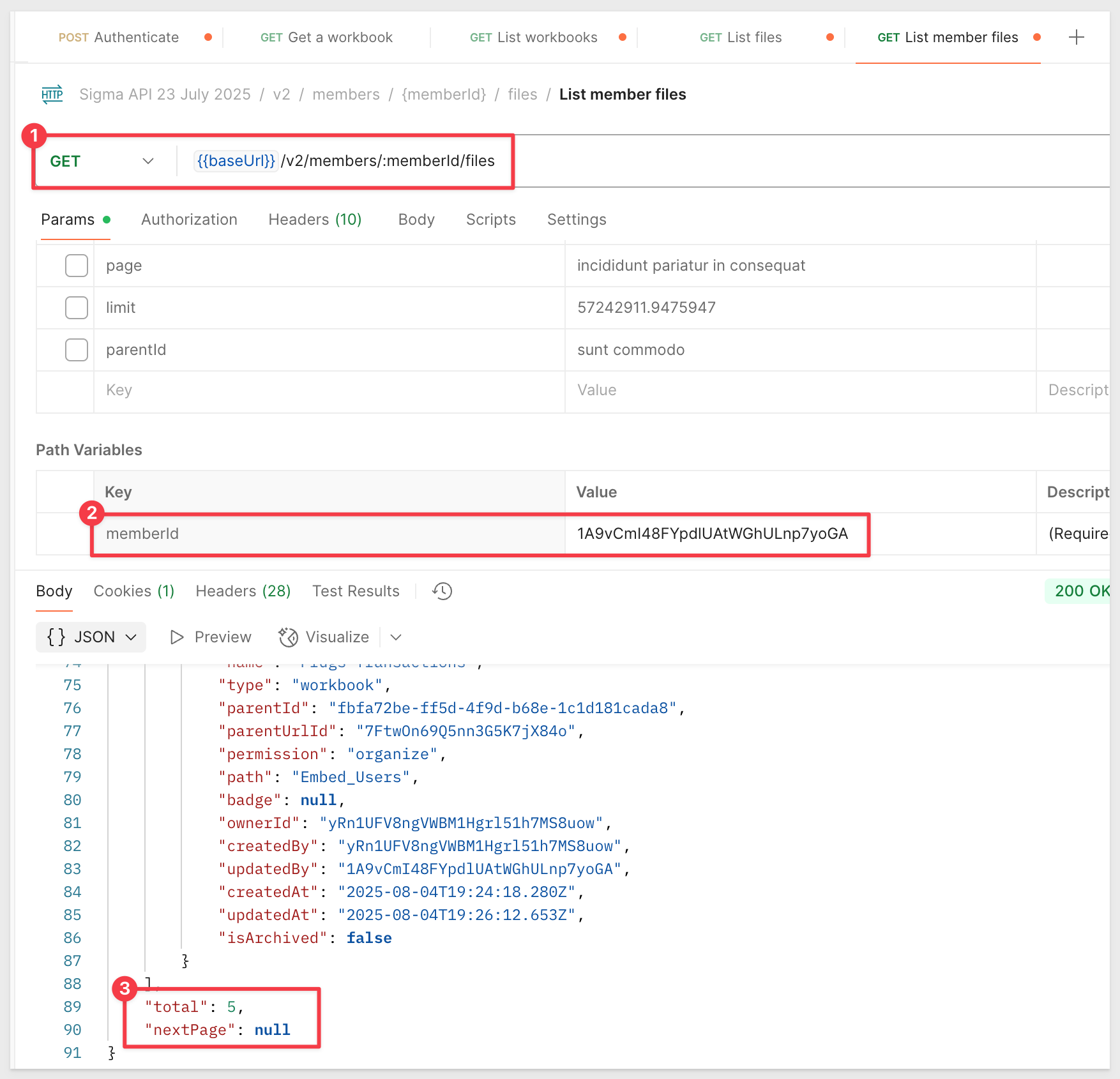
Our implementation uses the List member files API endpoint, which returns all documents and folders accessible to a specific user.
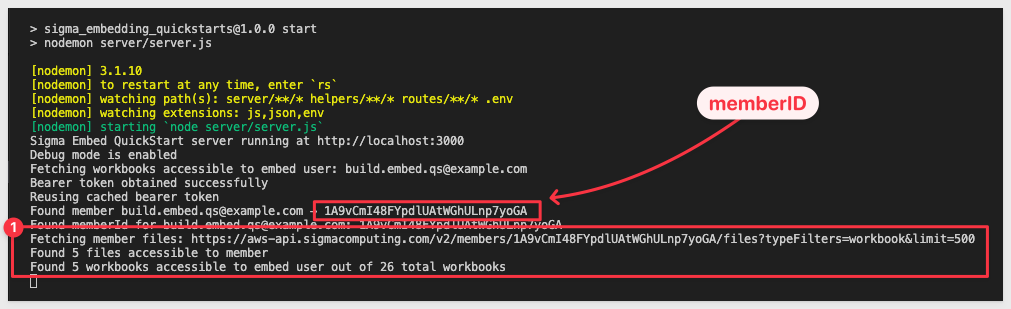
In the sample application, when a user is selected, we call this endpoint, pass the user's member ID, and apply a type filter for workbooks only. We did not take the additional step of filtering workbooks by storage location or path.
For enhanced security, you could implement path-based filtering—for example, only allowing users to access content in the Embed_Users workspace. You could use the user's team membership to filter the results accordingly. This additional filtering helps prevent accidental exposure of content that users shouldn't have access to, even if Sigma's permission system technically permits it.
The filtered response is then displayed using a carousel control, though it could just as easily be rendered with other UI components.
REST API Usage 01: Getting Started
For more information on Sigma's product release strategy, see Sigma product releases
If something doesn't work as expected, here's how to contact Sigma support
Target Audience
Developers who want to use Sigma's REST API to programmatically control Sigma in an embedded context.
Prerequisites
- Any modern browser will work.
- Access to your Sigma environment.
- Some familiarity with Sigma is assumed. Not all steps are shown, as the basics are assumed understood.
- Microsoft VSCode or other suitable development tool.

Start the Express server in terminal from the embedding_qs_series_2_api_use_cases folder and enable debugging:
DEBUG=true npm start
The server is ready when it displays: Server listening at http://localhost:3000.
Browse to the landing page:
http://localhost:3000
Select the Custom Workbook List page and click Go.
Select either user and click the down arrow to open the carousel:
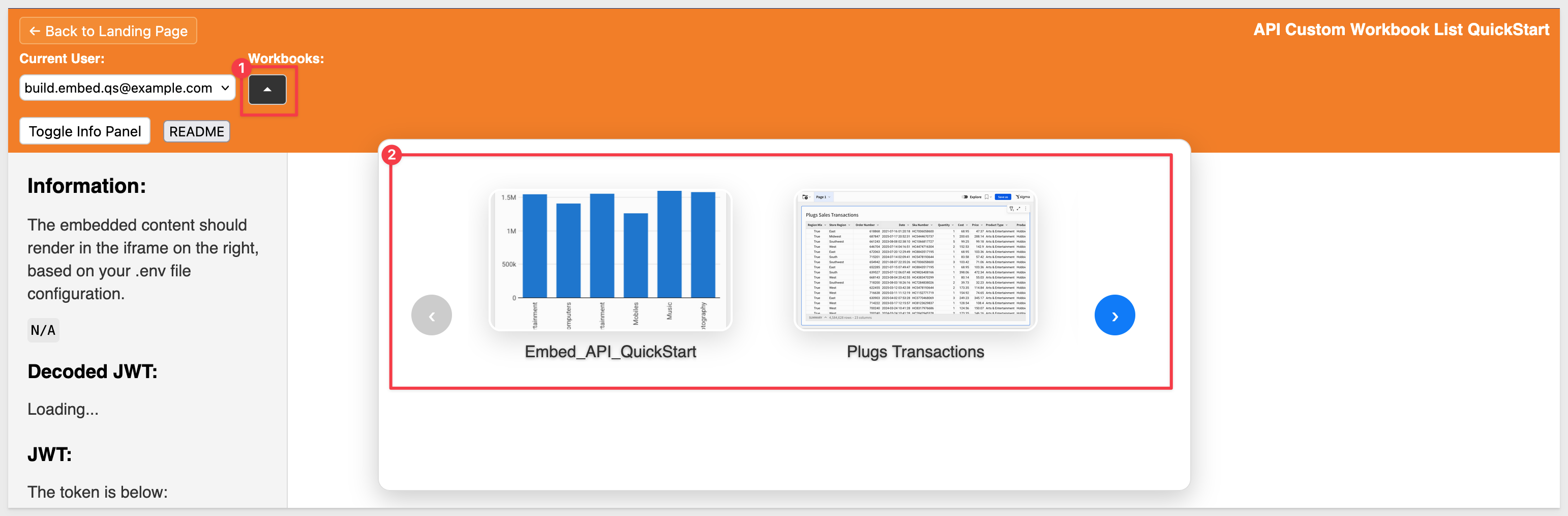
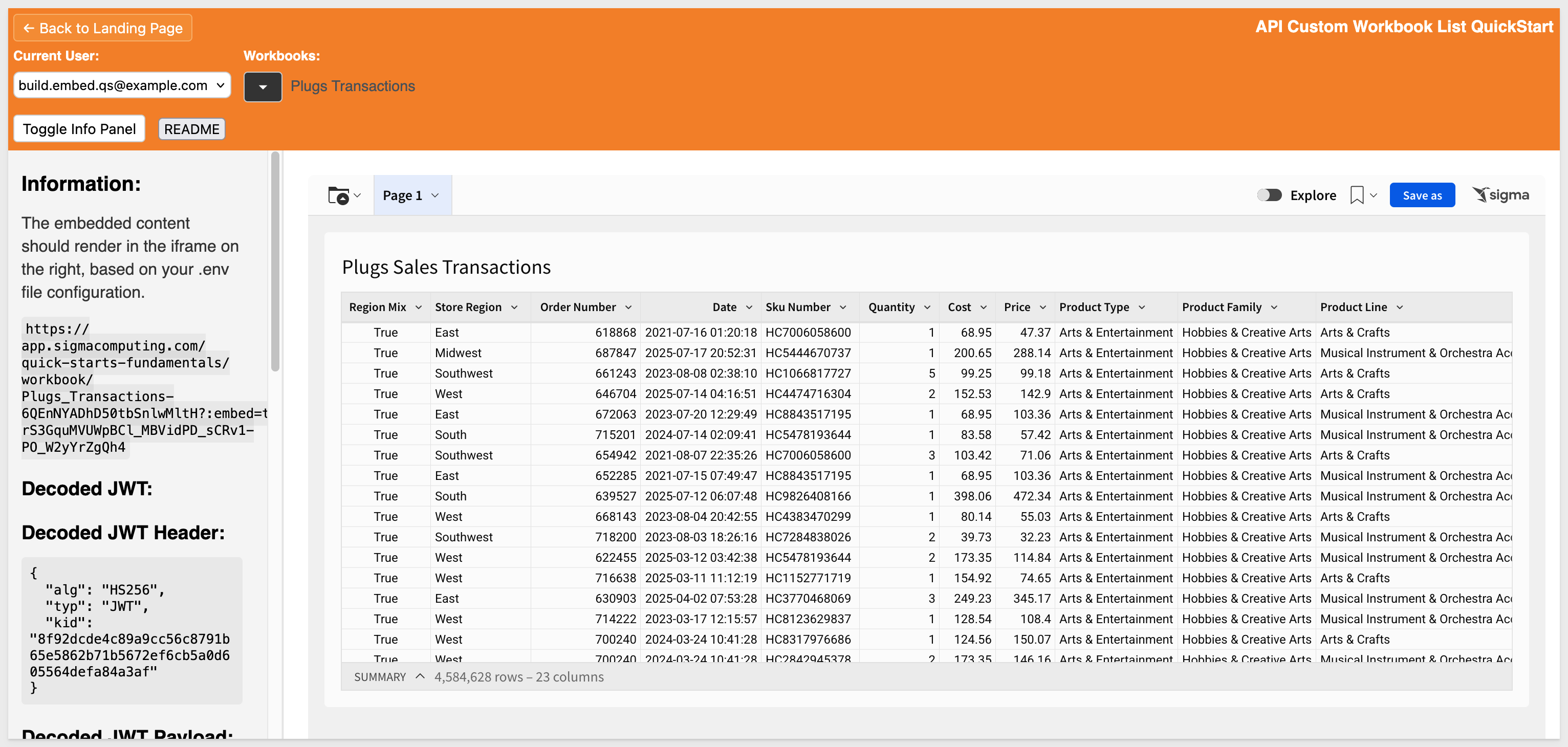
Scroll the carousel and click any workbook to load it:
Browser inspection
Using the browser console log, you can observe the sequence of events after selecting the Build user (mode):
For additional validation, you can test the List Workbooks endpoint in Postman:
For details on using Sigma's API with Postman, see the QuickStart: Sigma API with Postman
In this QuickStart, you learned how to create an interactive workbook selection experience using a carousel interface in an embedded Sigma application.
This design pattern provides a visually engaging and user-friendly way to browse and load embedded Sigma workbooks, while also highlighting best practices for secure content organization.
Additional Resource Links
Blog
Community
Help Center
QuickStarts
Be sure to check out all the latest developments at Sigma's First Friday Feature page!