Until now, a Sigma agent could only be reached from inside a Sigma workbook. This QuickStart shows how to call an agent over the REST API instead, so you can embed it in your own chat interface, trigger it from a scheduled job, or fold its output into another application entirely.
We will call a Sigma agent directly from a REST endpoint — get back a single JSON response, or a live stream of its reasoning and tool calls — without routing through a chat element or a workbook action.
Because these calls run against the same agent configuration you set up in the workbook, governance doesn't change just because the entry point does. Row-level security, the data sources the agent is allowed to query, and the tools it can use are all inherited automatically — there's no separate permission model to define or maintain just because the caller is your own application instead of a person in Sigma.
That inheritance is what makes a few patterns possible that weren't before: embed a Sigma agent inside your own product's chat interface instead of Sigma's, trigger one from a scheduled job to generate a recurring summary, or fold its answer into a pipeline that feeds another system — all without asking your Sigma admins to open up a second, API-specific set of permissions.
The API also carries over the same transparency Sigma Assistant shows in its own UI — you get the agent's reasoning and every tool call it made, not just a final answer — and adds a few things a real integration needs: streaming for a responsive interface, structured output for a predictable shape your code can consume directly, and the ability to pin calls to a tagged workbook version so dev, staging, and production behave consistently.
REST API Usage 01: Getting Started
For more information on Sigma's product release strategy, see Sigma product releases
If something doesn't work as expected, here's how to contact Sigma support
Target Audience
Developers who want to call a Sigma agent programmatically, outside of a workbook's chat element or action sequence.
Prerequisites
- Any modern browser will work.
- Access to your Sigma environment.
- Some familiarity with Sigma is assumed. Not all steps are shown, as the basics are assumed understood.
- Microsoft VSCode or other suitable development tool.
- REST API Usage 01: Getting Started completed, including a configured Sigma workspace and client credentials.
- An AI provider configured for your Sigma organization — required before any agent will run. See Configure an AI provider.

A Sigma agent doesn't need any special setup to be called over the API — the same agent you'd normally reach through a chat element works as-is. This section confirms you have one to call and explains what governs its behavior when the call comes from outside the workbook.
Confirm your AI provider
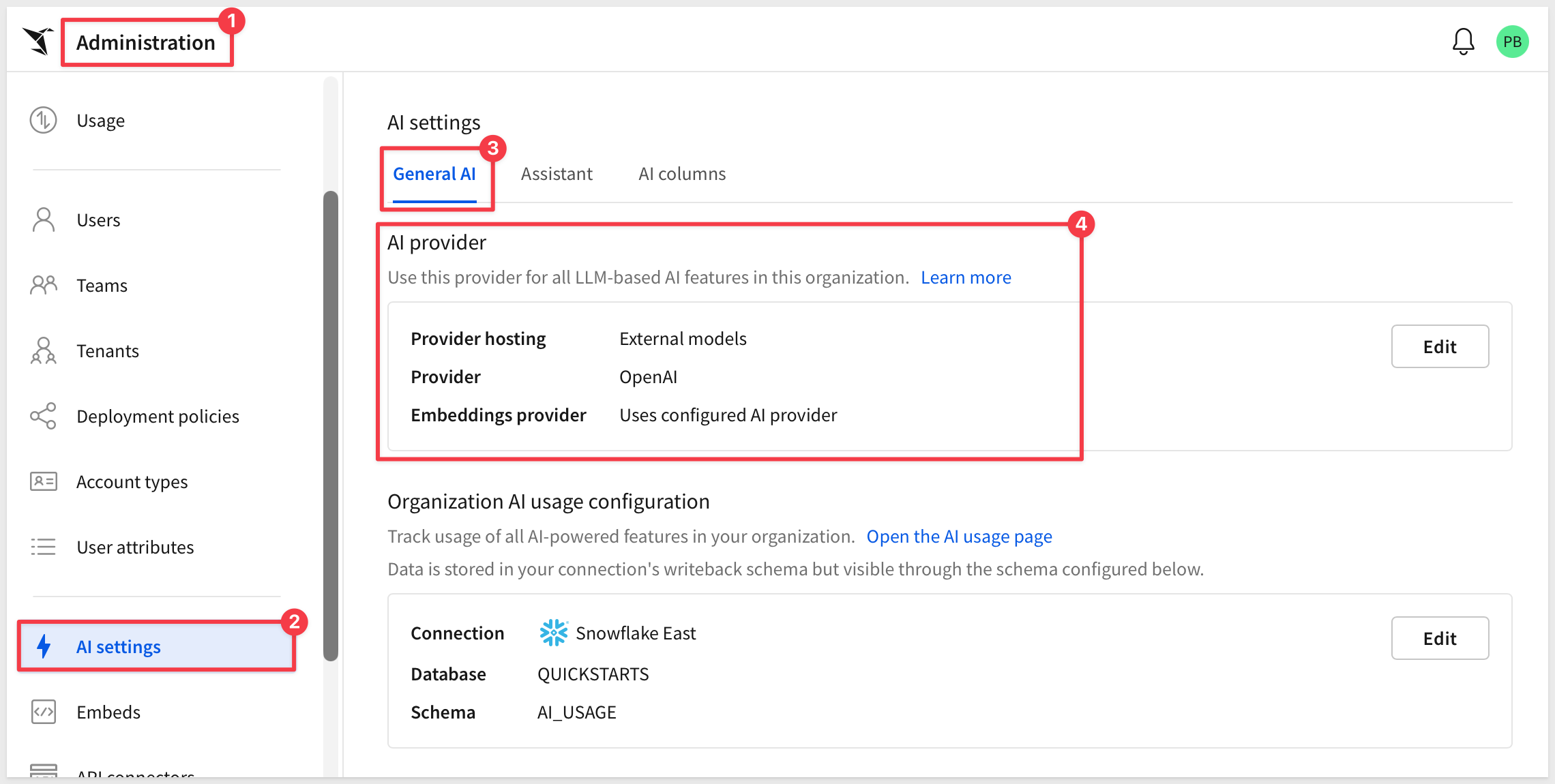
Before building an agent, confirm your organization has an AI provider configured — an agent can't run without one.
Log in to Sigma as an Administrator and navigate to Administration > AI settings. Under AI provider, confirm a Provider hosting option is selected.
Confirm or create an agent
Rather than reusing the shared Embed_API_QuickStart workbook from earlier in this series, create a dedicated workbook for this QuickStart so the agent's setup doesn't get tangled up with other REST API Usage examples.
In Sigma, click Create New > Workbook.
Click Save as, name it Agent API QuickStart, and save it in the Embed_Users workspace created earlier in this series:
Agent API QuickStart
Add a table to the workbook as a data source — any table from a connection you have access to works.
In the right panel, click the Agents tab.
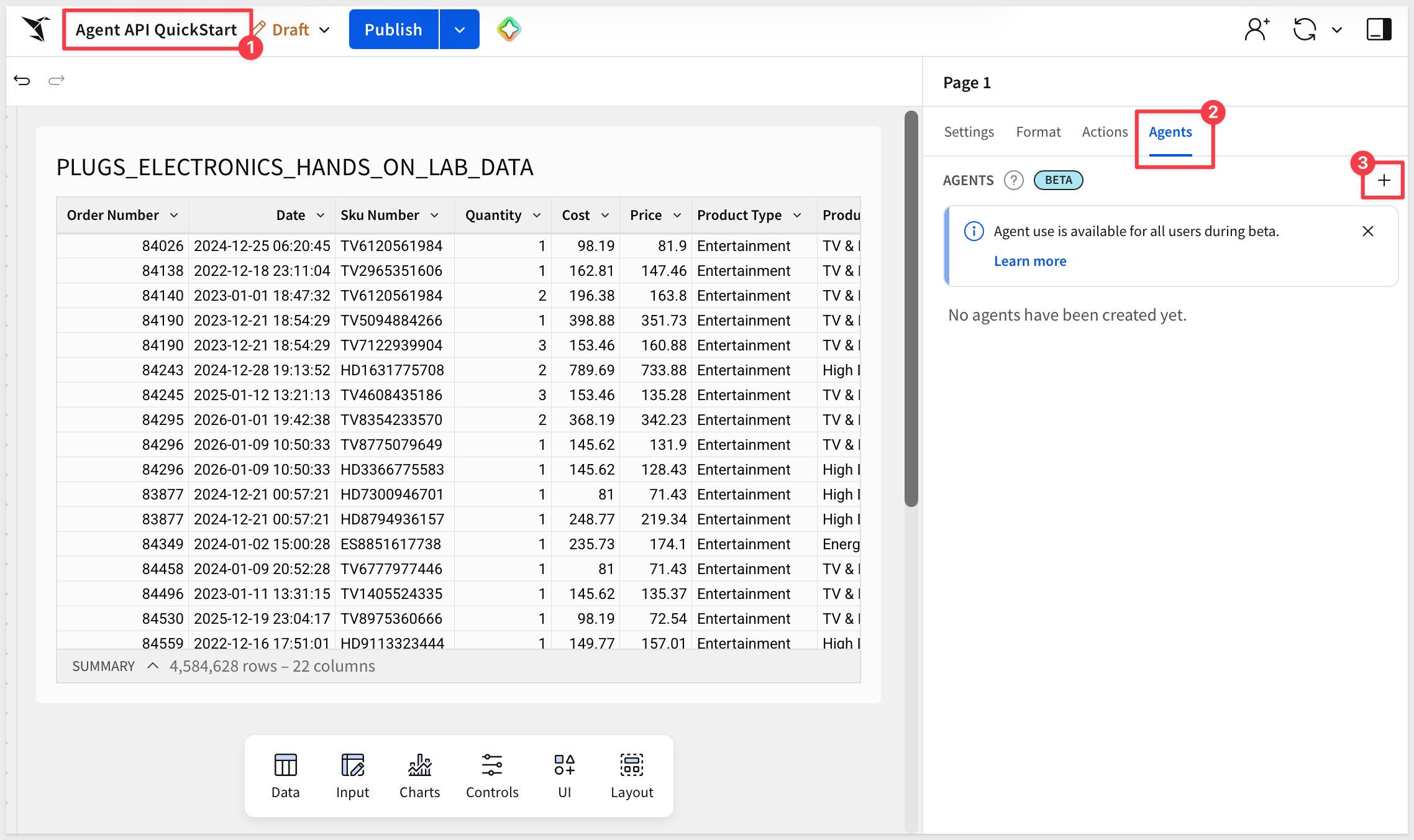
Click + to create a new agent. Double-click the default Agent 1 name and rename it to something descriptive:
Dataset Assistant
Point it at the table you just added as a data source, and add a short instruction such as:
You are a helpful data assistant. Answer questions using the data sources configured for this agent.
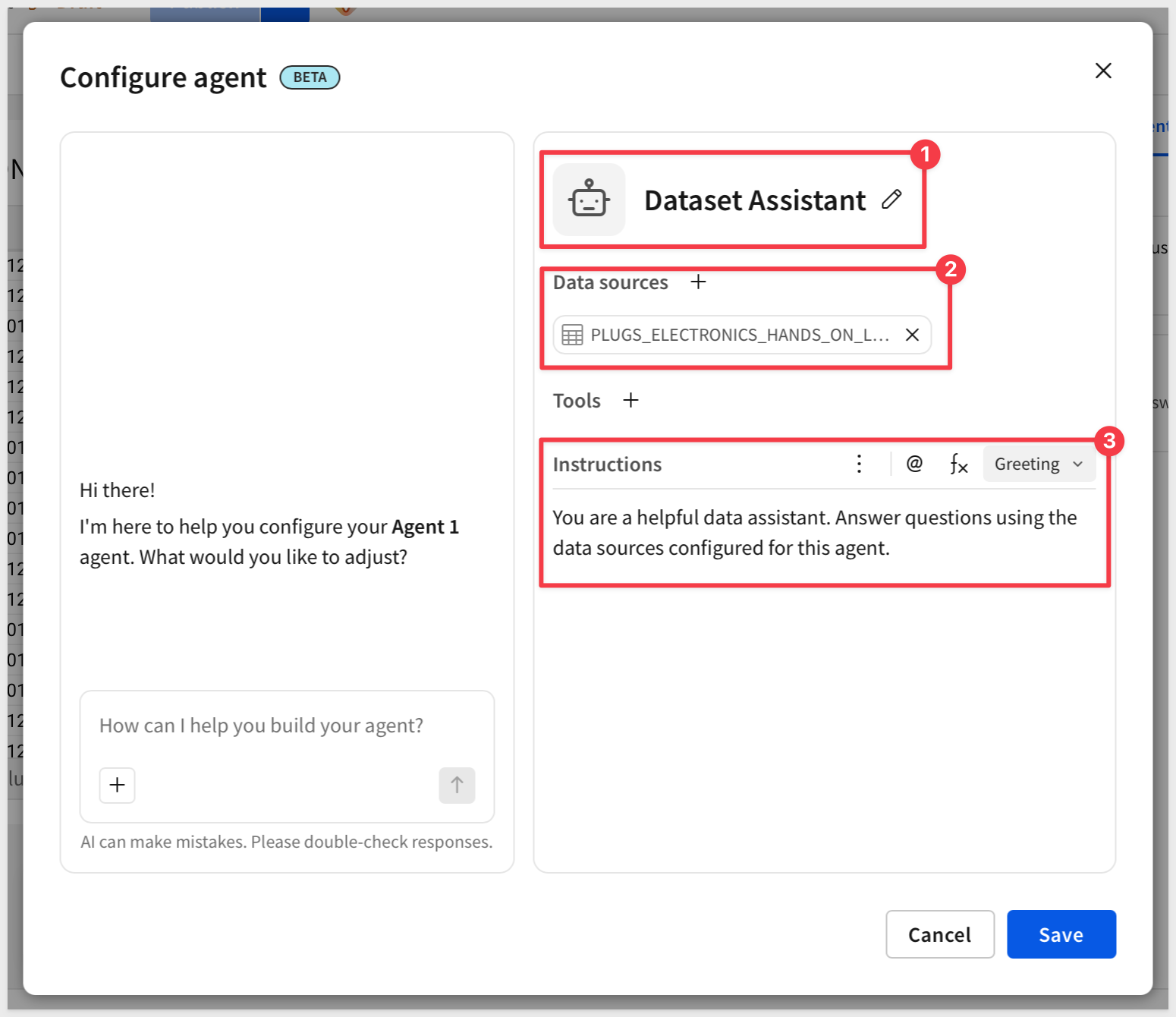
Click Save, then click Publish on the workbook.
How permissions carry over
An API call to an agent runs as the calling user, not as a service account. That means:
- Row-level security applies exactly as it would in the Sigma UI — a call made on behalf of a restricted user only sees what that user is allowed to see.
- Instructions, data sources, and tools are whatever you configured on the agent in the workbook. There's no separate API-only configuration to maintain.
With the agent in place, switch to the sample application to make the actual API calls. It uses the same project as the rest of this series, so a new page is all that's needed.
Start the Express server in terminal from the embedding_qs_series_2_api_use_cases folder:
npm start
The server is ready when it displays: Server listening at http://localhost:3000.
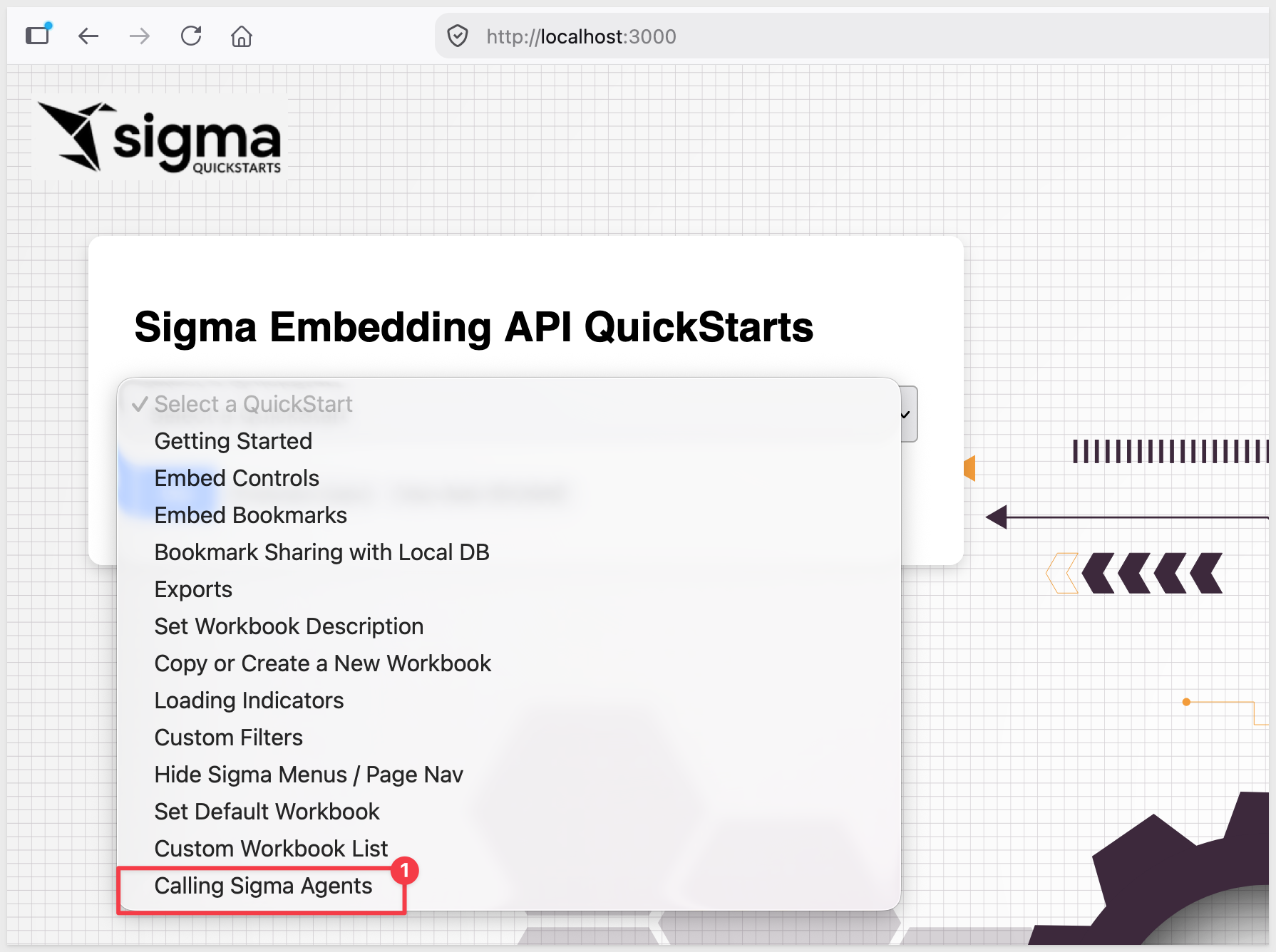
Browse to the landing page:
http://localhost:3000
Select the Calling Sigma Agents page and click Go.
Find an agent to call
Before calling an agent, you need its workbookId and agentId. Rather than hunting for these in the Sigma UI, the sample page calls two endpoints to look them up:
GET /v2/workbookAgentsreturns every agent you can access across the orgGET /v2/workbooks/{workbookId}/agentsreturns just the agents on a specific workbook
The page lists the results in a dropdown. Select the agent you configured in the previous section.
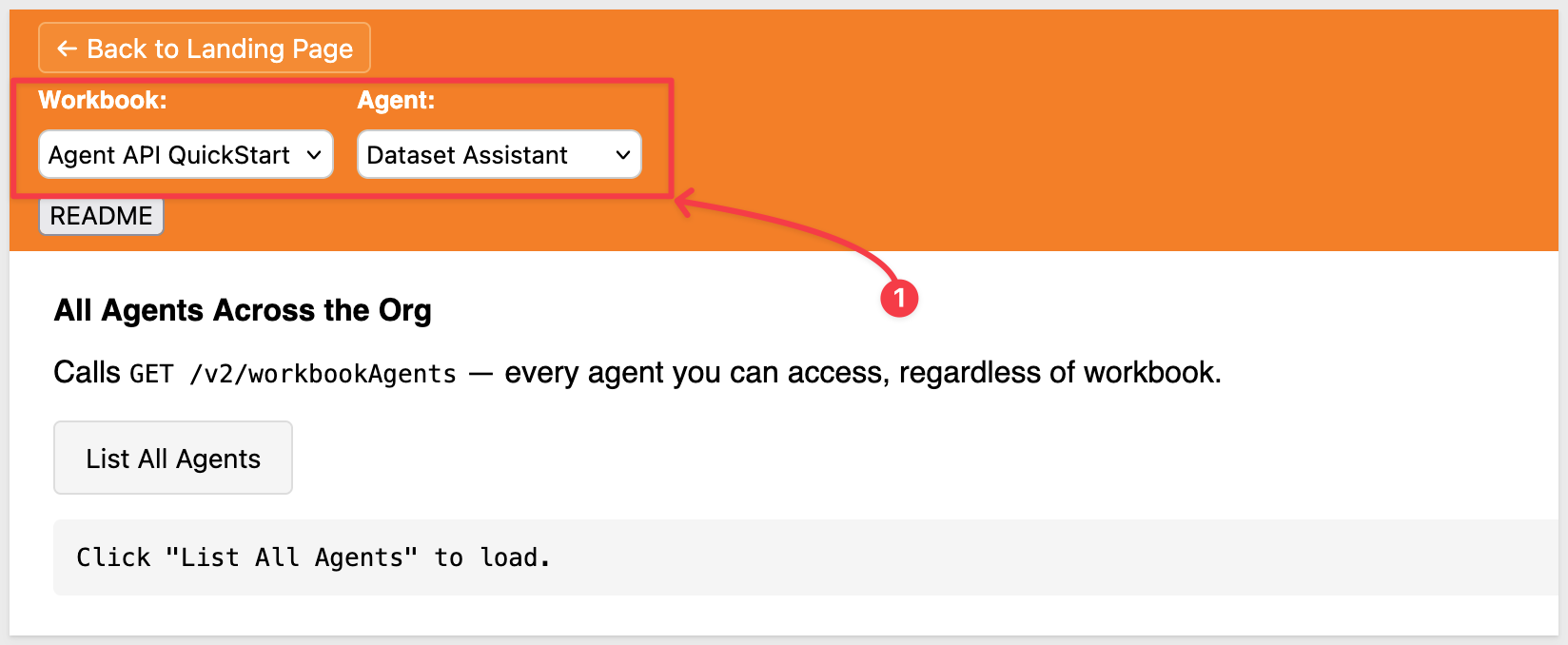
With a workbook and agent selected, you're ready to call it. We'll start with a single non-streaming call, then switch on streaming to see the difference.
The actual request
Underneath the UI, the sample app's backend makes a straightforward proxy call to Sigma — this is the part of the code that actually matters for this QuickStart:
// Non-streaming: one request, one JSON response
const response = await axios.post(url, req.body, { headers });
res.json(response.data);

// Streaming: same request, but the response is piped straight through
const upstream = await axios.post(url, req.body, {
  headers,
  responseType: "stream",
});
upstream.data.pipe(res);
url is {BASE_URL}/workbooks/{workbookId}/agents/{agentId}, headers carries the bearer token from client credentials, and req.body is whatever the caller sent — messages, stream, and responseFormat all pass through untouched. Everything else in the route (auth token handling, error responses) is in routes/api/agents.js, covered in the README.
Send a non-streaming message
We can use the default text in the Message box:
Summarize this dataset.
Leave Stream response unchecked and click Send.
The response comes back as a single JSON object once the agent finishes — but output isn't just the final answer, it's the agent's full multi-turn trace:
{
  "object": "agent.run",
  "runId": "...",
  "status": "completed",
  "output": [
    {
      "role": "assistant",
      "reasoning": "I want to get a sense of the data first...",
      "content": "I'll pull some summary statistics to describe this dataset.",
      "tool_calls": [
        { "id": "...", "type": "function", "function": { "name": "database_execute_query", "arguments": "..." } }
      ]
    },
    {
      "role": "tool",
      "tool_call_id": "...",
      "content": "# Query result...\n<table>...</table>"
    },
    {
      "role": "assistant",
      "content": "## Dataset Summary\n\nThis dataset covers 4.5M order-line records..."
    }
  ],
  "usage": {
    "turns": 2,
    "durationMs": 26638,
    "inputTokens": 15388,
    "outputTokens": 2066,
    "totalTokens": 17454
  },
  "workbookVersion": 4
}
Every step the agent took is in there: which query it decided to run and why (reasoning, tool_calls), the raw result that came back (role: "tool"), and its final written answer (the last role: "assistant" entry). That's the same transparency Sigma Assistant shows in the UI — reasoning, tool calls, and sources — just available as data instead of a chat transcript. For a simple display, take the last entry in output; for anything closer to a real chat UI, you'll want the intermediate steps too.
usage gives you enough to track cost and latency per call — the same data backing Sigma's AI usage dashboard, just scoped to this one request.
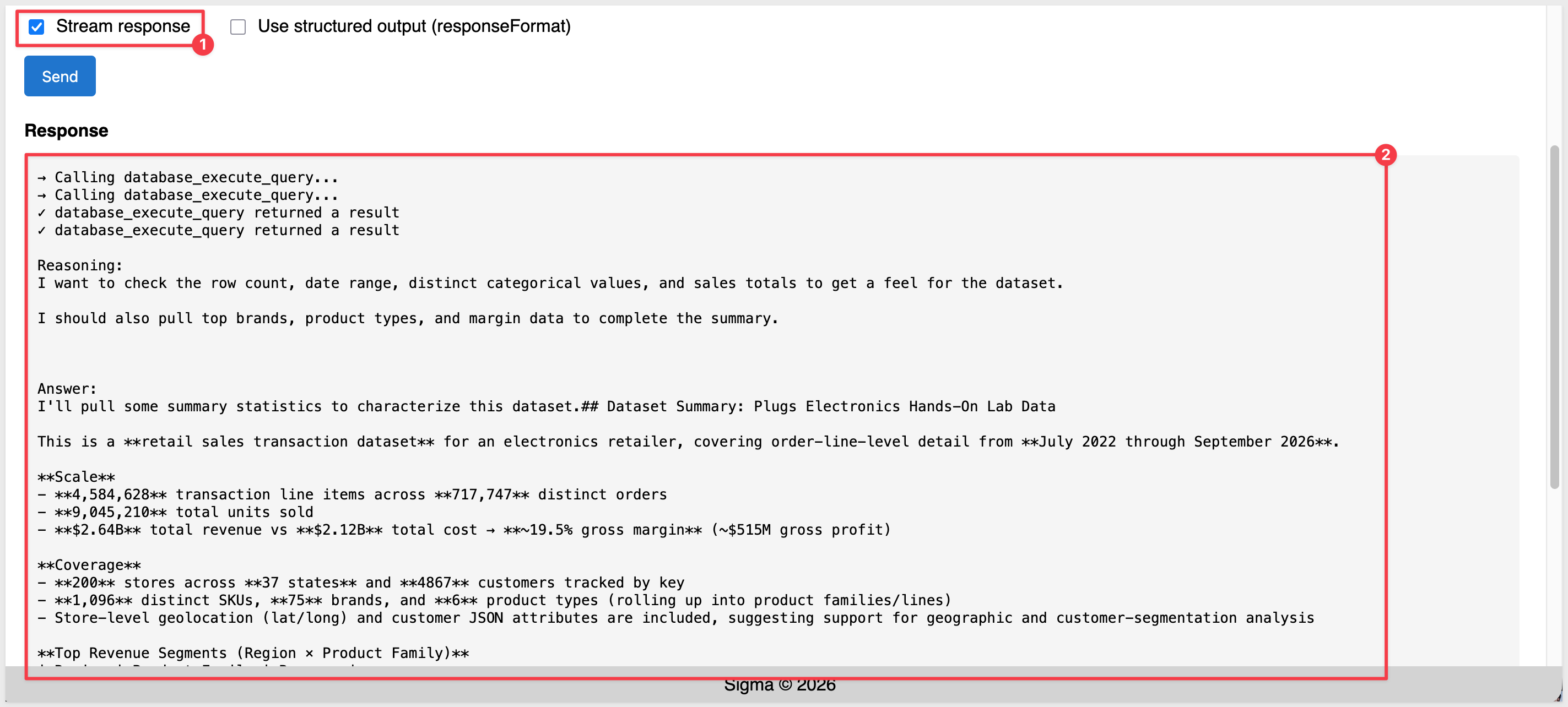
Stream the response
Check Stream response and click Send again, using the same message.
Instead of waiting for the full run to finish, the response arrives as a stream of server-sent events — one small JSON payload at a time:
event: text-delta
data: {"type":"text-delta","delta":"I","channel":"reasoning"}

event: tool-call
data: {"type":"tool-call","callId":"toolu_...","name":"database_execute_query"}

event: tool-result
data: {"type":"tool-result","callId":"toolu_...","name":"database_execute_query","output":"...","isError":false}

event: text-delta
data: {"type":"text-delta","delta":"## Dataset Summary","channel":"answer"}
Each event's data payload carries a type field telling you what to do with it:
text-delta— a chunk of text. Thechannelfield tells you which stream it belongs to:reasoningis the agent thinking through its approach,answeris the actual reply you'd show the user.tool-call— the agent has decided to call a tool (its arguments stream in separately viatool-call-args-deltaevents, chunked the same way as text).tool-result— the tool finished and returned its output.
The sample page parses this stream and renders it as a running activity log plus a live-growing answer, rather than showing the raw event text:
An agent's answer normally comes back as prose — great for a chat window, harder to drop into your own application's data model. responseFormat lets you ask for that same answer shaped as JSON matching a schema you provide, instead.
Request a JSON Schema
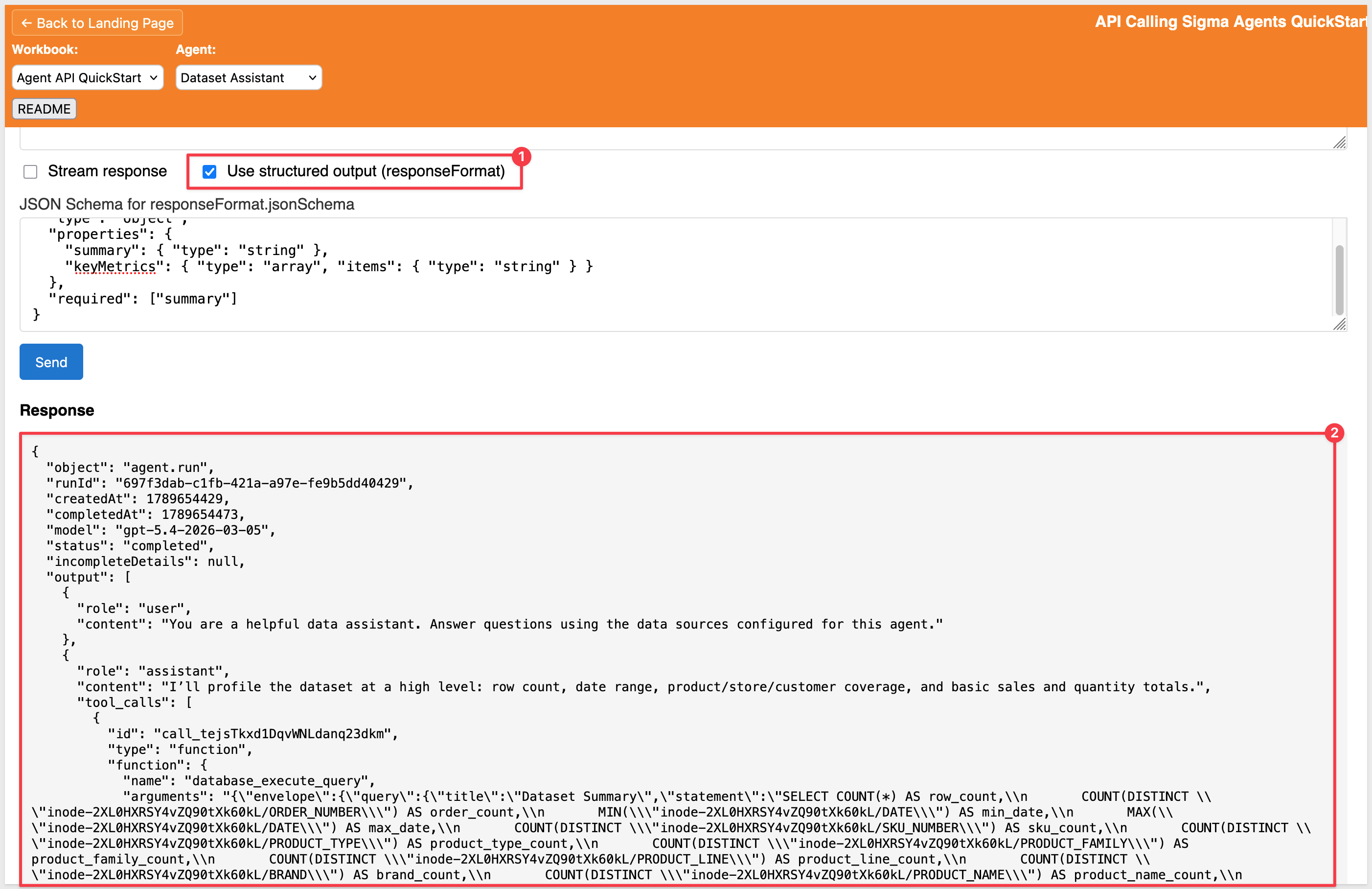
Check Use structured output (responseFormat). The sample page fills in a starter schema:
{
  "type": "object",
  "properties": {
    "summary": { "type": "string" },
    "keyMetrics": { "type": "array", "items": { "type": "string" } }
  },
  "required": ["summary"]
}
Click Send.
Alongside the usual output trace, the response now includes an outputParsed field shaped exactly like the schema:
{
  "outputParsed": {
    "summary": "High-level dataset summary: 4,584,628 rows and 717,747 orders spanning 2022-07-17 to 2026-09-15, with 1,096 SKUs across 6 product types...",
    "keyMetrics": [
      "Rows: 4,584,628",
      "Orders: 717,747",
      "Total revenue: 2,638,400,049.98",
      "Top product family by revenue: Hobbies & Creative Arts (731,746,615.28)"
    ]
  }
}
That's the difference responseFormat makes: instead of regex-ing an answer out of output's free text, you read outputParsed directly — the same shape every time, ready to hand to your own UI or downstream logic:
We took a Sigma agent that previously only lived inside a chat element or an action sequence, and turned it into a callable service — reachable from a script, a scheduled job, or an interface we built ourselves.
Core concepts
- List agents programmatically —
GET /v2/workbookAgentsandGET /v2/workbooks/{workbookId}/agentslet an application discover which agents it can call, rather than hardcoding IDs - Call an agent directly —
POST /v2/workbooks/{workbookId}/agents/{agentId}runs the agent and returns its full multi-turn trace: reasoning, tool calls, tool results, and a final answer - Stream the response — the same call, with
stream: true, delivers that trace incrementally as server-sent events instead of waiting for the full run to finish - Request structured output —
responseFormatreturns anoutputParsedobject matching a JSON Schema you define, instead of prose you'd have to parse yourself
Key takeaways
Permissions don't fork: An API call runs as the calling user, with the same row-level security, data sources, and tools configured on the agent in the workbook — no separate API-only permission model to maintain.
Transparency travels with the call: The same reasoning-and-tool-calls visibility Sigma Assistant shows in the UI is available as data over the API — useful for debugging, for building trust in a custom interface, or for logging what an agent actually did.
Structured output is what makes an agent usable inside other software: Prose is fine for a chat window. A JSON object matching a schema you defined is what lets an agent's output flow into your own application's data model without brittle text parsing.
Next steps
For building a conversational interface inside a Sigma workbook instead of a custom application, see Build Conversational AI Apps with Chat Elements and Snowflake Cortex
Additional Resource Links
Blog
Community
Help Center
QuickStarts
Be sure to check out all the latest developments at Sigma's First Friday Feature page!